

Where should you save that file? If your team asks this question every week, you’re not alone.
Most organizations treat SharePoint, OneDrive, and Teams like three competing options. They’re not. These tools work together as parts of one system.
But without clear rules, files end up scattered across all three with no logic behind it. You need a simple mental model for deciding where files belong, plus governance rules that make those decisions stick.
That’s how your team stops guessing and your data stays clean for Copilot.
They’re Not Competing Tools (The Simple Mental Model)
The biggest misconception in Microsoft 365 is that SharePoint, OneDrive, and Teams are interchangeable. In reality, each one serves a different purpose based on who needs the file.
Once your team understands that distinction, most file chaos disappears.
The “Me, We, Us” Rule
Think of your files in three categories based on audience. This one question solves most filing decisions: “Who needs this?”
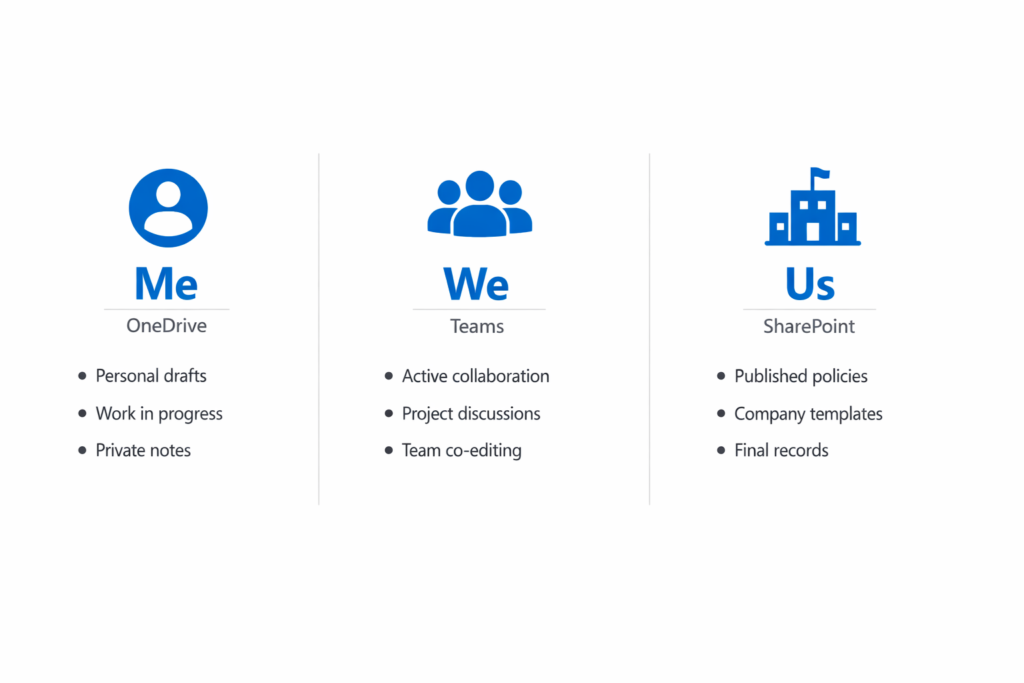
Basically:
- OneDrive = “Me.” Drafts, personal notes, rough ideas, and anything not ready to share. It’s your private workspace.
- Teams = “We.” Active collaboration with a specific group. Files that need discussion, co-editing, or project context.
- SharePoint = “Us.” Published policies, templates, brand assets, and final records. Content meant for the whole organization or content that must outlive any single project.
This model isn’t new. But in 2026, it matters more than ever because your AI tools depend on it.
When Copilot searches for answers, it follows your file structure. Clean organization means accurate AI responses. Chaos means the AI pulls from outdated drafts or surfaces wrong information.
Why This Matters More in 2026
Microsoft 365 Copilot reads your file structure to generate answers. Messy files lead to bad AI responses, outdated information surfacing in searches, and data showing up where it shouldn’t.
On top of that, Microsoft is retiring several legacy compliance features in April 2026:
- Information Management Policies
- In-Place Records Management
- Document deletion policies (deletion only)
- Policies for site closure and deletion (deletion only)
There’s no automatic migration to Microsoft Purview.
You need to manually reconfigure these policies before the deadline. Organizations that haven’t updated their governance approach face real legal and operational risk.
File chaos is no longer just an inconvenience. It’s a liability.
Sign up for exclusive updates, tips, and strategies
Where Files Actually Live (The Storage Truth)
Before you can fix file chaos, you need to understand how Microsoft 365 stores content behind the scenes. The answer surprises most people.
It changes how you think about governance.
OneDrive isn’t a separate product. It’s a personal SharePoint site collection assigned to each user.
Every OneDrive account maps to a URL like:
https://tenant-my.sharepoint.com/personal/user_domain_com
Teams files work the same way.
When someone uploads a file to a Teams channel, it lands in a SharePoint document library inside a folder named after that channel.
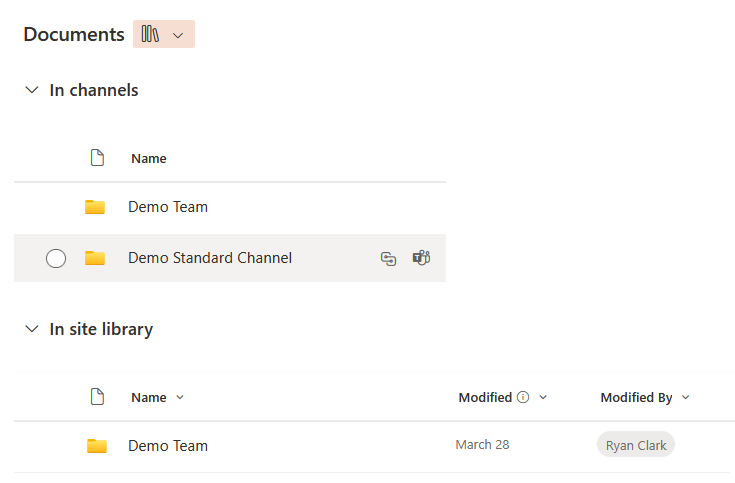
This means every governance policy you apply to SharePoint, like retention labels and sensitivity labels, automatically covers Teams files too.
Teams Channel Types Change Everything
Not all Teams channels store files in the same place. The channel type you choose has a direct impact on your SharePoint architecture and permissions.
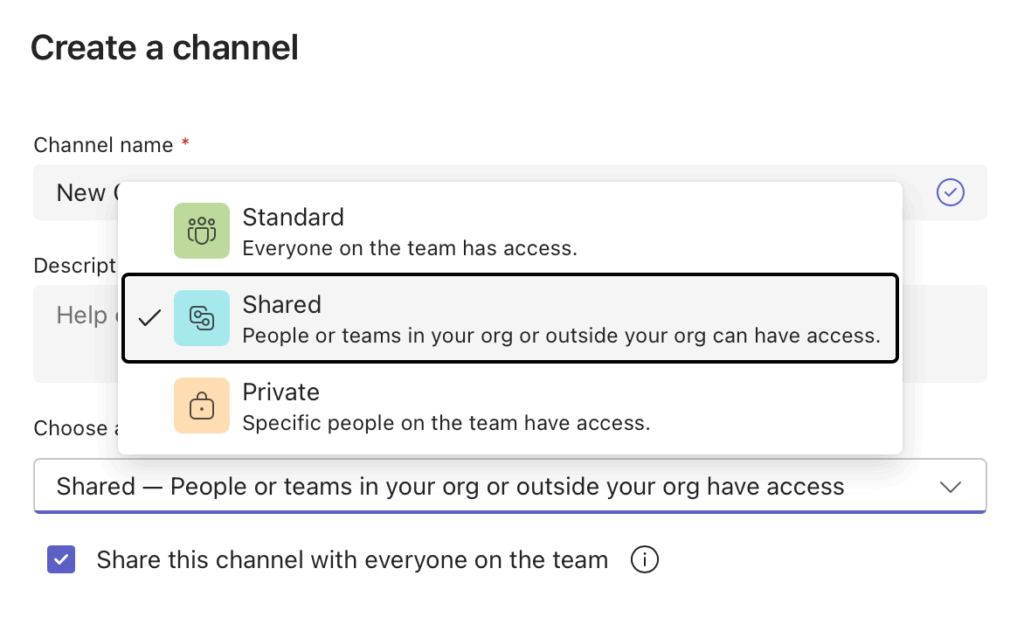
| Channel Type | Storage Location | Key Detail |
| Standard | Parent Team’s SharePoint site | Inherits permissions from the Team. Simplest structure. |
| Private | Separate SharePoint site | Creates a hidden site. Breaks permission inheritance from the parent. |
| Shared | Separate SharePoint site | Uses B2B Direct Connect. No guest accounts needed for external users. |
Here’s where it gets tricky: A single Team with 15 private channels actually creates 16 SharePoint sites: one parent site plus 15 separate ones.
Most admins don’t realize this because these sites are invisible in the Teams interface. Loop components add another layer.
A .loop file created in a Teams chat lives in the creator’s OneDrive. A Loop component created in a channel lives in that channel’s SharePoint site.
Either way, these files need the same retention policies as any other document.
Common Mistakes and the Business Impact
Knowing where files live only helps if people put them in the right place. Most organizations make the same three mistakes.
Each one now carries bigger consequences than it did a few years ago.
1. The Duplication Problem
When 15 copies of “Final_v2” exist across three Teams and five OneDrive accounts, no one knows which version is current. Humans can usually figure it out by checking dates or file paths.
Copilot can’t do that reliably. It often retrieves the version a user accessed most recently, even if that version is an outdated draft.
The result is AI-generated answers based on wrong information. Users trust those answers without checking.
2. The Deep Folder Trap
Folders deeper than two or three levels hurt search results and Copilot performance. The AI builds relationships between files using metadata and context signals.
A file buried inside 2019 > Projects > Archived > Old > Final gives Copilot almost nothing to work with. Deep folder paths also hit the 400-character URL limit in SharePoint.
When that happens, the OneDrive sync client breaks. Folders represent one person’s mental model of organization. Metadata works for everyone.
3. The Offboarding Risk
When an employee leaves, their OneDrive starts a deletion countdown. The default retention period is just 30 days, though you can extend it up to 10 years.
If business-critical files only exist in that person’s OneDrive, the team loses access unless someone intervenes quickly.
The rule is simple: if a file matters to the team, it doesn’t belong in OneDrive.
Decision Rules (What Goes Where)
Definitions are helpful, but your team needs rules they can follow without thinking. This section gives you a decision tree and department-specific examples you can share directly with staff.
The Quick Decision Tree
Use these “if/then” rules to decide where any file belongs:
- If the file is a personal draft or note → Save to OneDrive
- If the file needs team discussion or co-editing → Upload to the Teams channel
- If the file is a final policy, template, or company resource → Publish to a SharePoint communication site
- If external partners need access → Use a Teams shared channel (B2B Direct Connect)
- If the content must outlive the project team → Store in a SharePoint site with retention labels
- If it’s sensitive data (HR, legal, finance) → Use SharePoint with restricted access or a Teams private channel
Print these rules. Put them in your onboarding materials. The simpler you make the decision, the more likely people follow it.
Department Examples
Different teams face different filing challenges.
Here’s how the “Me, We, Us” model applies to four common departments:
- HR: Draft policies in OneDrive. Collaborate with the HR team in a private Team. Publish the final handbook on a SharePoint communication site.
- Marketing: Brainstorm campaign ideas in Teams using Loop components. Store brand assets (logos, templates, fonts) in a SharePoint Organization Asset Library. Collaborate with external agencies through shared channels.
- Finance: Co-author quarterly reports in a Teams standard channel. Store audit evidence in SharePoint with metadata extraction through SharePoint Premium. Restrict sensitive tax data to a private channel.
- IT/PMO: Provision new projects through a request app. Archive completed project sites to Microsoft 365 Archive to save storage and reduce search noise.
These aren’t suggestions. They’re patterns that prevent the duplication and access problems described earlier.
Governance That Makes the Rules Stick
Rules only work if the system enforces them. Relying on users to organize files consistently has never worked, and it won’t start working now.
The goal is to build governance into the provisioning process so good behavior happens automatically.
Stop Self-Service Chaos with a Request Model
Allowing anyone to click “Create Team” whenever they want is the fastest path to sprawl. Within two to three years, you end up with thousands of Teams.
Many of them are named “Test,” “Project X,” or “Marketing (Old).” The fix is a controlled provisioning model.
Here’s what that looks like:
- Disable the native “Create Team” button for end users.
- Replace it with a Power App or Microsoft Form connected to Power Automate.
- Enforce naming conventions automatically (e.g., PRJ-ProjectName, DEPT-Marketing).
- Require two owners minimum to prevent orphaned sites when someone leaves.
- Capture lifecycle intent at creation by asking: “How long do you need this?”
- Route sensitive or external-facing requests through an approval workflow.
This approach doesn’t slow people down. Low-impact requests can auto-provision instantly. Only high-impact requests (confidential, external) need approval.
Replace Folders with Metadata
Folders make sense to the person who created them. Metadata makes sense to everyone, including Copilot.
The practical approach is a hybrid, but with a strong push toward metadata:
- Keep folder structures flat: one to two levels maximum.
- Use the SharePoint Term Store for consistent enterprise-wide tags (Document Type, Customer, Year).
- Configure SharePoint Premium Autofill to populate metadata automatically when files are uploaded. No manual tagging required.
- Use “Group By” views to give users a folder-like experience without physical nesting.
SharePoint Premium Autofill is the key here. It removes the biggest barrier to metadata adoption, which is that people simply don’t do it manually.
The AI reads the document and fills in the tags automatically.
Lifecycle and Permissions
Governance doesn’t end at provisioning. You need ongoing lifecycle management to keep your environment clean.
- Set group expiration policies in Microsoft Entra ID (180 or 365 days of inactivity triggers a renewal notice to owners).
- Use SharePoint Advanced Management (SAM) for site attestation. Owners confirm the business need for their site every six months.
- Run Data Access Governance (DAG) reports to find overshared sites, especially those with “Everyone” access.
- Manage permissions at the site or container level, not on individual files or folders.
- Migrate legacy Information Management Policies and In-Place Records Management to Microsoft Purview before April 2026.
These aren’t optional steps if you’re preparing for Copilot. Overshared sites mean Copilot surfaces sensitive data to anyone with access.
DAG reports show you exactly where that risk exists.
Implementation Plan (Quick Wins and Long-Term Rollout)
You don’t need to fix everything at once. Start with the highest-impact actions in the first 30 days.
Then build toward a complete governance model over the following months.
First 30 Days
Focus on visibility and quick risk reduction:
- Run a DAG report to identify your most overshared sites.
- Enable Restricted SharePoint Search to limit Copilot’s scope to a curated list of approved sites. This is a temporary safety net while you fix permissions.
- Audit Teams for orphaned or duplicate groups. Look for common names like “Test,” “Old,” or unnamed sites.
- Set OneDrive retention to 10 years (3,650 days via PowerShell) to protect against offboarding data loss.
- Share the “Me, We, Us” rule with staff using a simple one-page guide.
These actions take minimal effort. They immediately reduce your biggest risks around data exposure and Copilot accuracy.
60–90 Days and Beyond
Once the quick wins are in place, shift to structural changes:
- Deploy the request-based provisioning model using Power Apps and Power Automate.
- Configure SharePoint Premium Autofill for high-volume libraries like contracts, invoices, and HR documents.
- Migrate all legacy retention policies to Microsoft Purview retention labels and disposition reviews.
- Move inactive sites to Microsoft 365 Archive to reduce storage costs and clean up the search index.
- Train site owners on their attestation and lifecycle responsibilities.
The provisioning model is the most important long-term investment. It prevents new chaos from forming while you clean up the old mess.
FAQ
Can I just use Teams for everything?
Teams is a collaboration layer, not a storage strategy. Every file you upload to Teams lands in a SharePoint document library.
Teams adds the conversation and meeting context around those files. But for published content, archived records, or anything meant for a broad audience, SharePoint sites give you the control and structure Teams doesn’t provide.
What happens to files when someone leaves?
Their OneDrive follows whatever retention policy you’ve set. The default is 30 days, which is dangerously short for most organizations.
Set it to 10 years for safety. More importantly, train managers to move business-critical files from the departing employee’s OneDrive to a SharePoint team site before or immediately after offboarding.
Should I stop using folders completely?
No. Folders still work well for syncing and for users who prefer visual browsing.
Keep them shallow though, no more than one to two levels deep. Use metadata columns and “Group By” views for everything else. This gives your users the folder experience without the architectural downsides.
What’s changing in April 2026?
Microsoft is retiring three legacy compliance features: Information Management Policies, In-Place Records Management, and Site Deletion Policies. There’s no automatic migration path.
You need to manually reconfigure these as Microsoft Purview retention labels and policies before the deadline.
Does Copilot see everything in my tenant?
Copilot respects existing permissions. It won’t show a user files they can’t already access.
But that’s exactly the problem.
If a sensitive HR document sits in a public team or a site with “Everyone except external users” access, Copilot surfaces that data to anyone who asks.
My advice – fix your permissions first, then enable Copilot.
What’s your biggest challenge right now: getting staff to follow the filing rules, or building the governance system that enforces them? Drop a comment below.
Need help implementing a governance model that actually sticks? I work with M365 teams on this every week. Reach out and let’s talk through your specific setup.





























Awesome 🙂
Exactly what I needed.
M
Excellent article, well laid out strategy and substantive recommendations