

Table of Contents:
Last Updated on May 14, 2025
Want to understand how both tools connect?
In this guide, let’s talk about file collaboration between SharePoint Online and Microsoft Teams.
Let’s get started.
Where do the files go?
When you share a file in Teams, you’re actually storing it in SharePoint or OneDrive, depending on the context.
Well, you won’t notice anything as it feels seamless in Teams, but there’s a smart structure behind the scenes.
Here’s the breakdown:
- Files shared in team channels go into SharePoint.
- Files shared in private chats are stored in OneDrive.
- Each channel has a folder in the connected SharePoint document library.
- Everyone in the team gets access to files in standard channels.
- Private channels have their own SharePoint site with unique permissions.
I may need to expound on this a bit…
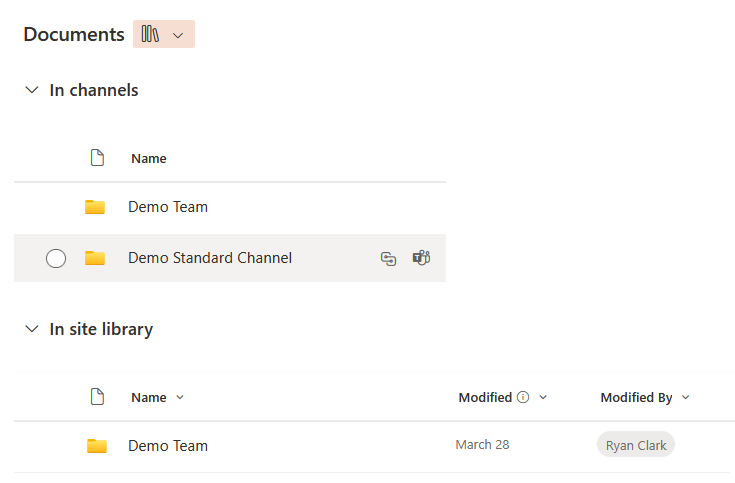
So files shared in standard channels are stored in the team’s SharePoint site, specifically within the documents library.
Each channel has its own folder in this library:
But private channels are different, they have their own separate SharePoint sites with distinct permissions.
Files shared in private channels are stored in the documents library of the associated private SharePoint site.
But you can also access that library from the documents library of the parent site:

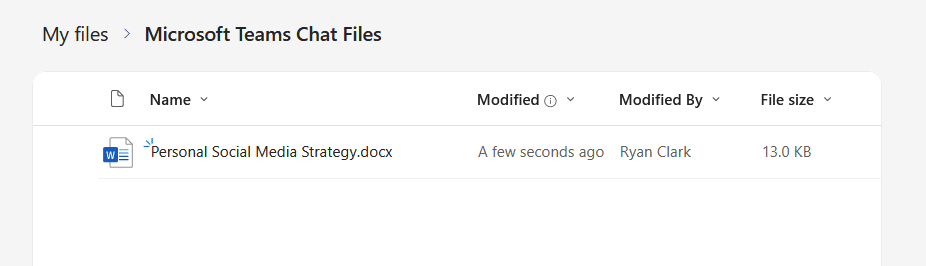
On the other hand, files shared in private chats (1:1 or group) are stored in the sender’s OneDrive for Business.
There will be a folder for “chat files” in Microsoft Teams, and recipients are granted access to these files automatically.
With this, files are organized and permissions are managed appropriately based on the context in which they’re shared.
This integration allows users to collaborate effectively without worrying about the underlying storage mechanics.
Sign up for exclusive updates, tips, and strategies
When you work in Teams, you’re mostly interacting with a simplified interface.
But behind it, SharePoint powers the document management (but the features still show up right inside Teams).
Here are some examples:
| Feature | How It Works in Teams | Backed by SharePoint |
| Version History | Open a file in Teams, click the three dots to view version history. | Version control is managed through SharePoint’s document library. |
| Permissions | Share files with specific people or set access limits in Teams. | Permissions are handled via SharePoint’s access controls. |
| Co-authoring | Edit documents with teammates in real-time directly from Teams. | Real-time collaboration is enabled by SharePoint and Office Online. |
| Metadata | Teams users can benefit from organized files if metadata is already set. | Metadata fields are created and managed in SharePoint. |
| Microsoft 365 Integration | Use Teams to link files to Planner, Outlook, or automate tasks. | SharePoint stores the files, which integrate with other Microsoft 365 tools. |
Using these features makes collaboration smoother. 🙂
You will waste less time looking for files, avoid duplicate versions, and keep sensitive info under control.
The best part is, your team doesn’t need extra software, just a bit of awareness and some consistent habits.
Common Challenges and Solutions
Unfortunately, even with a solid setup, some issues still come up.
They’re usually simple to fix, but they can slow people down if no one knows what to do, so it’s good to be aware of them.
Here are some of the issues:
| Issue | What Happens | Solution |
| Sync issues across devices | Files may not appear or take too long to update. | Ensure OneDrive is running and syncing; check your internet connection. |
| Access errors and permission mix-ups | Users can’t open or edit shared files. | Adjust permissions in SharePoint or re-share files in Teams. |
| Files getting lost or duplicated | Disorganized folders or duplicate file names cause confusion. | Use naming rules and folder structures; encourage checking before uploads. |
| Confusion between OneDrive and SharePoint | Users don’t know where files are stored. | Teach the rule: chats = OneDrive, channels = SharePoint. |
| Broken links or missing files | Links stop working after files are moved. | Avoid moving files; if needed, update links in Teams manually. |
Most of the time, the problem isn’t the tool; it’s knowing how to use it right.
A little team training can go a long way, helping everyone avoid mistakes and understand where files live. 👍
Help Your Team to Use It Right
A few simple habits can make Teams and SharePoint much easier for everyone to manage.
For example, encourage the users to use folders wisely, as having a little structure keeps things from turning into a mess.
You can also teach them how to manage access, like really show people how to check who can view or edit a file.
The best is to make short guides or training sessions, even a 10-minute walkthrough, can prevent weeks of confusion.
Anyway, do you have questions about the file collaboration of Teams and SharePoint? Let me know.
For any business-related queries or concerns, contact me through the contact form. I always reply. 🙂




























