
Table of Contents:
- Why SharePoint and Teams Are the Right Foundation
- The ROI Case: What the Data Says
- Use Case 1: Document Management and Summarization
- Use Case 2: Meeting Intelligence in Teams
- Use Case 3: Knowledge Retrieval Across the Organization
- Use Case 4: Content Creation and Drafting
- Use Case 5: Agentic Workflows and What Comes Next
- What Separates a Good Deployment from a Wasted License
- Start Where the Work Already Lives
You’ve got the license. Now you need to know where to point it.
Organizations are deploying Microsoft 365 Copilot right now. The real question they’re asking isn’t “what can Copilot do?” It’s “where does it actually deliver for us?”
Copilot is a productivity layer that sits on top of SharePoint, Teams, and your other Microsoft 365 services. It works best where your actual work already happens: in documents, meetings, and team channels.
Let’s walk through the workflows where Copilot delivers measurable value. You’ll see real case studies, concrete ROI numbers, and what separates a successful deployment from a wasted license.
Copilot doesn’t create value out of thin air. It works with what you already have.
Your organization lives in SharePoint and Teams. Documents, meetings, chat threads, approvals, and knowledge all sit there.
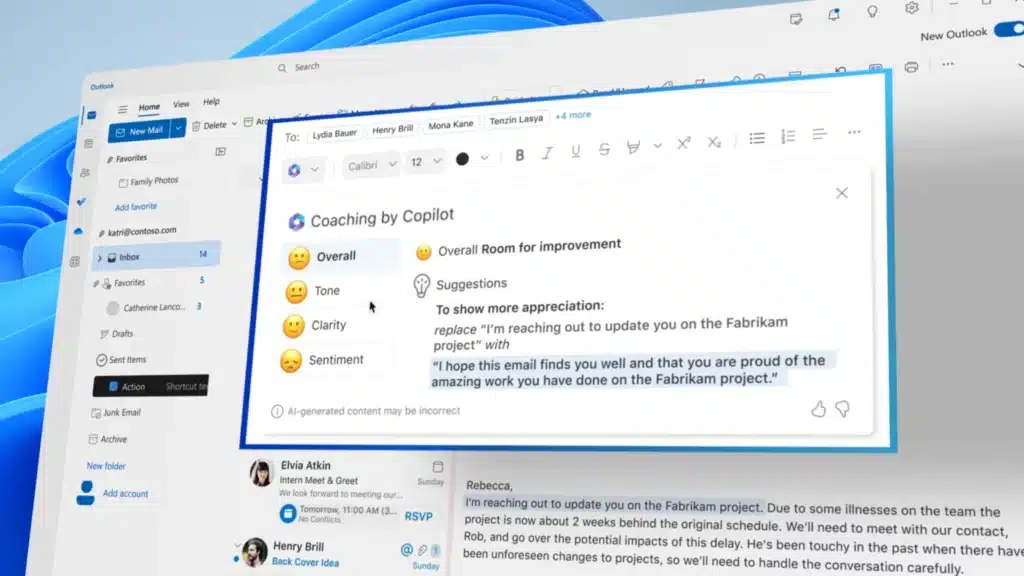
Copilot connects to that data and surfaces answers in plain language.
A finance team can ask about quarterly results without digging through six nested folders. A new employee can ask about company policy and get an accurate answer in seconds.
There’s an important catch, though: Copilot’s output is only as good as your data. Stale documents, duplicate files, and missing metadata produce poor answers.
Organizations that see the best results have already invested in clean SharePoint libraries and permissions that make sense. For organizations that aren’t there yet, restricted search limits Copilot’s scope to verified, curated content only.
Sign up for exclusive updates, tips, and strategies
The ROI Case: What the Data Says
Here’s what early deployments are showing:
- 353% ROI over three years for mid-sized organizations (Forrester study commissioned by Microsoft)
- Approximately 9 hours saved per user per month by automating routine reporting and documentation (Microsoft research)
- 70% of users report improved productivity (Microsoft Work Trend Index)
- 68% say Copilot improves work quality (Microsoft Work Trend Index)
- 20% reduction in operating costs in enterprise deployments (Microsoft case studies)
- 25% acceleration in new-hire onboarding (Microsoft research)
These numbers don’t happen by accident. They come from targeted deployment against specific workflow problems.
Focus Copilot on the workflows that hurt most, and the numbers follow. Deploy it everywhere without a plan, and you get adoption without impact.
Use Case 1: Document Management and Summarization
The problem:
Your team spends too much time reading long documents and synthesizing them into summaries for leadership. It’s necessary work, but it’s not work that makes your company money.
Copilot changes how your team handles document-heavy work. Here’s what it does and what to keep in mind:
What Copilot Does
Copilot summarizes documents in seconds. Ask it to pull out key risks from a contract, financial metrics from a quarterly report, or decisions required from a proposal.
The answer comes back in plain language, scoped to what matters.
Try a prompt like this:
Summarize this document and list the top three decisions required.
SharePoint Agents make this even easier. Every SharePoint site now has a built-in agent that’s automatically scoped to that site’s content.
A user can open their departmental site, ask Copilot a question, and get an answer based only on files in that site. No IT configuration required.
At Quilter, a wealth management firm, a data review process that previously took multiple days was reduced to 10 minutes using Copilot. Nice!
What to Watch
Copilot works best with good metadata.
A document titled “Report_Final_v3_FINAL_ACTUAL.docx” gives Copilot less to work with than a properly named file with tags and metadata.
The better your SharePoint organization, the better your results. Organizations that see the strongest results have spent time cleaning up their libraries first.
Use Case 2: Meeting Intelligence in Teams
The problem:
Meetings generate information that gets lost. Action items get assigned verbally and forgotten, follow-up emails are late, and the value of the meeting doesn’t make it out of the room.
Teams Copilot turns that around. Here’s what it covers and what needs to be in place first:
What Copilot Does
Copilot captures meetings in Teams and turns them into actionable intelligence. It generates a meeting summary automatically, pulls out action items, and assigns them.
If someone joins late, they can ask “What did I miss?” and get a real-time summary. Copilot also drafts follow-up emails and connects action items back to relevant SharePoint documents and Teams channels.
A meeting about a document review no longer ends with “someone will send a summary later.” The summary is there and the action items are populated.
Try a prompt like this:
What were the action items from today's meeting and who owns each one?
What to Watch
This works only if meeting transcription is enabled and governed. Copilot needs the transcript to work from.
Organizations that see the best results have clear policies about who can enable transcription and where recordings are stored. It’s not complicated, but it matters.
Use Case 3: Knowledge Retrieval Across the Organization
The problem:
Information exists somewhere in your organization, but finding it is the real challenge.
Policies, project decisions, and technical specs are scattered across documents, email threads, and Teams channels, and most of the time people waste hours tracking them down.
Copilot makes the organization’s knowledge findable. The CELA example shows what that looks like at scale.
What Copilot Does
Copilot searches across your entire Microsoft 365 tenant and surfaces answers in plain language. Ask about a policy, a past project decision, or a client contact, and it explains the answer back to you.
Microsoft’s legal team (CELA) deployed a SharePoint Agent for legal policy retrieval. The result: 100% accuracy and answers 2.97x faster than before.
Users went from manually searching a repository to asking a natural language question and getting an accurate answer in seconds.
Try a prompt like this:
What’s our current policy on contractor onboarding?
What to Watch
For organizations not fully confident in their governance structure, Restricted Search is the safe entry point. It limits Copilot’s scope to a curated subset of verified SharePoint content.
This approach gives you AI-powered search without the risk of surfacing files users technically have access to but shouldn’t be finding.
Use Case 4: Content Creation and Drafting
The problem:
Drafting takes time, whether it’s synthesizing data into a report, writing post-meeting communications, or documenting a process. It’s necessary work, but the first draft is always the bottleneck.
Copilot removes that bottleneck. These cases from BCI and Siemens show the scale of what’s possible.
What Copilot Does
Copilot drafts content grounded in your existing SharePoint data. Give it a topic and a document library, and it creates a first draft from what’s already there.
Try a prompt like this:
Draft a summary of this quarter's results based on the files in this library.
BCI, a financial services firm, used Copilot to synthesize quarterly reports and communications. The result: 2,300 hours saved and a 10% to 20% productivity gain.
At Siemens, a team built a Teams application on top of Copilot that converts spoken problem reports into structured engineering tickets. The system routes each ticket to the correct global expert in their native language.
A workflow that took days now runs in minutes.
What to Watch
Copilot drafts based on what’s in your SharePoint. Bad data produces bad drafts. Clean, well-organized libraries produce drafts that need only light editing.
Use Case 5: Agentic Workflows and What Comes Next
This is where Copilot is heading in 2026 and beyond.
Today, Copilot mostly answers single questions: you ask, and it responds. Agentic workflows are different.
An agent takes a goal, breaks it into multiple steps, executes those steps, and reports back.
An agent could scan a document, pull out action items, create tasks in Planner, and notify the relevant people, all without a human doing each step.
Copilot Studio is Microsoft’s no-code tool for building custom agents. You don’t need a developer to set one up.
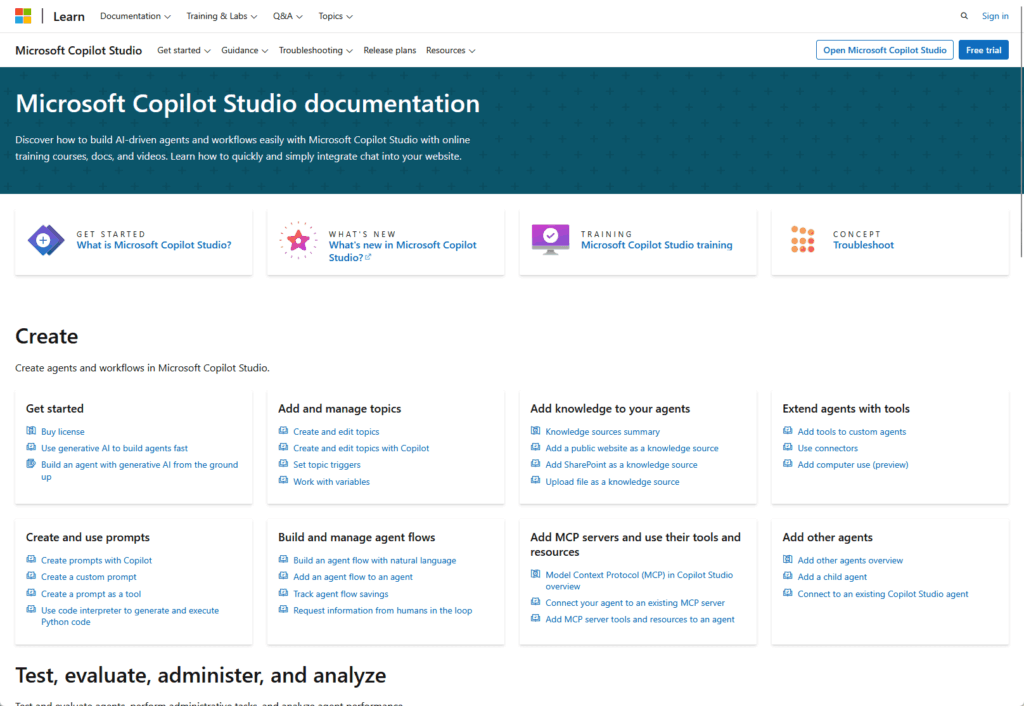
Define the steps, connect them to your SharePoint libraries and Teams channels, and the agent runs. Every SharePoint site now has an embedded agent already in place as early as 2025, and custom agents go further.
Organizations that start building agent infrastructure now will have a meaningful advantage today. They’ll already understand how to structure their data and govern their agents.
What Separates a Good Deployment from a Wasted License
Not all Copilot deployments succeed. The ones that work have one thing in common: they prepared properly.
Organizations getting the best results share these characteristics:
- Clean data: No duplicate files, no stale documents, consistent naming and metadata throughout SharePoint
- Clear permissions: Users have access to what they need, nothing more. Audit access before enabling Copilot.
- Restricted Search as a starting point: For organizations unsure about governance, limit Copilot’s scope first
- The right licensing: Copilot requires the appropriate license tier. Confirm your current setup.
- Change management: Employees need to learn how to prompt effectively. Training and adoption support matter.
- Governance policies: Set rules around transcription, recording storage, and agent creation before problems occur.
The organizations seeing strong ROI aren’t the ones who deployed fastest. They’re the ones who prepared properly.
Getting the foundation right, which means clean SharePoint, audited permissions, and clear governance, is what makes those ROI numbers real.
Start Where the Work Already Lives
Pick two or three of these use cases that match your biggest workflow pain points. Start there and measure the impact before scaling further.
Make sure your SharePoint is ready before you deploy. Clean libraries, clear governance, and organized content are the foundation that makes Copilot work.
If that foundation isn’t in place, a SharePoint consultant can help you get there. That investment pays off before you flip the switch.
What’s your biggest blocker right now: getting Copilot licensed and deployed, or cleaning up the SharePoint foundation it needs to actually work? Drop a comment below.
Need help getting your M365 environment Copilot-ready? I work with organizations on this every week. Reach out and let’s talk through your specific setup.




























