
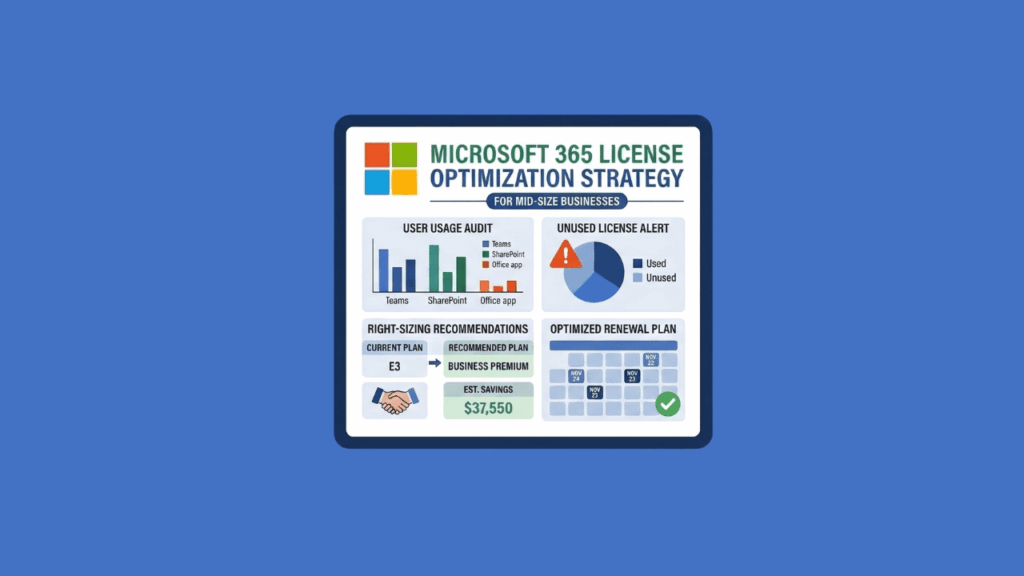
Microsoft is raising M365 prices on July 1, 2026:
- Business Basic: +16.7%
- M365 E3: +8.3% ($36 → $39/user/month)
- M365 E5: +5.3% ($57 → $60/user/month)
- Frontline F3: +25%
If you have 500 employees on M365, this isn’t pocket change.
Most mid-size organizations are already overpaying before the hike even hits. 56% of enterprise M365 licenses are inactive, underutilized, oversized, or simply unassigned.
Organizations waste 20-35% of their M365 budget on licenses people don’t need. That’s real money leaving your budget every month for software nobody uses.
Table of Contents:
- The M365 License Waste Problem Mid-Size Businesses Can’t Afford to Ignore
- Strategy 1: Run a Full License Usage Audit Before Your Next Renewal
- Strategy 2: Right-Size Licenses by User Role
- Strategy 3: Convert Inactive Accounts to Shared Mailboxes
- Strategy 4: Know What Microsoft’s Native Tools Can (and Can’t) Do
- Strategy 5: Time Your Renewal to Beat the July 2026 Price Hike
- Strategy 6: Build License Governance So This Doesn’t Happen Again
- The Window Is Real. The Work Is Doable.
The M365 License Waste Problem Mid-Size Businesses Can’t Afford to Ignore
That 56% figure is worth sitting with. More than half of all M365 licenses fall into one of these categories:
- Inactive: assigned to users who haven’t logged in for 30+ days
- Unassigned: paid for and sitting completely idle
- Oversized: E3 or E5 assigned to users who only need email and Teams
- Unused add-ons: Power BI, Visio, and Project licenses nobody opened (~11% on average)
For a 500-person org, that adds up to 20–35% of your M365 budget going nowhere every month. Mid-size teams are particularly exposed. Enterprise IT runs formal quarterly audits. Smaller shops stay lean.
Mid-size organizations sit in the uncomfortable middle: too big to ignore the problem, too stretched to fix it systematically.
The July price increase makes every wasted dollar more expensive. Now is the time to act.
Sign up for exclusive updates, tips, and strategies
Strategy 1: Run a Full License Usage Audit Before Your Next Renewal
Start here. You can’t optimize what you don’t see.
A license audit answers four basic questions:
- Who has licenses assigned?
- Which licenses are actually being used?
- Which users are inactive or role-changed?
- Which add-ons are dead weight?
You need answers before you make any moves.
Open your Microsoft 365 Admin Center. Go to Reports > Usage, then Billing > Licenses.
No cost, already in your toolbox.
Here’s what you’re looking for:
| Issue | What It Means | Action |
|---|---|---|
| Unassigned licenses | Paid for, nobody using them | Reclaim immediately |
| Inactive users (30+ days no activity) | Likely departed or role-changed | Verify and reclaim |
| Over-provisioned users | E3/E5 assigned to email-only workers | Candidate for downgrade |
| Unused add-ons (Power BI, Visio, Project) | Sitting idle in your budget | Cut them |
One important limitation: the Admin Center’s “last activity” metric is deceptive. It usually means “last login,” not “uses Teams calling, Purview, or Defender.”
The admin center’s last-activity data often tracks authentication events, not real feature usage. A user looks active because they logged in yesterday, but they only check email.
If you have 200 or more users, or your role mix is complex, third-party tools are worth considering. CoreView, SysKit, CloudNuro, AdminDroid, and ManageEngine M365 Manager Plus all provide deeper feature-level usage data.
They cost money, but they save more than they cost on projects this size.
Strategy 2: Right-Size Licenses by User Role
The default mistake: assign the same tier to everyone. Finance gets E3. Marketing gets E3. Your part-time receptionist gets E3.
Consistency feels fair, but it’s expensive.
Role-based licensing matches the license to the actual job function. Most organizations have three tiers worth considering:
| User Role | Example Positions | Recommended License | Monthly Cost (Approx.) |
|---|---|---|---|
| Power users | IT, finance, HR, legal, management | M365 E3 or Business Premium | $22-$36 |
| Knowledge workers | Marketing, operations, sales, admin | M365 Business Standard | $12-$13 |
| Frontline/field workers | Manufacturing, retail, logistics, field operations | M365 F1 or F3 | $2-$8 |
The honest question: who actually needs a $36-per-month license? Who just needs Teams and email?
The receptionist handling calls. The warehouse manager on the floor all day. The cashier at your retail location.
Up to 38% of users in a typical organization could move to a lighter tier without losing what they actually use.
One distinction worth understanding on frontline licenses:
F1 and F3 are both designed for workers not at a desk all day. F3 adds deeper compliance, audit, and data protection capabilities.
The chart below (from M365 Maps) shows what’s actually included in each license tier:
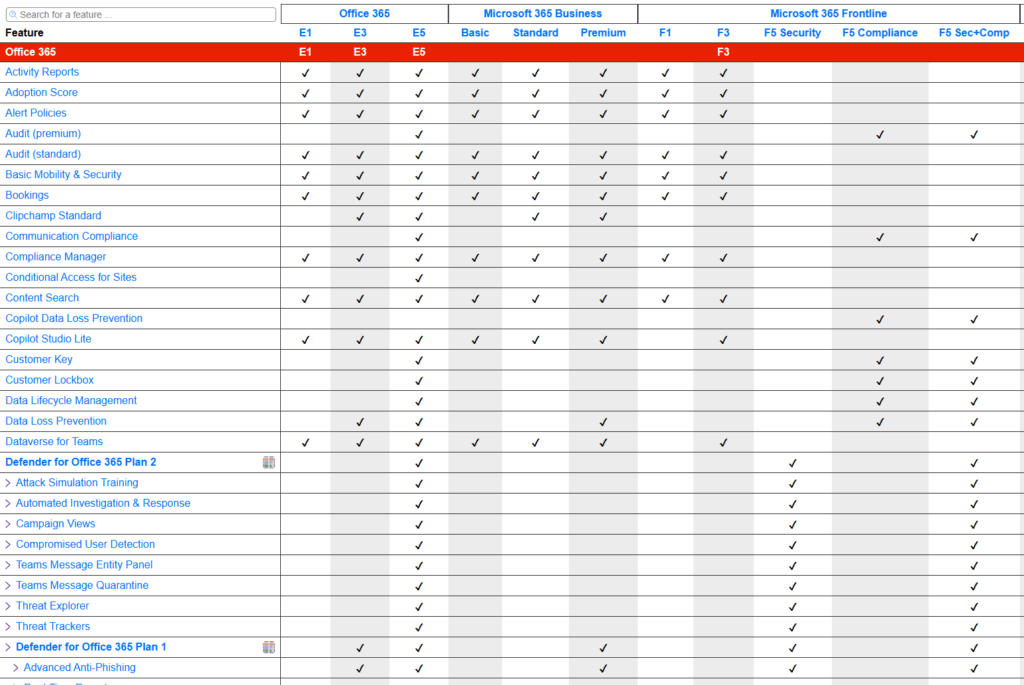
If your frontline workers handle sensitive or regulated data (HIPAA, PCI-DSS, financial records), F3 is the right call. If they need Teams, email, and basic tools, F1 covers it.
Downgrading from E5 to E3 can cut license-specific costs by up to 40%. Multiply that across 100 or 200 over-provisioned users and the number becomes real.
Offboarding usually goes like this:
- Employee leaves
- IT removes device access
- The email inbox sits abandoned for months
- The license stays active at $36/month
You’re paying for a mailbox nobody checks. Convert that account to a shared mailbox instead.
Shared mailboxes cost zero licenses. They support up to 50 GB. Email history stays intact. Any team member can access the mailbox to check old correspondence or handle a handoff.
Here’s how to do it in the Microsoft 365 Admin Center:
- Go to Users > Active Users
- Select the departed user’s account
- Open the Mail tab
- Click Convert to shared mailbox
- Once converted, remove the license from the account
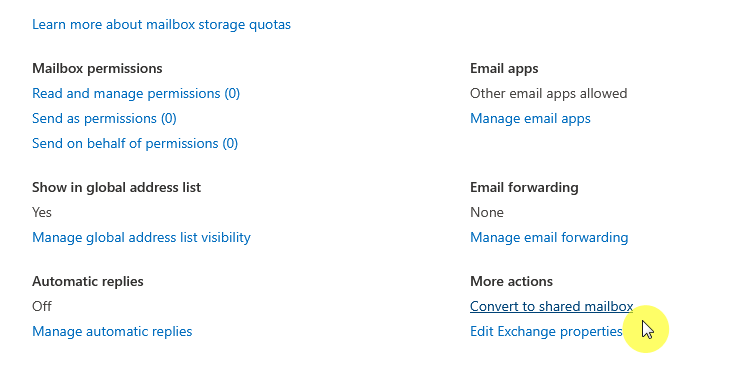
One thing to note: don’t delete the user’s account after converting.
The shared mailbox needs it as an anchor. And the account must still have a license assigned at the time of conversion, otherwise the option won’t appear.
This is usually the fastest win in any audit. Fold it into your offboarding checklist and it becomes automatic.
Strategy 4: Know What Microsoft’s Native Tools Can (and Can’t) Do
The admin center is the right starting point.
Yes, it’s free, already there, and needs no setup. But it has a blind spot: “last activity” usually means “last login,” not “actively using Defender, Purview, or Teams calling.”
Here’s how the two options compare:
| Admin Center | Third-Party Tools (CoreView, SysKit, etc.) | |
|---|---|---|
| Cost | Free | Paid |
| Setup | None | Requires onboarding |
| License inventory | Assigned vs. unassigned | Same, plus deeper detail |
| Usage tracking | Last login date | Feature-level usage (Teams calling, Defender, Purview, etc.) |
| Best for | Quick inventory, small teams | Formal optimization projects, 200+ users |
If you just need a basic count of who has what, the admin center is enough. If you need to know who actually uses the features they’re paying for, third-party tools close that gap.
Strategy 5: Time Your Renewal to Beat the July 2026 Price Hike
The deadline is real: July 1, 2026.
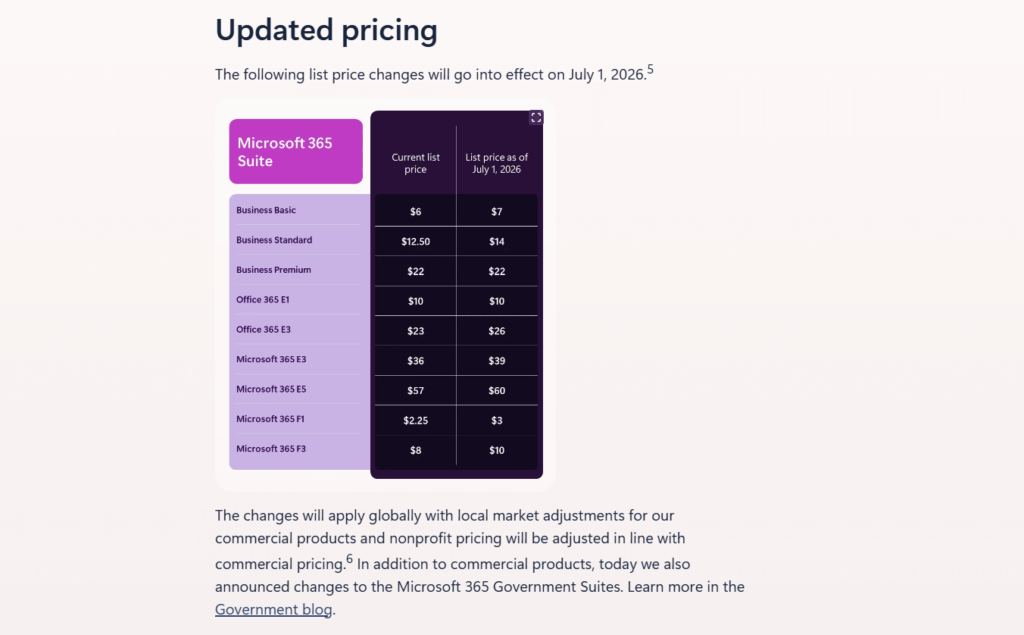
Here are the specific increases:
- Business Basic: +16.7%
- M365 E3: +8.3% (now $36/user/month, rising to $39)
- M365 E5: +5.3% (now $57/user/month, rising to $60)
- Frontline F3: +25%
- Business Premium and Office 365 E1: no change
Here’s the official announcement from Microsoft’s 365 Blog:
There’s also a secondary hit. Microsoft removed volume discounts for EA customers at Levels B, C, and D in November 2025. All organizations now start at Level A pricing.
If your organization was getting a discount before, expect it to shrink or vanish.
Renewing early can lock in current pricing. If your agreement renews in the second half of 2026, explore early renewal options now.
When you sit down to negotiate at renewal, bring data. Show your licensing audit and a role-based plan.
Negotiate from a position of knowledge, not default. A 10% reduction in seat count before the hike saves more than the same reduction after.
Strategy 6: Build License Governance So This Doesn’t Happen Again
One-time audits are better than nothing. But governance is what prevents the waste from coming back.
A basic license governance setup includes:
- Group-based licensing in Entra ID: assign licenses automatically based on role and department group membership. New hire joins, right license is assigned on day one. Someone leaves, it’s removed the same day.
- Lifecycle triggers in onboarding/offboarding workflows: license assignment stops being a manual task done weeks late.
- Scheduled license reviews: at least annually, quarterly if you have high headcount churn. Put it on your IT calendar now, not as a reactive fix later.
This is where the savings compound. Not a one-time fix, but an ongoing reduction in waste. Every quarter your governance runs, the ROI grows without anyone touching a spreadsheet.
The Window Is Real. The Work Is Doable.
July 2026 is a specific date with specific cost implications. The organizations that audit now, right-size their licenses, and time renewals strategically will absorb the hike better.
If your IT team has the bandwidth, do it in-house. If they’re stretched thin, working with someone who knows the M365 landscape can shorten the process and catch the gaps you’d miss alone.
The July deadline doesn’t move.
What’s your biggest license optimization challenge right now: identifying waste, right-sizing roles, or timing the renewal? Drop a comment below.
Need help getting your M365 licensing cleaned up before July? I work with mid-size organizations on this every week. Reach out and let’s talk.