
Table of Contents:
Last Updated on September 28, 2025
Struggling to keep your company’s documents organized and secure?
In this guide, let’s talk about the best Microsoft 365 solutions to build an effective and secure document management system.
Let’s get started.
Those are not three competing products, but are a deeply connected system with distinct, complementary roles.
For storage decisions, you can use the straightforward “Me vs. We” framework to decide where your files should live:
- OneDrive is for “Me”: It’s the default location for an individual’s personal work files, drafts, and content that is not yet ready for team use.
- SharePoint and Teams are for “We”: These are the shared workspaces for documents that belong to a team, a project, or the entire organization.
This distinction works because of the underlying technical architecture.
SharePoint Online provides the powerful backend that supports file storage for both OneDrive and Microsoft Teams.
Every user’s OneDrive is a personal SharePoint site collection, and every new Team automatically gets a dedicated SharePoint site.
So, while you see three different interfaces, SharePoint is always the engine managing the files behind the scenes.
To help you decide which tool to use and when, the following table provides a clear, at-a-glance comparison:
| Feature/Criterion | OneDrive for Business | Microsoft Teams | SharePoint Online |
| Primary use case | Personal work files, drafts | Real-time team collaboration | Centralized org repository, DMS |
| Data ownership | Individual user | The team/group | The team/organization |
| Business continuity | High risk: Files tied to user | High: Files remain if member leaves | Highest: Independent of individuals |
| Collaboration style | Asynchronous, small-scale | Synchronous, chat-based | Asynchronous, document-centric |
| Best for lifecycle | Creation, Early Drafts | Active Collaboration, Review | Publishing, Long-term Archiving |
Sign up for exclusive updates, tips, and strategies
SharePoint Online is the organizational repository for team and corporate data, acting as a secure, central platform.
Because files are owned by the team, business continuity is ensured even when individual employees leave.
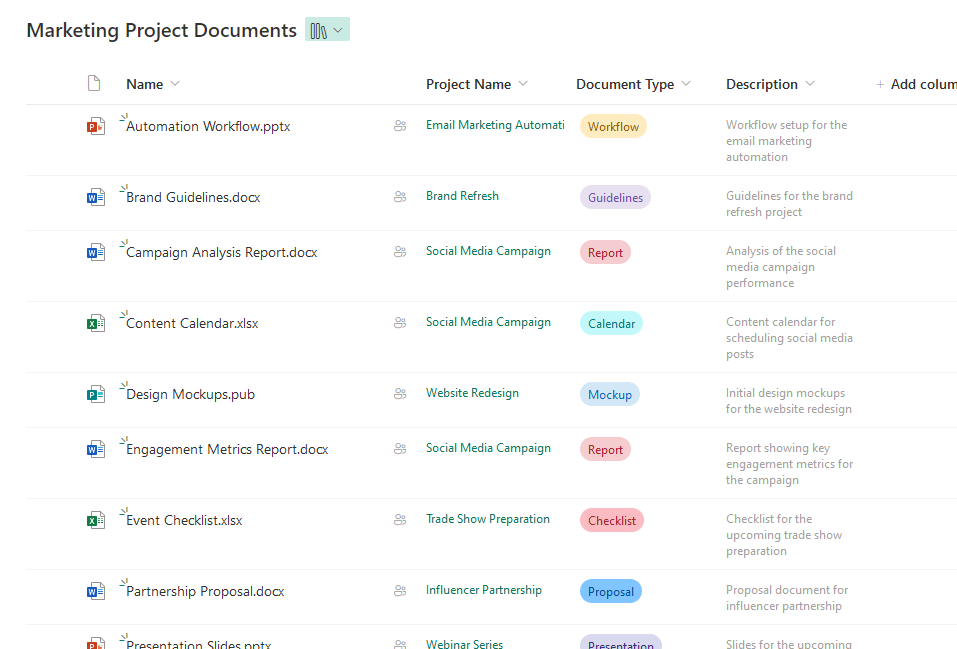
Here are some of its key features and strengths:
- Structured storage with metadata
- Version history and control
- Automation with Power Automate
- Advanced search and security
These features allow you to build a powerful system beyond simple file storage.
Instead of deep folders, you can use metadata to classify documents, making them easier to find.
SharePoint offers an audit trail with version history and lets you automate tasks like document approvals, all while maintaining granular security.
SharePoint is best suited for the following use cases:
- Building corporate intranets
- Creating team sites for projects
- Developing a formal DMS
- Establishing knowledge bases
OneDrive for Business: The Personal Workspace
OneDrive for Business is the cloud equivalent of a user’s “My Documents” folder, designed for individual work files and drafts.
It’s the ideal place for content that isn’t ready for broader team collaboration.
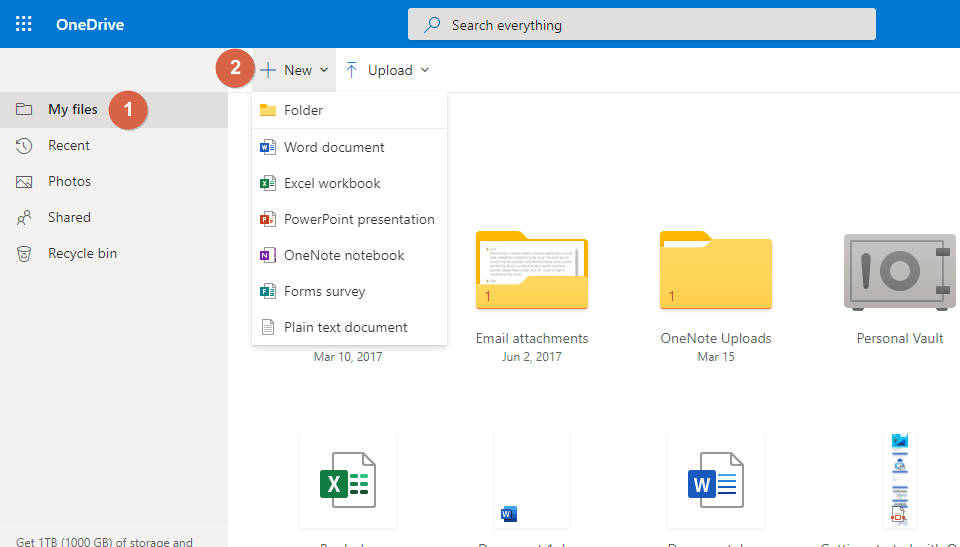
Here are some of its key features and strengths:
- Sync client with Files On-Demand
- Simple, controlled sharing
- Data protection and file restore
- Modern attachments in Outlook
The sync client saves space, simplifies sharing for quick feedback, and features like Files Restore protect against accidental deletion or ransomware.
OneDrive for Business is best suited for the following use cases:
- Drafting documents in a private space
- Storing personal work files
- Sharing files for informal feedback
Microsoft Teams: The Hub for Collaboration
Microsoft Teams is the main interface for real-time collaboration, bringing together chat, meetings, and files.
It creates a single, context-rich workspace, which reduces the need to switch between different applications.
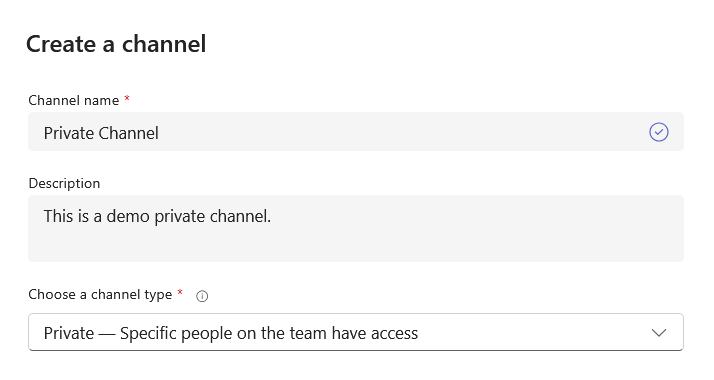
Here are some of its key features and strengths:
- The “Files” tab as a SharePoint view
- Contextual, in-app collaboration
- Enhanced file accessibility
The primary advantage of using Teams is context.
Documents are stored directly with related conversations and meetings, allowing seamless opening, editing, and co-authoring within the conversational flow.
The “Files” tab is a user-friendly view of the team’s SharePoint library, combining SharePoint’s power with the simple Teams interface.
Microsoft Teams is best suited for the following use cases:
- Active, real-time project collaboration
- Managing all files for a specific project
- Storing meeting recordings and notes
Governance and Security with Microsoft Purview
Microsoft Purview is a suite of solutions that integrates with Microsoft 365 to protect and manage data throughout its lifecycle.
Purview helps you protect sensitive information in two key ways, with the following main tools for data protection:
- Sensitivity labels: Apply labels like “Confidential” to enforce protection.
- Data Loss Prevention (DLP): Automatically identify and block the unsafe sharing of sensitive data.
Labels protect files with encryption and watermarks, even outside the organization.
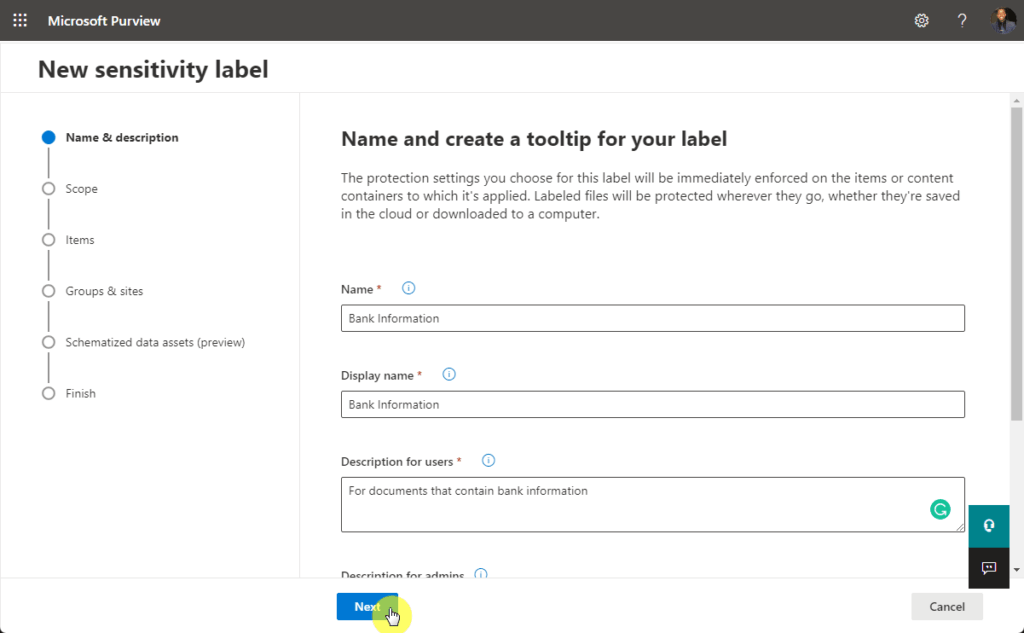
Meanwhile, DLP policies act as a safeguard, which prevent accidental data leaks, such as emailing credit card numbers externally
Beyond protection, Purview also automates the document lifecycle to meet legal and regulatory needs.
Here’s how it manages retention and disposition:
- Retention Policies: Automatically keep files for a specific period and then delete them.
- Records Management: Declare critical documents as unchangeable “records” to ensure integrity.
Declaring a file as a record provides the highest level of integrity for legal evidence or critical business documents.
How to Implement Your Document Management System
A successful document management system requires careful planning, tool configuration, and a focus on user adoption.
Here are three key phases to guide your implementation:
- Plan your information architecture.
- Configure tools and automate processes.
- Focus on user training and adoption.
Start by creating a solid plan for how you will organize your content, including site structures and naming conventions.
Then, configure the tools and use Power Automate to streamline workflows like document approvals.
The final and most critical step is training your users on the new system and providing clear governance.
Do you have questions about the best document management practices? Let me know below.
For any business-related queries or concerns, contact me through the contact form. I always reply. 🙂




























