
Table of Contents:
- SharePoint vs. Box: A Quick Comparison
- Core Document Management Features
- Collaboration and Workflow Automation
- Search, Metadata, and Content Discovery
- Security, Governance, and Compliance
- Integrations and Ecosystem
- User Experience and Administration
- Pricing and Total Cost of Ownership (TCO)
- Who Should Choose SharePoint vs. Box?
Last Updated on September 28, 2025
Choosing between SharePoint and Box for document management?
In this guide, I will help you choose the right platform for your business.
We’ll compare them across key areas like features, security, collaboration, and pricing to see which one best fits your company’s strategy.
Let’s get started.
The right choice between SharePoint and Box depends on your company’s existing technology and how your teams work together.
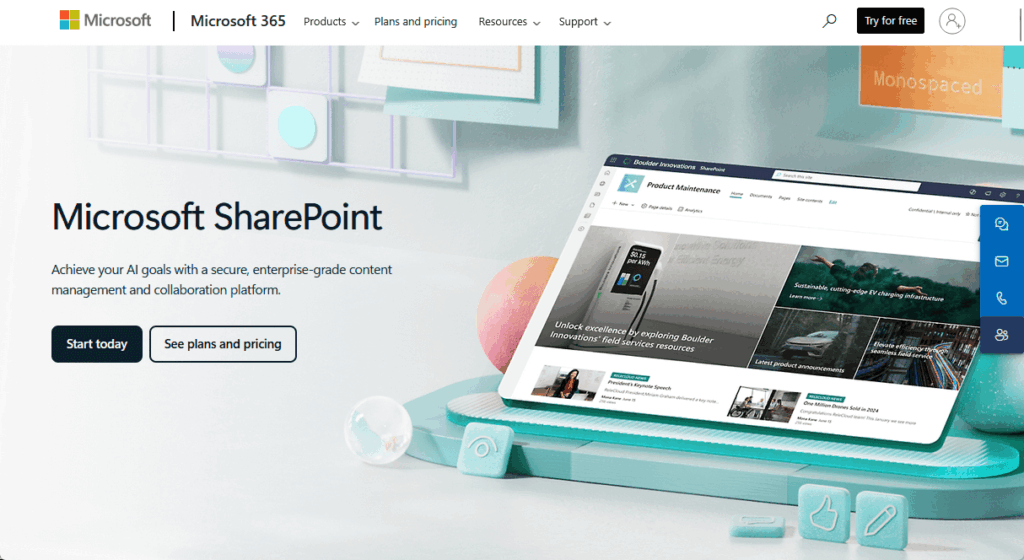
For businesses invested in Microsoft tools, SharePoint is often the natural fit.
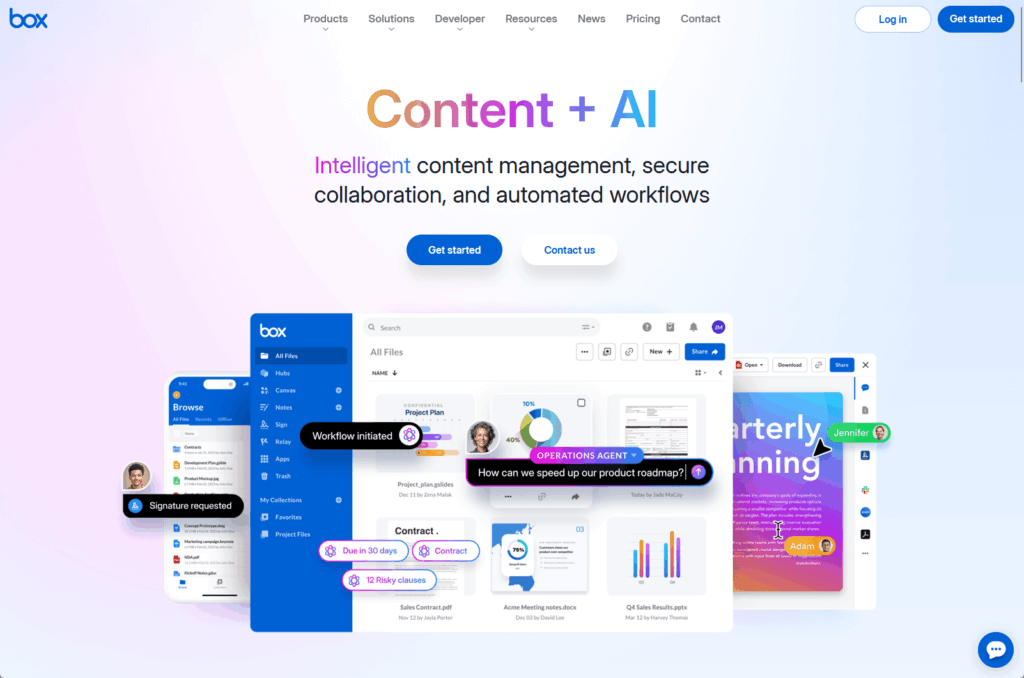
But for those using a variety of best-of-breed apps, Box provides a neutral, central hub.
Here’s a quick summary of their core differences:
| Feature | SharePoint | Box |
| Core philosophy | An integrated content platform powering the Microsoft 365 ecosystem | A best-of-breed, neutral “Intelligent Content Cloud” for a multi-vendor IT stack |
| Ideal use case | Corporate intranets, team collaboration sites, and document management for organizations standardized on Microsoft 365 | Centralized, secure content management for organizations that need to connect diverse applications (e.g., Salesforce, Slack) and prioritize external collaboration |
| Key strength | Unparalleled native integration with Microsoft Teams, OneDrive, and the Power Platform | Simplicity, ease of use, a powerful file preview engine, and secure, auditable external sharing |
| Primary weakness | Steep learning curve and administrative complexity; the user experience can be unintuitive | Advanced security and governance features are expensive, separate add-ons |
Sign up for exclusive updates, tips, and strategies
Core Document Management Features
At the heart of any DMS are the fundamentals of storing, versioning, and accessing files.
Here’s how the two platforms compare on these essential capabilities:
Storage Architecture and File Limits
SharePoint uses a pooled storage model.
Your organization gets a base of 1 TB plus an additional 10 GB for each licensed user, all shared in one central pool.
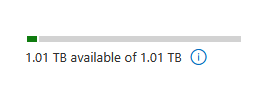
This simplifies administration, as you don’t need to assign storage to specific sites.
A standout feature is its massive 250 GB individual file upload limit, making it great for large video, design, or data files.
Each user also gets a separate 1 TB of personal storage with OneDrive for Business, which is built on the same SharePoint technology.
Box ties its storage limits directly to its subscription plans.
While most of its business plans offer “unlimited” total storage, the individual file upload size is a key selling point that separates the tiers.
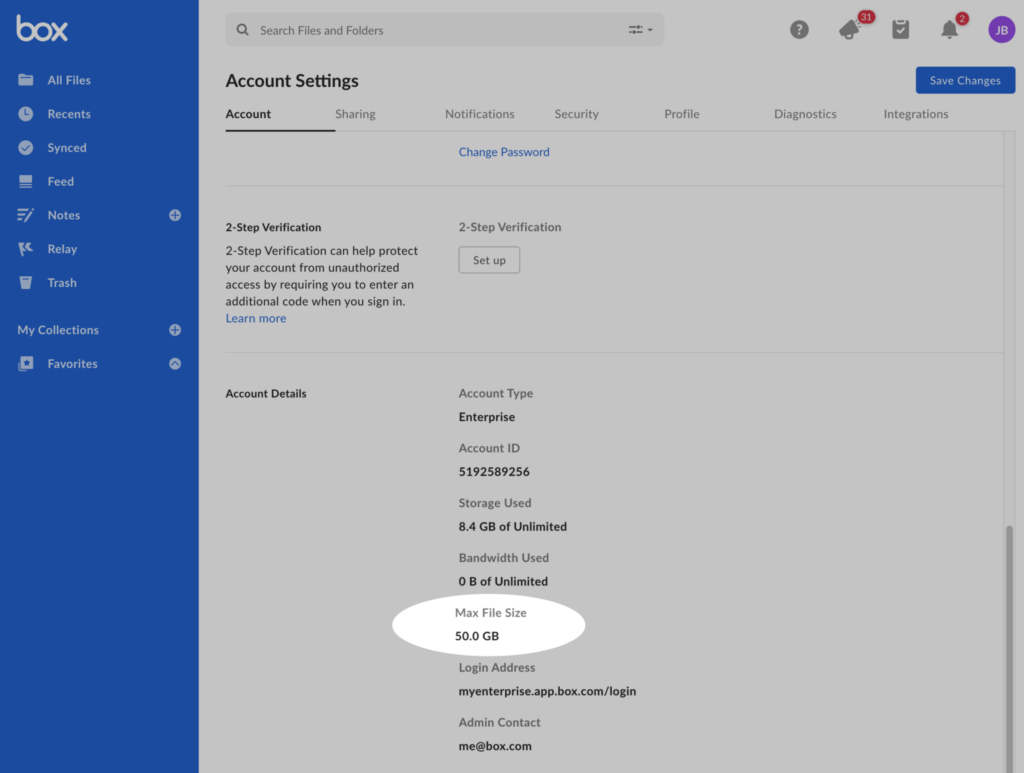
For example, the Business plan has a 5 GB limit, Business Plus has a 15 GB limit, and Enterprise has a 50 GB limit.
This structure means the types of files your team works with may force you into a more expensive plan, regardless of your other feature needs.
Versioning and File History
SharePoint offers a powerful and highly flexible versioning system.
It supports both major (1.0, 2.0) and minor (1.1, 1.2) versions, saving the last 500 major versions by default.
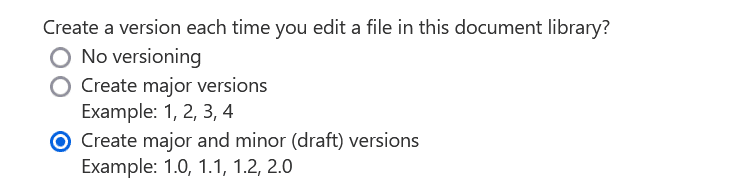
Administrators can increase this limit up to 50,000 and set granular retention policies.
For instance, you can automatically delete versions after a certain time or let SharePoint’s algorithm intelligently trim older versions to save space.
This level of control is a major benefit for organizations with strict audit or records management needs.
Box provides a much simpler, more straightforward versioning system tied to your subscription plan.
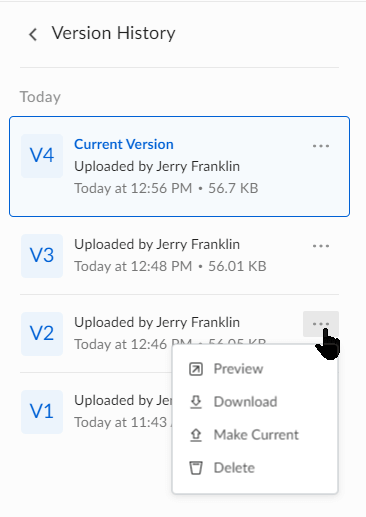
For example, the Business and Business Plus plans save the last 50 versions of a file, while the Enterprise plan saves 100.
Unlimited version history is only available on the highest tier or as a paid add-on.
While users can easily view and restore previous versions, Box lacks the detailed, policy-driven controls that SharePoint offers.
Collaboration and Workflow Automation
Beyond just storing files, the real value of a modern DMS is in helping teams work together and automating business processes.
Real-Time Co-Authoring and Commenting
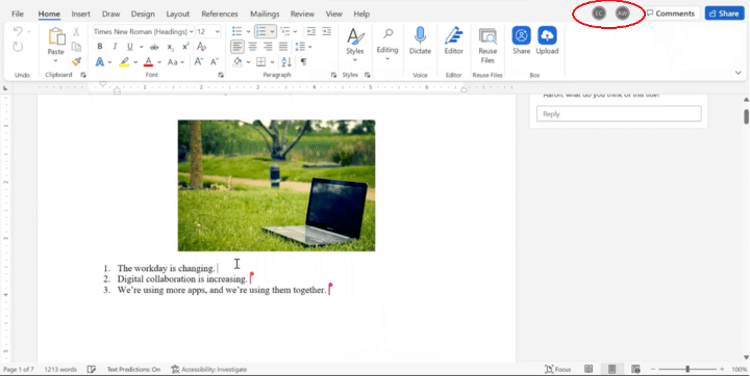
SharePoint delivers a top-tier, native co-authoring experience for Microsoft Word, Excel, and PowerPoint files.
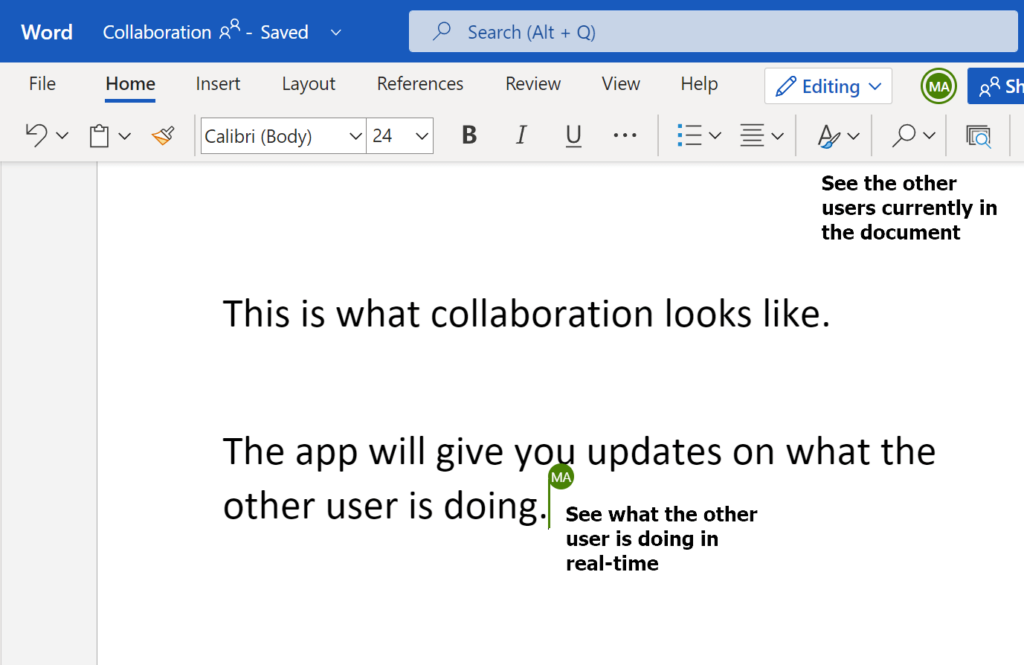
As Microsoft 365’s foundation, it allows real-time, multi-user document editing across desktop, web, and mobile.
Robust commenting enables users to @mention colleagues, assign tasks, and trigger notifications, streamlining feedback.
Box enables real-time co-authoring on Microsoft Office files through a deep integration, but it’s not a native feature.
Its standout collaboration tool is its powerful annotation feature.
Users can highlight text in a PDF or draw a box around a specific part of an image and attach a comment directly to that spot.
This provides clear, contextual feedback that is perfect for creative, legal, and design reviews, an area where Box has a clear edge.
Process and Workflow Automation
SharePoint’s automation strength comes from its native integration with the Microsoft Power Platform, especially Power Automate.
This allows you to build very complex, cross-application business workflows.
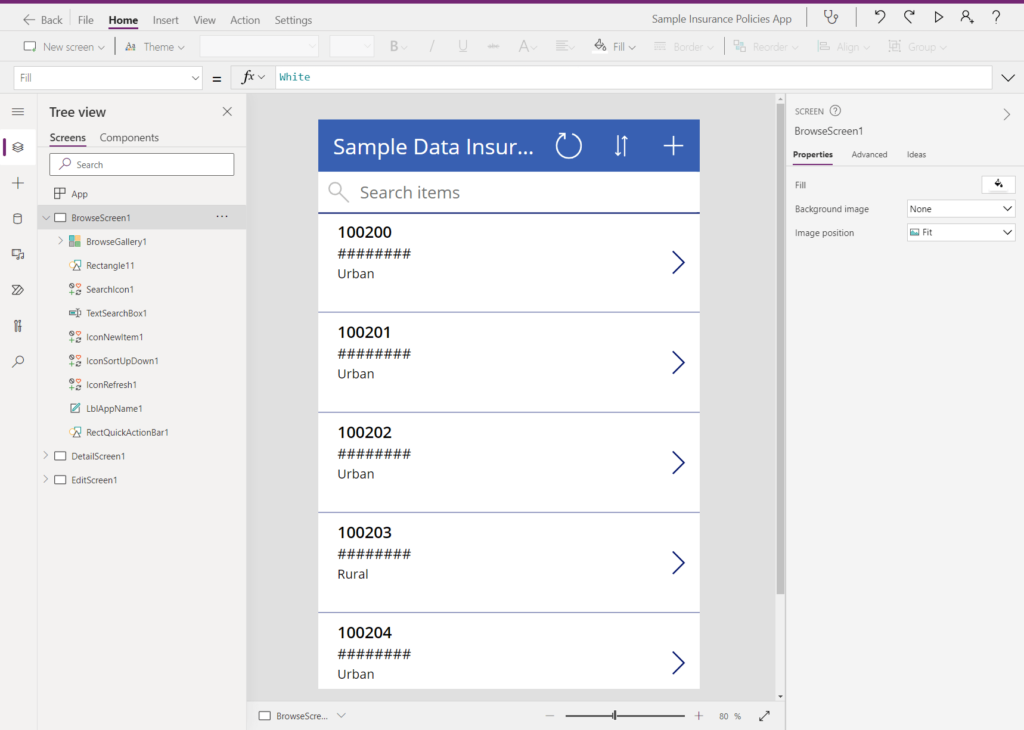
Uploading a contract to SharePoint can trigger an automatic approval process in Teams and update Dynamics 365.
This offers nearly limitless potential but often requires technical expertise to build and manage.
Box offers its own user-friendly automation tool called Box Relay.
It’s designed specifically for content-based processes, like contract approvals or new-hire document collection.
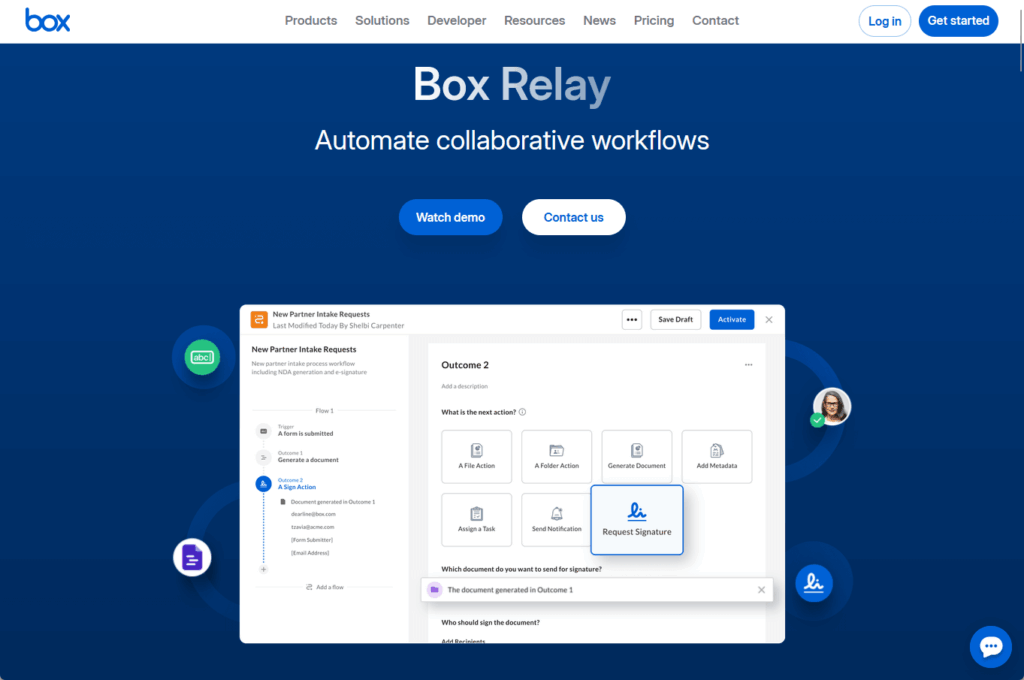
With a simple, visual interface and pre-built templates, non-technical users can easily create workflows.
However, Box Relay is simpler for its purpose but lacks the power and flexibility of Power Automate for complex, multi-system workflows.
Search, Metadata, and Content Discovery
A document management system is only useful if people can find what they need.
Search Functionality
SharePoint uses Microsoft Search, which gives you personalized results from your entire Microsoft 365 environment, including:
- SharePoint sites
- OneDrive
- Teams conversations
It indexes the full text of documents and their metadata, ensuring you only see content you have permission to access.
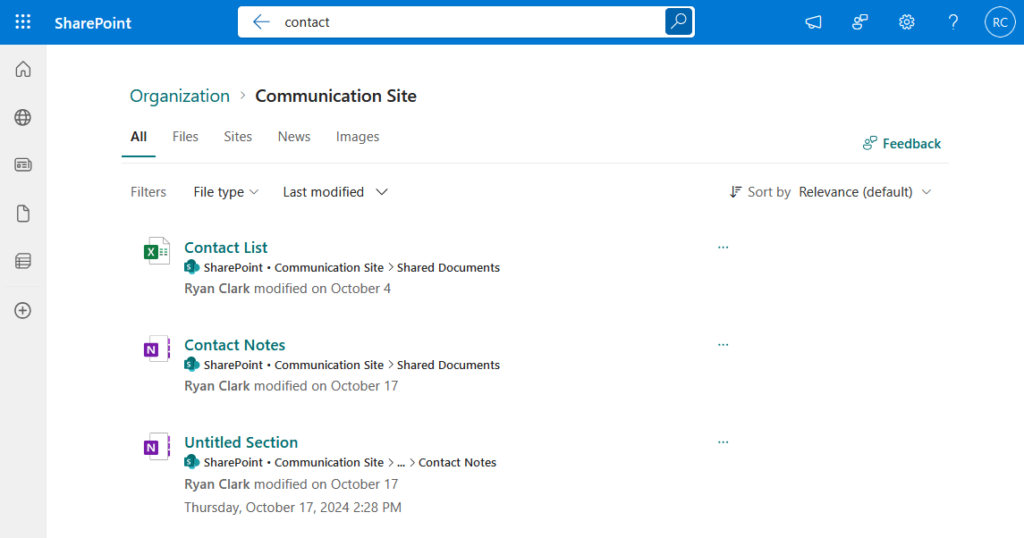
For advanced users, it supports a powerful query language to pinpoint specific information.
Box offers a very intuitive search engine with clean, easy-to-use filters.
You can quickly narrow results by file type, owner, modification date, and custom metadata tags.
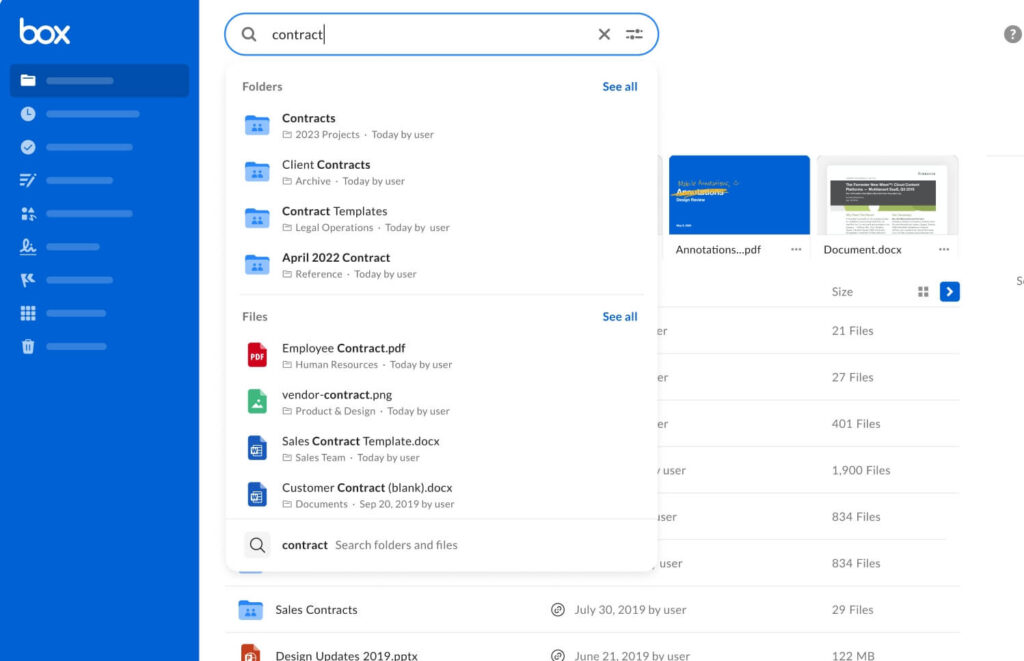
It indexes the first 10,000 characters of a document’s text, making it effective for finding relevant content quickly.
Personally, the user-friendly design of its search filters is a key strength.
Metadata and Tagging
SharePoint excels at formal, enterprise-wide information architecture through its term store.
This enables centralized, managed terms (like department names or project codes) for metadata tags across the organization.
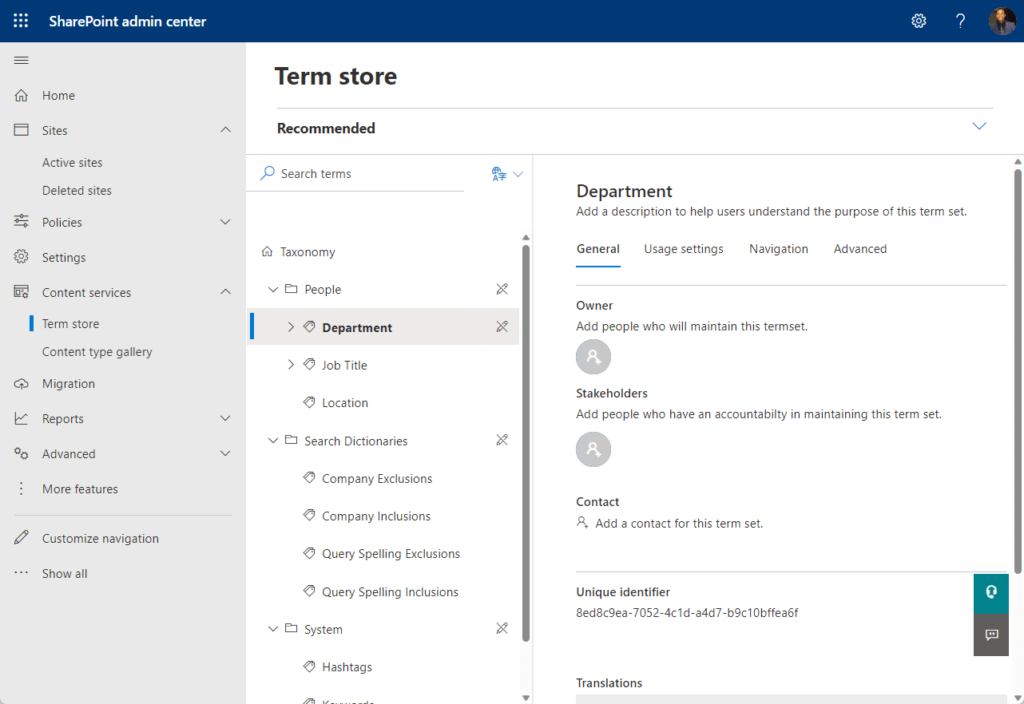
This managed metadata approach ensures consistency, simplifies organization, improves discoverability, and aids governance, but requires careful setup.
Box’s approach is more streamlined with metadata templates.
Administrators can create a template with specific fields (like “Contract Status” or “Effective Date”) and apply it to a folder.
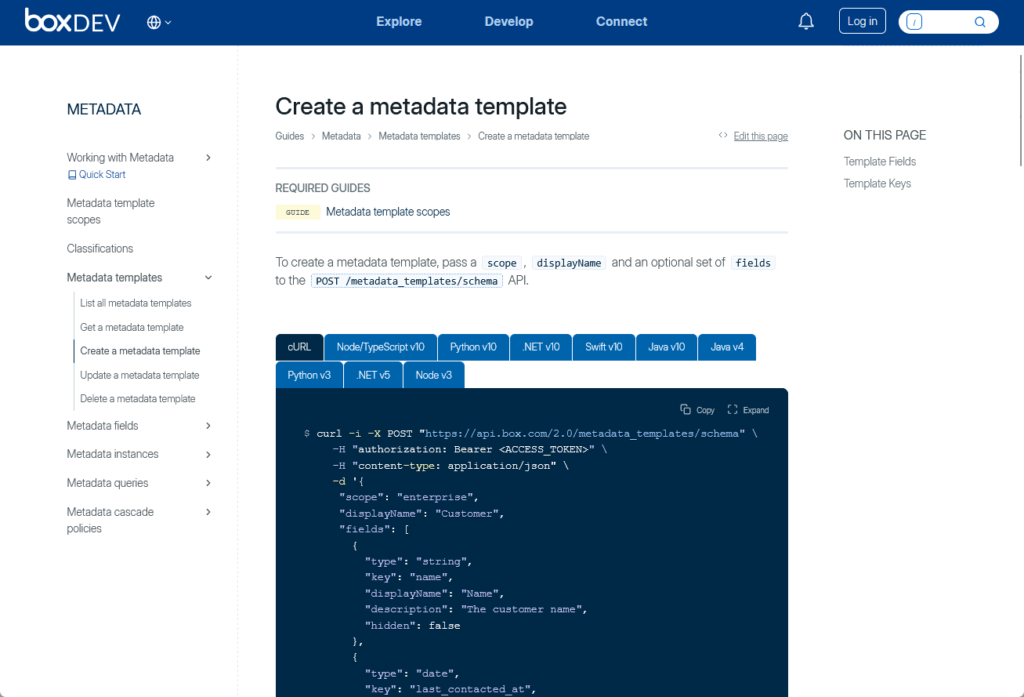
When users upload files, they’re prompted to fill in these fields. This system is easier to manage than SharePoint’s term store.
Box also uses AI to scan documents and suggest metadata values automatically, which helps reduce manual tagging.
Security, Governance, and Compliance
For any business, especially those in regulated industries, the ability to secure content and comply with legal standards is critical.
Platform Security and Threat Protection
SharePoint’s security is a core part of the Microsoft 365 security fabric, which is built on a “zero-trust” model.
This means all access requests are continuously verified.

Security is managed through unified tools like Microsoft Purview and Microsoft 365 Defender.
Both of which provide threat protection, data encryption, and automatic virus scanning on all uploaded files.
Box has its own advanced security suite called Box Shield.
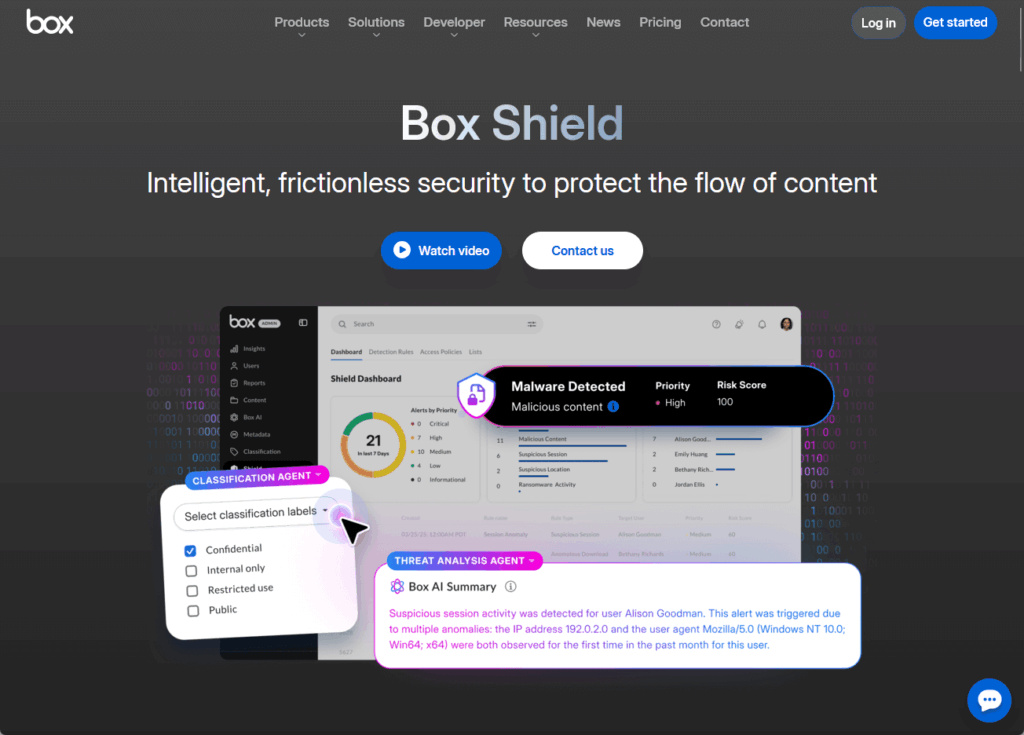
It uses machine learning to detect threats like suspicious downloads or potential ransomware activity and alerts administrators.
A key feature of Box Shield is its classification-based security.
Rules can automatically prevent “Highly Confidential” files from external sharing or downloading to unmanaged devices.
Information Governance (DLP, eDiscovery, Retention)
In the SharePoint ecosystem, these functions are managed centrally through Microsoft Purview.
A huge advantage is that a single Data Loss Prevention (DLP) policy can protect sensitive information across:
- SharePoint
- OneDrive
- Exchange email
- Teams chats

Similarly, retention policies and eDiscovery (for legal cases) are managed from this one central hub for a consistent governance across all your data.
Box provides these features through its Box Governance add-on.
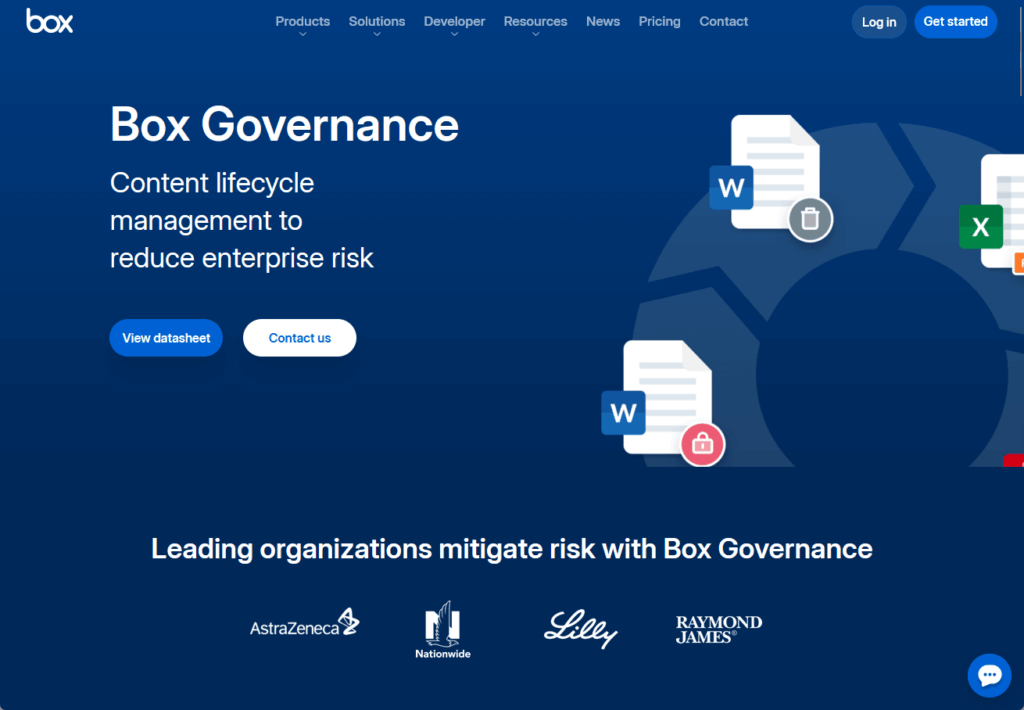
It allows you to place legal holds on content and set flexible retention policies.
However, its DLP capabilities are focused only on content within Box.
To get the same cross-platform protection as SharePoint, you need to integrate Box with third-party security tools.
This à la carte approach gives you flexibility but can be more complex to manage.
Compliance and Data Residency
Both platforms offer extensive global and industry-specific compliance, including HIPAA, GDPR, and FedRAMP.
Here’s how they handle the important issue of data residency:
- SharePoint: Uses Microsoft 365’s global data centers for regional data storage
- Box: Offers a dedicated add-on called Box Zones to store data in specific regions
Both approaches allow companies to comply with data sovereignty laws that require information to be stored within a specific country or region.
The difference is that SharePoint integrates this capability into Microsoft 365, while Box offers it as an add-on feature.
Integrations and Ecosystem
No tool works in isolation.
A platform’s true power is often measured by how well it connects with the other applications your team uses every day.
SharePoint acts as the “gravity well” of the Microsoft ecosystem.
Its greatest strength is its deep, native integration with other Microsoft 365 tools, especially Teams, like this one:
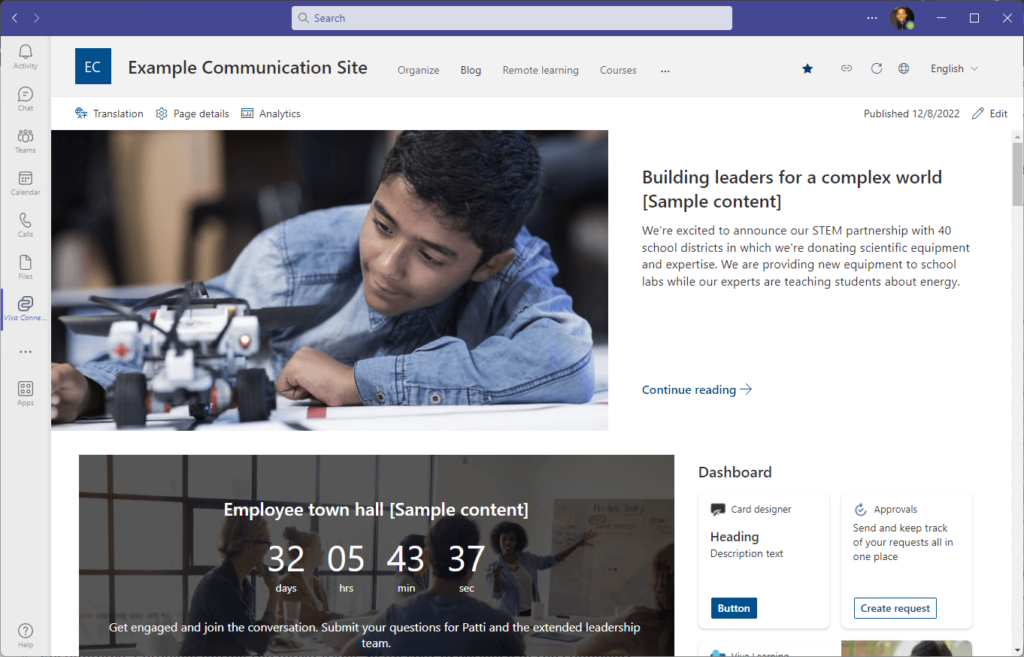
Every Team has a SharePoint site for file storage, and the Files tab in Teams is just a direct view into a SharePoint library.
It also centralizes business processes and data with Power Platform and Dynamics 365 within Microsoft to enhance the suite’s overall value.
SharePoint’s large third-party app marketplace primarily extends its capabilities or deepens connections with other Microsoft services.
Box functions as a “universal adapter” for companies with a best-of-breed IT strategy.
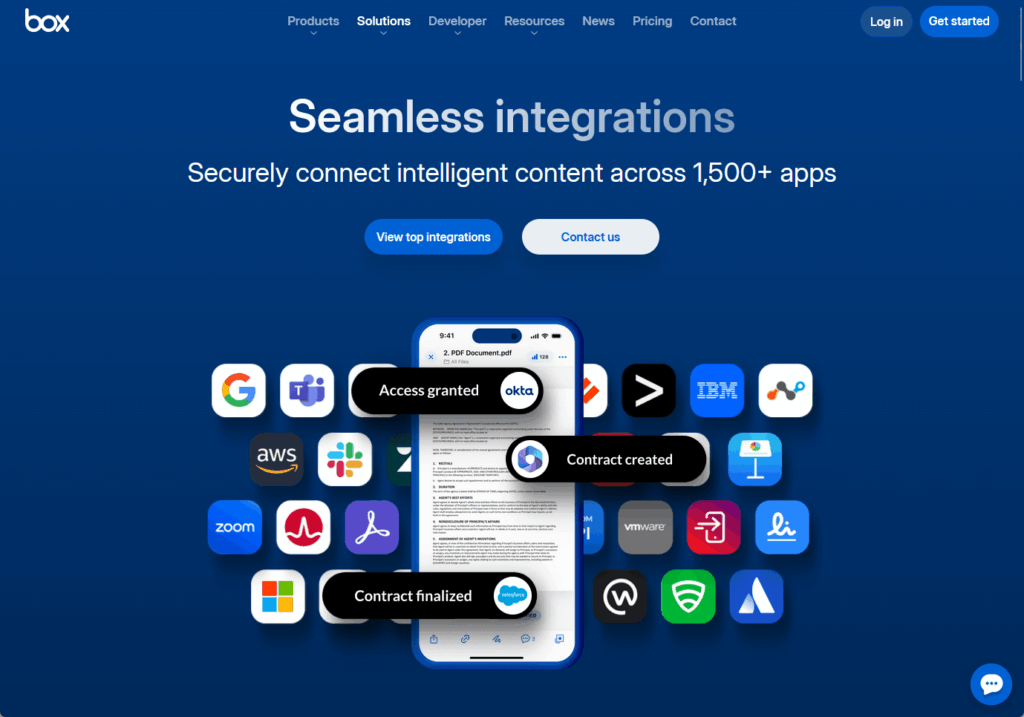
Its value proposition is built on its ecosystem of over 1,500 pre-built integrations with other leading applications.
Box integrates with Salesforce, Slack, and Google Workspace, acting as a secure content layer connecting your tools.
It unifies content management for businesses using diverse applications, securing it in one central hub for use across all platforms.
User Experience and Administration
Powerful features mean little if the platform is difficult to use or manage.
Let’s take a look at the day-to-day experience for both end-users and administrators.
End-User Experience
SharePoint is often criticized for its steep learning curve. 😅
While powerful, its interface is not always intuitive, and simple tasks can sometimes feel complex.
Although the modern interface is a big improvement over the classic version, the user experience can feel disjointed.
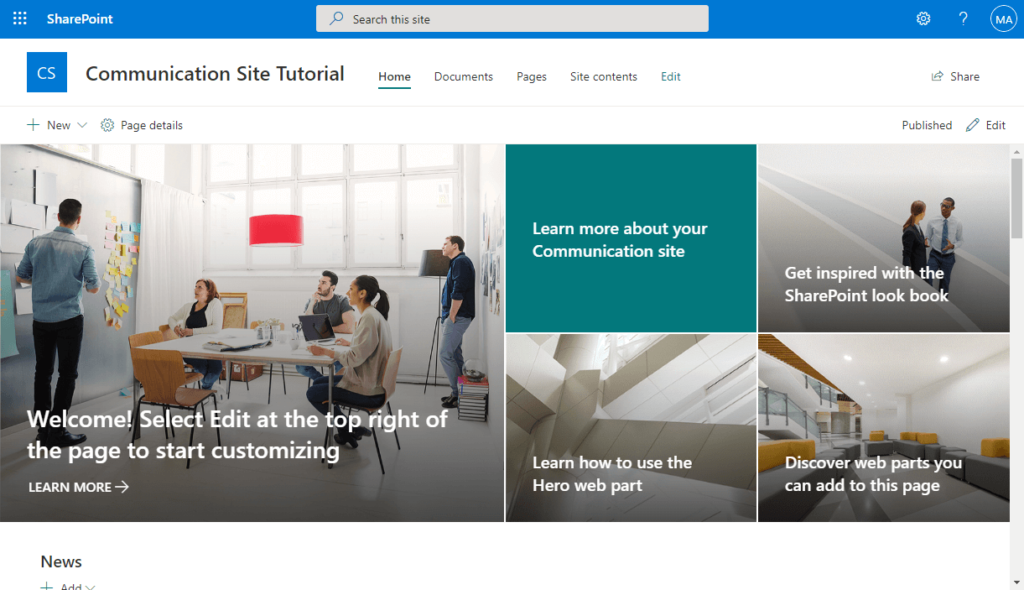
For users who work primarily within Microsoft Teams, however, the experience is much smoother.
That’s because the underlying SharePoint complexity is hidden behind the familiar Teams interface.
Box is consistently praised for its clean, simple, and intuitive user interface.

It’s widely seen as easier to use and adopt than SharePoint, especially for non-technical users and external collaboration.
The user experience is focused and consistent, built around a familiar folder structure.
One reason why Box users chose it is for its user-friendly interface, powerful file previews, and simple sharing controls.
Administrative Complexity
SharePoint administration is a powerful but complex task.
The SharePoint Admin Center, part of the larger Microsoft 365 admin center, offers granular control over every aspect of the service.
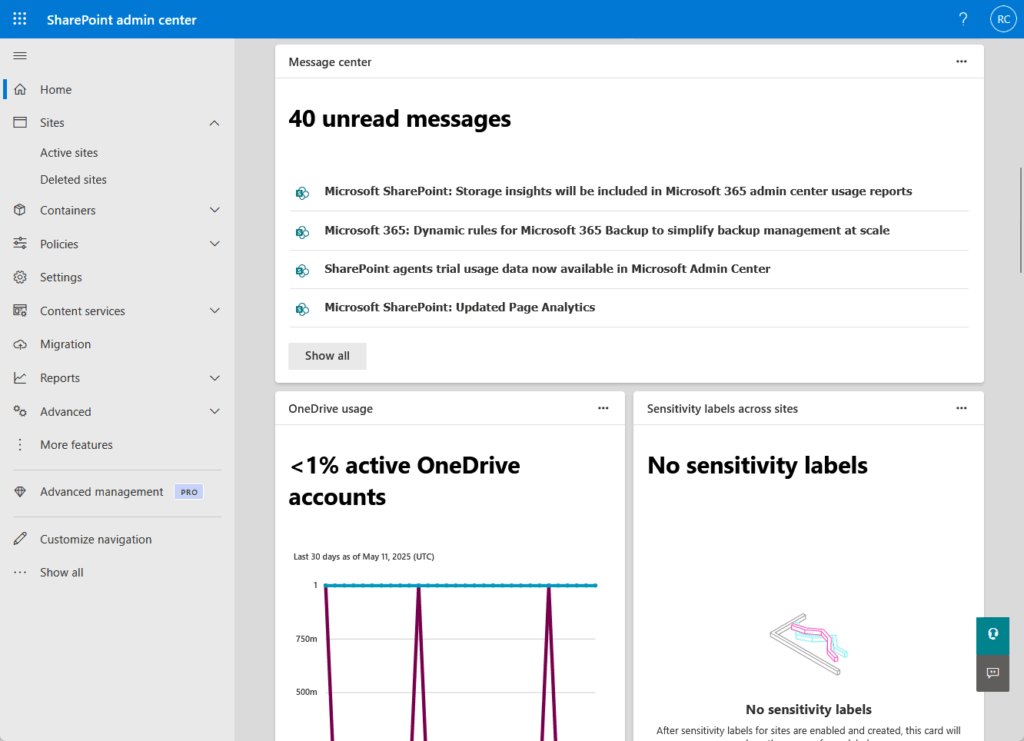
However, this power comes with complexity.
Managing permissions, for example, requires understanding how different types of groups interact.
Deploying and governing SharePoint effectively at scale usually requires significant planning and specialized IT expertise.
The Box Admin Console is generally considered more centralized and easier to navigate.
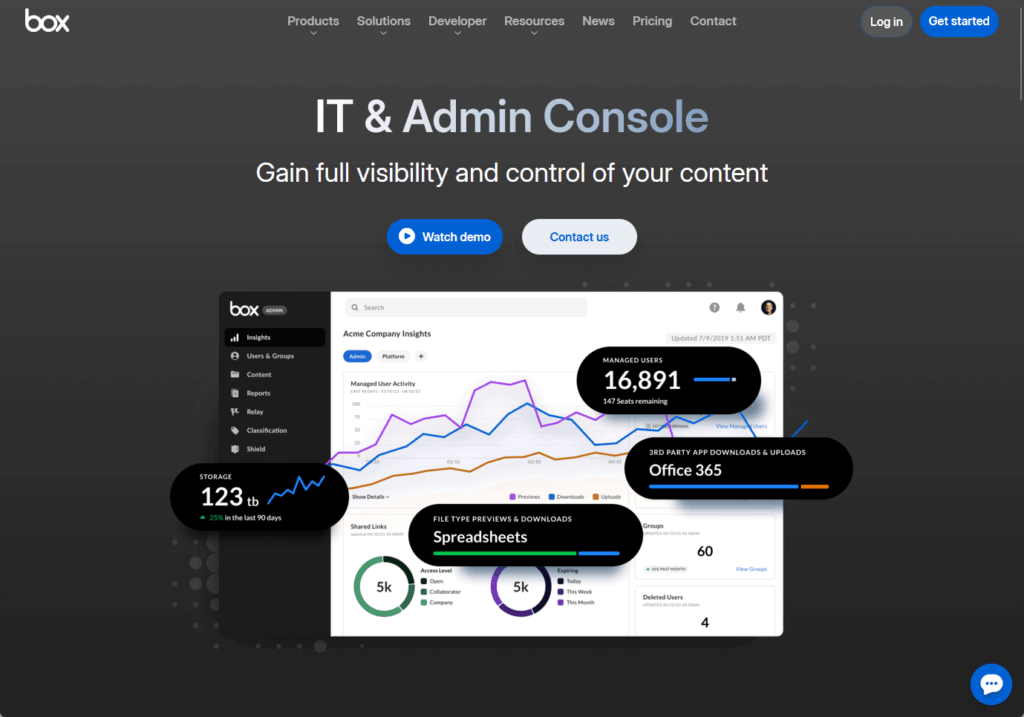
Core administrative tasks like managing users, configuring security policies, and generating reports are presented in a more streamlined way.
The scope of the console is focused on managing the Box platform itself.
SharePoint administrators face a more complex role due to considering connected services like Teams, OneDrive, and Purview when making changes.
Pricing and Total Cost of Ownership (TCO)
While features are important, the final decision often comes down to cost.
The pricing models for SharePoint and Box are structured very differently, so it’s important to look at the total cost.
Pricing Models
SharePoint is rarely purchased as a standalone product.
Most businesses get it as a bundled component of a Microsoft 365 Business or Enterprise subscription.
For example, it’s included in Microsoft 365 Business Standard (~$12.50/user/month) and enterprise E3 plans (~$33.75/user/month).
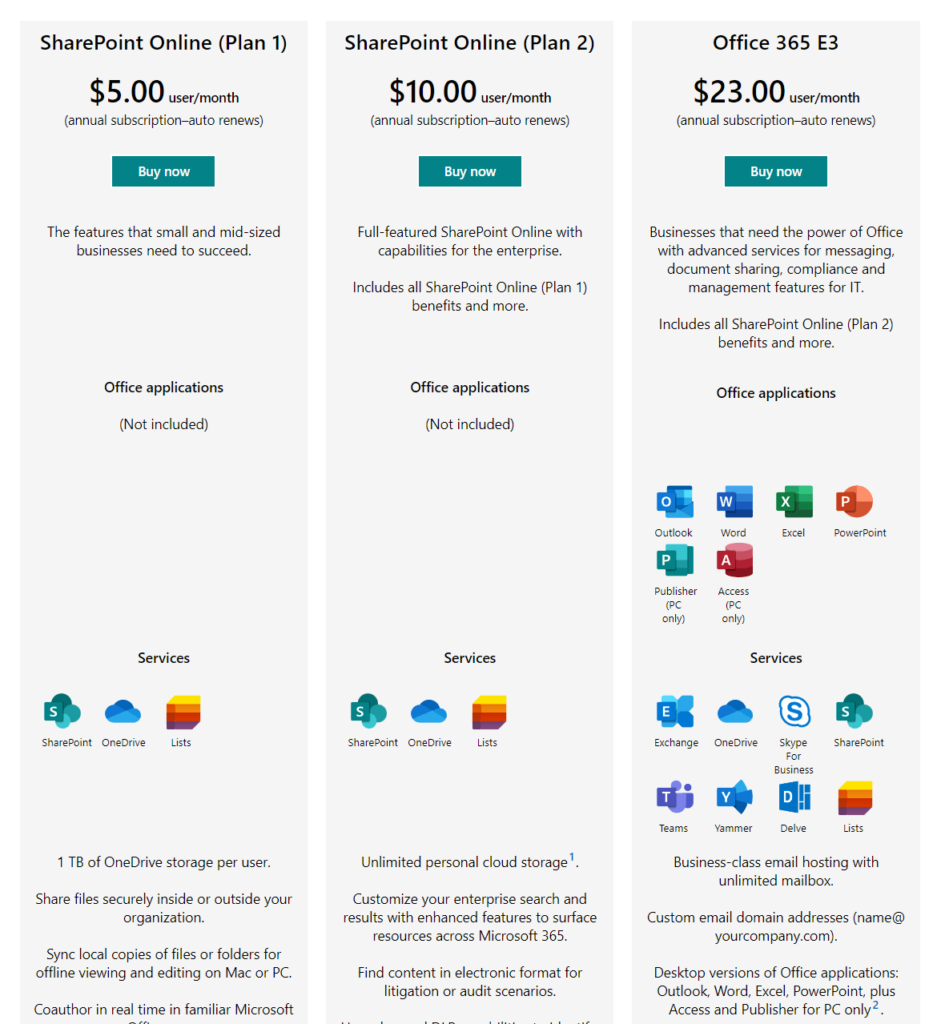
For many companies, SharePoint is a “sunk cost” because they’re already paying for the productivity suite.
Box uses a traditional tiered SaaS pricing model.
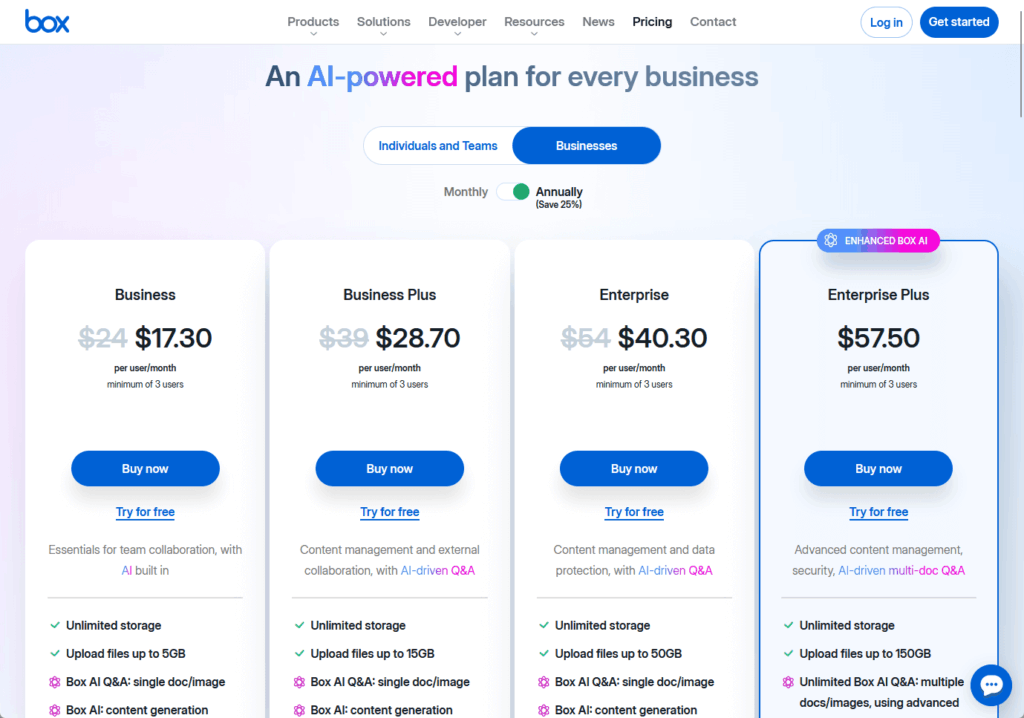
It typically requires a minimum of three users and offers several plans, including:
- Business: ~$20/user/month with unlimited storage and a 5 GB file upload limit
- Business Plus: ~$33/user/month with a 15 GB file upload limit and workflow automation
- Enterprise: ~$47/user/month with a 50 GB file upload limit
These initial prices show a key difference in strategy.
SharePoint’s cost is often included within a larger Microsoft 365 bundle, while Box’s is a more direct, tiered expense.
However, these base prices don’t tell the whole story, as add-ons can significantly change the total cost.
Add-Ons and Hidden Costs
The sticker price doesn’t tell the full story.
For SharePoint, the main “hidden cost” is:
- Needing to upgrade to a higher-tier Microsoft 365 plan (like E3 or E5) to get advanced security
- Compliance features like DLP and eDiscovery
New features like SharePoint Advanced Management or Microsoft 365 Copilot are also expensive add-ons.
You should also factor in potential costs for implementation partners and user training due to its complexity.
Box’s pricing is notable for its à la carte model for advanced features.
Many of its most important enterprise tools are sold as separate, premium add-ons.
This includes:
- Box Shield: For advanced threat detection and security policies
- Box Governance: For retention policies and legal holds
- Box KeySafe: For customer-managed encryption keys
This means the price for a Box Enterprise plan might not include the full suite of tools a regulated company needs.
In short, that could make its TCO much higher than the base price suggests.
After comparing the key features, a clear picture emerges for which type of organization is best suited for each platform.
Here’s our final recommendation.
Choose SharePoint if…
- Your organization is strategically committed to the Microsoft 365 ecosystem, and Microsoft Teams is your central hub for collaboration.
- You need a single, versatile platform for document management as well as your corporate intranet and custom business applications.
- Unified security and compliance policies that are applied consistently across files, email, and chats from one console are a top priority.
- You want to maximize the value of your existing Microsoft 365 investment, and total cost of ownership is a primary driver.
Choose Box If…
- Your organization uses a “best-of-breed” IT strategy, relying on a diverse set of leading apps like Salesforce, Slack, Okta, or Google Workspace.
- Simplicity, ease of use, and fast user adoption are your highest priorities, and you want to minimize the need for extensive training.
- Your core business processes involve a high volume of secure and auditable collaboration with external clients, partners, and vendors.
- Your teams work with a wide variety of non-Office files (like Adobe creative files or CAD drawings) that need high-quality in-browser previews and annotation.
The choice between SharePoint and Box is not about finding a “better” product but about choosing a different strategic path.
Do you have questions about SharePoint and Box and choosing between them? Let me know below.
For any business-related queries or concerns, contact me through the contact form. I always reply. 🙂




























