

Last Updated on September 14, 2025
Ever felt lost in a sea of tech jargon when trying to understand Microsoft’s Power Platform?
In this guide, I’ll break down all the essential terms in plain English, from canvas to component framework.
Let’s get started.
What is the Microsoft Power Platform?
Microsoft’s Power Platform is a low-code suite for building custom apps, automating workflows, and analyzing data.
Non-developers can create solutions by connecting to Microsoft services like Office 365 and Azure.
This approach is built on a few key ideas:
- Low-code/no-code: Build with visual tools, not code
- Citizen developer: A business expert who can build their own apps
- Fusion development: A team approach where pros and citizen developers collaborate
All these tools share a common language for logic called Power Fx.
If you’ve ever written a formula in Microsoft Excel, Power Fx will look very familiar.
Business users can easily add app logic, which simplifies complex tasks.
Sign up for exclusive updates, tips, and strategies
The Five Main Applications
The Power Platform is made up of five main applications.
Each one has a specific job, but they’re designed to work together to create complete business solutions.
Power Apps (For Building Custom Applications)
Power Apps is a tool for creating custom applications for web and mobile devices.
It lets you build apps that connect to your data and help your team work more efficiently, without professional development.
There are a few different types of apps you can build:
1. Canvas Apps
You start with a blank screen, or “canvas,” and have complete, pixel-perfect control over the layout.
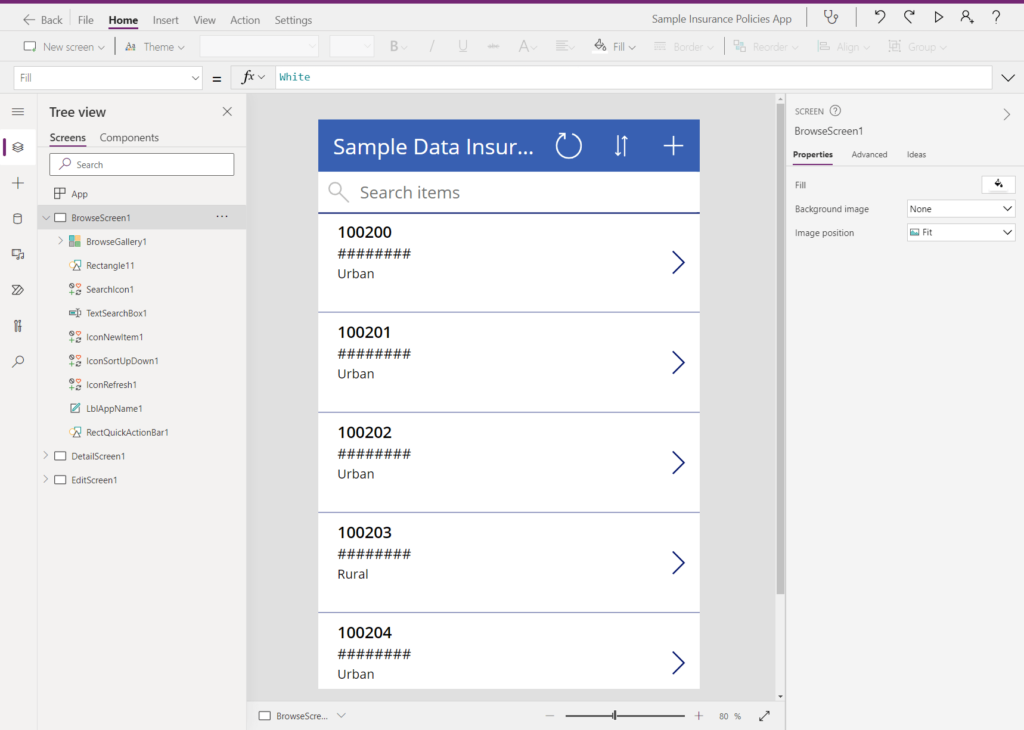
It’s like designing a slide in PowerPoint.
This is best for simple, task-focused mobile apps like inspection checklists or expense forms.
2. Model-driven Apps
The design of this app is based on your data model in Microsoft Dataverse.
The app’s forms, views, and charts are mostly generated for you.
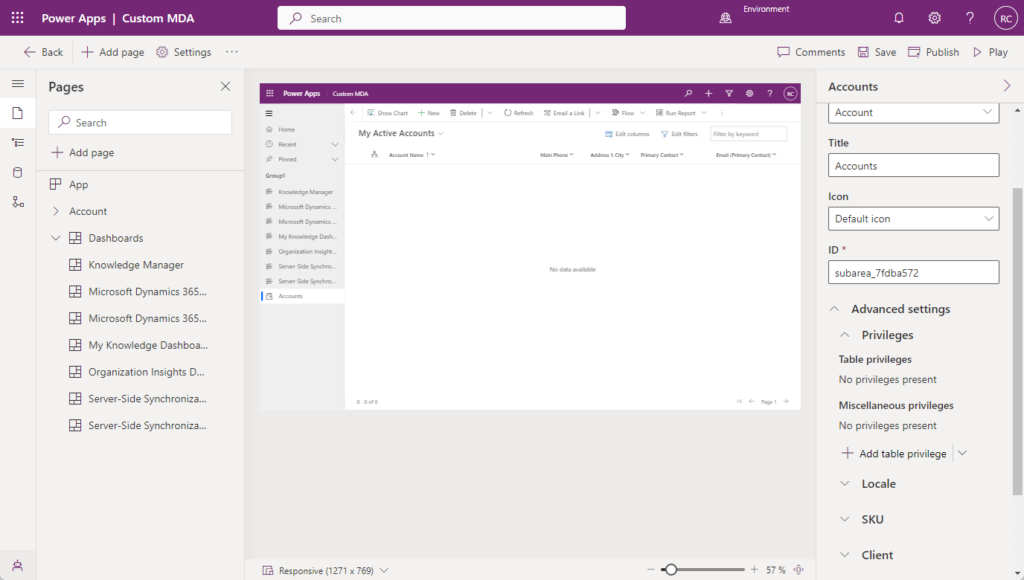
This is ideal for more complex, end-to-end processes like managing customer relationships or tracking assets.
It’s for those scenarios where a consistent process is more important than a custom look.
3. Cards
These are small, interactive micro-apps that you can share in places like Microsoft Teams.
They let users complete simple tasks without having to leave their conversation.
Here’s a quick comparison of the two main app types:
| Feature | Canvas Apps | Model-driven Apps |
| Data Source | Can connect to over 1,000 sources (SharePoint, SQL, etc.) | Requires Microsoft Dataverse |
| UI Control | High (Pixel-perfect, manual design) | Low (UI is generated from the data model) |
| Use Case | Task-specific, mobile-first apps with a custom user experience | Data-rich business processes with guided workflows |
| Responsiveness | Requires manual setup to work on different screen sizes | Responsive by default |
No matter which app type you choose, you will use these fundamental building blocks:
- Controls: The UI elements like buttons, text fields, and dropdowns
- Formulas: The logic, powered by Power Fx, that makes the app work
- Screens: The individual pages within a canvas app
- Galleries: A control used to display a list of records from a data source
Power BI (For Turning Data into Visual Insights)
Power BI is a business analytics service that helps you connect to your data, clean it up, and create interactive visualizations.

The goal is to turn raw data into clear insights that help you make better business decisions with a few key components.
The BI workflow:
- Datasets (Semantic Models): This reporting-ready data collection forms the basis of your reports and dashboards, encompassing tables, relationships, and calculations.
- Power Query: This engine connects to hundreds of data sources, then cleans, shapes, and combines data for analysis, a process known as ETL (Extract, Transform, Load).
- DAX (Data Analysis Expressions): DAX is a formula language for custom data calculations, creating measures like year-to-date sales for advanced analysis.
Once the data is ready, you present it using two main artifacts: reports and dashboards.
| Feature | Power BI Reports | Power BI Dashboards |
| Pages | Can have one or more pages | Single page only |
| Data Sources | Based on a single dataset | Can show tiles from multiple reports and datasets |
| Interactivity | Highly interactive (filtering, slicing, drill-down) | Limited interactivity (clicking a tile opens the report) |
| Purpose | Detailed analysis and exploration | High-level monitoring of key metrics (KPIs) |
To collaborate, teams use Workspaces.
These are shared Power BI service environments for storing and managing related reports, dashboards, and datasets before wider publication.
Power Automate (For Automating Repetitive Business Tasks)
Power Automate is a cloud-based service that lets you create automated workflows between your favorite apps and services.
It helps you automate repetitive manual tasks to save time and reduce errors.
There are different types of flows you can build:
- Cloud flows
- Desktop flows
- Business process flows (BPFs)
Cloud flows run entirely in the cloud and connect to services using APIs.

There are three kinds:
- Automated Flows: Triggered by an event, like a new email arriving or a file being saved.
- Instant Flows: Started manually by a user pressing a button.
- Scheduled Flows: Run at a specific time, like daily or weekly.
Desktop flows are Power Automate’s Robotic Process Automation (RPA) feature.

It records and replays user actions like mouse clicks and keyboard inputs to automate tasks on older systems that don’t have APIs.
Business process flows provide a visual guide for users to follow through a multi-stage business process.
Every flow is made of two basic parts:
- Trigger (the event that starts the flow)
- Actions (the tasks the flow performs)
Copilot Studio (For Creating Intelligent Chatbots)
Copilot Studio (formerly Power Virtual Agents) is a tool for building sophisticated AI-powered chatbots with a graphical interface.
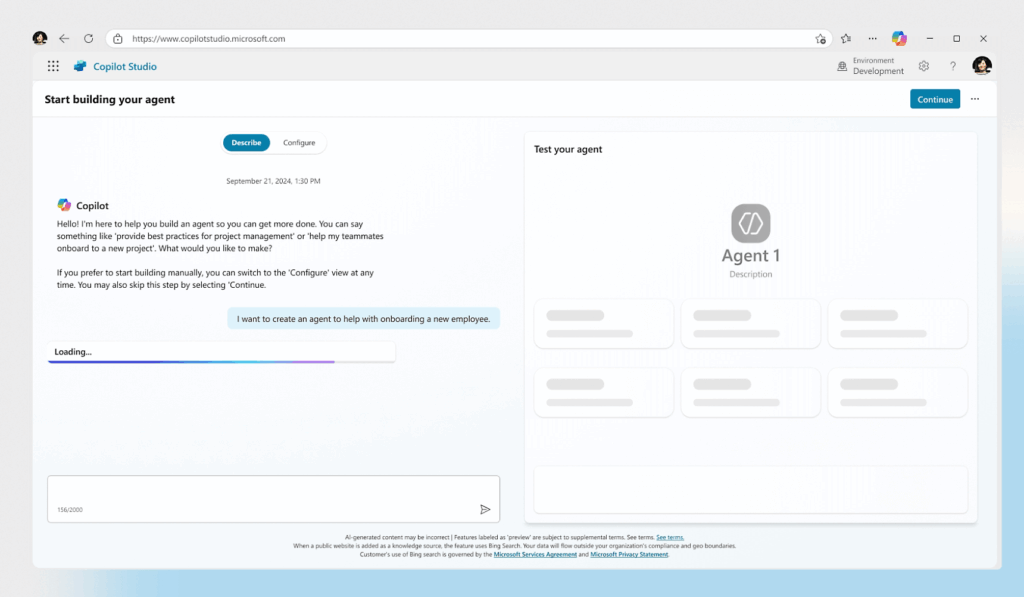
It’s designed for creating “copilots” or “agents” that can:
- Engage with customers or employees to answer questions
- Automate tasks through natural language conversation
A copilot’s conversation is built from a few key parts:
- Topics: A single conversational path
- Trigger Phrases: Keywords that start a conversation
- Entities: Specific information the bot can recognize
Each chatbot conversation is built around topics, which are designed to handle a specific user request like checking store hours.
These topics are initiated by trigger phrases, which are the keywords or questions a user might type.
The copilot identifies and extracts key information like cities, dates, or product names from user conversations using entities.
Power Pages (For Building Secure Business Websites)
Power Pages is a low-code platform for creating and hosting modern, secure, external-facing business websites.
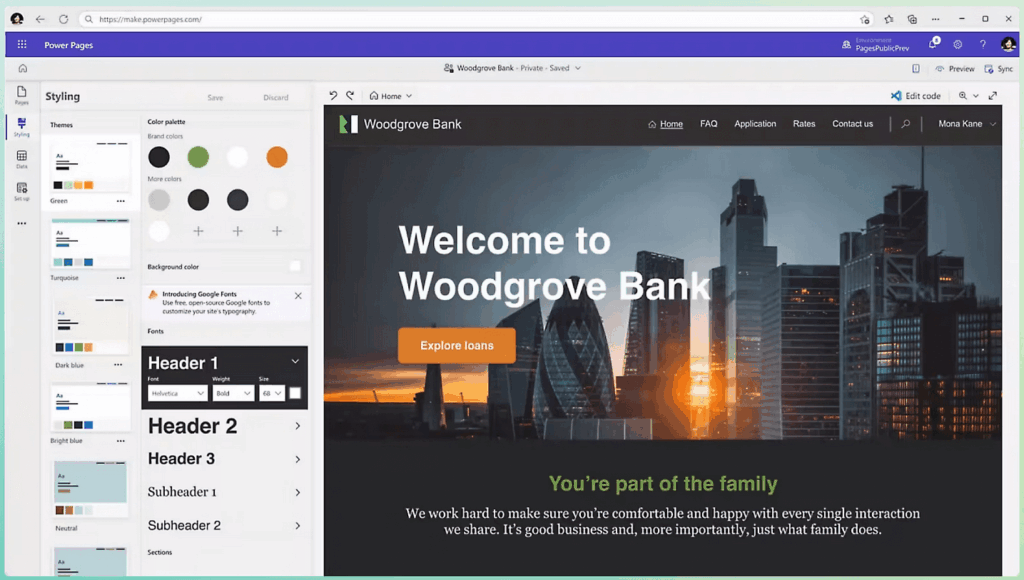
It grew out of a feature in Power Apps and is now its own dedicated product.
Power Pages enables secure external sharing of internal business data (via Dataverse) with customers, partners, and suppliers.
For example, you could build a customer portal where they can create support tickets or check their order history.
The main concepts are:
- Sites: The external websites you create with Power Pages
- Templates: A library of pre-built websites for common scenarios like event registration or application submissions that help you get started quickly
You use Power Pages to build the external-facing sites that allow people outside your company to interact with your data.
To accelerate development, you can start with one of the many templates available for common business needs.
They will let you quickly set up a functional website without starting from a blank page.
Shared services beneath the five main applications provide data storage, connectivity, and intelligence for the entire platform.
Microsoft Dataverse (Secure Data Backbone)
Microsoft Dataverse is a cloud-based, low-code data platform for securely storing and managing business data.
Think of it as the central nervous system for the Power Platform.
It’s more than just a database as it includes a powerful security model, business logic, and rich metadata.
For serious enterprise applications, Dataverse is the recommended data source.
Structure:
- Tables: Where your data is stored, similar to a table in a database
- Columns: The individual data fields within a table, like “Name” or “Order Date”
- Relationships: The connections between tables that allow you to model complex business processes
There is also Dataverse for Teams, a lightweight, built-in version of Dataverse that comes with Microsoft Teams licenses.
That provides a relational data store for apps and bots used within a specific team.
Connectors (Gateway to Your Data and Services)
Connectors are what allow the Power Platform to talk to hundreds of other applications and services.
Connectors translate a service’s API into standard triggers and actions for Power Apps, Power Automate, and Copilot Studio.
Connector tiers:
- Standard Connectors: For common Microsoft 365 services
- Premium Connectors: For enterprise systems and databases
- Custom Connectors: For any other service with an API
The connector ecosystem is tiered, which affects licensing.
Standard connectors are typically included with your Microsoft 365 license for everyday productivity apps.
To connect to more powerful, enterprise-level systems, you will need a premium license to use premium connectors.
If a pre-built option isn’t available, developers can build custom connectors to integrate with virtually any modern service.
AI Builder (Add AI to Apps and Workflows)
AI Builder simplifies adding AI to Power Platform apps and automations, no data science expertise needed.
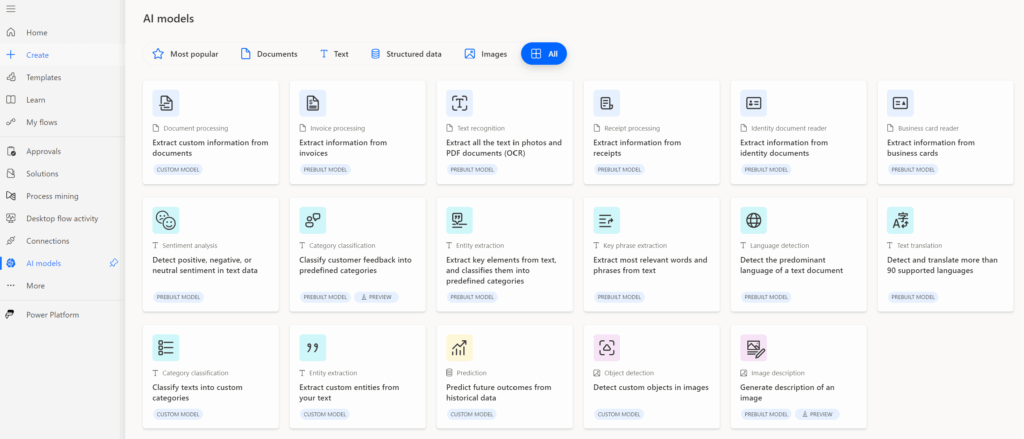
It provides AI models that you can use with just a few clicks.
Model types:
- Pre-built models: Ready-to-use AI for common tasks
- Custom models: Models you train with your own data
Pre-built Models offer capabilities like receipt scanning or sentiment analysis, great for common business needs (no data science needed).
Train custom models with your business data for specialized tasks, like image-based product recognition for inventory.
Governance, Management, and ALM
For the Power Platform to be used safely and effectively across a large organization, IT departments need tools to manage it.
These features provide the necessary controls to enable citizen development without creating security risks.
Administration and Governance
Administration and governance are about setting the rules of the road for how the platform is used.
This ensures security, manages costs, and keeps everything organized through these core components:
- Power Platform Admin Center (PPAC): The central management portal
- Environments: Containers to isolate apps, flows, and data
- Data Loss Prevention (DLP) Policies: Rules to prevent data leaks
- Licensing Models: Different ways to pay for the platform
Administrators use the PPAC to oversee everything, creating separate environments for development, testing, and production.
They establish DLP policies to act as guardrails for data security and manage costs by assigning the appropriate licensing models to users.
Application Lifecycle Management (ALM)
Application Lifecycle Management (ALM) is the process of managing an application’s development from design to deployment.
In the Power Platform, this is done using the following concepts:
- Solutions: Packages to move apps between environments
- Unmanaged Solutions: Used in development for active editing
- Managed Solutions: Used for deploying to test and production
Developers work on applications inside unmanaged solutions, where they can make changes freely.
When the app is ready to be deployed, it is exported as a managed solution, which locks components in production to prevent edits
This ensures that changes are made in a controlled way to prevent accidental issues.
The Developer’s Toolkit (Pro-Code Capabilities)
While known for low-code, the Power Platform also provides powerful tools for professional developers.
These tools allow them to extend the platform’s capabilities and support the fusion development model.
Power Platform CLI (Command-Line Interface)
The Power Platform CLI is a command-line tool that lets developers and administrators automate a wide range of tasks.
It’s primarily used to automate ALM processes, like packaging and deploying solutions.
This is a key component for setting up professional continuous integration/continuous deployment (CI/CD) pipelines.
Power Apps Component Framework (PCF)
PCF is a framework enabling professional developers to create custom, reusable UI controls with HTML, CSS, and TypeScript.
They can create things like an interactive map visual or an advanced data grid that aren’t available out-of-the-box.
Once created, these code components can be used by low-code makers in their apps just by dragging and dropping them onto the screen.
Putting It All Together
The Microsoft Power Platform is an integrated system where each component has a distinct function.
To build comprehensive business solutions, it’s essential to first grasp the associated terminology and how the various components integrate.
For example, imagine a company wants to improve its field service process:
- A pro developer could use PCF to build a custom map control for visualizing job sites.
- A citizen developer then builds a canvas app for technicians, using that map control and connecting to a Dataverse table.
- For managers, a model-driven app is built on the same dataverse table, using a business process flow to guide job approvals.
- A Power Automate flow is triggered when a new job is created, automatically sending a notification to the technician.
- A Power BI analyst connects to the dataverse data to build a report and a dashboard for monitoring service performance.
- Finally, a Power Pages site is created to let customers submit their own service requests directly into Dataverse.
This entire solution is managed using separate environments and moved between them with solutions.
The administrator uses the PPAC to apply DLP policies, all to ensure customer data stays secure.
This example demonstrates the Power Platform’s unified framework for powerful business applications.
Do you have questions about Power Platform terminology? Let me know in the comments below.
For any business-related queries or concerns, contact me through the contact form. I always reply. 🙂




























