
Table of Contents:
Last Updated on May 27, 2025
Want to master Teams quickly?
This guide covers different aspects of Teams, from getting started to helpful tips and troubleshooting.
Not everything we talk about here though are basics, so a little background or knowledge about Teams is important.
Let’s get started.
Getting Started with Teams
Microsoft Teams is a powerful collaboration app that lets you chat, meet, call, and work together.
With Microsoft 365, Teams integrates with your files, calendar, and email, allowing you to complete most tasks in one place.
Teams is flexible enough to fit almost any group or organization, which you can use for:
- Business teams for workplace communication
- Schools for classes, assignments, and staff collaboration
- Clubs, nonprofits, and organizations for planning events and sharing updates
- Any group that needs a central hub for communication and coordination
Getting started is fast and doesn’t require technical skills.
Most people can start using Teams and its main features right away, even if they’re new to Microsoft 365.
All you need is a Microsoft account and an internet connection. 😊
How to set up Microsoft Teams for a group or business?
If your company or school already uses Microsoft 365, you may have access to Teams.
If you don’t have it yet, simply visit the Microsoft Teams website and select a plan that suits your needs.
There’s a free version (home) that small groups or those just starting out can use.
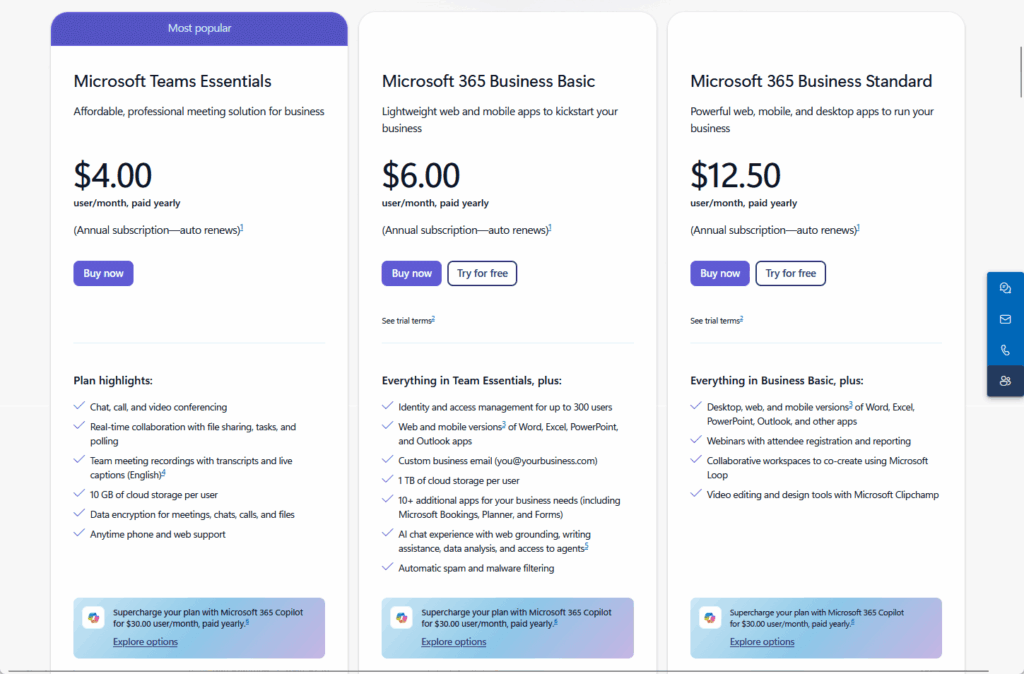
Once you have an account, download the Teams app on your desktop, laptop, tablet, or mobile device.
You can also use the web version in any browser if you don’t want to install anything.
Then log in using your Microsoft, work, or school account, and you’re ready to go.
Most of the features work right away, but some advanced options might need admin setup or permissions.
Can I invite external users?
Yes, you can invite external users to join your Teams meetings, chats, or even certain channels.
This is great for working with outside clients, contractors, or business partners on projects.
Here’s how it works:
When scheduling a meeting, add the external guest’s email address, and they will receive an invite link automatically.
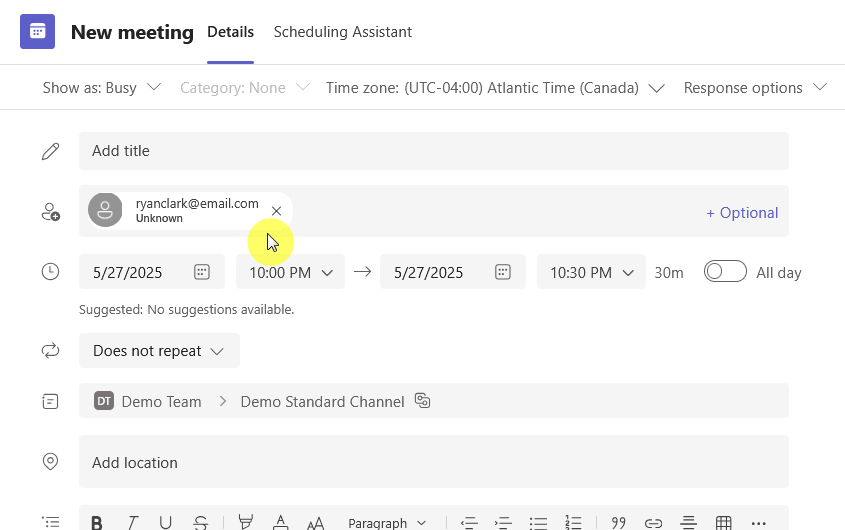
For channels, your Teams admin must enable “guest access” so external users can join specific teams or channels.
This keeps the rest of your organization private.
External users usually have limited permissions, so they can collaborate securely without seeing confidential content.
Note that guest access is flexible, but ask your IT admin if you need to change permissions or add extra security.
Sign up for exclusive updates, tips, and strategies
Organizing Your Workspace
Teams act like folders for different groups, and channels are like subfolders or topics inside each team.
How do I manage permissions for channels and files?
Controlling who can access what is important for both productivity and security.
Teams has straightforward permission settings, but knowing how to use them helps avoid mistakes.
To manage permissions in Teams, start by clicking the three dots next to your team’s name, then choose “Manage team.”
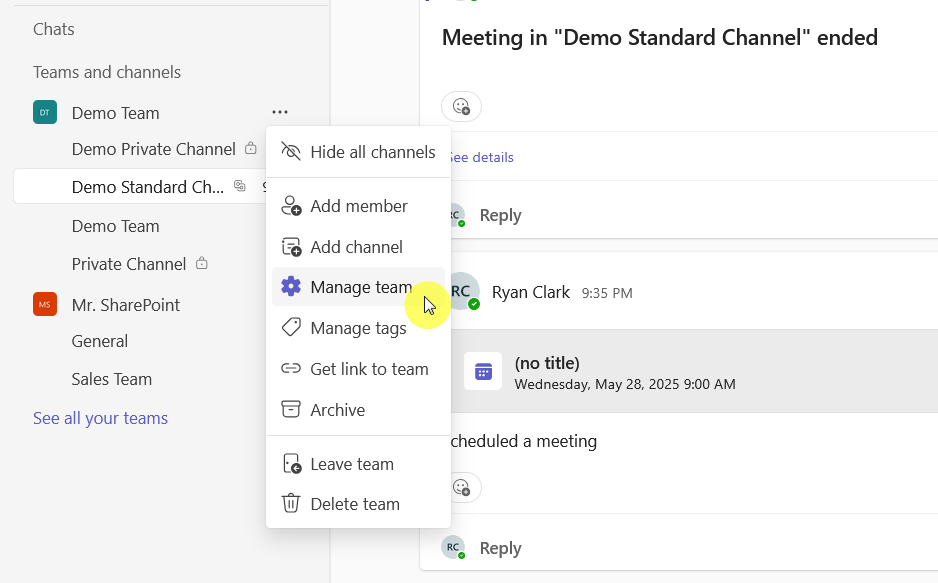
Here, team owners can add or remove members and promote others to owners.

Right inside the members’ settings, where you can add/remove people, you would be able to change their role.
Naturally, if a member doesn’t need any admin privileges, then the “member” access should suffice.
For channel privacy, select “+ Add,” set it to “Private,” and choose which members can access it.
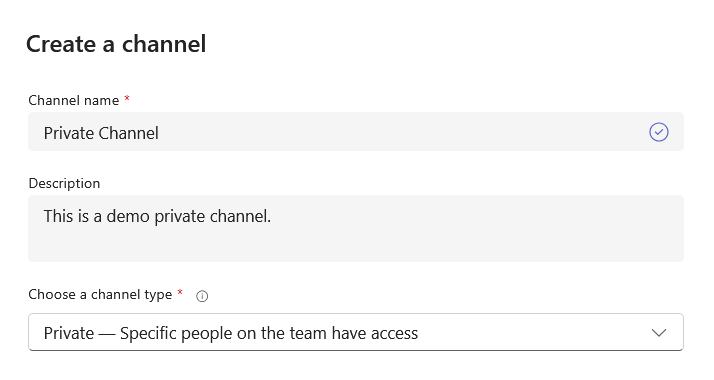
That’s ideal for confidential projects or HR topics.
As for permissions for files, they follow the settings of the channel or team they’re in.
For the actual member permissions settings, just go to the settings tab:
- Control who can create channels
- Decide who can add apps
- Choose who can invite guests
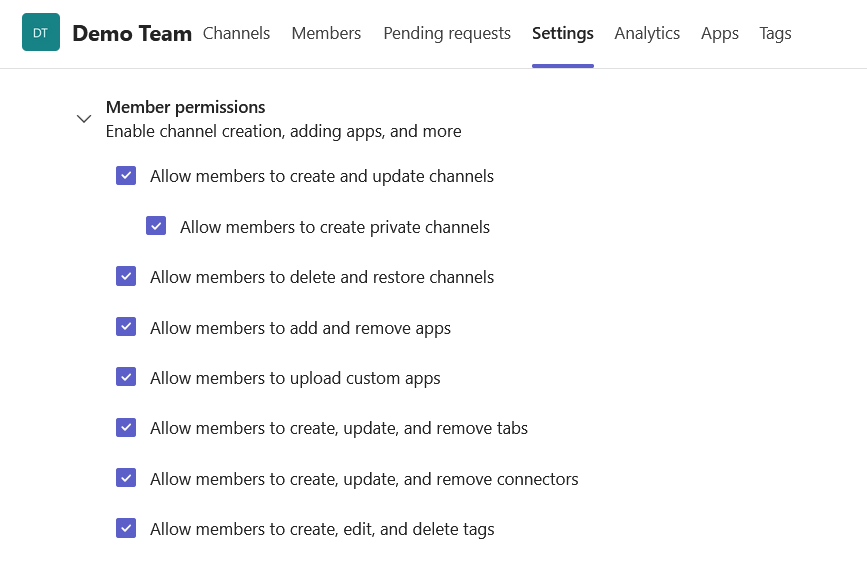
This helps keep your workspace secure as your team grows.
Files and folders inherit permissions from the channel or team above them, so double-check before uploading sensitive files.
A few important notes here:
- Files in private channels are stored in separate SharePoint sites with their own permissions.
- Guests have limited capabilities, and their permissions are set by the team owner.
In large organizations, IT admins may impose additional restrictions or approval steps.
How do you archive or clean up old channels?
A cluttered workspace makes it hard to find important information.
Teams gives you a few ways to keep things organized:
To archive a team:
- Click the three dots of that team in the left panel
- Click the archive button
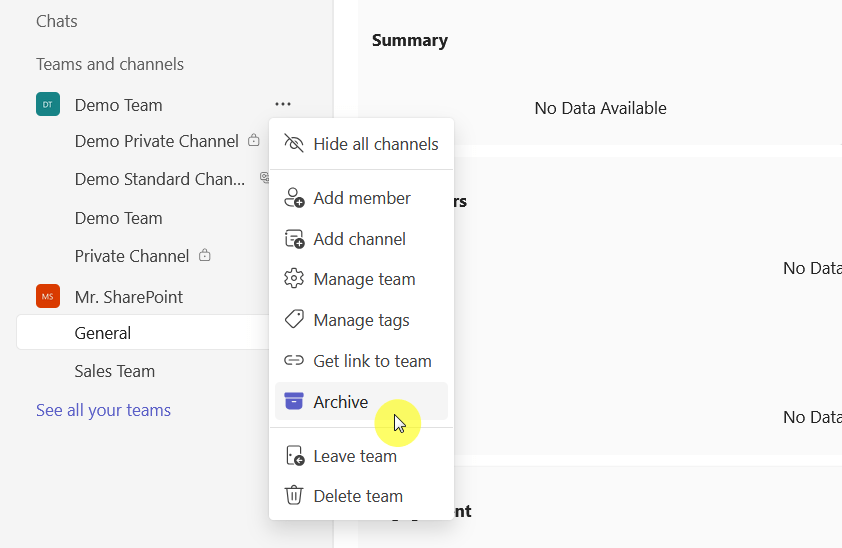
This locks the team for editing but keeps all its messages and files.
For channels, you can either:
- Delete them (removing them for everyone)
- Hide them (removing them from your personal view but not for others)
- Archive them (free all conversations in the channel)
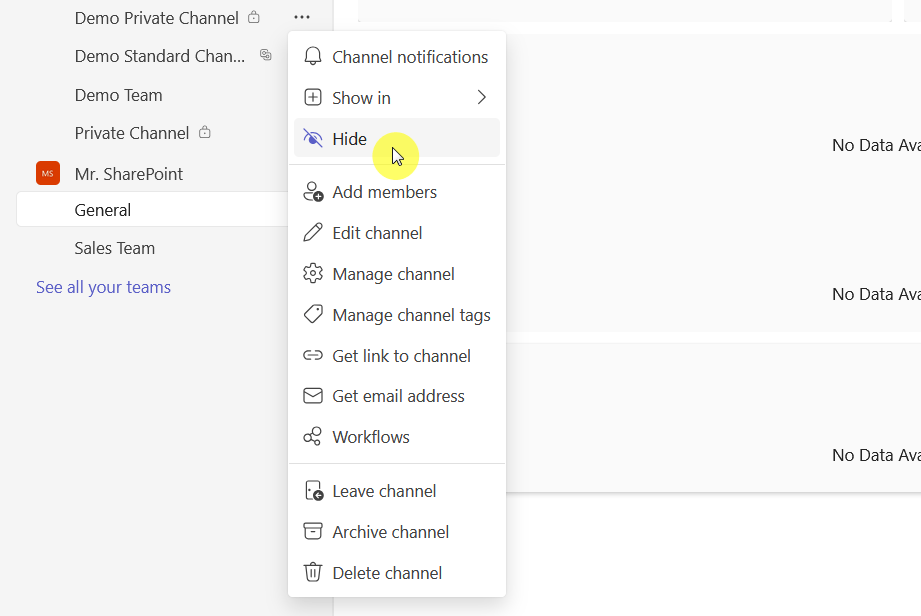
It’s good practice to review teams and channels every few months and clean up anything that’s no longer needed.
But make sure to announce these cleanups so team members know what’s changing. 🙂
You can always restore an archived or deleted team or channel for a limited time if you make a mistake.
Deleted teams and channels can typically be restored within 30 and 21 days, respectively.
Communication in Teams
Teams offers a wide range of chat and messaging features that go way beyond simple texting.
There are features like:
- @mention to alert someone quickly
- Drag files into chat for sharing
- Start calls or meetings from chat
- Add reactions, emojis, or GIFs
- Search chat history by keyword
- Pin chats for easy access
Teams chat is persistent, so you can always come back to a conversation and pick up where you left off.
How do I manage notifications and avoid overload?
Notifications in Teams keep you updated, but too many alerts can be distracting. 😅
To control your notification settings:
Click the three dots beside your profile picture (upper-right corner) and select settings, then notifications and activity.
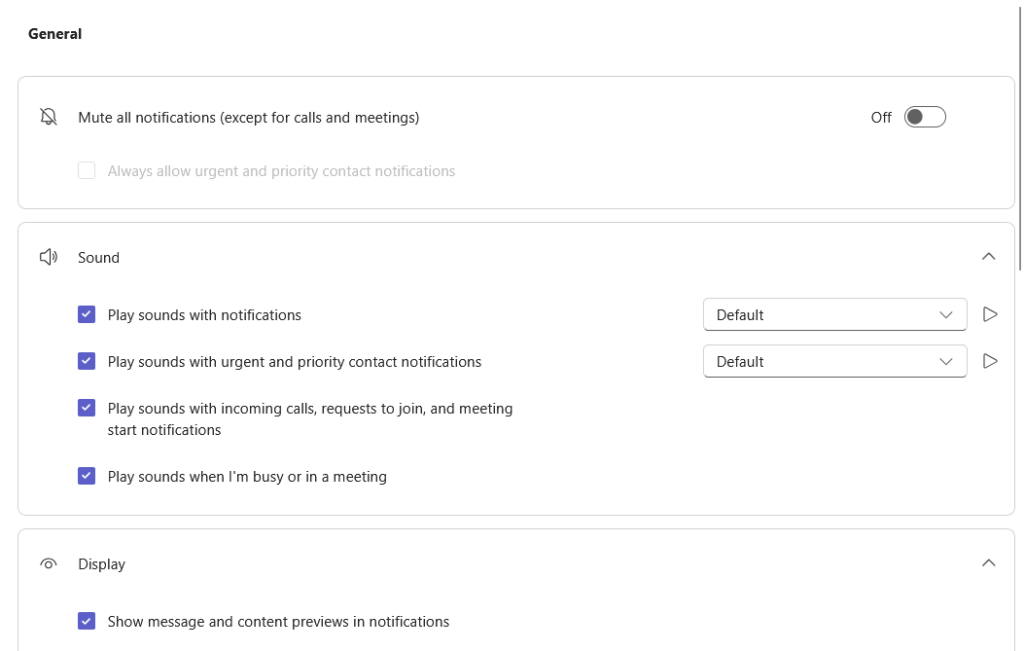
On this page, you will be able to do some tinkering with the notification settings, like:
- Not showing message and content previews in notifications
- Turn off chat message notifications
- Mute all notifications except for calls and meetings
There’s also a feature here where you can keep track of someone’s status and get notifications.
Anyway, you can also turn on “Do not disturb” when you need focus time.

With this status, you won’t receive pop-up notifications for messages, calls, or mentions.
However, messages will still appear in your chat list for later viewing.
Personalizing notifications helps you stay productive without missing what matters.
Can Teams replace email for my group?
For many teams, internal email becomes almost unnecessary once everyone uses Teams.
Here’s how to make it work:
- Post updates and questions in channels
- Use private chats for direct or small group messages
- Pin key announcements in channels
- Share files in channels for quick updates
- Keep using email for external or formal needs
Switching your team’s habits takes time, but it’s worth it.
When conversations move to Teams, updates and decisions are visible to everyone right away.
People also don’t need to dig through long email threads or worry about missing important information.
And with chat, file sharing, and announcements in one place, internal emails often become unnecessary for daily work.
Collaborating on Files
Microsoft Teams is built to make file sharing and real-time collaboration simple.
Every channel comes with its own “Files” tab where you can upload, organize, and edit documents with your team.
How do I connect Teams with other Microsoft 365 tools?
Teams becomes even more powerful when you connect it with other Microsoft 365 apps:
Add shared calendars, Planner boards for task management, or Power BI dashboards using the “+” tab in any channel.
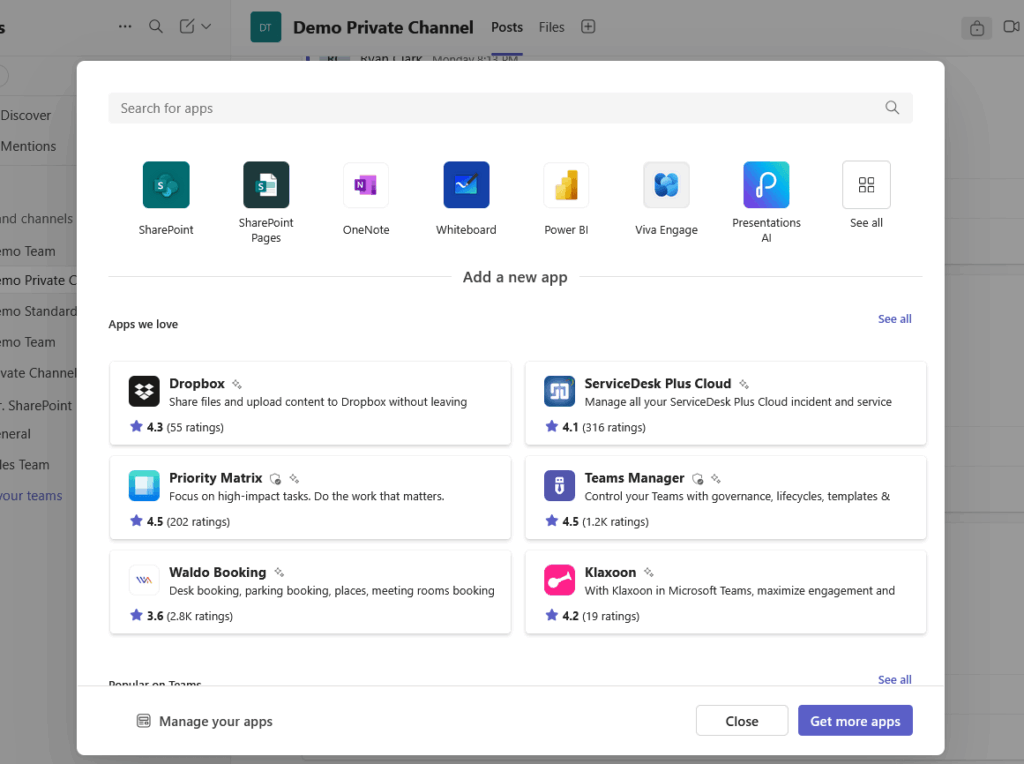
This will give you a separate window or tab for the different apps that add and customize their functionality.
You can also schedule meetings in Outlook and have them sync automatically to your Teams calendar.
This way, you can join meetings right from Teams without switching apps.
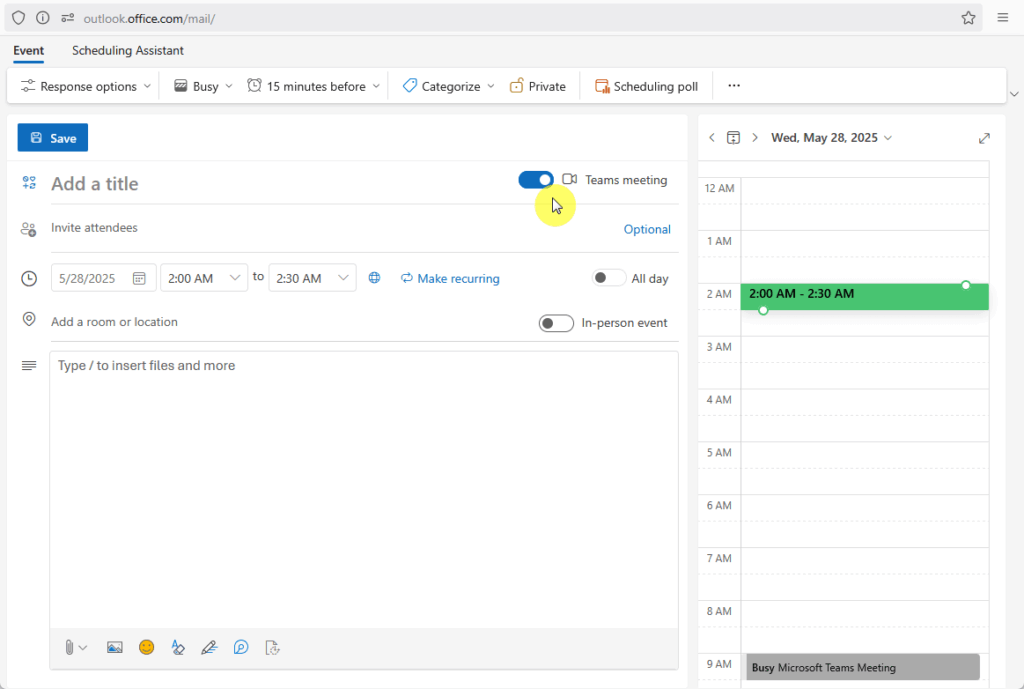
It’s also possible to create shared OneNote notebooks for project notes or brainstorming.
With this, everyone can jot down ideas, track meeting notes, or organize important project info in real time.
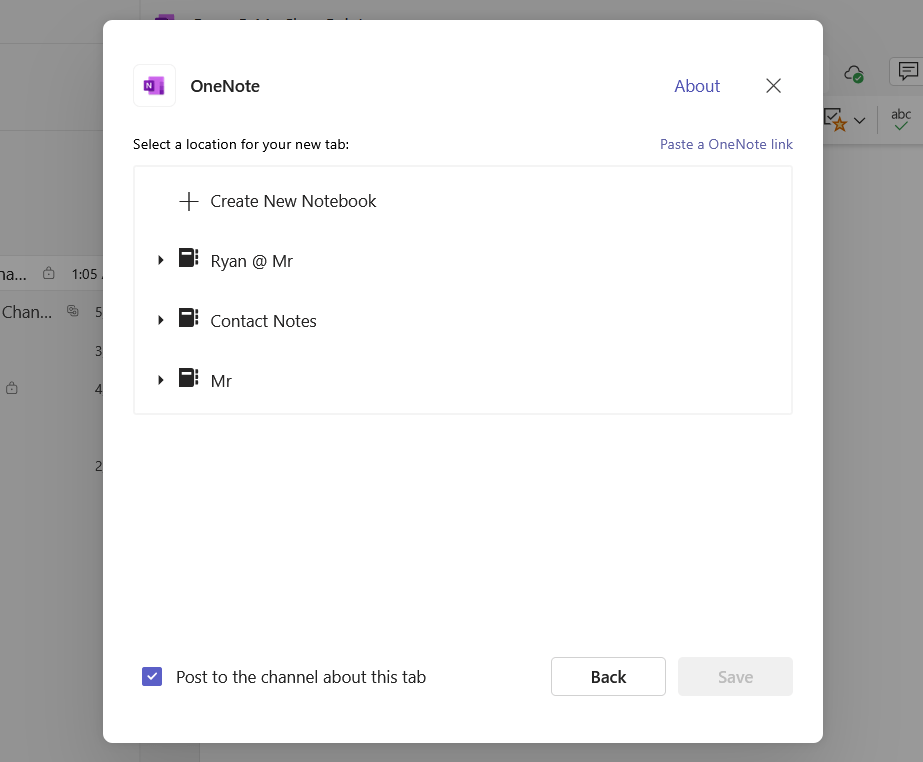
For that, you would need to add OneNote to one of the tabs, then you can create a new notebook or add an existing one.
Changes sync instantly, so your team always has the latest updates.
You can even organize sections for different topics, agendas, or brainstorming sessions, to find things easier next time.
This kind of integration helps keep your group on the same page without switching between multiple tools.
What should I do if files aren’t syncing?
File sync issues are common, especially in busy teams.
If a file isn’t showing up or changes aren’t saving, first try reloading the “Files” tab in Teams or your browser.

Make sure your Teams app and OneDrive client are both up to date, since updates often fix sync problems.
It’s also important to check that you’re signed in to the correct Microsoft account on every device you’re using.
If the problem continues:
- Close the file and reopen it
- Try saving a new copy to the same folder
Sometimes, restarting your device or clearing the Teams cache can resolve persistent issues.
If none of these steps work, contact your IT support or use the built-in Teams help menu for troubleshooting.
Meetings and Productivity
Teams is not just for chatting and sharing files…
It’s also a powerful platform for hosting online meetings, webinars, and presentations.
Making the most of Teams meetings can boost productivity and keep everyone engaged.
How to run better meetings in Teams?
Teams meetings can be more productive with the right approach and tools.
Planning ahead and using built-in features helps everyone stay focused and engaged.
- Share a clear agenda or meeting purpose in the invite or chat
- Use “Raise hand” to manage questions
- Record meetings for people who miss them and share the link
- Share your screen to show slides or demos
- Try Together mode for a virtual conference room look
- Assign roles like presenter or attendee to stay organized
Meetings in Teams can be scheduled in advance or started instantly from any chat or channel.
This flexibility means you can quickly hop on a call for urgent issues or plan ahead for bigger team sessions.
During larger meetings, you can also use breakout rooms for small group discussions.
This helps people collaborate more effectively or brainstorm in focused groups.
These features make Teams ideal for everything from quick check-ins to workshops or full team presentations.
Are there tips for avoiding meeting fatigue?
Online meeting overload is a real challenge.
In fact, a 2022 Microsoft Work Trend Index found that weekly Teams meeting time has more than doubled since 2020.
That makes it even harder for people to stay focused. 😣
Here’s how to manage it:
| Meeting Tip | Why It Helps |
| Keep meetings short (30 minutes or less); schedule buffer time | Reduces fatigue and gives everyone a break between calls |
| Use chat or posts for quick updates | Avoids unnecessary meetings and speeds up communication |
| Block out focus time on your calendar | Prevents constant interruptions so you can get work done |
| Encourage cameras off for some meetings | Helps reduce video fatigue and pressure to always be on camera |
| Review recordings or shared notes if you miss a meeting | Saves time and means fewer follow-up meetings |
Making meetings meaningful and respecting people’s time helps everyone stay energized and focused.
When your team knows meetings are run efficiently, they’re more likely to engage and contribute.
Over time, this builds a healthier work culture and boosts productivity for the whole group.
What keyboard shortcuts or tricks save time?
If you want to speed up your Teams experience, keyboard shortcuts and power-user tricks make a big difference:
- Ctrl + E (Cmd + E on Mac) to search or jump to any feature instantly.
- Ctrl + Shift + M to mute or unmute during calls and meetings.
- Ctrl + N to start a new chat fast.
- Use the search bar at the top with “/” or “@” to run quick commands, like changing your status or starting a call.
- Pin your most-used chats and channels so they’re always at the top of your list.
- Right-click a message to quickly reply, save, or mark as unread.
There’s a full list of shortcuts in Teams — just type “/” in the search bar to view them.
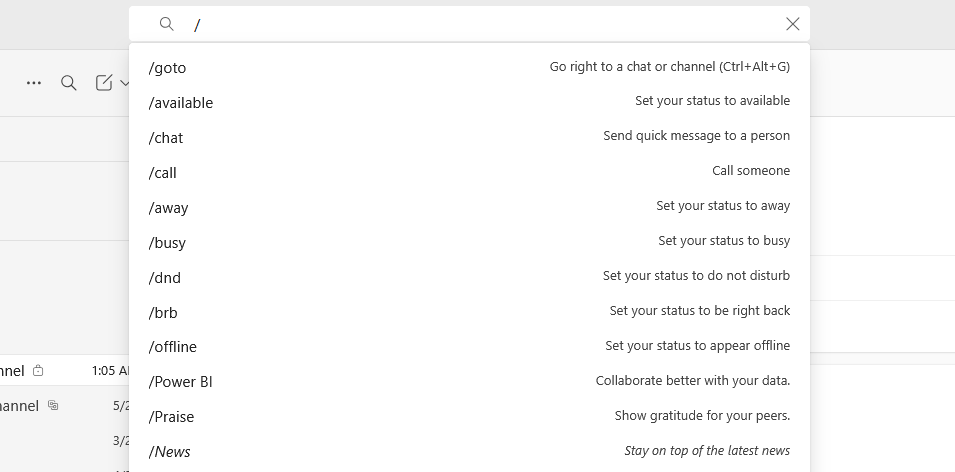
Shortcuts can help you work much faster, especially if you’re managing lots of chats and meetings.
Explore and practice a few shortcuts to see which ones save you the most time.
Integrations and Automation
One of Teams’ greatest strengths is how well it integrates with hundreds of apps and services,
How to use app integrations in Teams?
To integrate your favorite tools, start by clicking “Apps” in the left sidebar.
This opens a gallery where you can search for and add popular apps, for example:
- Trello for project management
- Asana for tracking tasks
- Polly for quick polls
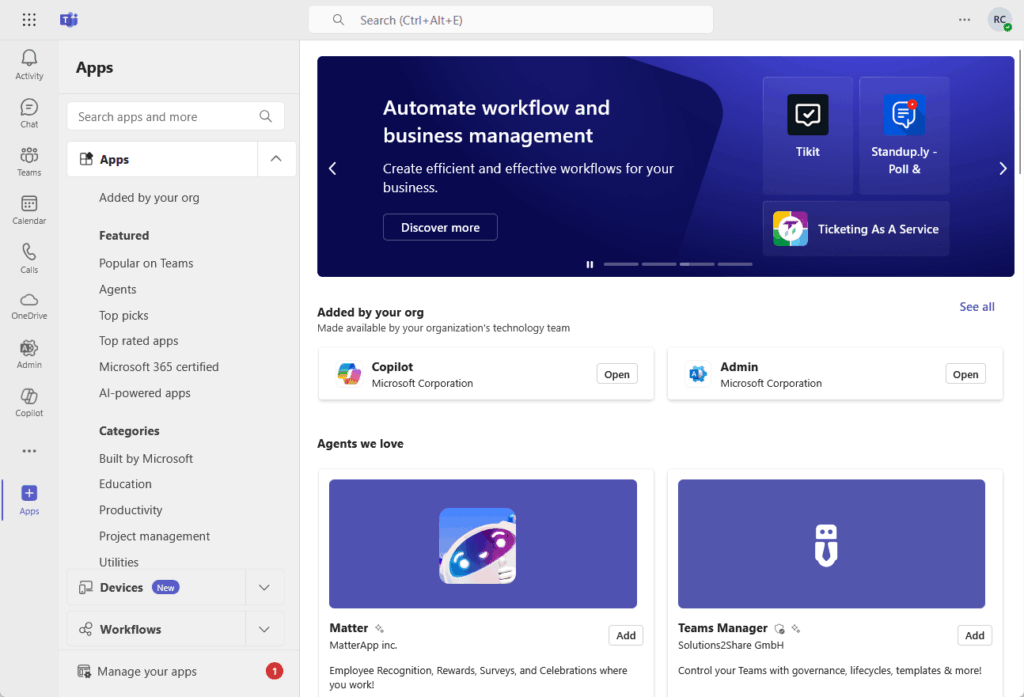
After adding an app, you can connect it directly to a channel.
That makes it easy for everyone in your team to access shared boards, tasks, or results from inside Teams.
Many apps let you create tabs at the top of a channel, making it easy to access your favorite tools quickly.
You can also add bots, which are automated assistants for:
- Reminders
- Tracking progress
- Posting updates from other systems
Bots help automate routine tasks and keep everyone up to date.
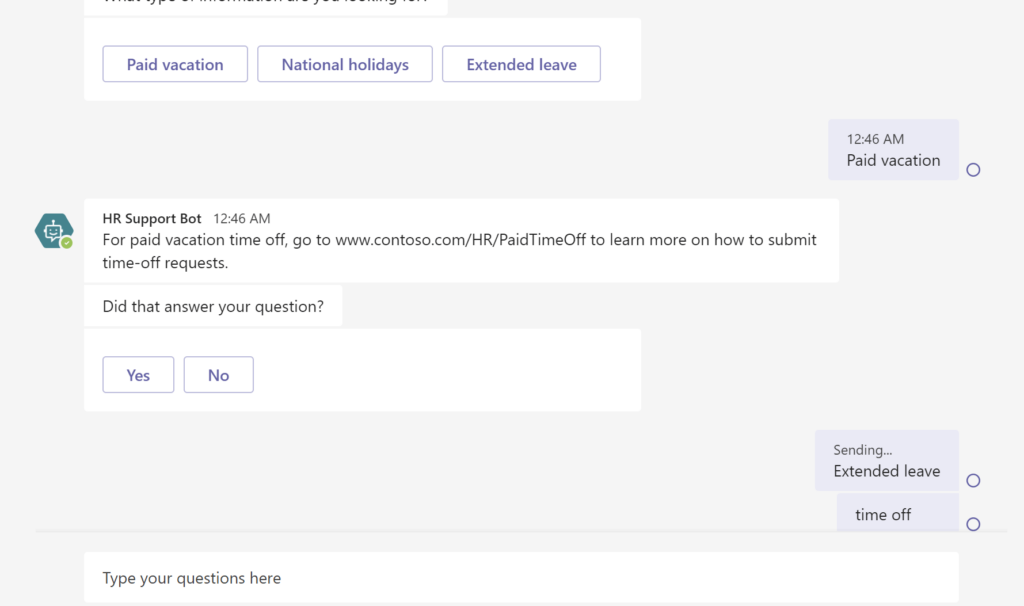
Many apps and bots have free versions or trials, so you can test what works for your team.
If you have unique needs, your IT team can even build custom apps or set up workflows using Teams’ API or connectors.
Can I automate tasks inside Teams?
You can certainly automate tasks by using Microsoft Power Automate (formerly Flow) to:
- Get alerts when new files are added or deadlines are near
- Auto-schedule meetings or send reminders
- Build workflows for approvals or onboarding
- Use built-in templates or custom flows
Automations reduce manual work and keep everyone on track without constant checking or nudging.
For example, you can set up an automation to notify your team whenever a new file is added to a project folder.
Best of all? There are already templates for it:
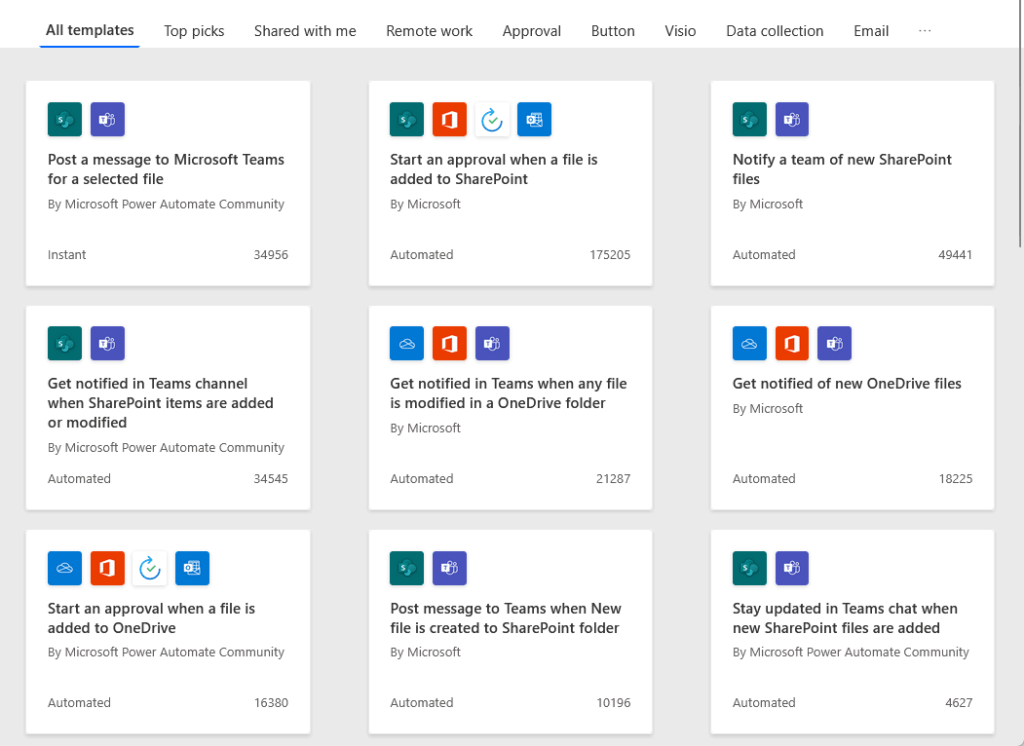
This way, no one has to keep checking manually for updates, and important changes are never missed.
Security and Compliance
Keeping data safe in Teams is a shared responsibility between users and admins.
Microsoft has built strong security features, but you should know your options.
How to keep sensitive data safe in Teams?
As with any platform, use strong, unique passwords and enable two-factor authentication (2FA) for all accounts.
To set up 2FA for Microsoft Teams for a user, they will need to enable it through their Microsoft account settings.
Once 2FA is enabled, they will need to verify their identity whenever they sign in to Microsoft Teams or other services.

I also recommend only inviting people who really need access to each team, channel, or document.
Well, granting access only when necessary limits your risk if an account is compromised.
But make sure to set restrictions for confidential content, and remove them when they’re no longer working with you.
You can do this in the members tab in the teams settings, right below the “Owners” section. 🙂
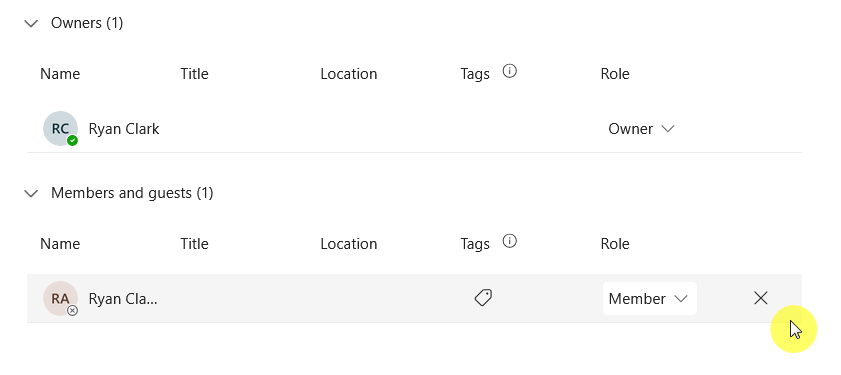
This makes sure only the right people see sensitive information.
Another is to store sensitive files in private channels and limit permissions to trusted members only.
As you know, keeping private content in restricted channels protects confidential data (hence the lock icon).

Always remind your team not to share sensitive information in public chats or meetings.
Public chats can be seen by many users, so it’s better to discuss confidential topics in secure spaces.
What compliance options are available?
If your company, school, or nonprofit follows strict compliance or data protection rules, Teams helps you stay on track.
There are features available:
- Teams and Microsoft 365 have built-in tools for data retention, audits, and legal holds
- Admins can set rules for keeping or deleting messages and files
- Teams encrypts data to meet privacy standards
- Use information barriers to separate sensitive groups when needed
- Regularly check compliance settings if your team handles confidential data
Check with your IT team or Microsoft’s compliance center for your specific needs.
For example, you might need to keep chat history for legal reasons.
Your admin can enable message retention and audit logs in Microsoft Purview (compliance center).
This makes it easier to:
- Track communication
- Keep records for regulatory requirements
- Review user activity when needed
You can also use Microsoft Purview to review who accessed or shared sensitive documents.
These compliance tools give your organization peace of mind when handling sensitive or regulated information.
Common Limitations and Troubleshooting
Teams is one of the most versatile tools out there, but like any app, it’s not perfect. 🤔
Knowing the common limitations and quick fixes saves headaches down the road.
Main limitations of Teams
Even though Teams is packed with features, it does have a few limitations that can affect your workflow.
Knowing these ahead of time will help you set realistic expectations and avoid common pitfalls.
| Limitation | What It Means |
| Too many channels | Large teams can get cluttered and hard to manage |
| Paid features required | Some advanced tools need a Microsoft 365 plan or admin help |
| Internet-dependent | Calls and meetings need a stable connection |
| Storage limits | You may have to archive or delete files to free up space |
| App compatibility | Not all third-party apps work in every Teams setup |
Understanding these challenges makes it easier to plan around them and keep your team productive.
Some issues, like clutter or limited storage, can be managed by setting good guidelines and cleaning up regularly.
If you need a feature that’s missing or restricted, check if there’s a Microsoft 365 upgrade or an alternative app.
And always keep an eye on your storage and app integrations to avoid surprises as your team grows.
How do I fix common issues?
Most Teams problems have simple solutions.
Try these steps before calling support:
| Issue | Troubleshooting Step | What This Fixes |
| Teams is slow, glitchy, or unresponsive | Restart Teams app or device | Clears temporary errors |
| Can’t access files or chats; account errors | Make sure you’re signed in to the correct account | Prevents login mix-ups |
| Poor call/video quality or dropped meetings | Check internet connection or use wired connection | Improves call stability |
| Teams is lagging or freezing | Clear Teams cache or reinstall the app | Boosts performance |
| Don’t know how to fix problem | Use Teams “Help” menu or Microsoft’s support site | Finds step-by-step fixes |
| Missing features or permissions | Ask IT admin to check for outages or permission issues | Solves access issues |
Try each step one by one until your issue is fixed.
If you’re still having problems, write down any error messages to help support find a solution.
Staying updated with Teams’ latest version and using the Help menu makes troubleshooting much easier.
Mobile and Remote Use
Teams works well on mobile devices, so you can stay connected and productive no matter where you are.
The mobile app brings nearly all desktop features to your phone or tablet, including chat, meetings, etc.
Using the Teams Mobile App
Start by downloading the Teams app from the Apple App Store or Google Play for Android devices.
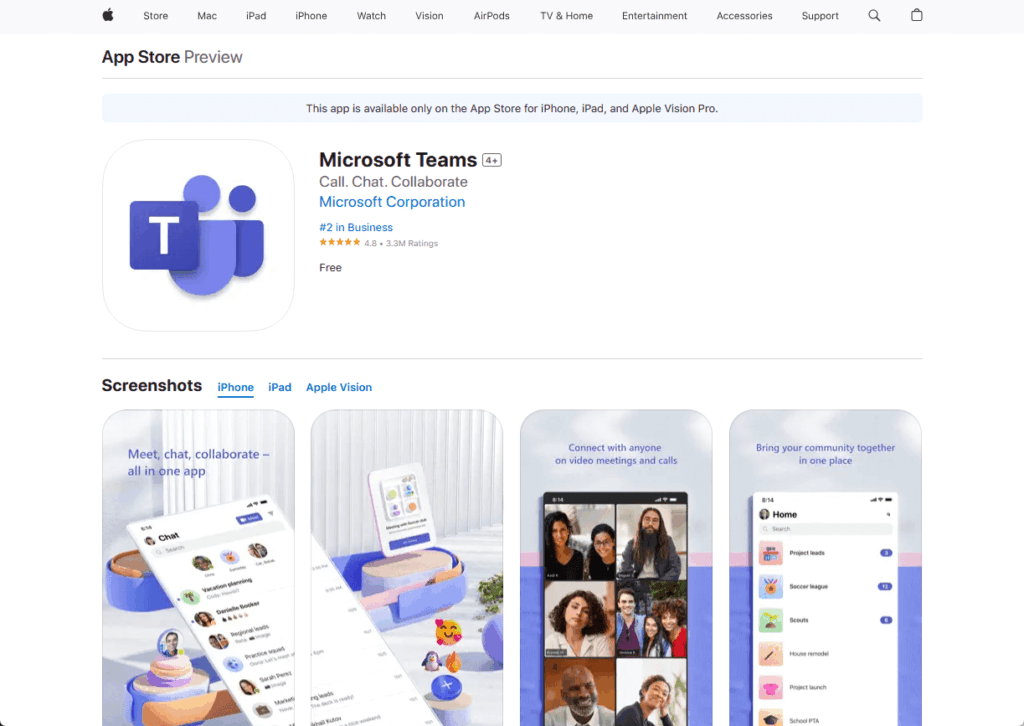
Log in with your work, school, or personal Microsoft account, and you can switch between accounts if needed.
On mobile, you can access chats, calls, meetings, and files just like you would on your computer.
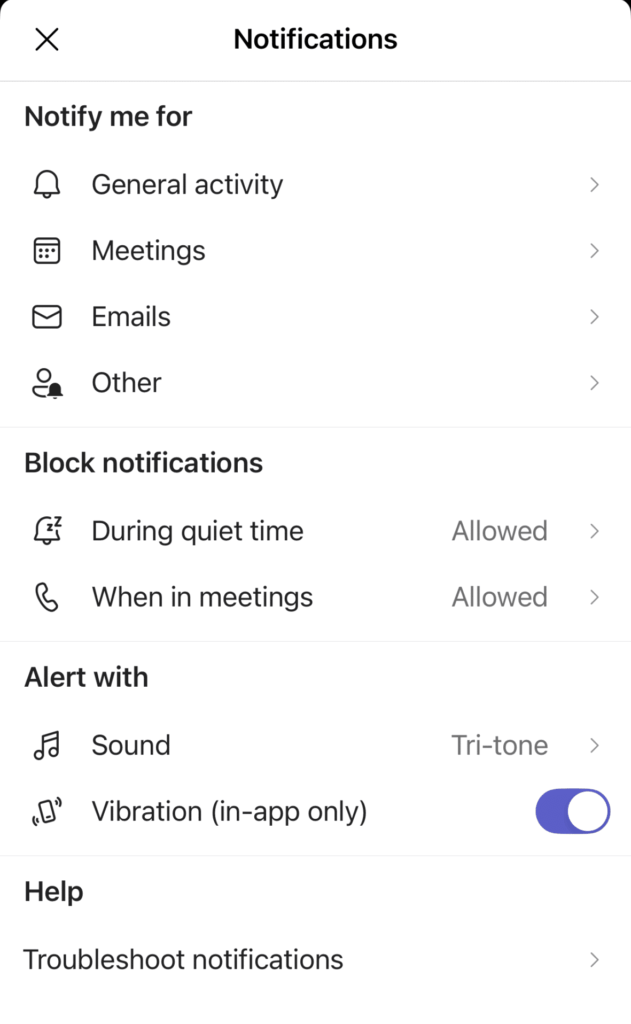
Make sure to enable notifications so you never miss urgent messages, calls, or meeting reminders.
You can also join meetings, share files, add tasks, and update notes right from your mobile device while on the go.
Teams mobile is handy for field workers, remote employees, or anyone who travels and needs to stay in the loop.
How do I adjust notifications when working remotely?
Remote work brings more alerts and interruptions, but Teams lets you stay in control.
You can control your notifications in the Teams mobile app to make remote work less distracting.
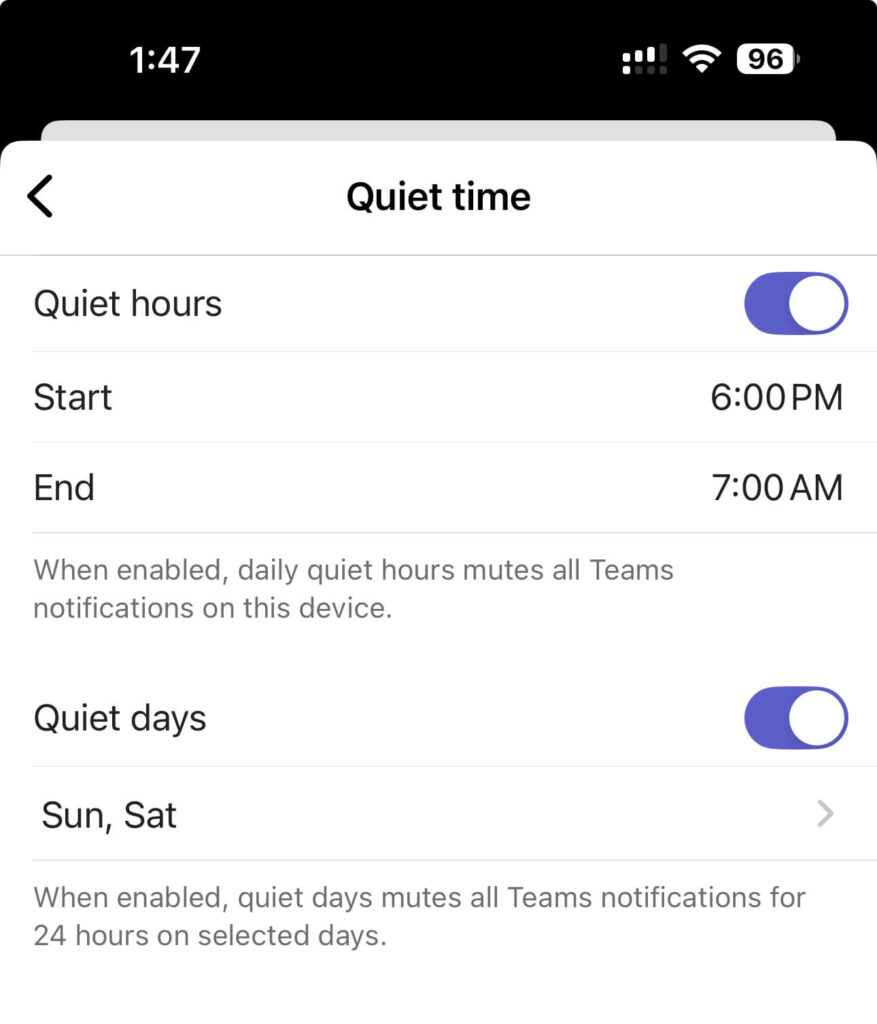
To mute notifications outside your normal work times, you can do the following:
- Open the app
- Tap your profile picture and select ‘Notifications’
- Set your ‘quiet hours’ for evenings or weekends
If certain channels are too noisy, go to their notification settings and set them to be notified for replies to your messages.

Let others know when you’re unavailable by setting a status message like “Out of office” or “In a meeting” in the app settings.
For deep work or important calls, you can temporarily mute all notifications by turning on ‘Do not disturb.’
Finally, review and clear old notifications in the activity feed to keep your device running smoothly and your workspace clutter-free.
Conclusion: What’s the next step for mastering Teams?
Explore new features, share best practices with your team, and adjust settings to fit how you work.
Then keep Teams updated and try new integrations or automations as they’re released.
If you ever get stuck or want to learn more, you have a few good options:
- Check Microsoft’s official support resources
- Connect with your IT admin
Third option: drop a question below if you have any questions about mastering Microsoft Teams.
For any business-related queries or concerns, contact me through the contact form. I always reply. 🙂




























