
Table of Contents:
Last Updated on November 10, 2025
Need to edit a Word document but don’t have the application handy?
In this guide, I’ll show you the best free online options and help you choose the right tool for your situation.
Let’s get started.
What Are Your Options?
The question hasn’t changed: “How do I edit a Word document online?”
But the answer has evolved. Free online editing isn’t optional anymore. You’re on a borrowed laptop. Your team works across time zones.
You need to edit without emailing file versions with “_final_v2” in the name.
Here’s the central tension: free online Word editing reveals one fundamental trade-off.
- You can have perfect formatting.
- Or you can have seamless teamwork.
Historically, not both.
This happens because of how each platform was built:
- Microsoft built Word Online on desktop foundations, which means it treats .docx as a native format.
- Google built Docs for web-first collaboration, which means it treats Google’s format as home and .docx as a guest.
Different platforms optimize for different goals. But the good news is simple: if you want a straightforward answer, it exists.
Microsoft Word Online solves this problem better than anything else, especially if you’re already working with a Word file. Other tools exist for specific situations.
Sign up for exclusive updates, tips, and strategies
Why Word Online Wins on Fidelity
Technically, Word Online and desktop Word are separate applications with different architectures, though they share file format compatibility and similar feature sets.
When you open a .docx file, it renders exactly right:
- Fonts stay in place.
- Tables keep alignments.
- Complex layouts don’t shift.
- Headers and footers preserve formatting.
This matters for resumes, legal contracts, and academic papers.
A resume with shifted margins can cost you the job. Word Online eliminates that risk because .docx is its native language.
How to Get Started
The first step is to literally create a free Microsoft account (if you don’t have one).
You can go to either outlook.com or directly at the Microsoft account page and create an account from there.
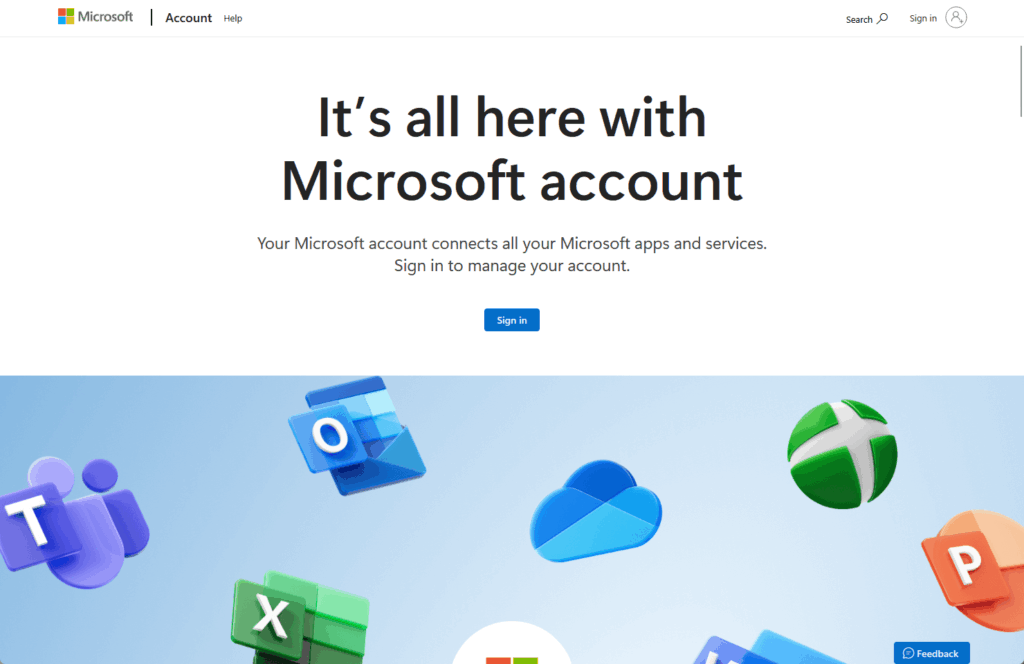
Once you’re logged in, you can then navigate to word.cloud.microsoft.com or directly to Microsoft 365.com, and sign in with your account.
If you go directly to the Word Online link, and you’re logged in, you will see a screen like this:
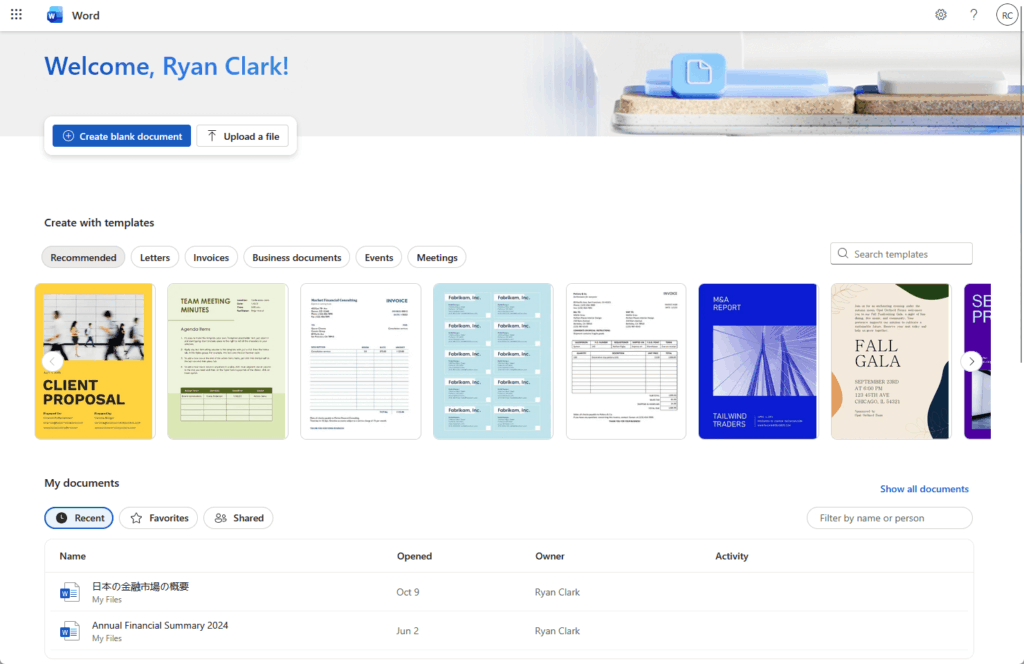
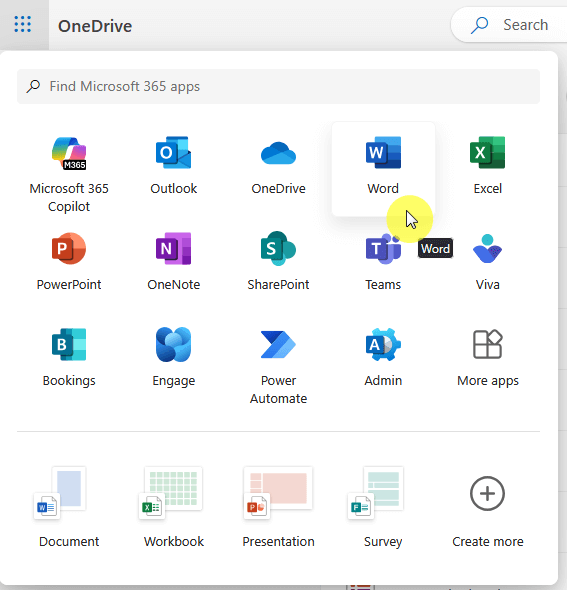
If not, there’s an app launcher in the top left corner. Just select “Word” from the options (you can search for it if you can’t see it right away).
From there, you can upload your document with the “Upload a file” button, or create an entirely new document.
You can also drag and drop the file that you want to edit, and it will then open in the Word Online editor that looks like this:
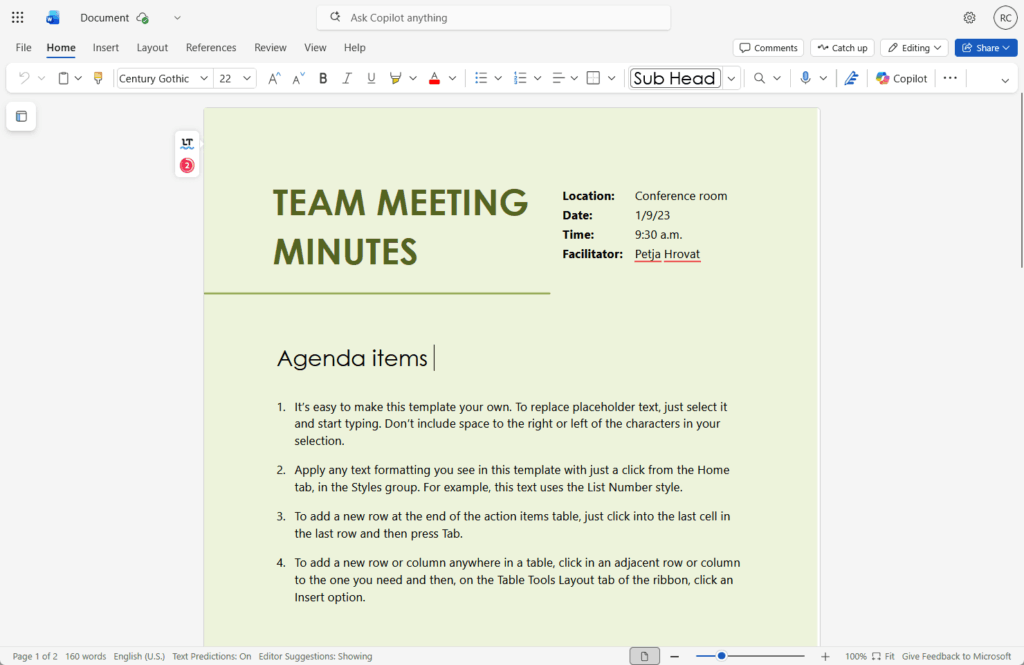
You can see that the familiar ribbon interface appears at the top, like in the desktop version, and all standard formatting tools are available.
Pro tip: Share documents directly from Word Online. Click Share in the top right. Others can open and edit without downloading anything.
Free Tier Features: What You Get and What You Don’t
The free tier gives you everything you need for standard document work:
- Extensive formatting options (text, paragraphs, styles)
- Real-time collaboration with shared links
- Version history (view and restore previous versions)
- 5GB OneDrive storage
- Native .docx handling
- Cross-platform access (Windows, Mac, iOS, Android)
- Comments and basic review tools
This is a complete editor for everyday document work. The interface feels familiar if you’ve used desktop Word. You’ll recognize the ribbon, the menus, and the workflow.
Microsoft limits certain features to the paid tier. Note that this is intentional:
| Feature | Free Tier | Details |
| Mail Merge | ✗ | Desktop-only automation feature |
| Macros | ✗ | Advanced scripting, not needed for editing |
| Section Breaks | Limited | With some limitations |
| Watermarks | ✗ | Design element, not core editing |
| Advanced Object Handling | Limited | Free-form photo placement is constrained |
| Embedded Excel Tables | ✗ | Live spreadsheet integration |
Here’s the reality: these limitations don’t affect 95% of users. You’re editing documents, not building publishing templates.
If you need Mail Merge, you probably already have desktop Word through Microsoft 365. The core editing experience is complete, and you won’t hit walls with typical work.
The Alternative: When Google Docs Makes Sense
Google Docs excels at one thing: real-time teamwork.
Google Docs shines if your team
- Brainstorms together
- Collects feedback from multiple reviewers
- Co-authors documents live
Multiple people edit simultaneously, changes appear instantly, and the commenting system is intuitive.
But Google Docs doesn’t handle complex .docx files well. When you convert a formatted Word document to Google Docs format, expect issues:
- Tables become misaligned with merged cells breaking
- Fonts get replaced with web-safe defaults
- Line spacing breaks and indentation shifts
- Tables of Contents lose page numbers
- SmartArt and text boxes don’t translate cleanly
This problem works both ways. Fix a document in Google Docs, export it back to .docx, and formatting breaks again.
If your team requires Google Docs, use this hybrid approach:
- Draft in Google Docs for real-time collaboration
- Export as .docx through File > Download > Microsoft Word
- Open the file in Word Online
- Fix any formatting issues that broke during conversion
- Download and share the cleaned version
This gets you collaboration without formatting loss.
By the way, if you need a quick reference on how they compare, check this out:
| Factor | Word Online | Google Docs |
| Primary Strength | Perfect .docx fidelity | Real-time collaboration |
| Best For | Final drafts, resumes, contracts | Team brainstorms, feedback collection |
| Free Storage | 5GB OneDrive | 15GB Google Drive |
| Formatting Risk | Virtually zero | High with complex files |
| Learning Curve | Minimal (familiar) | Minimal (intuitive) |
| Collaboration Features | Basic (sharing, comments) | Advanced (simultaneous editing) |
| Offline Access | Limited | Better |
Bottom line: Start with Word Online. If your team explicitly needs Google Docs collaboration, use the hybrid workflow.
Word Online Is Your Answer
If you need to edit a Word document online for free, Microsoft Word Online is the answer.
This isn’t a compromise solution. It’s the best free option available because it solves the core problem: editing .docx files without losing formatting.
There’s no gotchas. There’s no “here’s what breaks.” There’s no hidden costs beyond standard account policies.
You get a professional editor, cloud storage, collaboration features, and perfect format fidelity.
The only reason to use Google Docs is if your team explicitly requires real-time collaborative editing, and you’re willing to use the hybrid workflow.
Do you have questions about editing Word documents online for free? Let me know below.
For any business-related queries or concerns, contact me through the contact form. I always reply. 🙂





























Microsoft Word OnLine – how to i start to edit a Word doc? Drag? Where? Copy & Paste?