
Table of Contents:
Last Updated on September 4, 2025
Need to share SharePoint files with people outside your company, but worried about keeping your data secure?
In this guide, I’ll walk you through how to configure the right sharing settings, what the experience looks like, and more.
Let’s get started.
Before changing any settings, it’s good to know a few core concepts that govern how external sharing in SharePoint functions.
The system is built on a clear hierarchy that gives administrators both broad and specific control over how data is shared.
What’s the Difference Between External Users and Guest Users?
The terms can be confusing, but the distinction is simple.
An external user is anyone who is not part of your Microsoft 365 organization.
Sharing a file or folder externally creates a guest user account in your organization’s Microsoft Entra ID for that user.
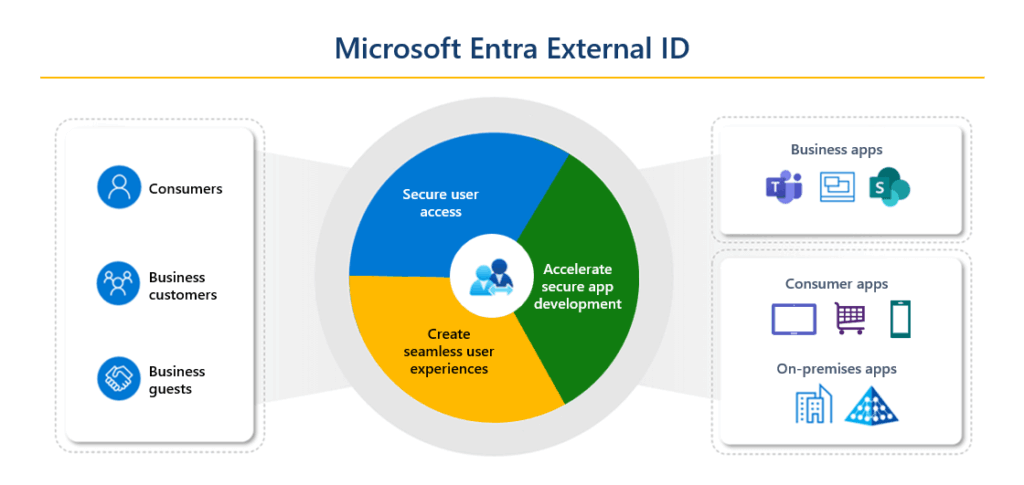
This guest access account acts as a persistent identity for that person.
It will allow you to track their activity and manage their permissions across different SharePoint sites over time.
This process turns an unknown external contact into a known guest collaborator.
How Sharing Permissions are Controlled
SharePoint uses a two-tiered system to manage external sharing settings.
This provides a baseline level of security can be enforced everywhere, with flexibility for specific cases.
- Organization level: This is the master switch in the SharePoint admin center that sets the maximum sharing permission for your entire company.
- Site level: These are settings for individual SharePoint sites, which can be made more restrictive than the organization level.
The most important rule is that the most restrictive setting always wins.
For example, if your organization allows sharing with anyone, you can still lock down a specific site to allow no external sharing at all.
A site-level setting can never be more permissive than the organization-level setting.
Sign up for exclusive updates, tips, and strategies
Configuring external sharing in SharePoint involves a few key steps in the admin centers.
As an administrator, you have full control over external sharing policies; site owners can’t alter these settings.
Step 1: Configure Organization-Level Sharing Settings
First, you must set the global policy to determine the maximum sharing capability available to your users.
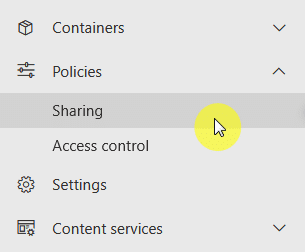
Navigate to the SharePoint admin center.
Under ‘Policies’, click on ‘Sharing’.
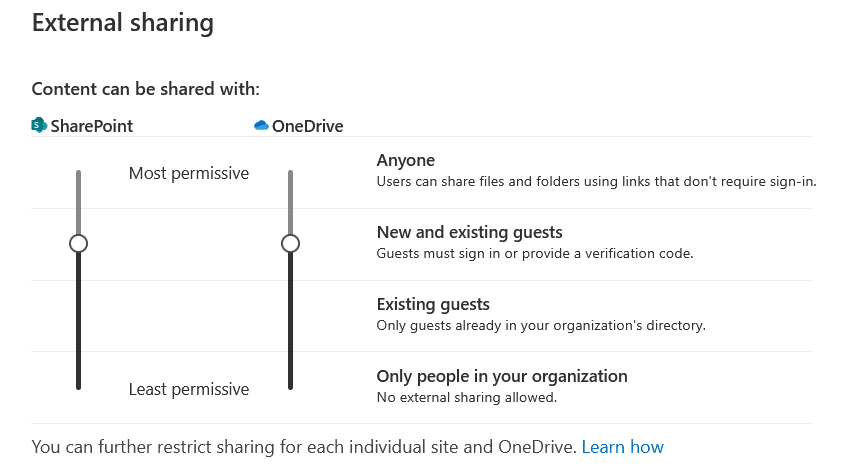
You will see sliders for both SharePoint and OneDrive.
You can choose one of four levels.
| Sharing Level | How It Works | Best For |
| Anyone | Users can create anonymous links that work for anyone. No sign-in is required. | Sharing non-sensitive, public documents. Use with caution as it poses the highest risk. |
| New and existing guests | External users must sign in to verify their identity. A guest user account is created for new collaborators. | Most standard business collaboration with trusted partners, vendors, and clients. |
| Existing guests | Sharing is restricted to external users who already have a guest account in your directory. | Highly sensitive projects where all external collaborators must be pre-approved and provisioned by an admin. |
| Only people in your organization | Disables all external sharing. No content can be shared with external users. | Organizations with strict compliance needs or policies that forbid external collaboration. |
After setting the organization-wide policy, you can tighten security on specific sites.
In the SharePoint admin center, go to Active Sites.
Select the site you want to manage and click ‘Sharing’ in the command bar.
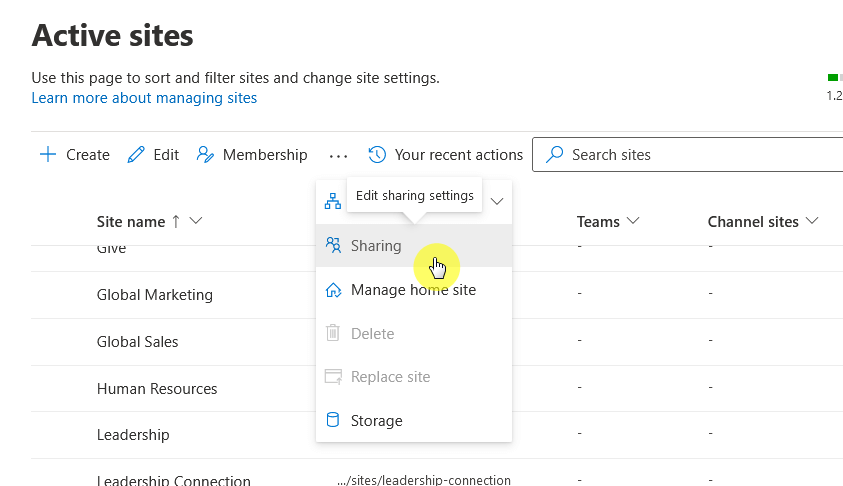
Choose a more restrictive sharing level.
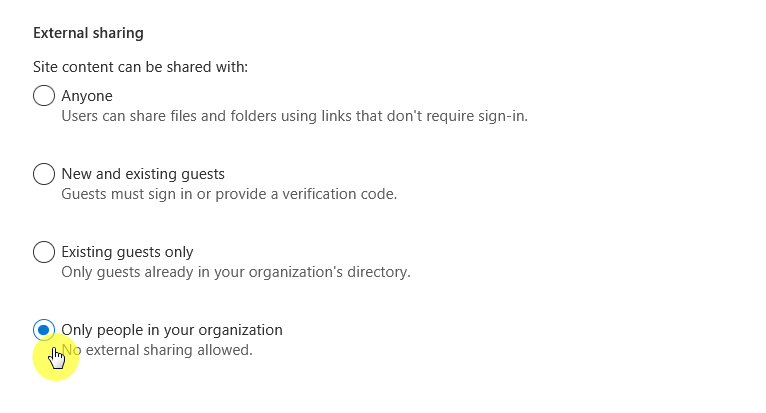
For instance, if it’s set to ‘New and existing guests’, you could restrict a specific site to ‘Only people in your organization’.
Or you can disable external sharing entirely for that site.
Step 3: Use Advanced Settings for More Control
On the same ‘Sharing’ page in the admin center, you can find more external sharing settings that offer granular access controls.
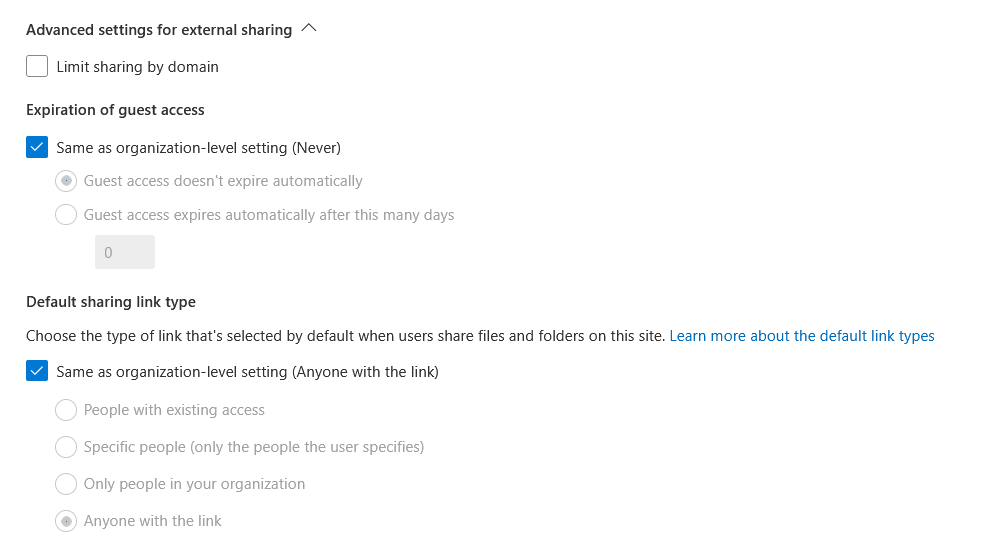
- Limit sharing by domain: Allow or block sharing with specific email domains
- Set guest access expiration: Automatically remove guest access after a certain period
- Configure default link settings: Make secure link types and permissions the default choice
These settings give you a finer degree of control over your sharing environment.
They automate policy enforcement, formalizing partnerships with organizations while preventing sharing with personal emails.
Secure defaults and automatic expiration dates reduce oversharing and indefinite guest access.
Note: Check Your Microsoft 365 Groups and Teams Settings
Many SharePoint sites, like a SharePoint team site, are connected to a Microsoft 365 Group.
If you use Microsoft Teams, the files for each team are stored in one of these connected sites.
For external sharing to work smoothly, you must ensure guest settings for the underlying Microsoft 365 Group are also enabled.
If the group settings block guests, it will override the SharePoint settings.
Sharing and Receiving Files
A good setup makes the process straightforward for both your internal users and external partners.
Here’s a look at the workflow from both sides.
Sharing SharePoint files or folders is a simple process for your team.
Navigate to the shared item and select the file or folder and hit the ‘Share’ button at the top of the page.

For secure sharing, select ‘People you choose’ where only the people you name can access the content.
Choose the appropriate permission level from the link permissions options: ‘Can edit’ or ‘Can view’.

Enter the external user’s email address, add an optional message, and click ‘Send’.
This creates the sharing invitation.
What the External User Experiences
The process is designed to be easy for external partners, even if they don’t have a Microsoft account.
When an external user receives an invitation for a shared file, they click the link in the email.
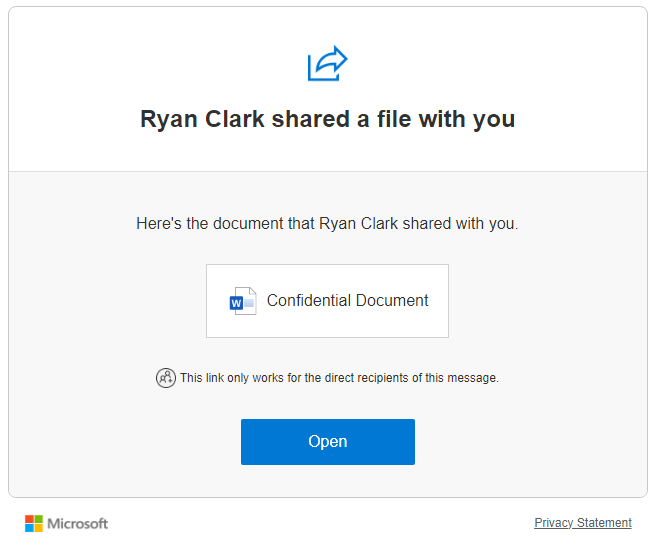
The system then needs to verify their identity.
- Microsoft account users sign in.
- Others receive a one-time verification code via email.
This means you can share a SharePoint site or file with external users even if they don’t have a Microsoft account.
What Can Guest Users Do?
Guest users have different capabilities than internal members of your organization.
Here’s a quick comparison:
| Feature | Licensed Member User | External Guest User |
| Edit Office Docs (Web) | Yes | Yes (if granted ‘Edit’ permissions) |
| Install Office Desktop Apps | Yes | No (unless a license is assigned) |
| Access SharePoint Content | Yes | Only to content explicitly shared with them |
| Have a Personal OneDrive | Yes | No |
| Be a Site Collection Admin | Yes | No |
Your Next Steps
SharePoint gives you the tools to collaborate externally with confidence, as long as you configure them thoughtfully.
Balance productivity and security with multi-layered controls and monitored sharing activity.
Do you have any questions about SharePoint file sharing with external users? Let me know below.
For any business-related queries or concerns, contact me through the contact form. I always reply. 🙂




























