

Last Updated on September 22, 2025
Trying to figure out the best way to add clients or partners to Teams?
In this guide, I’ll show you the right way to add external users and explain the different options you have.
Let’s get started.
Table of Contents:
First, Understand Your Options
When you “add an external user” in Teams, it can mean three very different things.
Each method is built for a specific purpose, from a quick chat to a full-blown project collaboration.
Guest Access (For Deep Collaboration)
Guest access is for when you need an external person to be part of your team for a project.
They get added as a temporary team member with access to most of the team’s resources.
- Think of it this way: A temporary ID badge for your digital office
- Permissions: Access to team chats, files, and meetings
- Key detail: Requires switching accounts (“tenant switching”)
This method provides the deepest level of integration, making the external user feel like part of the team.
Take note that though switching tenants is inconvenient and can lead to missed notifications.
External Access – Federation (For Simple Communication)
External access is much simpler and is designed just for communication.
It lets you find, chat with, and call people in other companies without adding them to any of your teams.
- Think of it this way: A direct phone line to someone at another company
- Permissions: Allows 1:1 chats, group chats, and calls
- Key detail: No access to teams or files
This is the simplest way to communicate with people outside your organization for quick questions or ad-hoc meetings.
Since it doesn’t grant any access to your internal resources, it’s very secure and easy to manage.
Shared channels are a modern hybrid, mixing the deep collaboration of guest access with the ease of external access.
You can invite an external person to a single channel within a team, giving them full access to just that one space.
- Think of it this way: A shared, secure meeting room for a specific project
- Permissions: Access to chats and files within a single channel
- Key detail: No need to switch Teams accounts
Shared channels offer the best of both worlds: deep collaboration on files without the friction of tenant switching.
This makes it the ideal choice for joint ventures or projects with close partners.
Take note though that it does require an administrator from both companies to set up the connection first.
Sign up for exclusive updates, tips, and strategies
Which Method Should You Use?
Choosing the right option depends entirely on what you need to accomplish.
- For a quick question, guest access is overkill.
- For a long-term project, external access isn’t enough.
Here’s an at-a-glance guide:
| Feature | Guest Access | External Access (Federation) | Shared Channels |
| Best for… | Deep, long-term project work | Quick chats, calls, and support | Focused, smooth partner projects |
| Access to Files? | Yes, full team files | No file access | Yes, but only in that channel |
| Needs to Switch Accounts? | Yes, a potential drawback | No, very easy for users | No, the best experience |
| Typical Setup | Team owner can add guests | On by default for chats | Admins must set up a connection |
Here are common scenarios that can help you choose:
- Consulting firm (6 months): Use guest access for daily discussions and document collaboration.
- Software vendor (quick support): Use external access for chat and screen sharing.
- Joint venture: Use a shared channel for a dedicated, secure collaborative space.
How to Add External Users
Once you know which method to use, here’s how to do it.
By the way, these steps assume your IT administrator has already enabled the necessary permissions.
How to Add a Guest to a Team
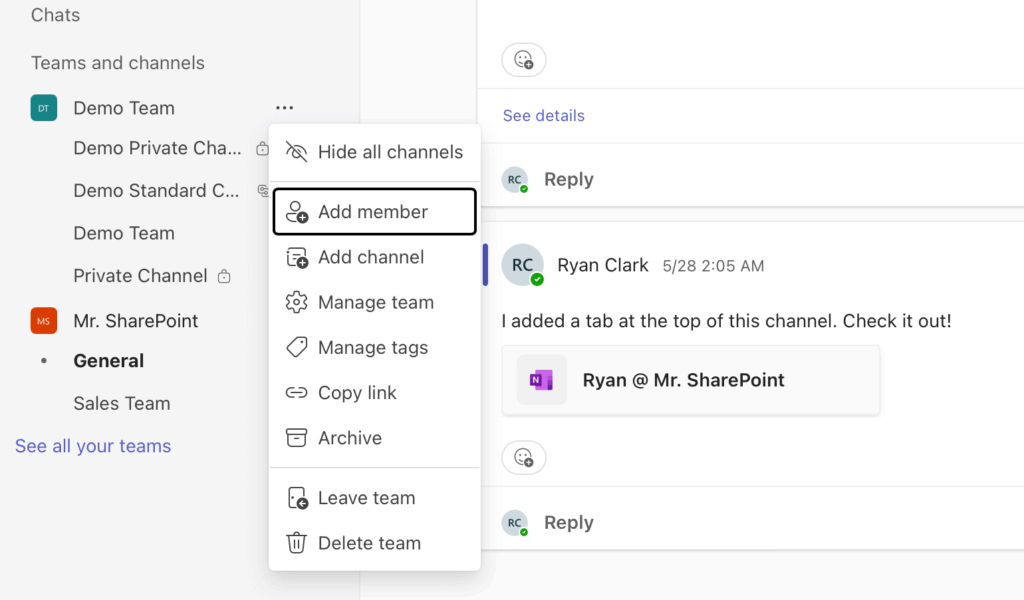
In Teams, go to the team name and click the three dots (…) > Add member.
Type the person’s complete email address. Teams will identify it’s an external address.
Click the option to add the email as a guest and then the “Add” button.
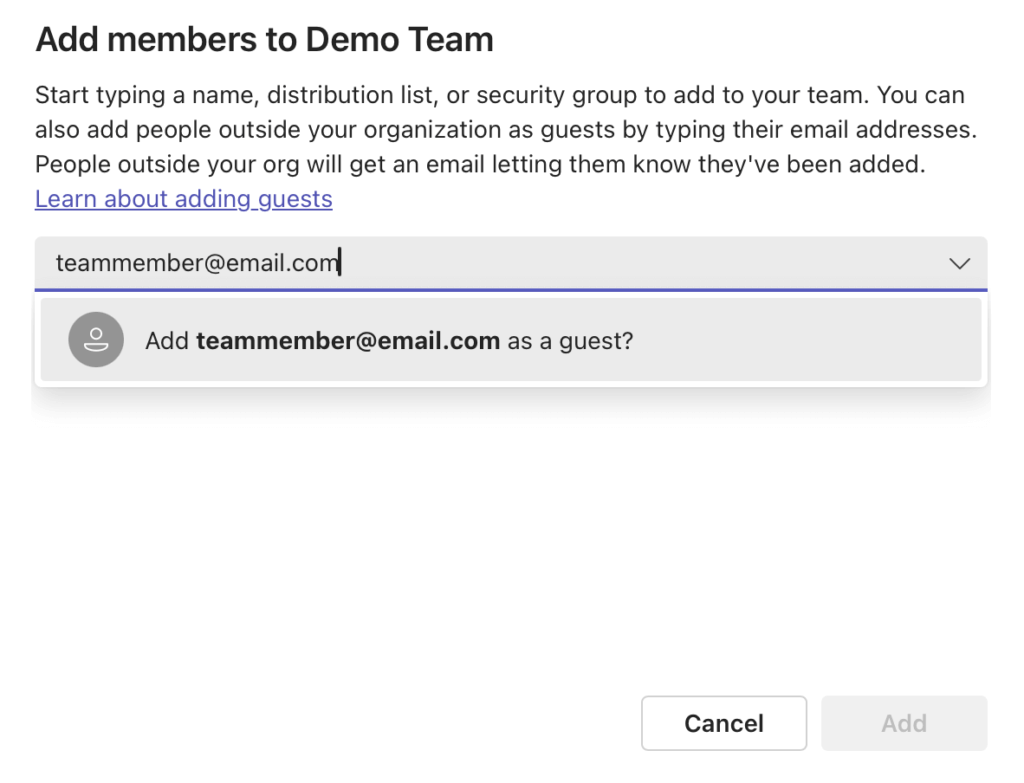
The person will receive an email invitation to join the team.
Important: Click the “Add name” to edit their display name.
Change it to their full name so your team knows who they are.
If you see a “We didn’t find any matches” error, it means guest access isn’t fully enabled.
Contact your IT admin if that’s the case. 🙂
How to Chat with an External Contact
This usually works by default in most organizations.
Go to the Chat tab and click the New message icon.
In the “To:” field, type the person’s full email address.
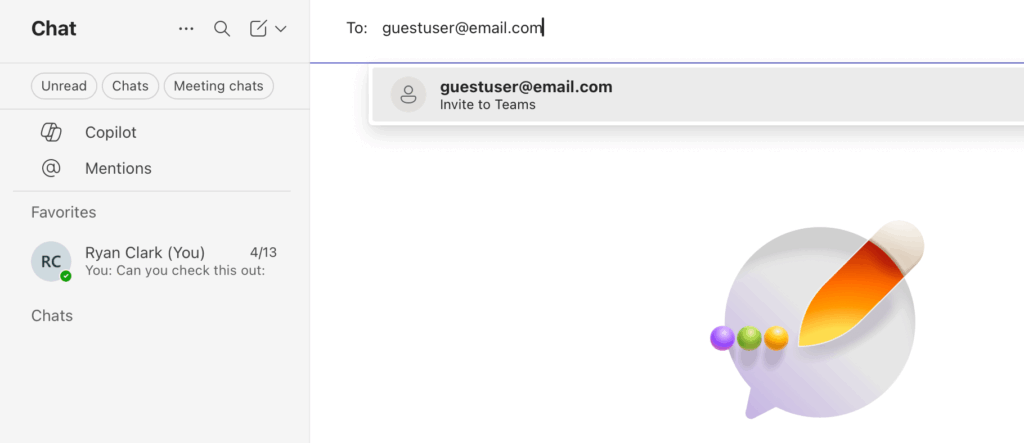
Search results would either show the person with an “(External)” label if they’re already in the team.
If not, the option would show inviting them to the team (as shown in the example).
You can now start a chat or call just like you would with an internal colleague.
This requires that your administrator has already set up a trust relationship with the other company.
Go to the team name, click the three dots (…), and select Add channel.

Give the channel a name.
Under the Privacy dropdown, choose Shared and click Create.
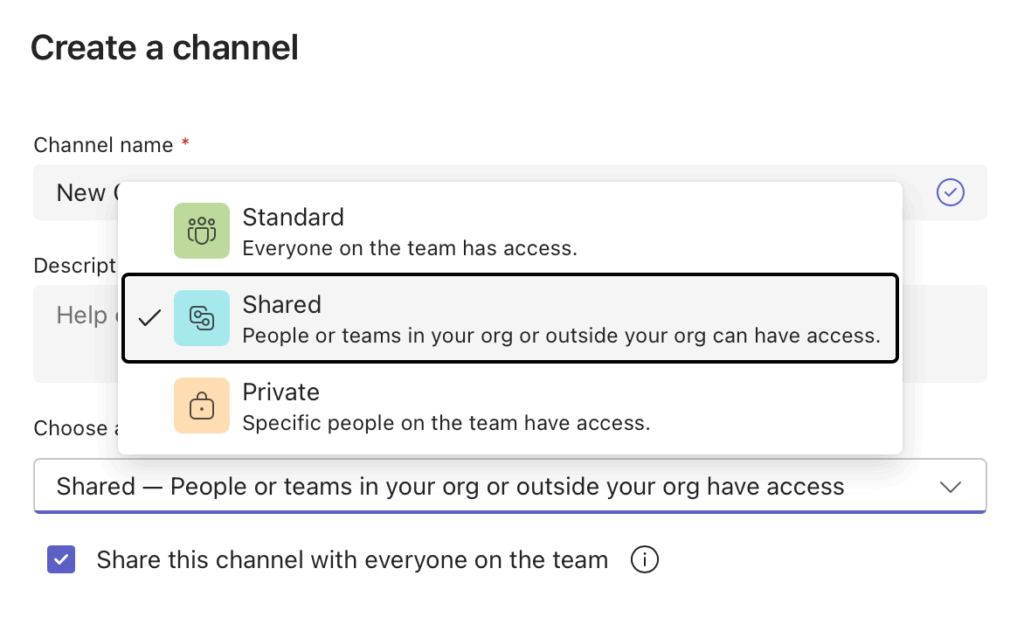
On the next screen, type the email addresses of the external people you want to invite.
Note: This will only work for people from organizations your admin has configured.
If you can’t add someone, you will need to ask your IT department to set up the connection.
Why It Might Not Work
If you try to add an external user and get an error, it’s usually not a bug.
Microsoft 365 has a strict hierarchy of settings, and external collaboration has to be turned on at multiple levels for it to work.
Think of it like a chain of command.
The master switch is in Microsoft Entra ID (the directory), followed by settings in Microsoft 365 Groups and SharePoint.
The settings in Teams are the very last step.
- If an admin has said “no” at a higher level, the setting in Teams won’t matter.
- If you run into an error, just contact your IT helpdesk.
Tell them what you’re trying to do (e.g., “I need to add a guest from company.com to my project team”).
They can check the backend settings to make sure everything is enabled correctly.
Fixing Common Problems
Even with everything set up correctly, you or your external contacts might run into a few common issues.
Here’s how to solve them.
1. Problem: A guest accepted the invitation but can’t access the team.
Solution: First, tell them to wait a few hours. Sometimes it takes a while for permissions to sync across Microsoft 365. If they still can’t get in, ask them to open a private or incognito browser window and use the link from the invitation email to log in. This often fixes issues with their browser cache.
2. Problem: The guest is stuck in a login loop or can’t see your organization.
Solution: This is almost always a problem with the Teams app cache. The simplest fix is to have the guest sign out of Teams, completely quit the application, and then clear the app’s cache. They can find instructions by searching online for “clear Microsoft Teams cache” for their operating system.
3. Problem: I can’t find an external contact in chat.
Solution: This means the external access (federation) trust is not working. For it to work, it must be a two-way street. Your admin needs to allow their company’s domain, and their admin needs to allow your company’s domain. If you can’t find someone, it’s likely one side has blocked the other.
Work Smarter with External Partners
Choosing the right method to work with external users in Teams is key to keeping projects running smoothly and securely.
Choose the right tool – guest access, external access, or shared channels – for seamless external collaboration in Teams.
Do you have questions about adding external users to Microsoft Teams? Let me know in the comments.
For any business-related queries or concerns, contact me through the contact form. I always reply. 🙂
Thanks!