
Table of Contents:
Last Updated on September 2, 2025
Want to manage your SharePoint files without ever leaving your desktop?
In this guide, I will show you the best and most reliable way to open SharePoint in File Explorer.
We’ll also look at outdated methods you should avoid and provide simple fixes for common sync issues.
Let’s get started.
The Best Way: Using the OneDrive Sync Client
The simplest and most reliable way to connect SharePoint to your computer is with the OneDrive sync client.
This is integrated into Windows 10 and 11, and it’s designed to create a stable link between cloud and local files.
By the way, this is the official method recommended by Microsoft because it just works.
Add Shortcut to My Files vs. Sync
When connecting a SharePoint library, you have two choices:
- Add Shortcut to My files (Recommended): Best for most users and provides access on all your devices.
- Sync: Good for a single computer, as it connects the library to one specific device.
Essentially, “Add Shortcut” is the modern, user-focused choice that puts a link inside your OneDrive folder.
The “Sync” option is an older, device-focused method that creates a separate synced copy on just one PC.
For the most flexibility and a simpler File Explorer experience, always choose “Add Shortcut to My files.”
How to Add a Shortcut to My Files
Connecting a SharePoint library is straightforward with the following steps:
Open your web browser and go to the SharePoint document library you want to access on your desktop.
In the toolbar at the top of the file list, find and click Add shortcut to My files.
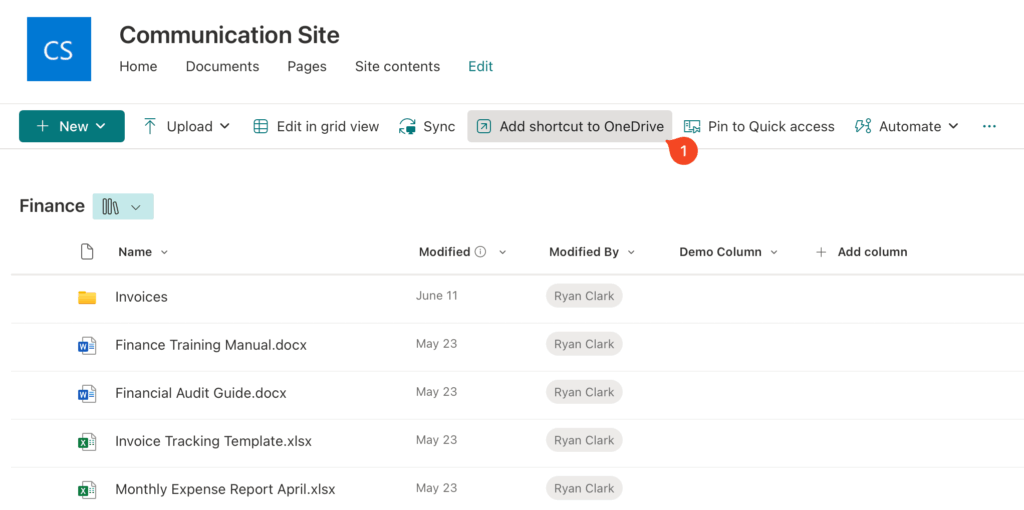
It only takes a moment for SharePoint to create the connection.
Open File Explorer on your computer.
Look inside your OneDrive – [Your Company Name] folder (which you can also check in your actual OneDrive):
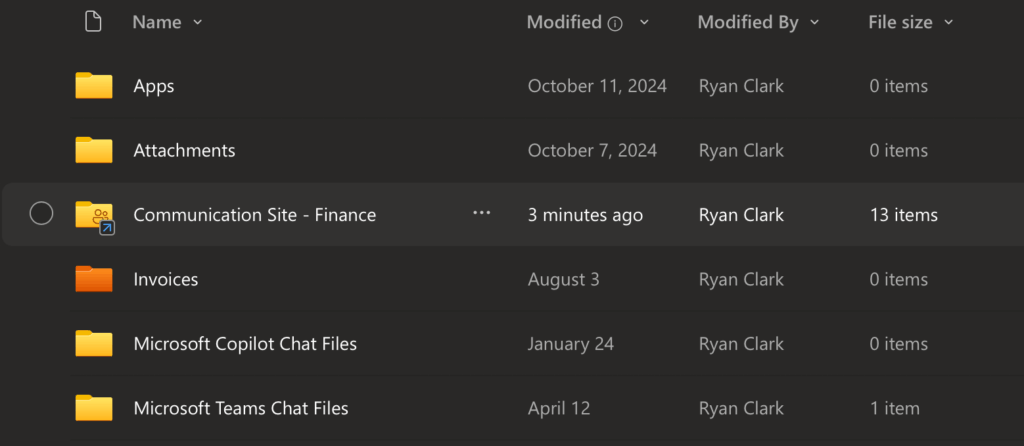
You will now see the SharePoint library listed there, with a small link icon on its folder.
That’s it. 🙂
You can now open, edit, and save files in that folder just as you would with any other file on your computer.
Any changes you make are automatically saved back to SharePoint.
Sign up for exclusive updates, tips, and strategies
About Files On-Demand
One of the best features of using the OneDrive client is files on-demand.
This technology lets you see every file in the SharePoint library without having to download them all.
This can save a huge amount of space on your computer’s hard drive.
How Files On-Demand Saves Space
When you connect a library, all the files appear as online-only placeholders.
They have a name and other properties, but the actual file content stays in the cloud. ☁️
The file only downloads to your computer when you double-click to open it.
This way, a library with hundreds of gigabytes of files can take up almost no local storage space.
The Meaning of the Status Icons
You can tell the status of any file or folder at a glance by looking at the icon next to its name in File Explorer.
| Icon | Status | Description |
 | Online-only | The file is a placeholder stored in the cloud. It takes up no disk space. You need an internet connection to open it. |
 | Locally available | You’ve opened this file, so a copy has been downloaded to your device. You can open it anytime, even without internet. |
 | Always keep on this device | You have marked this file to always be available. It is permanently downloaded for offline access until you change the setting. |
Older Methods (And Why to Avoid Them)
You might find older guides online that mention different ways to open SharePoint in File Explorer.
These methods rely on outdated technology and should be avoided because they are unreliable and can cause frustration.
The Old “View in File Explorer”
This feature is a legacy option that creates a temporary link to SharePoint using old technology.
It’s not recommended for daily work for several key reasons:
- It creates a temporary connection only.
- The connection is slow and often unreliable.
- It requires specific browser settings to work.
- It does not support offline access.
This method was only designed for occasional bulk file transfers, not for regular use.
Because the connection isn’t persistent and is prone to errors, it creates a frustrating user experience.
For day-to-day tasks, this tool is simply not a practical or efficient solution.
Mapping as a Network Drive
Mapping a SharePoint library like a traditional network drive seems convenient, but it’s highly unreliable.
Here’s why this method should be avoided:
- The connection frequently disconnects.
- It requires constant re-authentication.
- It performs poorly with large libraries.
- It lacks modern SharePoint features.
The connection relies on a temporary browser token that often expires, disconnecting the drive and repeatedly prompting for a password.
Due to instability, slow performance, and lack of features like version history, this is unsuitable for modern document management.
It should only ever be considered as a last resort for legacy applications that require a drive letter.
Troubleshooting Common Sync Problems
Even with the reliable OneDrive client, you might occasionally run into an issue.
Here’s how to solve the most common problems quickly:
Files Aren’t Syncing
If you notice your files aren’t updating between your computer and SharePoint, try these simple fixes:
- Check the status icon
- Pause and resume sync
- Check for invalid filenames
Start by clicking the OneDrive cloud icon in your taskbar, as it often provides specific error messages that tell you what’s wrong.
A surprisingly effective fix is to pause and resume syncing by right-clicking the icon as this often fixes stalled connections.
Finally, avoid forbidden characters (e.g., *, :, <, >, ?, /, , |) in file/folder names to prevent sync issues.
“Path Too Long” Error
This error appears when a file is nested too deeply within folders, exceeding the character limit for the file path.
You can resolve this by taking one of these actions:
- Shorten the file’s name
- Rename one or more parent folders
- Move the file to a higher-level folder
This is a common issue when migrating old data from file servers that allowed for very deep folder hierarchies.
As a best practice, try to use a flatter folder structure in SharePoint instead of nesting folders many levels deep.
This not only prevents sync errors but also makes your content easier for everyone to find.
The Recommended Path Forward
Sticking with the OneDrive sync client and its “Add shortcut to My files” feature is the best way to work with SharePoint files on your desktop.
This modern method offers reliable access and features like files on-demand, bypassing issues with older approaches.
Do you have any other questions about connecting SharePoint to your File Explorer? Let me know.
For any business-related queries or concerns, contact me through the contact form. I always reply. 🙂





























Hi, Mr. SharePoint!
When a SharePoint library is synced, File Explorer creates four columns (Name, Status, Date Modified, and Type). Is there any way to add additional columns to File Explorer that pull content from the SharePoint folder columns? For example, my SharePoint library has a YEAR column associated with each folder, and I would like that year to also display in my File Explorer. Is that possible?