
Table of Contents:
Last Updated on August 26, 2025
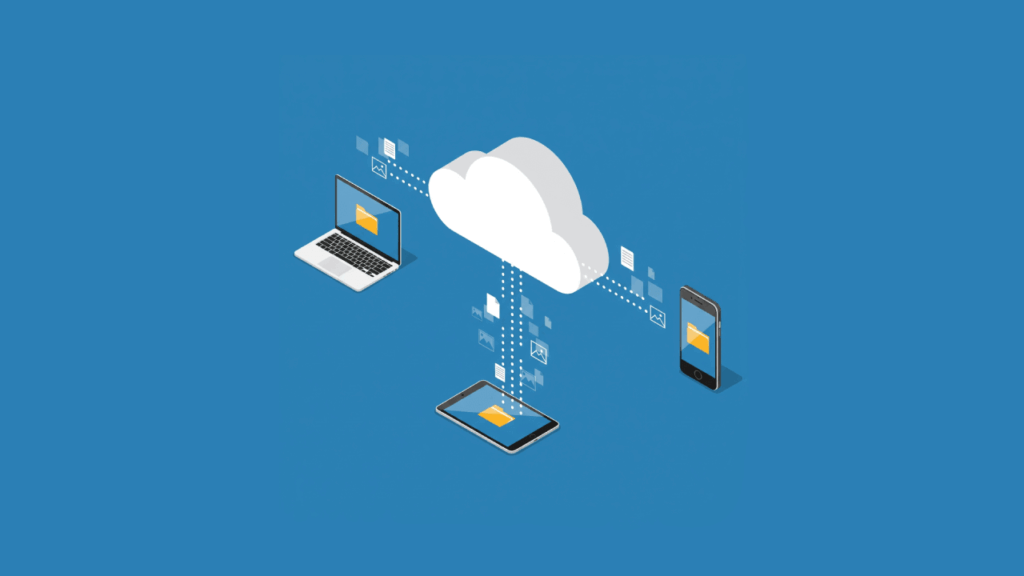
Ever wonder what really happens when you save a file to your OneDrive folder?
In this guide, I’ll break down the powerful technology behind the OneDrive sync.
From the initial setup and core synchronization engine to mastering advanced features like Files On-Demand.
Let’s get started.
Installing and Setting Up the OneDrive Sync Client
Getting the OneDrive sync app running is the first step toward seamless cloud integration.
For most Windows users, the OneDrive sync client comes pre-installed, making the setup even quicker.
It establishes the primary OneDrive folder on your computer, which will serve as your gateway to the cloud.
Initial Installation and Sign-In
To begin, locate the white or blue cloud icon in your taskbar notification area and click it.
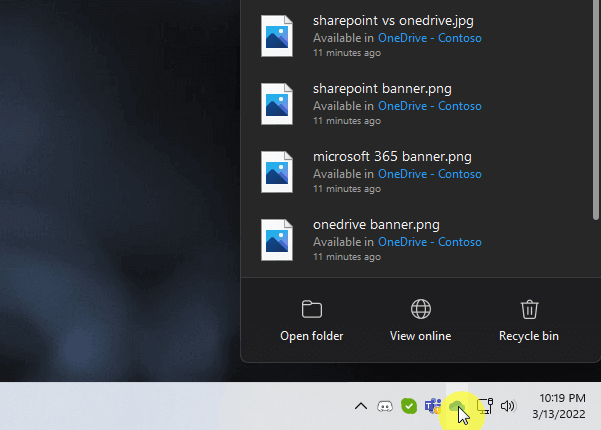
If it’s not there, a quick search for “OneDrive” in your Start menu will launch the setup.
You will be prompted to sign in with your Microsoft account (for personal use) or your Microsoft 365 credentials (for business).
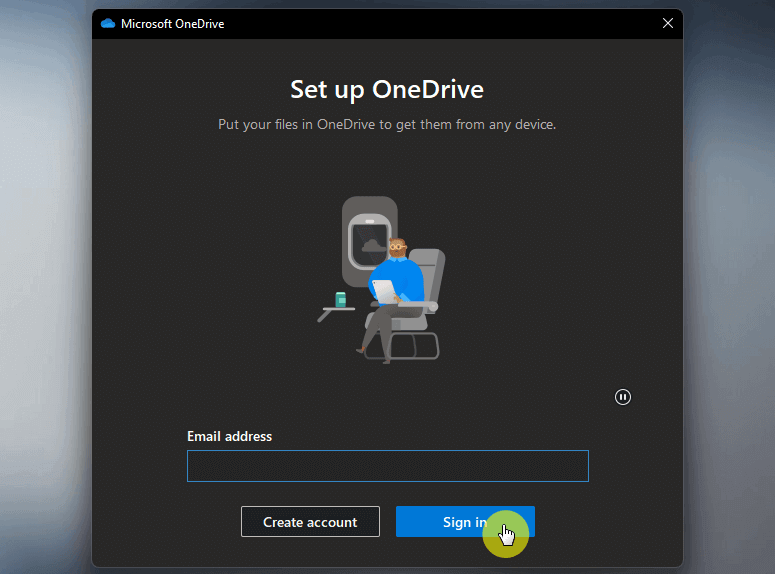
This connects the sync app on your device directly to your cloud storage, preparing it to sync files and folders.
Choosing Folders and Understanding the Basics
During the setup, you will reach a screen that asks you to choose which folders you want to sync.
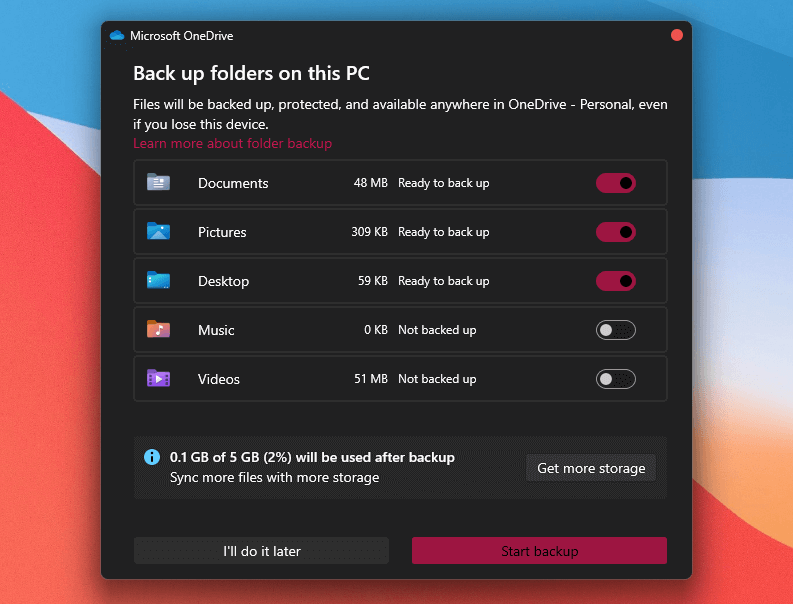
This is a key step in managing your local storage.
You can choose to sync all your files and folders or select only the specific ones you need to access on that particular computer.
Whatever you select will appear in your newly created OneDrive folder, which is easily accessible in File Explorer.
Sign up for exclusive updates, tips, and strategies
How OneDrive Synchronization Works Under the Hood
The magic of the OneDrive sync lies in its sophisticated and efficient engine.
It’s a real-time system designed to handle changes instantly and with minimal impact on your system’s performance.
You could say the modern OneDrive sync client has evolved significantly to provide a responsive and reliable experience.
From Polling to Push Notifications
So, what triggers OneDrive to sync?
The modern sync app uses an event-driven model powered by Windows Push Notification Services (WNS).
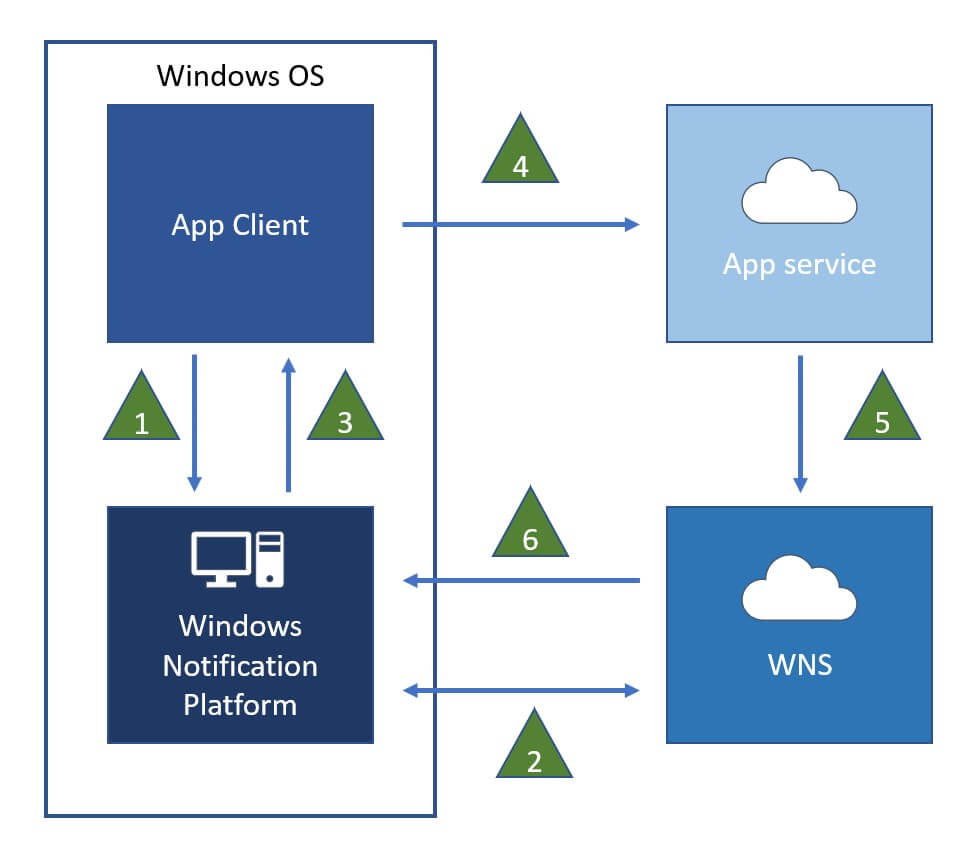
Instead of constantly asking the server:
- “Has anything changed?” (a method called polling)
- The server now instantly notifies the OneDrive sync client the moment a change occurs.
This “push” model is incredibly efficient, eliminating redundant checks and conserving system resources.
It’s the core reason why the OneDrive sync works in near real-time.
Is OneDrive Sync a Two-Way Street?
Yes, absolutely. OneDrive sync is a bidirectional process.
This means that changes are synchronized in both directions, which creates a consistent environment for all your files.
- Local to cloud: Changes made on your device are automatically uploaded to the cloud.
- Cloud to local: Changes made in the cloud are immediately downloaded to your device.
You always have the most up-to-date version of your files, regardless of where you made the last edit.
It forms the foundation of a reliable and consistent file management experience across your desktop, the web, and mobile devices.
How Differential Sync Saves Bandwidth
One of the most powerful features of the OneDrive sync is its use of differential sync, also known as block-level syncing.
When you edit an existing file, OneDrive is smart enough to identify only the specific parts or “blocks” of the file that have changed.
It then syncs only those small blocks, rather than re-uploading the entire file.
This process dramatically reduces bandwidth usage and speeds up the synchronization of large documents.
Files On-Demand and Sync Status Icons
OneDrive’s deep integration with the operating system, especially Windows, provides a user-friendly experience directly within File Explorer.
The cornerstone of this is the files on-demand feature allows full cloud storage visibility without using hard drive space.
What is the Files On-Demand Feature?
The files on-demand feature allows you to see and browse all your files and folders from your computer.
But the files are only downloaded when you need to open them.
This gives you direct access to terabytes of data without filling up your hard drive.
Files exist in three states, each with a unique icon, allowing full control over local vs. online storage.
How Do I Know if Files are Syncing in OneDrive?
Interpreting the icons next to your files and folders is the easiest way to check their status.
The OneDrive cloud icon in your system tray also provides a high-level view of the overall sync health.
| Icon | State | Meaning |
 | Online-Only | The file is a placeholder and exists only in the cloud. It takes up no space on your hard drive. You need an internet connection to open it. |
 | Locally Available | The file has been downloaded and is stored on your device. You can open it anytime, even without an internet connection. |
 | Always Keep on This Device | The file is permanently stored on your device and will not be converted back to online-only to save space. |
 | Sync in Progress | The icon on the taskbar notification area shows this when syncing files is actively in progress. |
Configuring Your Experience in OneDrive Settings
You can fine-tune how the OneDrive sync app behaves by right-clicking the cloud icon in the system tray and selecting “Settings.”

Inside the OneDrive settings, you can:
- Manage your account
- Choose which folders to sync
- Set network bandwidth limits to control data usage
- Adjust notification preferences
This level of control allows you to customize the sync experience to fit your specific needs and network conditions.
While OneDrive is excellent for managing personal files, its capabilities extend powerfully into the business world.
Primarily through its integration with SharePoint Online.
For OneDrive for Business users, this connection transforms how teams collaborate on documents.
Is It Good to Sync to OneDrive?
Yes, syncing your files to OneDrive is highly beneficial.
The key advantages include:
- Cloud backup: Your most important documents and personal files are safely stored in the cloud.
- Universal access: You can access your files from any device via the OneDrive website or the mobile app.
- Seamless collaboration: Sharing and co-authoring files and folders with others is simple and efficient.
These benefits combine to create a powerful safety net for your data while enhancing productivity.
Syncing files protects them from hardware failure and makes them accessible anywhere for work or sharing.
This makes OneDrive an essential tool for both individual users and collaborative teams.
One of the most powerful features for business users is the ability to sync a SharePoint document library directly to their computer.
This makes all the team’s files available in File Explorer, just like their own OneDrive files.
To do this, simply navigate to the document library in your web browser and click the “Sync” button at the top.
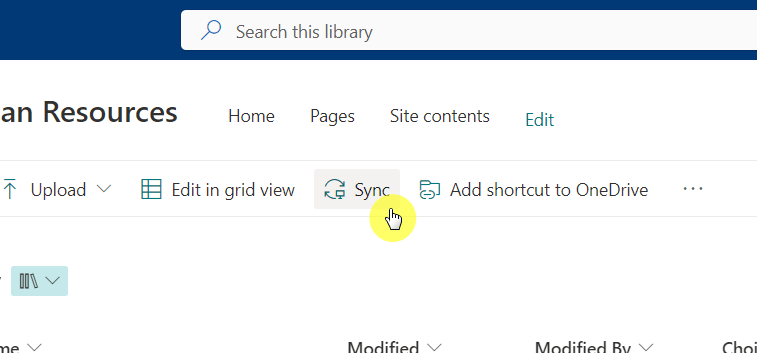
OneDrive auto-configures the connection, and the document library appears in File Explorer.
Key Limitations and How to Stop Syncing
While powerful, the OneDrive sync has some practical limits.
For optimal performance, Microsoft recommends syncing fewer than 300,000 files across all synced libraries.
If you need to free up resources or no longer need a library on your device, you can easily stop syncing.
Go to your OneDrive settings and select the “Account” tab.
Then click “Unlink this PC” next to the account picture.
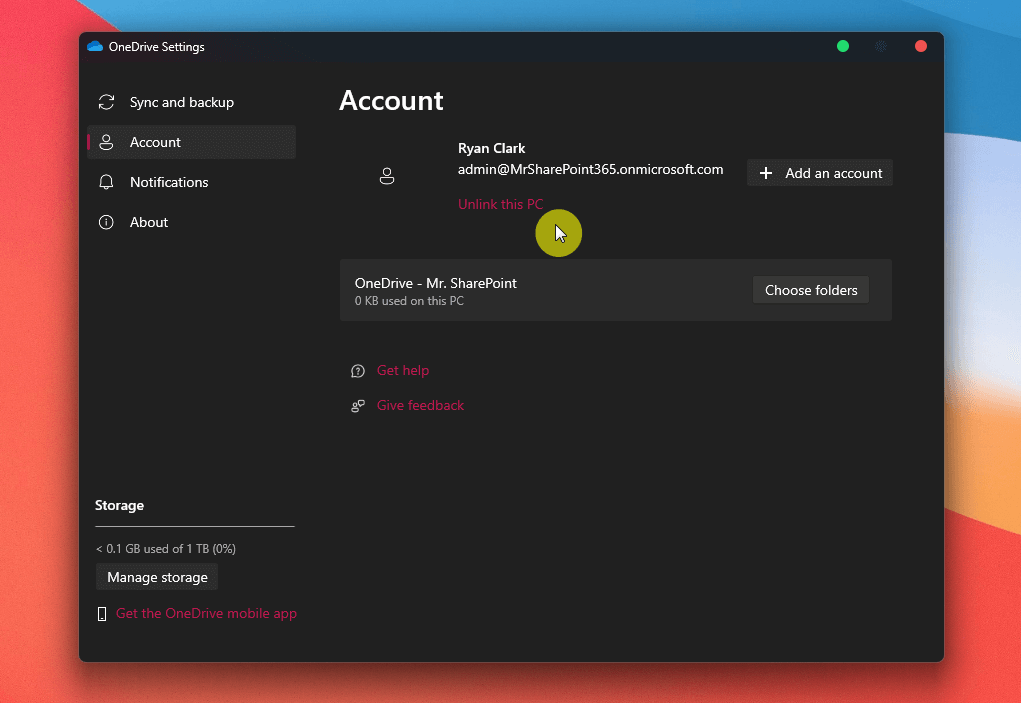
That’s it! 🙂
Powerful and Integrated Sync Solution
Ultimately, the OneDrive sync works by combining a smart, event-driven engine with deep operating system integration.
OneDrive’s sync client is a core Microsoft 365 component, not just a syncing tool.
Do you have any questions about how OneDrive sync works? Let me know in the comments.
For any business-related queries or concerns, contact me through the contact form. I always reply. 🙂




























