

Last Updated on August 24, 2025
Are repetitive, manual tasks slowing your business down?
In this guide, I’ll show you the best real-world examples of how to use SharePoint automation through workflows.
Let’s get started.
Table of Contents:
From Classic Workflows to Power Automate
The way we build workflows in SharePoint has changed a lot.
We’ve moved from an old, limited tool to a new one that can do much more.
For many years, people used a tool called SharePoint Designer to build workflows.
It worked for basic tasks inside SharePoint, like getting a document approved.
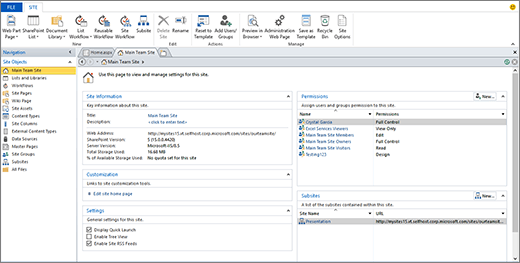
But these classic workflows had a big limitation: they were stuck inside SharePoint.
They couldn’t easily connect to or control other business apps.
Microsoft is now retiring these older workflows, so it’s important to move to the modern tool.
Why Power Automate is the New Standard
The go-to tool for automation in Microsoft 365 is Power Automate.
It’s a big step up from the old SharePoint Designer.

The main benefit of Power Automate is that it can connect to hundreds of different applications, not just SharePoint.
A workflow can:
- Start in SharePoint
- Update a record in Salesforce
- Post a message in Microsoft Teams
- Send an email through Outlook, all automatically
It’s also a low-code platform, which means you don’t need to be a professional developer to use it.
Its visual, drag-and-drop designer makes it possible for the people who actually run the processes to build and managetheir own automations.
This is taken even further with the introduction of Copilot in Power Automate, an AI assistant that helps you build workflows.
You can simply describe the automation you want in plain English, and Copilot will help create the flow for you.
Sign up for exclusive updates, tips, and strategies
Workflows for Your Human Resources (HR) Department
Your HR department handles many multi-step processes that are perfect for automation.
Taking the manual work out of these tasks creates a better experience for every employee.
Employee Onboarding
Problem: Onboarding new employees manually is often slow and disorganized.
Tasks get forgotten, and new hires can spend their first day waiting for IT to set up their accounts and equipment.
Solution: You can build a workflow that kicks off the moment a candidate is marked as “Hired” in a SharePoint list.
This single trigger can start a chain of events:
- It tells the IT department to create a new user account and assign a license.
- It sends a task to the facilities team to prepare a desk.
- It notifies the new hire’s manager with a checklist of their onboarding duties.
- It sends a welcome email to the new employee with links to important documents.
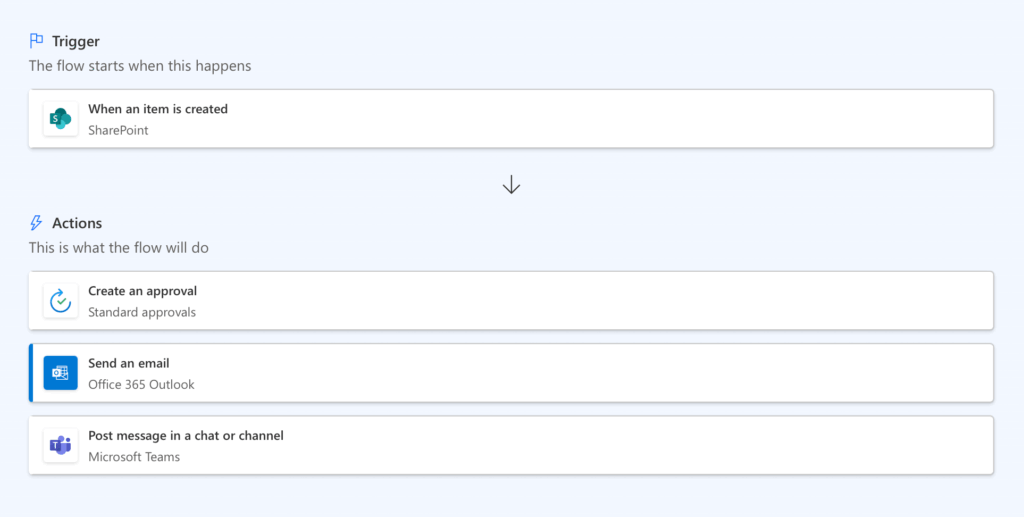
You can get started with a prompt like this for Copilot:
"When a new item is created in the 'New Hires' SharePoint list, start an approval process. Then, send an email to IT to create a user account and post a message in the 'General' channel in Teams to welcome the new employee."
Leave Request Management
Problem: Tracking time-off requests using emails and shared spreadsheets is messy.
Requests get lost, managers don’t have a clear view of who is off, and calendars have to be updated by hand.
Solution: Create a simple system with the following steps:
- An employee fills out a leave request form.
- This triggers a workflow that automatically sends the request to their manager for approval.
- Once approved, the workflow adds the dates to a shared team calendar.
- If denied, the employee gets a notification with the manager’s comments.
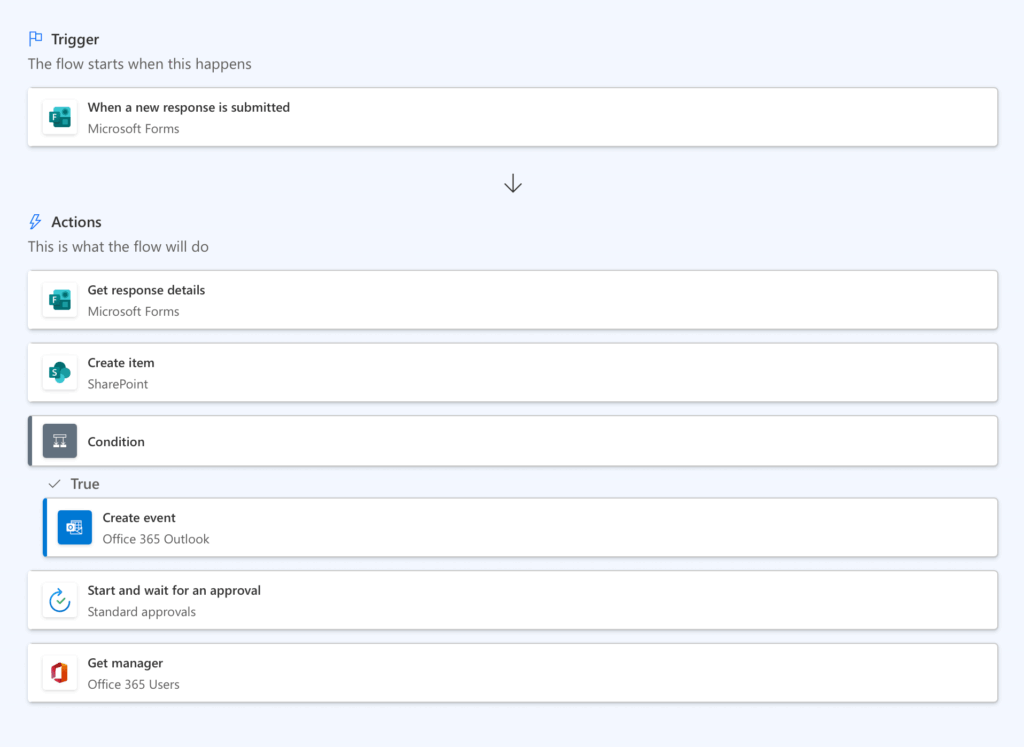
To build this, you could use a Copilot prompt like:
"When a response is submitted in the 'Leave Request' Microsoft Form, create an item in the 'Leave Requests' SharePoint list. Then, send an approval request to the requester's manager. If approved, add an event to the 'Team Calendar'."
Performance Reviews
Problem: The annual performance review cycle can be an administrative headache.
HR and managers spend a lot of time distributing forms, tracking who has completed them, and sending reminders.
Solution: Use a scheduled workflow to manage the entire process.
On a set date, the workflow automatically:
- Sends a personalized review document to each employee and their manager.
- Tracks the status of each review in a central SharePoint list.
- Sends automated reminders as the deadline gets closer.
- Archives the final, signed document in a secure employee file library.
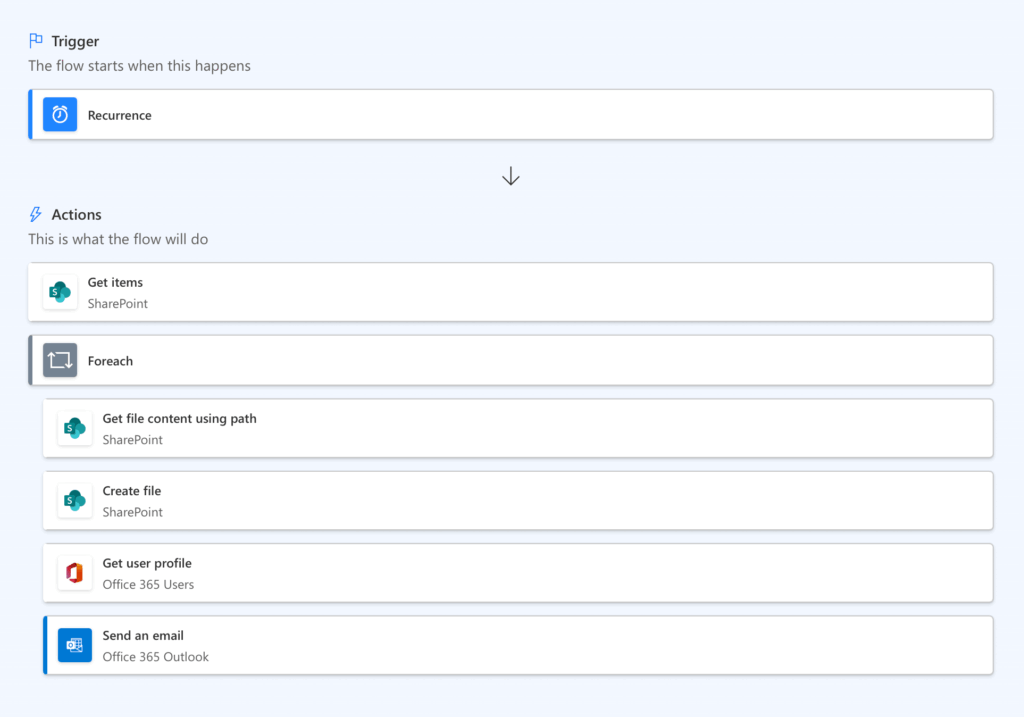
Here’s a sample Copilot prompt to kickstart this automation:
"Every year on November 1st, get all items from the 'Employees' SharePoint list. For each employee, create a new document from the 'Performance Review Template', and send an email to the employee and their manager with a link to the new document."
Automating Your Finance and Accounting Processes
Finance departments need accuracy and accountability.
Automation brings structure to financial operations, which reduces costly errors and speeds up payments.
Expense Reimbursement
Problem: Traditional expense claims are slow and frustrating.
Employees have to tape paper receipts to forms, and finance teams have to manually check every expense against company policy.
Solution: Build a mobile-friendly expense reporting process with these steps:
- An employee uses a simple app on their phone to enter expense details and snap a picture of the receipt.
- The submission triggers a workflow that routes the report to their manager.
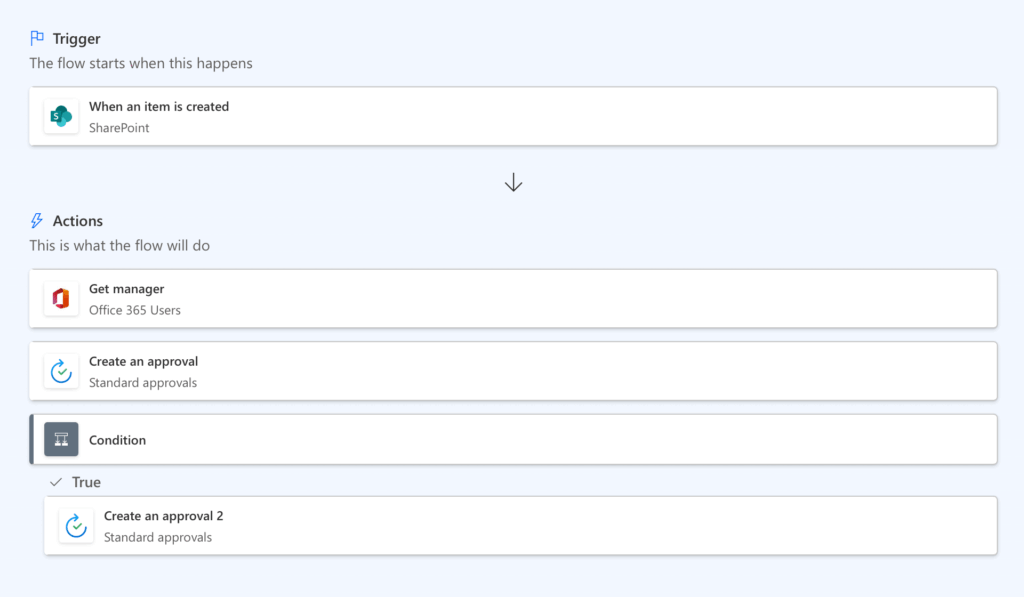
- If the total is over a certain amount, it is automatically sent to a department head for a second level of approval.
- Once approved, finance is notified to process the payment.
You could describe this workflow to Copilot with a prompt like:
"When a new item is created in the 'Expense Reports' SharePoint list, send an approval request to the creator's manager. If the expense amount is greater than $5000, also send an approval to the Finance Director."
Invoice Processing
Problem: Manually entering data from vendor invoices is slow work and often leads to mistakes.
This can cause payment delays, damage relationships with suppliers, and cause you to miss out on early payment discounts.
Solution: Set up an intelligent workflow to handle incoming invoices.
The process can look like this:
- A workflow monitors an email inbox (like ).
- When an invoice arrives, it’s saved to a SharePoint library.
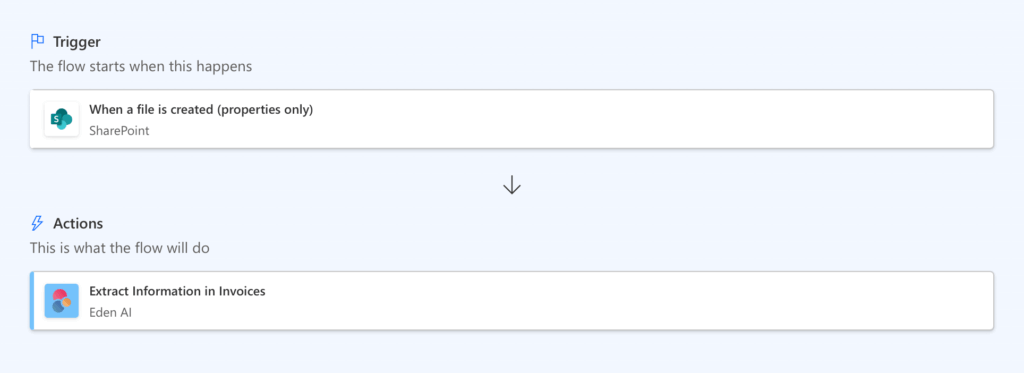
- An AI tool reads the invoice and automatically extracts key details like the vendor name, invoice number, and total amount.
- The workflow then routes this data to the right person for approval.
- Once approved, the data is ready to be entered into your accounting system.
To create this intelligent workflow, you could start with a Copilot prompt like:
"When a new file is added to the 'Incoming Invoices' SharePoint library, extract text from the document using the AI Builder invoice model. Then, create an item in the 'Invoices' SharePoint list with the extracted information and start an approval process.”
Purchase Order (PO) Approvals
Problem: Without a formal system for purchases, it’s easy to lose control of spending.
Manual PO processes that rely on paper forms or emails are slow and create bottlenecks.
Solution: Create a structured workflow for all purchase requests:
- An employee fills out a standard purchase request form in SharePoint.
- A workflow automatically routes it to the correct people for approval based on the amount and category.
- The workflow can handle multiple levels of approval, from a direct manager up to the CFO.
- Once fully approved, a final PO is generated and sent to the purchasing department.
Here is an example prompt you could use in Copilot to build this:
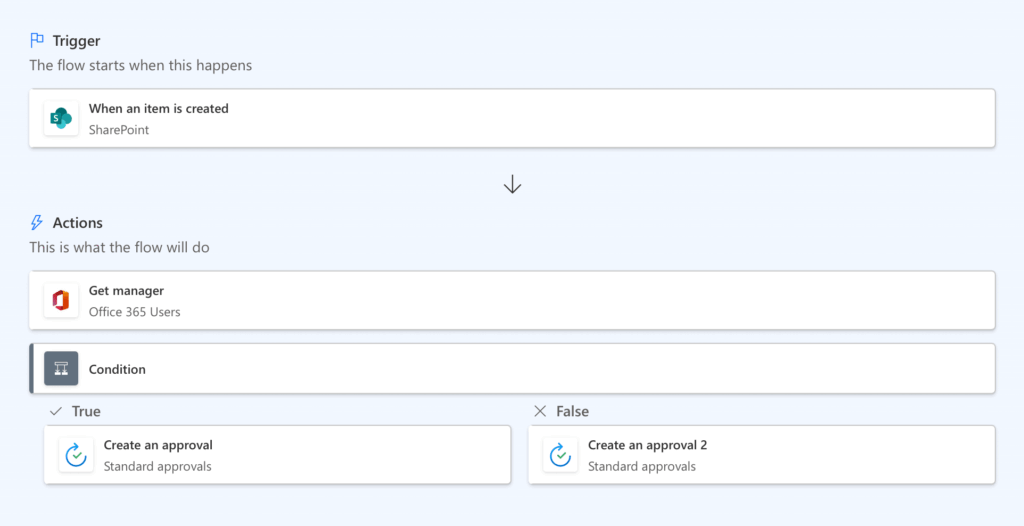
"When a new item is created in the 'Purchase Requests' SharePoint list, check if the amount is less than $1000. If it is, send an approval to the manager. If not, send an approval to the manager and then to the department director.”
Improving Your IT and Service Management
Automating routine IT tasks frees up staff for important projects and improves company efficiency.
IT Help Desk Ticketing
Problem: When employees send IT support requests through email, it’s hard to track them.
Issues get lost, there’s no way to prioritize urgent problems, and users are left wondering about the status of their request.
Solution: Build a proper ticketing system with an automated workflow:
- An employee submits a support request using a simple form.
- This triggers a workflow that creates a new ticket in a SharePoint list.
- The ticket is automatically assigned to the correct IT specialist based on the request category (e.g., “Hardware” or “Network”).
- The employee gets an email confirmation with a ticket number, and the IT team gets a notification to start working on the issue.
You could start building this with a simple Copilot prompt:
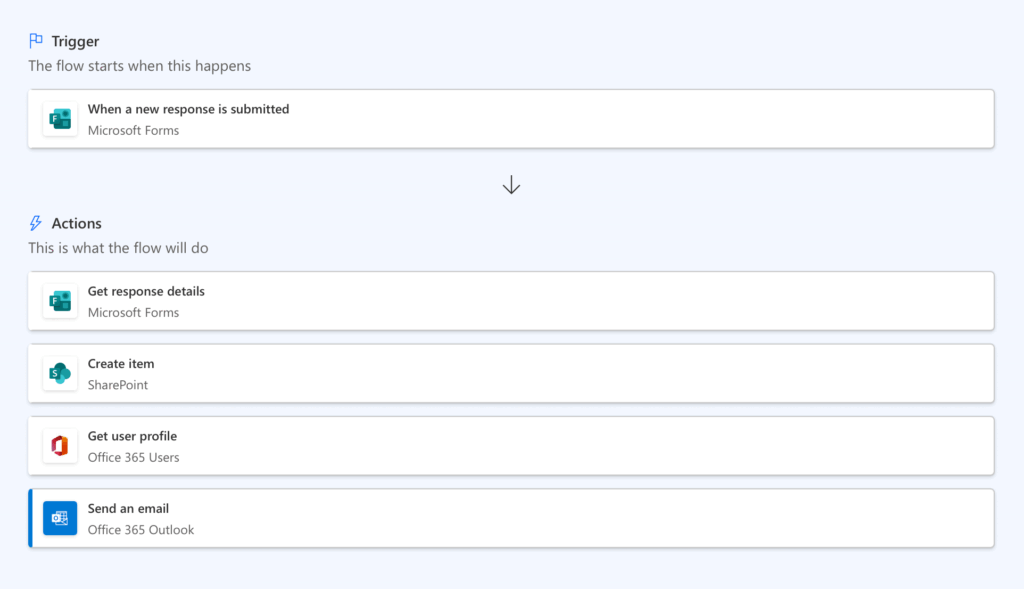
"When a new response is submitted in the 'IT Support Request' Microsoft Form, create an item in the 'IT Help Desk' SharePoint list. Then, send a confirmation email to the person who submitted the form with their ticket number."
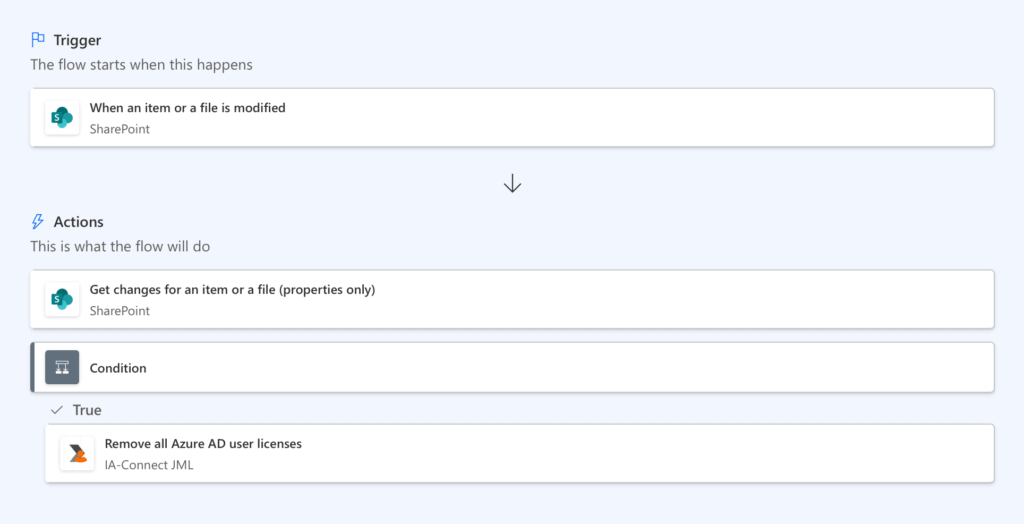
User Account Management
Problem: Manually creating user accounts for new hires and deactivating them for departing employees is slow.
More importantly, delays in removing access for former employees create a serious security risk.
Solution: Automate the process by connecting it to your HR system.
- When HR onboards a new hire, a workflow automatically creates their user account.
- The workflow assigns the right licenses and adds them to the correct security groups.
- When an employee leaves, a similar workflow instantly disables their account, protecting company data.
To automate this critical security task, you could use a Copilot prompt like:
"When an item in the 'Employee List' SharePoint list is modified and the 'Status' column is changed to 'Terminated', disable the user in Microsoft Entra ID and remove all their licenses."
Equipment and Software Requests
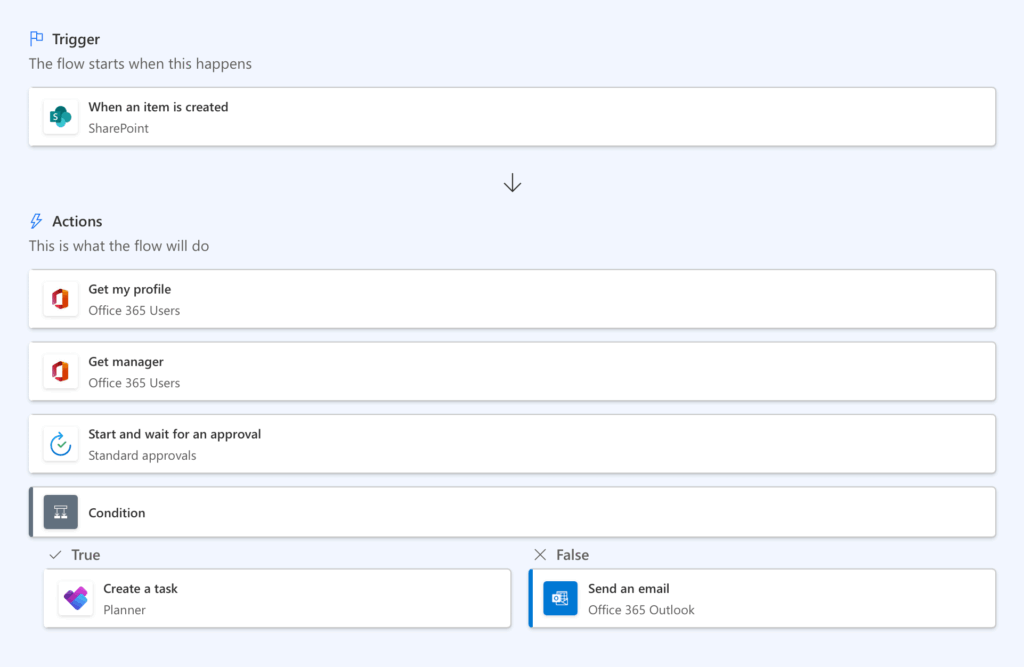
Problem: Informal requests for new laptops, monitors, or software licenses make it difficult to track company assets and manage budgets.
Solution: Create a self-service request process with these automated steps:
- Employees request new equipment or software from a pre-approved catalog in SharePoint.
- The request automatically goes to their manager for budget approval.
- Once approved, a task is created for the IT team to order the item.
- The workflow tracks the delivery and provides status updates to the employee.
Here’s a sample prompt for Copilot to create this workflow:
"When a new item is created in the 'IT Requests' SharePoint list, send an approval request to the requester's manager. If approved, create a task for the IT procurement team in Planner."
Workflows for Operations and Project Management
Automation can bring much-needed structure to core business operations.
Those can help keep projects on track and ensure the company stays compliant.
Document Control and Approval
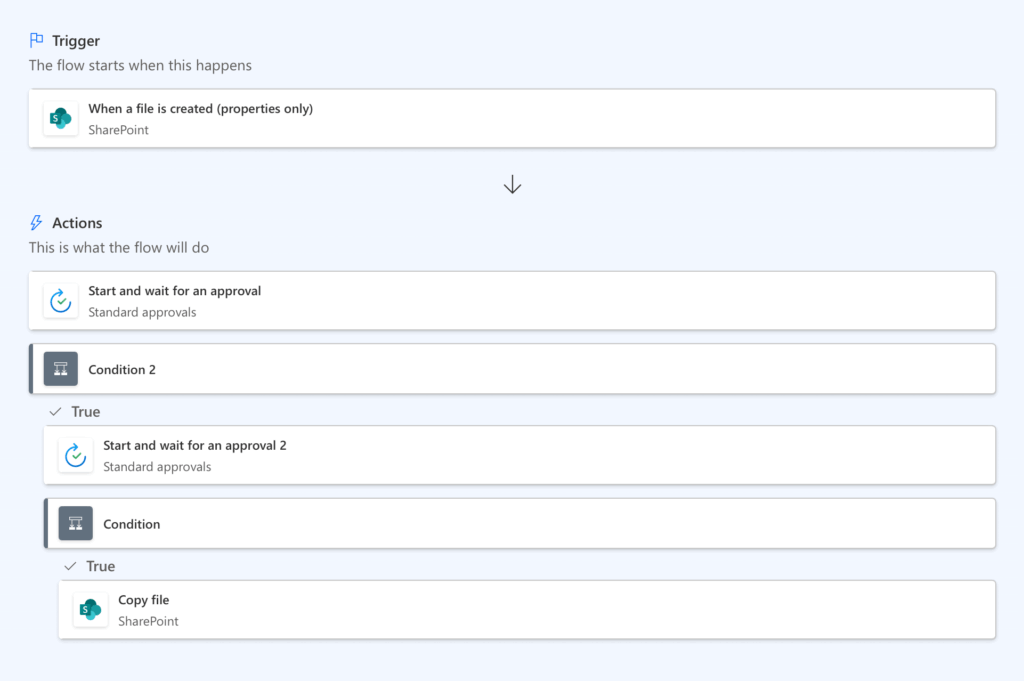
Problem: Slow document review and approval for policies and contracts poses compliance risks.
It’s hard to track versions or prove who approved a document and when.
Solution: Attach a workflow to a SharePoint document library that follows these steps:
- An author uploads a new draft, which triggers the workflow.
- The document is automatically routed to a predefined list of reviewers.
- If anyone rejects it, the author is notified to make changes and resubmit.
- Once everyone approves, the workflow automatically publishes the document as a new official version.
You can describe this multi-stage approval to Copilot like this:
"When a new file is added to the 'Draft Policies' SharePoint library, start an approval process and send it to the Legal department. If they approve, send it to the Department Head for final approval. If both approve, copy the file to the 'Published Policies' library.”
Project Task Management
Problem: Project managers waste time on admin tasks: assigning tasks, sending reminders, and writing status reports.
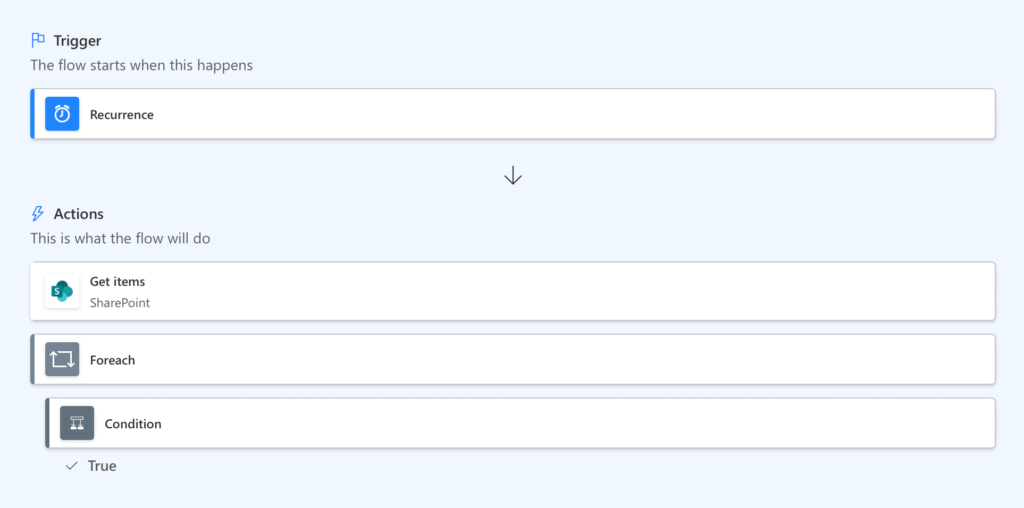
Solution: Use a SharePoint list to track all project tasks and connect a few simple workflows to it.
- When a task is assigned, the person responsible gets an automatic notification.
- A daily workflow can scan the list and send reminders for any tasks that are due soon or overdue.
- A weekly workflow can summarize the project’s progress and email a status report to stakeholders.
To automate reminders, you could use a scheduled flow.
Here’s a prompt to get started:
"Every day at 8 AM, check for items in the 'Project Tasks' SharePoint list where the due date is tomorrow and the status is not 'Complete'. For each of those items, send a reminder email to the person it is assigned to.”
Compliance and Audit Trails
Problem: During an audit, it can be extremely difficult and time-consuming to prove that your company followed the correct procedures.
You have to manually collect evidence from emails, signed forms, and different systems.
Solution: Design your workflows to create a built-in audit trail:
- Every time a workflow runs, it creates a detailed, time-stamped log of every action.
- At key steps (like an approval), the workflow can write a summary to a dedicated “Audit Log” list in SharePoint.
- This creates a complete, centralized, and easily searchable history of the process for auditors.
While this is a principle, you can explicitly add logging to any flow.
Here’s how you could ask Copilot to add a logging step:
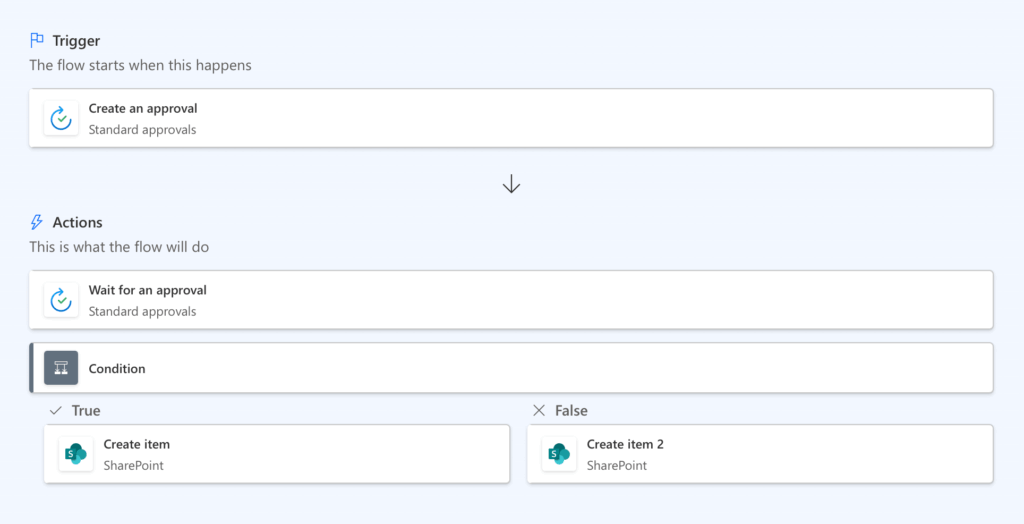
"After the 'Start and wait for an approval' step, add an action to create an item in the 'Audit Log' SharePoint list. The title should be 'Approval for [Item Name] completed by [Approver Name]'.”
Start Building a More Efficient Workplace
Automating your business processes with SharePoint and Power Automate can deliver powerful results.
SharePoint workflows improve cost, speed, and risk across HR, Finance, IT, and Operations.
Start with small, well-planned projects and you can begin to build a more efficient and productive workplace.
Do you have questions about the best use cases for workflows I shared above? Let me know below!
For any business-related queries or concerns, contact me through the contact form. I always reply. 🙂