
Table of Contents:
Last Updated on July 25, 2025
Want to simplify your team’s repetitive HR routine tasks?
In this guide, let’s talk about the best Power Automate solutions specifically made for HR.
Let’s get started.
Three Ways to Build Your HR Automations
When you decide to implement automated workflows for a process, you have a few ways to get started.
Your choice depends on how complex your task is and how much control you need over the final product.
Using a Copilot Prompt (The Fast Way)
This is the quickest way to get an automation running.
Basically:
- You describe the process you want to automate in plain English.
- Power Automate’s Copilot builds a basic flow for you.

This method works well for simple repetitive tasks, like sending notifications or creating tasks from emails.
This makes it easy to start automating, even without knowing all the specific actions and triggers.
Using Pre-Built Templates (The Blueprint Way)
Microsoft provides a library of pre-built templates for many common business situations.
These are reliable starting points because they are tested and follow good practices.

Using a template is a great way to learn how different actions work together.
And it can speed up the development of standard processes like approvals or reminders.
The main drawback is that they’re generic.
If your process is unique, customizing a template can take as long as building it from scratch.
Building from Scratch (The Custom Way)
Building from scratch is the best approach for processes that are:
- Complex
- Unique to your business
- Involve sensitive data
This method gives you absolute control over every step, trigger, and condition.
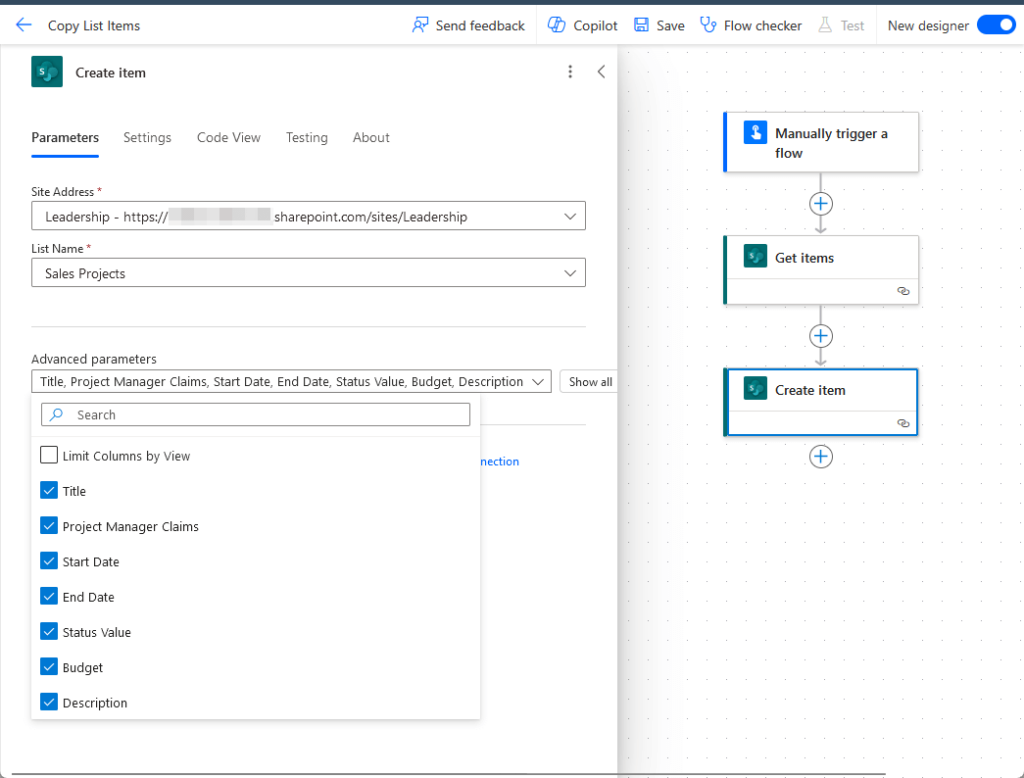
It’s the only way to build in specific error handling, connect to custom systems, or manage intricate logic.
This needs more skill and time, but it ensures the automation meets your exact needs.
Sign up for exclusive updates, tips, and strategies
Key HR Processes You Can Automate Today
These strategic initiatives demonstrate how to automate time-consuming human resources tasks:
1. Talent Acquisition: Job Requisition Approval
This automation gives you a formal, trackable way to open new positions, replacing disorganized email chains.
The process begins when a hiring manager fills out a Microsoft Form with the new role’s details.
Submitting the form starts a multi-level approval process, first to the department head and then to finance.
- Apps Used: Microsoft Forms, Power Automate, Approvals, SharePoint, Outlook, Microsoft Teams.
- Copilot Prompt: “When a new response is submitted to the ‘Job Requisition’ form, get the response details. Start an approval and assign it to the responder’s manager. If approved, create an item in the ‘Open Positions’ SharePoint list.”
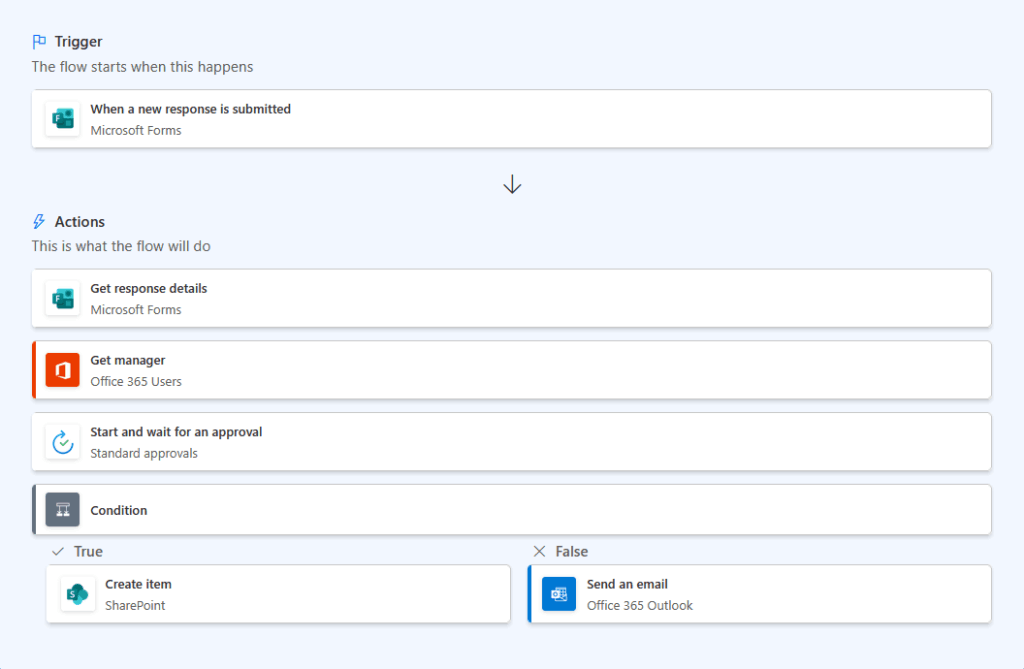
If rejected at any stage, the hiring manager gets an immediate email with the approver’s comments.
Once approved, the flow creates a “Recruitment Tracker” item and posts a notification in the HR Teams channel.
This makes sure every request is vetted, approved, and logged automatically.
2. Employee Onboarding Process: Readiness Flow
This workflow triggers when HR adds a new employee to a “New Hires” SharePoint list.
It immediately sends a personalized welcome email to the new hire with key information for their first day.
- Apps Used: SharePoint, Outlook, Microsoft Teams, Planner, Approvals.
- Copilot Prompt: “When a new item is added to the ‘New Hires’ SharePoint list, send a welcome email to the new hire’s email address. Then, create a task in Planner in the ‘IT Setup’ bucket. A week before the ‘StartDate’ column, send an email to the ‘ManagerEmail’ column.”
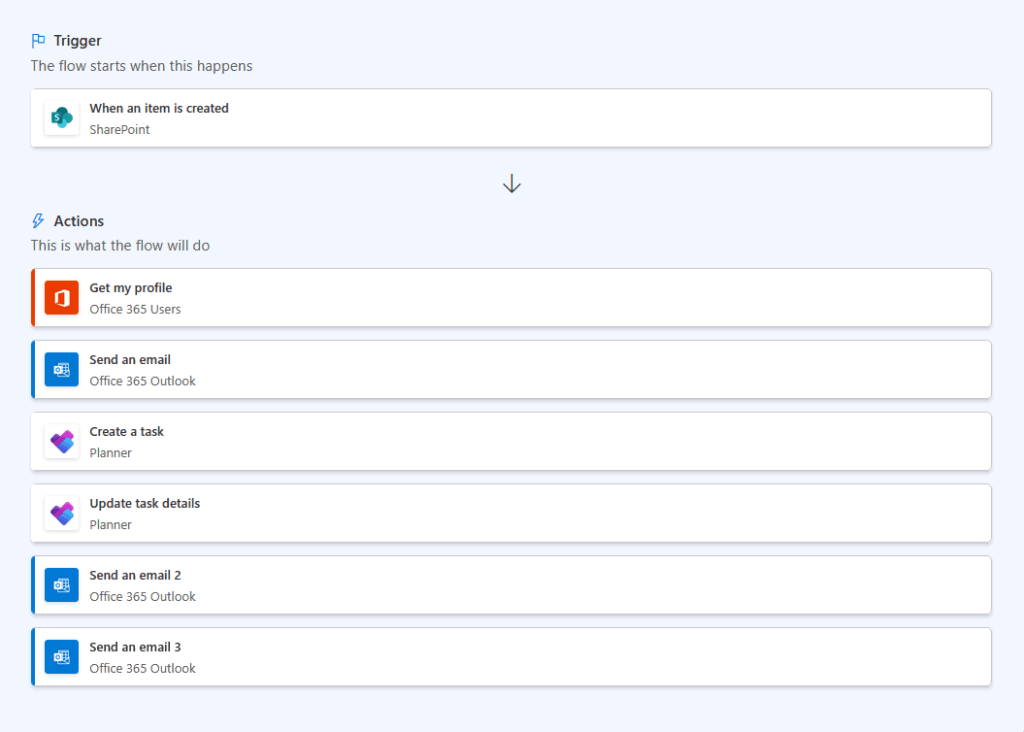
The flow creates IT (accounts, hardware) and Facilities (workspace) tasks in a shared Planner board.
One week before the start date, the manager receives an email with a responsibilities checklist.
On day one, the new hire gets an email with the employee handbook.
That includes an approval action for acknowledgment, which also creates an audit trail.
3. Employee Offboarding: Secure De-provisioning
Properly offboarding an employee is critical for security and compliance.
This automation sees that all access is revoked promptly and systematically.
The workflow begins when an HR manager submits an “Employee Leaver Form.”
- Apps Used: Microsoft Forms, Power Automate (Premium), Microsoft Entra ID, Exchange Online, Microsoft Teams, SharePoint.
- Copilot Prompt: “On a Microsoft Form submission for ‘Employee Offboarding’, block the user’s sign-in using their email. Then convert their mailbox to a shared mailbox and grant access to their manager. Finally, remove the user from all Microsoft 365 groups.”
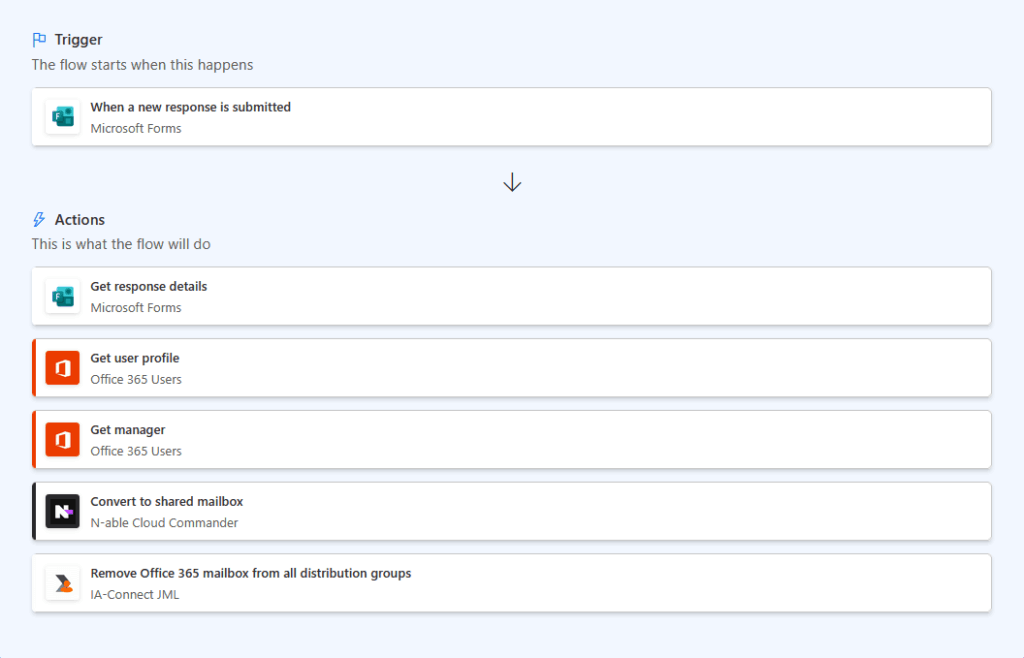
The flow uses premium actions to connect to Microsoft Entra ID (Azure AD).
That’s where it instantly blocks the user’s account and revokes active sign-in sessions.
Then:
- The user’s mailbox is converted to a shared one
- Their manager gets access
The flow also removes the user from all Microsoft 365 groups and Teams.
Finally, it notifies IT, Payroll, and Security to begin their offboarding protocols.
(Note: This process requires a premium license).
4. Leave & Absence Management: Smart Leave Approval
This automation simplifies leave requests for everyone.
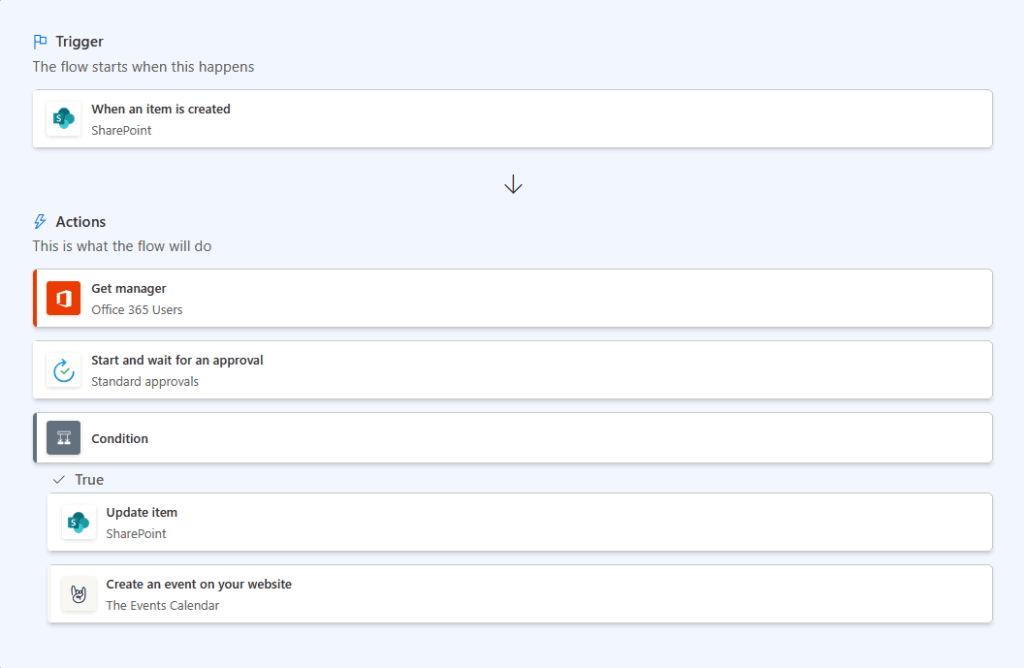
An employee can initiate a request in a “Leave Requests” SharePoint list.
The flow’s first action is to check the employee’s remaining leave in a separate “Leave Balances” list.
- Apps Used: SharePoint, Approvals, Outlook (Mail & Calendar), Office 365 Users.
- Copilot Prompt: “When a SharePoint item is created in ‘Leave Requests’, get the user’s manager from their profile. Start an approval and send it to the manager. If the outcome is ‘Approve’, update the item status to ‘Approved’ and create an event in the ‘Team Calendar’.”
If the request exceeds their available time:
- The flow automatically rejects it
- Notifies the employee
- Prevents invalid requests from reaching managers
If the balance is sufficient, the flow sends an approval request to the manager.
Upon final approval, it creates an “Out of Office” event on the team calendar.
And then deducts the time from the employee’s balance, keeping all records accurate.
5. Performance Management: Automated Review Cycle
Automating performance review paperwork lets HR and managers focus on meaningful conversations.
This workflow uses a scheduled trigger to run on the first day of each quarter.
The flow gets a list of all active employees and loops through each one.
- Apps Used: Power Automate (Scheduled), SharePoint/Dataverse, Power Apps, Outlook, Microsoft Teams.
- Copilot Prompt: “On a schedule every quarter, get items from the ‘Employees’ SharePoint list. For each employee, create an item in the ‘Performance Reviews’ list and send an email to the employee and their manager with a link to the new item.”
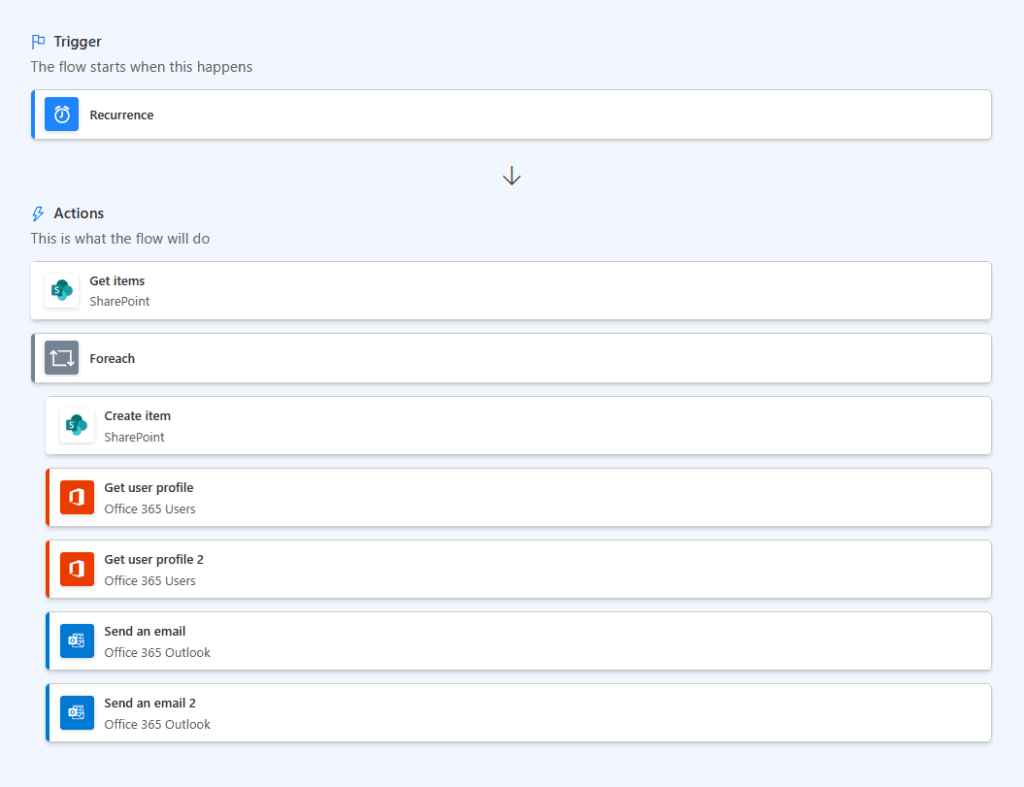
It sends an email to both the employee and their manager with a unique link to complete their sections.
A separate weekly flow can run to check for incomplete reviews and send automated reminders to the right person.
This keeps the process on track without manual follow-up from HR.
6. Expense Management: Mobile Expense Claims
This workflow makes submitting and approving expense claims faster and easier.
An employee uses a Power App on their phone to enter expense details and take a photo of the receipt.
When they submit it, the flow is triggered.
- Apps Used: Power Apps, SharePoint, Power Automate, Approvals, Excel Online.
- Copilot Prompt: “When a new item is created in the ‘Expense Claims’ list, start an approval for the manager. If the ‘Amount’ is greater than 500, then start a second approval for ‘‘. If all approvals are met, add a row to the ‘Approved Expenses’ table in Excel.”
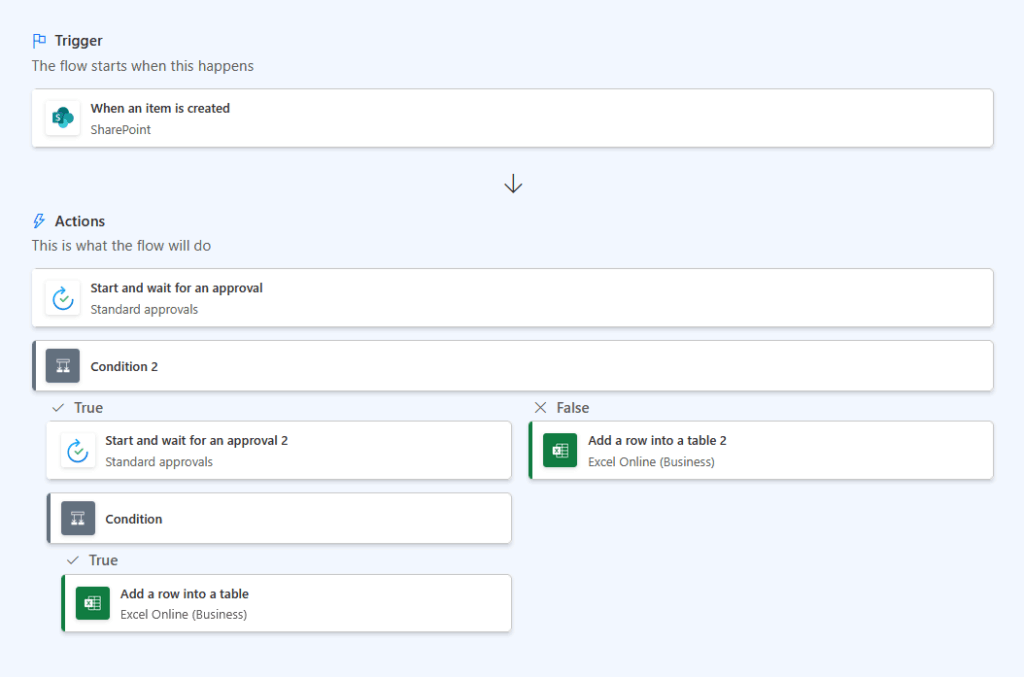
It creates a new item in an “Expense Claims” SharePoint list and saves the receipt.
The flow then sends an approval request to the employee’s manager.
You can add a condition to route expenses over a set amount (like $500) to finance for a second approval.
Once approved, the flow logs the details in a central “Finance Log” Excel sheet.
Making Your Automations Reliable
Building a flow is just the first step.
To make automations reliable and dependable for business processes, plan for potential issues.
Tip 1: Plan for Errors
No system is perfect; connections can fail or data can be entered incorrectly.
A good automation anticipates this.
Here’s how you can set up a basic error alert:
- Add a parallel branch for error handling
- Configure the “run after” setting to “has failed”
- Add an action to send an alert message
- Include the flow name and run ID in the alert
These steps create a safety net for your automation.
Adding a parallel branch creates a separate path for the flow if something goes wrong.
Then, configuring the “run after” setting tells this new path to activate only when a failure is detected.
As you know, sending an alert to an administrator is the most common action.
But the most helpful part is including specific details like:
- The flow’s name
- Its unique run ID
They help them find and fix the problem much faster.
Tip 2: Use Service Accounts
Many people build flows using their own work accounts for connections.
This is a problem.
If that person leaves the company, their account might be disabled, and every flow they built will break.
Here’s your to-do list for using service accounts:
- Request a dedicated automation account from IT
- Build all new flows using the service account
- Update existing flows with the new account
- Keep a record of all flows using the account
Working with your IT department to get a dedicated account is the first and most important step.
Once you have it, you should use it for all future automations to avoid problems down the road.
If you’ve built flows with your personal account, update those connections.
Finally, create a spreadsheet to help your team keep a clear inventory of all automations.
Start Small, Build Momentum
Those can save HR professionals a great deal of time and create a better experience for employees.
The key is to not try and do everything at once.
The best approach is to start with one simple process that causes a lot of administrative pain.
Pick a “quick win,” like automating leave request approvals or sending new hire welcome emails.
Do you have any questions about the templates mentioned above? Let me know below.
For any business-related queries or concerns, contact me through the contact form. I always reply. 🙂




























