

Last Updated on June 12, 2025
Looking for shortcuts that really save you time?
Here are the top Power Automate templates for small teams that want to achieve results quickly!
Let’s get started.
Table of Contents:
- Why templates matter when you run a lean team?
- What to know before using templates?
- Top Power Automate Templates for Small‑Business Workflows
- 1. Automated Invoice Reminders from Excel
- 2. Populate Invoice Template in Excel Then Email Word Document
- 3. Save email attachments automatically to OneDrive
- 4. Schedule and Post Social Media Content
- 5. Capture Leads with Microsoft Forms and SharePoint
- 6. Set Reminder Flows in SharePoint Lists
- 7. Automatic Expense Approval with Approvals App
- 8. Daily Summary Email Digest to Microsoft Teams
- Compliance, security, and local considerations
Why templates matter when you run a lean team?
Running a five‑person shop means wearing many hats at once.
- You invoice clients
- You chase payments
- You follow up on leads
- You still need to keep your team in sync
Every manual step steals minutes that add up to whole days each month.
Power Automate templates let you hand those tasks to the cloud so you can focus on meaningful work that moves the needle.
Sign up for exclusive updates, tips, and strategies
What to know before using templates?
Before you dive into using templates, it’s important to know what you’re working with.
Microsoft highlights which connectors are needed for each template, so you can easily check if it’s compatible with your current plan.
For most small businesses on Microsoft 365 Business Basic, it’s safest to stick to standard connectors like Outlook, OneDrive, and SharePoint.
You should only consider a premium or third-party connector when you’re sure it’s worth the extra cost.
Watch out for templates involving:
- Approval processes
- Third-party services
- On-premises data
These often require a paid plan, so check carefully before you get started.
Here’s all you need to create these templates with Copilot in Power Automate:
- Enter the template title
- Specify the trigger
- List the actions (see the sections below for examples)
Copilot will help you set everything up, even if you’re not a Microsoft Power Automate expert.

Copilot can even help by rewriting older actions for you, which takes some of the hassle out of troubleshooting.
When it comes to reliability, templates rarely break after Microsoft pushes updates, but it’s still smart to turn on flow versioning.
That way, you can easily roll back if something ever goes wrong.
Possible hidden costs to watch out for include:
- Premium connectors
- Extra flow runs
- Additional per-user licenses
- Additional per-flow licenses
Always double-check the consumption limits before launching anything in production.
It’s a good idea to set aside a small budget buffer for unexpected costs.
Top Power Automate Templates for Small‑Business Workflows
Below are eight templates that remove repetitive tasks for finance, marketing, and operations.
For each one, you will see how it works, the business case, and quick start tips.
1. Automated Invoice Reminders from Excel
How it works:
- Trigger: The due date column in your Excel invoice list reaches today.
- Action 1: Outlook sends a polite reminder email to the client contact.
- Action 2: Teams posts a message in the Finance channel so everyone sees the alert.
- Action 3: Flow updates a “ReminderSent” column to prevent duplicates.
This list fires off the same day a balance is due, keeping your clients informed without extra clicks.

Your team also stays in the loop, which avoids “Did we follow up?” chats.
Because it writes back to Excel, you have proof that the reminder went out.
Quick start tips
- Use data validation in Excel to force a proper date format.
- Test with a single row first so you do not spam actual clients.
- Swap Outlook with Gmail if your email lives on Google Workspace.
- Add a second condition to catch seven‑day grace periods.
As a result, you save time, reduce missed payments, and maintain a professional image.
In addition, customers appreciate gentle nudges rather than sudden collections, which helps maintain positive relationships.
Ultimately, your accounts receivable metrics improve with almost zero effort.
2. Populate Invoice Template in Excel Then Email Word Document
How it works:
- Trigger: A new row appears in the Sales table of your Excel workbook.
- Action 1: Populate an invoice worksheet with dynamic values (client, amount, due date).
- Action 2: Convert the filled‑out sheet to a Word document using the Word Online (Business) connector.
- Action 3: Email the Word document to the client and CC your bookkeeper.
Automating document creation helps you skip copy‑paste errors and keeps your workflow smooth.
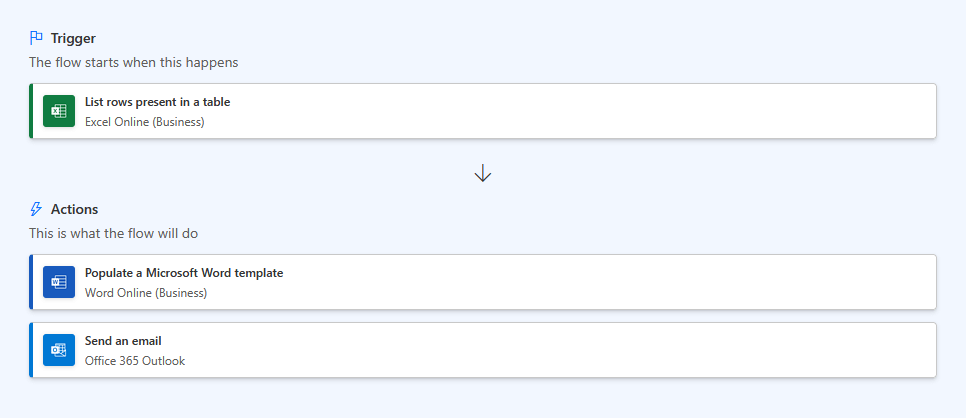
The built-in Word conversion gives your clients an editable file ready for their records.
Then, your bookkeepers get the invoice instantly, so payments are processed sooner.
Quick start tips
- Store the workbook and template in OneDrive for Business so the connector can access them.
- Name worksheets and Word templates clearly to avoid confusion.
- Use Excel formulas for VAT or discount calculations so the Word doc is correct.
- Check your Word template layout for branding and formatting.
With this workflow, you minimize data entry, speed up invoicing, and keep your records tidy.
Clients pay faster and you look organized, which builds trust.
3. Save email attachments automatically to OneDrive
How it works:
- Trigger: Outlook receives an email with an attachment.
- Action 1: Flow checks if the file type is PDF, DOCX, or XLSX.
- Action 2: If the type matches, save the attachment to /SharedDocs/Inbound.
- Action 3: Append a line to a tracking CSV so you can audit later.
At first, manually dragging files to folders feels harmless.
However, once your inbox floods, it quickly becomes overwhelming.
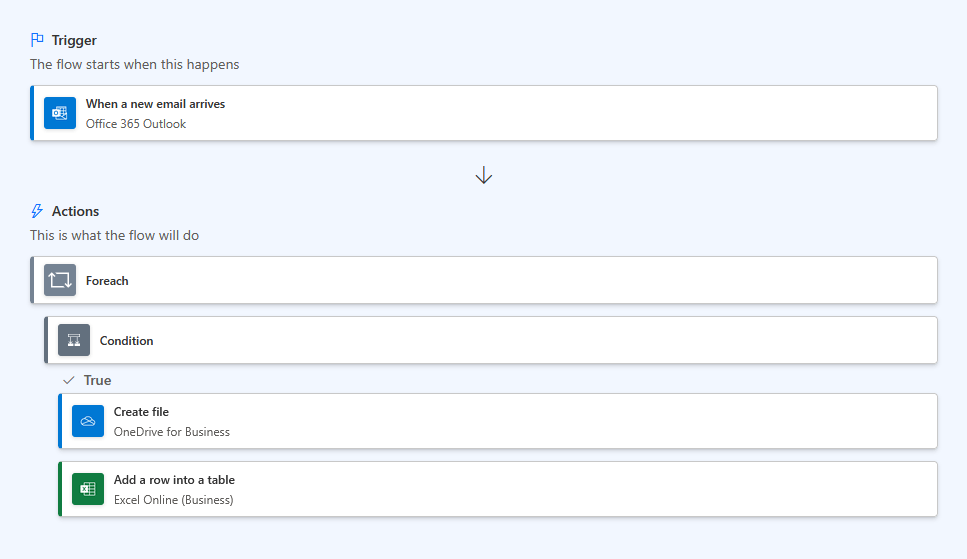
So by automating the step, you standardize naming and storage, which makes everything more consistent.
Plus, auditors love the CSV log because it shows who sent what and when, so you regain control over chaotic file storage.
Quick start tips
- Use a condition to skip marketing newsletters.
- Turn on duplicate detection so you don’t store the same file twice.
- Enable a retention label if your industry requires seven‑year storage.
- Share the OneDrive folder with your accountant for smoother hand‑offs.
With centralized storage, you no longer get “Can you resend the file?” emails.
As a result, your compliance footprint improves because every attachment now lives in a known location.
Plus, searches run faster, saving you minutes every day. 👍
4. Schedule and Post Social Media Content
How it works:
- Trigger: When a SharePoint list item hits the scheduled date.
- Action 1: Send an approval or notification to your marketing team via Teams or Outlook, containing the post text and image (or a link to them).
- Action 2: Update the SharePoint item to mark it as “Ready for Posting” or “Posted.”
- Action 3: (Optional) Log this event in another SharePoint list or Excel for tracking.
Consistency beats bursts of activity in social marketing, but this template keeps your feed alive even when you forget.

When a SharePoint list item hits its set scheduled date, Power Automate notifies your marketing team with the post details.
It then updates the item status and can optionally log the event for tracking.
Quick start tips
- Make sure your SharePoint list has columns for post text, image link, scheduled date, and post status.
- Configure the flow to send Teams or Outlook notifications to your marketing team when a post is ready for review or posting.
- Update the SharePoint item status to “Ready for Posting” after review and “Posted” once published.
- Optionally, log each posting event in another SharePoint list or Excel file for easy tracking and auditing.
With scheduled posts, you remove the pressure to be online at odd hours.
As a result, your presence looks active, which gains the algorithm’s favour.
Likewise, staff involvement boosts reach organically while also creating a repeatable process for interns or new hires.
How it works:
- Trigger: A potential client submits a Microsoft Form embedded on your website or landing page.
- Action 1: Power Automate collects the contact details from the form.
- Action 2: Save the data to a SharePoint list named InboundLeads.
- Action 3: Instantly send a personalized “Thanks for your interest” email using Outlook.
Fast follow‑up turns interest into real customers.
With this automation, you capture leads right inside Microsoft 365, so your whole team can see and follow up.
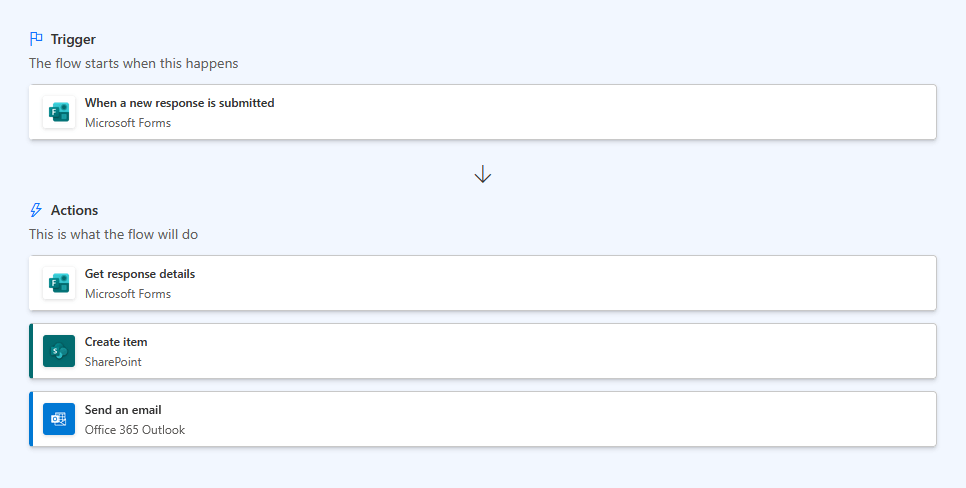
Meanwhile, your thank‑you email builds rapport, and you can export leads to Excel for quick checks.
Quick start tips
- Design your Microsoft Form to match the info you need (name, email, company, etc.).
- Set up your SharePoint list with columns matching your form fields.
- Add a column to track follow‑up status or call bookings.
- Use Teams notifications to quickly assign leads to a salesperson.
In summary, you avoid manual data entry, ensure instant outreach, and keep all leads secure in SharePoint.
Since permissions follow your Microsoft 365 security, everyone can see the pipeline in real time, speeding up decision-making.
How it works:
- Trigger: An item’s DueDate is X days away (configurable).
- Action 1: Send an email or Teams message to the responsible person.
- Action 2: Update a ReminderCount column for reporting.
- Action 3: If the item is still open two days before due, escalate to a manager.
Task management fails when people forget deadlines buried in lists.

With this reminder flow, you nudge owners automatically while escalation adds accountability without micromanaging.
Also, tracking counts reveals chronic bottlenecks so you can improve processes.
Quick start tips
- Use calculated columns to surface days until due.
- Store email templates in a multiline column for easy edits.
- Run the flow hourly for urgent boards, daily for long‑term projects.
- Pair with Power BI to visualize overdue trends.
Automated processes and reminders protect projects from silent delays.
Escalation prioritizes high-risk tasks and lets you use history for continuous improvement.
Ultimately, your culture shifts toward proactive updates. 💪
7. Automatic Expense Approval with Approvals App
How it works:
- Trigger: Employee submits a receipt image through a Microsoft Form.
- Action 1: Flow creates an approval request for the finance head in Teams.
- Action 2: On approval, the flow stores the receipt in a OneDrive folder and records the result in an Excel log.
- Action 3: Employee gets a confirmation email with status.
Manual expense sign‑offs pile up when managers travel.
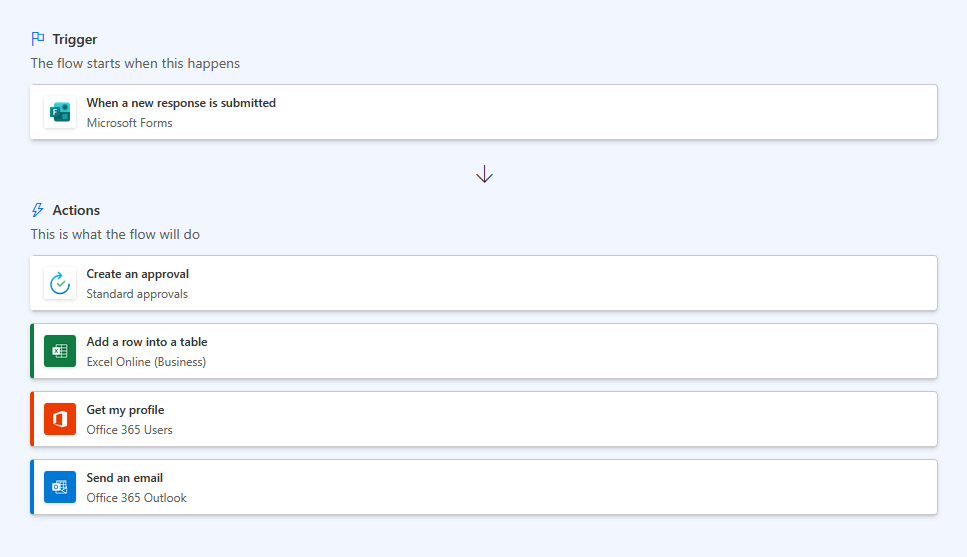
Fortunately, Teams approvals speed up decisions while central storage keeps receipts audit-ready.
The Excel log also provides an easy pivot table for monthly totals.
Quick start tips
- Require a minimum of three fields: date, amount, and purpose.
- Use adaptive cards for richer context in the approval message.
- Set an auto‑expire after seven days to prevent hanging requests.
- Add a second‑level approver for amounts over ₱10,000.
Approval processes reduce email clutter and lost paperwork.
This means employees see transparency, which improves morale.
Meanwhile, finance gains a clean trail for taxes, and as a result, decision latency drops sharply.
8. Daily Summary Email Digest to Microsoft Teams
How it works:
- Trigger: Scheduled at 5:00 PM every weekday.
- Action 1: Gather new SharePoint list items, unread Outlook emails flagged Important, and overdue tasks.
- Action 2: Compile the data into a nicely formatted adaptive card.
- Action 3: Post the card to your Daily Digest channel in Teams.
End‑of‑day reviews help teams plan tomorrow without noise.

With this digest, you roll multiple sources into one quick read.
Adaptive cards work on any device, so everyone stays updated without juggling several apps.
Quick start tips
- Filter Outlook to exclude newsletters.
- Include links that open the exact SharePoint item.
- Add a reaction‑based poll (“good day / tough day”) for team feedback.
- Adjust the schedule for Friday to 4:00 PM to respect work‑life balance.
Single‑screen digests strengthen alignment.
In addition, mobile‑friendly cards reach field staff as easily as desk workers.
Meanwhile, quick feedback pulses morale trends so you finish workdays feeling informed instead of overwhelmed.
Compliance, security, and local considerations
Even the smartest flow can hurt your business if it mishandles data.
For example, U.S. businesses need to balance convenience with privacy and security.
Here’s what to keep in mind:
- Follow HIPAA, CCPA, or other relevant laws
- Get user consent for data use
- Keep data in approved Microsoft 365 U.S. data centers
- Enable multi-factor authentication
- Use standard connectors when possible
- Monitor version history and keep backups
You should review your flows and permissions often to avoid leaks or unauthorized access.
Premium connectors can require extra licenses, so check your usage before enabling them.
Export your flows regularly in case you need to restore a previous version, and test Copilot suggestions in a sandbox first.
Do you have any questions about the Power Automate templates above? Let me know in the comments.
For any business-related queries or concerns, contact me through the contact form. I always reply. 🙂