

Last Updated on July 31, 2025
Curious about how to lock down your Microsoft 365 environment?
In this guide, let’s talk about the most effective security features available to IT teams and how to implement them.
Let’s get started.
Table of Contents:
- Why M365 Security is Your Top Priority
- 1. Identity & Access Management: The Cornerstone of Zero Trust
- 2. Threat Protection: A Multi-Layered Defense with Microsoft Defender
- 3. Information Protection: Safeguarding Data with Microsoft Purview
- 4. Unified Endpoint Management: Locking Down Devices with Microsoft Intune
- 5. The AI Force Multiplier: Microsoft Copilot for Security
- Building Your M365 Security Strategy
Why M365 Security is Your Top Priority
The traditional network perimeter has all but disappeared.
Your organization faces several key challenges that demand a modern security approach:
- Expanded attack surface: Remote work and personal devices erase old boundaries.
- Sophisticated cyberattacks: Threats like BEC and ransomware are more advanced than ever.
- Tool sprawl: Juggling dozens of disconnected security products creates gaps and overwhelms IT teams.
Making security a top priority is no longer just about preventing breaches; it’s about building an efficient defense.
It involves robust security measures like identity and access management and strong conditional access policies.
Microsoft employs a unified security approach today, based on Zero Trust and integrated threat detection.
Sign up for exclusive updates, tips, and strategies
1. Identity & Access Management: The Cornerstone of Zero Trust
When boundaries disappear, who you are online becomes the main way we manage access.
Identity and access management is central to this, with powerful tools such as conditional access policies.
The following goes through your identity provider, often secured by transport layer security:
- Access request
- Policy enforcement
- Authentication
Microsoft Entra ID (formerly Azure AD) is important for securing Microsoft 365 as it’s the foundation of security.
It’s the first and most critical pillar in implementing a Zero Trust strategy.
Multi-Factor Authentication (MFA)
MFA prevents 99.9% of identity-based cyberattacks, as stolen credentials are the primary attack vector.
IT should prioritize stronger, phishing-resistant authenticators over SMS codes.

To truly fortify your environment, enable multi-factor authentication across all users
Here are the top methods to consider:
- Microsoft Authenticator app: Use number matching for push notifications
- FIDO2 security keys: The gold standard for phishing resistance
- Certificate-Based authentication: For robust, seamless integration
Implementing any of these methods significantly raises the bar for attackers trying to compromise user accounts.
Ditching less secure stuff like SMS directly combats common phishing attacks.
This single step is one of the most effective ways to harden your entire M365 environment.
Conditional Access
Conditional Access is arguably the most powerful security feature in the entire suite.
It’s the engine that enforces the “Verify explicitly” principle of Zero Trust using simple “if-then” statements.
The power comes from its ability to analyze rich signals for context before granting access.
Key signals (“If”):
- User/group: Is the user an administrator or a guest?
- IP location: Are they on a trusted corporate network?
- Device: Is the device compliant and healthy?
- Application: Are they accessing a high-risk app like SharePoint?
- Real-time risk: Has a sign-in been flagged as risky?
Key controls (“Then”):
- Block access: For high-risk scenarios
- Grant access: But require MFA, a compliant device, or an approved client app
Powerful policies, if misconfigured, can lead to severe consequences, like locking out users, including administrators.
Which is why a careful and phased deployment strategy to avoid disrupting business operations.
This approach allows you to validate a policy’s behavior before it goes live.
Pro-Tip: Always deploy new policies in report-only mode first to monitor their impact, and configure “break-glass” emergency accounts that are excluded from all policies to prevent accidental lockout.
Advanced Identity Protection (E5)
Microsoft 365 E5 licenses grant Entra ID P2, offering advanced, automated defenses superior to human capabilities.
These are essential for implementing the least privilege principle and responding dynamically to emerging threats.
Here’s how these E5 features improve your organization’s security posture:
- Identity Protection: Blocks suspicious sign-ins using risk-based policies, analyzing signals like impossible travel or leaked credentials.
- Privileged Identity Management (PIM): Removes standing admin access; users request and justify temporary elevation into privileged roles, often with approval.
Together, these features create a powerful, automated system for protecting your most sensitive accounts.
They limit the attack surface by granting administrative power only when needed and for the shortest time.
2. Threat Protection: A Multi-Layered Defense with Microsoft Defender
Microsoft’s threat protection strategy is embodied by the Microsoft Defender suite.
It’s a collection of services offering defense-in-depth across email, endpoints, and identity attack vectors.
Microsoft Defender XDR unifies security signals, providing a single pane of glass for investigation and response.
Defender for Office 365
Email remains the top entry point for cyberattacks.
Defender for Office 365 protects Exchange, Teams, SharePoint, and OneDrive from a wide range of threats.
It provides several critical layers of defense to neutralize threats before they can cause damage.
- Safe attachments: Detonates unknown attachments in a virtual sandbox for behavior analysis before they reach a user’s mailbox.
- Safe links: Performs a time-of-click scan of URLs and blocks access to malicious sites in real-time.
- Advanced anti-phishing: Uses machine learning to detect impersonation of high-value users and spoofing of your organization’s domains.
They offer strong protection against common email attacks, forming a robust security framework.
Integrated protection significantly reduces the risk of breaches from malicious emails or links.
Pro-Tip: Don’t rely on default policies. Use Microsoft’s Preset Security Policies (“Standard” for most users and “Strict” for high-risk users) to deploy best-practice configurations that are automatically updated by Microsoft.
Defender for Endpoint
This is a full Endpoint Protection Platform (EPP) and Endpoint Detection and Response (EDR) surpassing traditional antivirus.
It provides a suite of tools for prevention, detection, and automated response, as outlined below:
- Attack surface reduction: Hardens devices by controlling application execution and folder access.
- Next-generation protection: Uses behavioral and cloud-powered machine learning to block advanced threats.
- Automated investigation and remediation (AIR): Uses AI to automatically investigate alerts, determine the scope of a breach, and apply remediation actions.
With these, Defender for Endpoint offers deep device visibility and automated threat responses.
This enables security teams to shift from blocking malware to proactively hunting and neutralizing advanced threats.
Defender for Identity & Cloud Apps
The Defender suite extends to protect other critical infrastructure, feeding signals into the unified XDR platform.
They work together to cover hybrid identity environments and the growing use of cloud applications.
- Defender for Identity: Protects on-premises Active Directory by analyzing domain controller signals to detect compromised identities and malicious insider actions.
- Defender for Cloud Apps: A CASB providing visibility and control over cloud app usage, including discovering “shadow IT,” and enforcing granular controls like blocking downloads to unmanaged devices.
These tools complete the picture by bridging the gap between on-premises and cloud environments.
They extend security visibility from M365 to legacy systems and third-party apps.
3. Information Protection: Safeguarding Data with Microsoft Purview
Protecting against external threats is only half the battle, as security and compliance features are important here.
Microsoft Purview unifies sensitive data discovery, classification, protection, and governance across all locations.
Sensitivity Labels
The foundation of data protection is knowing what data is sensitive and where it is.
- Discover: Use Sensitive Information Types (SITs) to find specific data like credit card numbers or custom proprietary information.
- Protect: Apply Sensitivity Labels to tag data, which enables persistent protection like encryption that travels with the file.
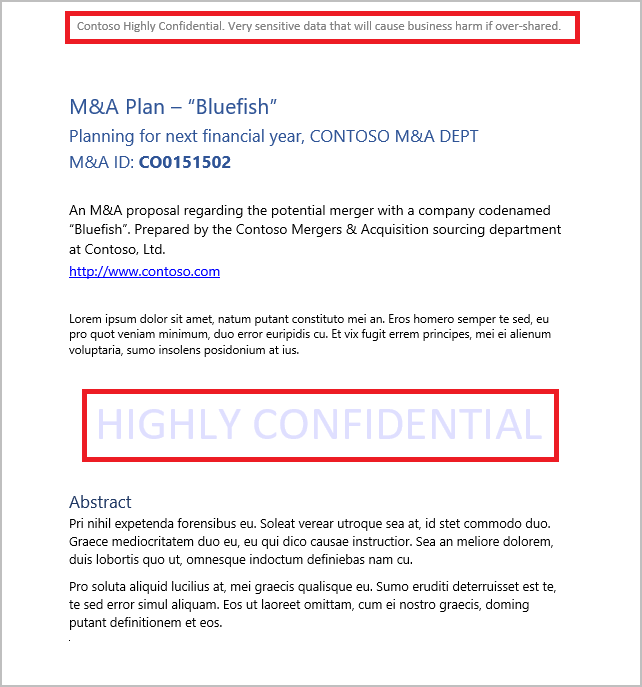
This two-step process ensures that protection is not arbitrary but is based on the actual content of the data.
It allows you to automate data governance and reduce the risk of human error.
Label actions can include:
- Encryption: Encrypt the content and control who has access
- Content Marking: Apply watermarks, headers, or footers
- Container Controls: Control sharing settings for SharePoint sites or Teams
Auto-labeling automatically applies a label to files or emails when content matches a specific SIT.
Data Loss Prevention (DLP)
Microsoft Purview Data Loss Prevention (DLP) policies use the same classification engine to prevent accidental or intentional oversharing of sensitive information.
DLP can monitor and enforce controls across:
- Exchange Online emails
- SharePoint and OneDrive files
- Microsoft Teams chats
- Windows and macOS endpoints
When a user attempts to violate a policy (e.g., emailing a file with PII to an external recipient), the policy can:
- Audit the event
- Warn the user with a policy tip
- Block the action entirely
Pro-Tip: Always roll out DLP policies in audit-only mode first. This allows you to observe the policy’s impact and fine-tune it to reduce false positives before you start blocking user actions.
4. Unified Endpoint Management: Locking Down Devices with Microsoft Intune
Endpoints (laptops, desktops, and mobile devices you use) are the gateways to corporate data.
Microsoft Intune manages and secures access points, providing critical data for your Zero Trust strategy.
Enforcing Device Compliance for Secure Access
Intune’s Compliance Policies are rules that define what a “healthy” device looks like.
This is not just an inventory tool; it’s a security enforcement point.
A compliant device must meet requirements you set.
Compliance rules can include:
- Minimum OS version
- Disk encryption (BitLocker/FileVault) enabled
- A strong PIN or password
- A low threat level reported by Microsoft Defender for Endpoint
This compliance status is then fed directly into Conditional Access.
That allows you to create policies like, “Grant access to corporate apps, but only from a compliant device.”
Deploying Security Baselines for Rapid Hardening
For IT teams unsure where to start with endpoint hardening, Intune’s Security Baselines are a huge win.
These are pre-configured security settings for Windows, Edge, and Defender based on Microsoft’s best practices.
Deploying a baseline provides an immediate and significant security uplift.
So start with a baseline, duplicate it, and then customize it to meet your specific organizational needs.
Securing BYOD with App Protection Policies (MAM)
For personal devices (BYOD), there’s Intune’s App Protection Policies (APP) or Mobile Application Management (MAM).
That feature provides a way to protect corporate data without fully enrolling and managing the device.
These policies create a secure container for data within managed apps like Outlook or Teams.
MAM Policies can:
- Require a separate PIN to open the corporate app
- Prevent data from being copied from a managed app (Outlook) and pasted into a personal app (Gmail)
- Block corporate data from being saved to personal storage
- Enable a selective wipe of only corporate data if an employee leaves the company
These policies balance security and user privacy, letting employees use personal devices without full IT control.
This enables productivity in a modern, mobile-first workforce while still protecting sensitive corporate information.
5. The AI Force Multiplier: Microsoft Copilot for Security
The latest in Microsoft’s portfolio is the introduction of generative AI through Microsoft Copilot for Security.
This tool enhances security teams’ speed, efficiency, and effectiveness, but doesn’t replace security professionals.
What is Copilot and How Does it Help?
Copilot for Security is a generative AI assistant offering a natural language interface for complex security operations.
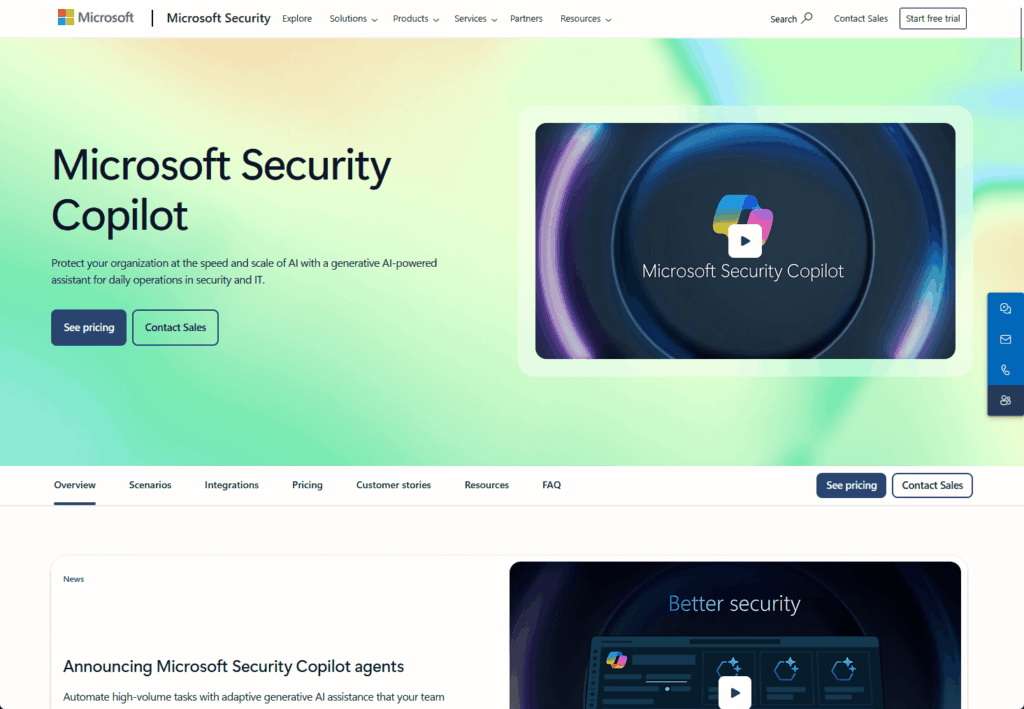
It’s integrated across the Microsoft Security portfolio like:
- Defender
- Sentinel
- Intune
And uses your organization’s specific data to provide contextualized answers.
Instead of sifting through logs, an analyst can simply ask a question.
Common use cases:
- Summarize an incident: Get a plain-language summary of an attack chain
- Reverse-engineer malware: Understand what a malicious script does
- Get remediation guidance: Receive step-by-step instructions to resolve a threat
These capabilities turn research into quick conversations, giving analysts answers in seconds.
It effectively acts as a senior analyst on demand, helping to upskill the entire team.
By handling the manual, repetitive tasks, Copilot allows security professionals to focus on strategic work.
Lowering the Bar for Threat Hunting
Perhaps its most powerful use case is making proactive threat hunting accessible to everyone.
Previously, hunting required deep expertise in Kusto Query Language (KQL).
Any analyst can ask a complex question in plain English, and Copilot will generate the functional KQL query.
Example Prompt:
"Show me all devices that have made outbound connections to suspicious IP addresses in the last 24 hours."
This is then translated into a powerful query, which dramatically improves the efficiency of the entire security team.
Building Your M365 Security Strategy
Optimal Microsoft 365 security features are correctly licensed, configured, and aligned with organizational maturity.
This involves implementing critical security measures like robust identity and access management.
The path to security is strategic, starting with licensing and ending with a clear understanding of your responsibilities.
Monitoring audit logs is also key to maintaining oversight and ensuring proper guest access controls.
Choosing the Right License: Business Premium vs. E3 vs. E5
As you know, your security capabilities are directly tied to your license.
Understanding the key differences is essential for planning:
| Feature Category | Microsoft 365 Business Premium | Microsoft 365 E3 | Microsoft 365 E5 |
| Conditional Access | ✔️ | ✔️ | ✔️ |
| Microsoft Intune | ✔️ | ✔️ | ✔️ |
| Defender for Office 365 P1 | ✔️ | ✔️ | ✔️ |
| Risk-Based Conditional Access | ❌ | ❌ | ✔️ |
| Privileged Identity Management | ❌ | ❌ | ✔️ |
| Defender for Endpoint P2 (Full EDR) | ❌ | ❌ | ✔️ |
| Defender for Office 365 P2 | ❌ | ❌ | ✔️ |
| Advanced Purview (Auto-Labeling) | ❌ | ❌ | ✔️ |
- Business Premium: The security sweet spot for SMBs (under 300 users).
- E3: A solid enterprise foundation with core security tools.
- E5: The premier, all-inclusive SKU that unlocks the full, automated, and intelligent potential of the platform.
My Final Recommendations
Securing your Microsoft 365 environment is an ongoing process, not a one-time project.
Layering integrated tools and closing gaps like data backup builds a resilient security posture against modern threats.
Begin with MFA and Conditional Access, then build on that foundation based on your organization’s risks and licensing.
Do you have questions about which features are right for your team or how to get started? Let me know.
For any business-related queries or concerns, contact me through the contact form. I always reply. 🙂