
Table of Contents:
Last Updated on May 26, 2025
Curious about Mesh and how it connects with Teams?
In this guide, you will find everything you need to know about Microsoft’s vision for the “metaverse for Teams.”
Let’s get started.
What is Microsoft Mesh?
Microsoft Mesh is a platform that brings immersive 3D experiences into Microsoft Teams.
It’s designed to let people meet as avatars in a virtual space, instead of just video calls or chat.
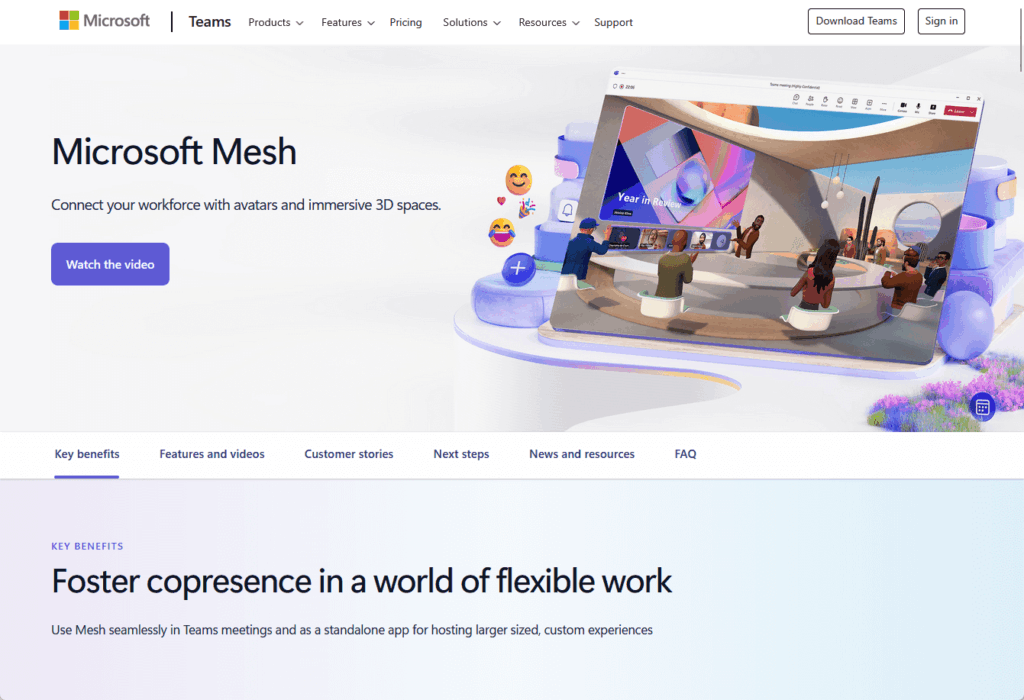
Mesh lets you create shared spaces that feel more like real rooms, with features like:
- Avatars that mimic your gestures and voice
- Virtual environments (like conference rooms or outdoor settings)
- Tools to interact, brainstorm, or present in 3D
The goal is to help teams feel present, connected, and engaged even if they work from different locations.
Well, Mesh is called Microsoft’s “metaverse for Teams” because it blends digital and physical worlds for new ways to collaborate.
Sign up for exclusive updates, tips, and strategies
How does Microsoft Mesh work with Teams?
Mesh is built directly into Microsoft Teams.
Like literally, you don’t have to install a separate app to use it if your organization has enabled Mesh.

Here’s what Mesh adds to Teams:
- Customizable 3D meeting rooms
- Digital avatars with gestures
- Spatial audio for natural conversations
- 3D content and media sharing
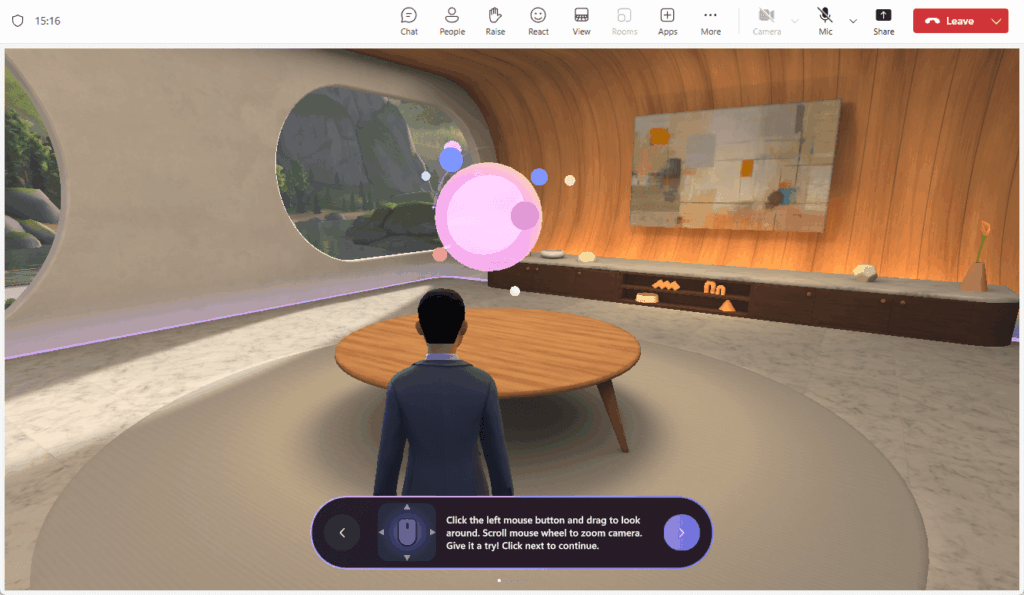
You can join Mesh meetings on a regular laptop or desktop.
You also don’t need a VR headset, as you can join from a Windows PC or Mac using the Teams desktop app.
But don’t sleep on devices like Meta Quest or HoloLens 2 — they can make Mesh even more immersive.
Who can use Mesh, and how do you get started?
Mesh is rolling out to Teams users, but availability can depend on your Microsoft 365 plan and your organization’s settings.
You can use Mesh with:
- Latest Teams desktop app
- Commercial Microsoft 365 account
- Teams Premium or add-ons
- Admin-enabled access
To get started, you must first create an avatar.
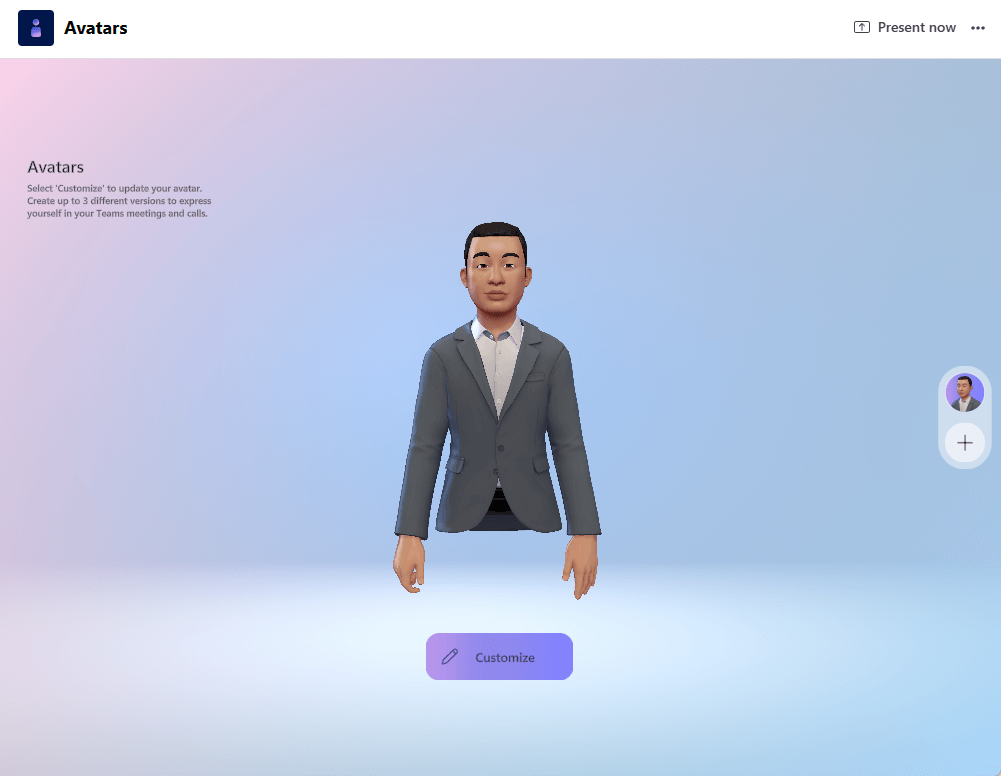
For that:
- Install the avatar app first
- Set up your avatar
- Use your avatar in meetings and immersive spaces
If you don’t see the Mesh options, contact your IT admin to ask about availability or rollout plans.
What are the benefits for teams and individuals?
Mesh is designed to make remote work feel more natural.
Here are the biggest benefits:
- Realistic presence with avatars
- Interactive collaboration
- Camera-free participation
- Unique virtual meeting spaces
- Improved team bonding
Creative meeting spaces make it possible to host events in ways that aren’t possible in traditional online meetings.
Mesh helps rebuild team connections by enabling spontaneous conversations and networking often missing in remote work.
All these benefits combine to make virtual teamwork feel more human, connected, and productive.
What are the limitations or current drawbacks?
One of the main challenges is that you need a fairly powerful computer to use Mesh comfortably.
Older devices or those with low graphics capabilities might struggle to keep up with the 3D environments.
There’s also a learning curve.
Other limitations include:
- Availability (it’s not available everywhere yet)
- Limited environments
- No mobile
Some users have reported minor issues during early use.
For example, setting up an avatar can take a few tries to get right, and audio quality may drop if a lot of people join the same meeting.
These are normal issues for new tech, but you can expect improvements as Microsoft continues to update and expand Mesh.
What about privacy and security?
Microsoft says Mesh follows the same security and privacy standards as Teams.
- Encrypted meetings and avatars
- IT admin management
- Enterprise compliance-ready
Mesh data is processed in Microsoft’s secure cloud using industry-standard encryption and privacy practices.
Organizations can use existing compliance tools in Microsoft 365 to monitor and audit activity within Mesh spaces.
Admins control access and policies in Mesh, making it suitable for regulated and sensitive environments.
How does Mesh compare to other collaboration tools?
Mesh isn’t the only platform offering 3D or immersive meetings, but it’s unique in how it fits inside Teams.
Here’s how Mesh stacks up:
| Feature | Microsoft Mesh | Meta Horizon | Spatial | Virbela |
| Integration with Teams | Yes | No | No | No |
| Device Support | Desktop, VR, AR | VR, Desktop | VR, Desktop, Web | VR, Desktop |
| Avatars | Yes | Yes | Yes | Yes |
| 3D Content Sharing | Yes | Limited | Yes | Yes |
| Customizable Spaces | Limited | Moderate | High | High |
| Spatial Audio | Yes | Yes | Yes | Yes |
| Admin Controls | Strong (MS 365) | Basic | Moderate | Moderate |
| Security & Compliance | Enterprise-grade | Basic | Moderate | Moderate |
| Mobile Support | No | No | Yes | No |
| Licensing | MS 365 Required | Separate | Separate | Separate |
Microsoft Mesh stands out for its deep integration with Teams and Microsoft 365, making it easy for existing users.
Some platforms have more customization or mobile support, but Mesh’s security is better for enterprises.
Other tools like Spatial and Virbela are strong for creative or education-focused use cases but lack enterprise controls.
Overall, Mesh is ideal for organizations seeking secure, immersive collaboration within the Microsoft ecosystem.
Anyway, do you have any questions about Microsoft Mesh with its exciting features? Let me know.
For any business-related queries or concerns, contact me through the contact form. I always reply. 🙂




























