

Table of Contents:
Last Updated on September 9, 2025
Want to build a SharePoint site that people actually enjoy using?
In this guide, I’ll show you the best web parts for site design and enable everyone to find what they need.
Let’s get started.
Foundational Web Parts for Visuals and Communication
First impressions matter.
These web parts are key for creating a visually appealing and informative homepage that draws people in.
1. Hero Web Part
The hero web part is ideal for a prominent, visual banner highlighting key content.
It grabs a user’s attention right away and points them to key initiatives or links.
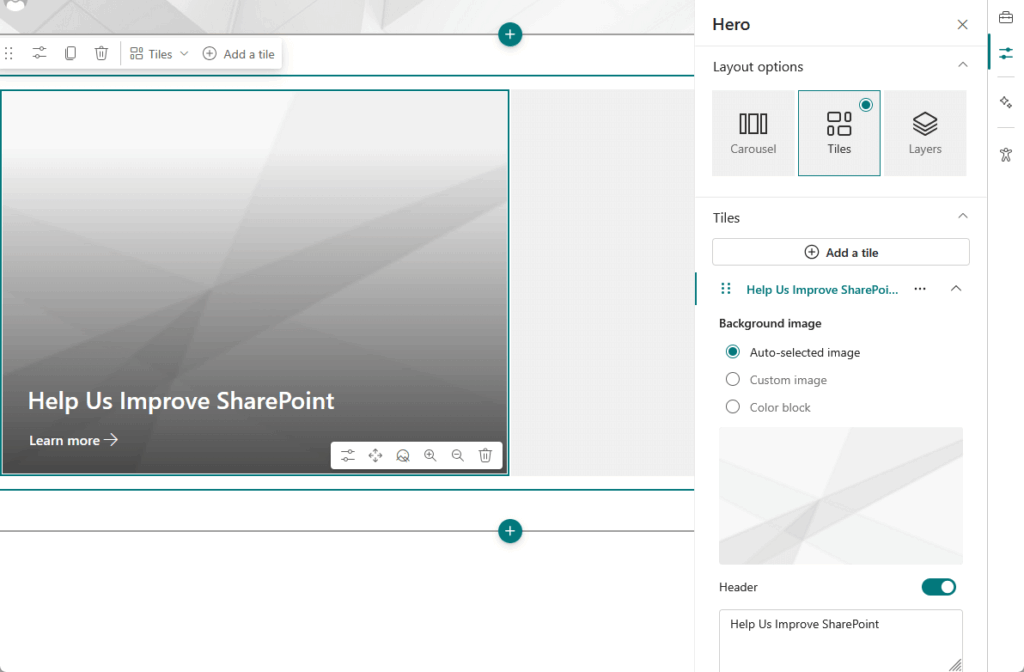
Here’s a quick look at its features and limitations:
- Layouts: Offers several styles like tiles, layers, and a carousel.
- Mobile-friendly: Lets you set a focal point on images so they crop correctly.
- Text issues: Sometimes cuts off descriptive text unexpectedly.
- Button limits: The “call to action” button is only available on the largest tile in that layout.
This web part is perfect for making a strong first impression on your most important pages.
While it has some minor layout quirks, its visual impact is undeniable.
Use it to set the tone for your site and guide users to priority content.
2. News Web Part
The news web part is the main way to post and display company announcements and stories.
It keeps your content fresh and relevant, turning your intranet from a static page into a dynamic communication hub.

Key capabilities of the news web part include:
- Content aggregation: “Rolls up” news from multiple sites into one feed.
- Targeting: Shows specific articles to different groups of employees.
- Personalization: Can be enhanced with third-party tools for a more polished feel.
A key feature is audience targeting, which makes the content more personal and reduces information overload.
For a more polished feel, third-party tools like Origami’s Personalized News can add a personal greeting for each user.
This web part is essential for active and engaging corporate communication.
3. Image Gallery & Video Web Parts
These web parts make your intranet feel more human and engaging by showcasing company culture, events, and people.
Visuals are often easier for people to process than large blocks of text.
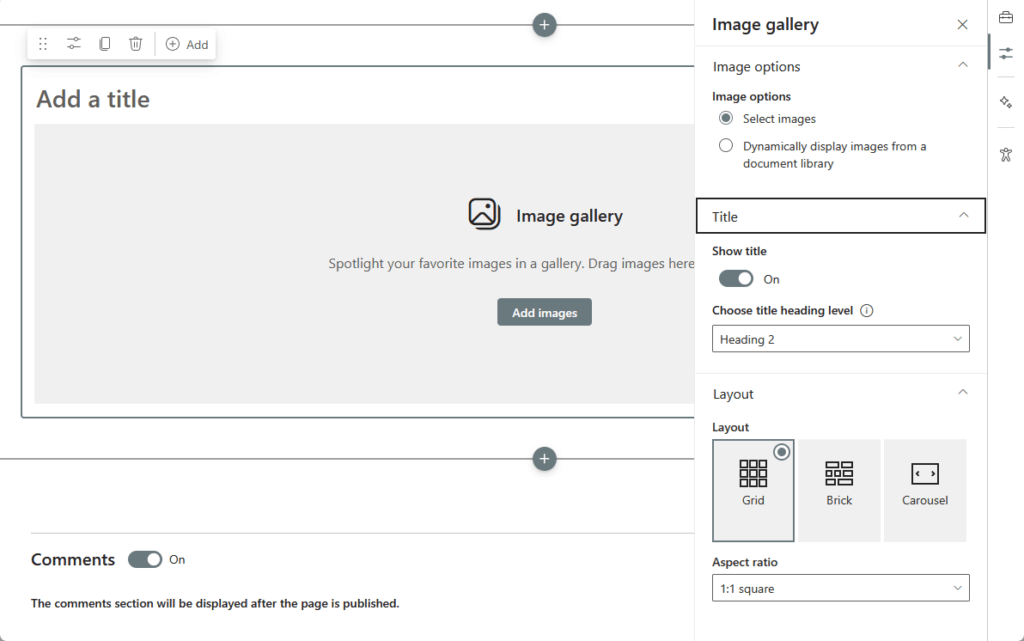
You can use these web parts for several purposes:
- Display photos: Share collections of pictures in various layouts like tiles, carousel, or bricks.
- Embed internal video: Use the file and media web part for videos stored in SharePoint.
- Embed external video: Use the embed web part for content from sources like YouTube.
Using images and videos helps break up text-heavy pages and tells a story in a more compelling way.
They’re simple but effective tools for improving the overall look and feel of your site.
These web parts are fundamental for creating a modern and visually appealing user experience.
4. Countdown Timer Web Part
This is a simple web part that counts down to a specific date.
It’s surprisingly effective at creating a sense of anticipation for important events like project deadlines or company town halls.
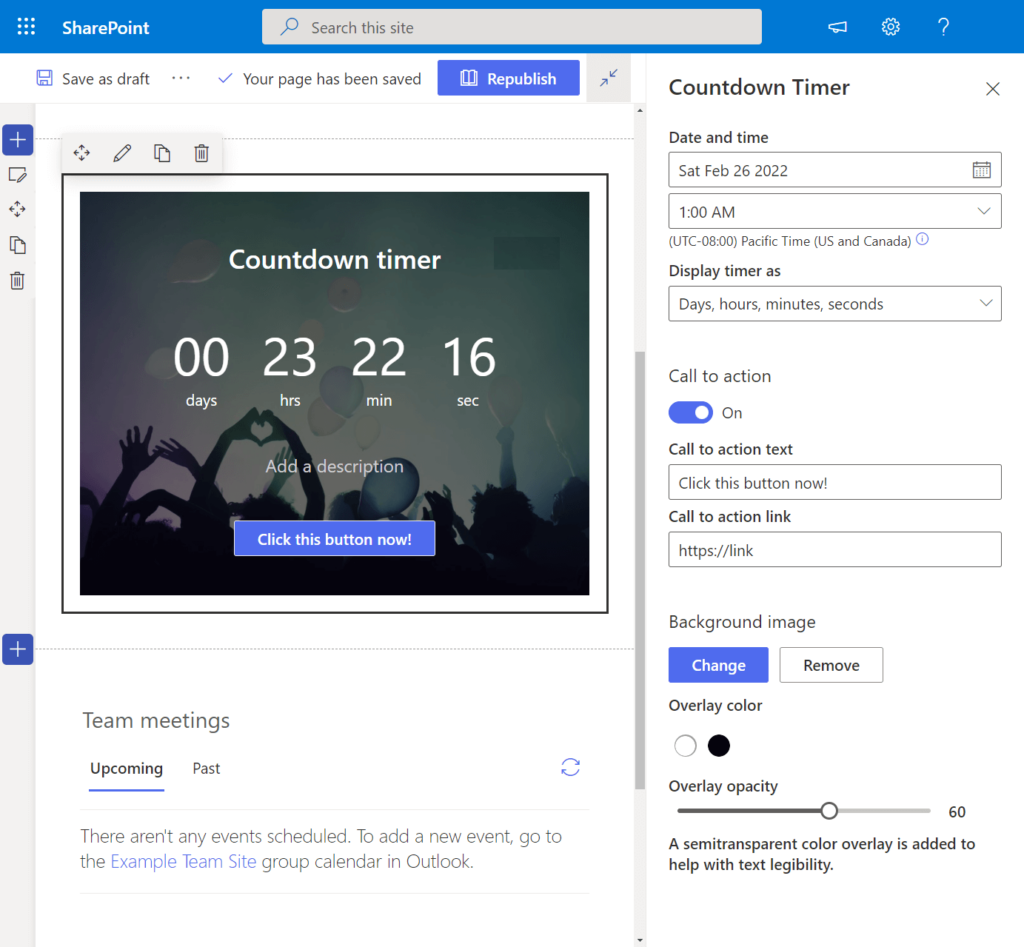
Common uses for this web part are:
- Product launches: Build excitement for a new release.
- Company events: Count down to town halls, parties, or holidays.
- Important deadlines: Create urgency for enrollment periods or project due dates.
You can add a background image and a call-to-action link to direct people to more information.
One limitation is that it’s a manual tool, so it can’t automatically pull the next event from a calendar.
You must update it after each event passes.
Sign up for exclusive updates, tips, and strategies
If people can’t find what they need, they’ll stop using the site.
These web parts are critical for making information easy to discover.
5. Quick Links Web Part
This is one of the most-used web parts for creating a set of curated links to important resources.
It provides clear shortcuts to the tools and pages people use most often, reducing frustration and search time.
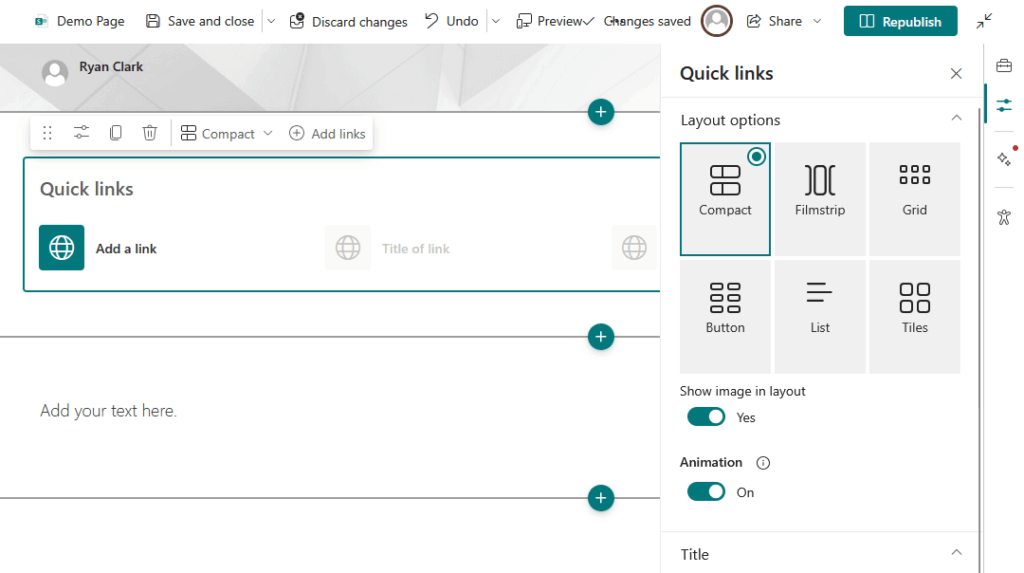
It improves the user experience by offering:
- Multiple layouts: Choose from styles like grid, button, or filmstrip.
- Audience targeting: Show different links to different teams.
- Dynamic options: Use third-party tools to create links from a list.
- Personalization: Some add-ons let users create their own bookmarks.
The built-in version is great and highly flexible for most situations.
For more advanced needs, third-party tools can add powerful features like dynamic link generation.
This web part is a must-have for almost any SharePoint page you build.
6. Highlighted Content Web Part
This is arguably the most powerful built-in web part for information discovery.
It automatically displays content like documents and news from anywhere in SharePoint based on rules you set.
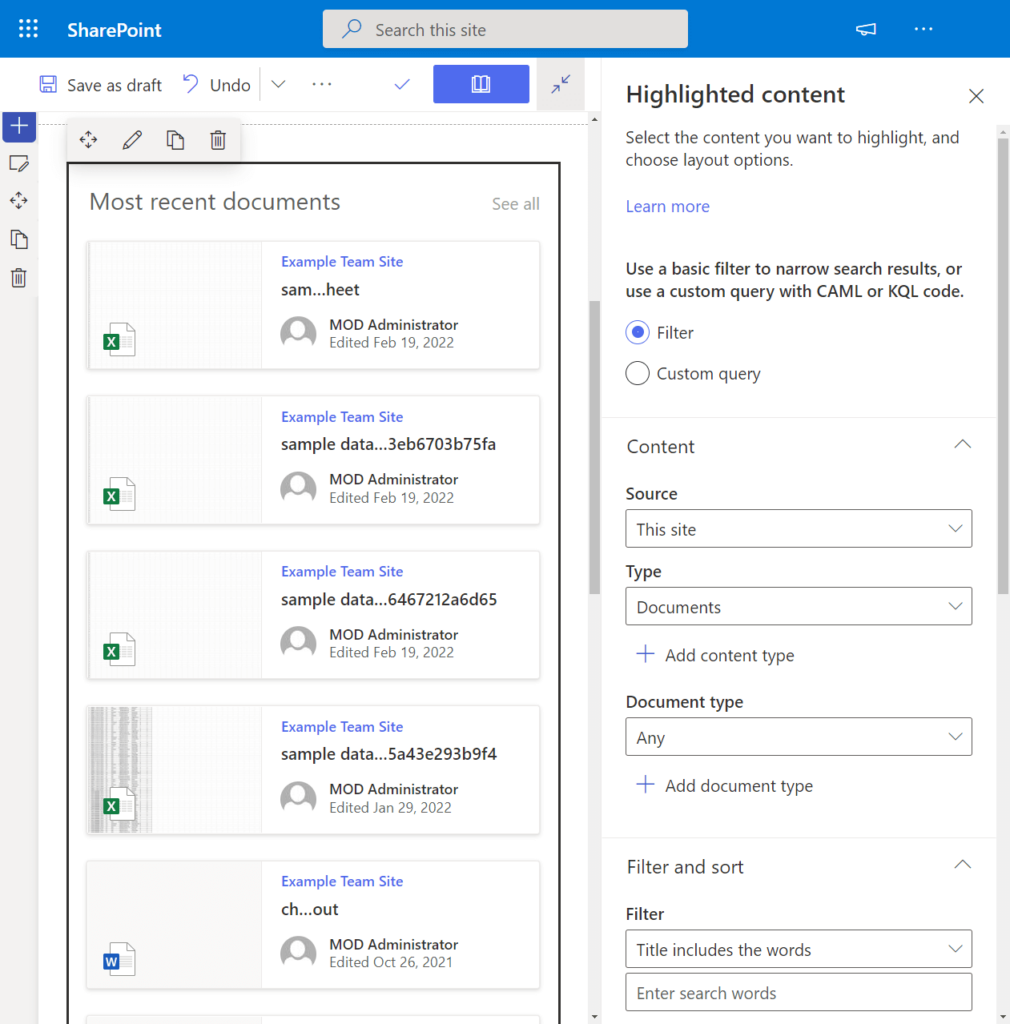
Its core function is to automatically surface content using:
- Content type (e.g., documents, pages)
- Date modified or created
- Who created it
- Custom metadata tags
This helps users discover useful content without having to actively search for it.
To get the most out of this web part, you need to have a good system for tagging your files with metadata.
Remember to use this tool instead of embedding entire document libraries to create a much cleaner user experience.
7. People Directory Web Parts
Helping employees find each other is a core function of an intranet.
SharePoint’s people web part displays a small, pre-selected contact group but lacks search functionality.

SharePoint offers different approaches for this:
- Built-in people web part: Best for showing a small, static list like a project team.
- Third-party directories: Essential for creating a searchable, filterable directory for the whole company.
This is a common area where a third-party solution is needed to fill the gap.
Employee directory web parts connect to all employee profiles and provide a user-friendly interface.
For larger organizations, a dedicated directory web part is essential for a good user experience.
Web Parts for Better Collaboration
A good intranet should also be a place where teamwork happens.
These web parts bring collaboration features directly into your SharePoint sites.
8. Viva Engage (Yammer) Web Part
This web part embeds conversations from Viva Engage directly onto a SharePoint page.
This is great for putting conversations in context, right next to related project plans and documents.
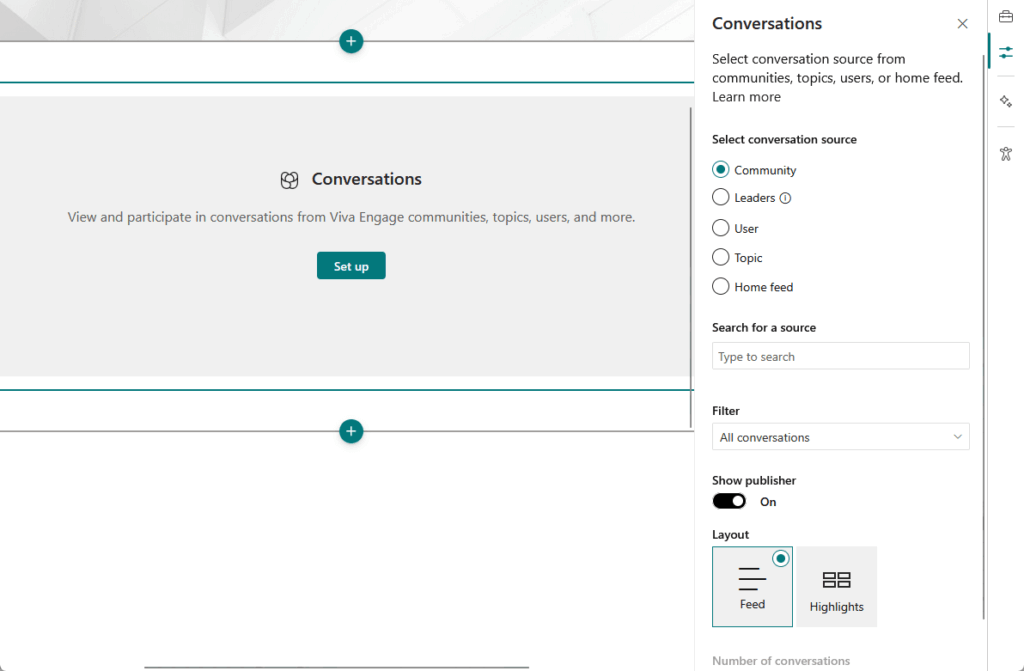
Integrating conversations helps in several ways:
- Contextual discussion: Keeps conversations alongside relevant content.
- Reduces app switching: Users can participate without leaving sharepoint.
- Flexible views: Choose the fully interactive “Conversations” view or the “Highlights” snapshot.
This reduces the need for people to jump between different applications to get their work done.
The “Conversations” web part is fully interactive, while the “Highlights” version is more of a snapshot.
It’s a powerful tool for creating a more integrated and collaborative digital workplace.
9. List Web Part
This web part displays a SharePoint list directly on a page.
It’s an extremely versatile tool for showing structured information, such as a project task list, an issue tracker, etc.
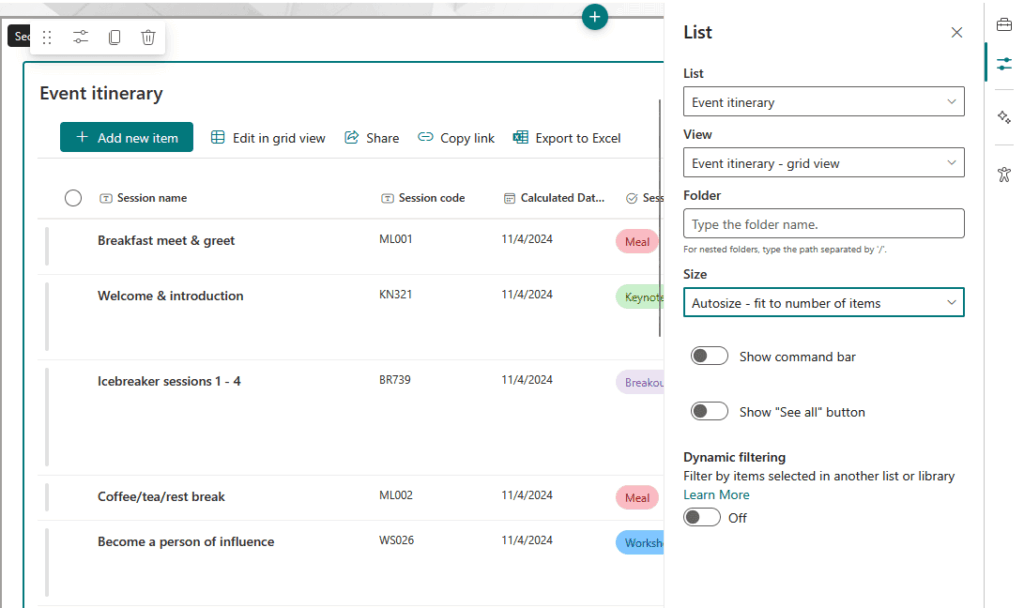
This web part helps teams by:
- Centralizing information: Provides a single source of truth for structured data.
- Allowing in-page edits: Users can often add or update items without leaving the page.
- Creating custom views: You can show different columns or filtered views of the same list.
Team members can see and update list items, like the status of a task, directly on the page.
A custom project list allows for easy progress tracking and team communication.
This makes the list web part a foundational tool for collaboration and data management in SharePoint.
Web Parts for Integrating Data and Apps
To become truly essential, your intranet needs to be more than just a collection of pages.
It should be an interactive platform that connects to other tools and data.
10. Microsoft Forms Web Part
This web part lets you embed a survey, poll, or quiz from Microsoft Forms directly on a page.
It’s an easy way to gather feedback without sending people to an external website.
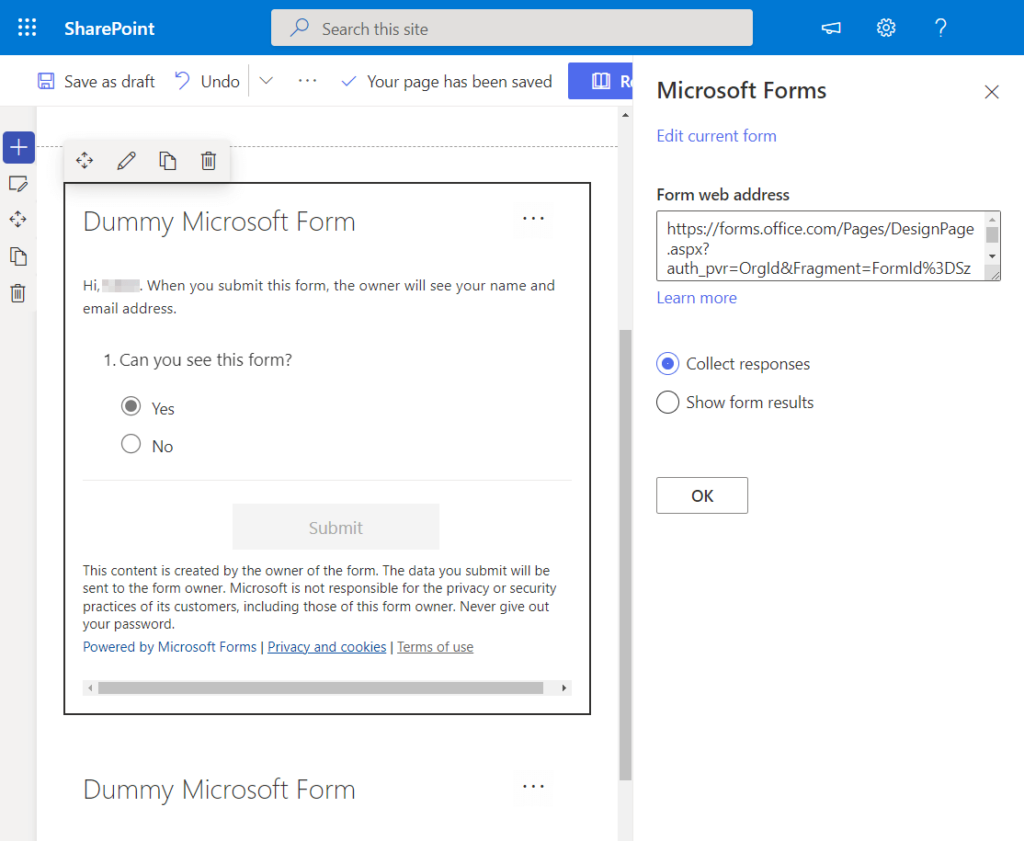
You can use it to:
- Embed surveys and polls
- Create quizzes
- Show a summary of results
This usually means more people will respond since it’s so convenient.
You can also configure it to show a summary of the results right on the page.
It’s a simple and effective tool for engagement.
11. Power BI Web Part
For more complex data, the Power BI web part is the best choice.
It lets you embed fully interactive reports and dashboards for presenting business intelligence.
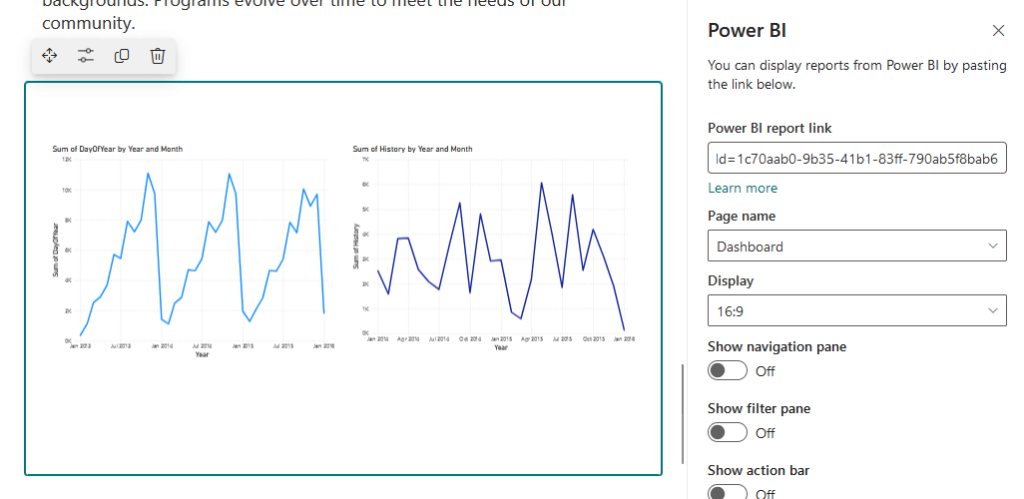
Its main advantages are:
- Interactive reports: Users can filter and explore the data.
- Clear visuals: Presents complex data in an easy-to-understand format.
- Secure: Reports respect all security settings, so users only see what they’re supposed to.
This is the perfect tool for presenting formal business data in a clear and visual way.
The reports remain secure, ensuring users only see the data they have permission to access.
It is the go-to solution for serious data visualization in SharePoint.
Building Your Web Part Toolkit
Building a great SharePoint site isn’t about finding one single “best” web part.
It’s about choosing the right mix of tools that meet your users’ needs.
The best strategy is to first master the powerful built-in web parts, like highlighted content and quick links.
Then, look for high-quality third-party solutions to fill specific gaps where you need them most.
Do you have any questions about the web parts I suggested earlier? Let me know below!
For any business-related queries or concerns, contact me through the contact form. I always reply. 🙂




























