
Table of Contents:
- 1. Banner
- 2. Bing Maps
- 3. Button
- 4. Call to Action
- 5. Code Snippet
- 6. Conversations
- 7. Countdown Timer
- 8. Dashboard
- 9. Divider
- 10. Document Library
- 11. Editorial Card
- 12. Embed
- 13. Events
- 14. File and Media
- 15. Group Calendar
- 16. Hero
- 17. Highlighted Content
- 18. Highlights
- 19. Image
- 20. Image Gallery
- 21. Kindle Instant Preview
- 22. Link
- 23. List
- 24. List Properties
- 25. Markdown
- 26. Microsoft Forms
- 27. Microsoft PowerApps
- 28. News
- 29. Organization Chart
- 30. Page Properties
- 31. People
- 32. Power BI
- 33. Quick Chart
- 34. Quick Links
- 35. Recent Documents
- 36. Saved for Later
- 37. Site Activity
- 38. Sites
- 39. Spacer
- 40. Stream
- 41. Text
- 42. Weather
- 43. World Clock
- 44. YouTube
Last Updated on July 7, 2025
Want to know all the web parts in SharePoint?
Let’s talk about all the modern SharePoint Online web parts with a quick and practical summary for each.
Let’s get started.
1. Banner
The Banner web part is now a true out-of-the-box superstar in SharePoint.
It’s not just a boring title section anymore as you can add banners anywhere on your page: full-width, inside columns…
Wherever you need some visual punch or want to show off an announcement.
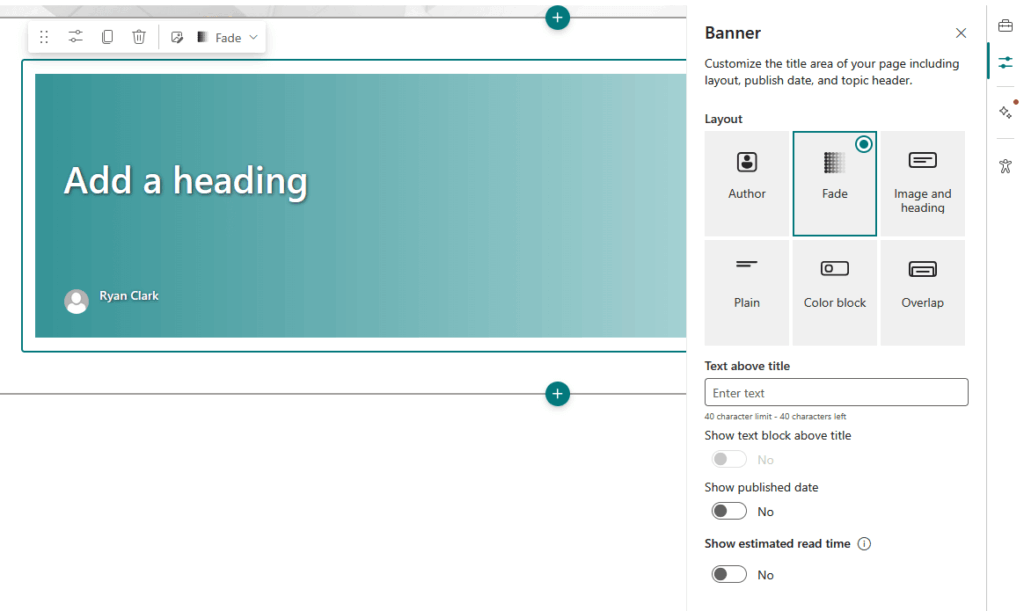
What’s cool is that you get multiple layouts to play with: fade, author, image and heading, color block, overlap, and plain.
Plus, you can:
- Overlay text
- Set custom background images
- Color blocks
- Show off the author byline, published date, and estimated read time
Want to add “Text above title”? Toggle it on.
Remove the title area? Just add a Banner web part back wherever you want, easy!
Basically, it’s your go-to for instant style, flexibility, and pro-level site design.
Sign up for exclusive updates, tips, and strategies
2. Bing Maps
Want to show your team where the next big meeting is, or help folks find your office without leaving the page?
The Bing Maps web part makes it easy.

You can enter any address or place name, and Bing Maps will drop a pin right on it:
- Choose from road, aerial, or streetside map views (labels are optional
- Set your zoom level with the simple plus and minus buttons
Want to call out exactly what’s at that pin? Add a custom label or display the full address right above your location.
Heads up: This web part only supports one pin per map.
So if you need multiple locations, you will have to use more than one map part (or get creative with embeds).
And for those running classic SharePoint Server, sorry, this one’s exclusive to SharePoint Online (Microsoft 365).
3. Button
Sometimes you just need a big ol’ button, right?
The Button web part in modern SharePoint Online is the go-to way to add a call-to-action that pops.
Think “Learn More,” “Contact Us,” “Get Started,” or whatever you want people to do next.
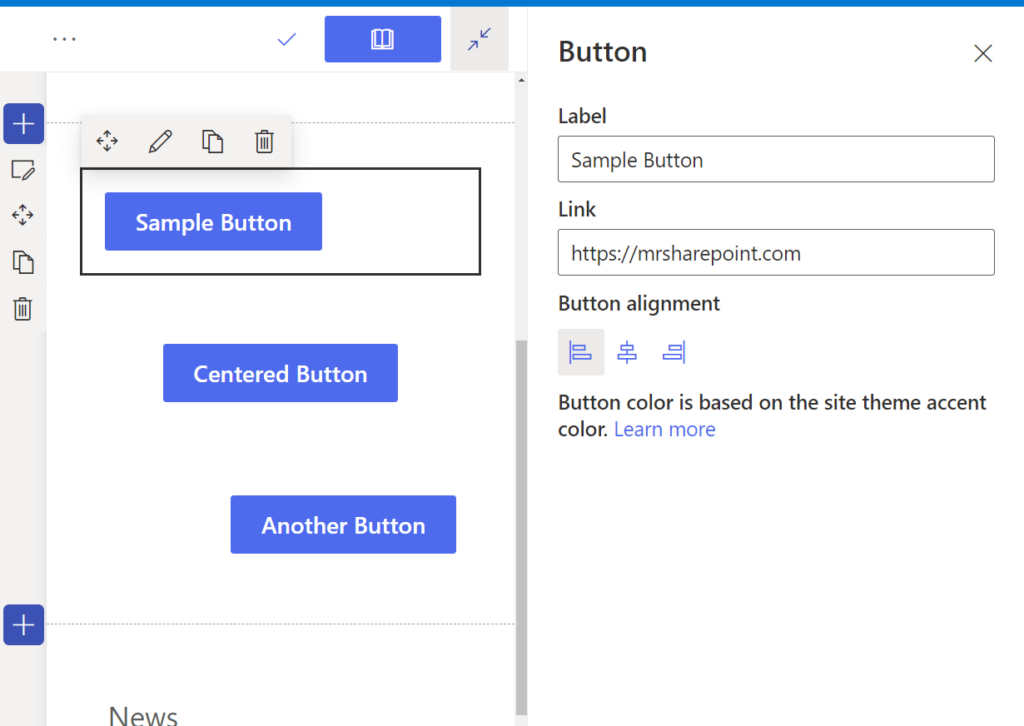
You can set your own label and link the button to any page, file, or external site.
You can also control the alignment (left, center, or right), so your button always lines up just the way you want within its section.
Keep in mind:
The button color is tied to your site’s theme (so it’ll always match, but you can’t pick a custom color just for the button).
And links open in the same tab, there’s no built-in “open in new window” option.
Want wild styles or script logic? You will need something fancier, like PowerApps or a custom SPFx part.
4. Call to Action
If you want users to actually do something, the Call to Action web part is your go-to move.
Think of it as a “Button web part plus,” as it packs way more punch and a lot more flexibility.
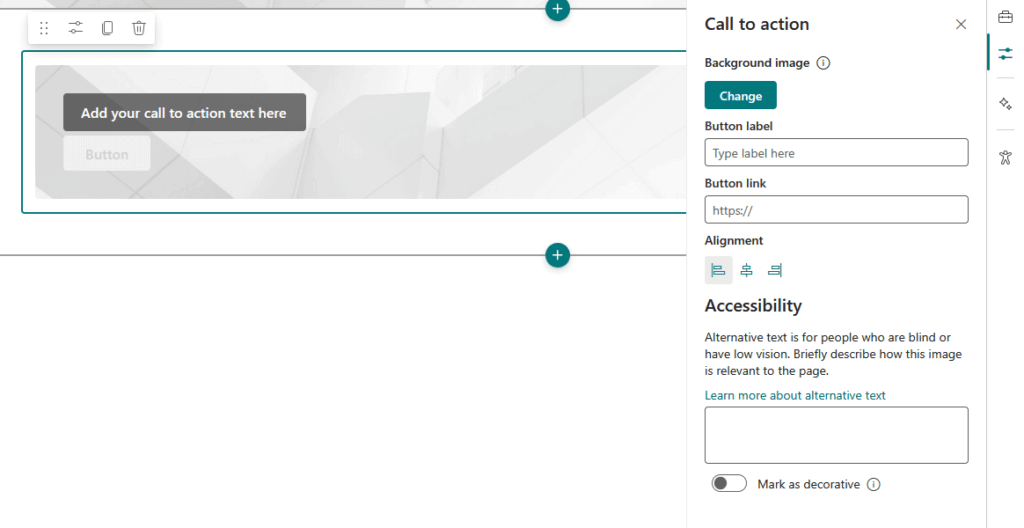
You get a:
- Headline
- Spot for your main message (keep it punchy, since extra-long text might get chopped
- One big, bold button with a custom label and link
But here’s where it stands out: you can upload your own background image (pro tip: go at least 1204px wide for the best look).
Or just pick a color background for your CTA block.
And yes, you can align the text and button left, center, or right (or whatever fits your design vibe).
The button does exactly what you’d expect: takes users where you want them to go, right from the CTA.
But, you only get one button per part, and it’s a static experience, so no multi-step logic or fancy pop-ups.
5. Code Snippet
Calling all devs and techies, this one’s for you! 😎
The Code Snippet web part is the easiest way to drop formatted code samples right onto any modern SharePoint page.
Whether it’s HTML, CSS, JavaScript, Python, C#, or more, you can pick your language from a dropdown.
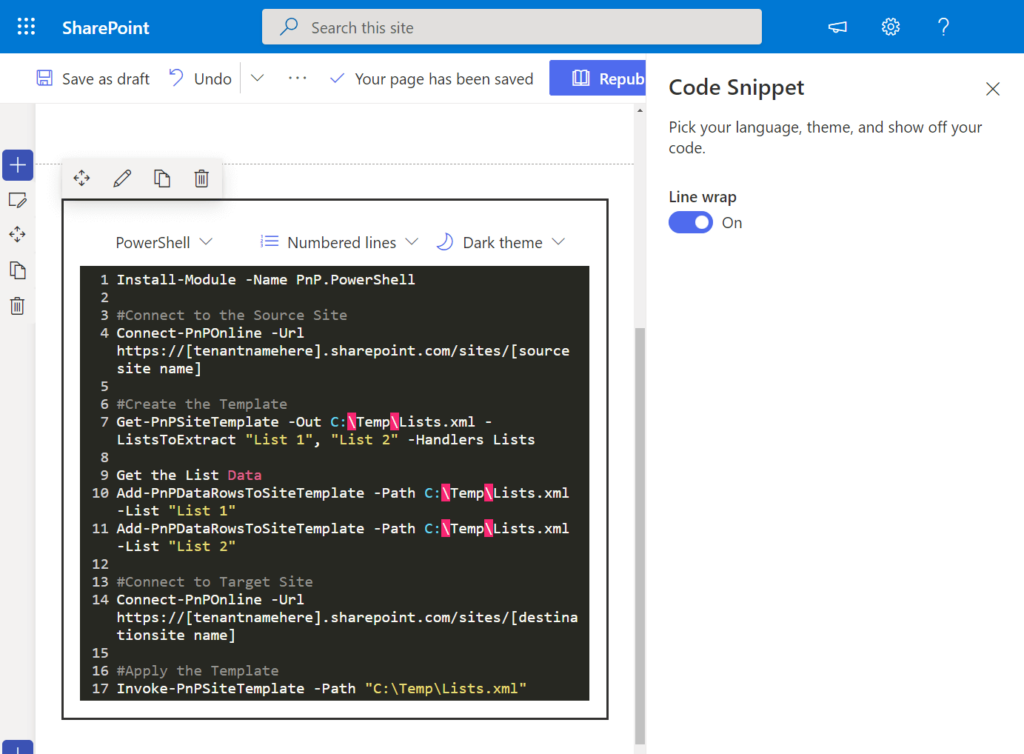
And then SharePoint handles the syntax highlighting for you, so no copy-paste chaos or ugly formatting.
Want to make it super readable?
Toggle line numbers on or off, and even switch between light and dark code themes, so your snippets always fit your site’s style.
It’s perfect for IT documentation, internal dev wikis, how-tos, and training pages.
By the way:
This is for display only, and it won’t run your code, so you’re safe to share whatever samples or pseudo-code you need.
Also, it’s only available in SharePoint Online (Microsoft 365), not in classic on-prem environments.
And while the language list is pretty solid, for something super niche, you might need to use a custom solution or SPFx.
6. Conversations
This was previously Yammer Conversations, now Viva Engage.
Conversations is the easiest way to drop a live Viva Engage feed right onto your modern SharePoint Online page.
With this, you can show posts from a specific community, group, topic, user, or even the user’s personalized home feed.
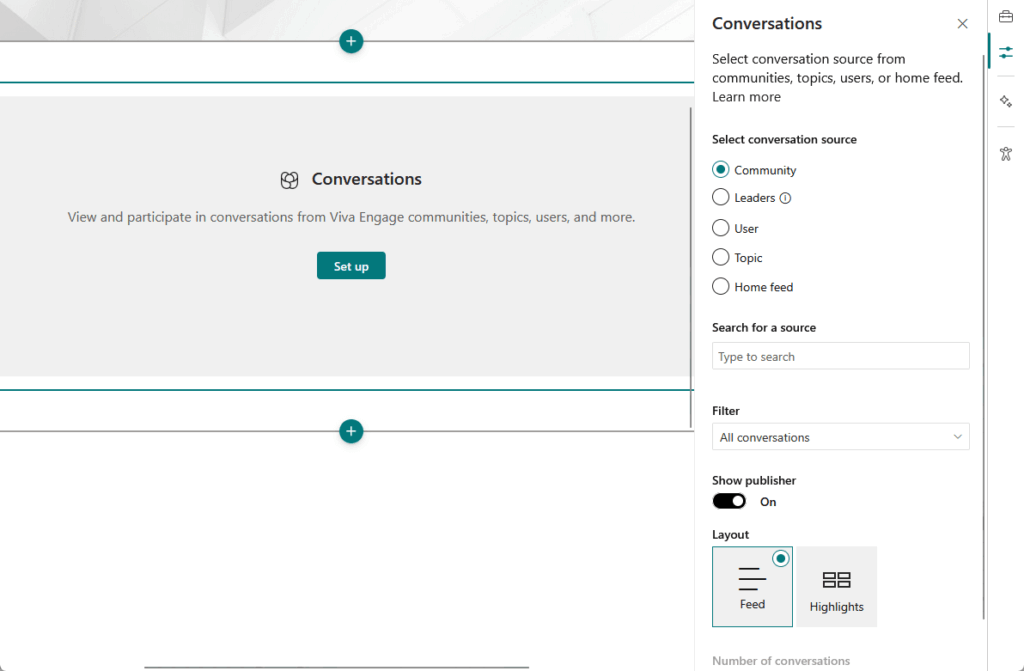
Users can see, start, and reply to posts, including questions, polls, praise, or regular updates (all without leaving your site).
It’s fully interactive in-page:
- Rich text
- Emojis
- File attachments
- Images
A few things to keep in mind:
It’s Viva Engage now, not “Yammer,” and the old Yammer Highlights web part has been retired (as of June 2025).
Also, you can’t handpick individual posts, and the number of visible conversations can be set to 2, 4, 8, or 12 at a time.
Take note: If your SharePoint site uses a vanity (custom) domain, this web part won’t work.
It only runs on the default Microsoft 365 “onmicrosoft.com” domains.
There are also some quirks on Safari/iOS where images might not preview due to cookie restrictions.
7. Countdown Timer
Got a big launch, product drop, or can’t-miss event coming up?
The Countdown Timer web part in SharePoint Online is the hype builder you didn’t know you needed.
This gives you a live countdown (or count-up, if you’re tracking time since a milestone) right in front of your audience.
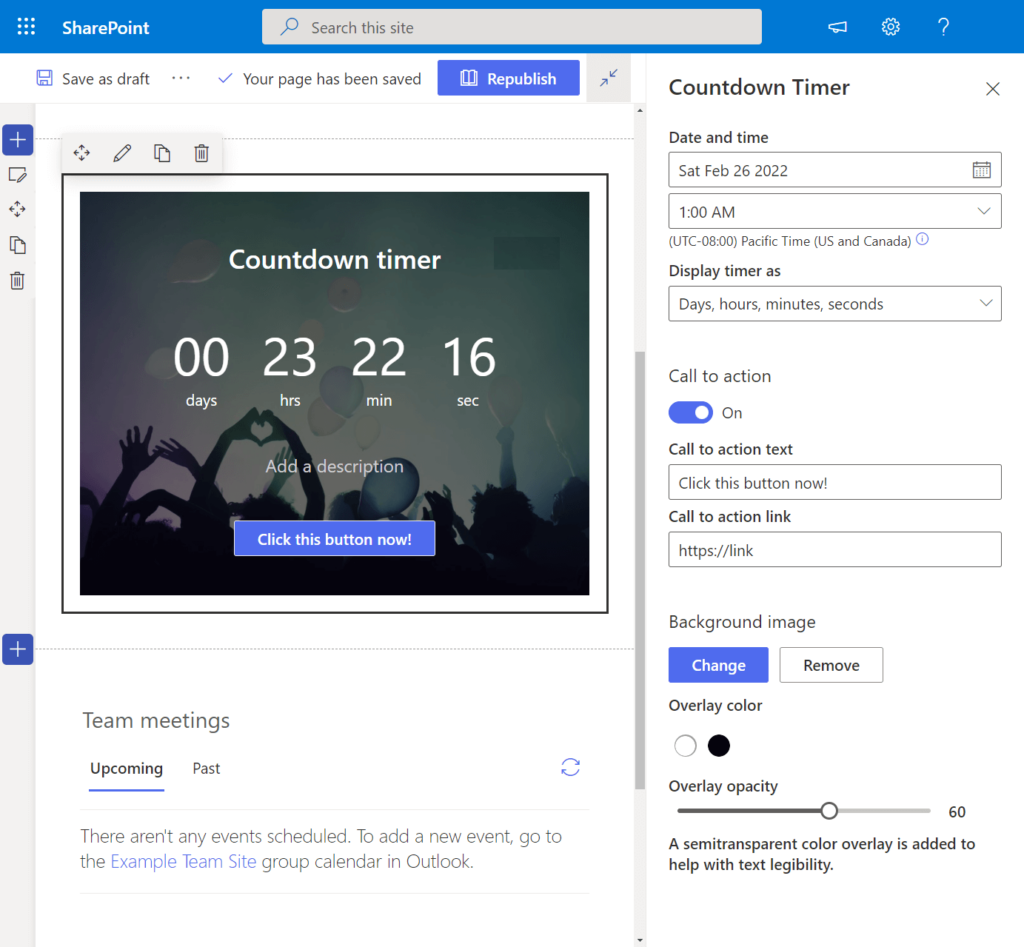
You can also jazz it up:
- Add a background image for extra flair (with overlay color and opacity settings)
- Include an optional call-to-action button (“Register Now,” “Join Live”)
Styling is all point-and-click, no code required.
Here are some tips:
This one’s SharePoint Online only (sorry, on-prem folks), and background images can sometimes be finicky.
Some users report that they occasionally disappear after a page refresh.
Also, if you want the latest timer visual styles, check your release settings, as some tenants get new features before others.
8. Dashboard
Meet the Dashboard web part, your new best friend for turning data into action.
Rolled out in May 2025, this web part is all about showing what matters right now using interactive cards.
Think quick-hit project status, sales numbers, KPIs, Power BI reports, and more, all in one glanceable snapshot.
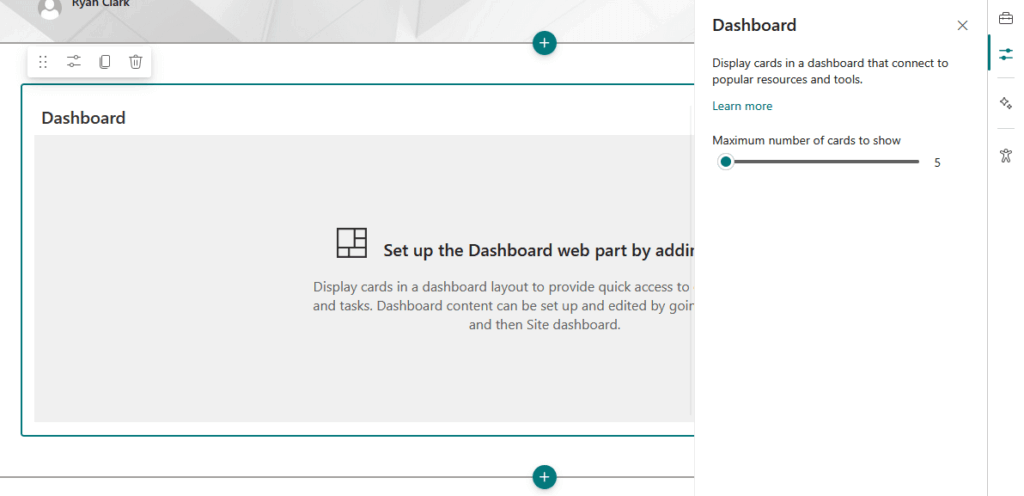
Here’s how it works:
Dashboard isn’t just a chart or a number. It’s a container where you build your own dashboard using “cards.”
You can mix and match card types:
- Metrics
- Links
- Power BI
- Even custom cards built with SPFx or the Card Designer
Originally, you could only use Dashboards on Home Sites.
But as of now, they’re available on Communication and Teams-based sites too.
So no matter what kind of SharePoint site you’re running, you can build a slick, at-a-glance data hub for your team.
9. Divider
Need a little visual breathing room?
The Divider web part is your go-to for breaking up content and keeping things easy to read.
Drop in a clean, horizontal line anywhere you want: above, below, or between sections and other web parts.
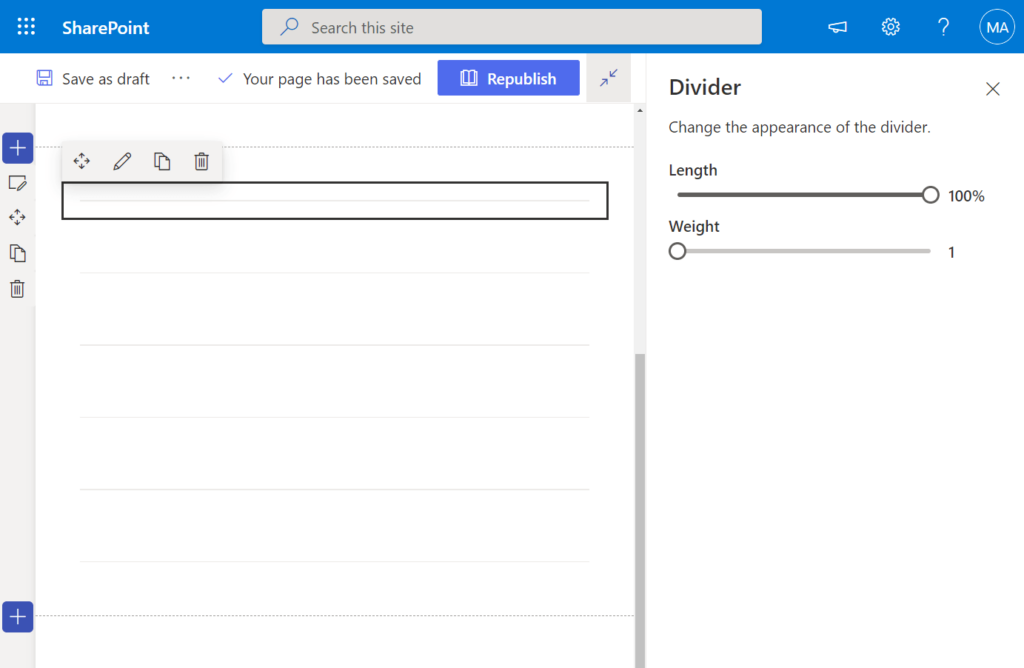
What’s cool:
You can adjust the line’s length (from 20% to 100% of the section width) and its weight (from subtle to bold, six thickness options).
You’re always in control of how much separation you need. Move it around or delete it any time, totally flexible.
Heads up: Divider inherits the site’s theme for color and may look slightly different from site to site, depending on theme tweaks.
10. Document Library
This one’s a SharePoint classic, only way smarter and better looking.
The Document Library web part lets you embed a full document library (or a subfolder) right onto any modern SharePoint page.
Users see your files and folders without ever leaving the page.
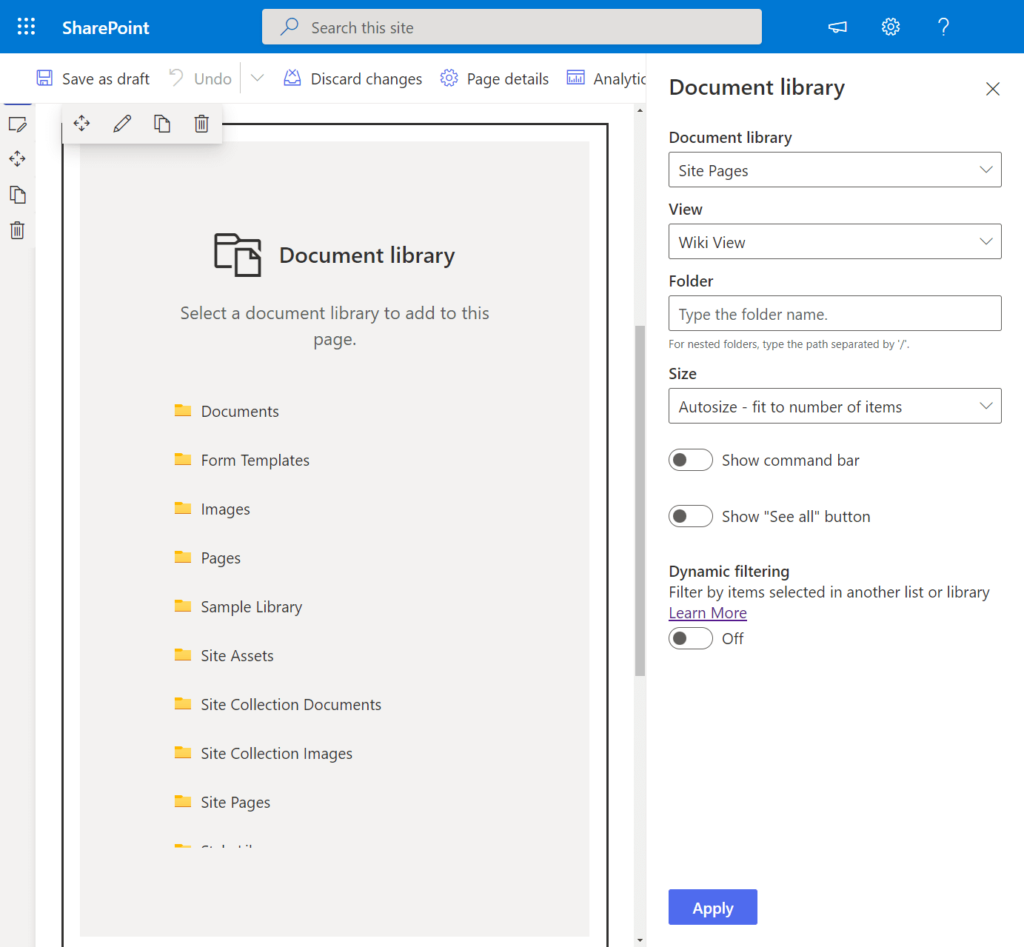
You get tons of flexibility:
- Pick which library or folder to display
- Then set the default view (list or tiles, just like in the full library)
- Use your existing library views (think “Recently Modified,” custom metadata views, and more)
Users can sort, filter, and group files for their own session, so it feels like a mini-document center wherever you need it.
But here’s the best part: Users with permissions can do almost everything right from the web part.
Like:
- Add or upload files and folders (drag-and-drop works!)
- Rename
- Pin files to the top
- Download
- Delete
- Use “See all” to jump to the full library
Some things to remember:
What each person can do depends on their permissions (viewers can’t upload, for example).
And the changes to sorting or filtering only apply to their current view and don’t affect the experience for others.
Features like folder nesting and fancy view options might show up at different times depending on your tenant’s release cycle.
11. Editorial Card
If you want to make something stand out on your SharePoint page:
- An announcement
- A key resource
- A “don’t-miss-this” highlight
The Editorial Card web part is your new best friend.
Rolled out in early 2025, it’s all about creating eye-catching, visually stunning cards that pop right off the page.
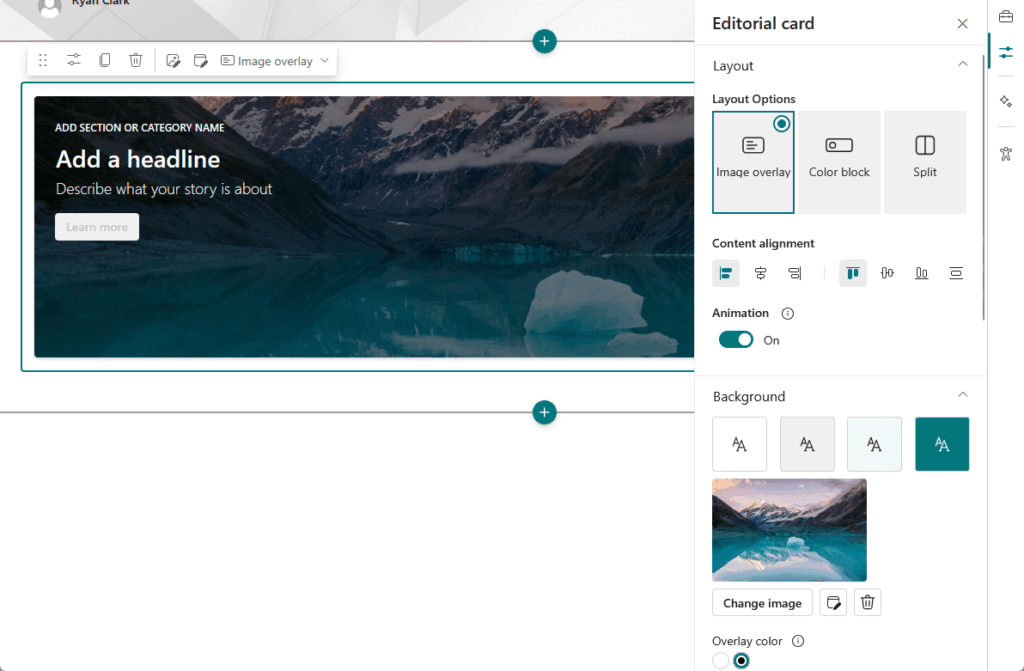
You get three slick layout choices:
- Image Overlay (text over your photo)
- Color Block (bold colors and high contrast)
- Split (image and text side-by-side)
You control exactly how your images and text interact, overlay, block, or split.
Want to fine-tune the look? You can crop, filter, and set the focal point of images, adjust opacity for perfect contrast, etc.
Editorial Card gives you room for a section label, a big headline, a short description, and a super-flexible call to action.
Unlike automated web parts like News or Events, Editorial Cards are manually curated.
You decide what shows and how they look, making this ideal for promotions, feature content, and curated highlights.
12. Embed
Ready to add a little internet magic to your SharePoint page?
The Embed web part is your ticket to dropping in web-based content like:
- YouTube videos
- PowerApps
- Bing Maps
- Interactive widgets
- Any embeddable URL or <iframe> code
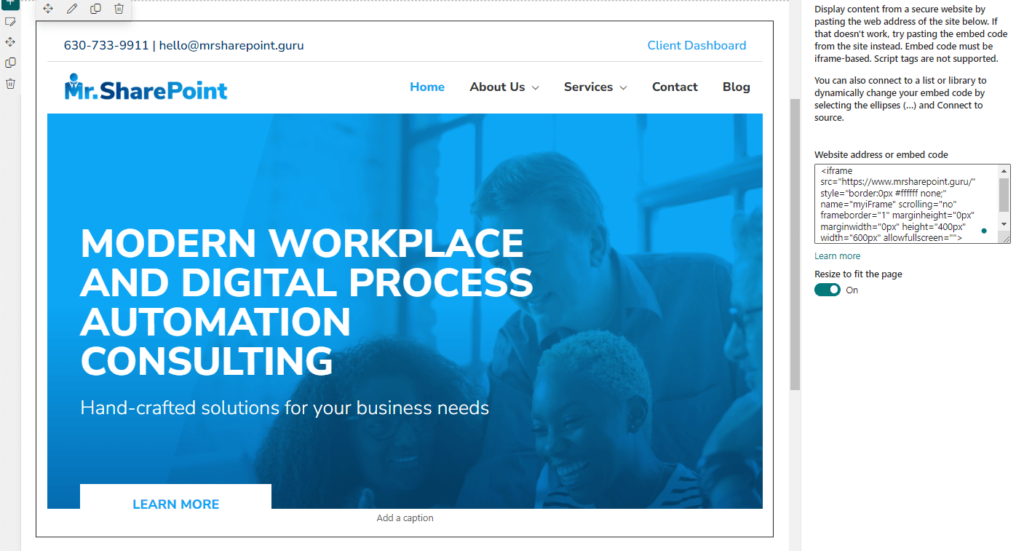
Super simple: just paste the website address or the iframe embed code right into the web part.
Many sites (YouTube or Microsoft tools) even let you use a straight URL for one-click embedding, thanks to oEmbed support.
If you need to get fancy, you can paste the full iframe code (but no scripts allowed, SharePoint blocks those for security).
Some pro tips:
- Your embedded content must be served over HTTPS.
- Some organizations limit which external domains can be embedded.
- Occasionally, you might have to tweak the height settings (or you will see scrollbars).
13. Events
Keep everyone in your org up to speed with the Events web part.
The Events web part lets you pull in upcoming events from your:
- SharePoint site’s events list
- A specific list
- Even roll up events from across your whole hub or site collection
Each event gets its own card with the name, date and time, location (yep, you can show a map), meeting links, etc.
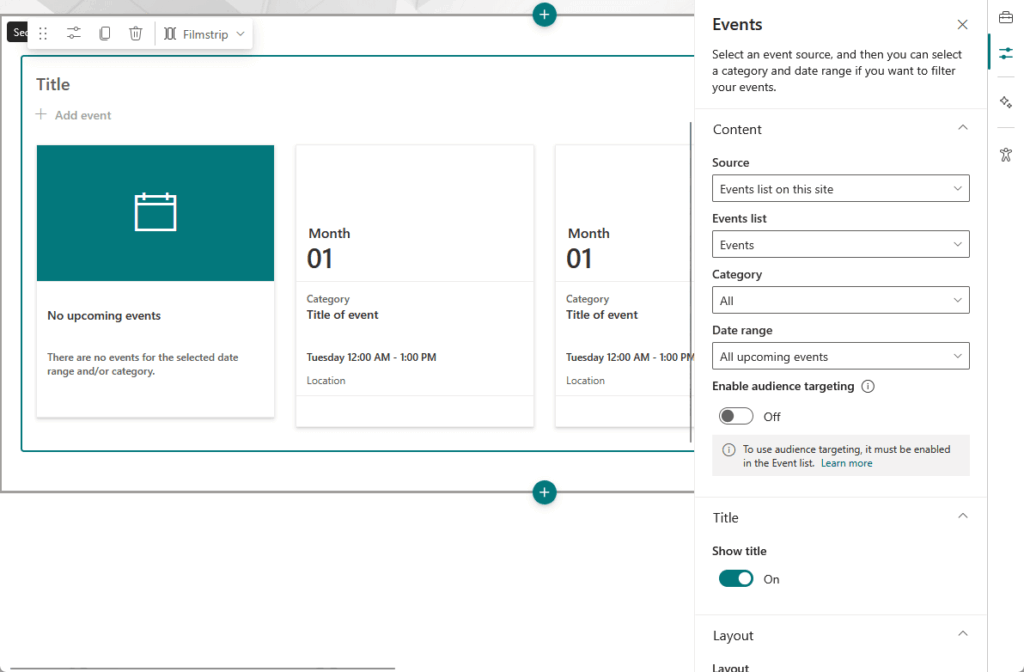
Want to join or save an event? Users can click “Add event” and pop it right into their Outlook calendar.
You’ve got two ways to display events:
- As a filmstrip for that visual carousel feel
- A compact list for maximum info in minimum space
Unfortunately, there’s no monthly calendar grid (just the list/filmstrip view), and recurring events aren’t supported
That means you will need to add separate entries for repeats.
Also, users will only see events and options based on what they’re allowed to access in the events list.
14. File and Media
Think of this (formerly File Viewer) as your instant window for sharing all sorts of important files right on your SharePoint page.
Want to share a policy PDF, an Excel template, a PowerPoint slide deck, a video, or even a Visio diagram?
Just drop it in and let everyone see it inline, without any extra clicks.
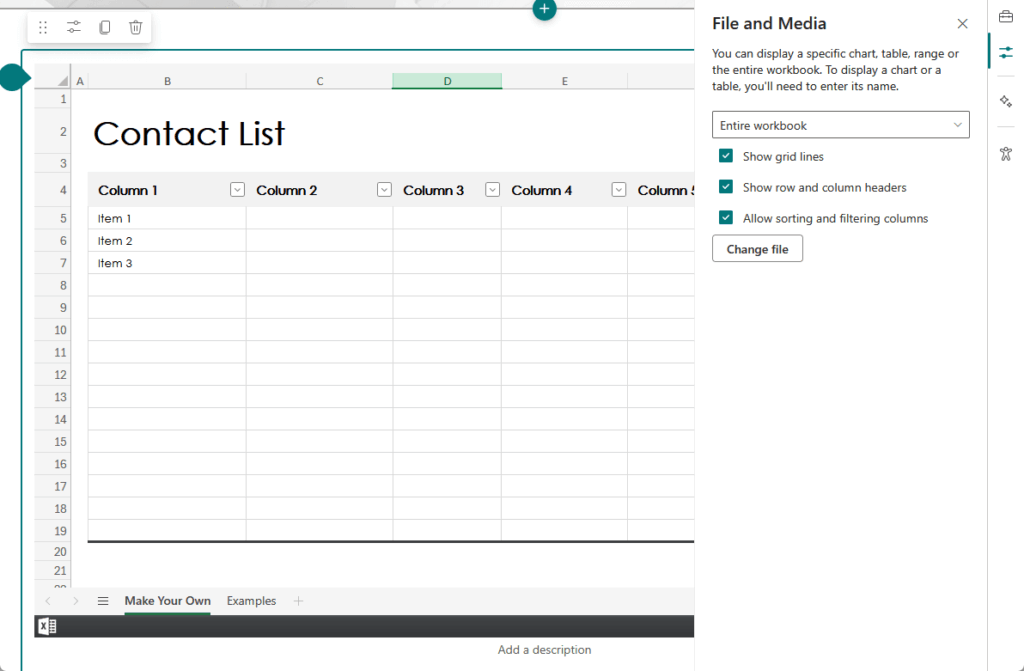
Supported file types include Word, Excel, PowerPoint, PDF, Visio, 3D models, and common videos like MP4, MOV, and WMV.
It’s great for embedding those files everyone needs to reference all the time.
Want to go pro? You can even connect the File and Media web part to a Document Library web part.
That means the displayed file updates when someone picks a new file in the library.
Please note:
- Don’t use it for images (use Image or Image Gallery instead).
- PDFs open in a new tab for printing, and Office files can be viewed or opened for editing/downloading as needed.
- Permissions always apply, so users only see what they’re allowed.
15. Group Calendar
Want to keep your team on the same page literally?
This web part brings your Microsoft 365 group calendar (a.k.a. Outlook group calendar) straight onto your site.
Instantly see what’s coming up, meetings, deadlines, vacation time, whatever your group’s got going.
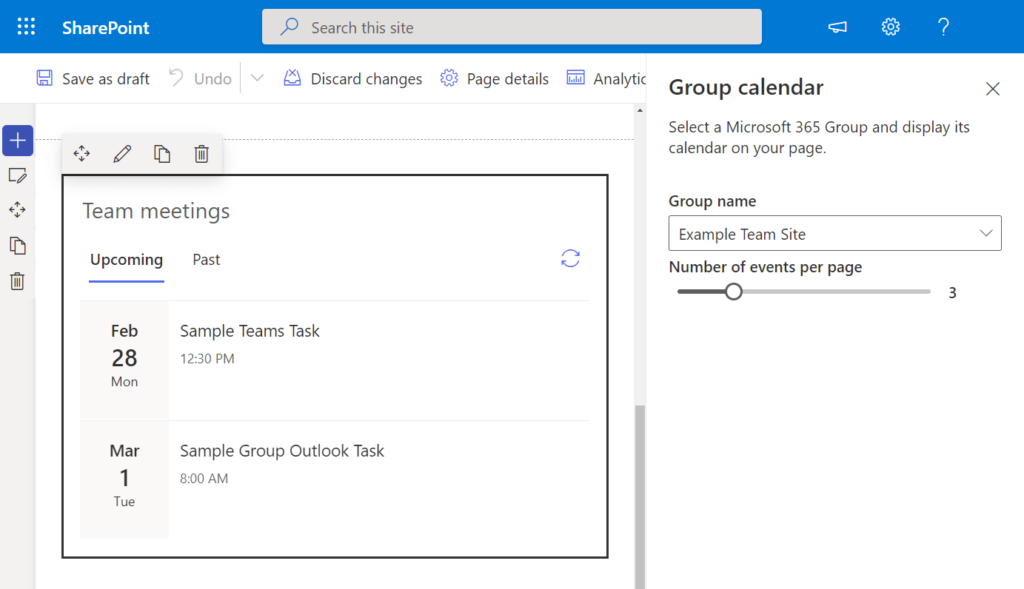
The web part lists events in a clean vertical feed or tiles, no monthly/weekly calendar grids here, just a simple, glanceable list.
Things to know:
- Team sites only!
- Shows the next 6 months
- Permissions matter
16. Hero
The Hero web part is the ultimate way to give your SharePoint page instant homepage vibes.
Perfect for making any page look modern and high-impact, Hero lets you feature up to five big, bold “tiles”.
With each with its own image, headline, description, and a call-to-action link.
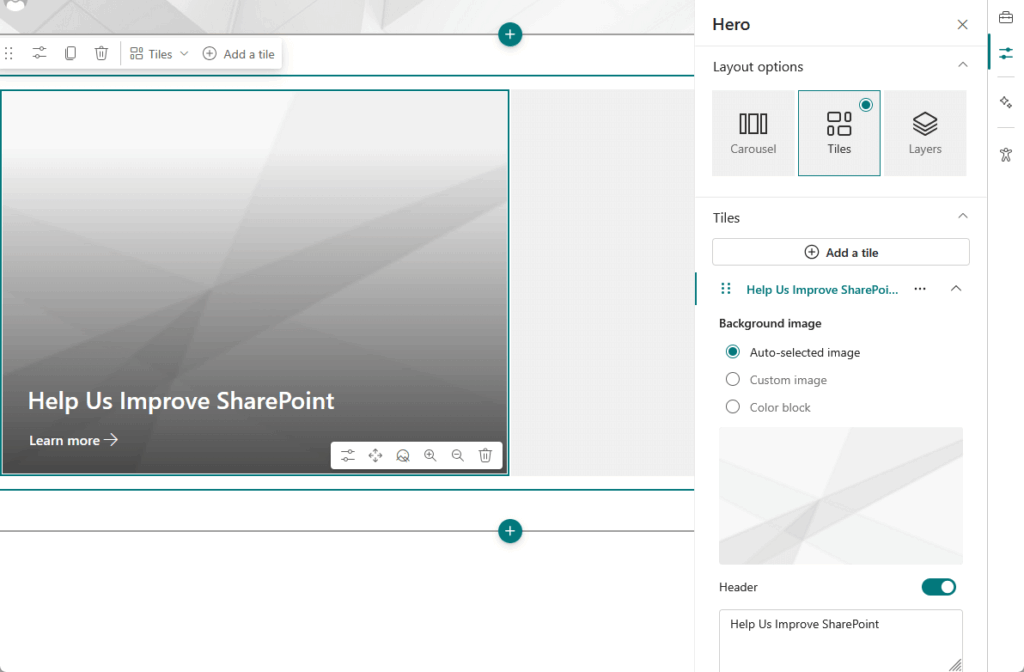
You’re not stuck with one look either, as you can choose from three flexible layouts:
- Tiles with up to five images in a sharp, grid-style layout
- Layers that stack up to five hero banners vertically
- Carousel (lets you create a rotating slideshow)
You also get new visual styles like Image Overlay, Text Block, and Diagonal Split for seriously dynamic designs.
Customizing is easy: you can adjust the crop and focal point of images, tweak overlay colors, reorder slides or tiles, etc.
Want every tile to stand out? Give each its own message, link, and style.
17. Highlighted Content
This one’s a total game changer for any modern SharePoint page.
The HCWP dynamically pulls in content from just about anywhere in your tenant based on the filters you set.
It’s the ultimate way to keep dashboards, resource hubs, or landing pages fresh and relevant, automatically.
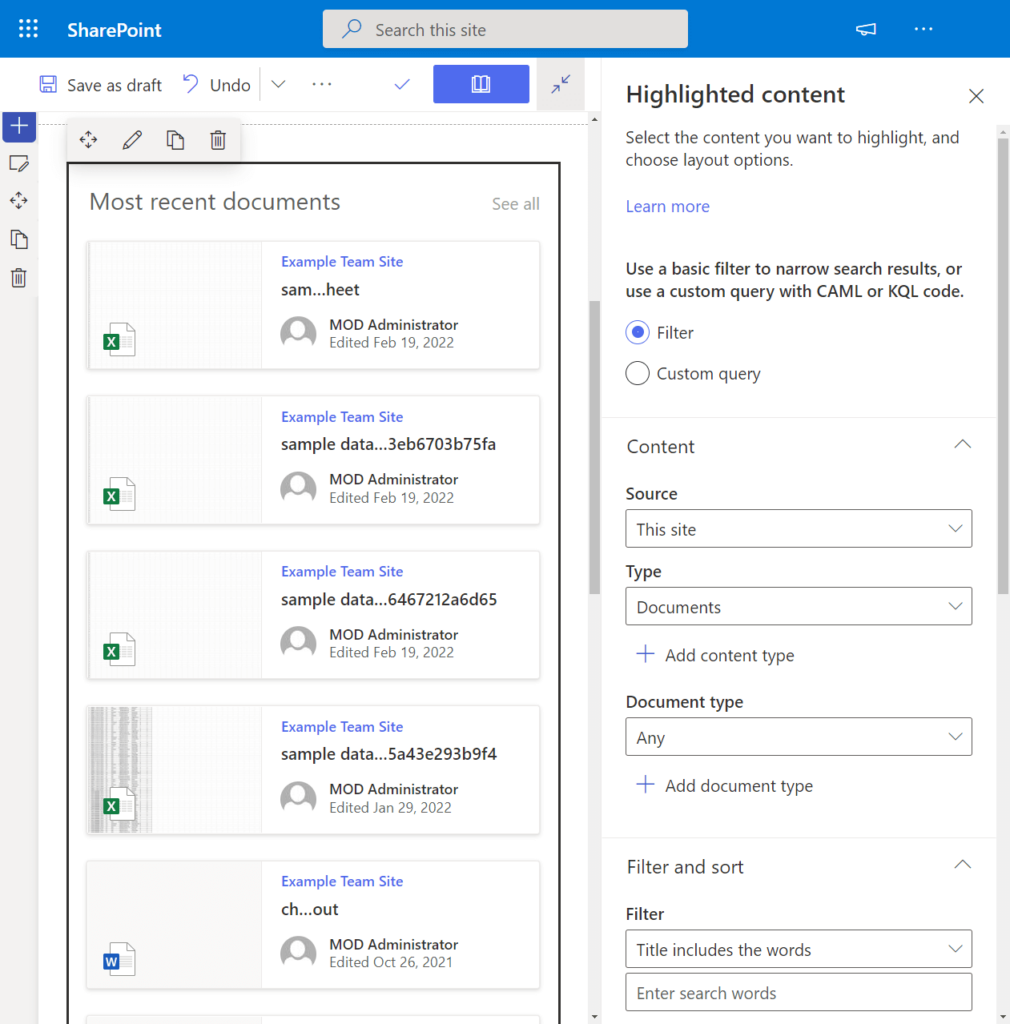
You’re in control of the source:
- Target a single library
- This site
- Up to 30 specific sites
- A hub
- Go wild and search across all sites
The web part can return up to 200 items, and you can choose from Cards, List, Carousel, Compact, or Filmstrip layouts.
You can also set up smart filters by:
- Keyword
- Author
- Date range
- File type
- Even custom metadata
For power users, you can use KQL or CAML queries for really advanced filtering.
And yes, you can enable audience targeting, so that only the right eyes see the right content.
Some notes here:
If you pick too many sites (think more than 17), you might hit configuration errors, so be strategic about your sources.
Filtering by custom metadata works great, but it relies on having those properties properly mapped and indexed (short delay).
And while you can tweak the layout, you can’t change which columns show up; layout dictates the details.
18. Highlights
Let’s clear this up:
This isn’t just your shoutout box; it’s all about surfacing Viva Engage (formerly Yammer) conversation highlights, right on your page.
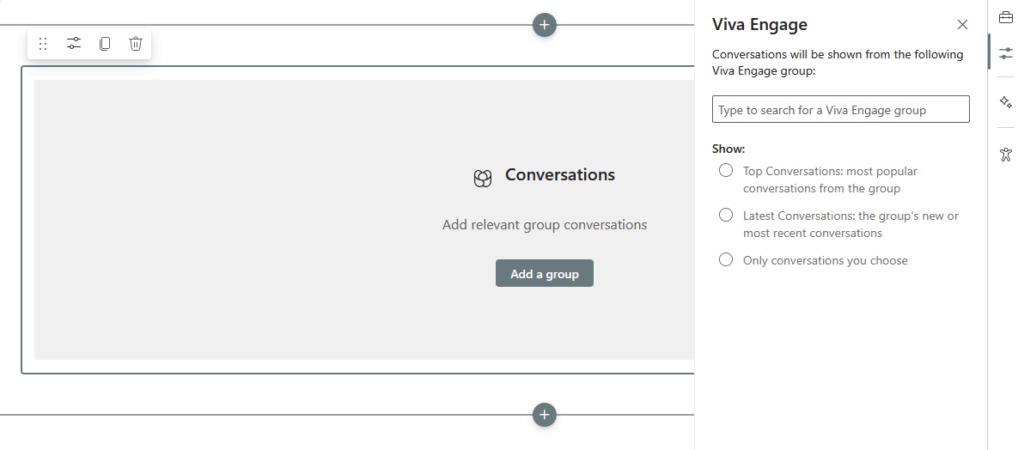
When you add the Highlights web part, you pick a Viva Engage group and choose to show either the:
- Top
- Latest
- Specific conversations from that group
What you see is pulled directly from Viva Engage, so it’s real, live social content, not something you manually author or design.
No uploading custom images or hand-writing links here; what’s in Viva Engage is what you get.
In practice, Highlights and Conversations are closely related to web parts.
Both embed Viva Engage feeds, just with different focuses and a slightly different presentation.
19. Image
Want to add a single image and make it pop?
The Image web part is a go-to tool for showing off photos, logos, diagrams, or any single visual element right on your page.
- Upload from your device
- Grab one from OneDrive or a SharePoint library
- Paste in a web URL (just make sure it’s HTTPS)
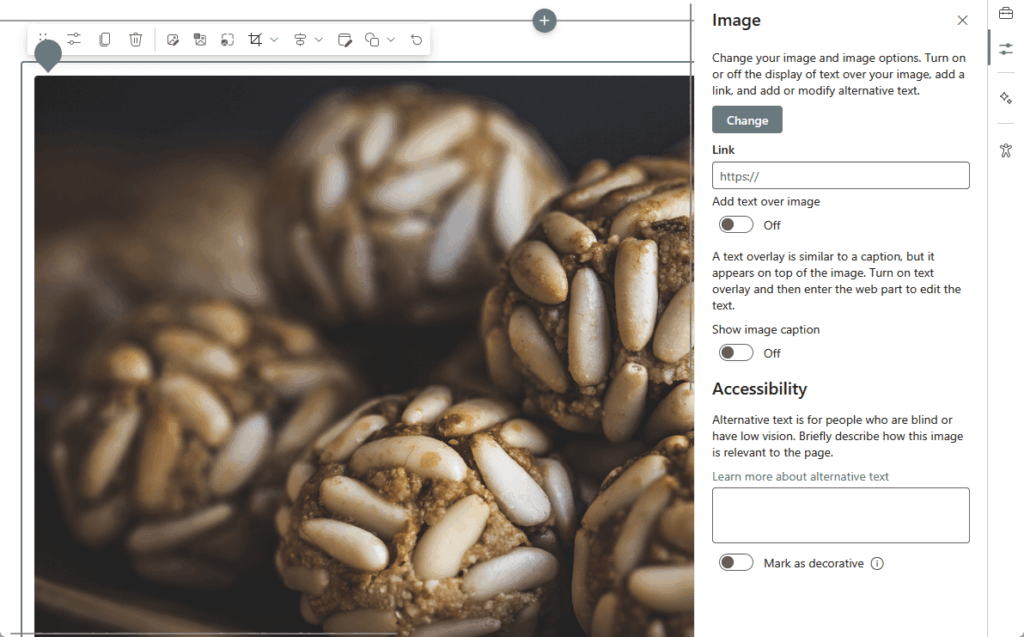
You’ve got options: crop and zoom to get the framing just right, and set the focal point so your image always looks good.
Basic resizing and alignment controls are built in, and you can make your image clickable with a link if you want.
By the way:
- It’s strictly one image per web part.
- Supports all the common file types (JPEG, PNG, GIF, SVG, etc.)
- Advanced image editing isn’t built into this part
20. Image Gallery
Have a bunch of photos or graphics you want to show off?
The Image Gallery web part is made for exactly that:
- Team photo album
- Event recap
- Product shots
- Visual story
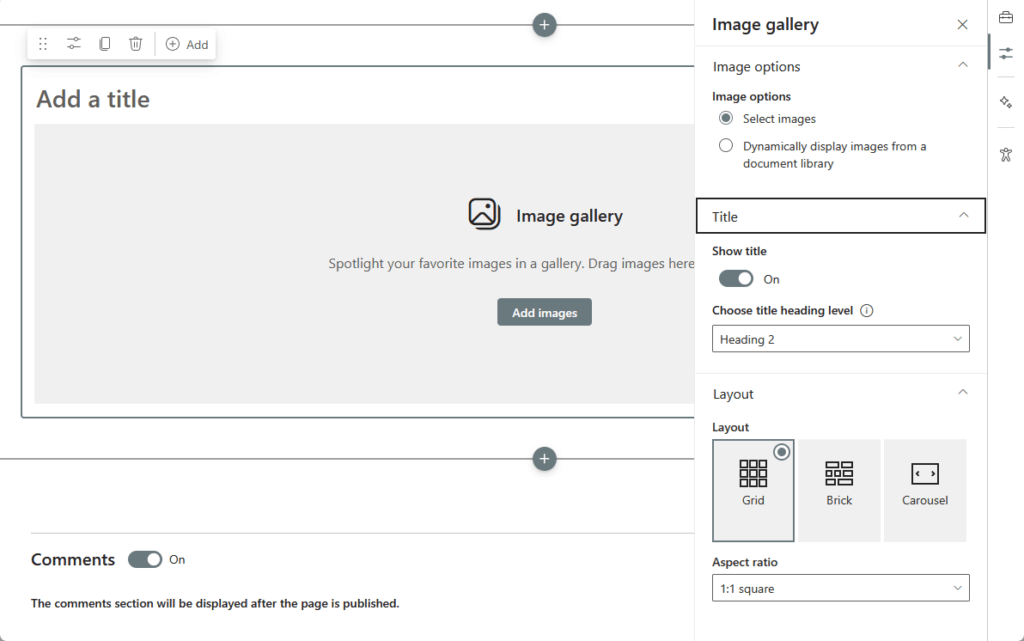
You can drop in as many images as you need and present them in style.
Pick your favorite layout:
| Layout Type | Description |
| Grid | Classic rows and columns — great for thumbnails or showing everything at a glance. |
| Carousel | A slick, interactive slideshow your viewers can click or swipe through. |
| Brick/Filmstrip | Staggered tiles or a side-scrolling strip, depending on your region/tenant and what’s enabled. |
It’s fully responsive, so your gallery looks awesome on a desktop, tablet, or phone, with no fiddling needed.
Setup is also a breeze: upload from your device, pick from SharePoint or OneDrive, or just drag and drop images.
You can rearrange the order by dragging and adding alt text to each image for accessibility.
Limitations to note:
- You can add separate captions to each image, but not links.
- Editing is basic (think cropping and rearranging, not filters or overlays).
- For anything beyond a simple gallery, do your heavy editing before you upload.
21. Kindle Instant Preview
Did you know you can bring Amazon’s “Look Inside” book samples right into SharePoint?
The Kindle Instant Preview web part makes it super easy to share a sneak peek of any Kindle book on your page.
No extra accounts or logins needed.
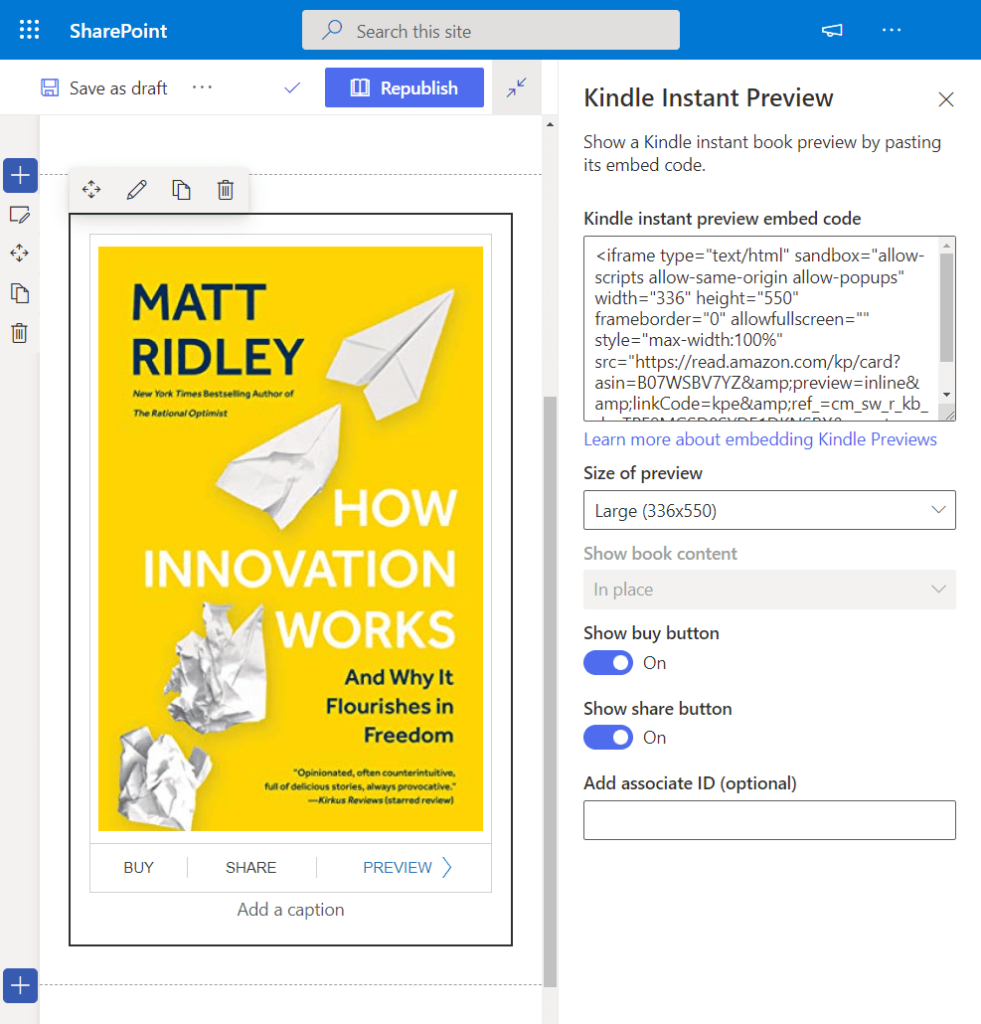
Just add the web part and paste into the book’s Kindle Instant Preview URL (grab it from Amazon’s “Embed” or “Look Inside” option).
Visitors can read the first few pages or a sample chapter right there on your site.
Perfect for:
- Book clubs
- Learning portals
- Faculty picks
- Anywhere you want to recommend a good read
Take note:
| What to Know | Details |
| Preview only | You only get what Amazon provides in the preview—nobody can read or download the whole book from SharePoint. |
| Region restrictions | Some previews may not be available in every country, so if someone can’t see it, that’s probably why. |
| Valid links only | Not every book has a Kindle preview, and you’ll need to use the proper embed link format. |
22. Link
Need a super simple way to drop a clickable link?
Maybe to an external tool, key resource, or must-see page, right onto your SharePoint page?
The Link web part is your minimalist hero.
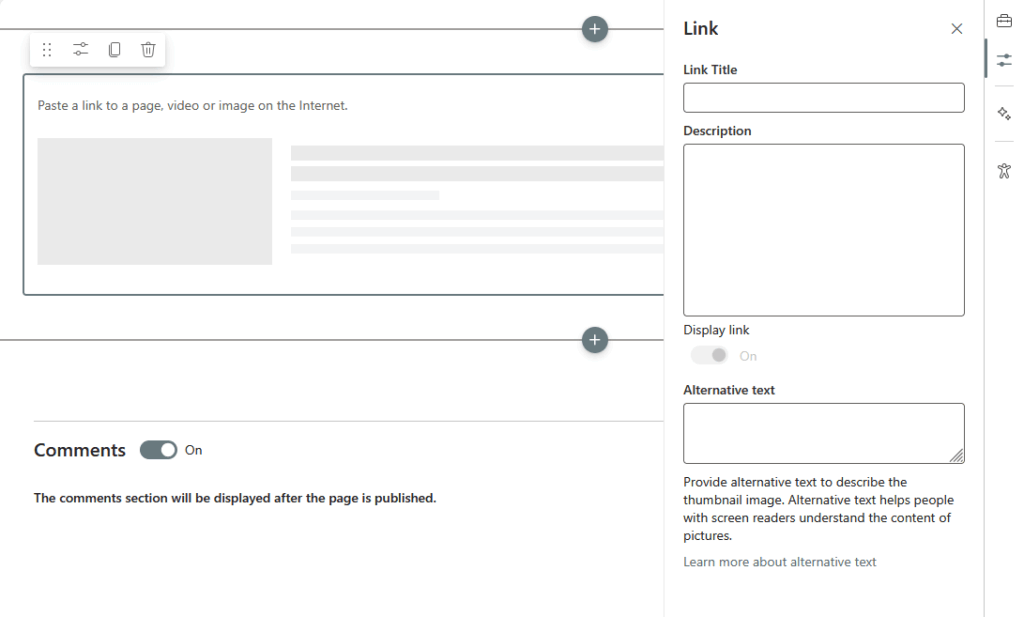
Paste in your URL, and SharePoint will do its best to fetch a thumbnail image and a short preview (if the site supports it).
You can edit the title or add your own description to make the link pop or give a little more context.
It’s perfect for highlighting that “one thing” you don’t want people to miss, like a featured tool, policy, or handy external site.
Keep in mind:
| What to Keep in Mind | Details |
| One link per web part | If you want a bunch of links or a list of favorites, you’re better off with the Quick Links web part. |
| Preview depends on URL | The rich thumbnail and summary only show up if the destination site provides Open Graph metadata or is recognized by SharePoint. Otherwise, you’ll just see the link and label. |
| Minimal styling | This web part keeps it clean and basic with no icons, color customizations, or extra graphics (use Quick Links for that). |
23. List
Display any SharePoint list right on your page!
The List web part is crazy powerful for tracking anything: tasks, assets, issues, ideas, you name it.
You simply add the web part, pick your list from the current site, and boom: your data is front and center for everyone.
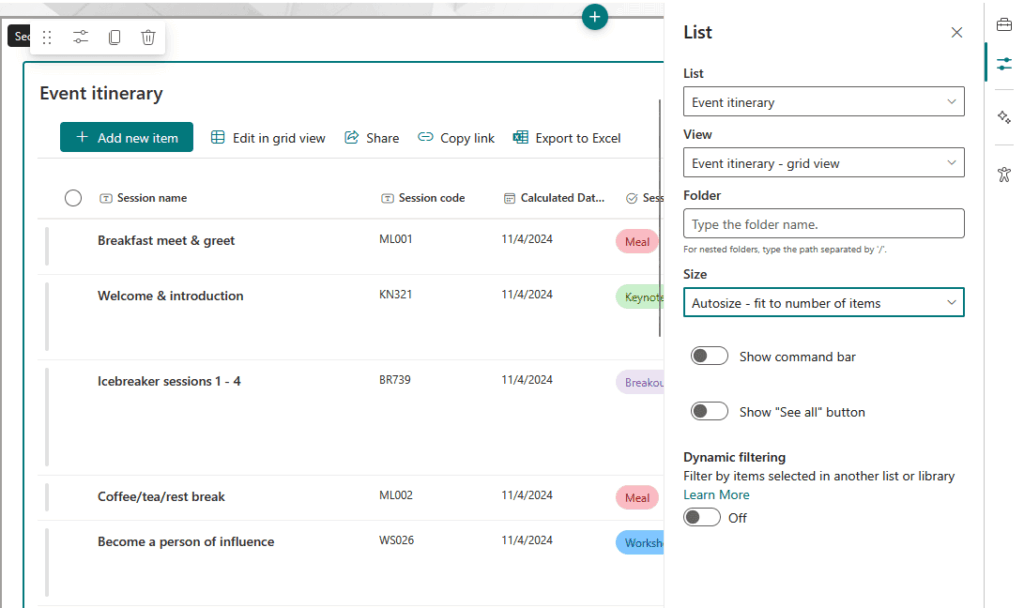
But wait, it’s not just read-only.
Users with permission can add, edit, or delete items, no more jumping out to a new window or the classic list interface.
Want to keep things simple? You can hide the “New item” button if you only want people to view (not add) items.
One of the best parts is the view control:
You can choose any saved list view (even custom ones), and users can switch views on the fly with a dropdown.
Need to filter, search, or sort? All those controls are built right into the web part interface.
Going next level?
You can hook up Power Apps for custom forms, or drop in Power Automate buttons so users can trigger workflows right from the list.
All your fancy JSON formatting or column customizations will show up exactly as you designed them in the original list.
Some things to keep in mind:
- You can only embed lists from the same site (no cross-site magic).
- Some advanced list fields (like complex lookups or calculated fields) might look a little weird or not be fully editable in the web part.
- Permissions matter: users only see and do what their list permissions allow.
24. List Properties
List Properties is your secret weapon for showing off the details behind a single SharePoint list item.
It’s a perfect fit for:
- Custom dashboards
- Mini-CRMs
- Helpdesks
- Asset trackers
- Whenever you want to surface more info with just one click
How it works: You connect the List Properties web part to a list from the same site.
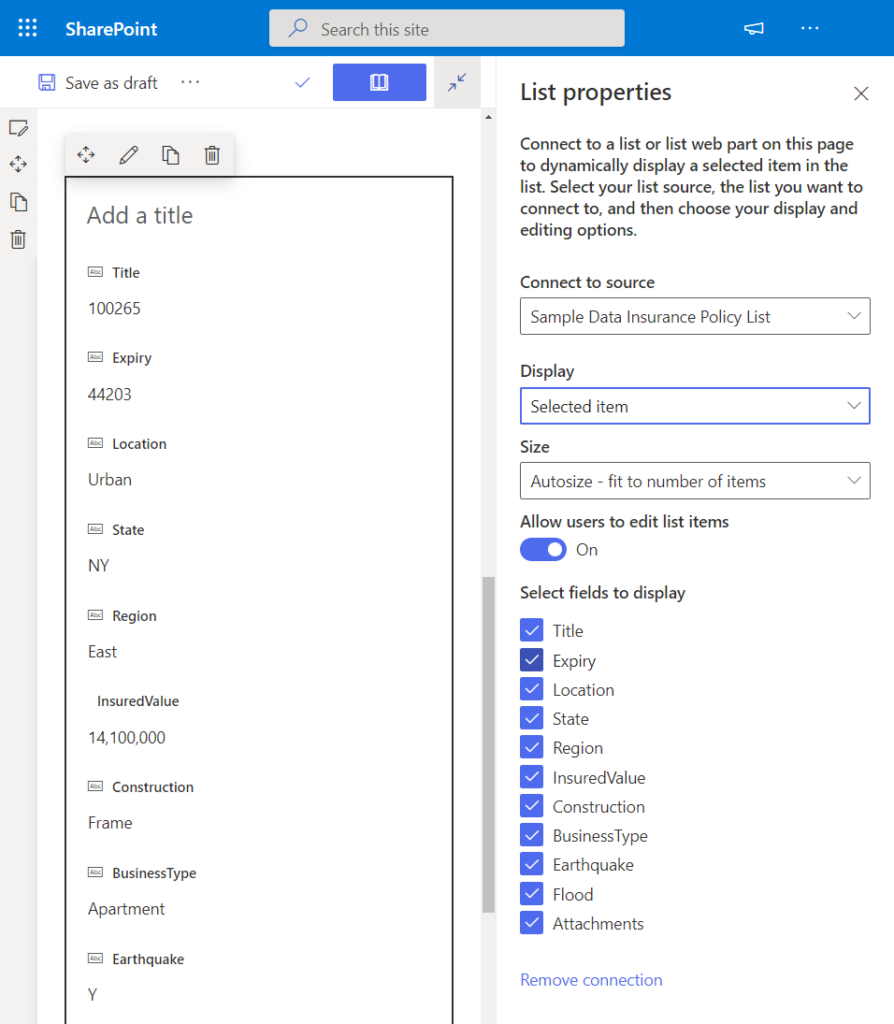
Then you can either pick a specific item to always display or (and here’s the magic) link it to a List web part on the same page.
So it dynamically updates to show details for whichever item your user clicks in the list (Hello, custom data drill-down!)
You get a neat display of all the item’s fields/columns, think:
- Contact info
- Status and dates
- Whatever you store in your list
Formatting from the list usually carries over, and it supports most column customizations.
But there are some caveats:
- You can only use lists from the same site, no cross-site trickery here.
- It’s view-only: editing happens in the List web part or the full list, not inline in List Properties.
- Super-advanced JSON or nonstandard field types might not display perfectly every time, but for the vast majority of data, it’s smooth.
25. Markdown
The Markdown web part lets you write content using standard Markdown syntax and instantly see it rendered.
No publishing, no back-and-forth, just type and see exactly how your content will look.
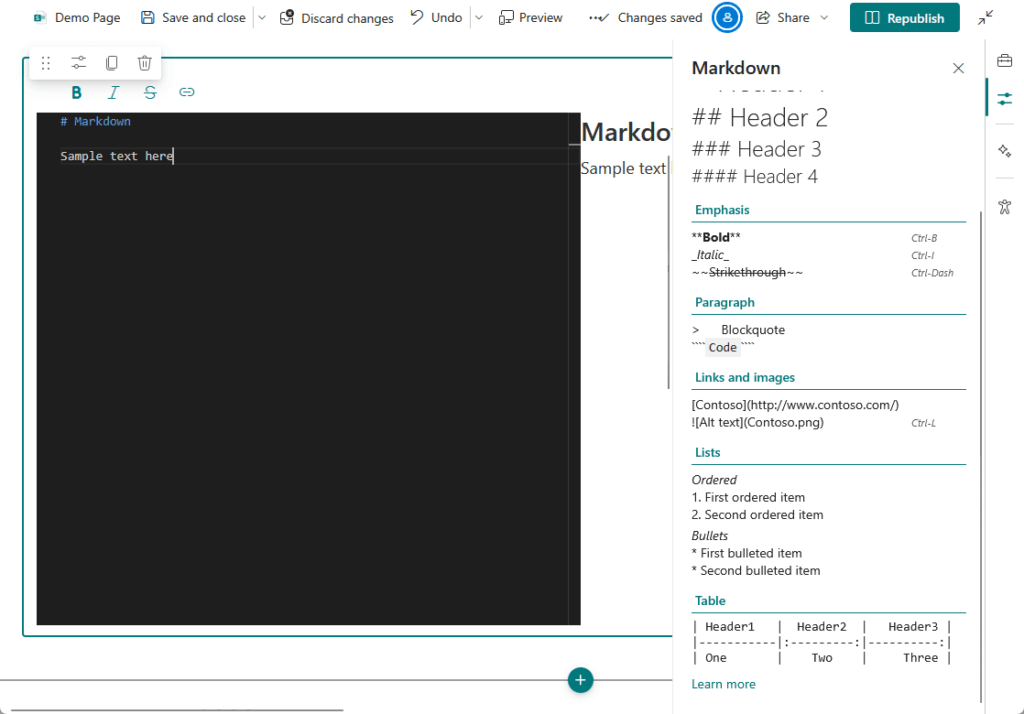
It supports GitHub-flavored Markdown, so you can drop in tables, images, code blocks, lists, and all your favorite Markdown tricks.
This web part is a favorite for:
- Technical documentation
- IT wikis and developer notes
- Anywhere you want that sweet balance of structure and speed
Take note:
- It’s markdown only, no direct HTML or script tags for security reasons.
- Almost all standard Markdown is supported, but really niche extensions or custom syntax might not always render perfectly.
- Available in SharePoint Online (Microsoft 365). If you’re running on-prem, you may not see all the latest features.
26. Microsoft Forms
The Microsoft Forms web part lets you embed a survey, quiz, or poll right into your SharePoint page.
Want to collect feedback, run a quick knowledge check, hold a vote, or just see what your team’s thinking?
Just drop in a Microsoft Form web part and start collecting responses instantly.
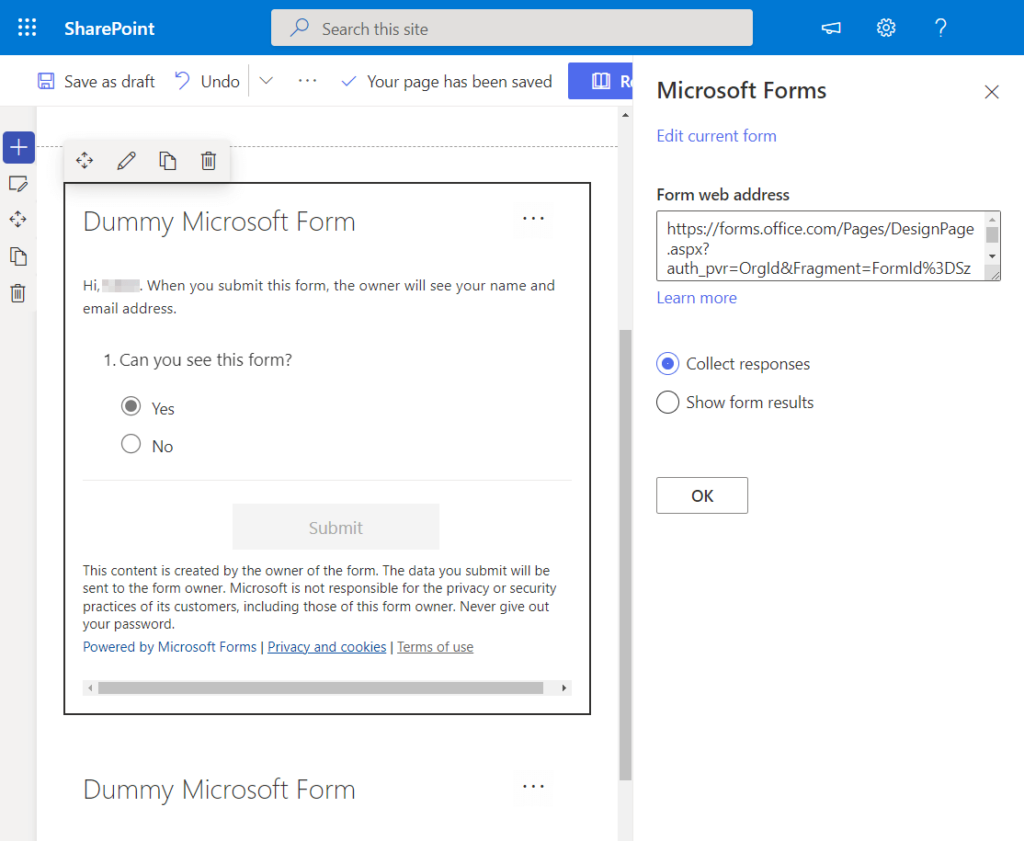
How it works:
- You create and publish your Form (survey, poll, or quiz) using Microsoft Forms
- Add this web part to your page (either paste the share link or pick the Form from your list)
- The form appears inline, fully interactive, and all responses go straight to the original Form
After that, you can review, export, or analyze them in Microsoft Forms as usual.
Some tips and caveats:
| Tips and Caveats | Details |
| Form permissions matter | The Form’s sharing settings (internal, external, anonymous, authenticated, etc.) control who can see and submit. SharePoint doesn’t override this, so double-check your Form settings if users can’t access it. |
| Inline only | What you see is what you get. For branding or advanced formatting, you’ll need to set that up in Microsoft Forms, not in the web part. |
| SharePoint Online only | Not available for on-prem setups like SharePoint Server 2019. |
27. Microsoft PowerApps
Want to bring next-level, custom business apps straight into SharePoint?
The Microsoft PowerApps web part is your bridge.
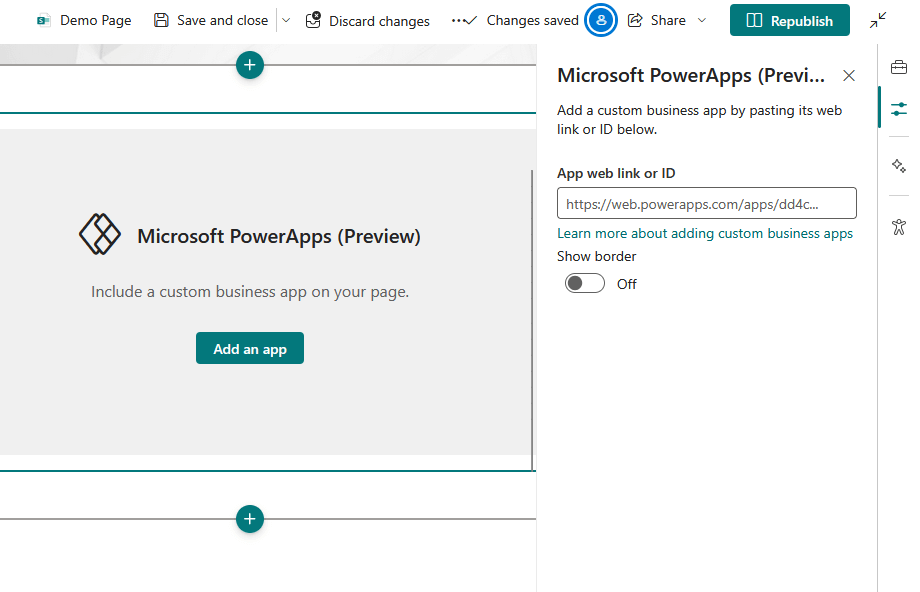
It lets you embed any Power Apps Canvas app right onto a modern SharePoint Online page.
That includes:
- Interactive forms
- Approval flows
- Dashboards and asset trackers
- Any app your team needs
Just add the web part, paste it into your app’s link or ID, and resize the part to fit your page.
Users can work with the app, enter data, trigger workflows, or manage records, without leaving SharePoint.
28. News
If SharePoint has a heartbeat, it’s the News web part.
This is your built-in blog, announcement board, and internal newsroom, all rolled into one.
Want to share company wins, team updates, upcoming events, new hires, or just a big announcement?
Drop in a News web part and keep your org in the know.

You can create visually rich news posts (with text, images, videos, or even other web parts) right from the “+ Add” button.
Pin the most important stories so they’re always at the top, feature the latest updates, or highlight people and projects.
You can also filter news by author, date, title, or even custom page properties.
Want audience targeting? Switch it on so only specific user groups see certain stories (great for big orgs with lots of teams).
Authors can even schedule news to auto-publish in the future so that a Monday morning announcement hits at 9 a.m.
Hot off the presses: As of June 2025, news posts can show estimated read time (toggle it on for more reader engagement).
29. Organization Chart
Want to make your team structure crystal clear? The Organization Chart web part is your visual shortcut.
Just add the part, type in a person’s name or email, and SharePoint automatically maps out their reporting line.
That will show their manager(s) and direct reports in a clean, interactive tree.
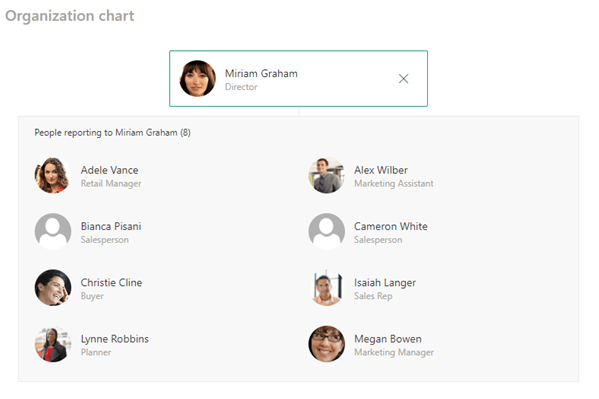
You can set how many levels up the hierarchy you want to show, making it perfect for onboarding, team directories, etc.
Hover over a name to see the full profile card, click through for contact info, and quickly understand where everyone fits.
Things to know:
| What to Know | Details |
| Direct relationships only | The chart shows just the chosen person’s direct manager(s) and direct reports, not a full, company-wide org chart. |
| Powered by AAD/Delve | Data comes from Azure Active Directory or SharePoint user profiles, so ensure manager fields are filled in. |
| No external users | You can’t display external contractors, guests, or users outside your organization. |
| Online only | The Organization Chart web part is for SharePoint Online, not for SharePoint Server 2019 or on-prem setups. |
30. Page Properties
With this web part, you can display key metadata about the current SharePoint page, like:
- Author
- Last modified date and status
- Any custom tags
This one’s a lifesaver for documentation sites where knowing who made a change (and when) is just as important as the content itself.
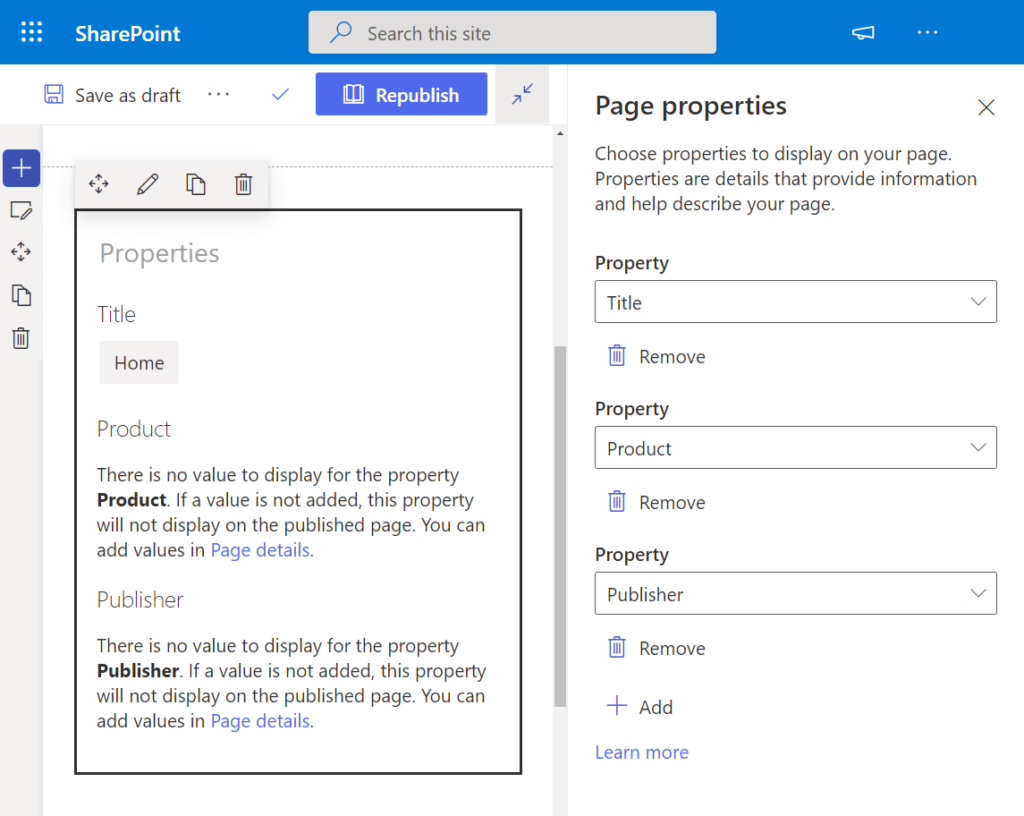
How it works:
The Page Properties web part grabs both built-in properties and any custom columns you’ve added to your Site Pages library.
Just drop the part on your modern page, pick which properties to show, and SharePoint pulls the info automatically.
Some things to know:
- It only works with modern pages (not old-school classic pages).
- The web part always shows properties from the page it’s placed on; you can’t point it at another page.
- Supports most standard field types: text, choice, dates, numbers, people, etc. Some complex or multi-value fields (like lookups) might not render perfectly.
- This is a view-only part; edits to metadata are done through the page details pane or the Site Pages library, not inline here.
31. People
The People web part is how you put faces (and contact info) to names on your SharePoint page.
Want to spotlight your team, feature subject-matter experts, or add key contacts?
This is the friendliest, most visual way to do it.

Just add the web part, search for anyone in your organization, and SharePoint pulls in their profile:
- Photo and name
- Job title
- Short tagline or description (on medium or large cards)
You can mix and match layouts, small, medium, or large cards, depending on how much detail you want to show.
Hover over a person’s card, and you will get a pop-up profile with direct links to start a Teams chat, send an email, etc.
Handy, right? You can drag-and-drop or use arrow keys to reorder profiles, so you control the flow.
Quick tips and caveats:
- Pulls info straight from Azure AD/Office 365 user profiles (so, make sure profiles are up-to-date!).
- For internal users only, external guests won’t show.
- Taglines are short and sweet (about 50 characters) and only show up in Medium or Large layouts.
32. Power BI
Want to bring your dashboards to life without making everyone open yet another app?
The Power BI web part lets you embed fully interactive Power BI reports or dashboards right inside your SharePoint Online pages.
Users can filter, drill down, and interact with the data live, without leaving SharePoint.
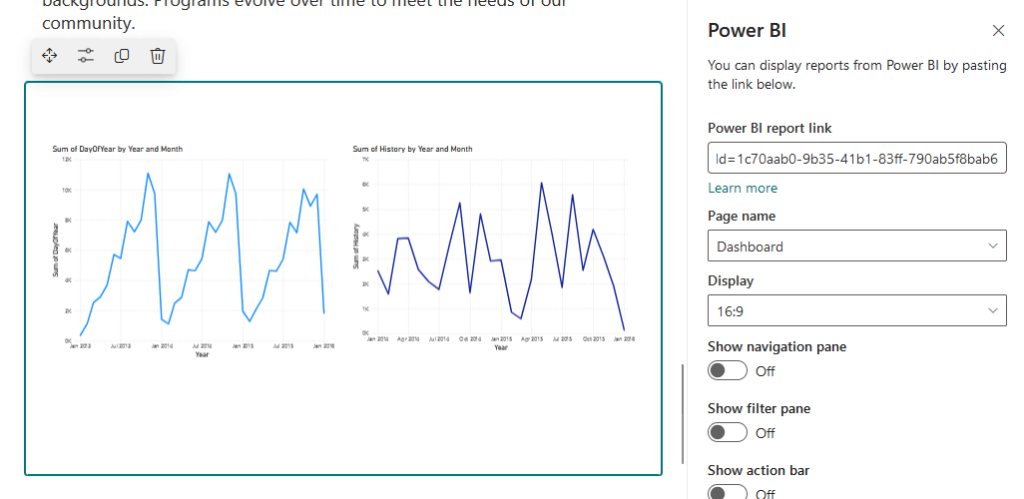
Simply publish your report, grab the embed URL, then drop the Power BI web part onto your page and paste the link.
You can pick which page of the report to show, toggle navigation or filter panes, and resize the part to fit your design.
Key details:
| Key Details | Description |
| Secure and permission-aware | Users need the right Power BI permissions (set in Power BI, not SharePoint). Row-level security, Pro/Premium licensing, and usual Power BI controls are enforced. |
| Licensing matters | Viewers need a Power BI Free license (for Premium workspaces) or Pro/PPU for standard ones. Creators always need Pro or PPU to publish. |
| Only Power BI Service reports | You can’t embed directly from Power BI Desktop; the report must be published to Power BI Service. |
| Online only | Available only in modern SharePoint Online, not SharePoint Server 2019. |
| Guest and MFA quirks | Azure B2B guests might have issues, and MFA users may need to re-authenticate. Accessibility support is improving but not perfect. |
33. Quick Chart
Quick Chart is your tool for super simple, no-frills visualizations right inside SharePoint.
Drop in a bar (column) or pie chart, paste your data, and get an instant snapshot.
It’s perfect for tracking goals, showing project progress, or mini-reports, without firing up Power BI or Excel.
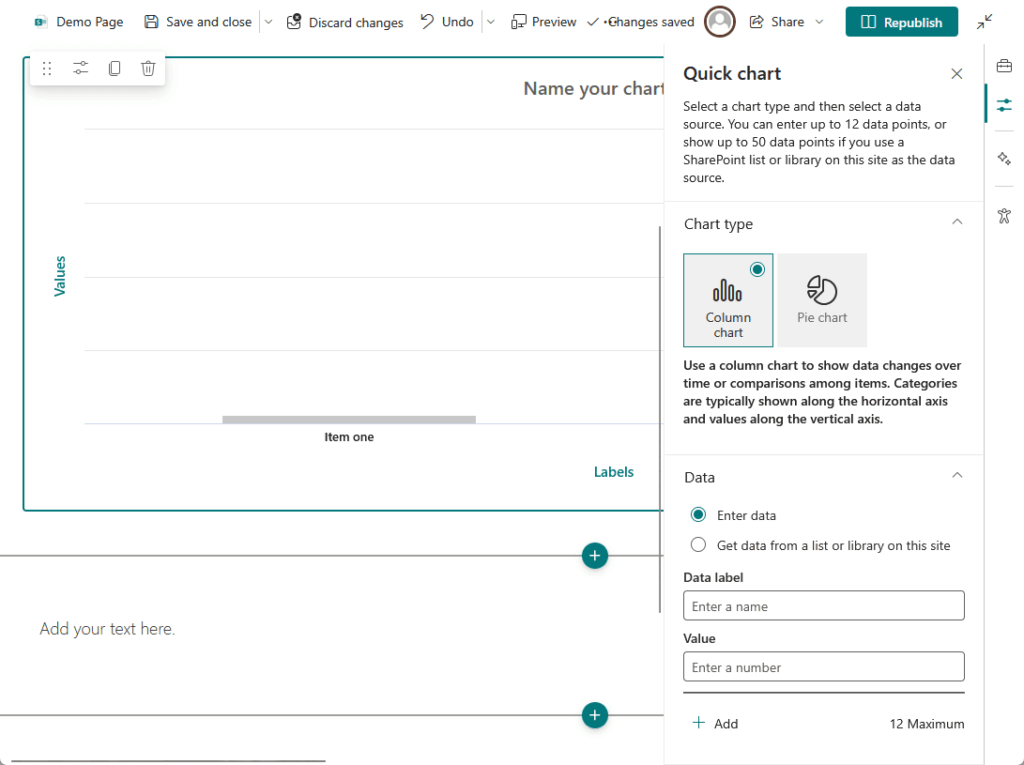
You can either enter up to 12 data points manually or hook it up to a SharePoint list or library on the same site
Just make sure your source has a text column (for labels) and a number/currency column (for values).
You get just the basics, bar (column) or pie. No lines, no scatter, and no fancy aggregations, and every item is shown individually.
Want a quick win? This web part is it. Need anything more advanced? Time to call in Power BI.
34. Quick Links
Quick Links is exactly what it sounds like.
A fast, flexible way to drop a bunch of links (internal or external) right onto your SharePoint page, and make them look good.
Perfect for navigation menus, resource hubs, app launchers, or even a visual “toolkit” for your team.
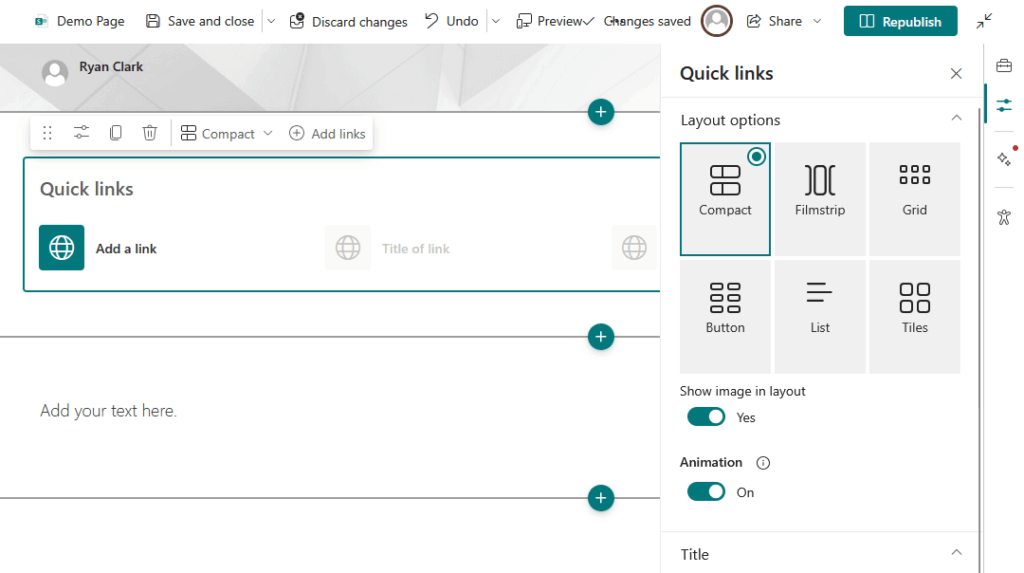
You can add as many links as you want, and for each one, pick an image or choose a clean Office UI Fabric icon.
Every link gets its own title, description, and destination.
And you’re not stuck with just one look:
- Compact
- Filmstrip
- Grid
- Button
- Tiles
- List
Each with a different visual punch (icons, images, more details… or less).
Managing your list is easy: add, edit, remove, and reorder links with drag-and-drop or toolbar controls.
Hover over a link to tweak or delete it on the fly.
If you need to personalize the experience, enable audience targeting to show certain links only to specific user groups.
Quick notes:
- One link per entry, no multi-link bundles.
- Custom images and icons look best if you use the recommended sizes (fuzzy icons = bad vibes).
- Technically, you can add a ton of links, but if you go overboard, vertical layouts may get crowded or require scrolling.
35. Recent Documents
The Recent Documents web part is all about saving you time.
No more digging through folders or searching for that file you just closed.
It automatically shows each user their most recently opened or edited documents (SharePoint sites and OneDrive).
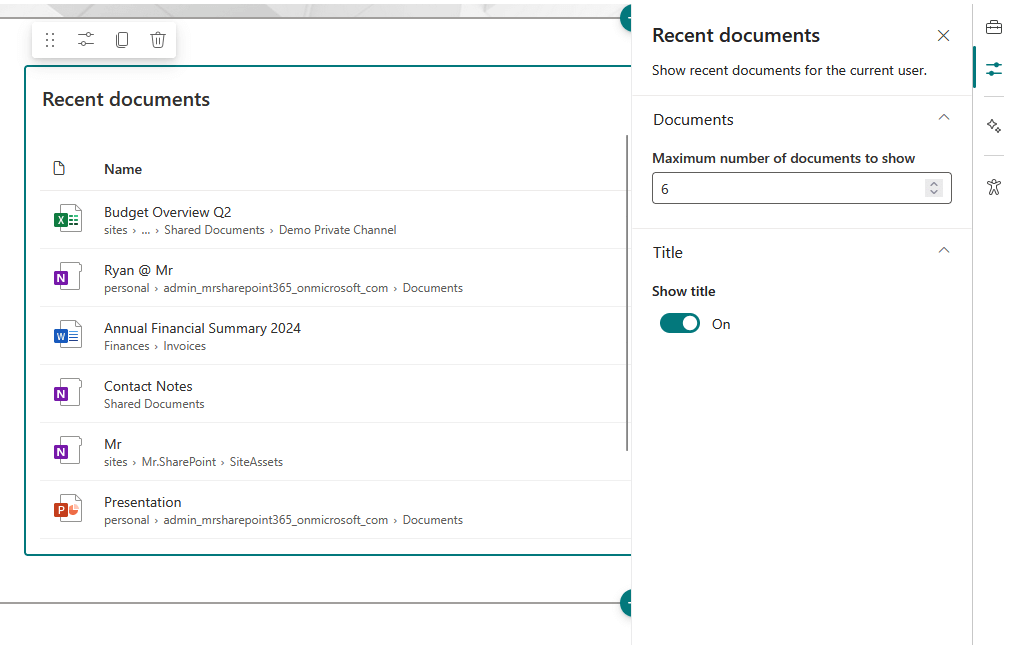
Everyone sees a personalized list, making it a breeze to jump right back into whatever you were working on last.
Some things to know:
- This web part is user-specific: it only shows your own recent docs, not a site-wide feed of everyone’s activity.
- It’s available in SharePoint Online (not SharePoint Server 2019), and if you’re on Targeted Release, some features might roll out gradually.
- Authors can set the maximum number of recent documents to display in the web part’s settings.
36. Saved for Later
Think of Saved for Later as your SharePoint bookmarks.
Letting users save pages, news posts, and (on mobile) documents they want to come back to.
It’s perfect for building your quick-access list of important content, so you don’t have to go hunting for it later.
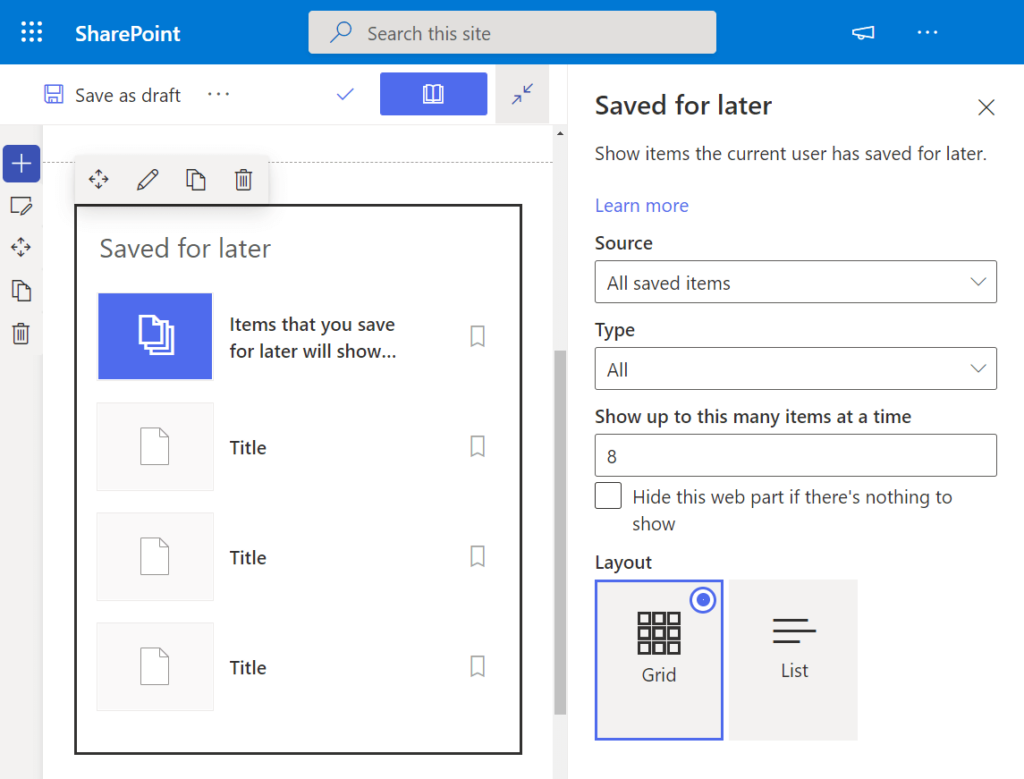
How it works: Users hit the “Save for later” button on any page or news post (documents only on the SharePoint mobile app).
Then the Saved for Later web part shows them a personalized list of everything they’ve bookmarked.
You can configure it to show items saved from just the current site or all saved items across SharePoint.
Plus, you can control what to show (pages, news, documents), how many (up to 50), and pick the layout that fits.
Keep in mind:
- On desktop/browser, saving documents isn’t available, only pages and news posts. Documents are saved only on mobile.
- Guest users won’t see this feature, and it’s not supported in SharePoint Server, GCC High, DoD, or the 21Vianet-operated environments.
37. Site Activity
Want to keep your finger on the pulse of your SharePoint site?
The Site Activity web part shows a live feed of recent happenings:
- Page edits
- File uploads
- New pages created
- Other changes within the site
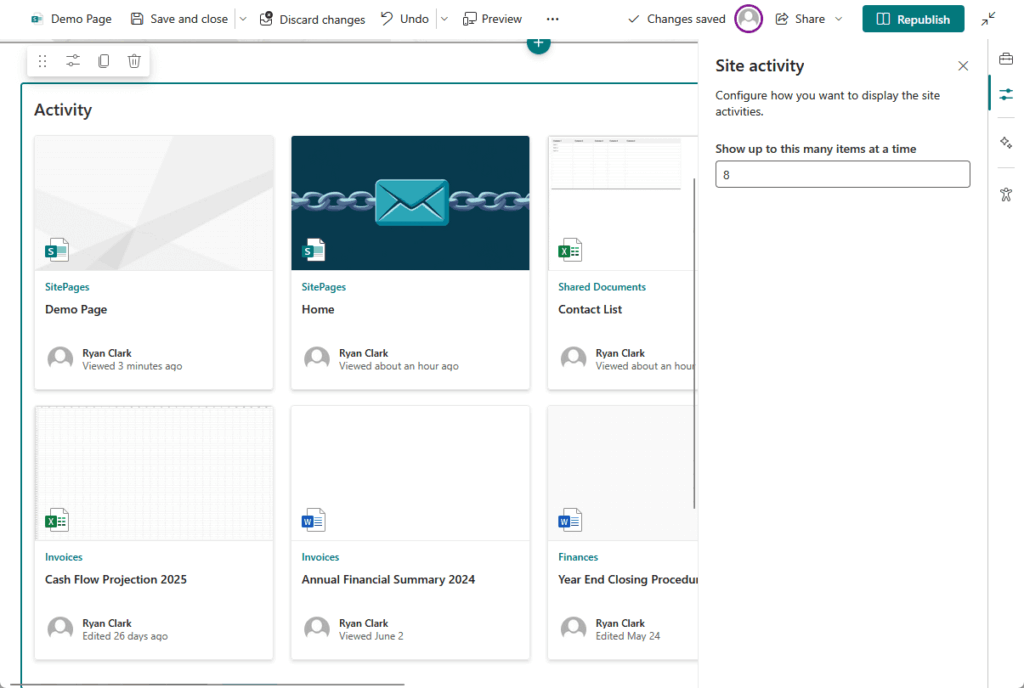
It’s a handy way for site owners, editors, and team members to stay in the loop without digging through audit logs.
What you see here is strictly activity on this site, no rollups from other sites, or tenant-wide action.
It covers edits to pages and documents, new content, deletions, and list item changes, giving you an idea of what’s changed.
A few notes here:
- You can’t customize which activities show; it’s an all-or-nothing feed of recent actions.
- Available in SharePoint Online only; not in SharePoint Server or on-prem versions.
38. Sites
Need to help your users jump between related SharePoint sites with zero hassle? The Sites web part is your go-to.
It showcases a collection of sites on your page, complete with site titles, descriptions, and thumbnail previews.
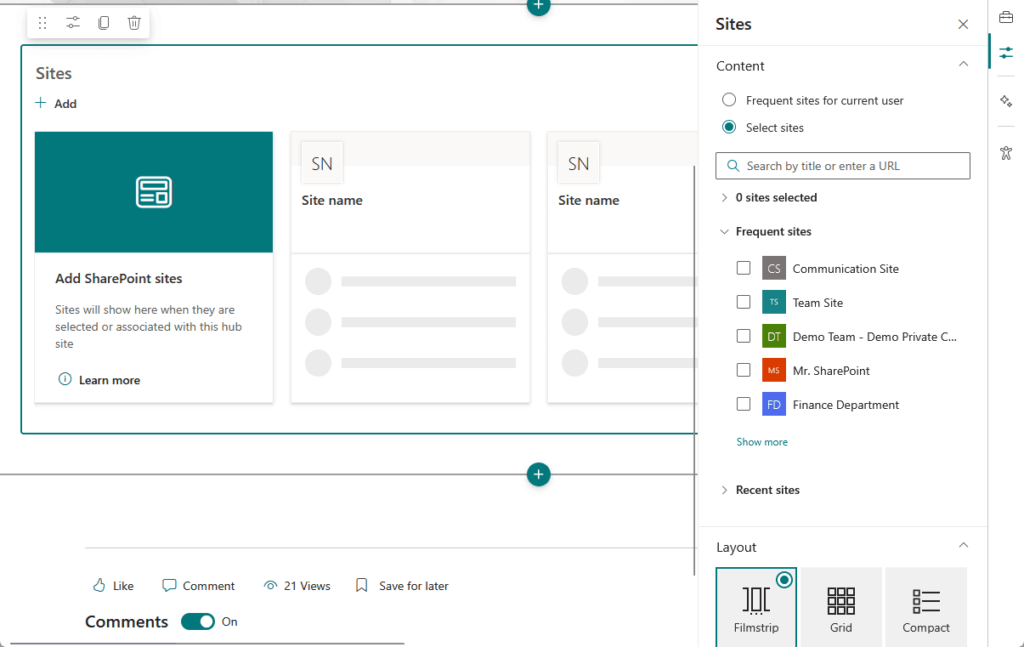
Choose how you want to show them:
- Grid
- List
- Compact
You can pick what fits your page design and vibe.
It’s perfect for hub sites or department landing pages where linking related sites helps everyone find what they need fast.
You can hand-pick sites or let the web part auto-show sites from a hub or those that the user follows.
Some quick points:
- Tile customization is limited; you get the site name, thumbnail (usually the site logo or image), and description, with no fancy tweaks.
- Permissions matter: users will only see sites they have access to, so no worries about accidental leaks.
- This web part is exclusive to SharePoint Online; it’s not available for on-prem setups.
39. Spacer
Sometimes, your page just needs a little breathing room.
This web part adds vertical white space between sections or web parts to help your page feel cleaner and easier to read.
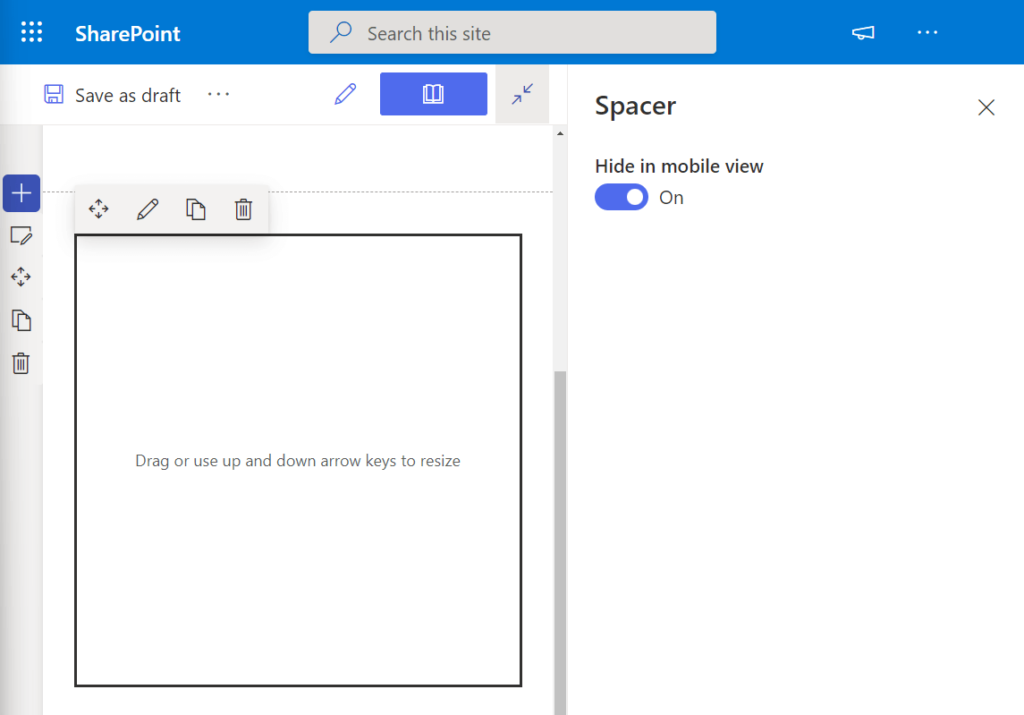
You can drag to adjust the height for the right amount of space in your layout and give your content some room to shine.
Keep in mind:
- It only adds vertical space, no horizontal gaps.
- This is a modern SharePoint-only web part, no classic or on-prem action here.
40. Stream
Want to drop videos right onto your SharePoint page?
The Stream web part lets you embed videos easily.
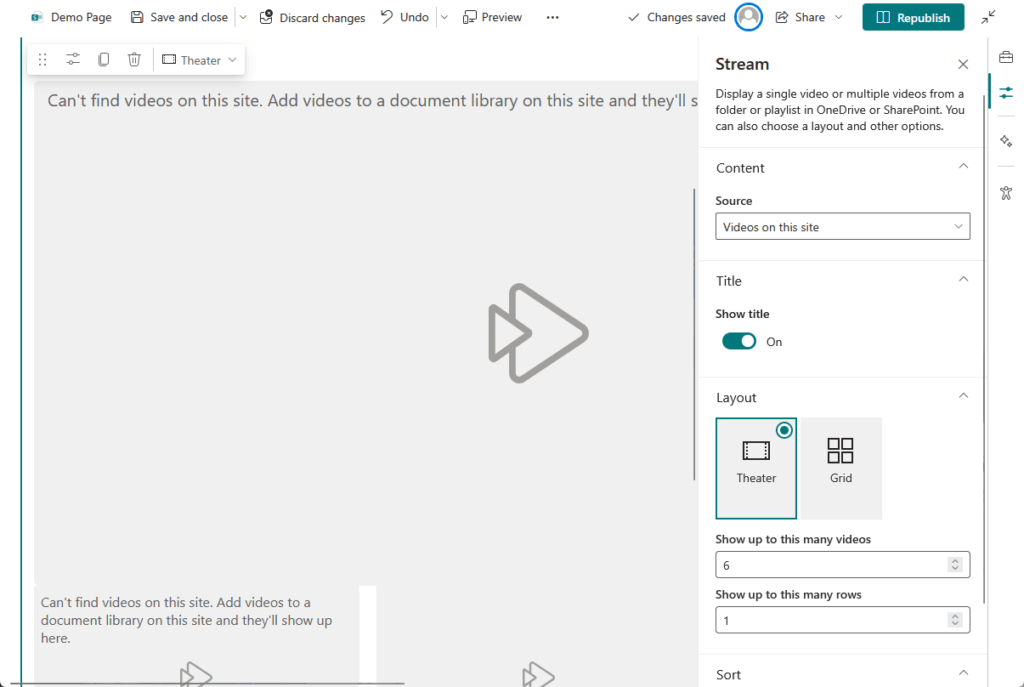
This is perfect for:
- Training sessions
- All-hands meetings
- Any internal video content your team needs to watch
Heads up:
Microsoft is shifting from Stream Classic (which ran on Azure Media Services) to the newer Stream, built on SharePoint and OneDrive.
The current Stream web part supports embedding videos stored in SharePoint or OneDrive.
You get seamless playback with all the usual video formats (MP4, WMV, MOV, and more).
If you still have videos in Stream Classic, embedding them requires a different approach, and Microsoft is gradually phasing that out.
One key thing:
Video access follows SharePoint or OneDrive permissions. Users need access to the source location to watch the videos.
41. Text
The Text web part is your clean, flexible, go-to rich text editor for modern SharePoint pages.
Need to add paragraphs, headings, lists, tables, or inline images? This is the tool.
It’s perfect for wikis, announcements, landing pages, or any spot where you need readable, styled text that just works.
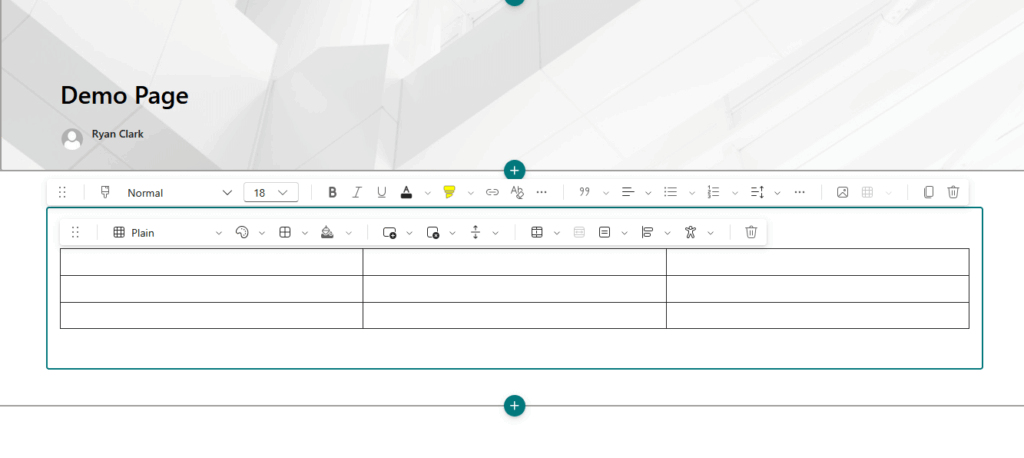
You get a robust, intuitive toolbar to format your text:
- Headings and font styles
- Bold, italics, and underlines
- Highlights and hyperlinks
- Numbered and bulleted lists
- And more
You can even paste inline images directly into the editor; no separate web part is needed for quick visuals in your text flow.
Some best practices and limitations:
| What to Know | Details |
| No HTML or scripts | Unlike the classic Content or Script Editor, you can’t add raw HTML, JavaScript, or embed codes—only rich text. |
| Inline images work, with care | Small visuals are fine inline, but use the Image or Hero web parts for banners or large images for better control. |
| Modern pages only | The Text web part works on modern SharePoint pages, not on classic pages. |
42. Weather
The Weather web part is a simple, friendly way to add a live weather snapshot right onto your SharePoint page.
This part does the job:
- Supporting field teams
- Adding a local touch to your office dashboard
- Bringing a bit of “today’s vibe” to your intranet
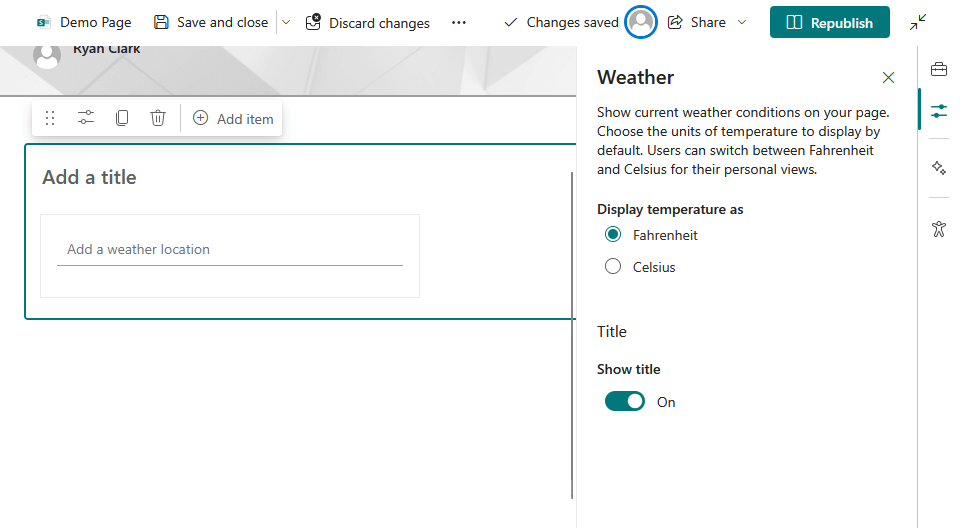
Enter a city, zip, or address, and it will display the current weather conditions and temperature for that spot.
Need Celsius or Fahrenheit? You can set a default in edit mode, while viewers can toggle between °C and °F themselves.
Things to keep in mind:
| What to Know | Details |
| Static location only | It doesn’t auto-detect user locations; you must add a web part for each location you want to show. |
| One location per part | To show multiple cities, you’ll need multiple Weather web parts. |
| No extended forecasts | Displays current conditions only, with no multi-day forecasts or advanced layouts. |
| SharePoint Online only | Not available for SharePoint Server 2019 or on-prem setups. |
43. World Clock
If your team spans time zones, the World Clock web part is a must-have.
It lets you add one or more clocks showing the current time and date for different locations around the world.
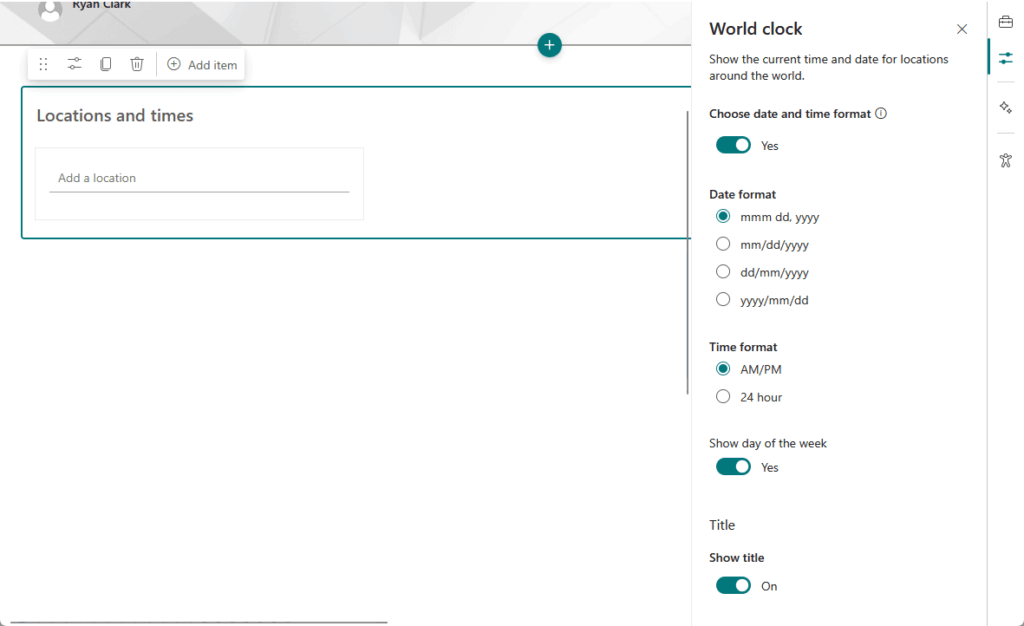
It’s perfect for:
- Global teams
- Cross-region project dashboards
- Helping everyone remember when not to ping a colleague at 3 a.m 😅
Add clocks for any location to show local date, time, day of the week, and choose between 12-hour or 24-hour formats.
You can also pick your date format (mm/dd/yyyy, mmm dd, yyyy, etc.) to match your org’s preferences.
44. YouTube
Need to drop a YouTube video straight onto your SharePoint page?
The YouTube web part makes it dead simple:
- Grab the link or embed code
- Paste it in
- Then your video is live for your team to watch
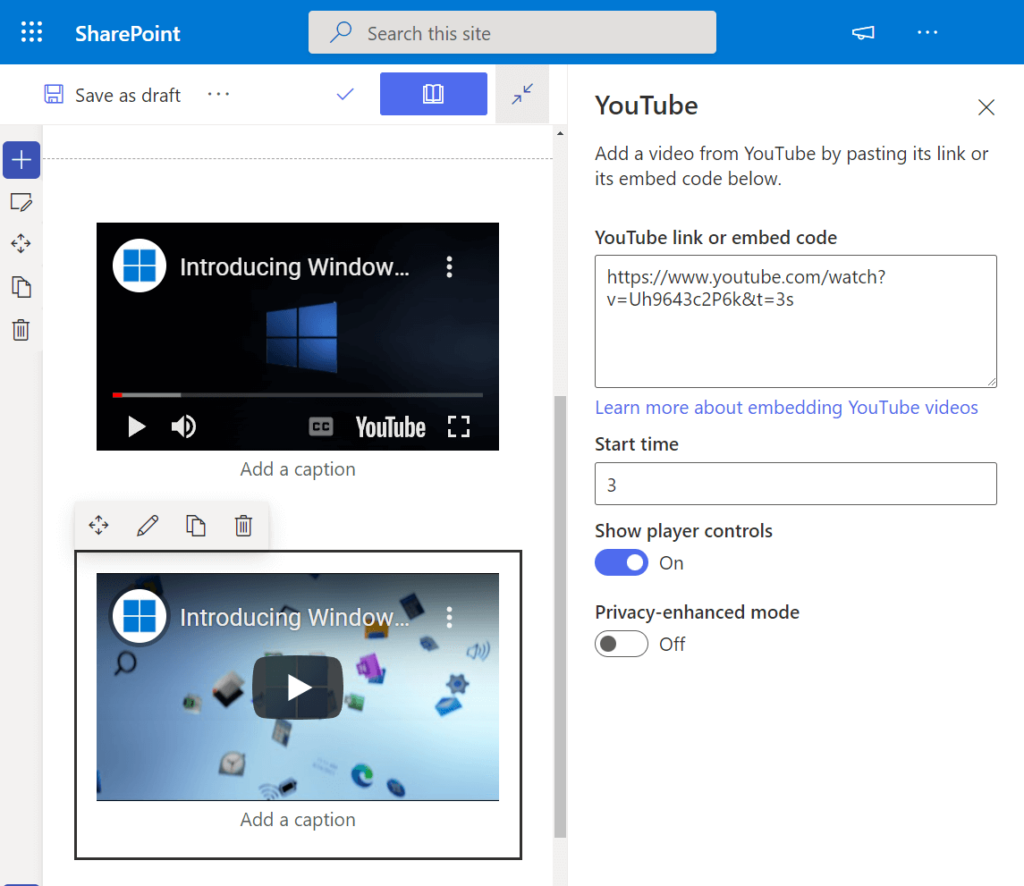
It’s perfect for training videos, all-hands updates, inspirational clips, or any YouTube content your team needs to watch.
Consider these;
| What to Keep in Mind | Details | |
| No related video block | You can’t block “related videos” at the end—YouTube removed this feature globally. | |
| Modern SharePoint only | Available only in SharePoint Online, not in SharePoint Server 2019 or government/DoD/21Vianet environments. | |
| Feature rollout may vary | Settings may appear sooner or later depending on Targeted or Standard Release for your tenant. |
With that, do you have any questions about all these web parts? Let me know below.
For any business-related queries or concerns, contact me through the contact form. I always reply. 🙂





























I would love to know which web parts have 508 accessibility built in or are compliant.
Hi there, I’m new to Sharepoint and also more graphic design than tech… under 9 in your article you mention: “It also has advanced functionality where you can display dynamic content with the help of another web part.” – can you explain how and which other web part please?… and are there other webparts that are available to buy or use?… Thank you, Tony
Thank you for such a great list. In incorporating an overview into a presentation, I spotted that there are actually two (2) #17s in the list, so everything below that is off by one number… Just a small note 🙂
GREAT catch! Thank you for reading and pointing that out! I just fixed it.
Did the site tour flyover go away?
I love this page and often send new users to it. Since this originally published in 2022, is there a planned update to this?