

Last Updated on June 4, 2023
Need to insert videos into your page?
In this short guide, I will show you the updated methods of embedding a video to a modern page in SharePoint — including the new Stream.
Let’s get started.
1. Microsoft Stream
Microsoft Stream now has a new version — Stream on SharePoint.
Basically, the difference is that it integrates with SharePoint sites and makes videos one of the default content forms (or types).
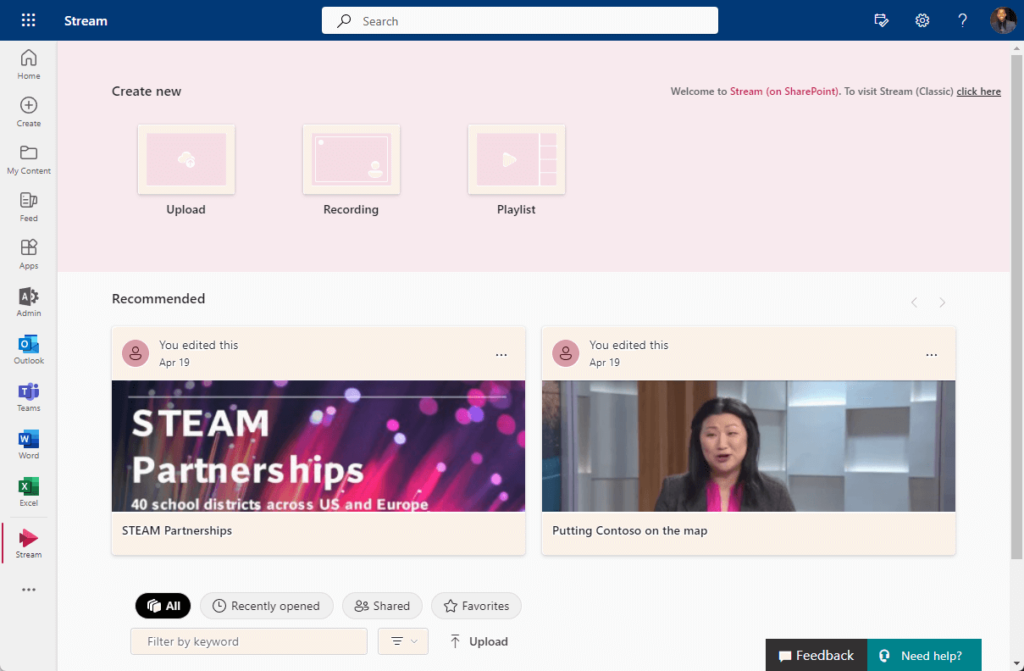
Because of this change, when you upload videos to Stream, you can also use them on your sites and feature them like news, documents, etc.
The reverse also holds true — uploading the videos directly to your site will also show up in Stream.
This is what I mean by featuring videos on a modern page:

Related: Microsoft Stream Features (Current and Upcoming Features)
Once you have the videos uploaded, you can then use the new file and media web part (which used to be the file viewer web part).
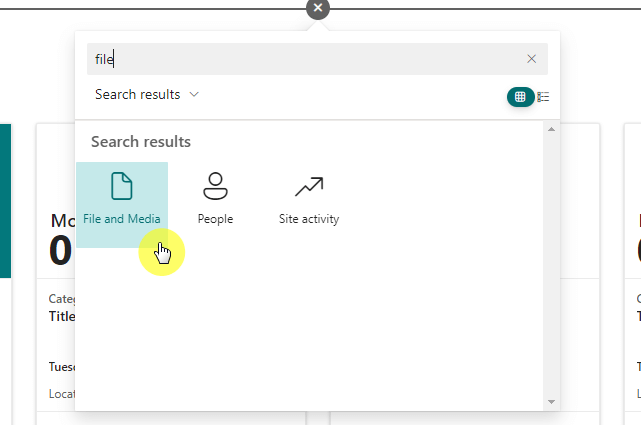
All you have to do is use the updated file viewer web part, select the video file to feature or show, and you’re good to go.
The videos you uploaded are found in the SharePoint document library on that specific site (in case you get confused about where to find them later).
Sign up for exclusive updates, tips, and strategies
2. Embed code
Another choice is to use the embed web part.
This way, you won’t need to download the video file — simply copy the embed code and paste it into the embed code box:
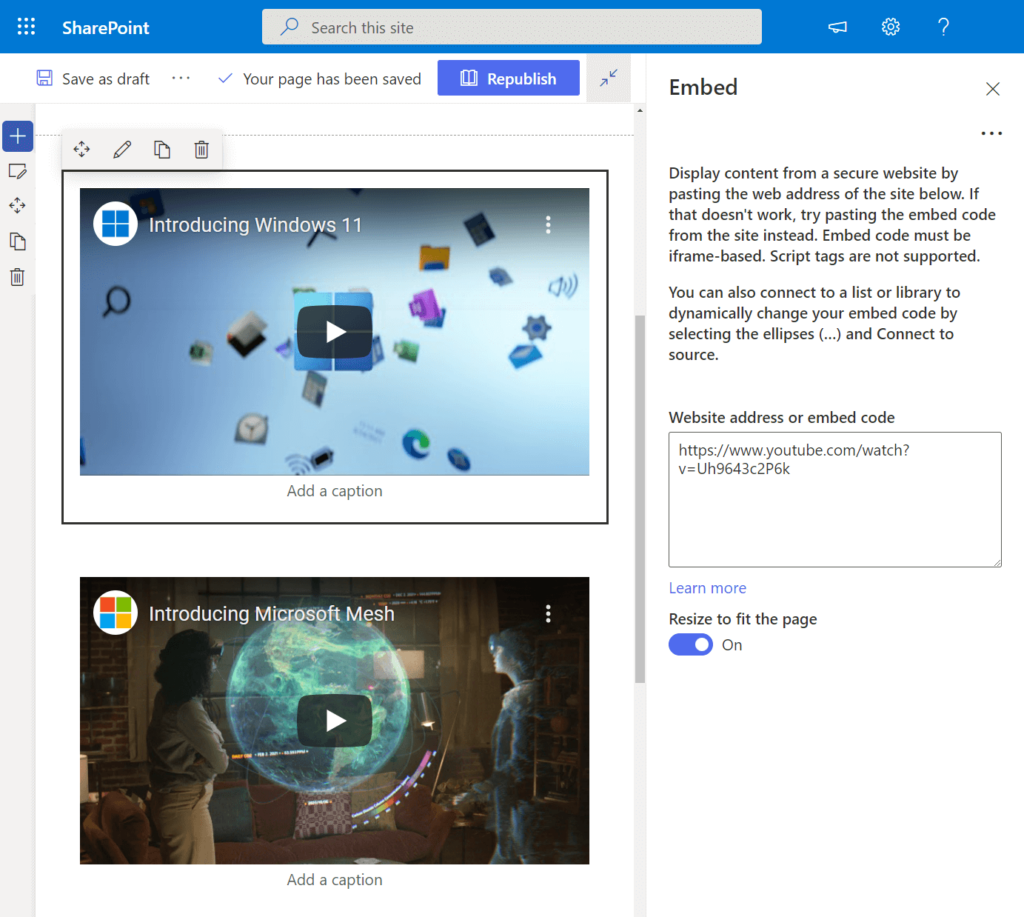
This is a great option if the video you want to embed in the page is found on a video platform like YouTube.
If the video is on YouTube, the embed link can simply be the video link. Unfortunately, for other sites, it won’t work that simply.
You will need the iframe-based embed code so the web part can work properly and won’t mess with your page.
Related: Modern SharePoint Web Parts: List of All Available Web Parts
3. YouTube
Another web part of the SharePoint Online modern experience is the YouTube web part.
In this case, the web part is only usable for videos from YouTube (which the web part is solely designed for).
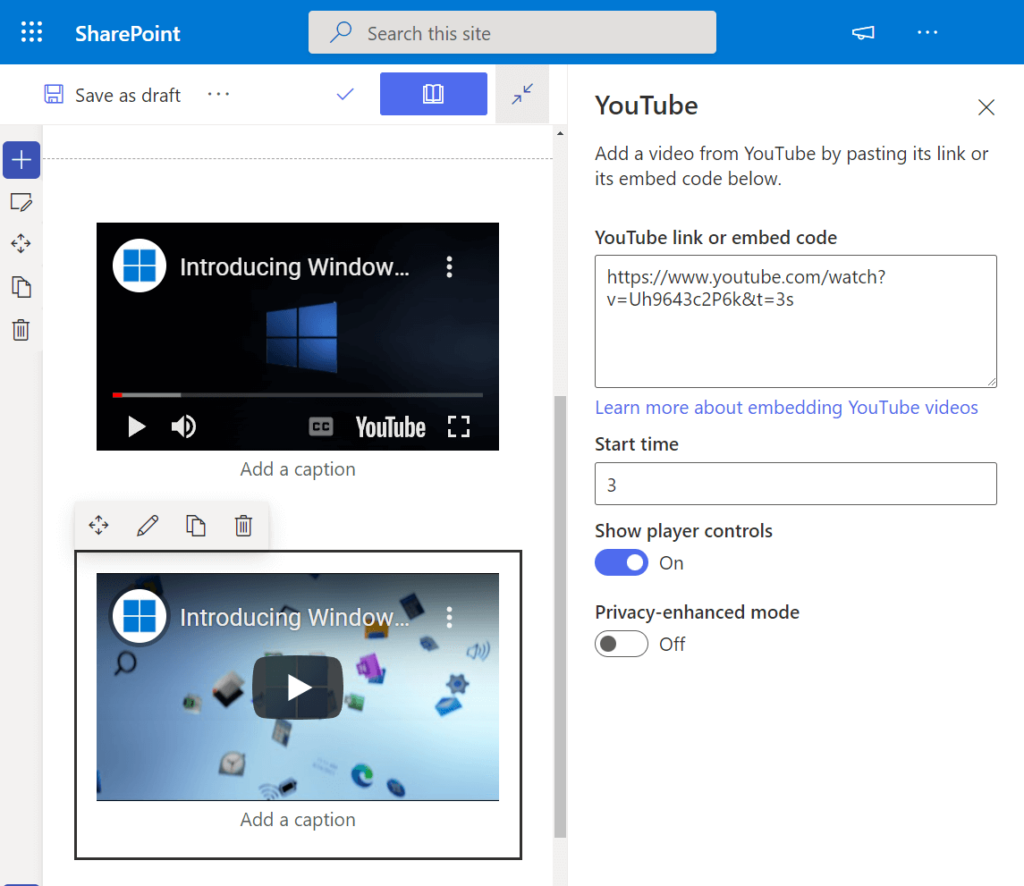
All you need here is the link to the video and you’re good to go.
There are also some extra options included like adjusting the start time, showing player controls, and the privacy-enhanced mode.
You can see from the options above that embedding any video to SharePoint Online modern pages is easier than ever.
If you need to upload the video, the new Stream is there coupled with the file and media web part.
For videos on YouTube, you can simply use the YouTube web part. The embed web part is for videos found on other sites.
Do you have any questions regarding embedding videos on a SharePoint page? If yes, feel free to share your thoughts below.
For business inquiries and concerns, kindly reach out using the contact form here and I’ll get back to you asap.




























