

Table of Contents:
Last Updated on September 1, 2025
Want to stop building the same Microsoft Form over and over again?
In this guide, let’s talk about the three effective ways to create and reuse your forms.
Let’s get started.
This method is the best way to give your team or entire organization a standard form they can use for their own projects.
Each person gets their own copy, and their responses stay private.
Open the form you want to share.
In the top right, click the three dots (…) and select Collaborate or Duplicate.

In the pane that opens, find the section called “Share as a template.”
Click Get a link to duplicate.
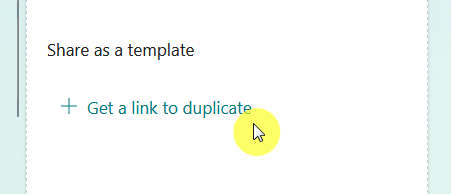
Copy the link and send it to your team.
When someone clicks this link, they’ll see a preview of your form with a big “Duplicate It” button.
Clicking this creates a brand-new, independent copy of the form in their own Microsoft Forms account.
They become the owner of that new copy, and can delete the share link at any time to stop new copies from being made.
On the other hand, this will not affect any copies that people have already created.
When to Use This Method
Use this method when you need to distribute a standard form for others to use independently.
It’s great for things like:
- Project intake group forms for different managers
- Event feedback surveys for various departments
- Weekly status reports for team members
The key benefit is that each user owns their copy and their data.
The responses they collect are completely separate from yours and everyone else’s, which is great for privacy and organization.
Sign up for exclusive updates, tips, and strategies
Method 2: Duplicate a Form for Your Own Use (The “Copy” Method)
This is the fastest way to reuse one of your own forms for a new purpose.
How to Make a Personal Copy
Go to the Microsoft Forms homepage.
Find the form you want to copy and click the three dots (…) on the form’s tile.
Choose Copy.
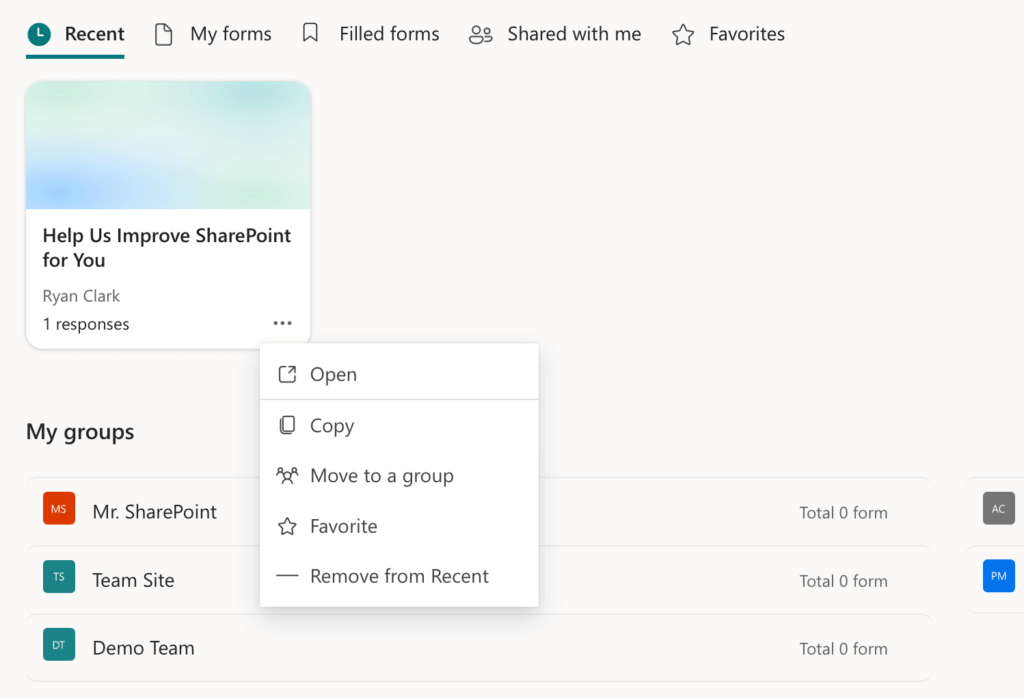
If you can’t find the “Copy” button, make sure to check that you’re in the Forms home page, and not on the form’s page.
A new form, usually with “(2)” added to the name, will instantly appear at the top of your forms list.
It’s a good idea to open this new copy and rename it immediately to avoid mixing it up with the original.
When to Use This Method
This method is all about personal efficiency.
It’s the perfect choice in a few common situations, such as:
- Re-running a survey for a new time period (e.g., monthly or quarterly)
- Sending the same form to a different audience or group.
- Creating a slightly different version of an existing form.
The process copies all your questions, branching rules, and settings, but it doesn’t carry over any of the old responses.
This means you get a clean slate for your new survey every time.
“Template” vs. “Collaboration” Links
A common mistake is sending a “collaboration” link when you mean to send a “template” link.
This can cause major problems with your data (they’re for complete independent use).
The two functions are for completely different tasks:
| Feature | Share as a Template (Duplicate Link) | Share to Collaborate |
| Purpose | Distribute a form for others’ independent use. | Co-author a single form with a team. |
| Ownership | The user gets their own new copy. | The original creator remains the owner. |
| Data Access | Users cannot see your original form’s responses. | All co-authors can see and edit the same data. |
| Editing | Users edit their own copy; the original is safe. | Anyone can edit the original form directly. |
Warning: Never send a “collaborate” link when you want someone to use your form as a template.
If you do, they could accidentally change your questions or add their data to your response list.
For important business processes, the best template is a form that kicks off an automated workflow.
This ensures all your data is saved in one central place, reliably and consistently.
Why an Automated Template is Better for Business
Standard forms have limitations.
The response data is often stored in an Excel file tied to one person’s account, and processing it is a manual job.
An automated workflow fixes this.
The form becomes a simple trigger, and Power Automate does all the heavy lifting in the background.
This approach gives you several advantages:
- Data is stored in a central, permanent location like a SharePoint list.
- The process is repeatable and can handle many submissions.
- It reduces the chance of manual data entry errors.
You can set up a simple flow that automatically saves every form submission to a SharePoint list.
This turns your responses into a structured database.
In your team’s SharePoint site, create a new list.
Then add a column for each question on your form, making sure the column type (text, number, date) matches the question.
After that, you can build this automation in minutes using Copilot or create it from scratch.
Option A: Use Copilot (The Easy Way)
In Power Automate, describe the automation you want, and Copilot will help build it.
Try a prompt like this:
“When a new response is submitted in the ‘Project Intake’ form, get the response details. Then, create a new item in the ‘Project Requests’ SharePoint list on the ‘Marketing Team’ site.”
Copilot will generate the flow structure, and you just need to review the connections and map the form fields to your SharePoint columns.
Option B: Build the Flow Manually
If you prefer to build it yourself, follow these steps:
- Start with the trigger When a new response is submitted and choose your form.
- Add the action Get response details to pull the answers from the submission.
- Add the SharePoint action Create item. Point it to your site and the list you just made.
- Map the fields by matching each answer from the form to the correct column in your SharePoint list.
Once you save and turn on this flow, every submission will instantly appear as a new item in your SharePoint list, no manual work required.
Choosing the Right Template Method
Microsoft Forms gives you several ways to reuse your work.
You can:
- Share a form template link to distribute a standard form
- Make a personal copy for your own ad-hoc tasks
- Connect your form to an automated workflow for important business processes
For quick and simple reuse, the template link is a great tool.
But for any recurring or critical task, using Power Automate to create a true automated template is the most reliable and professional solution.
FAQ
How do I change who owns a form?
You can move a form from your personal account to a Microsoft 365 Group. This action transfers ownership to the group and cannot be undone.
Can I reset a form and clear all its responses?
No, there isn’t a reset button. The only way to clear responses is to select “Delete all responses,” which is permanent. The best approach is to make a new copy of the form for each period (e.g., “Q1 Survey,” “Q2 Survey”).
Can I recover deleted responses?
No. Once responses are deleted, the action is permanent and the data cannot be recovered.
Anyway, do you have any questions about saving a Microsoft Form as a template? Let me know below.
For any business-related queries or concerns, contact me through the contact form. I always reply. 🙂




























