
Last Updated on November 10, 2025
Ever wondered why your iframe embed failed silently?
In this guide, I’ll show you how to embed content securely in SharePoint Online, manage admin controls, and more.
Let’s get started.
Why the Embed Web Part Is Your Only Option
For years, SharePoint admins faced a dilemma:
- Give users freedom to embed content (and accept security risks)
- Lock everything down (and frustrate your teams)
The embed web part provides security while keeping functionality intact. It blocks dangerous scripts, forces HTTPS connections, and sandboxes everything you add.
Script editor and content editor web parts are also outdated. Microsoft is actively phasing out that approach, and solutions built on it will break.
Sign up for exclusive updates, tips, and strategies
Adding Embedded Content
Start by going to the page where you want to add content.
Click the Edit button in the top right corner:
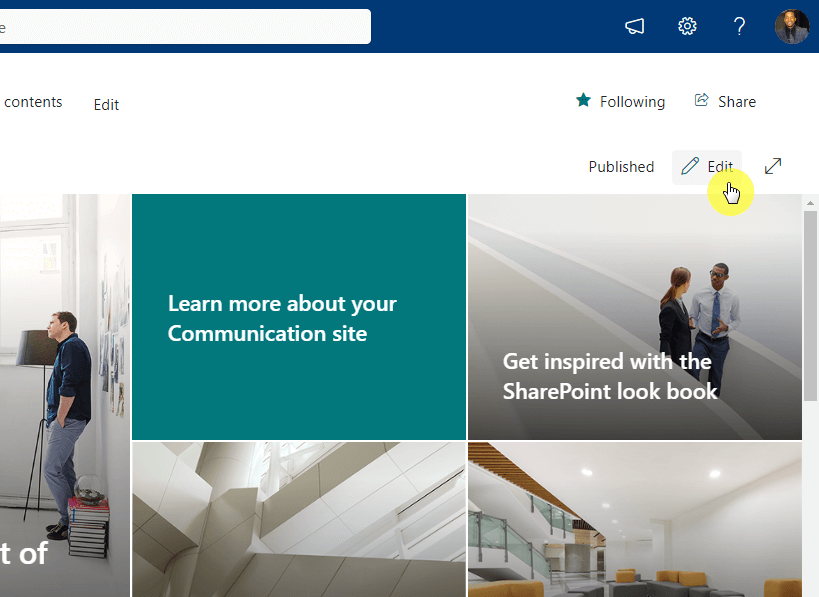
Hover over the area where you want the content to appear and click the + icon to open the web part gallery.
Search for or select the Embed </> web part. The property pane opens on the right side.
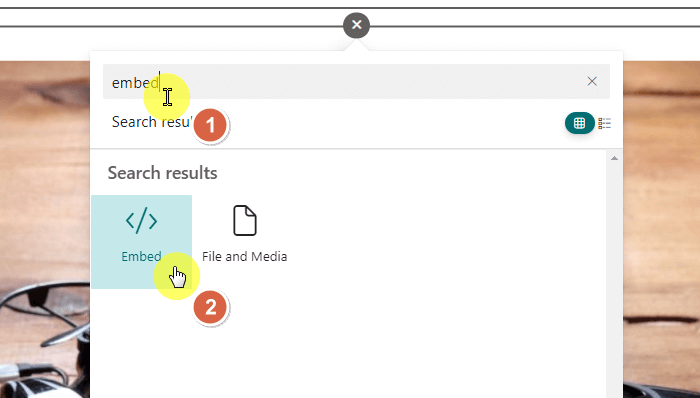
You’ll see a box labeled “Website address or embed code.”
Use one of two methods (explained below).
Two Methods: Website Address vs. Embed Code
Choose the method that matches your content source.
Method 1: Using a Website Address (The Simple Method)
This works for recognized sites like YouTube or Bing Maps.
Simply paste the direct URL into the property box, and SharePoint converts it automatically.
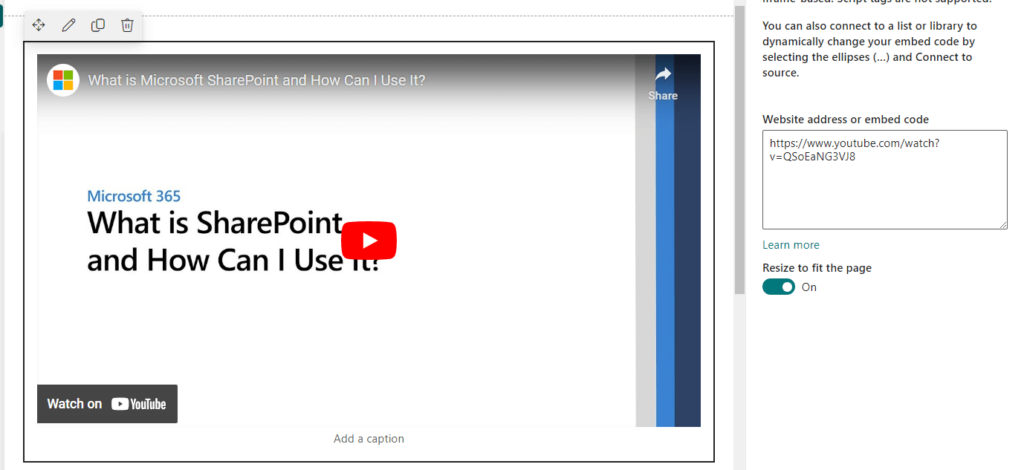
If a URL fails to render, you’ll need to use Method 2 instead.
Method 2: Using Embed Code (The iframe Method)
This is the true iframe method and works for most external content.
Visit the source website with the content you want to embed and look for a Share button or a link labeled Embed code or </>.
Copy the entire HTML code snippet (usually starts with <iframe>).
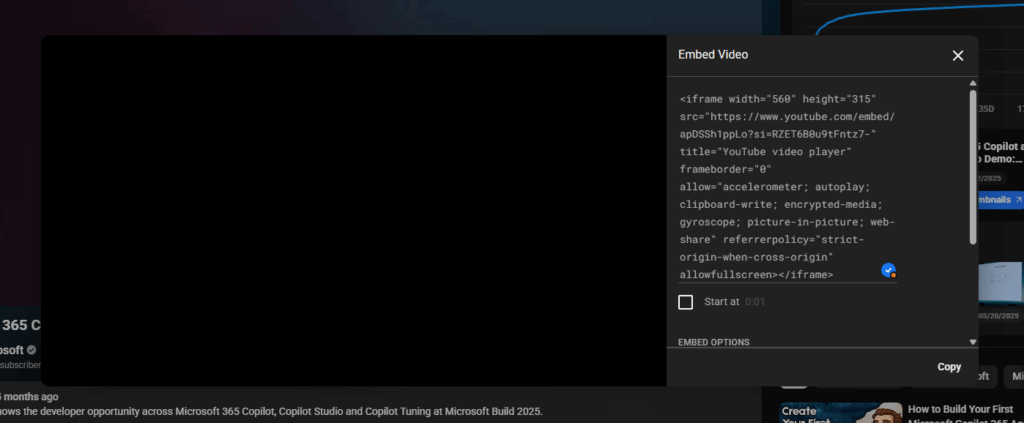
Paste it directly into the property box in SharePoint.
Four Critical Requirements (Why Embeds Fail)
When embedding breaks, it’s almost always due to one of these four reasons.
The embed web part explicitly blocks any code using <script> tags.
If your embed code includes JavaScript, the web part won’t render it. This is intentional security protection.
Requirement 2: HTTPS only
The source site’s URL must start with https://.
Modern browsers block “mixed content.” A secure SharePoint page cannot load an insecure iframe. This restriction is enforced by your browser, not SharePoint.
Requirement 3: Source site must allow framing
The external website must be configured to allow its content to be embedded.
Many sites block framing as a defense against clickjacking. If the source site blocks it, you can’t override that from SharePoint.
Your site collection admin controls what can be embedded through HTML Field Security settings.
If you see “Embedding content from this website isn’t allowed,” this is the problem. Your admin needs to add the domain to the allow list.
For Admins: Managing HTML Field Security
If you control a SharePoint site collection, you have powerful tools to manage what can and can’t be embedded.
What HTML Field Security Does
HTML Field Security is a site-collection-level setting that controls whether contributors can embed content from external domains.
This is the admin’s main tool for managing what gets embedded across your entire site collection.
The Three Security Options
Your options balance security against user flexibility.
| Option | Risk Level | Description |
| Don’t allow contributors to insert iframes from external domains | Lowest | Blocks all external embeds. Most secure but most restrictive. |
| Allow contributors to insert iframes from any domain | Highest | Allows embedding from any website. Not recommended for security reasons. |
| Allow contributors to insert iframes only from the following domains | Medium (Recommended) | Default setting. Allows embedding only from trusted domains you manually approve. |
The recommended approach is option three: start with a curated list of trusted domains.
Building Your Domain Allow List
SharePoint comes with pre-populated trusted domains for common services like YouTube, Microsoft Forms, PowerApps, and Google services.
If someone needs to embed content from a site not on the default list (like Miro or Smartsheet), you need to add it manually.
How to add a new domain:
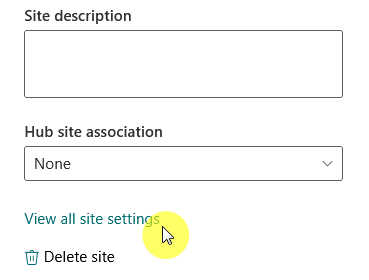
Navigate to your site’s Settings (gear icon) and then go to Site information > View all site settings.
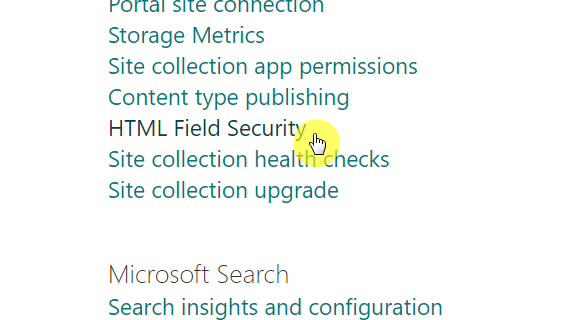
Under Site Collection Administration, select HTML Field Security.
Choose “Allow contributors to insert iframes only from the following domains.”

In the text box, type the domain name (e.g., miro.com).
Click Add, then OK to save.
When Embeds Don’t Work: Advanced Troubleshooting
Sometimes your embed fails even when you’ve followed all the rules. Here’s how to find out what’s actually blocking it:
“Embedding Content From This Website Isn’t Allowed”
This error means SharePoint is blocking the embed at the site collection level.
Fix: Your site collection admin needs to add that domain to the HTML Field Security allow list (follow the steps in the earlier section).
The Real Culprit: Source Website Security Headers
Most embedding failures don’t originate from SharePoint.
The external website is using its own security headers to prevent framing. SharePoint can’t override those settings.
Two headers block most embeds:
X-Frame-Options Header
This header tells browsers whether a page can be framed.
- DENY = blocks all framing attempts.
- SAMEORIGIN = only allows framing on the same domain.
Since your SharePoint site is a different domain, SAMEORIGIN blocks you too.
Content-Security-Policy with frame-ancestors
This is the modern, more flexible security header.
It contains an allow-list of domains permitted to embed the content. Your SharePoint domain isn’t on it, so the embed fails.
How to fix:
Unfortunately, you can’t fix this in SharePoint.
Ask the source website owner to remove the X-Frame-Options header or add your SharePoint domain (yourtenant.sharepoint.com) to their frame-ancestors list.
Prefer Native Web Parts
Whenever possible, skip the generic Embed web part and use a purpose-built alternative instead.
Why Generic Embeds Have Limitations
A generic iframe is a “dumb” window that knows nothing about your SharePoint page.
It has issues with authentication (e.g., Power BI), is blocked by external security policies, and lacks support for SharePoint themes or mobile optimization.
When to Use Native Alternatives
Before you use the Embed web part, always check the web part toolbox for a native alternative.
| Content Type | Don’t Use | Do Use | Why |
| YouTube Videos | Embed web part | YouTube web part | Adds UI for start time and player controls. |
| Power BI Reports | Embed web part (major security risk) | Power BI web part | Handles authentication properly and respects security settings. |
| Documents, PDFs | Embed web part | File Viewer web part | Renders 270+ file types including 3D models. |
| Microsoft Forms | Embed web part | Microsoft Forms web part | Toggles between collecting responses or showing results. |
| PowerApps | Embed web part | PowerApps web part | Handles authentication and context automatically. |
The key takeaway: use native web parts whenever available.
They’re more secure, handle authentication automatically, and provide a better user experience.
Legacy Warning: Don’t Use These Methods
If you encounter recommendations for older embedding approaches, here’s why they’re no longer viable.
Script Editor and Content Editor Are Dead
These classic web parts allowed users to paste arbitrary HTML, CSS, and JavaScript directly onto pages.
This was a massive security vulnerability, and Microsoft removed them from modern SharePoint.
If you find old guides recommending them, discard them.
The “Allow Custom Script” Setting
Enabling this setting re-activates the Script Editor web part on classic pages and allows unsafe code execution across your tenant.
When custom script is allowed, code can access content across all site collections and other Microsoft 365 services in your organization.
Even worse, malicious scripts can’t be removed once they’re inserted. You’d have to delete the entire page to get rid of them.
Microsoft is actively phasing this out. As of November 2024, the setting resets to “Not Allowed” automatically every 24 hours.
Any solution built on this approach will break. Don’t use it.
Start Embedding Securely
Security is built into SharePoint’s modern embedding approach.
Use the Embed web part for external content, ensure your admin manages the HTML Field Security allow list, and troubleshoot external security headers before assuming SharePoint is the problem.
Whenever possible, prefer native web parts. They’re more secure, handle authentication automatically, and provide a better user experience.
Do you have questions about using iframes to embed content into SharePoint Online? Let me know.
For any business-related queries or concerns, contact me through the contact form. I always reply. 🙂





























Hello Mr.SharePoint,
will this method (i.e. embedding external websites using iframe in a SharePoint webpart) still be possible after the current restrictions to using active scripts in SharePoint will be fully in place at the end of 2024? (Provided the external website uses JavaScript for example)
https://learn.microsoft.com/de-de/sharepoint/allow-or-prevent-custom-script#to-allow-custom-script-on-onedrive-or-user-created-sites
Thanks very much for your opinion on this.