
Table of Contents:
- Why Teams Governance Matters Now
- The Best Microsoft Teams Governance Strategies
- Strategy 1: Control Team Creation from Day One
- Strategy 2: Implement Standardized Naming Conventions
- Strategy 3: Deploy Team Templates for Consistency
- Strategy 4: Enforce the Two-Owner Rule
- Strategy 5: Automate Team Lifecycle Management with Expiration Policies
- Strategy 6: Define and Govern Guest Access from the Start
- Strategy 7: Manage Private Channels and Reduce Shadow IT
- Strategy 8: Apply Sensitivity Labels for Container-Level Protection
- Strategy 9: Implement Data Loss Prevention (DLP) for Messages and Files
- Strategy 10: Conduct Regular Access Reviews for Membership and Guest Access
- Bonus Strategy: Choose Your Implementation Model
- Governance Is No Longer Optional
Last Updated on November 10, 2025
Is your Teams environment a well-organized collaboration hub or a chaotic sprawl of duplicate teams, guest access disasters, and inactive zombie workspaces?
In this guide, let’s talk about the best Microsoft Teams governance strategies for building a secure, scalable collaboration platform.
Let’s get started.
Why Teams Governance Matters Now
Teams has become the digital headquarters of modern work.
But rapid, large-scale adoption has exposed a critical vulnerability: without deliberate governance, the platform’s open nature breeds chaos.
Here’s the four critical governance challenges most organizations face:
- Team sprawl: Duplicate teams like “Project Titan,” “Project Titan_Official,” and “Titan Project Team” fragment conversations and scatter content, frustrating users and killing productivity.
- Data leakage: Unchecked guest access, oversharing, and weak permissions expose sensitive data like financial reports, PII, and intellectual property.
- Ownerless groups: When team owners leave or change roles, inactive teams persist as “ghost ships” with stale membership lists that become massive security liabilities.
- AI amplification: Microsoft 365 Copilot inherits a user’s existing permissions, amplifying every governance failure by surfacing overshared and sensitive data at scale.
These challenges create a vicious cycle:
- Sprawl leads to frustrated users
- Frustrated users create duplicate teams or flee to shadow IT
- Inactive teams with stale permissions accumulate silently until they become invisible time bombs
Governance has moved from “nice-to-have” to mandatory.
The old narrative frames governance as a “brake pedal” that slows innovation and frustrates users.
But effective governance functions as a strategic steering wheel instead. It doesn’t lock down collaboration, but it structures it.
The key is balance. Overly restrictive governance (requiring IT approval for every team) drives users to unmanaged consumer apps and creates Shadow IT.
Laissez-faire governance (the default Microsoft 365 setting) leads to chaotic sprawl and compliance violations.
Sign up for exclusive updates, tips, and strategies
The Best Microsoft Teams Governance Strategies
Now let’s dive into the actionable strategies you can implement today.
These approaches resolve specific governance challenges and collectively create a secure, scalable collaboration framework.
Strategy 1: Control Team Creation from Day One
The most effective point to prevent sprawl is the moment a team is created. Teams are technically Microsoft 365 Groups, so creation controls happen at the group level.
Organizations have three models to choose from:
| Model | Description | Best For |
| Open Self-Service | Any user can create teams anytime. Fast adoption, but massive sprawl. | Initial pilot phases or very small organizations. |
| Controlled Self-Service | Only members of a managed security group can create teams. The Goldilocks model. | Most established enterprises. Balances control and agility. |
| IT-Managed | Only admins create teams. Total control, but severe bottleneck. | High-security or heavily regulated environments. |
Recommended approach: Adopt Controlled Self-Service.
Create a security group called “M365_Group_Creators” in Entra ID, add trained managers or power users to it, then restrict group creation to that group via PowerShell.
This requires a Microsoft Entra ID P1 license per group member. The result: users stay empowered, IT maintains oversight, and sprawl is prevented at the source.
Strategy 2: Implement Standardized Naming Conventions
Inconsistent naming is the fastest path to confusion and duplicate teams.
When users can name teams freely, you get
- “Project Titan”
- “Titan Project”
- “ProjectTitan_v2”
All referring to the same initiative.
Use Microsoft Entra ID prefix-suffix naming policies instead of the Teams Admin Center. The Teams Admin Center is a common mistake people make for this configuration.
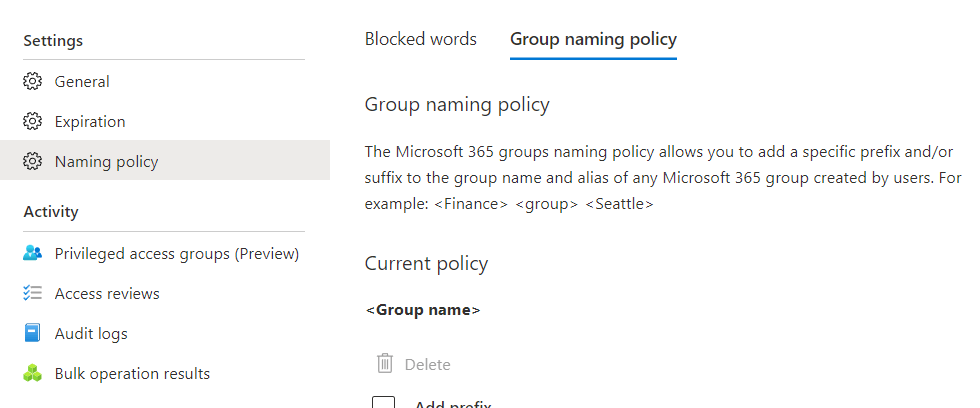
A prefix-suffix policy of “T_[GroupName]_[Department]” forces a user in Marketing who types “New Campaign” to create a team named “T_New Campaign_Marketing.”
You can also add blocked words lists.
Block sensitive terms like “CEO,” “Payroll,” and “Confidential” from team names. Users see a live preview and an error if they use a blocked word.
ROI: Naming conventions dramatically improve information discovery and prevent duplicate teams. Requires Entra ID P1 license.
Strategy 3: Deploy Team Templates for Consistency
Team templates let you create predefined team structures with channels, settings, and apps pre-configured.
When users create teams from a template, they inherit a governed, standardized structure instead of starting from scratch.
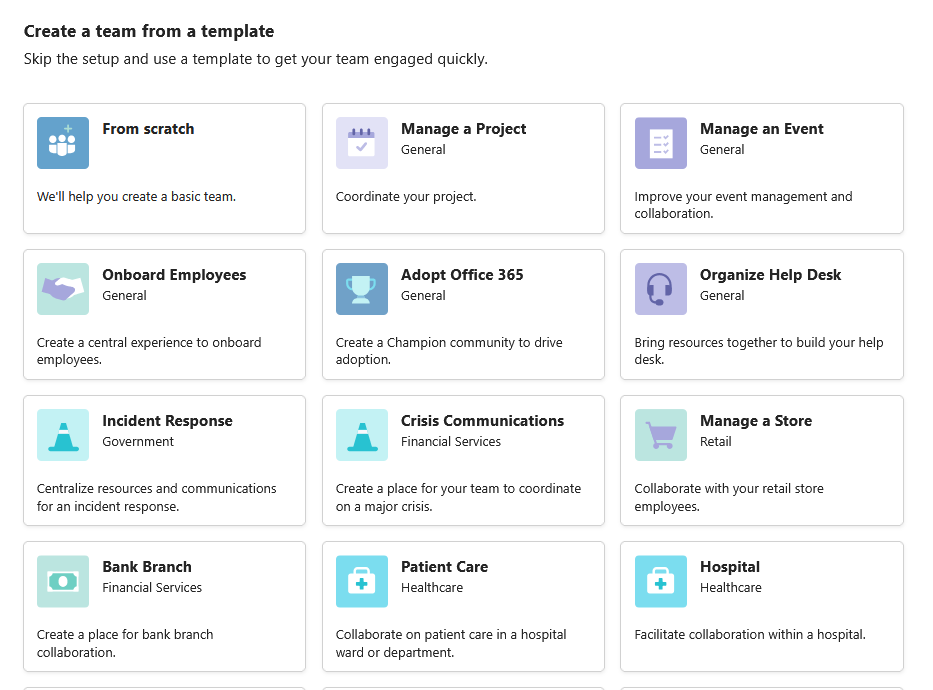
Use the native Teams Admin Center to create templates for common scenarios:
- Project Teams
- Department Teams
- Client Collaboration
Microsoft 365-connected templates are especially powerful.
They automatically apply corresponding SharePoint site templates to the backend, adding pre-built pages, lists, or Power Platform integrations.
Limitation: Native templates can’t include pre-defined files, folders, or Planner tasks.
For fully provisioned teams with complete folder structures and ready-made tasks, consider third-party tools like AvePoint, nBold, or Orchestry.
Impact: Templates reduce setup time, enforce governance from creation, and ensure consistency across teams with similar purposes.
Strategy 4: Enforce the Two-Owner Rule
Every team must have at least two owners.
This is non-negotiable. When a team’s sole owner leaves the organization or changes roles, the team becomes an ownerless group.
No one is accountable for its membership or content.
Stale permissions persist indefinitely, and sensitive data sits in a ghost ship invisible to users but fully accessible to anyone who still has access.
Important: Unfortunately, native Teams templates don’t support setting default owners automatically.
If you need this capability, third-party solutions like AvePoint, Orchestry, or Powell Software offer it out of the box.
With native Teams: Use PowerShell automation or Power Automate workflows to automatically assign a second owner right after team creation.
Alternatively, manually assign a second owner via the Teams Admin Center (Teams > Manage teams > Members tab).
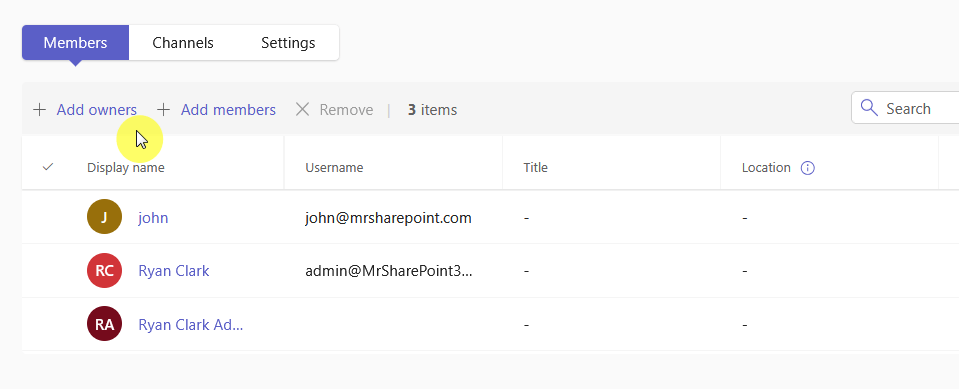
The best way to avoid orphaned teams is to always have at least two active owners, so even if one leaves for any reason, your team continues to function normally.
Strategy 5: Automate Team Lifecycle Management with Expiration Policies
This is the primary-automated defense against team sprawl. Microsoft 365 Group expiration policies automatically target and manage inactive teams.
Configure this in Microsoft Entra ID (not Teams Admin Center) by setting a group lifetime (for example, 180 or 365 days).
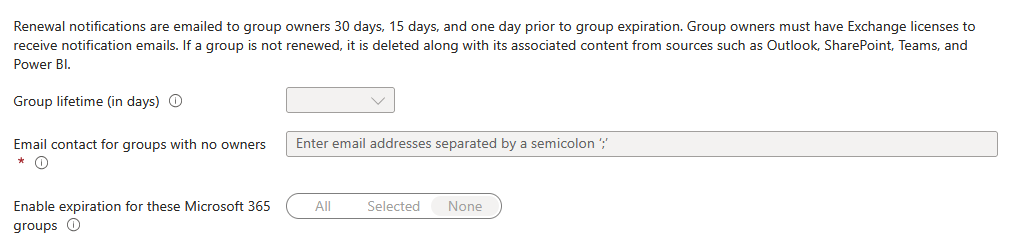
The system automatically renews a group if it detects any user activity like:
- Visiting a channel in Teams
- Viewing a file in SharePoint
- Similar interactions
The group renews silently without notifying the owner. But if a team remains inactive, the owner receives notifications at 30, 15, and 1 day before expiration.
They see a one-click “Renew” option directly in their Teams activity feed. If they don’t renew, the team expires.
Key benefit: Active teams are never deleted.
The policy only targets truly inactive teams, making it a “light-touch” approach that prevents sprawl without disrupting legitimate collaboration.
Licensing: Take note that this requires Microsoft Entra ID P1 per affected user.
Strategy 6: Define and Govern Guest Access from the Start
External guest access is powerful for collaboration but is also a primary vector for data leakage. It’s not a single switch, but it requires a four-level “ON” configuration:
- Entra ID B2B: Allow external invitations at the identity level
- M365 Groups: Allow group owners to add guests
- SharePoint: Allow external sharing at the organization and site level
- Teams Admin Center: Set “Allow guest access in Teams” to “On”
When a team owner adds a guest, a B2B guest account is created in your Entra ID.
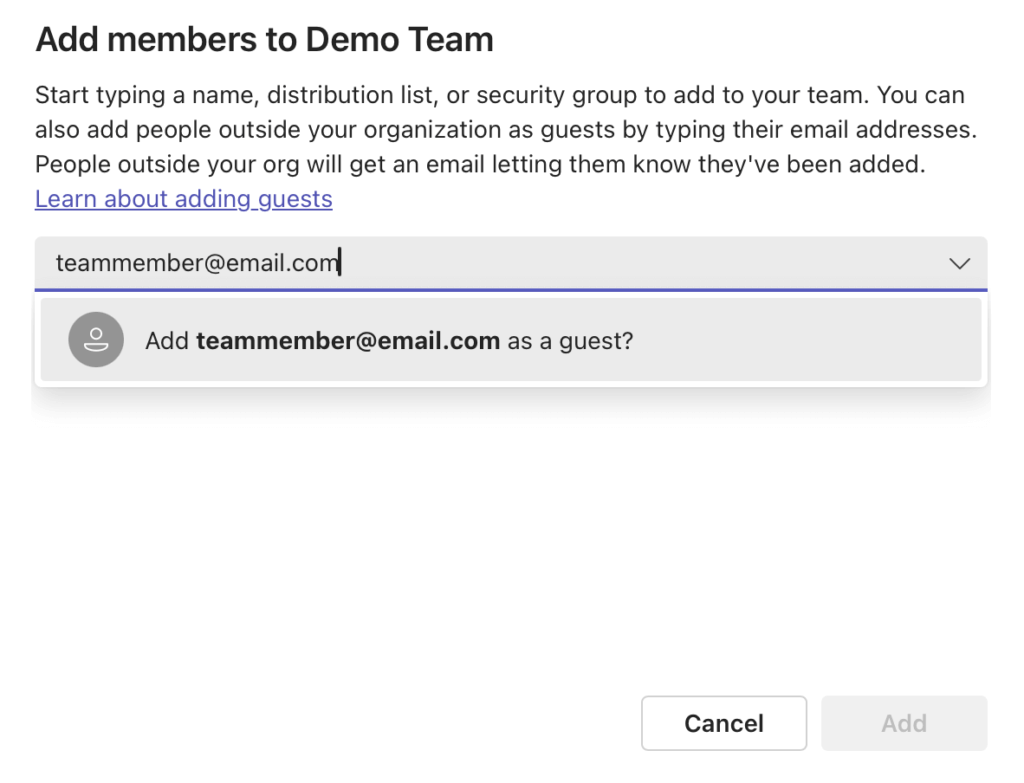
This is critical: the guest is now subject to the same security policies as internal users, including Multi-Factor Authentication (MFA) and Conditional Access.
Governance approach: Use sensitivity labels to lock guest settings per team.
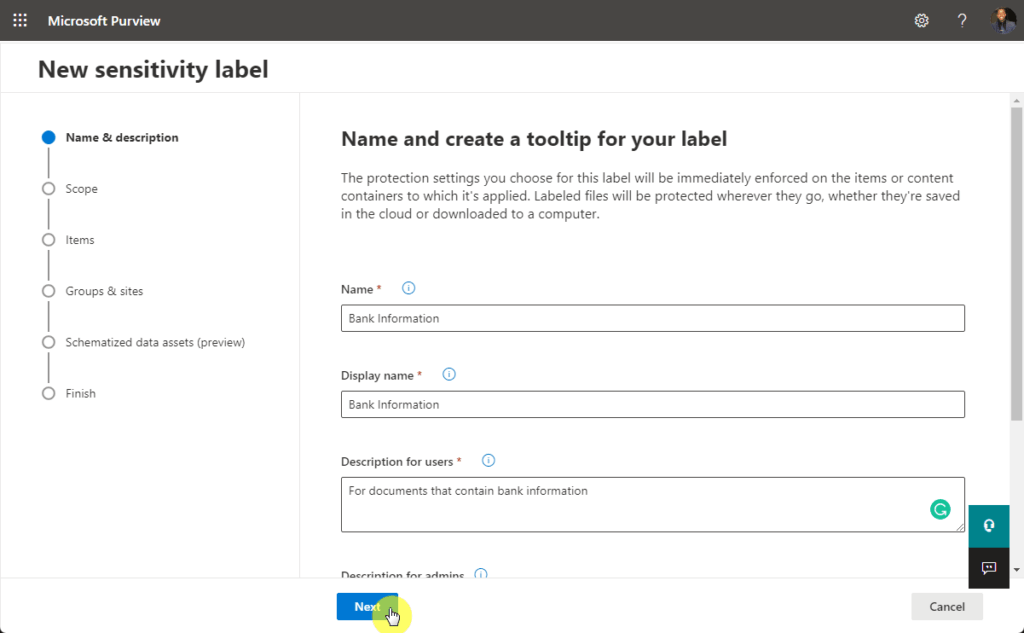
A “Highly Confidential” label can automatically block all guests. High-risk teams (financial, HR) can be locked to internal-only access.
Critical practice: Conduct regular access reviews for teams with external users.
This is the only scalable, enterprise-grade solution for managing guest permissions at scale, requiring team owners to regularly validate guests’ ongoing need for access.
Strategy 7: Manage Private Channels and Reduce Shadow IT
Private channels are powerful but dangerous from a governance perspective.

When a user creates a private channel within a team, it creates a separate SharePoint site that is invisible to parent team owners and admins (unless they’re members of the private channel).
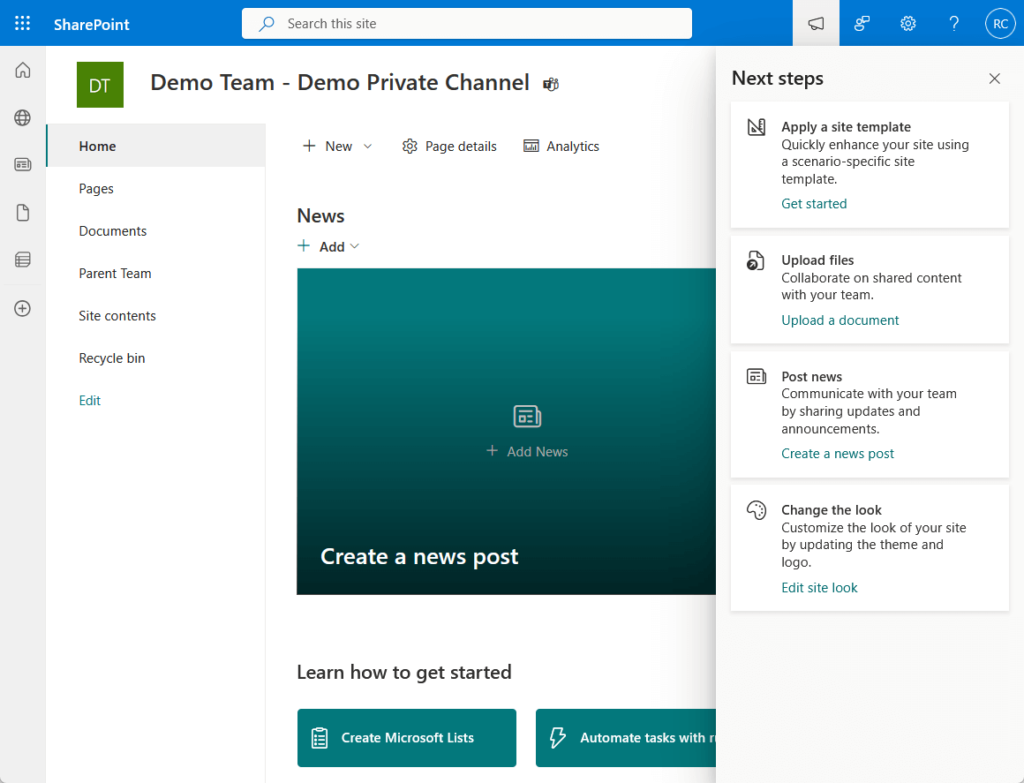
This creates shadow IT and content sprawl within Teams itself.
Governance approach: Set policies on who can create private channels. For external collaboration, use shared channels instead (they’re more secure).
Shared Channels use cross-tenant access policies rather than guest accounts, giving you finer-grained control.
Audit private channels and their membership regularly. Record the business justification for each. Limit private channel creation to specific roles or require approval.
Strategy 8: Apply Sensitivity Labels for Container-Level Protection
This is arguably the single most powerful native governance tool in Microsoft 365. Sensitivity labels extend beyond individual documents to apply to entire Teams containers.
A single label can automatically enforce four policies simultaneously:
- Team privacy (Public or Private)
- Guest access (Allow or block)
- External sharing level (Organization-only, New and existing guests, etc.)
- Conditional access to block unmanaged devices
Users see a ‘Sensitivity’ dropdown when creating teams (when labels are published to them). Whether label selection is mandatory depends on your organization’s label policy configuration.
If they select “Highly Confidential,” the system automatically applies all associated policies:
- The team becomes Private
- Guests are blocked
- External sharing is disabled
ROI: Governance is applied automatically at the moment of team creation, eliminating the need for manual policy application.
Strategy 9: Implement Data Loss Prevention (DLP) for Messages and Files
DLP policies prevent the inappropriate sharing of sensitive information like credit card numbers, health data, or financial information.
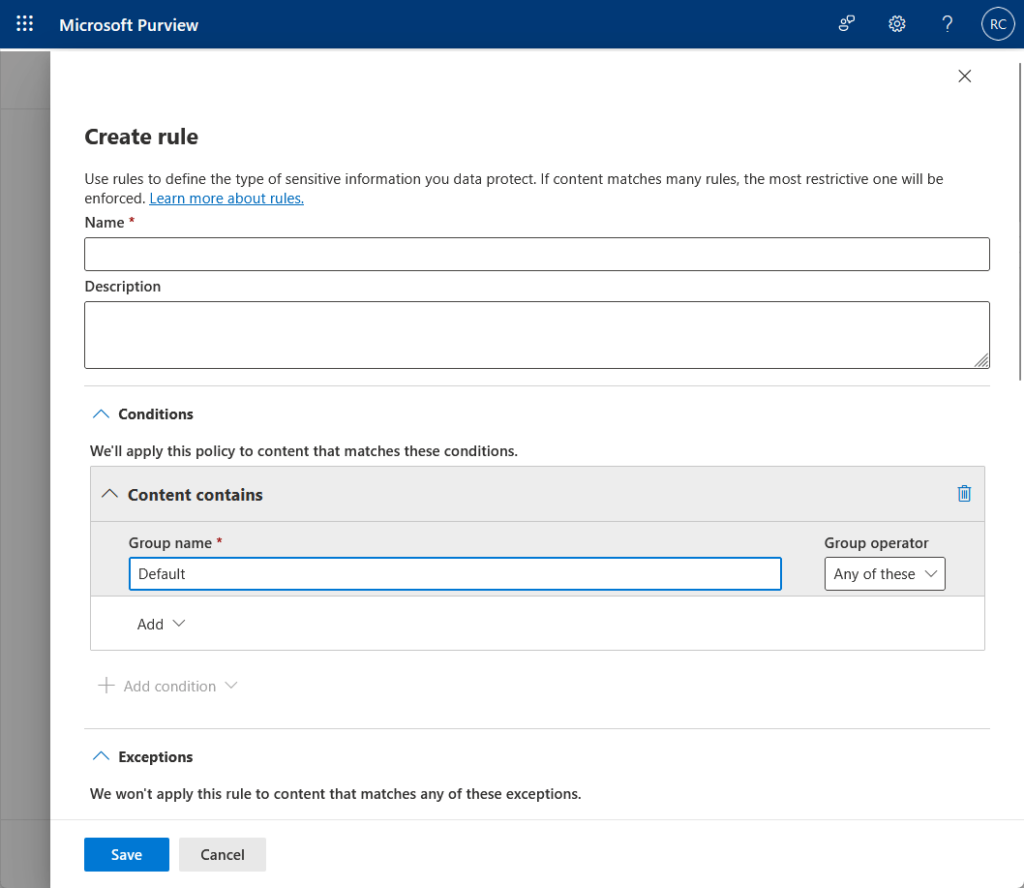
DLP works at two levels in Teams:
- Messages: Policy scoped to “Teams chat and channel messages” inspects content in real-time. If a user attempts to send a message containing a credit card number, the policy blocks the message before sending and displays a policy tip.
- Files: When users share files in Teams, they’re sharing links to SharePoint content. SharePoint DLP policies detect sensitive files, block unauthorized access, and notify users.
Licensing: DLP protection for Exchange, SharePoint, OneDrive, and Teams file sharing is included in Microsoft 365 E3/A3/G3.
Real-time DLP for Teams chat and channel messages requires Microsoft 365 E5/A5/G5 or standalone compliance add-ons (E5 Compliance, E5 Information Protection and Governance).
Endpoint DLP also requires E5 or equivalent.
Impact: Essential for regulatory compliance (HIPAA, PCI-DSS, GDPR) and preventing accidental or intentional data exfiltration.
Strategy 10: Conduct Regular Access Reviews for Membership and Guest Access
Permission creep is invisible and inevitable.
Over time, users accumulate access to teams and data they no longer need. Before deploying AI tools like Copilot, you must remove these excess permissions.
Use Microsoft Entra Access Reviews to automate this process.

Set up recurring reviews (quarterly or annually) for all groups, especially those containing guests or sensitive data.
Choose a review model:
- Group owners justify each member’s continued access
- Team members self-attest to their need for access
- Specific reviewers (admin or manager) conduct the review
Reviewers get a simple “Approve” or “Deny” interface in the My Access portal. Entra ID can provide AI-driven recommendations like “This user hasn’t signed in for 90 days.”
Licensing: Requires Microsoft Entra ID P2 (included in Microsoft 365 E5) or Microsoft Entra ID Governance.
Advanced AI-driven recommendations for inactive users and user-to-group affiliation require Microsoft Entra ID Governance.
Impact: Eliminates stale permissions and is the only scalable solution for managing guest access at enterprise scale.
Bonus Strategy: Choose Your Implementation Model
Now that you understand the strategies, the critical decision is whether to build your governance framework with native Microsoft tools or invest in a third-party solution.
The Native Microsoft Tools Approach
Implementing these strategies with native Microsoft tools is powerful but complex. Controls are fragmented across four admin centers:
- Teams Admin Center
- Microsoft Entra ID
- Microsoft Purview
- SharePoint Admin Center
The most powerful features require premium licenses: Entra ID P1/P2 and Microsoft 365 E5.
| Category | Detail |
| Pros | Full integration with your Microsoft 365 ecosystem, deep compliance features, complete control. |
| Cons | Significant complexity, steep learning curve, high licensing costs. |
| Best for | Organizations with mature IT operations and budget for premium licensing. |
The Third-Party Governance Solution Approach
Third-party tools like AvePoint Cloud Governance, ShareGate, and Orchestry solve these gaps.
They provide unified dashboards, simplified user experiences, and out-of-the-box provisioning workflows with approval routing.
They automate sprawl detection and cleanup, which are capabilities that require complex custom Power Automate flows in the native approach.
Key differences:
- AvePoint: Best for large enterprises needing automated policy enforcement at scale and auditable catalogs
- ShareGate: Best for visibility, reporting, and reactive “find and fix” approaches
- Orchestry: Best for proactive sprawl prevention and user-friendly experience
| Category | Detail |
| Pros | Faster implementation, easier user adoption, unified interface, minimal technical expertise required. |
| Cons | Additional software cost, vendor dependency. |
| Best for | Organizations prioritizing rapid deployment and ease of use over cost. |
Governance Is No Longer Optional
Microsoft Teams governance has evolved from a reactive IT cleanup task into a strategic business function.
Address your organization’s worst issues first. Implement one strategy this quarter, assess its impact on sprawl and security, and then expand.
Do you have questions about Microsoft Teams governance strategies? Let me know below.
For any business-related queries or concerns, contact me through the contact form. I always reply. 🙂




























