
Last Updated on September 22, 2025
Need to track changes in your SharePoint files?
In this guide, you will learn how SharePoint’s built-in version history feature can protect your work.
We’ll cover what it is, how to turn it on, and the best ways to use its settings to prevent lost work and improve teamwork.
Let’s get started.
Table of Contents:
SharePoint version history is a built-in feature that automatically saves copies of your files each time they are modified.
It acts as a time machine for your documents that creates a complete historical record of every change.
This tool is useful for a few key reasons:
- Easy recovery: Restore old versions if there’s a mistake
- Clear audit trail: Track who changed what, and when
- Better teamwork: End confusion over the latest file version
This functionality isn’t limited to just Microsoft Office documents but works for PDFs, images, and other file types as well.
This record provides a safety net that protects your team’s work from accidental deletions or unwanted changes.
It helps ensure that you can always access a previous state of a document, so collaboration is safer and more transparent.
Sign up for exclusive updates, tips, and strategies
How to Turn On Versioning
In SharePoint Online, versioning is typically enabled by default for new document libraries.
However, it’s still useful to know where these settings are located so you can adjust them.
First off, navigate to the document library where you want to manage versioning.
Click the Settings gear icon (⚙️) in the top-right corner of the page.
From the menu, select Library settings.

If you see a simplified panel, click More library settings to get to the full options page.
Under the “General Settings” section, click on Versioning settings.
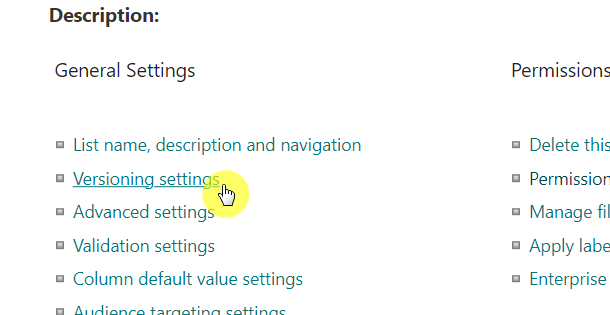
On this page, you can confirm versioning is on and adjust how many versions are kept.
Understanding Your Versioning Options
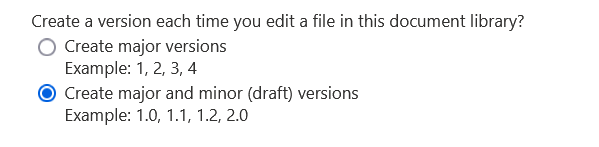
When you open the versioning settings, you will see a few choices that control how your document history is saved.
Simple vs. Detailed Tracking (Major vs. Minor Versions)
You can choose between two different models for tracking versions, depending on how much detail you need.
| Versioning Type | Best For | Numbering Looks Like |
| Major Versions | Most teams, general collaboration, and everyday working files. | 1, 2, 3 |
| Major and Minor Versions | Official documents, legal contracts, or policies that need a formal review and approval process. | 1.1, 1.2, 2.0 |
Major versions is the simplest approach – every time a file is saved, it creates a new whole number version.
This is perfect for teams that need a straightforward history of a file’s progress.
Major and minor versions allows you to save drafts (minor versions like 1.1, 1.2) before publishing an official copy (a major version like 2.0).
This is ideal for controlled documents where you want to distinguish between in-progress work and a final, approved version.
Setting Version Limits to Save Space
SharePoint doesn’t keep old versions forever.
Each library is set to retain a specific number of recent versions, with 500 being a common default in SharePoint Online.

This limit is important because every version saved takes up storage space.
Controlling the number of versions prevents your files from consuming too much storage over time.
SharePoint Online’s “Automatic” setting intelligently thins older versions, detailing recent history while saving long-term storage space.
Advanced Ways to Manage Document Changes
Beyond basic versioning, SharePoint offers a couple of related features that give you even more control over how documents are edited and published.
These settings are found on the same versioning settings page and can help prevent editing conflicts and formalize your review process.
Using “Check Out” to Prevent Editing Conflicts
Enabling the Require Check Out setting adds a layer of control to the editing process.
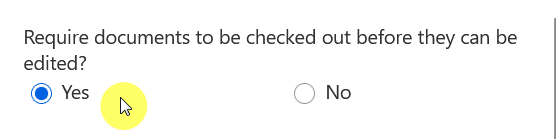
When this is turned on, a user must formally “check out” a file before they can make changes.
- It “locks” the file, so no one else can edit it at the same time.
- It prevents multiple people from accidentally overwriting each other’s work.
- A new version is created only when the user “checks in” the file, giving the author a chance to add comments about their changes.
Requiring Approval for Official Documents
The content approval setting is perfect for libraries that store final, official documents.
When enabled, new documents and any changes to existing ones must be formally approved before they become visible to everyone.
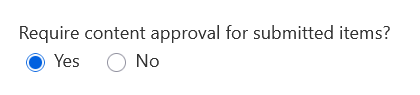
This feature works hand-in-hand with major and minor versioning.
The minor versions act as the pending drafts, and only an approved version becomes a new major version that the general audience can see.
Protect Your Work with Confidence
SharePoint version History is a powerful yet simple tool that protects your team from common mistakes like lost work and accidental overwrites.
It’s easy to set up and flexible, and it offers peace of mind with a complete, recoverable history of important documents.
Do you have questions about how to enable version history in SharePoint? Let me know below.
For any business-related queries or concerns, contact me through the contact form. I always reply. 🙂