

Table of Contents:
Most SharePoint teams I work with end up with 40 flows in the tenant, no two built alike, and the person who set up half of them just left.
There are only seven workflow patterns you’ll ever need. Every Power Automate flow is some combination of these:
- Sequential Approval Chain
- Parallel Branching (Fan-Out / Fan-In)
- Conditional / Value-Based Routing
- Escalation / Timeout
- Error Handling (Try-Catch-Finally)
- Child Flow / Modular Reuse
- Scheduled Automation
Once your team shares this vocabulary, design conversations get faster and governance gets easier.
Organizations using Power Automate systematically see 248% ROI over three years, according to Forrester. Systematic architecture is what drives that kind of return.
Why Pattern-Based Design Matters
There’s a difference between ad-hoc automation and architecture-grade workflow design.
| Approach | Process |
|---|---|
| Ad-hoc | Open Power Automate, click a template, call it done |
| Architecture-grade | Map the process first, pick the pattern second, build the flow last |
I keep seeing teams skip straight to the build step, opening the designer before they’ve mapped a single decision point.
Automating a flow before mapping the process results in running a broken workflow faster. Pattern-based design forces the correct order: map the process, pick the pattern, and build the flow.
This matters more now than it used to. SharePoint Designer workflows retired on April 2, 2026, so every classic workflow needs a rebuild in Power Automate.
If you’re rebuilding anyway, rebuild on patterns.
Sign up for exclusive updates, tips, and strategies
Quick Reference
| Pattern | Best For | Trigger Type | Complexity |
|---|---|---|---|
| Sequential Approval Chain | Contracts, policies, purchase orders | Item event | Low |
| Parallel Branching | Vacation requests, cross-dept sign-offs | Item event | Medium |
| Conditional Routing | Expense reports, tiered authority | Item event | Medium |
| Escalation / Timeout | Invoice processing, SLA approvals | Embedded sub-pattern | Medium |
| Error Handling (Try-Catch-Finally) | All production workflows | Structural | High |
| Child Flow / Modular Reuse | Onboarding, shared logic across flows | Manual / parent call | High |
| Scheduled Automation | Compliance reports, archiving, reminders | Recurrence | Low |
Power Automate flows should be built systematically using these seven foundational patterns. They simplify complex logic and ensure maintainable workflow architecture.
1. Sequential Approval Chain
A sequential approval chain assigns tasks one after another, linear and predictable. Each approver acts, the flow records the decision, then the next approver gets pinged.
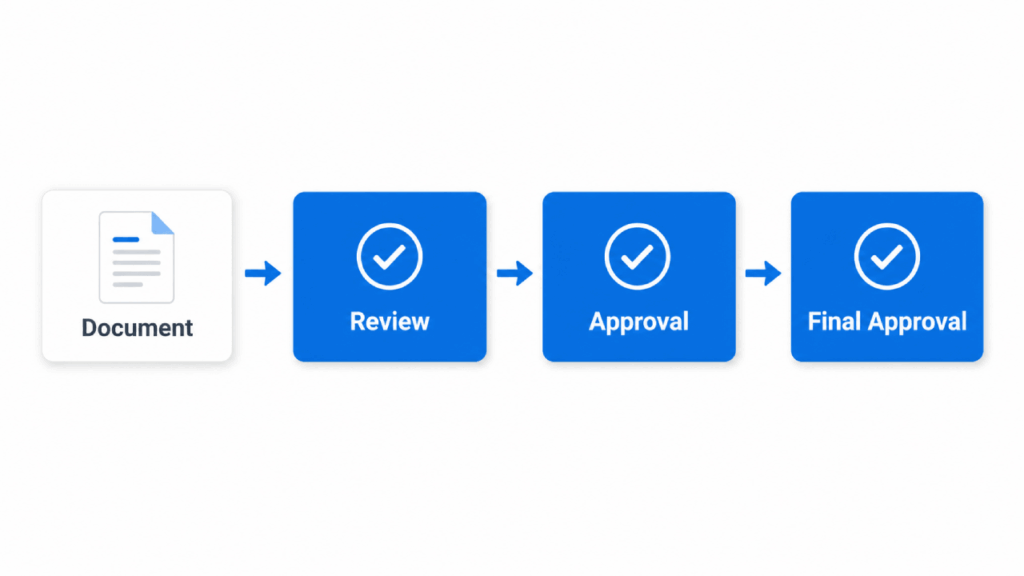
You’ll reach for this pattern when order matters:
- A legal contract that needs the team lead’s sign-off before legal sees it
- A policy document that needs the author’s manager to bless it before compliance reviews it
- A purchase order that climbs the authority ladder one rung at a time
Implementation is straightforward:
- Use Start and wait for an approval actions in sequence
- Pass previous approver’s comments forward through dynamic content
- Update the SharePoint list item after each step for an audit trail outside the 28-day run history window
Here’s the gotcha:
Sequential approvals have no built-in escalation. If your VP goes on vacation and forgets to set a delegate, your contract sits in limbo for two weeks.
Always pair this pattern with a timeout branch (see pattern 4), or accept that some percentage of your flows will stall indefinitely.
2. Parallel Branching (Fan-Out / Fan-In)
Parallel branching sends the same request to multiple approvers at once. Everyone responds independently, and the flow only moves forward once all branches have resolved.
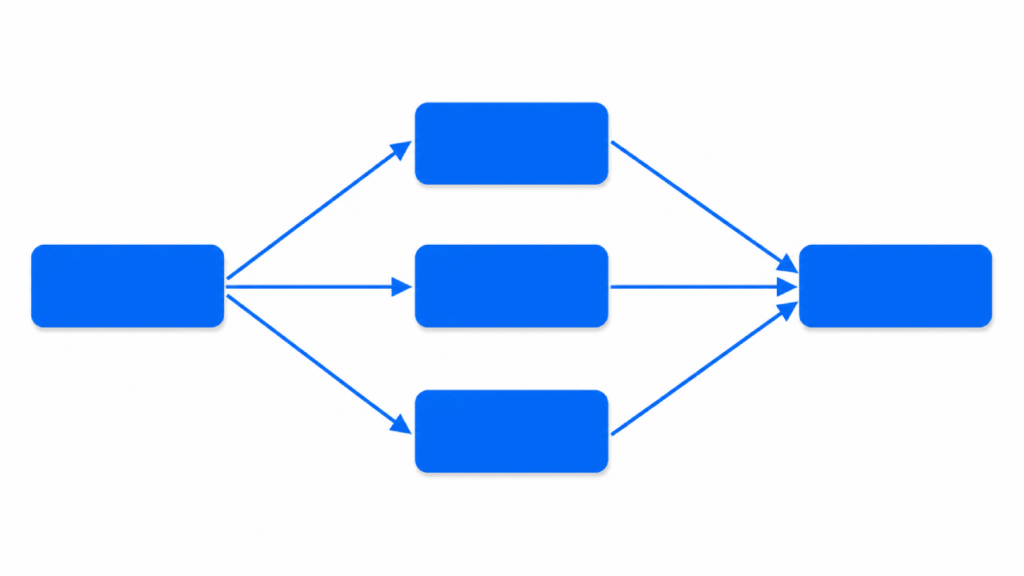
A vacation request is the go-to example. Three approvers need to weigh in:
- Manager approves the time off
- HR confirms the balance
- Sales team lead confirms coverage
None need to wait on each other. Microsoft uses this exact example in their parallel approval documentation.
In the designer, use Add a parallel branch off your trigger. Each branch gets its own approval action and Condition.
After all branches converge, a final Condition or Compose action collects the results. I’ve configured this dozens of times for cross-departmental sign-offs.
The trap: if any single branch stalls, the entire flow waits. A parallel approval is only as fast as your slowest approver.
Combine this with the escalation pattern below, or you’ll get the same stalling problem as sequential.
3. Conditional / Value-Based Routing
Conditional routing changes the approval path based on what’s in the request. Small expense reports go to a manager, large ones to a VP, capital expenditures to the CFO.
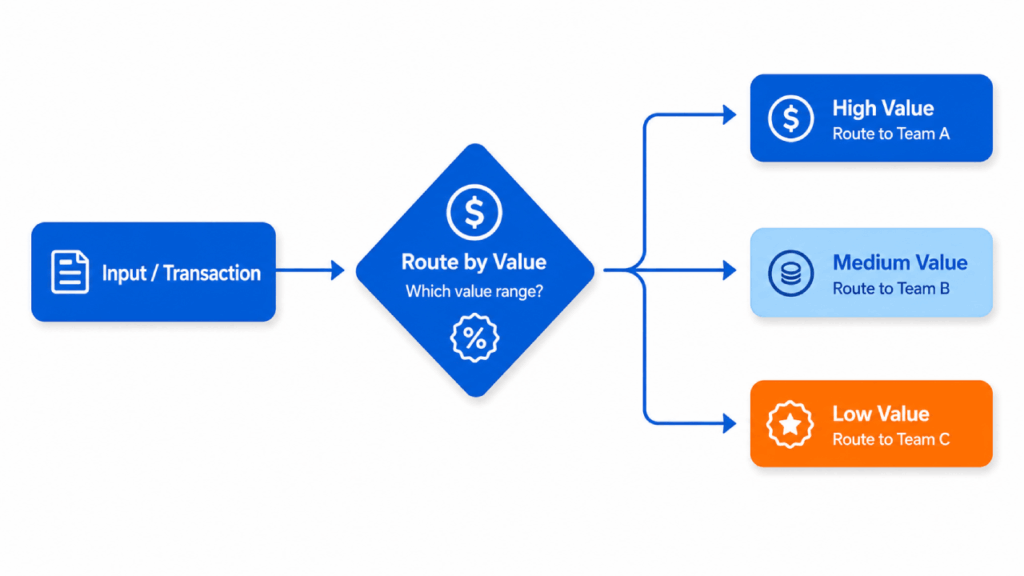
The flow decides based on the data. Best fits include:
- Expense reports
- Purchase orders
- Tiered authority limits
- Anything where the dollar amount or category determines who reviews it
This is also where most organizations realize their authority matrix isn’t actually written down anywhere. The flow forces the conversation.
Implementation uses the Condition action checking a field value, like Amount > 5000. You can stack this with sequential or parallel patterns for hybrid setups.
Low-value items get a single manager approval. High-value items trigger a parallel chain across finance, legal, and the department head.
Real talk: I’ve seen flows with 12 nested condition branches. Nobody can maintain them, including the person who built them.
My rule is three branches max. Beyond that, switch to the Switch action, purpose-built for multi-path routing.
4. Escalation / Timeout Pattern
Escalation isn’t really a standalone pattern. It’s a modifier you embed inside sequential or parallel approvals to handle the case where an approver doesn’t respond in time.
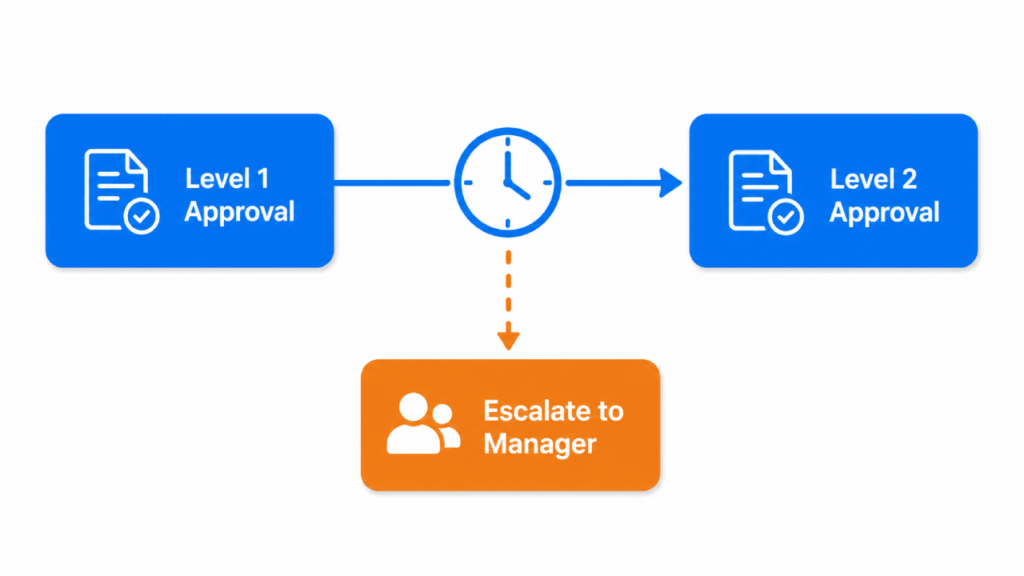
If your invoice processing has a 48-hour SLA, you can’t have a flow that waits forever.
The pattern works in three steps:
- Set a timeout on Wait for approval using ISO 8601 format (PT48H = 48 hours)
- After the timeout, a Condition checks whether the approval came through
- If not, route to a secondary approver or escalate to a designated backup
Use this anywhere you have a compliance SLA, or where stalled approvals create real business risk.
In my experience, this is the single most under-used pattern in Power Automate. Adding it to existing flows is one of the best moves a SharePoint admin can make.
5. Error Handling (Try-Catch-Finally)
Error handling is a structural requirement. Every production workflow needs it.
I’ll repeat that, because most teams don’t act like it’s true: every production workflow needs it.
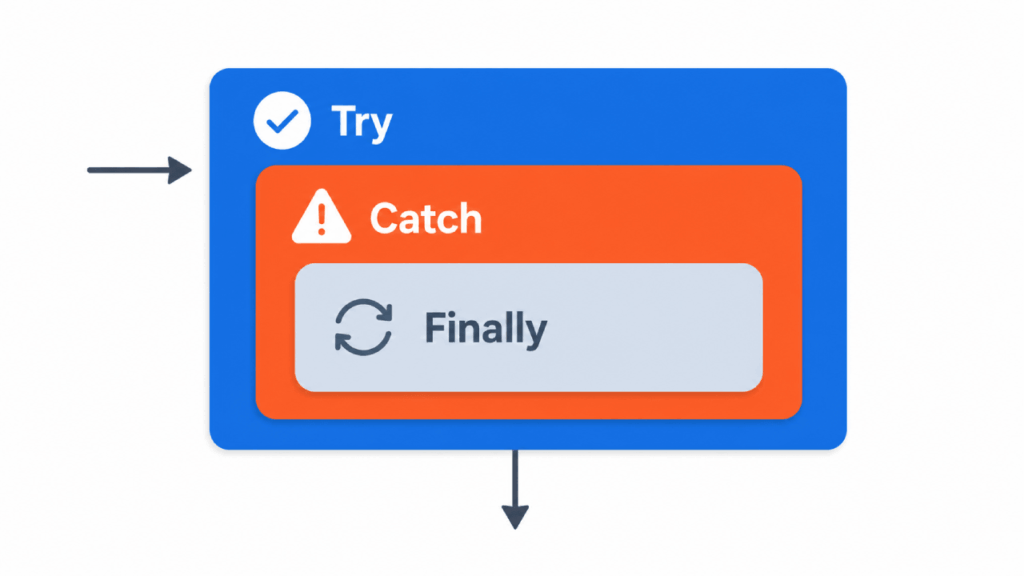
The pattern uses three Scope actions:
- Try: your main workflow logic
- Catch: runs “if failed” or “if timed out” using Configure run after; logs the failure to a SharePoint list, alerts the flow owner, and ends with a Terminate action
- Finally: cleanup
End with a Terminate action in the Catch scope to set the flow status correctly. Here’s why, per Matthew Devaney:
“A flow using error-handling will continue to run after it encounters an error and end with a status of succeeded even though there was a failure.”
Without Terminate, your flow run history lies to you. Everything reports green while actions are quietly failing.
The 28-day run history window makes this worse. If you’re not logging failures to a SharePoint list at the moment they happen, your audit trail vanishes after a month.
For any flow tied to compliance, explicit logging isn’t a nice-to-have. It’s the only way you’ll have evidence when someone asks what happened.
6. Child Flow / Modular Reuse
Child flows take recurring logic (notification emails, audit logging, status updates) and pull it into reusable sub-flows that parent flows call when needed.
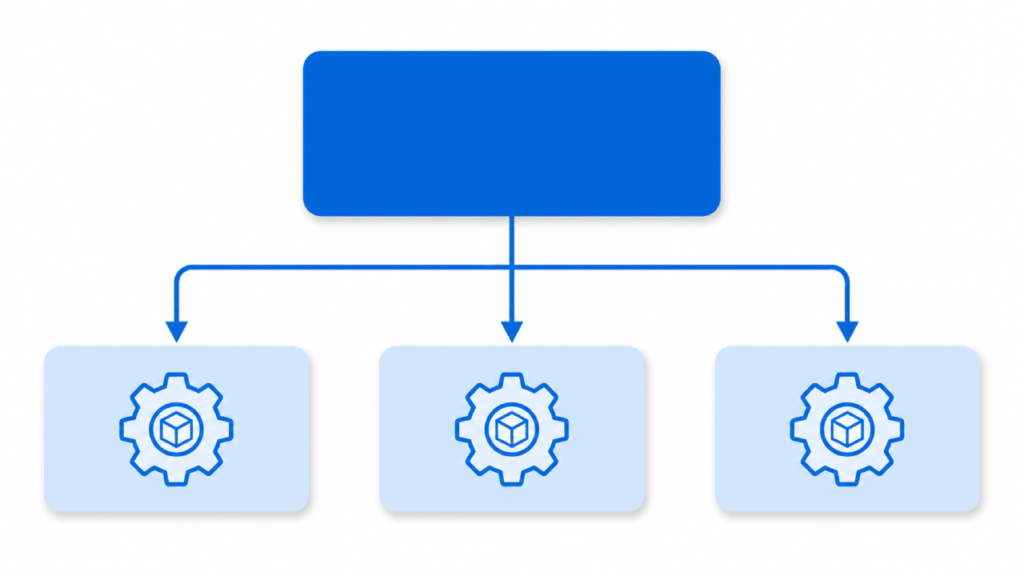
Employee onboarding is the textbook case. A parent flow kicks off when a new hire record hits SharePoint, then calls three child flows:
- IT provisioning
- HR welcome emails
- Training assignment
Each child does one job well. Update the welcome email template once, every onboarding flow gets the change.
The catch: child flows require a Premium license. On standard licensing, the workaround is environment variables plus SharePoint config lists.
Store shared values like email templates and approver groups in a list, then read them into each flow. Not as clean as true modular reuse, but close.
What I tell clients: child flows trade indirection for reusability. Document which parent flows depend on each child, or you’ll spend days mapping the dependency graph later.
7. Scheduled Automation
Scheduled flows run on a clock, not on a user action or item event. The Recurrence trigger fires on a set cadence, running against whatever data exists at that moment.
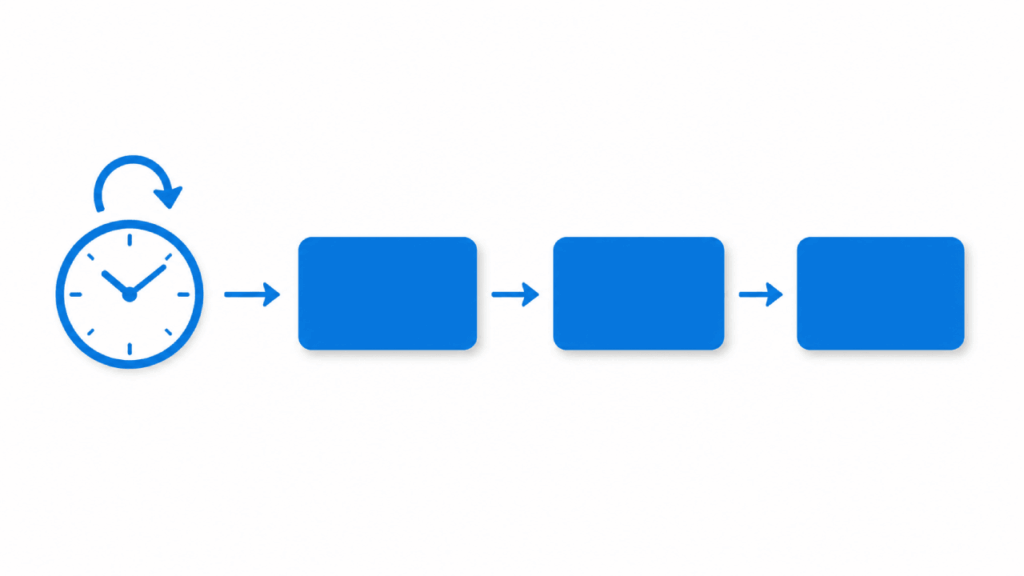
Use it for anything that needs to happen on a schedule rather than in response to a change:
- Weekly compliance reports
- Monthly archiving
- Daily data hygiene runs
- Deadline reminders that ping owners when items are about to lapse
Two implementation rules:
- Pair every scheduled flow with Get items + Filter Query to avoid the 5,000-item list view threshold
- Assign ownership to a shared service account or distribution group, never to an individual
Orphaned scheduled flows owned by departed employees are one of the most common governance failures I see when I audit a tenant.
Design Before You Build
If there’s one habit I’d push every SharePoint team to adopt, it’s this: map the full process before you open Power Automate.
Every decision point, every exception path, every escalation procedure. Work it out on paper or in a whiteboard tool, not in the designer.
A few principles I enforce on every engagement:
- No hardcoded values. Email addresses, site URLs, threshold amounts, approver names: all of it goes in environment variables or a SharePoint config list. The day someone changes roles, you update one row, not 30 flows.
- Naming conventions for flows, variables, and actions. “Copy of Copy of Approval Flow” tells you nothing.
Finance-PO-Approval-Parallel-v2tells you everything. - One owner per flow, documented. Plus a backup owner. Always.
Once the process is mapped, the pattern picks itself. You’ll see the parallel branches and where escalation belongs.
You’ll spot the shared logic that should be a child flow. The build phase becomes mechanical instead of exploratory.
Forrester data shows organizations using Power Platform see a 25% reduction in process time. Systematic design is what drives that kind of return.
Good Patterns Outlast the People Who Built Them
These seven patterns are the difference between a flow that breaks when an approver goes on vacation and one that runs for years without anyone touching it.
Before you ship, keep two more constraints in mind:
- Power Automate flows have a 30-day maximum run duration. Long-running processes need re-entrant design.
- Governance matters as much as any individual flow. Document ownership, naming conventions, error logging, and where your config lives.
Get those right and your tenant stays maintainable as it scales. Pattern-based design is what makes Power Automate a durable investment.
Stuck rebuilding classic workflows before the April 2026 retirement, or watching your Power Automate footprint sprawl out of control?
I help SharePoint teams design workflow architectures that scale without breaking. Reach out and let’s talk.




























