
Table of Contents:
- 1. Real-Time Collaboration
- 2. Centralized Document Management
- 3. Project and Task Management
- 4. Automated Workflows
- 5. Team Intranet and Knowledge Base
- 6. Leave and Vacation Tracking
- 7. Helpdesk and Issue Tracking
- 8. Event and Calendar Management
- 9. Dashboards and Reporting
- 10. Integration with Teams and OneDrive
Last Updated on July 6, 2025
Curious about getting more done with SharePoint?
In this guide, I will tell you about the different use cases for SharePoint that can help boost remote teams.
Let’s get started.
1. Real-Time Collaboration
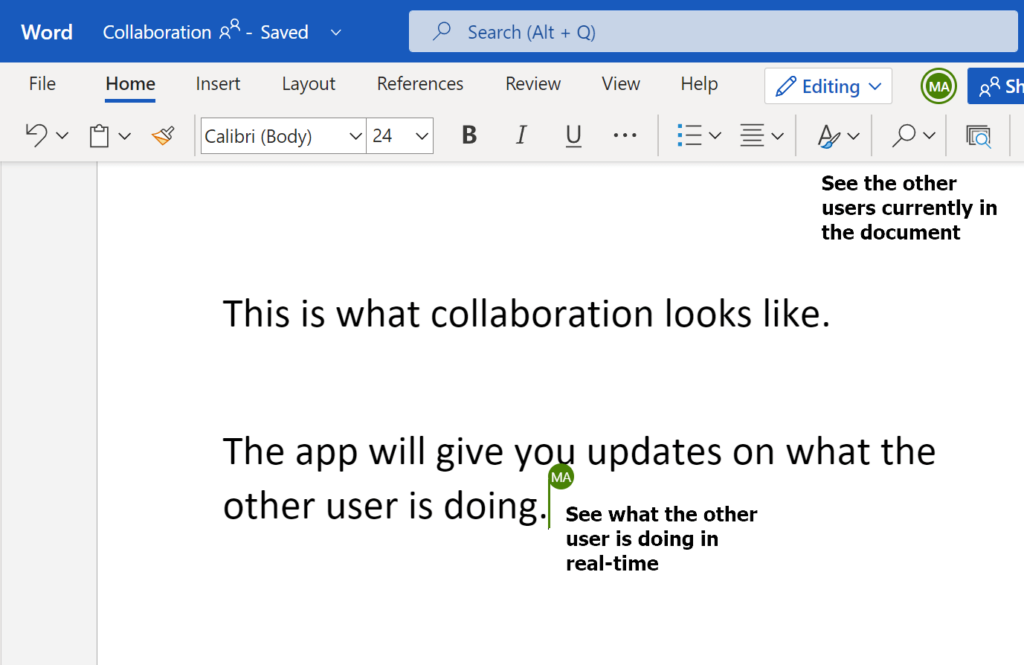
With co-authoring, your whole team can work together on Word, Excel, or PowerPoint files at the same time.
You see updates instantly, and everyone edits one document, so no more version confusion or duplicate files.
SharePoint and OneDrive can:
- Track every change
- Keep a version history
- Let you roll back if you need to
If someone edits the same section as you, SharePoint will show a quick notice so you can resolve it.
It works best in the Office web apps, but you can also use the desktop apps.
Just make sure everyone has edit access in the document library if you want them to coauthor. 🙂
This is perfect for working on reports, proposals, or any project as a team.
Sign up for exclusive updates, tips, and strategies
2. Centralized Document Management
Next, SharePoint gives you a single, secure place to store every type of file:
- Word docs
- Excel sheets
- PDFs
- Images
- And more
Document libraries are organized and easy to search, and you can use metadata to tag files for better tracking.
You get built-in version control, so every change is tracked, and you can always roll back to an older version if needed.
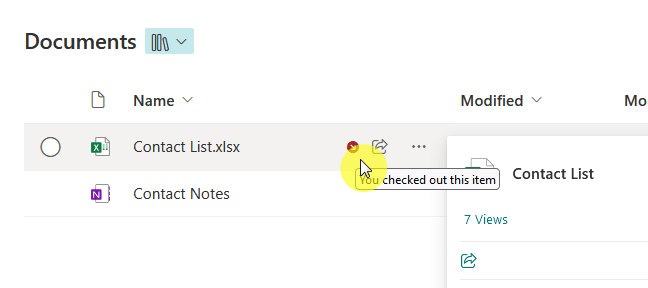
Need to lock a file while you edit it? Use check-in and check-out to avoid conflicts.
You can set detailed permissions, from full libraries down to individual files, so only the right people get access.
Information Rights Management adds extra security for sensitive content.
Plus, you can automate approval workflows to make sure nothing gets published or shared without the green light.
You always know where the latest version is and can organize your files your way.
3. Project and Task Management
SharePoint isn’t just a place to store your files.
You can:
- Spin up a project site in seconds
- Add a task list
- Start assigning work to your team
Add your tasks, set deadlines, and watch your progress with a timeline or simple progress bars.
You want more? Drop in a Microsoft Planner board right inside your SharePoint site.
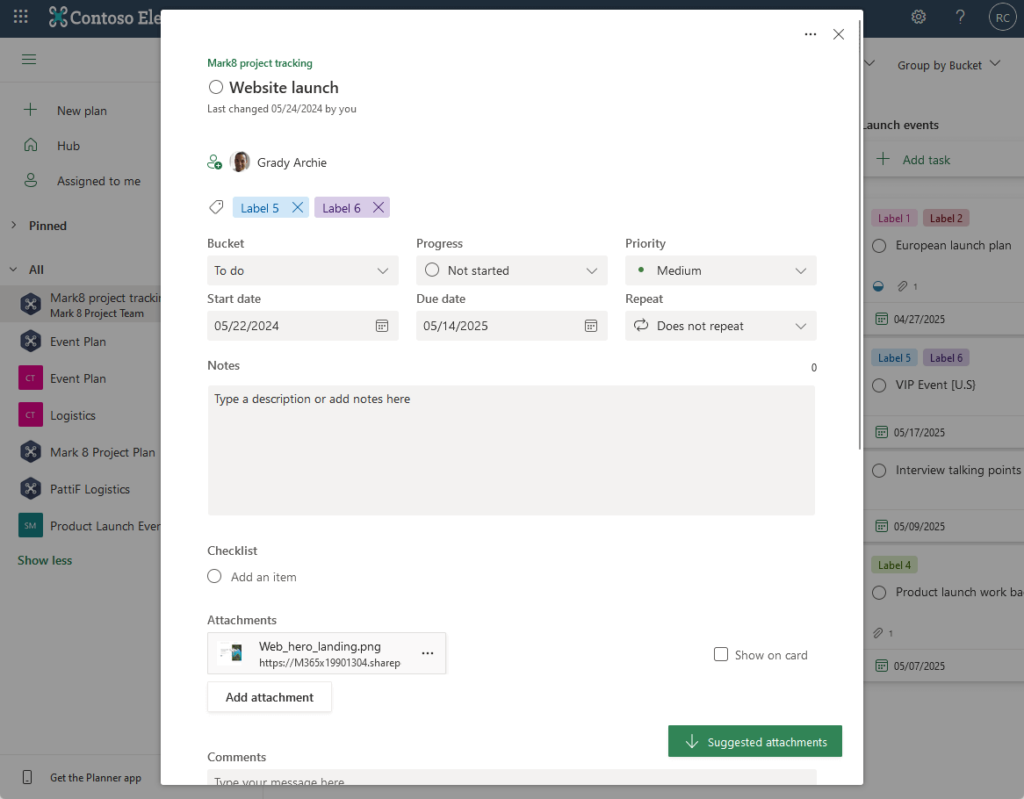
This gives you a full Kanban experience: move tasks, assign people, and check out your charts, all without leaving the site.
This is perfect for remote teams who want everything in one spot.
It also connects with Teams. 🙂
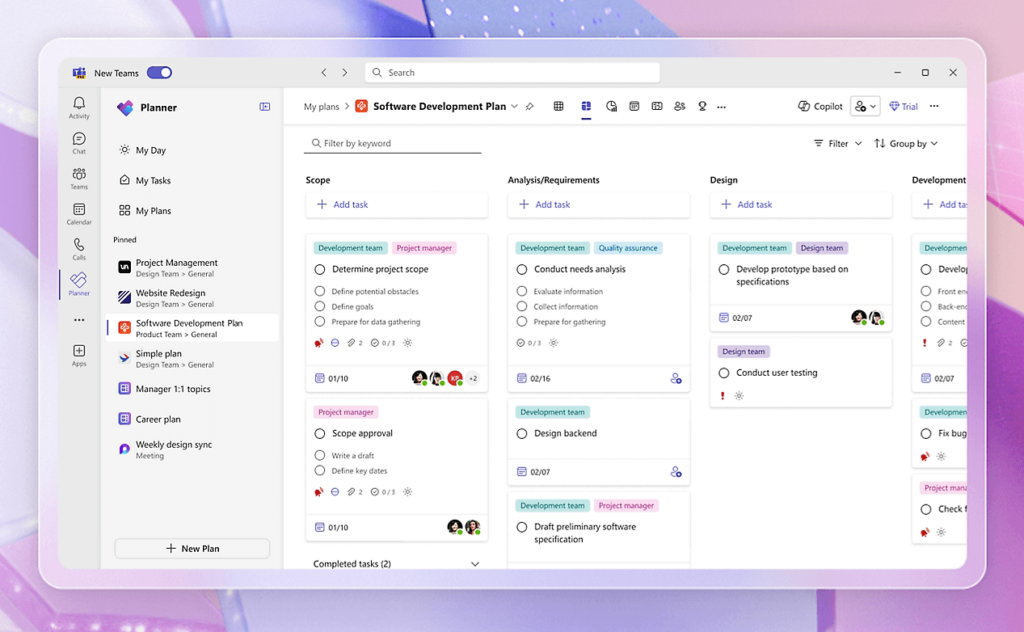
So if you update tasks in Planner, you will see those changes in SharePoint, and vice versa.
Just keep in mind: Planner embedding only works in Team Sites, not Communication Sites.
If your project gets bigger, you can connect your SharePoint lists to Microsoft Project.
That way, you get full scheduling and resource management when you need it.
From simple to advanced, SharePoint has all the tools to help your remote team stay on top of every project.
4. Automated Workflows
Honestly, this is one of the coolest things about SharePoint.
Here’s the deal:
If you keep repeating emails or waiting for someone to approve a document, you’re doing it the hard way.
With Power Automate, you set it and forget it.
Let’s say someone uploads a file. Boom, you can fire off an approval request instantly.
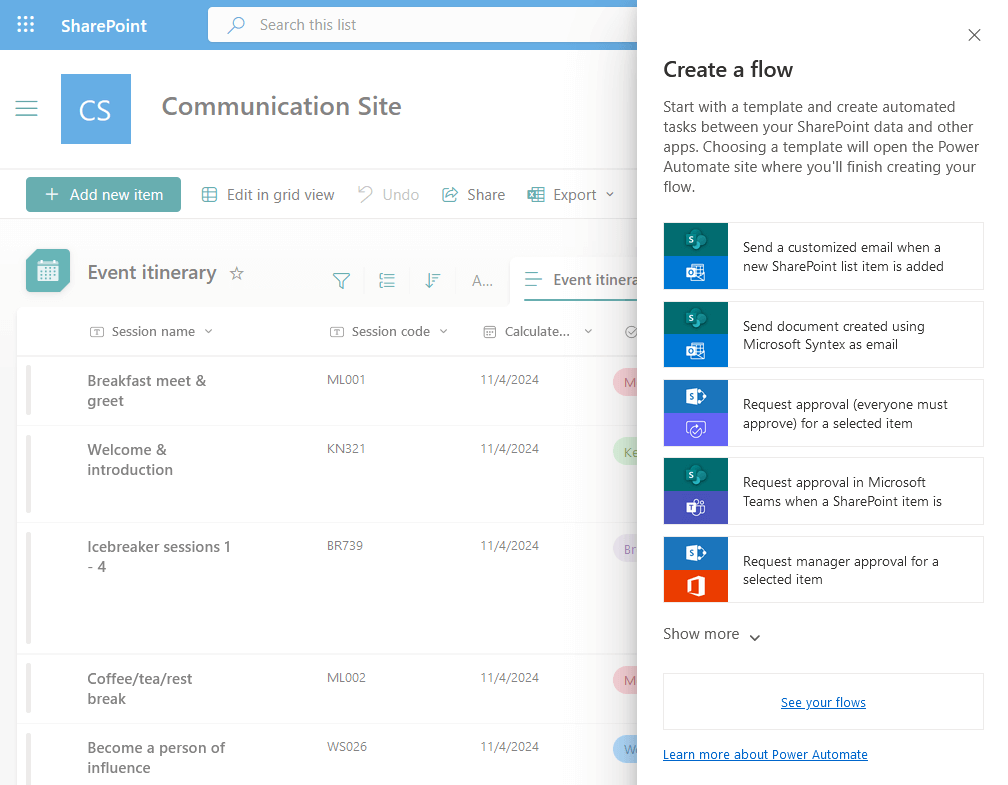
Need to bring a new team member onboard?
Power Automate can shoot out a welcome email, ping the manager for approval, and even set up accounts.
You want deadline reminders, birthday shout-outs, or status updates? That’s all automatic too.
Just grab one of Microsoft’s templates or build your own, just takes just a few clicks.

Want to include someone outside your company? Easy, Power Automate will send them an approval email, no problem.
And if you need something more advanced, like multi-stage approvals or branching logic, Power Automate can handle that as well.
Most flows will run for about 30 days, so for anything bigger, just check your settings.
The best part?
You set it up once, and SharePoint plus Power Automate will keep your work moving, even if you’re out for coffee.
That’s how you save time and skip the boring stuff.
5. Team Intranet and Knowledge Base
This is where SharePoint really shines for remote teams.
You want a single spot for all your guides, policies, and big announcements? No problem.
With SharePoint, you can build a full company intranet or a knowledge base using their modern site templates.
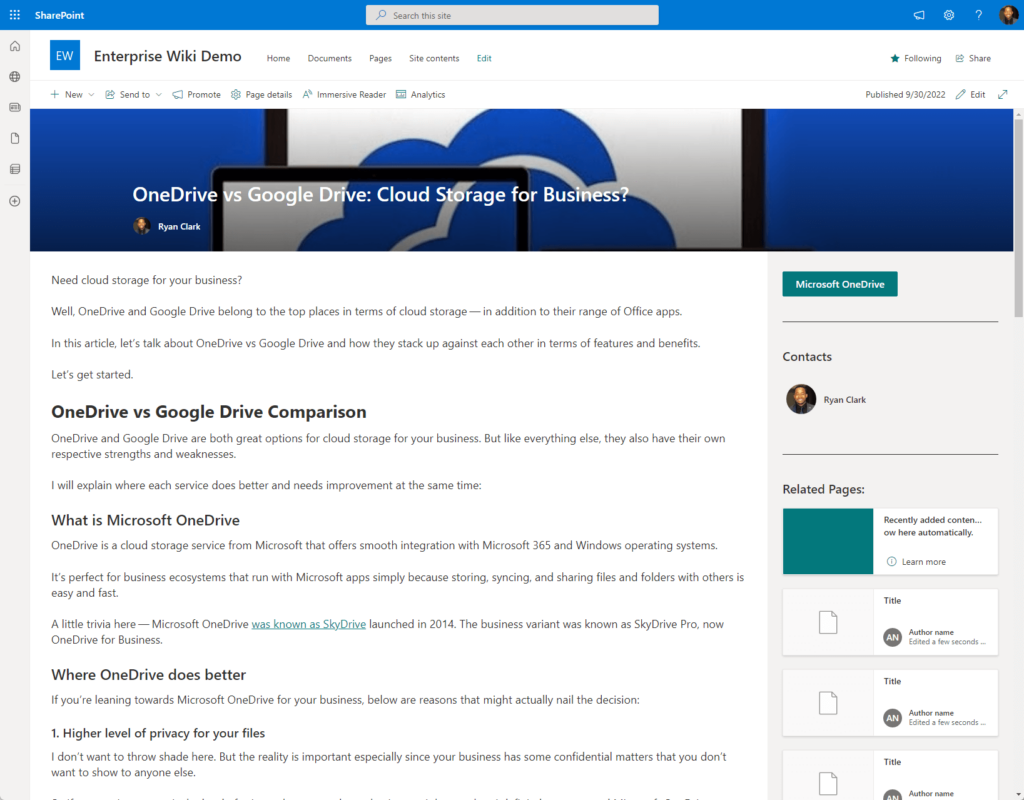
Anything your team needs:
- Training guides
- SOPs
- News posts
And you will be able to keep it all organized with pages, libraries, and easy navigation.
If your team just needs to read and find info fast, use a communication site.
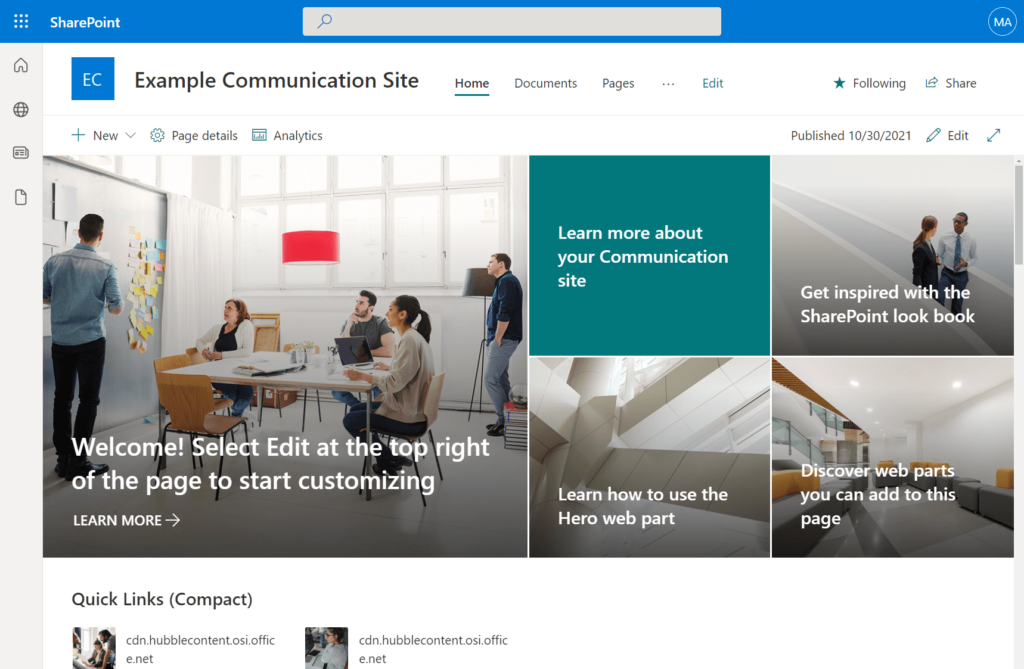
If you want people to work together on content, try a team site.
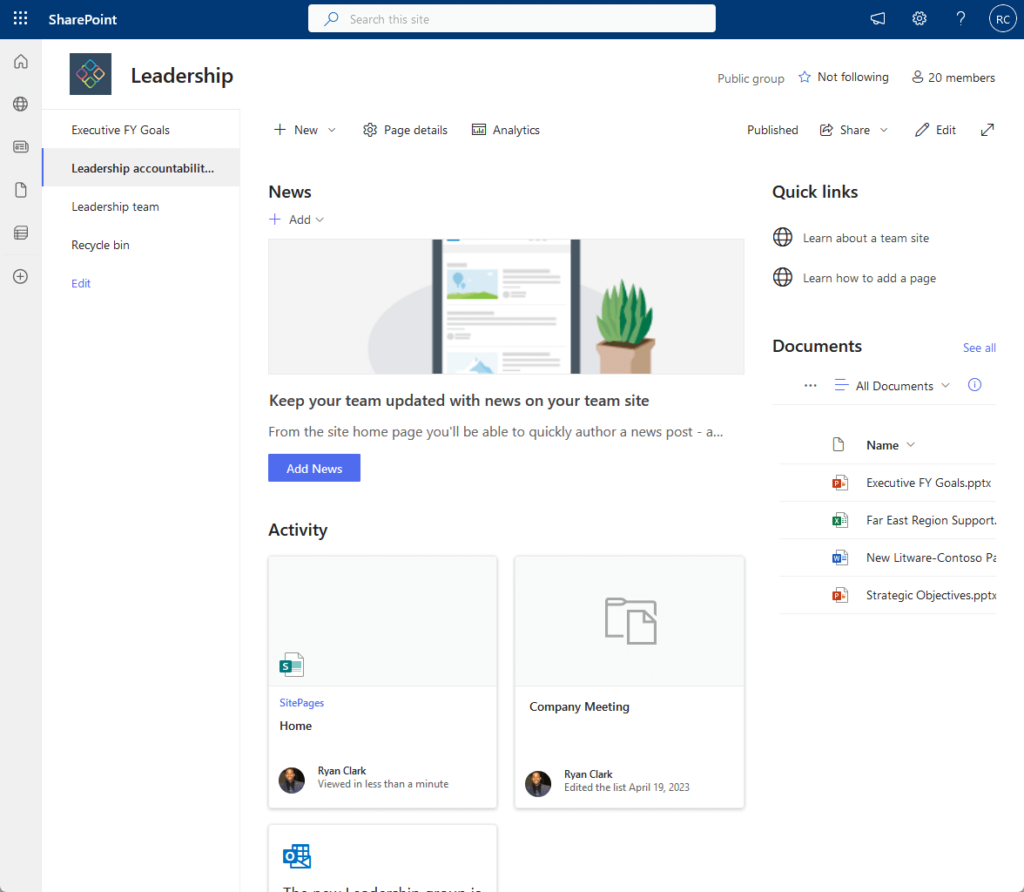
You can even tag everything with metadata so the right people see the right stuff, and no one wastes time searching everywhere.
Best part? It’s all online and mobile-friendly.
Everyone, no matter where they are, gets the latest info in one place.
Heads up: SharePoint’s search is good, but not perfect.
If you need advanced Q&A or forum-style engagement, you might want another tool.
But for sharing news, guides, and policies, SharePoint is a solid choice for keeping remote teams in sync.
6. Leave and Vacation Tracking
If your team needs an easy way to handle time-off requests, SharePoint can do it all, with no extra apps needed.
You can build a simple leave request form using a SharePoint list.
Add columns for things like:
- Employee name
- Leave type
- Dates
- Comments
- Approval status
Then hook it up to Power Automate so requests go straight to a manager for approval.
Once it’s approved or rejected, the list updates automatically, and everyone gets notified by email or Teams.
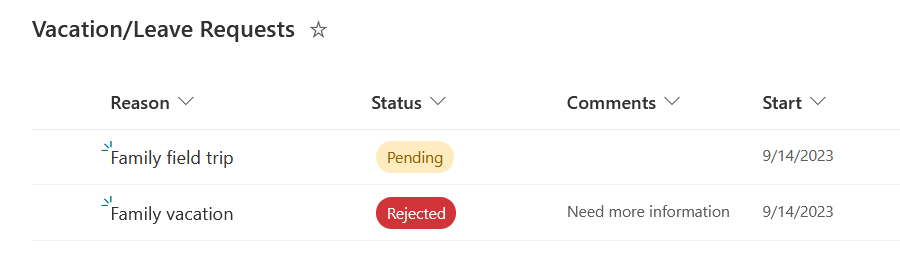
Want to see who’s off and when?
Use Microsoft Lists with the calendar view, or just embed a team calendar right on your SharePoint site.
It’s all out in the open, no more guessing who’s on leave.
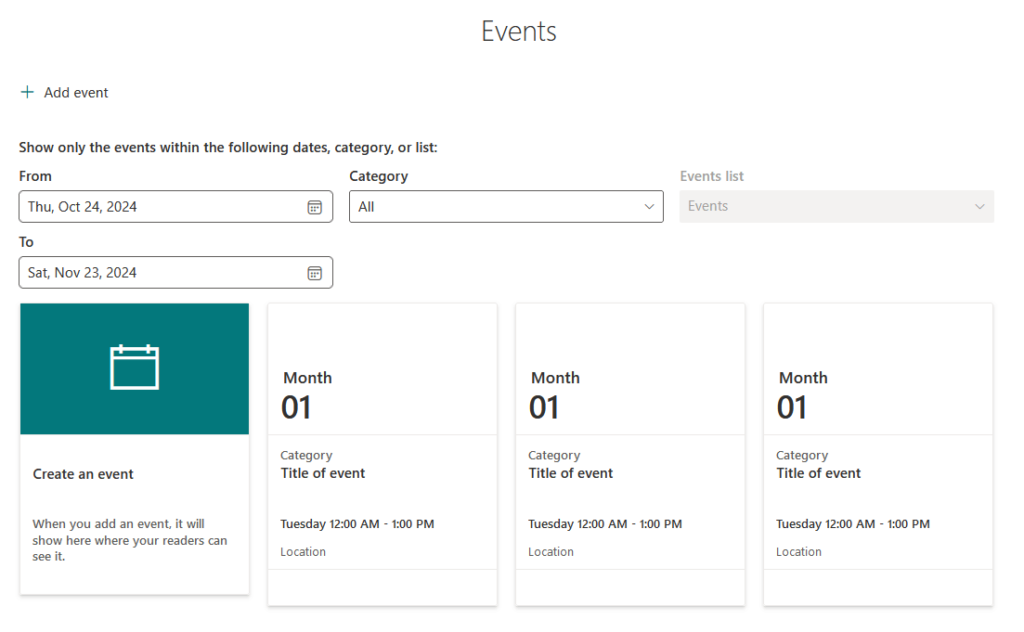
You can even automate the boring stuff:
- Post approved leaves to your team calendar
- Ping payroll
- Update statuses with zero manual work
And if you want more features, like leave balance checks or a polished form, try using Power Apps with your SharePoint list as the backend.
There are also ready-made templates out there if you don’t want to build from scratch.
So, whether your team’s big or small, SharePoint makes tracking time off super easy and fully automated.
7. Helpdesk and Issue Tracking
Want a simple helpdesk or issue tracker? You can build it right in SharePoint as well.
Start with the issue tracking app or use the built-in IT Help Desk template.
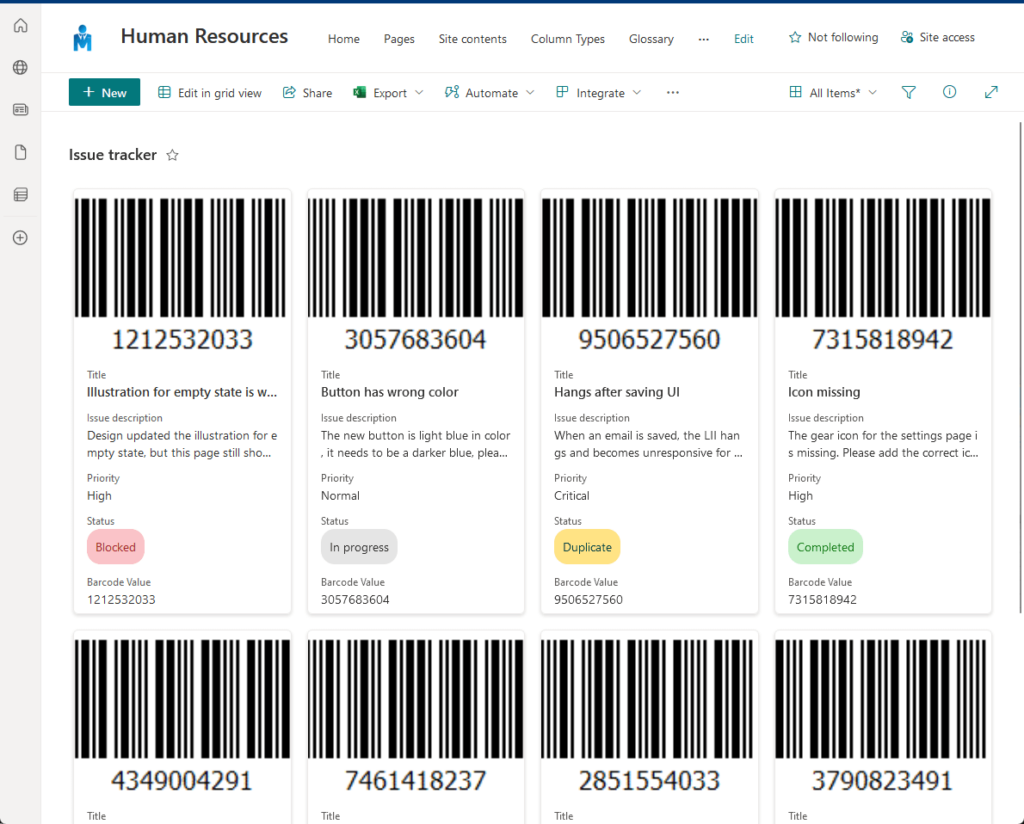
You will get a ticket list with fields for:
- Issue details
- Priority
- Assigned person
- Status
- Due date
- Comments
Log your IT tickets, assign them to teammates, and track progress as you go.
You can filter tickets by who they’re assigned to, what’s urgent, or by status, so nothing gets lost.
If you want more, add columns or tweak forms with Microsoft Lists or Power Apps.
Need notifications?
Hook up Power Automate to send emails or Teams messages when someone logs a ticket or when the status changes.
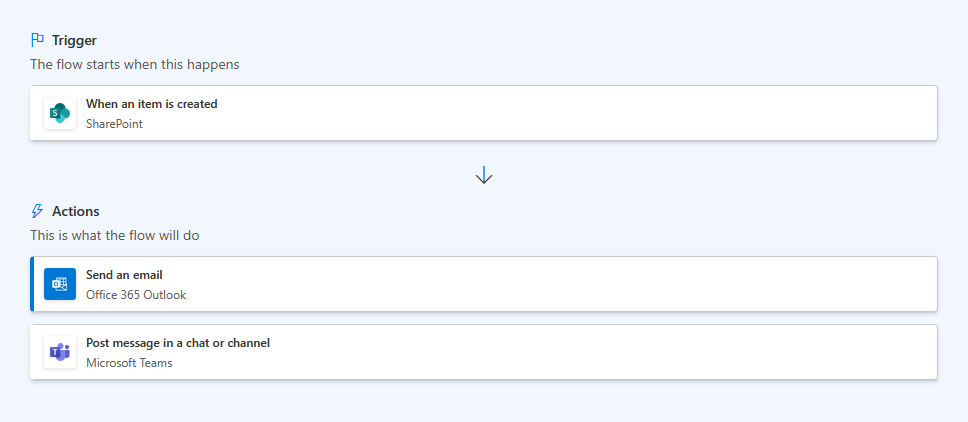
Out-of-the-box, the IT Help Desk template already has flows for that.
If you need to keep some tickets private, you can set permissions or create custom views.
And if you want to allow attachments, just tweak your settings or use Power Apps for a better form experience.
SharePoint works great for small to mid-sized teams that want a simple, built-in helpdesk.
If you need SLAs, escalations, or fancy dashboards, you might look at third-party tools.
But for most teams, SharePoint gets the job done.
8. Event and Calendar Management
You want to set up meetings, track important dates, or let the team know about webinars? Super easy.
Drop in the Events web part and you can add events with:
- Titles
- Dates
- Times
- Locations
- Even online meeting links
It’s perfect for keeping everyone in the loop, especially when your team is remote.
You can display your events in a simple list or a filmstrip, and teammates can filter by category or date range.
If you want a full team calendar, just embed your Outlook Group Calendar right in SharePoint.
That way, everyone can add or view events together.
Quick heads up: The built-in Events web part doesn’t do recurring events or monthly grid views out of the box.
For repeating meetings, use the Outlook Group Calendar option.
There’s even a ready-made Event site template that gives you calendars, deadline trackers, and recap pages.
So, whether it’s meetings, holidays, or big launches, SharePoint helps your whole team stay up to date.
9. Dashboards and Reporting
If you want to see all your team’s data in one place:
- KPIs
- Project status
- Anything else that matters
SharePoint’s got you covered.
You can use built-in web parts for charts and lists.
Or get fancy with templates and custom dashboards that pull from SharePoint lists and outside sources.
Want real-time, interactive charts?
Just drop in a Power BI report using the Power BI web part on a modern SharePoint page.
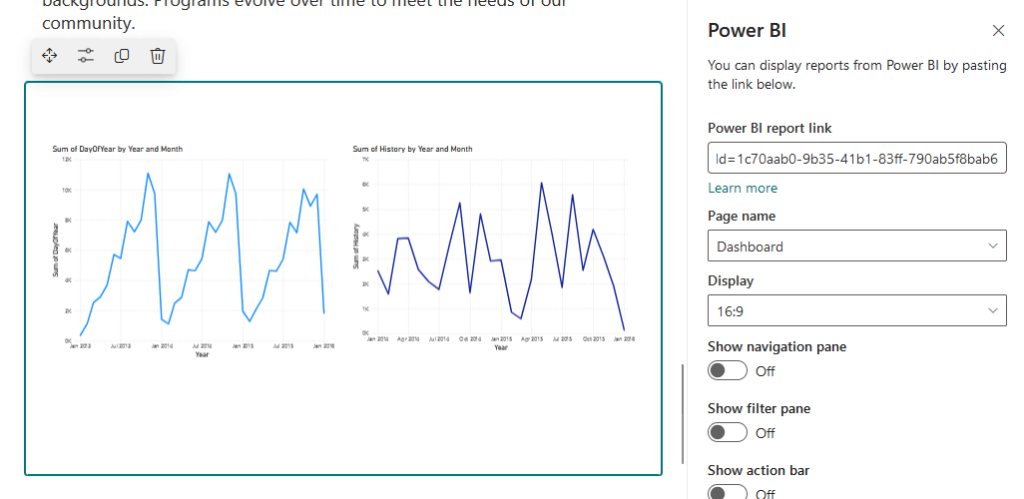
Heads up: You’re actually embedding Power BI reports, not dashboards (they’re different in Power BI).
But you still get those dashboard-like visuals.
You will need a Power BI Pro or Premium license for anyone viewing those reports.
Just make sure your data connections and refresh schedules are set up right for live info.
10. Integration with Teams and OneDrive
Let’s wrap up with integration.
SharePoint works hand-in-hand with Microsoft Teams and OneDrive.
Every time you spin up a new Team, you’re actually getting a full SharePoint site behind the scenes.
So every file you share in Teams is saved straight to SharePoint.
The Files tab in your channels? That’s just a SharePoint folder.

Permissions sync automatically, so everyone on your Team can:
- Chat
- Meet
- Work on documents together
And if you’re sharing files in a private or group chat, those are stored in your OneDrive under “Microsoft Teams Chat Files.”
It’s built on SharePoint tech, so you can sync all your team’s document libraries right to your desktop and access files offline.
Whether they’re personal or shared.
Just a heads up: For really fine-tuned permissions, you will want to tweak things in SharePoint, not just Teams.
Not every site is tied to a Team; you can have standalone project sites or intranets that aren’t connected to Teams at all.
Oh, and there’s a new Teams–OneDrive update that remembers where you left off when you open files.
Makes switching between chat, meetings, and documents totally seamless.
Bottom line:
Everything (chat, meetings, files, and collaboration) stays in sync across Microsoft 365.
No more bouncing between apps or worrying about lost documents. It all just works together.
Anyway, do you have any questions about the use cases I pointed out here? Let me know below.
For any business-related queries or concerns, contact me through the contact form. I always reply. 🙂




























