

Last Updated on August 10, 2025
Wondering what happened to Microsoft Project?
The short of it is that Microsoft is unifying its work management apps into a single, more powerful app.
In this guide, I’ll show you exactly what’s changing, why it’s happening, and what you need to do to prepare.
Let’s get started.
What Was What? A Quick Look at the Old Tools
To understand where we’re going, let’s take a quick look at the tools we used to have.
Before this unification, Microsoft’s separate project management solutions caused confusion for users. 😓
Microsoft Project: The Powerhouse for Pros
For decades, Project was the go-to tool for professional project managers handling large, complex initiatives.

It was built for deep, detailed planning and was packed with powerful features for professionals, including:
- Gantt charts for detailed timelines
- Critical path analysis to identify crucial tasks
- Advanced resource and budget management
However, for the average user, Project was often too much.
Its complexity and high cost made it inaccessible and “massively overkill” for simple team projects.
Microsoft Planner: Simple Team Collaboration
On the other end of the spectrum was Microsoft Planner.
This tool was designed to be lightweight, visual, and incredibly user-friendly.
Its core was the Kanban board:

That allowed teams to organize tasks on digital cards and move them across columns like “To Do,” “In Progress,” and “Done.”
Planner’s greatest strength was its seamless integration with Microsoft Teams and other 365 apps.
But its simplicity was also its biggest weakness.
It lacked key features like task dependencies or timelines, making it unsuitable for advanced task coordination.
Sign up for exclusive updates, tips, and strategies
Why the Big Change? Microsoft’s Vision for One Unified Hub
Microsoft recognized that most teams needed something in between.
The decision to merge these tools into a single platform was driven by a clear vision for the future of work.
The Problem: The “Barbell” and User Confusion
Previously, users faced a “barbell problem.”
You were stuck with a tool that was either too simple or far too complex, with nothing in the middle.
This fragmentation led to scattered information and user fatigue from constantly switching between:
- To Do for personal tasks
- Planner for team tasks
- Project for more formal projects
This gap was a wide-open door for competitors like Asana and Smartsheet.
As you know, they offered the scalable solutions that users needed in Microsoft Project.
The Solution: A Single, Scalable Tool for Everyone
Microsoft’s solution is to create one app that can grow with your team.
Planner is designed to be your all-in-one work management tool, from personal tasks to major company initiatives.
You can start with the basics and unlock more powerful features as your needs evolve.
This transition will become final in October 2025 (most likely), when Microsoft Project for the web is officially retired.
After this date, anyone trying to access the old Project for the web will be automatically redirected to the new Planner.
Meet the New Planner: A Tour of Features & Plans
The new Planner isn’t just one product; it’s a scalable platform.
Let’s check out what it offers, from the core features everyone gets to the powerful capabilities you can unlock.
What Everyone Gets with Microsoft 365
For most users with a Microsoft 365 subscription, the new Planner is an enhanced version of the tool you already know.
This basic experience is included with your plan and is focused on individual and team task management.
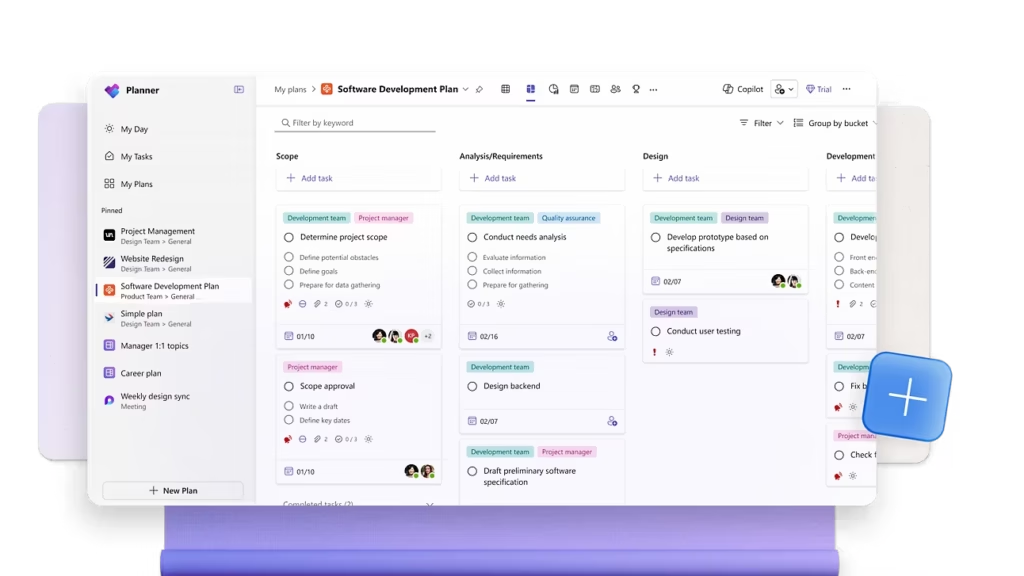
The biggest change is the unified interface that brings all your work into one place.
- My Day: A focused view from To Do that helps you prioritize today’s tasks.
- My Tasks: A powerful, consolidated list of every task assigned to you from anywhere in Microsoft 365, including basic and premium plans, Teams meeting notes, and flagged Outlook emails.
- My Plans: A central hub to access all the plans you’re a part of.
The familiar Grid, Board, Schedule, and Charts views are all still here.
For original Planner users, this is simply a more connected and capable version of the tool you already love.
A Look at Premium Plans
The advanced features from Project for the web now live inside Planner’s premium plans.
This creates a clear and easy upgrade path for when your team’s needs grow beyond the basics.
| Feature | Planner (in M365) | Planner Plan 1 (Premium) | Planner Plan 3 & 5 (Premium) |
| Basic Task Management | ✔️ | ✔️ | ✔️ |
| Board, Grid, & Schedule Views | ✔️ | ✔️ | ✔️ |
| Timeline (Gantt) View | ✔️ | ✔️ | |
| Task Dependencies | ✔️ | ✔️ | |
| People / Workload View | ✔️ | ✔️ | |
| Baselines & Critical Path | ✔️ | ||
| Portfolio Management | ✔️ |
Planner Plan 1 is the first paid tier, perfect for teams that need more structure.
It unlocks the most requested features, like Gantt charts and task dependencies.
Higher tiers (Plan 3 and 5) are aimed at professional project managers.
Those higher tiers add enterprise-grade capabilities like baselines and portfolio management.
Your AI Teammate: What is Copilot in Planner?
The most forward-looking feature of the new Planner is its integration with artificial intelligence.
Copilot in Planner acts as your intelligent project assistant.
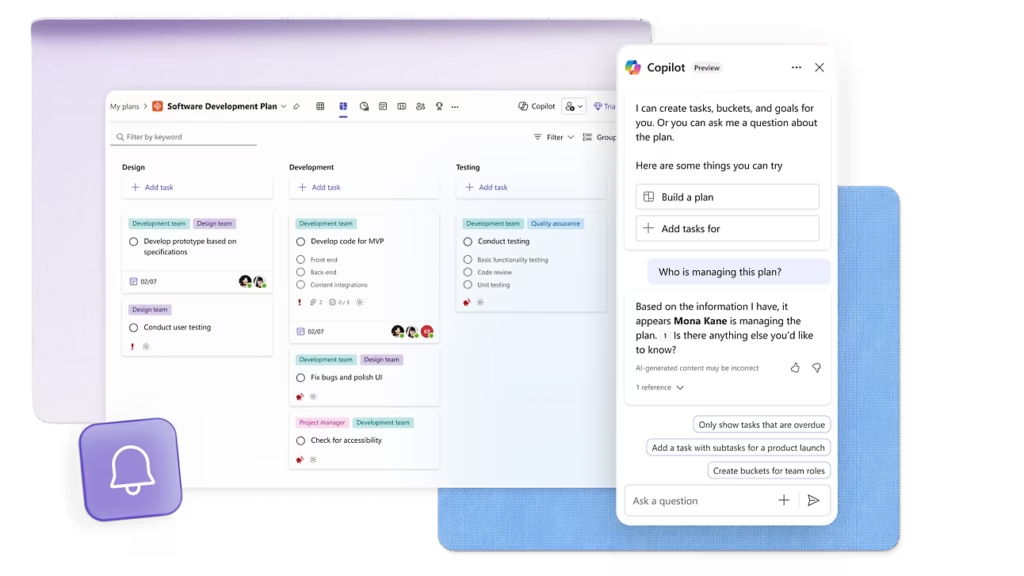
Using simple, natural language, you can ask Copilot to:
- Generate a complete project plan from a single goal
- Suggest new tasks and milestones
- Identify potential risks in your plan
This can dramatically speed up the planning process.
To use it, you will need a license for a premium Planner plan (Plan 3 or higher) plus a separate license for Copilot for Microsoft 365.
Your Step-by-Step Transition Checklist
This transition is mostly automatic, but there are a few key things to be aware of.
Here’s a targeted advice for a smooth switch:
If You Only Used the Old Planner…
For you, the transition is simple and brings only benefits.
Here’s what you need to know:
- Your data is safe: All existing plans and tasks will automatically appear in the new Planner.
- Explore “My Tasks”: Use this new view to see all your work in one place.
- Look for the diamond: The 💎 icon highlights premium features you can try.
Your day-to-day experience will feel familiar, just more powerful and connected.
This change is designed to enhance your workflow without causing disruption.
Check out the new views to stay organized and keep an eye out for advanced features if your projects grow more complex.
If You Used Project for the web…
All your advanced features are still here, but you need to take a couple of manual steps to ensure everything works correctly.
Here’s your action plan:
- Confirm your data: Your projects and functionality will be available in the new Planner’s premium experience.
- Update Teams tabs: Manually remove old “Project” or “Roadmap” tabs and re-add them using the new “Planner” app.
- Recreate Roadmaps: Proactively rebuild your high-level timelines using the new “Portfolios” feature, as Roadmaps will be retired.
The most critical action is recreating your Roadmaps, as this data will not be migrated automatically.
Updating your Teams tabs ensures your team maintains access to the correct project data without interruption.
Taking these steps proactively will guarantee a seamless transition to the more integrated Planner environment.
A Quick Note for IT Admins
You play a key role in making this transition a success for your organization.
Focus on these three key areas:
- Communicate clearly: Inform users about the timeline and required manual actions for Roadmaps and Teams tabs.
- Manage licenses: Prepare for an increase in requests for premium Planner trials and licenses.
- Update governance: Review permissions and policies in the new Planner admin center after September 2025.
Proactive communication is the best way to prevent user confusion and a surge in support tickets.
Establishing a clear process for license requests will help you manage costs and user access effectively.
This transition is the perfect opportunity to review and strengthen your organization’s work management governance policies.
The Future is Unified
The new Planner simplifies work management across the Microsoft 365 ecosystem.
It combines the best of Project and the old Planner into one scalable tool.
This change creates a clear path for teams to grow and adapt their processes.
Do you have any questions about this transition from Project to the new Planner? Let me know.
For any business-related queries or concerns, contact me through the contact form. I always reply. 🙂




























