
Last Updated on June 30, 2025
Looking for the features for project management?
In this guide, let’s talk about the practical tools that can keep your team organized and projects running smoothly.
Let’s get started.
Project Task Lists
When you’re managing a project, keeping track of tasks is essential.
SharePoint Online offers flexible ways to build, organize, and monitor tasks so nothing falls through the cracks.
Creating And Grouping Tasks In Microsoft Lists
Project task lists are the backbone of project management in SharePoint Online.
Using Microsoft Lists, you can:
- Set up a dedicated list for each project
- Break down work into tasks
- Group these tasks by phase, team, or priority
For example, a marketing campaign might have groups like “Content Creation,” “Design,” and “Social Media.”
Each task can include fields for assigned team members, deadlines, priority levels, and even custom tags.
With Microsoft Lists, you’re not limited to a single view, as you can switch to views like:
- Grid
- Calendar
- Board views
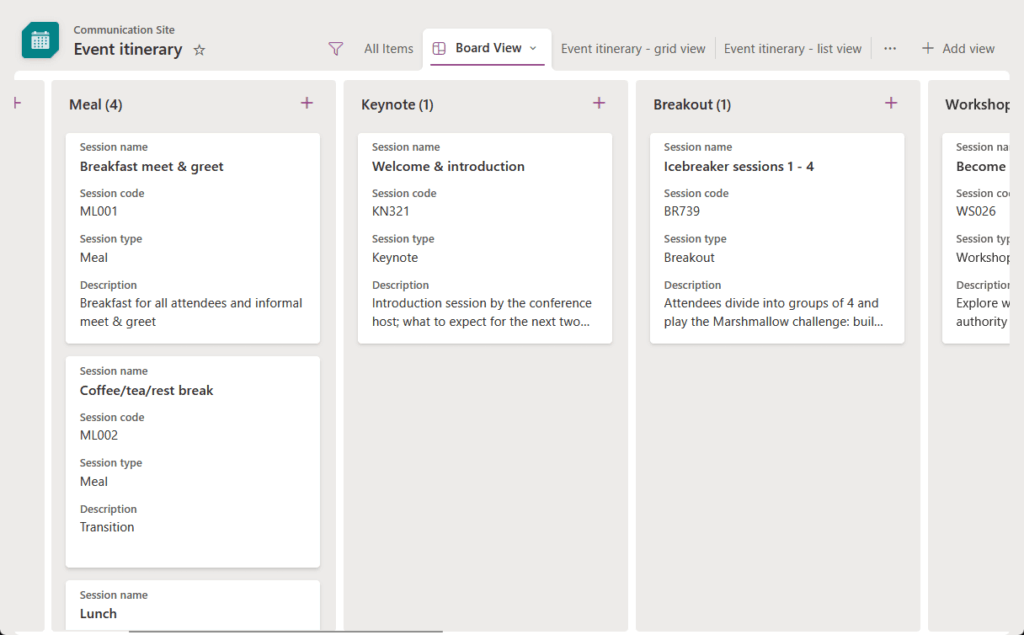
Depending on what works best for your team.
If you need to quickly filter for high-priority or overdue tasks, built-in filters can make that simple as well.
Use case: In a product launch project, task lists help everyone see who’s responsible for creating:
- Marketing materials
- Testing the product
- Preparing launch events
Having clear assignments and due dates helps everyone know their responsibilities and keeps the project on track.
It also makes follow-ups easier for project managers (which is a big plus). 😊
Sign up for exclusive updates, tips, and strategies
Modern Site Templates
Every project needs a strong foundation, and the right site template helps you get started quickly.
SharePoint Online gives you several options so you can pick the best layout and structure for your project needs.
Choosing The Project Management Template
SharePoint’s ‘Project management’ team site template helps you build a professional project hub in minutes.
This template is designed to make project coordination simple and repeatable for any team.
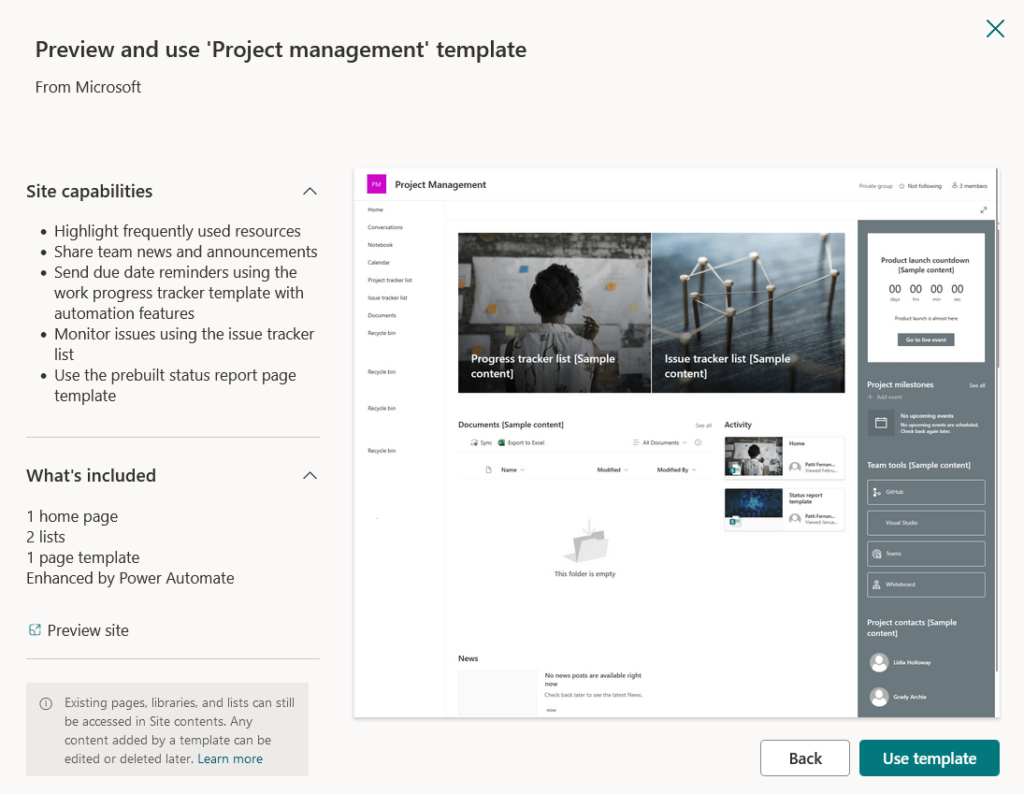
With this template, you can:
- Highlight frequently used resources for your team
- Share news and announcements easily
- Send due date reminders using the built-in work progress tracker list, complete with automation via Power Automate
- Monitor project issues with the ready-to-go issue tracker list
- Use the prebuilt status report page to summarize project progress
The template gives you:
- One home page with news and links
- Two custom lists (work progress tracker and issue tracker)
- One status report page template
All these features help your team start collaborating and reporting right away, following modern best practices.
Personally, I believe that templates are helpful as they save you time and help you launch your project workspace faster.
If you want, you can always tweak the design and add more custom features as your project evolves.
Use case: Teams use the project management site template in scenarios like:
- Kicking off new internal projects
- Rolling out department-wide initiatives
- Coordinating multi-phase campaigns
This approach speeds up setup and helps everyone follow a consistent structure.
When A Communication Site Works Better
Sometimes, your main goal is to share progress or results with stakeholders outside the core team.
That’s where the communication site template shines, as it’s ideal for:
- Executive dashboards
- Client updates
- Public project portals
You can easily highlight achievements and add rich visuals to your post.
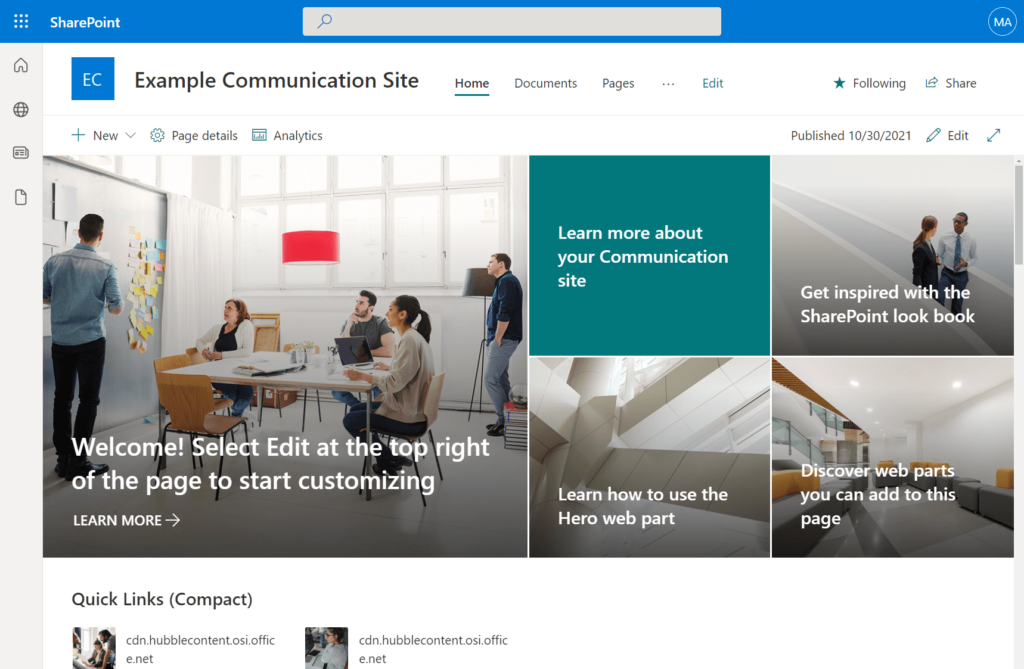
Use case: Teams might turn to a communication site for situations such as:
- Sharing high-level progress updates
- Posting major milestones
- Communicating important achievements
This helps stakeholders stay informed on milestones and progress without being overwhelmed by technical details.
Planner Integration (Board View)
Sometimes, your team prefers a visual way to organize and move tasks.
You can combine the strengths of both SharePoint and Planner for seamless project tracking.
If your team works in sprints or prefers Kanban boards, Microsoft Planner integration is a must-have.
In SharePoint Online, you can embed a Planner board right into your team site using the Planner web part.
This gives your team a visual way, in real time, to:
- Organize tasks
- Manage workloads
- Track progress
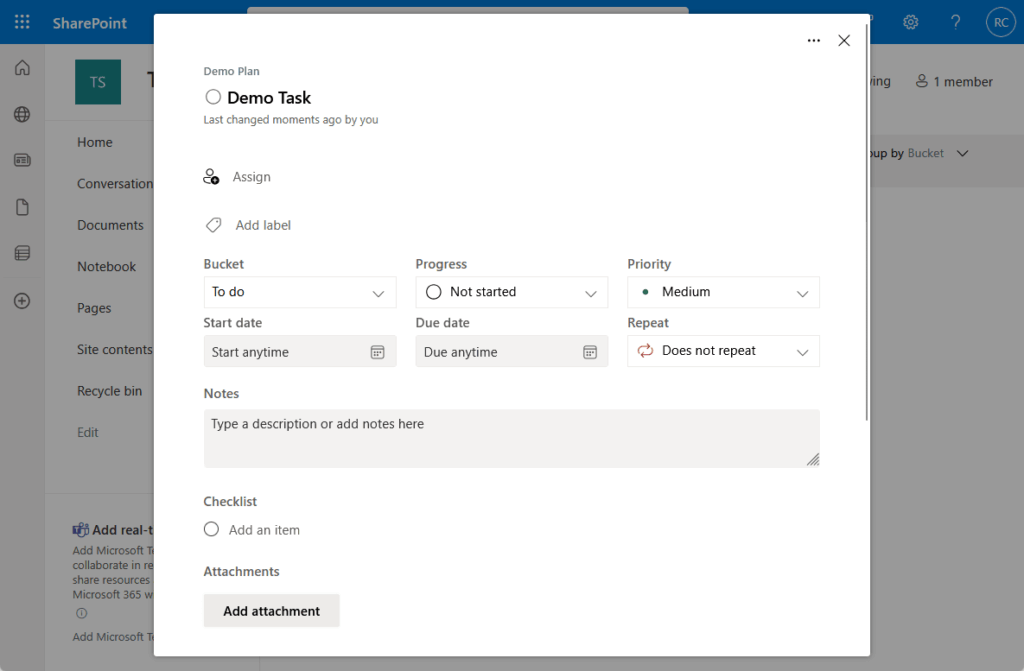
Planner boards support buckets for grouping tasks, drag-and-drop prioritization, and color-coded labels.
When integrated with SharePoint, all updates sync automatically, so there’s no risk of working with outdated information.
Everyone can see the full project board alongside documents, lists, and announcements.
Use case: Teams use Planner integration for many project scenarios, including:
- Managing user stories and bugs for development teams
- Planning sprints for marketing campaigns
- Tracking cross-departmental tasks
This makes it easier to combine agile planning with document storage and status updates, all in one place.
Calendar View For Quick Timelines
SharePoint Lists comes with a calendar view, letting you turn any list of tasks or events into a visual schedule.
With just a couple of clicks, you can add items like:
- Deadlines
- Meetings
- Milestones
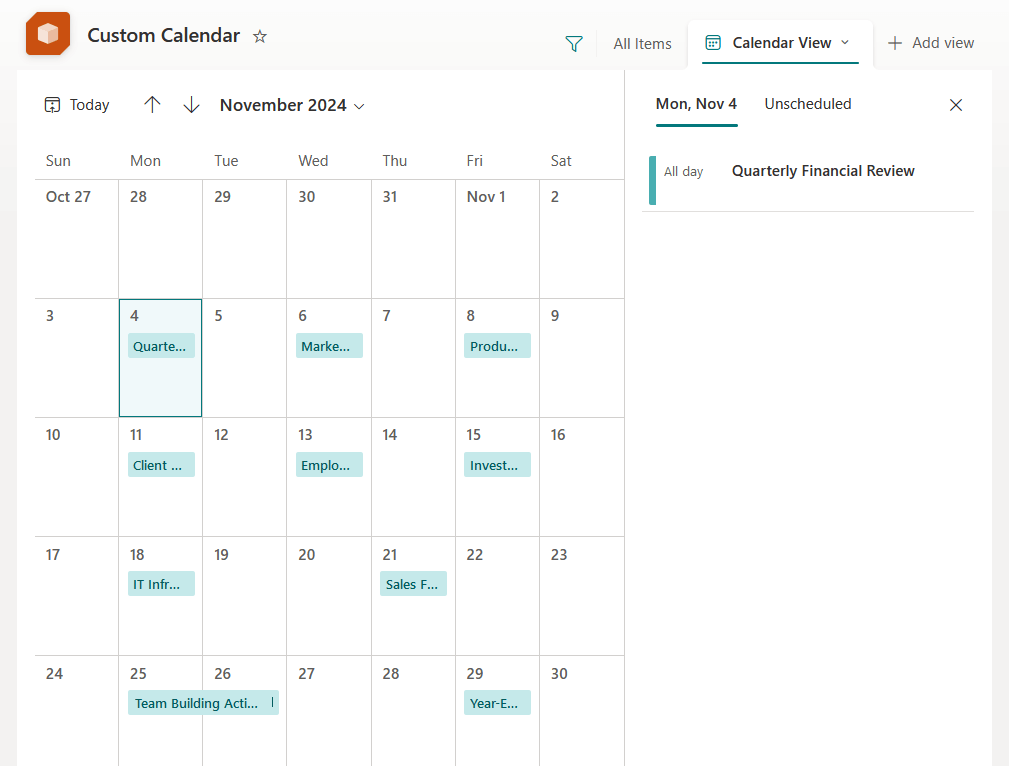
This makes it easier to spot busy periods and gaps in your schedule.
You can also color-code events based on task type, team, or priority.
This helps everyone, from project managers to stakeholders, see what’s happening and when.
For project teams juggling multiple moving parts, a calendar view brings clarity to the chaos.
Use case: Teams rely on calendar view for tasks like:
- Scheduling site inspections
- Tracking material deliveries
- Coordinating key handoffs
Color coding and visual timelines help teams avoid conflicts and keep schedules clear.
Gantt And Timeline Visuals Via Integrations
Visualizing schedules and dependencies is key for many teams, especially when projects get complex.
While SharePoint’s native views are limited, integrations unlock powerful options for timeline and Gantt charts.
Power BI Gantt Or Microsoft Project
SharePoint doesn’t offer a native Gantt or timeline view, but you still have great options to visualize your project schedule.
Power BI, for example, lets you build and embed a Gantt chart right in your SharePoint site.
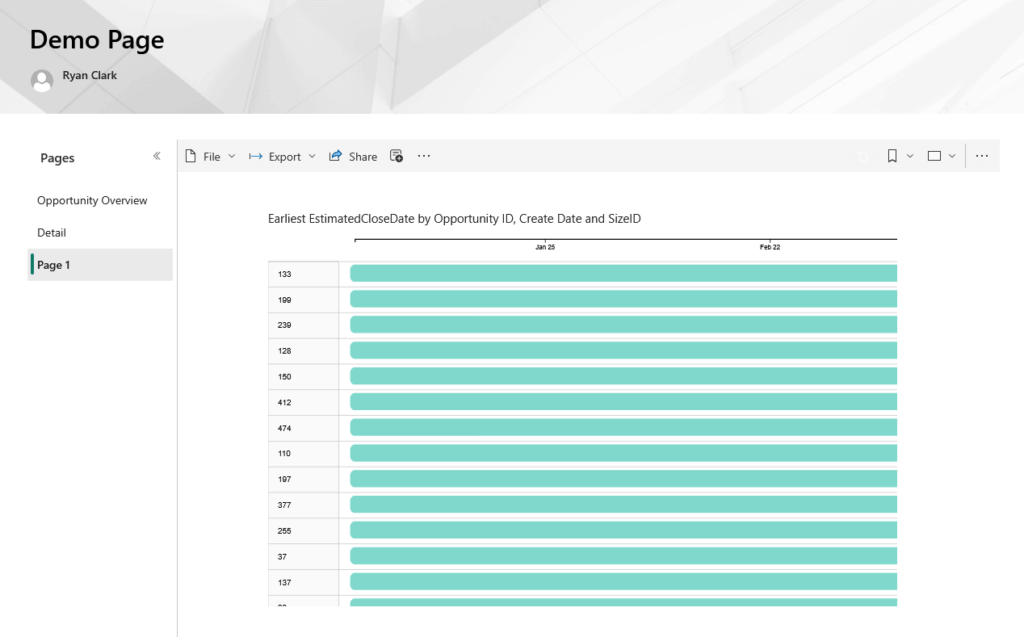
With this integration, you can:
- Filter tasks
- Adjust timelines
- Track dependencies
These features are especially useful for complex projects with many moving parts.
Another option is to use Microsoft Project for the web, which syncs with SharePoint and delivers a classic Gantt experience.
This is useful for anyone who wants to share Project schedules with their team in SharePoint.
Use case: Teams often use Gantt or timeline integrations for situations like:
- Visualizing long-term construction schedules
- Tracking product development phases
- Coordinating cross-functional project timelines
These integrations help teams see dependencies, adjust plans, and keep everyone updated in real time.
Third-Party Timeline Web Parts
Third-party timeline and Gantt web parts can help you fill the native gap in SharePoint’s project visualization tools.
Vendors like Virto and Plumsail offer timeline web parts you can add to your SharePoint site.
These tools allow you to:
- Build interactive Gantt charts with drag-and-drop adjustments
- Display multiple projects or phases in a single timeline
- Customize colors, labels, and milestones for your needs
- Enable filtering and searching for large projects
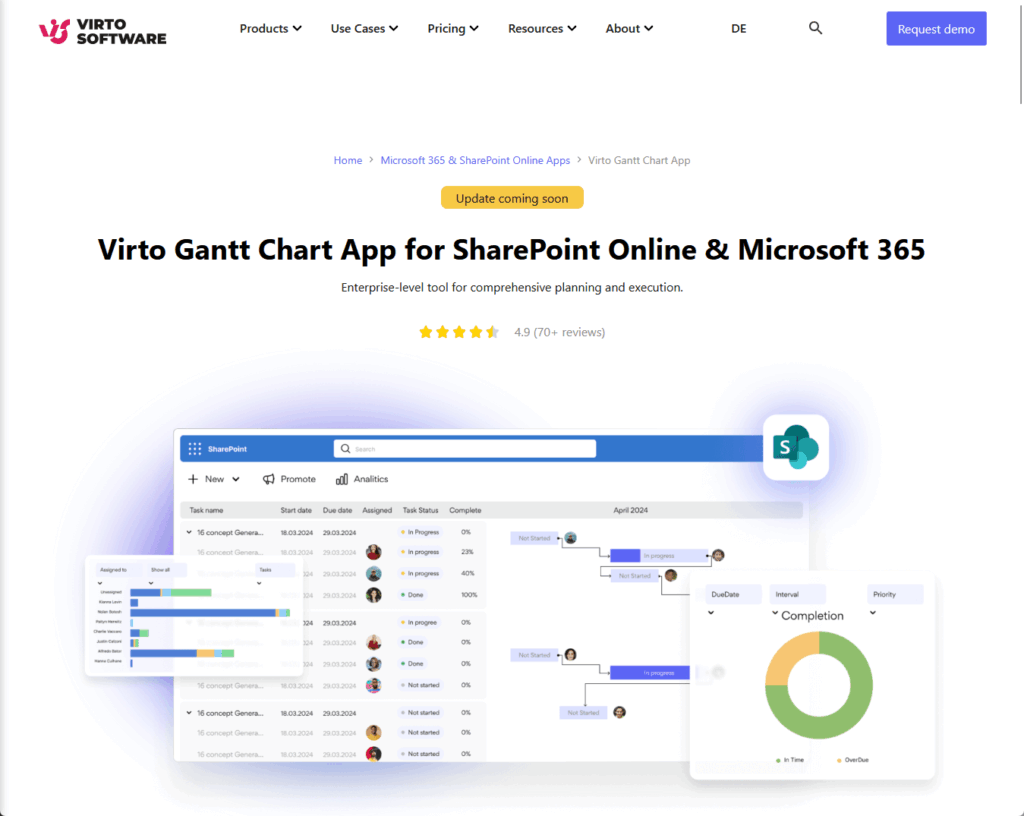
Adding a third-party web part can make your SharePoint site look and feel more professional, often with no coding required.
But you may want to consider the costs, since these solutions usually require a separate license or marketplace purchase.
Also, review support and update policies to make sure the tool will be reliable long-term.
Use case: Teams choose third-party timeline web parts when they want to:
- Add timelines directly to a SharePoint page with minimal setup
- Enable drag-and-drop timeline editing inside SharePoint
- Customize the appearance to match branding or client needs
This approach works well when native integrations feel too complex or don’t fit day-to-day project tracking.
Power BI Integration
Embedding Power BI dashboards into your SharePoint site lets you present real-time project data where your team works every day.
With the Power BI web part, you can surface insights on project budgets, resource utilization, open issues, and more.
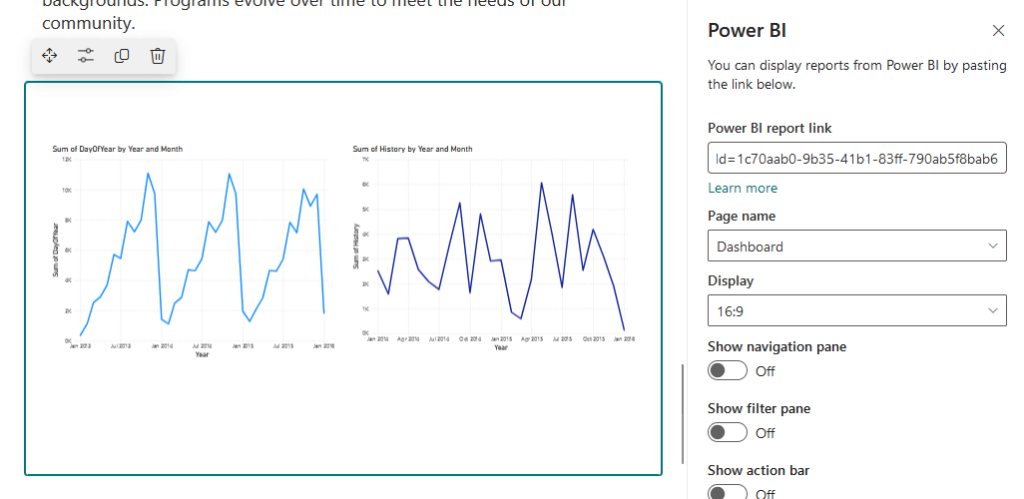
Custom reports can be created for different audiences, such as:
- Executives who want a summary of risks and ROI
- Team leads who track daily progress or blockers
- Project sponsors who need high-level updates
These tailored reports help each audience focus on what matters most to them.
The best part is that these dashboards update automatically, making manual status reporting a thing of the past.
Use case: Teams embed Power BI dashboards for scenarios like:
- Tracking onboarding status across departments
- Monitoring open issues and budget spend
- Sharing project progress with leadership
This helps leaders quickly spot bottlenecks and see progress at a glance.
KPI Web Parts And Dashboards
SharePoint’s modern web parts make it easy to add simple KPI panels and status updates to your project home.
You can use web parts like:
- Quick Chart for visualizing progress
- Countdown Timer for highlighting upcoming deadlines
- Highlighted Content for showing the latest documents or announcements
Executives, team members, and stakeholders can all check progress quickly.
There’s no need to dig through long reports to understand what’s happening.
Use case: Teams use KPI web parts and dashboards for situations like:
- Showing weekly campaign engagement trends
- Highlighting countdowns to product launches
- Sharing live metrics for project stakeholders
This makes it simple for everyone to track key progress on the main project page.
Power Automate Workflows
Manual updates can slow down your projects, but automation saves time and reduces errors.
With Power Automate, you can streamline your processes and keep everyone in the loop with minimal effort.
Automating Status Emails
One of the biggest time-savers in SharePoint is automating routine communication through Power Automate.
You don’t have to send status updates manually or spend time building reports every week.
Instead, you can:
- Set up a flow to email stakeholders a project summary at the end of each week
- Trigger the email automatically by changes in your project list
- Ensure updates go out on a regular schedule without manual effort

Everyone gets a consistent update, and you get back valuable time for higher-priority work.
If someone misses an email, they can always go back and check previous summaries in their inbox, so important updates are never lost.
Use case: Teams automate status emails with Power Automate for scenarios like:
- Sending weekly project summaries to stakeholders
- Notifying team members of upcoming deadlines
- Keeping clients informed on project milestones
This ensures everyone stays updated with minimal manual effort and nothing slips through the cracks.
One-Click Approvals
Automating approvals is another way to make your project run smoother.
With Power Automate, you can:
- Set up a workflow to send documents or tasks to the right people for sign-off
- Monitor each approval step in real time
- Notify the team when everything is complete
This means you no longer have to chase people for signatures or status updates.
Everyone can see what’s approved and what’s still pending, so bottlenecks are easy to spot and resolve.
Use case: Teams automate approvals for scenarios like:
- Reviewing and signing contracts
- Approving project budgets
- Routing policy changes for sign-off
This ensures every document is approved before the project moves to the next phase.
Guest Access And Permissions
Secure collaboration often means working with people outside your organization.
SharePoint lets you manage access with fine-grained permissions, so you stay in control while enabling teamwork.
Giving Contractors The Right Access
SharePoint Online’s flexible permissions model lets you add guests or external users safely.
You can set permissions so guests can access:
- The whole site
- Just a document library
- A single file
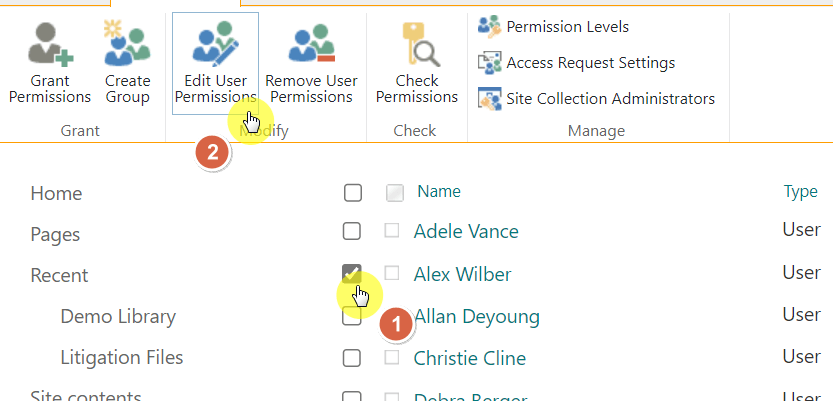
For example, contractors might only need to update their assigned tasks, while clients can view timelines but not edit documents.
Clear permissions help keep your data safe and make collaboration simple for everyone involved.
Use case: Teams set guest permissions for scenarios like:
- Inviting clients to review project drawings
- Allowing contractors to update specific tasks
- Sharing timelines with external partners
This makes it easy to collect feedback or updates from outside the organization without exposing sensitive internal information.
Version History And Retention Policies
Mistakes or changes are bound to happen during any project, so SharePoint’s version history is a lifesaver.
SharePoint saves a new version whenever someone updates a document or list item, so you can:
- Restore previous versions if needed
- Track who made changes
- See when changes were made

On the other hand, retention policies add another layer of protection by automating how long data is kept.
This is especially important for regulated industries or companies with strict recordkeeping rules.
Use case: Teams depend on version history and retention policies for scenarios like:
- Restoring files after accidental changes
- Meeting compliance requirements for regulated data
- Keeping an audit trail for sensitive projects
This keeps data safe and helps teams stay compliant without extra manual work.
Portfolio Dashboards (Hub Sites)
When you’re managing multiple projects or programs, SharePoint portfolio dashboards let you pull everything together in one place.
With this feature, you can:
- Use hub sites to connect related project sites
- Roll up news, documents, status reports, and key metrics
- Display all project updates in a single, central dashboard
Use web parts like Highlighted Content or News for project roll-ups, or embed Power BI reports for real-time analytics.
Leaders and teams can track status, risks, and progress for all projects from one dashboard.
Use case: Teams use portfolio dashboards to:
- Give leadership a high-level view of all active projects
- Roll up cross-project KPIs and risks into one report
- Provide a single starting point for program and portfolio management
This unified approach helps everyone stay informed and aligned as the number of projects grows.
Copilot Analysis Assist (Preview)
Copilot’s “Analyze list” feature adds AI-powered data insights directly into SharePoint lists.
Once enabled by your admin, you can use Analyze list to:
- Enter natural language prompts, such as “show task count by assignee” or “sort high-priority tasks”
- Generate suggested layouts, pivot-style summaries, and visuals instantly
- Get insights without building formulas or writing queries
When you open Analyze list, Copilot scans your list data and offers recommendations like sorting, grouping, and calculation layouts.
These suggestions appear in a separate analysis tab, which you can fine-tune or save.
It’s a fast way to explore trends like overdue tasks or average completion times without building complex queries .
Use case: Project managers use Copilot Analysis Assist to quickly:
- Identify tasks grouped by assignee or due date
- Calculate average task duration or completion rates
- Highlight items that are overdue or high-priority
This lets them uncover trends and identify bottlenecks instantly, during meetings or status reviews.
Maximizing Project Success
SharePoint Online offers a complete set of features for project management, no matter the size or style of your team.
From task lists to AI tools, these features help you work smarter, collaborate easily, and keep projects on track.
With SharePoint, you’re always ready to handle the next challenge and deliver great results.
Anyway, do you have any questions about the best SharePoint features for project management? Let me know.
For any business-related queries or concerns, contact me through the contact form. I always reply. 🙂




























