

Table of Contents:
- Why Schools Are Sitting on Software They Never Configured
- Document Libraries and Version Control for Curriculum and Compliance Paperwork
- Metadata and Search So Teachers Actually Find Things
- Communication Sites for Staff Intranets and Parent Portals
- Permissions and Security Groups That Actually Protect Student Data
- Teams Integration for Classroom Collaboration
- Microsoft Forms for Permission Slips, Sign-Ups, and Surveys
- Lists for the Trackers Schools Run on Spreadsheets
- Power Automate for the Paperwork Schools Still Do by Hand
- The License Is Already Paid For. The Configuration Isn’t.
Most schools already pay for SharePoint. It’s bundled into their Microsoft 365 Education licensing, next to Teams and Outlook, and most never use it past the default team site.
The features I get them using are always the same handful:
- Document libraries with real version control
- Metadata and search so files stay findable
- Communication sites for staff and parents
- Security groups that protect student data
- Teams integration for the classroom
- Microsoft Forms for permission slips and sign-ups
- Lists for the trackers you run on spreadsheets
- Power Automate for manual paperwork
SharePoint works fine out of the box. What’s usually missing is the bandwidth to configure it, and that problem is getting worse for the small teams running most districts.
School IT teams are small, often one person for a whole district, already buried in help tickets. Nobody has a free afternoon to architect a document library.
So below is what I actually turn on for schools, feature by feature, and the real problem each one solves.
Why Schools Are Sitting on Software They Never Configured
Microsoft ships a deployment framework for education called the Education Solutions Guide, and it’s tiered.
Each phase lines up with a licensing level, so what you can turn on depends on what you’re paying for:
- Baseline (A1): identity, Teams, SharePoint, and basic security. This is the free tier most schools live on.
- Standard (A3): adds Entra ID P1, Intune for Education, and Purview compliance tooling.
- Advanced (A5): the full stack, including the deepest security and analytics.
Here’s the thing. Even at the free Baseline tier, SharePoint is fully there.
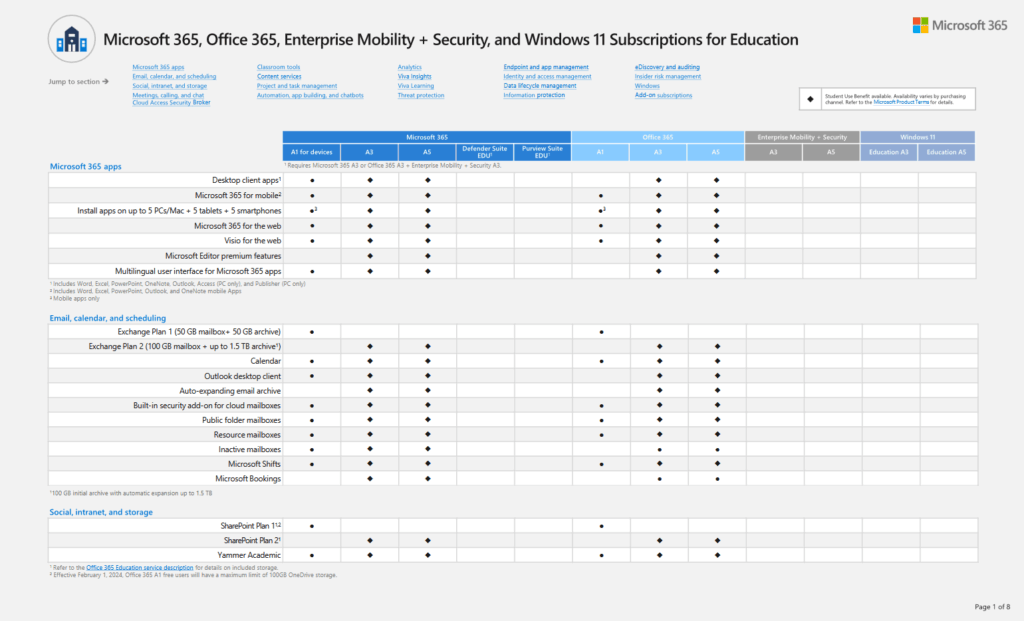
Source: https://www.microsoft.com/en-us/education/products/microsoft-365/compare-microsoft-365-education-plans
For most of what a school needs day to day, time is the barrier.
And time is exactly what these teams don’t have. The 2025 CoSN report ranked attracting and retaining educators and IT professionals the number one hurdle for the year.
The supporting numbers tell the same story:
- 51% of advisory board respondents named staffing the top hurdle for 2025.
- 56% of districts are understaffed for supporting classroom technology.
- Only 33% of school systems offer in-person IT training, and 28% offer online training.
- 78% of IT staff are self-taught.
- 62% of information-sector job openings go unfilled each month nationally.
When your one IT person is self-taught and buried, SharePoint stays a checkbox. That’s not a knock on anyone, just nobody having the hours to do it right.
Sign up for exclusive updates, tips, and strategies
Document Libraries and Version Control for Curriculum and Compliance Paperwork
Every school runs on documents. Teachers build curriculum they want to reuse next year.
The front office manages a mountain of compliance paperwork, and everyone emails the same file back and forth until nobody knows which version is current.
SharePoint document libraries fix the version chaos. Every file keeps a version history, so you can see who changed what and roll back when someone overwrites a good draft.
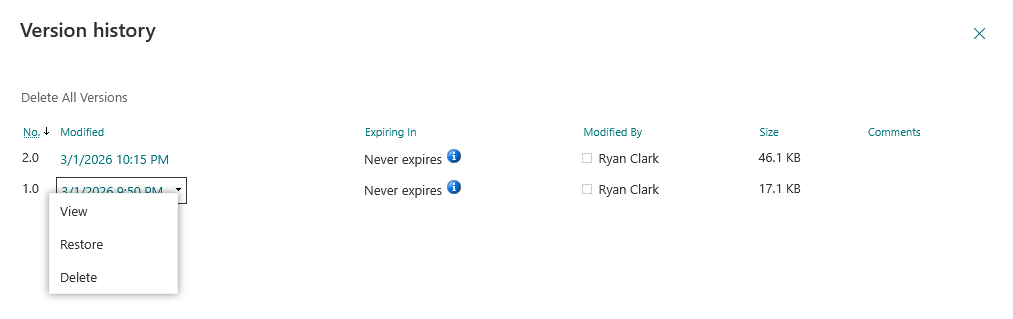
Check-in and check-out stops two people from editing the same policy at once.
That matters most for the documents where a wrong version has consequences:
- Curriculum materials and shared lesson plans
- Board policies and staff handbooks
- Compliance and audit records
- IEPs and student support plans
- HR and onboarding paperwork
Think about an IEP. That’s a legal document with a paper trail requirement, and guessing which draft went to the parents isn’t an option.
Version history answers it for you, which is why I tell clients to start here. It’s the fastest win, and you don’t need a fancy intranet.
One properly structured library with versioning kills the “final_v3_REAL_final” chain. I’ve set it up dozens of times, and it always makes the front office love SharePoint.
Metadata and Search So Teachers Actually Find Things
A library only helps if people can find what’s in it. Once a folder holds three years of curriculum, folders alone stop working.
This is where metadata earns its keep. Instead of burying files in nested folders, you tag them with columns like subject, grade, and year.
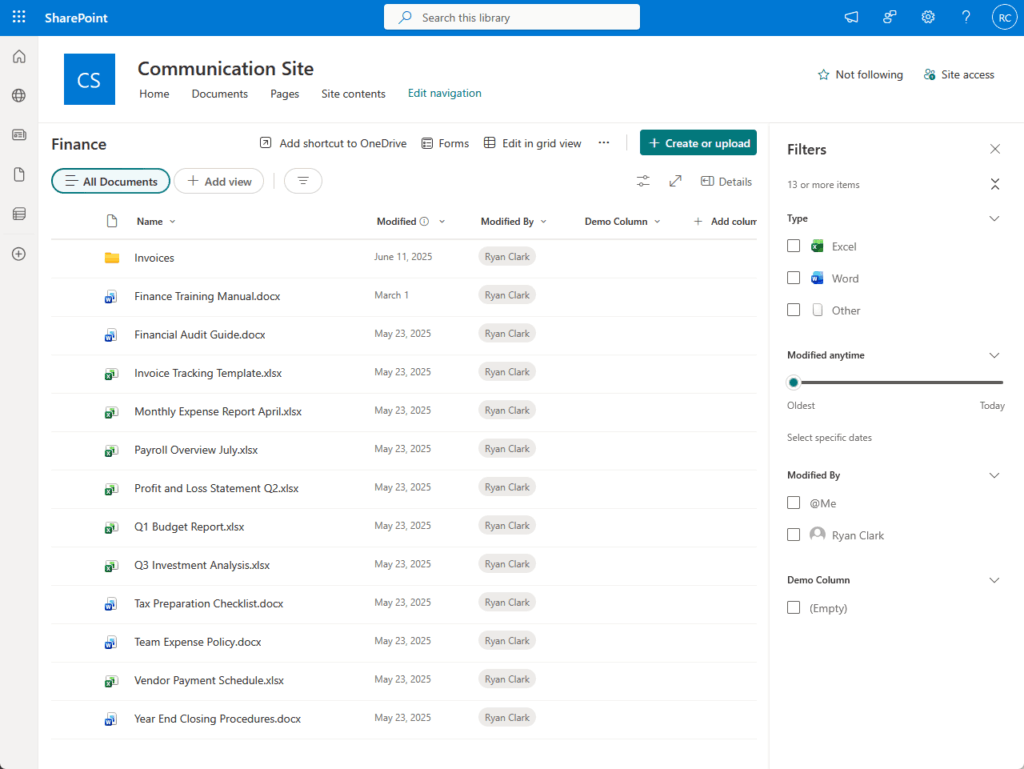
Then a teacher filters the library down to exactly what they need, like fourth-grade math from this year, in seconds.
Search rides on the same tags. SharePoint indexes those columns, so a keyword search returns the right document instead of forty near-matches.
I push every school toward metadata early, because it’s the difference between a library people trust and one they abandon.
Set it up once and it quietly pays off every year, as the same curriculum gets reused instead of rebuilt from scratch.
Communication Sites for Staff Intranets and Parent Portals
Document libraries handle the files. Communication sites handle the message.
This is where SharePoint stops being storage and starts being the place people actually go to find things.
It works at two levels:
| Level | What the communication site holds |
|---|---|
| District | Staff intranet: policies, HR forms, calendars, and announcements |
| School | Parent-facing sites that surface exactly what families need |
Content Formula, a Microsoft 365 consultancy that builds intranets for UK academy trusts, describes a clean example of this working in practice.
District-level news runs through an approval workflow before it publishes, while local updates from individual schools still surface automatically on the shared homepage where staff and families see them.
That’s the model I keep pointing districts toward. Content moves through one approval step, then lands wherever it needs to be, without someone manually copying it into five places.
Communication sites also support audience targeting, so you can personalize what people see by role or location.
A middle-school teacher and a district administrator can hit the same intranet and get different, relevant content. It’s standard practice, and it keeps the homepage from turning into noise.
Permissions and Security Groups That Actually Protect Student Data
This is the section I wish more districts took seriously before something goes wrong. Student records are FERPA-protected, and SharePoint is where a lot of that data lives.
FERPA requires that institutions use reasonable methods to ensure school officials access only the records they have a legitimate educational interest in.
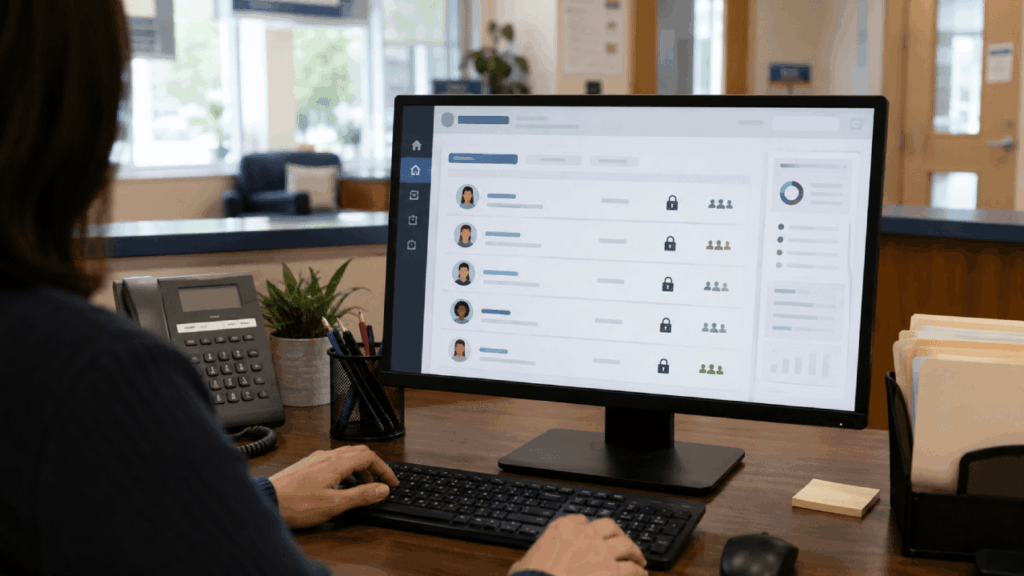
Schools also have to publish written criteria defining what that interest actually means.
Here’s the part people miss. FERPA doesn’t recognize audits or certifications.
There’s no badge to earn. The compliance burden is a self-assessment, which means the responsibility for getting permissions right sits entirely on you.
SharePoint security groups are how you implement that. You grant access by role, not by individual, so a counselor sees counseling records and a substitute sees nothing sensitive.
That’s least-privilege access, and it’s the single most important thing to configure correctly on any site holding student data.
Now, the tooling gap worth naming. Some of the compliance features that map directly to FERPA-sensitive content, like Purview and DLP, don’t unlock until the paid A3 tier:
| Tier | SharePoint / Security Features | Gap for Schools |
|---|---|---|
| Baseline (A1) | Site permissions, security groups, basic sharing controls | No Purview, no DLP, no sensitivity labels |
| Standard (A3) | Adds Purview compliance, DLP, Entra ID P1, sensitivity labels | Requires paid upgrade many districts can’t fund |
| Advanced (A5) | Full compliance and advanced threat/analytics stack | Highest cost, rarely reached by K-12 |
So the districts most likely to be on free A1 are the same cash-strapped districts holding the most FERPA-sensitive data with the weakest built-in tooling.
That’s a real tension, and it’s worth going in with eyes open.
There’s a bigger point here too. The PowerSchool breach exposed the PII of roughly 62 million people and ended with a multimillion-dollar extortion payment.
In my view, that’s the clearest argument yet for schools controlling their own records in SharePoint rather than concentrating every student’s data inside a third-party platform you don’t control.
Teams Integration for Classroom Collaboration
Here’s a technical fact: files stored in Teams are stored in SharePoint. Every class team, every channel, every shared file lives in a SharePoint site behind the scenes.
That means the document structure and permissions you set up in SharePoint aren’t a separate system from the Teams your teachers already use.
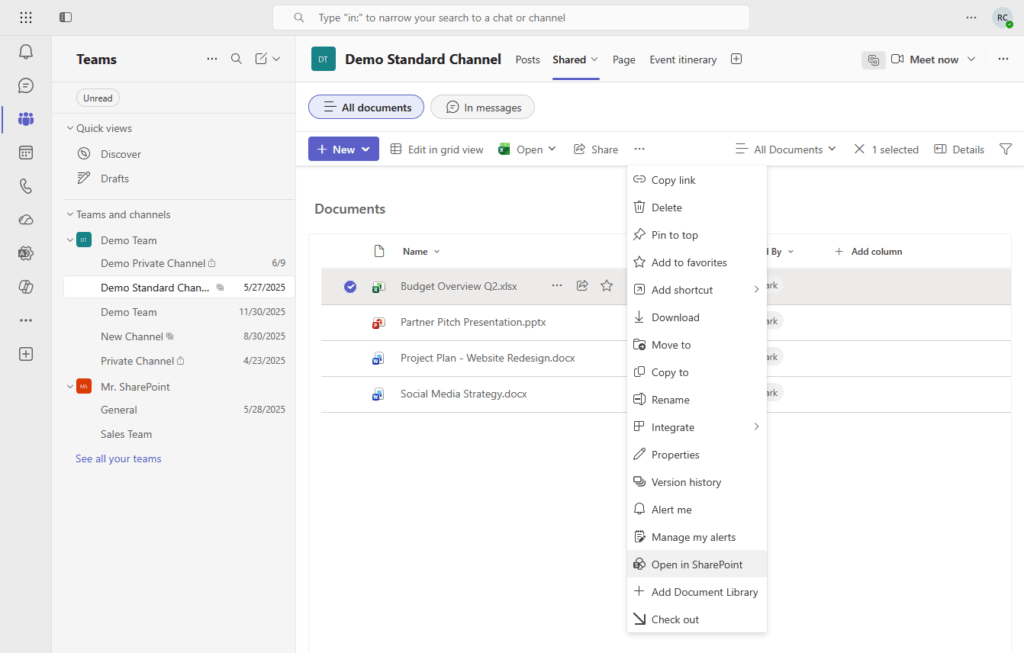
They’re the same system. When you configure a library or lock down a permission group, you’re shaping what happens inside Teams too.
For classroom collaboration, this is a gift. Teachers get the friendly Teams interface for assignments and class discussion, while IT gets the governance and version control of SharePoint underneath.
Same files, two front doors.
I point this out to clients all the time because it reframes the work. It’s the foundation your Teams deployment is already standing on.
Microsoft Forms for Permission Slips, Sign-Ups, and Surveys
Schools collect information all day long. Permission slips, field-trip sign-ups, staff surveys, and IT requests all start as someone asking a question.
Microsoft Forms turns that into a clean digital form anyone can fill on a phone. No printing, no lost slips at the bottom of a backpack.
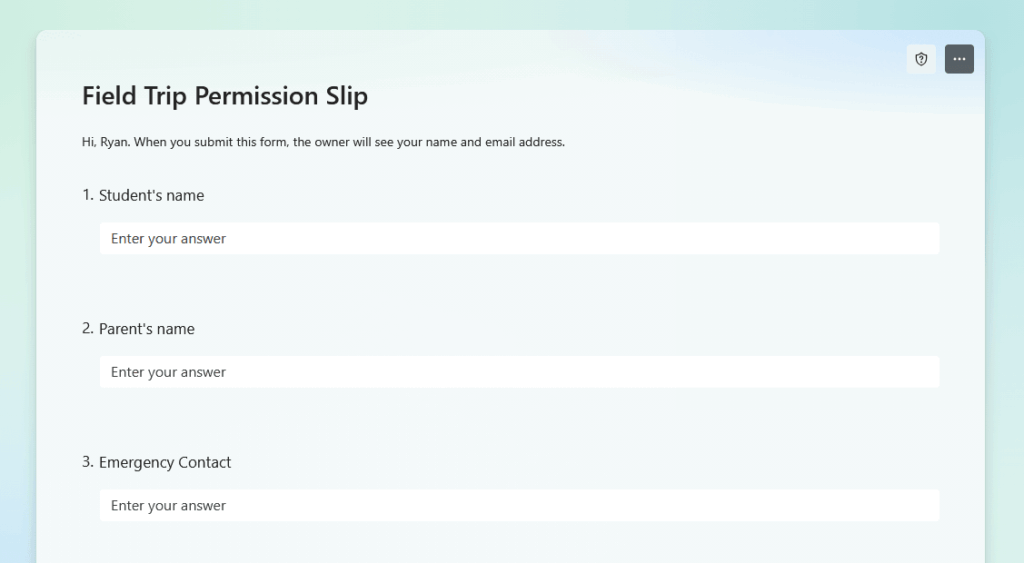
Here’s why it matters for SharePoint. Wire a form to a list, and every response lands there structured, not scattered across inboxes.
From there it’s yours to work with. You sort it, filter it, and hand it to a workflow without retyping a single answer.
I set Forms up for the front office first, because it kills the paper pile everyone secretly dreads. The wins are immediate and visible.
And because the answers already live in a list, you’re set up for everything that comes next.
Lists for the Trackers Schools Run on Spreadsheets
Not everything a school tracks is a document. Device inventories, maintenance tickets, and incident logs are really just structured data.
Most schools run these on a shared spreadsheet that five people edit at once, until it’s a mess nobody trusts.
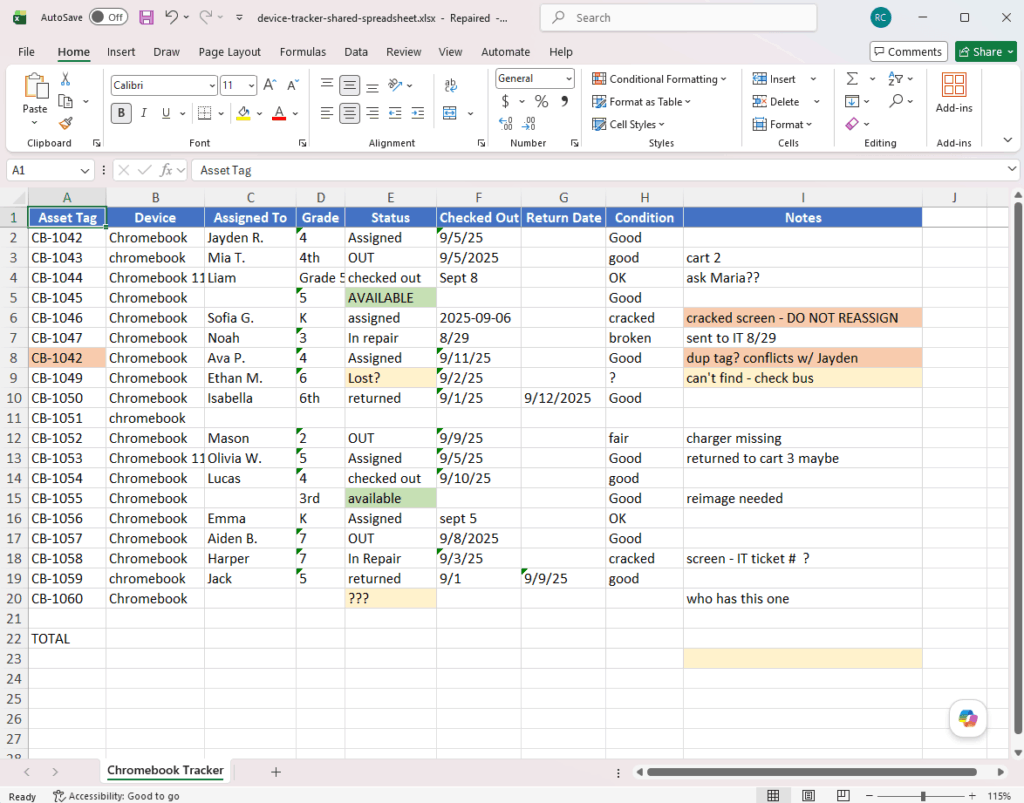
SharePoint Lists fix that. Each list is a proper database with typed columns, so a date is a date and a status is a real dropdown.
These are the trackers it fits perfectly:
- Chromebook and device inventory
- Maintenance and facilities tickets
- Student incident and behavior logs
- Substitute and coverage schedules
- Curriculum review status
You get views, filtering, and permissions the same way you do on a library. The counselor’s incident log stays locked to the counselor.
Here’s the part I like most. A list can trigger a workflow, so a new row kicks off an approval or a notification on its own.
That’s why I set up lists right before automating anything. The clean data underneath is what makes the flow on top actually reliable.
Power Automate for the Paperwork Schools Still Do by Hand
Every school still runs on paper forms and email chains. Someone prints an approval, walks it down the hall, and waits.
Power Automate replaces that with a workflow that routes itself. The UK Academy Trust example shows the pattern well.
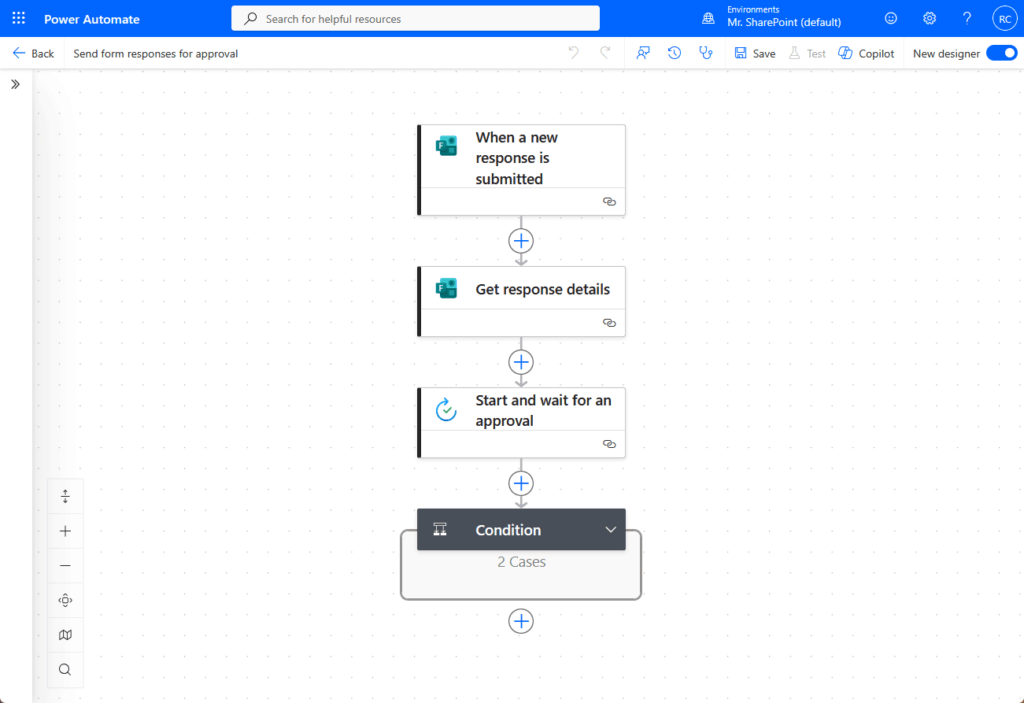
Equipment-request forms that used to move by paper and email now run through automated approval, so it reaches the right approver and gets logged without anyone chasing it.
The list of school processes this fits is long:
- Field trip approvals
- IT ticket routing
- Equipment and supply requests
- Substitute teacher requests
- Facility use requests
Kevin Brezina, Director of Technology at Alexandria Public Schools, makes the case for consolidating IT requests onto a single platform so they stop getting lost in departmental silos.
Power Automate on top of SharePoint is exactly that kind of consolidation. And this connects straight back to the staffing crisis.
Diane Doersch of Digital Promise points out that work left behind by departing staff can often be automated into a more efficient workflow instead of frantically backfilled.
That’s a practical way to close a staffing gap districts can’t hire their way out of.
The License Is Already Paid For. The Configuration Isn’t.
Every feature here ships inside the license your district already bought. None of it costs extra, and what’s missing is the configuration, not the software.
It’s all sitting there, waiting:
- Document libraries with full version history
- Metadata and search that make files findable
- Communication sites for staff and families
- Security groups for FERPA-sensitive records
- Teams integration your teachers already use
- Microsoft Forms for permission slips and sign-ups
- Lists for device, ticket, and incident tracking
- Power Automate for manual workflows
The hard part isn’t knowing these tools exist. It’s carving out the weeks to architect them properly while the help desk keeps ringing all day.
So if SharePoint has been sitting in your license as an unused checkbox, now you know why. Nobody has had the bandwidth to configure it properly.
Is SharePoint sitting unused past the default team site while your IT team runs on empty? That’s exactly the gap I close.
I help understaffed school districts configure SharePoint to protect student data and cut the manual paperwork that eats your week. Reach out and let’s talk.




























