

Table of Contents:
Your team is chasing approvals through email and spreadsheets, making documents get lost and sign-offs stall for days. No one ever knows where stuff is stuck.
It tends to look like this:
- Legal reviews sitting in an executive’s inbox, waiting on a reply that never comes
- Finance with no visibility into where a purchase order is in the chain
- HR chasing offer letter signatures across email and DocuSign
Power Automate ships with ready-to-use approval templates that fix this. They route documents through sign-off steps, send reminders, and log everything automatically.
Most teams in Microsoft 365 are still doing this by email. They don’t know a better option is already included in their subscription.
I’ve configured these for dozens of teams. Once you get it right, the ROI is immediate.
The Problem with Email-Based Document Approvals
Email approval chains create a cascade of problems:
- Documents get lost with no way to track them
- No visibility into where a sign-off is stuck or why
- No audit trail of who approved what and when
- Approvers get confused about which version they’re supposed to review
The financial impact is real. AP teams have documented saving 30 hours per week by automating what used to run through email and spreadsheets.
AP automation cuts average invoice processing time from 14+ days to under 4 days for best-in-class teams.
This is where Power Automate approval flows come in. They give you:
- Document versioning and audit trails built in
- Visibility into approval status across the entire chain
- Automatic notifications so approvers don’t get forgotten
- Conditional routing so different documents follow different paths
- Integration with SharePoint so documents stay hidden until they’re approved
Sign up for exclusive updates, tips, and strategies
How Approval Flows Work in Power Automate
The basic mechanics are straightforward. A flow triggers when a file lands in a SharePoint library and routes an approval to designated approvers.
Approvers don’t need to hunt for documents. They can respond from:
- Email, with actionable approve/reject buttons
- The Power Automate Action Center
- Mobile app notifications
- Embedded document links
Once someone responds, conditional logic kicks in and notifications go out automatically. Most of the time, approval comes through email because that’s where your team already is.
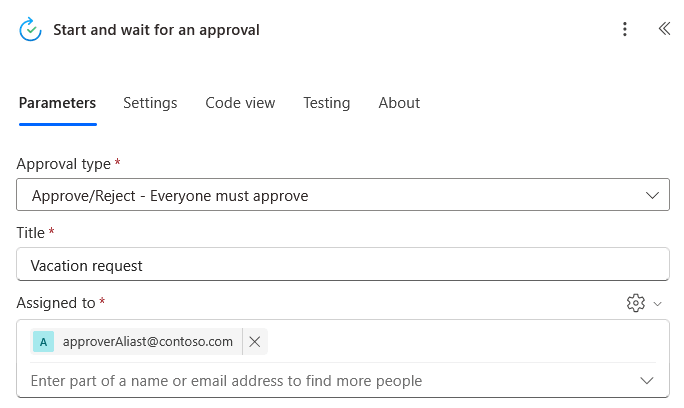
The flexibility comes from approval types. Microsoft’s approval action gives you four flavors:
| Approval Type | How It Works | Best For |
|---|---|---|
| Approve/Reject (Everyone Must Approve) | Requires consensus; any single rejection ends the flow | Legal reviews, compliance sign-offs, multi-stakeholder NDAs |
| Approve/Reject (First to Respond) | Stops immediately after first response | Fast-track decisions, manager sign-offs, quick checks |
| Sequential Approval | Routes to one person at a time in predefined order | Document chains (manager → director → CFO), escalation paths |
| Custom Responses | Allows multiple outcome types beyond binary approve/reject | Requests where you need “Approved,” “Needs Revision,” “Rejected” |
The choice matters. If you use “Everyone Must Approve” with ten people, you’re waiting for consensus.
If you use “First to Respond,” you get a decision the moment the first person replies. Sequential approval is slower but ideal when you need sign-off in a specific order.
The Templates Worth Using
Microsoft’s template gallery has dozens of approval options. Most are noise.
Here are the ones that actually matter for document review:
| Template | What It Does | Best Department | Link |
|---|---|---|---|
| Start approval when a file is added to SharePoint | Triggers automatically when docs land in a library, initiates approval | All departments | Microsoft Learn |
| Request approval for a new file in SharePoint | Manual trigger for approval; simpler than auto-trigger | Teams that batch approvals | Microsoft Learn |
| Sequential approval for documents | Routes documents through a chain in order | HR, Legal, Finance | Microsoft Learn |
| Manage SharePoint document approval | Bridges Power Automate to SP content approval status so docs stay hidden until approved | All departments | Microsoft Learn |
These templates are starting points. You’ll customize them for your specific department.
But they handle the heavy lifting: triggering on file uploads, waiting for responses, handling conditional outcomes, and updating metadata.
Workflow Examples by Department
Same template, different configuration. Here’s how each team uses approval flows in practice.
HR: Offer Letters, Policy Updates, and Onboarding Docs
I keep seeing HR teams chase offer letter signatures across email and DocuSign when they could automate it in SharePoint with Power Automate.
Here’s how the offer letter flow works:
- A recruiter uploads the offer letter to the HR Documents library
- The flow triggers and routes it to the hiring manager for sign-off
- If approved, it moves to the HR director; if rejected, the flow stops and the recruiter gets notified to revise
For policy updates, you’d set up a broadcast notification after final approval so the whole team knows the new policy is official.
SharePoint keeps the old version archived so you’ve got your compliance trail.
Add a reminder action if an approver hasn’t responded within three business days, and you’ve eliminated the “Where’s my approval?” follow-up emails.
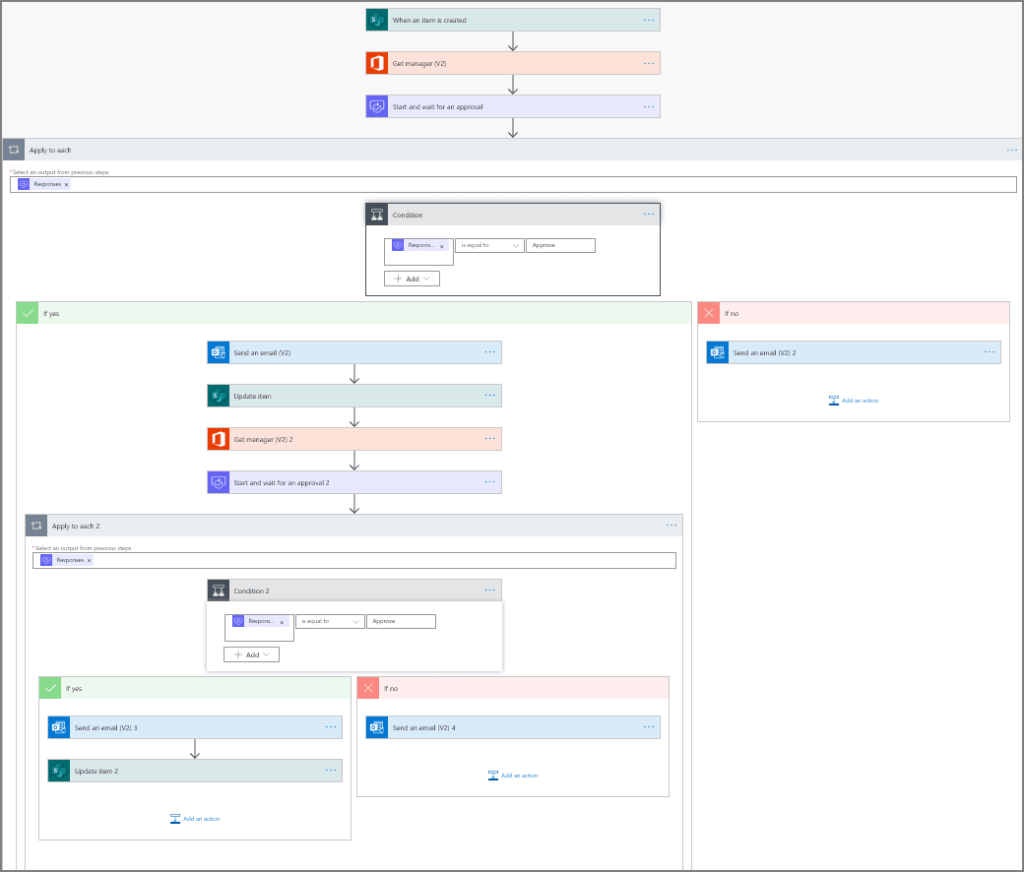
Source: learn.microsoft.com/en-us/power-automate/sequential-modern-approvals
The setup uses sequential approval because the order matters. You want the hiring manager to see the offer first, then HR director sign-off.
Legal: Contract Reviews and NDAs
Legal workflows are more complex because you often need multiple parties to sign off simultaneously, and some legal reviews take time.
This is where “Everyone Must Approve” comes into play, especially for NDAs that require mutual consent.
Here’s a smart move: use conditional logic to route by contract value.
| Contract Value | Approver |
|---|---|
| Under $10,000 | Junior attorney |
| Over $50,000 | Legal director + finance lead |
Power Automate makes that routing decision automatically based on metadata you’ve already got in SharePoint.
One caveat: Power Automate has a 28-day approval timeout. If an approver doesn’t respond within 28 days, the flow fails.
For legal reviews that might take longer, use a two-flow architecture.
One flow creates the approval request and stores the approval ID. A second flow handles checking the response, so no single run waits past the timeout window.
Finance: Invoices and Purchase Orders
Finance gets the most out of approval automation. A typical setup uses conditional routing based on dollar amount.
| PO Amount | Approver |
|---|---|
| Under $2,500 | Manager |
| $2,500–$10,000 | Finance lead |
| Over $10,000 | CFO |
Power Automate evaluates the amount from the PO metadata and routes automatically. No manual redirection, no approver confusion.
Approvers see approvals in their email inbox with action buttons; they click Approve or Reject right there, and the flow updates the document status automatically.
Here’s how to wire a template to an actual SharePoint library:
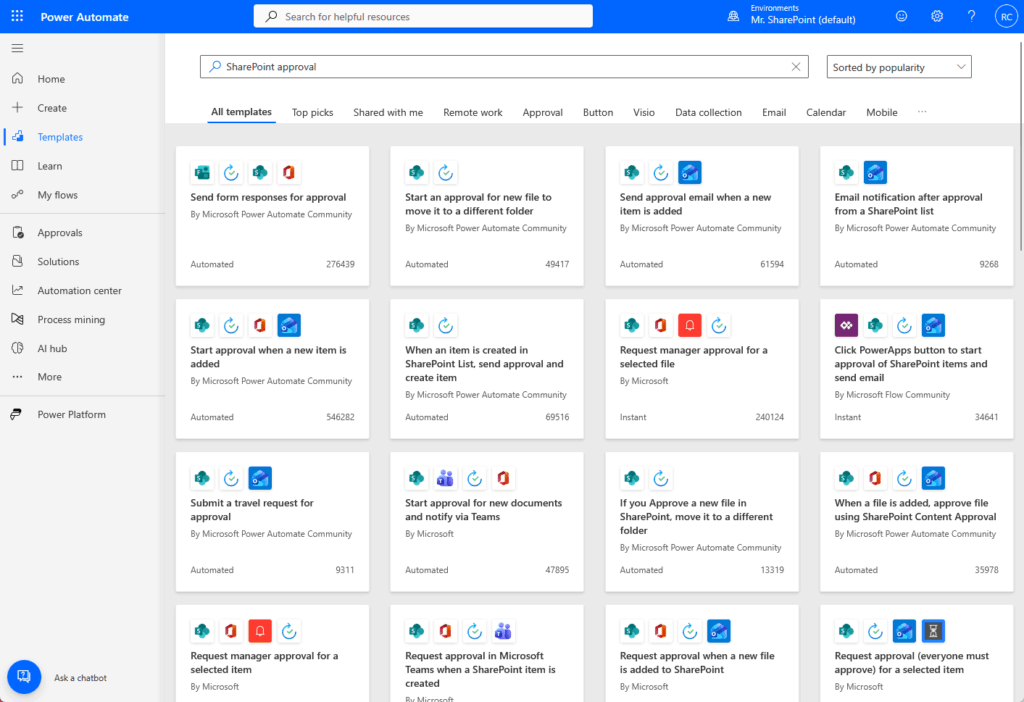
- Open Power Automate and search for “SharePoint approval” templates. Pick the one that fits your use case (usually “Start approval when a file is added to SharePoint”).
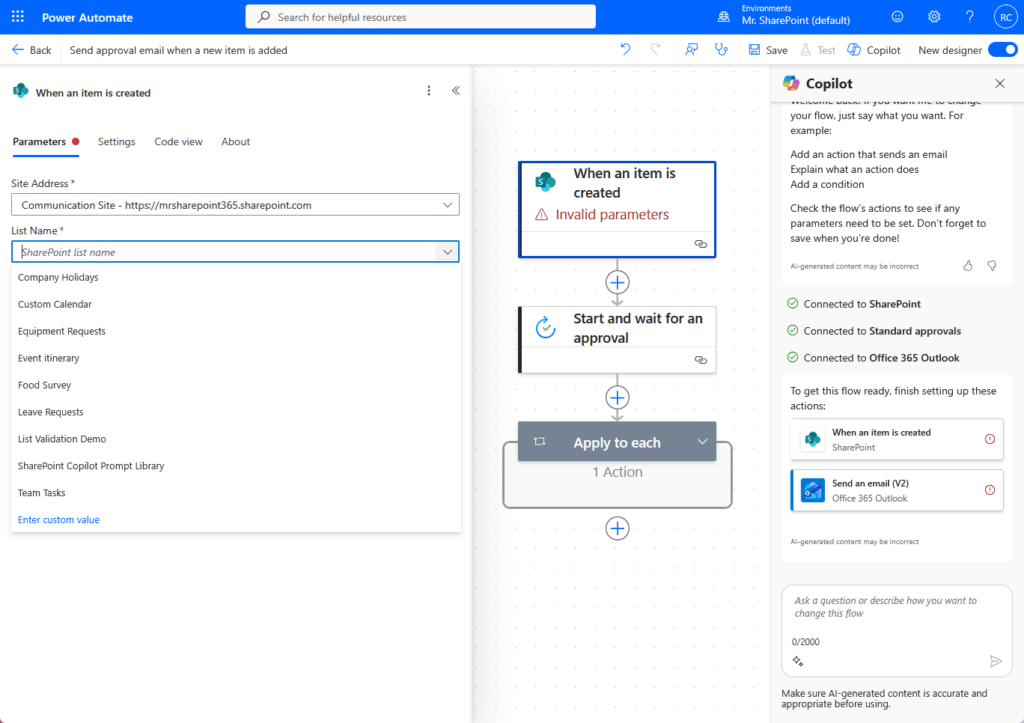
- Connect to your SharePoint site and select the library where documents will land.
- Configure the trigger to specify which file types matter. You might only want approvals for .docx files, not images or spreadsheets.
- Set your approvers. This is where you decide if it’s sequential, first-to-respond, or everyone-must-approve. You can hardcode names or pull them from a SharePoint list for flexibility.
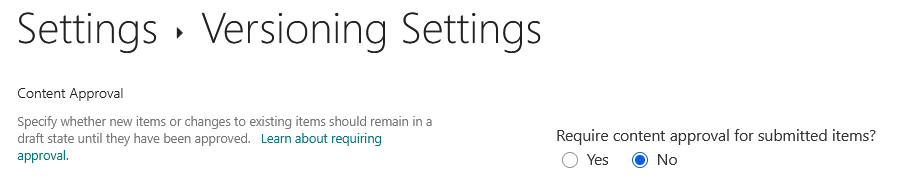
- Enable content approval on the library. Go to library settings, then Versioning settings, and enable “Require content approval for submitted items.” This ensures documents stay hidden from general users until the Approval Status field is set to “Approved.”
- Add notifications. The flow should send an email to approvers with a button they can click to approve or reject. After approval, notify the document creator.
One best practice: store your approver information in a SharePoint list instead of hardcoding names into the flow.
This way, when people change roles or leave the team, you update the list, not the flow. The flow pulls approver info dynamically each time it runs.
Approvers need Design-level permissions or higher to respond to approvals, so make sure your team has the right permission level before you go live.
Where These Templates Hit Their Limits
Power Automate approval templates are powerful, but they have boundaries.
| Limit | What Happens | Fix |
|---|---|---|
| 28-day approval timeout | Approver doesn’t respond in time; the flow fails | Use a two-flow architecture |
| Large group sign-offs | “Everyone Must Approve” can fail with large groups | Switch to sequential approval instead |
| Complex routing logic | Multi-factor conditionals push past template territory | Build a custom flow |
That’s where templates end and real customization begins. Templates handle 80% of what most teams need.
When your approval logic gets too nuanced, it’s worth having a consultant build something tailored. But for most document review workflows, the templates do the job.
Set It Up Once, Stop Chasing Sign-Offs
Set up one approval flow, map it to your library, and the email chaos goes away. Requests route automatically, everyone gets notified, and nothing falls through the cracks.
Here’s what changes once it’s live:
- Approvers get requests directly in their inbox with one-click approve/reject buttons
- Every decision is timestamped and logged automatically
- Documents stay hidden until they’re approved, so the wrong version never goes out
- No more pinging people on Slack to find out where a sign-off is stuck
You don’t need a developer or a big implementation project to get there. The templates handle the heavy lifting.
Most teams get this running in a few hours and see the payoff immediately. Approvals that used to take days start closing the same day.
If your current approval process lives in email, Slack, or spreadsheets, you’re one flow away from fixing it.
I help teams implement approval workflows that fit their process, and I’ve seen firsthand how much faster sign-offs move when they’re automated in SharePoint. Reach out and let’s talk.




























