

Table of Contents:
You spent months building a SharePoint intranet with hub sites, news, and linked resources. And nobody’s using it.
Here’s what I see at most organizations:
- The intranet URL is buried in an email somewhere
- Employees only open SharePoint when IT makes them
- The platform you invested in has gone invisible
The problem isn’t your intranet. Employees start their day in Teams, not SharePoint.
Viva Connections brings your intranet directly into Teams, where your people already work. It’s not a new product or a separate tab to remember.
I’ve walked dozens of clients through this setup. I’ll walk you through the steps, the missteps, and what actually drives adoption.
What Is Viva Connections, Exactly?
Viva Connections is a Microsoft Teams app that surfaces your existing SharePoint intranet. Think of it as a better front door to what you’ve already built.
It has three core components that work together:
| Component | What It Does |
|---|---|
| Dashboard | A customizable home screen with quick-access cards (tasks, approvals, shifts, documents). Cards can be targeted to specific teams or roles. |
| Feed | News and announcements from your SharePoint home site, displayed in a readable stream inside Teams. |
| Resources | Quick links and tools pinned to the Viva sidebar for one-click access. |
The magic isn’t in the feature set. It’s in the placement.
Your intranet stops being a separate destination and starts being part of the workflow your team is already in.
Sign up for exclusive updates, tips, and strategies
What You Need Before You Start
Before you spin up Viva Connections, make sure you’ve got the foundation in place. Skipping these will cost you later.
| Prerequisite | What It Requires | Where to Configure |
|---|---|---|
| Microsoft 365 Licensing | E3, E5, F1, F3, or academic licenses include Viva Connections at no extra cost. Multiple experiences require Microsoft Viva Suite. | Microsoft 365 License portal |
| SharePoint Home Site | A Communication site designated as the Home Site. This is configured when you create your Viva Connections experience. | Microsoft 365 Admin Center > Settings > Viva > Viva Connections |
| Teams Admin Access | Access to Teams Admin Center to enable and deploy the app. | Microsoft Teams Admin Center |
| Modern SharePoint | Classic SharePoint doesn’t support Viva Connections. You need modern hub sites and communication sites. | Verify in your SharePoint deployment |
| Teams Adoption | If your organization isn’t actively using Teams, Viva Connections will languish unseen. | Assess Teams usage metrics in your org |
That last one isn’t technical, but it matters more than any of the others.
I’ve configured stunning Viva Connections dashboards for organizations where half the workforce still primarily uses email.
The platform can’t solve adoption if the underlying tool isn’t adopted yet.
Step-by-Step: Setting Up Viva Connections
Setting up Viva Connections takes five steps. The order matters, and each one builds on what came before.
Start here. Your home site is the hub that Viva Connections pulls content from for the Feed and navigation.
You’ll designate your home site when you create the Viva Connections experience in Step 2. If you don’t have a Communication site yet, create one now.
That’s the site you’ll register as your home site. Make sure it’s properly structured with hub sites underneath it. Actually, your navigation hierarchy matters more than you think.
I’ve seen organizations rebuild this layer six months after launch because news targeting broke, search returned irrelevant results, and employees couldn’t navigate to where they needed to be.
Take the setup seriously. You’re building the information architecture that Viva Connections will depend on.
Step 2: Create the Experience in the Admin Center
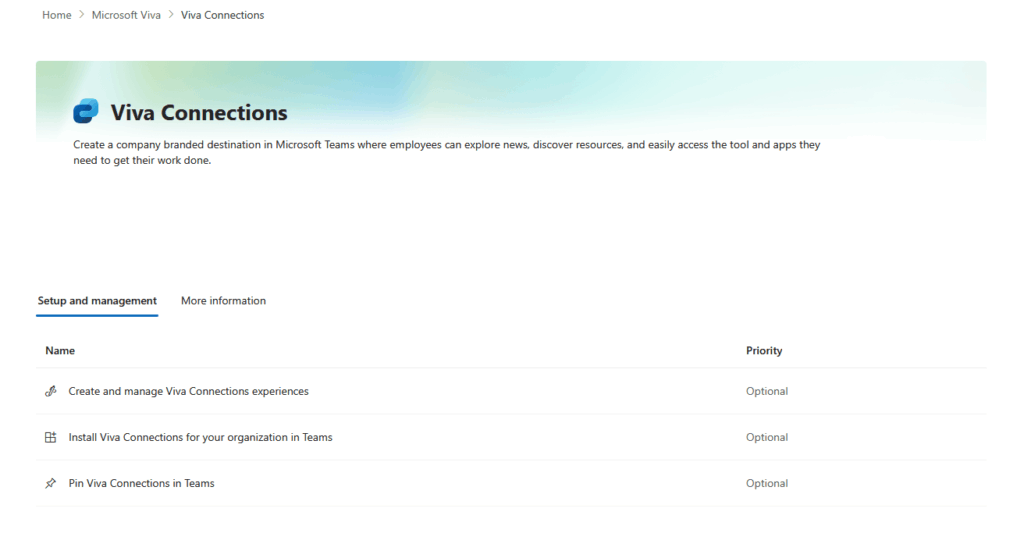
Head to Microsoft 365 Admin Center > Settings > Viva > Viva Connections. Select “Create and manage Viva Connections experiences,” then click “+ Create new.”
You’ll be asked to choose an experience type. If you already have a SharePoint intranet, select “Build from an existing portal to set a home site.”
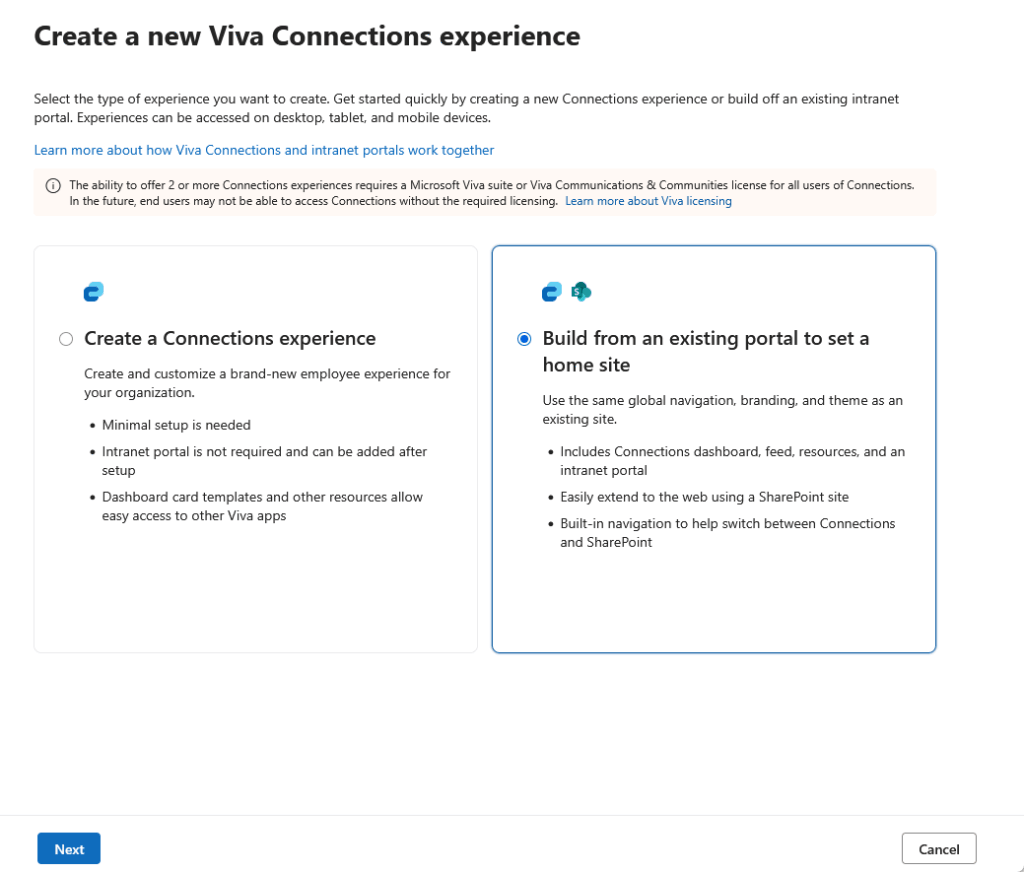
This option pulls in your existing site’s navigation and branding. It also designates that site as your SharePoint home site automatically.
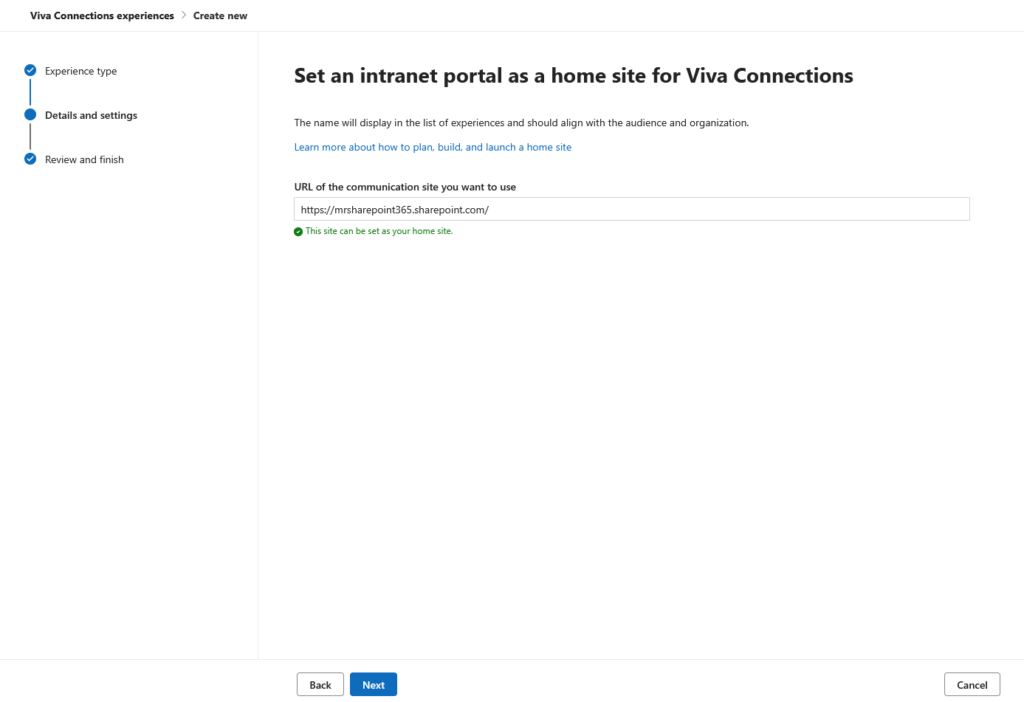
On the next screen, paste in the URL of your Communication site. The admin center validates it before letting you proceed.
If you’re starting without an intranet, choose “Create a Connections experience” instead. That option requires minimal setup and no intranet portal.
Review the home site URL on the final screen and click “Create experience.” Your existing site’s navigation and branding carry over automatically.
Once created, open the experience settings to assign who can manage it and configure audience targeting if you want different groups to see different configurations.
This is straightforward config. The decisions you made about your home site in Step 1 pay off here.
Step 3: Build Your Dashboard
This is where Viva Connections gets interesting. From your SharePoint home site, click the gear icon, select “Manage Viva Connections,” then select “View Dashboard.”
Click “Edit” in the command bar to open the editor and start adding Adaptive Card Extension cards.
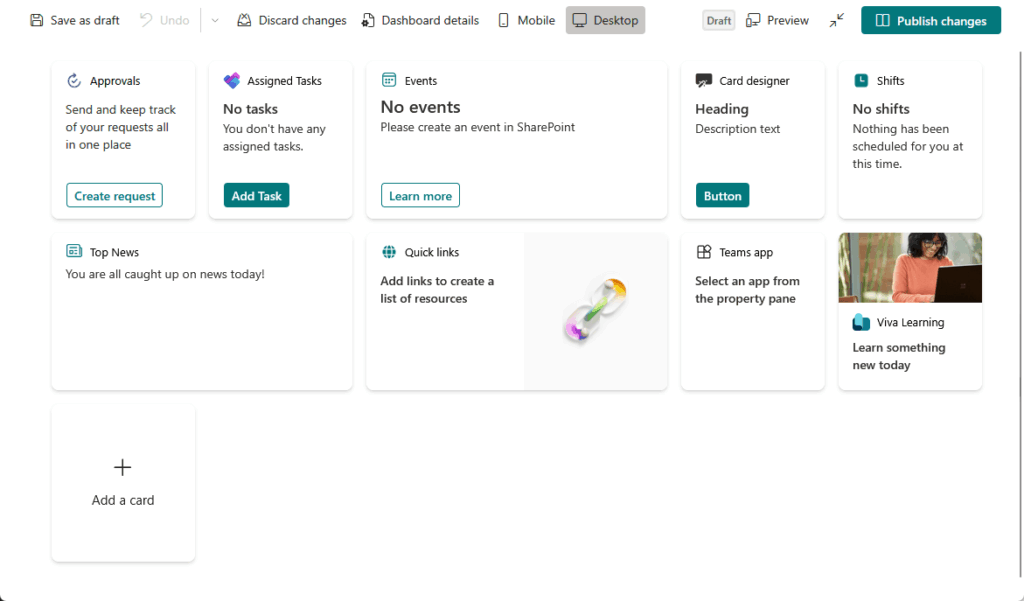
Most clients I work with start with these four cards:
- Approvals: so frontline approvers see pending requests at a glance
- Tasks: pulling from Planner or To Do
- Shifts: for schedule-heavy roles
- Document Library cards: new in 2025, with direct access to shared resources
You can also add custom cards that pull from Lists, surfacing forms or surveys without forcing users to navigate elsewhere.
Target cards to specific audiences. A retail manager needs Shifts and Approvals; a corporate analyst needs Document access and company news.
Targeting is how you stop dashboard bloat and make Viva Connections feel personally relevant.
What I configure first for most clients: one approval card, one task card, and the home site news feed. You can always expand later.
Step 4: Pin Viva Connections in Teams
Once your experience is created in M365 Admin Center, Viva Connections is enabled in Teams automatically. The remaining step is pinning it so users can find it without digging.
Go to Teams Admin Center > Teams Apps > Setup Policies > Global. Scroll down to Pinned Apps and click “+ Add apps.”
One common mistake here: search for the name you gave the experience, not “Viva Connections.”
If you named it “Company Hub” or “Organization Home Site,” that’s what you search for. The app won’t appear under “Viva Connections.”
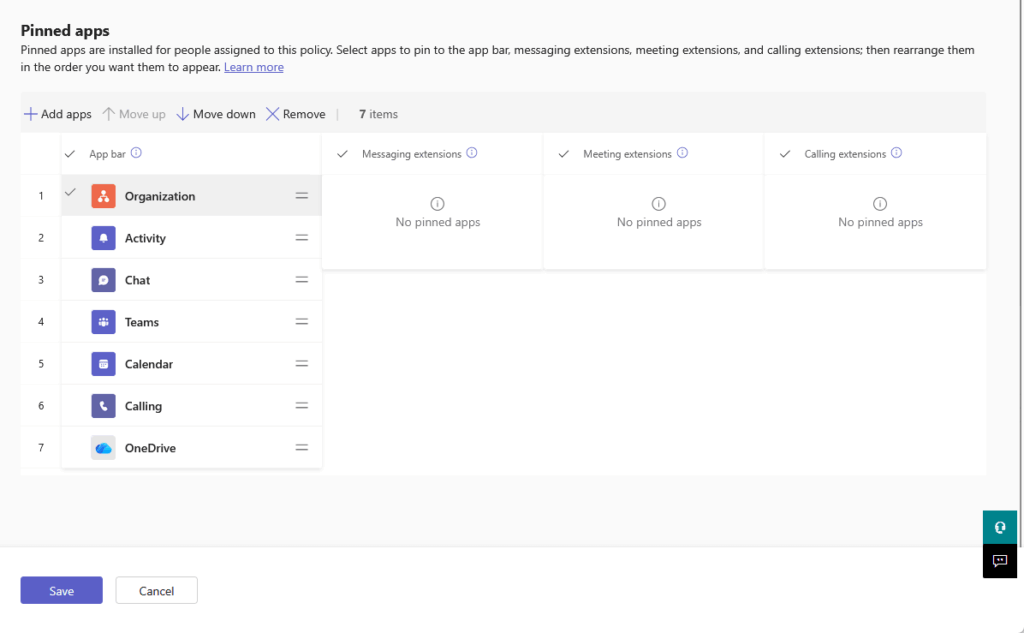
Once added, drag it to the top of the app list and click Save.
Frontline workers on F1 or F3 licenses get it pinned in position one by default anyway.
For everyone else, pinning it ensures it’s one click away, not buried in the app launcher.
Step 5: Pilot Before You Roll Out
This step gets skipped more than any other, and it’s the one that saves you when something doesn’t work the way you expected.
Recruit a small pilot group, maybe 50-100 people across different departments and roles. Give them access for two weeks.
Watch what they do with the dashboard cards. Ask if the news feed feels relevant, and adjust the experience based on what you learn.
A smooth rollout to your whole organization depends on this step. I promise it’s worth the two-week delay.
The Pitfalls I See Most Often
I’ve deployed Viva Connections enough times to have a catalog of things that go wrong. Here are the ones that hurt the most:
| Pitfall | What Goes Wrong | What to Do Instead |
|---|---|---|
| Weak SharePoint Foundation | Navigation breaks, news targeting fails, search returns noise. You rebuild the SharePoint layer at 3-6 months at twice the cost. | Audit your hub site hierarchy and home site structure first. Fix issues before you launch Viva Connections. |
| Low Teams Adoption | Employees never encounter the app. Dashboard sits unused because the platform itself isn’t a daily habit. | Drive Teams adoption first or in parallel. Viva Connections amplifies Teams usage, but it can’t create it from nothing. |
| IT Owns the Content | IT publishes a few announcements. Everything else sits empty. The platform becomes a tech demo. | Establish shared ownership between IT and business units at the start. Empower teams to publish news and manage their own content. |
| Skipping the Pilot | You launch to thousands of users with a rough dashboard. Users get confused. Adoption stalls out. | Always recruit a test group first. Two weeks of feedback saves you weeks of troubleshooting. |
The weak SharePoint foundation is the most expensive mistake. Your hub sites, communication sites, and home site are the skeleton that Viva Connections hangs on.
If that structure is messy, everything downstream breaks. News targeting fails, search returns noise, and employees get lost navigating between sites.
I’ve watched this at half a dozen organizations. Six months after launch, teams start saying “our news doesn’t show up” or “the dashboard points to the wrong place.”
That’s when someone realizes the hub site architecture needs rebuilding. And rebuilding at that scale, after launch, costs three times what it would have cost to fix upfront.
Do the SharePoint hygiene first: clean hub hierarchy, organized home site, communication sites tied to the right hubs. Then build Viva Connections on top of a solid foundation.
Viva Connections doesn’t replace your SharePoint intranet. It amplifies it, but only if you’ve built something worth amplifying.
Here’s what that looks like when the foundation is right:
- Employees see announcements in Teams and click through to the full hub
- Dashboard cards surface what people need without forcing extra navigation
- Adoption builds on its own because the content is worth returning to
If your SharePoint is scattered or outdated, Viva Connections will just be another app gathering dust. It can’t fix a weak intranet.
The configuration is the easy part. Most teams get stuck on getting people to actually use it.
The platform got better in 2025 too. Microsoft’s rolling out a new news reader experience, Copilot-powered news summaries, and richer integrations across Teams throughout 2025.
Struggling to get employees to actually use your SharePoint intranet? I help IT teams and SharePoint admins get Viva Connections deployed and adopted without the headaches. Reach out and let’s talk.