

Last Updated on July 27, 2025
Confused by SharePoint terms like “hub site” or “metadata”?
In this glossary, I will explain the most important concepts for beginners when it comes to SharePoint.
Let’s get started.
Table of Contents:
- The SharePoint Universe: Core Concepts
- Building Your World: The Structural Blueprint
- The Filing Cabinets: Storing and Organizing Information
- The Power of Tags
- The User Experience: Navigating and Interacting with SharePoint
- Working Together: Collaboration and Communication Hubs
- The Security Model: Controlling Access
- Extending SharePoint: The Microsoft 365 Connection
- Your Path Forward
To start, you need to understand the environment.
This first section explains what SharePoint is, how it’s deployed, and the two different user experiences you might see.
Understanding these core concepts is the first step toward using the platform well. 🙂
Microsoft SharePoint is a web-based platform that organizations use to create websites.
It works as a company’s private internet, or “intranet,” where teams can find news, shared resources, and work on projects.
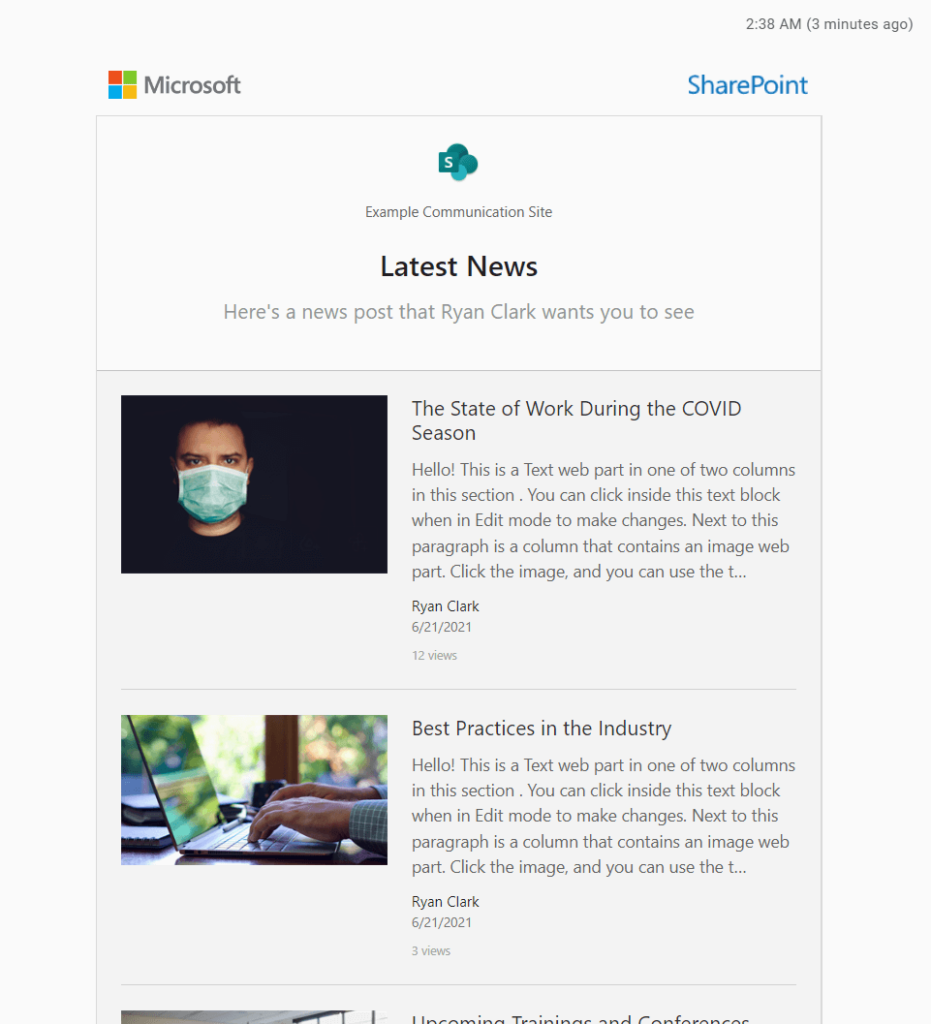
Its main purpose is to support teamwork by providing a single, secure place to:
- Store and organize documents
- Share information securely
- Access content from any device
- Work together on projects
Instead of using scattered emails and dealing with confusing file versions, SharePoint helps keep everyone on the same page.
A key feature of modern SharePoint is its integration with Microsoft 365, though it also works with other useful tools.
For instance, SharePoint provides the file storage for Teams, so every file you share in a channel is stored in a site.
The term “SharePoint” can mean two different things.
Understanding the difference is important because it affects how the platform is managed, updated, and paid for.
- SharePoint Online: A cloud-based service managed by Microsoft. It offers automatic updates and is paid for with a subscription.
- SharePoint Server: A self-hosted product managed by the organization. It gives you full control but requires manual maintenance.
The choice depends on an organization’s needs for control, its budget, and its IT resources.
SharePoint Online is the more common approach today because it’s easier to use and always up-to-date.
SharePoint Server is still a good option for businesses with specific rules or IT setups.
This table breaks down the key differences:
| Feature | SharePoint Online (Cloud) | SharePoint Server (On-Premises) |
| Hosting | Hosted and managed by Microsoft | Hosted and managed by the organization |
| Updates | Automatic and frequent | Manual installation required by IT |
| Cost Model | Monthly per-user subscription | Upfront licensing and hardware costs |
| Control | Simpler administration, less structural control | Complete control over the environment |
| Integration | Deep integration with Microsoft 365 | Requires more complex configuration |
SharePoint can also have two very different looks.
These are known as the “Modern” and “Classic” experiences.
- Modern Experience: The current, recommended interface. It’s clean, works well on mobile devices, and is easy for anyone to customize.
- Classic Experience: The older interface. It has a more complex design, isn’t mobile-friendly, and often needs a developer to make changes.
The shift from classic to modern was more than a design update.
It was a change in thinking, moving from a platform that depended on IT to one that any user can manage.
For beginners, it’s best to focus on the modern experience, as it is the present and future of SharePoint.
Here is a direct comparison of their key characteristics.
| Aspect | Classic Experience | Modern Experience |
| User Interface | Complex “ribbon” menu | Clean, intuitive command bar |
| Architecture | Rigid hierarchy of subsites | Flexible, “flat” structure with hubs |
| Performance | Can be slower | Faster page load times |
| Mobile-Friendliness | Not optimized for mobile | Fully responsive by design |
| Customization | Requires developer expertise | Easy-to-use, no-code web parts |
Sign up for exclusive updates, tips, and strategies
Building Your World: The Structural Blueprint
A good SharePoint setup needs a clear plan for its structure, known as Information Architecture.
This plan decides how content is organized and how people find their way around.
This section explains SharePoint’s basic structure, comparing the old model with the new.
Information Architecture (IA): The Plan for Your Digital Space
Information Architecture (IA) is the plan for organizing and structuring content.
It’s not just about where files go; it’s the design of the user experience.
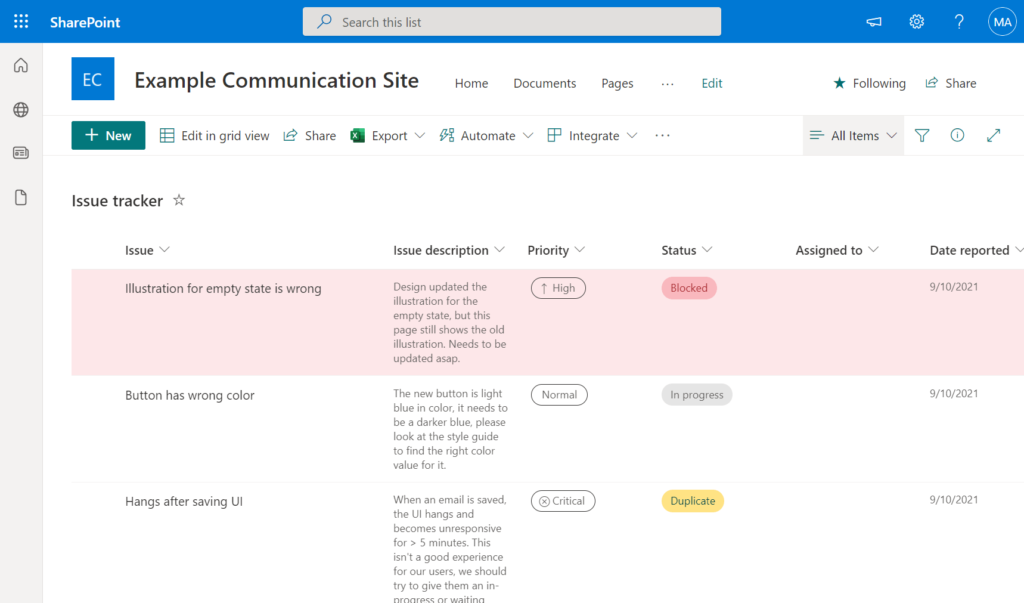
Good IA helps users find the information they need easily.
Key parts of IA include:
- Site hierarchy: How sites are organized and related to each other.
- Navigation: The menus and links that users follow to find information.
- Metadata: The tags and labels used to classify content so it can be searched.
The Classic Hierarchy (Older Concept)
While no longer recommended, understanding the classic hierarchy is useful for working with older SharePoint sites.
This model was strict and rigid.
- Site collection: The top-level container that held a main site and all its subsites.
- Subsite: A site created inside another site, which inherited its permissions and navigation.
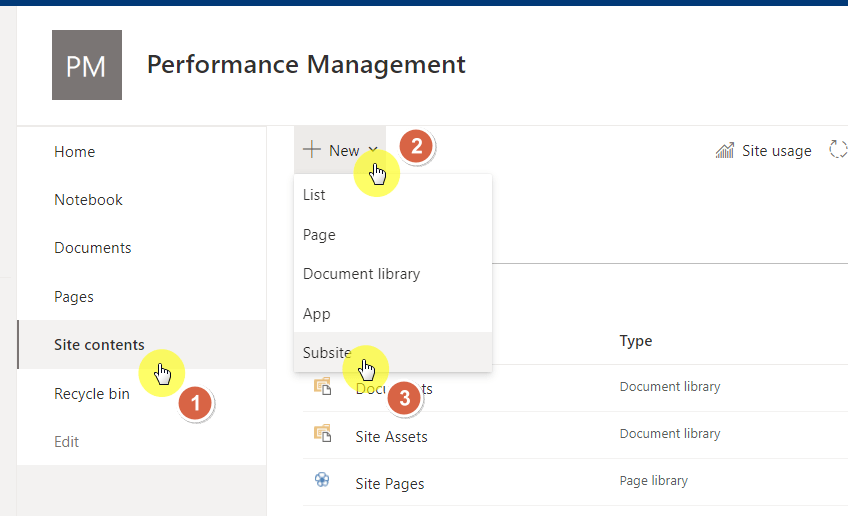
This nested model often created deep, confusing structures.
If a department moved, separating its subsite from the old structure was a major technical task.
This lack of flexibility is a main reason Microsoft moved to the modern, “flat” structure.
The Modern “Flat” Architecture (The New Standard)
The modern SharePoint experience uses a more flexible, “flat” structure that better fits how today’s organizations work.
- Site: Every modern site is its own independent site collection, which allows for more flexibility and has its own security.
- Hub site: A hub connects related sites to share navigation, branding, and roll up content.
- Home site: A home site is the official main landing page for the intranet and has special, organization-wide features.
This flat structure lets organizations change quickly.
Instead of rigid, top-down control, it allows for a more decentralized way of managing sites.
This model better reflects how modern teams work and makes SharePoint easier to use and govern.
The Filing Cabinets: Storing and Organizing Information
At the center of any SharePoint site are the places where you hold content: lists and document libraries.
Choosing the right one is an important first step.
This section explains their different purposes and introduces key content management features.
List: For Structured Data
A SharePoint List is a collection of information in rows and columns, like a spreadsheet or a simple database.
It’s the right tool for handling structured data.
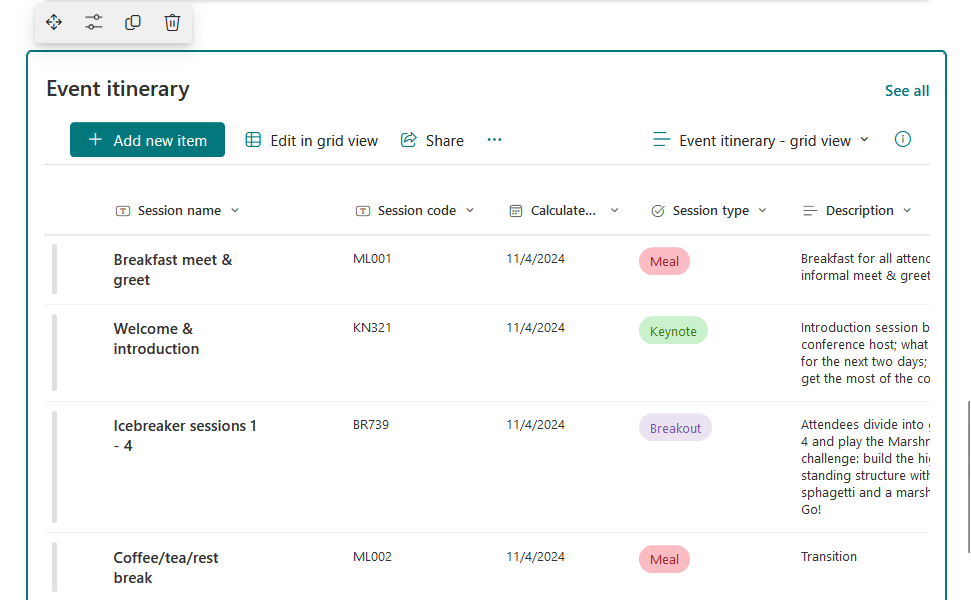
Each row in a list is an item (a single record), and each column is a piece of information about that item.
Common uses include:
- Issue trackers
- Event schedules
- Onboarding checklists
You can attach files to a list item, but they won’t have the advanced management features of a library.
Document Library: For Files
A document library is a special kind of list made for storing and working on files.
While it’s technically a list, its features are all built for managing documents.
In a library, each item is the file itself.
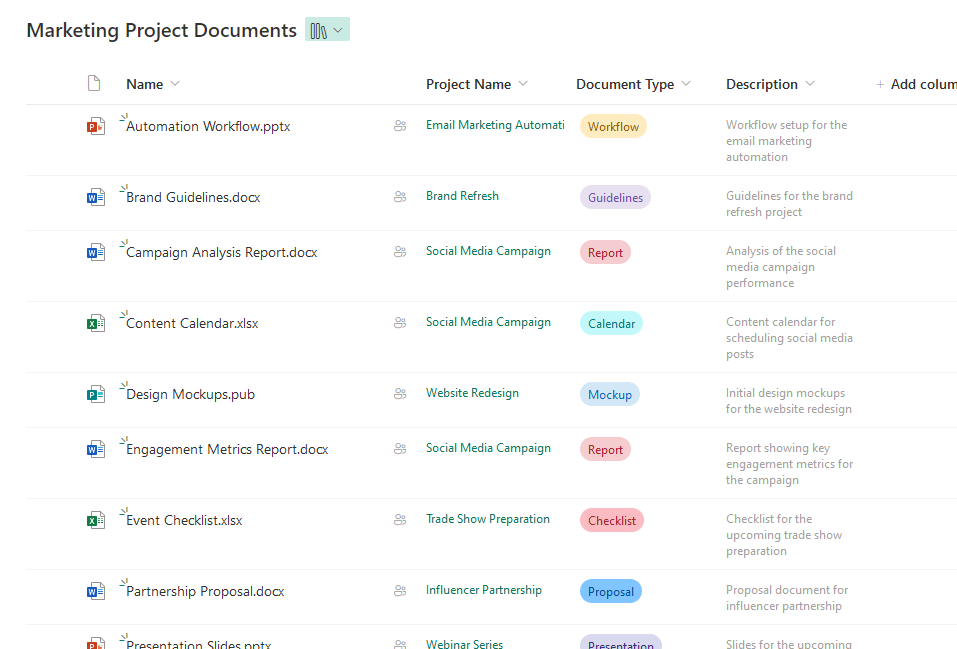
Document libraries offer features not found in standard lists, including:
- Co-authoring: Multiple users can edit an Office document at the same time.
- Check-In/Check-Out: Users can lock a file to stop others from making changes.
- Versioning: You can track both minor (draft) and major (published) versions of a file.
- Searchability: The full text of documents is indexed and can be searched.
These features make document libraries the best place for team collaboration on files.
They provide the structure needed for managing official records and project work.
Creating, reviewing, and storing files, a document library is the right choice over a standard list.
Folder (Take Caution)
Folders are a simple way to group content.
But, it’s best to avoid using many levels of folders in modern SharePoint.
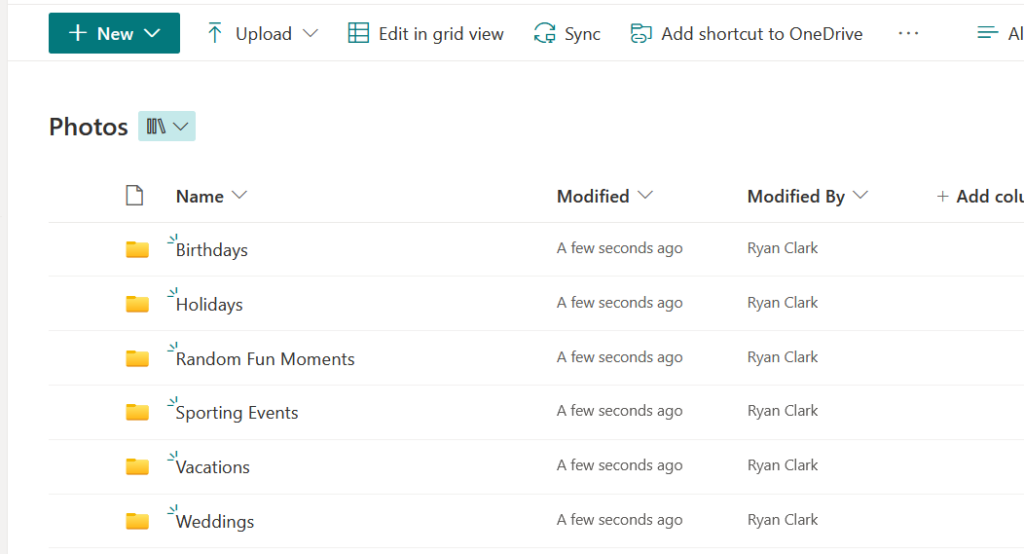
The recommended practice is to keep a “flat” library structure and use metadata to organize, filter, and find content.
This method is much more flexible because a single document can be found in many ways using tags.
But it can only be in one folder.
Core Content Management Features
SharePoint has a set of features for managing your content’s lifecycle and security.
- Versioning: Automatically saves a history of all changes to an item, so you can restore a previous version.
- Check-In / Check-Out: Gives one user exclusive editing rights by locking a document and making it read-only for others.
- Recycle Bin: Protects against accidental deletion with a two-stage recovery system that holds items for a while.
- Storage Allocation (SharePoint Online): Gives organizations a large, central amount of storage without needing to manually divide space for sites.
These features are the foundation of SharePoint’s content governance.
They give administrators and users the tools to manage a document’s entire lifecycle.
Using these features correctly helps maintain data integrity and prevent accidental data loss.
This dependable system is a key reason organizations use SharePoint for their important content.
The Power of Tags
One of the most useful concepts in modern SharePoint is organizing content with metadata.
While many start with folders, learning to use metadata helps you create a smart and organized info system.
This section explains metadata, columns, content types, and views.
What is Metadata? Organizing Without Folders
Metadata is data about data.
It’s a set of descriptive tags or labels you apply to a document or item to add context and make it easier to find, sort, and filter.

With metadata, you can:
- Find information faster with better filtering and sorting
- Improve search results by adding more context
- Build automated workflows based on document details
- Keep data entry consistent across the organization
The main benefit of metadata is its flexibility.
Again, a file can only be in one folder, but it can have many metadata tags, so it can be found in different ways.
Column: The Building Block of Metadata
A column is the tool you use in a SharePoint list or library to capture metadata.
When you add a column, you create a field where users can enter information.
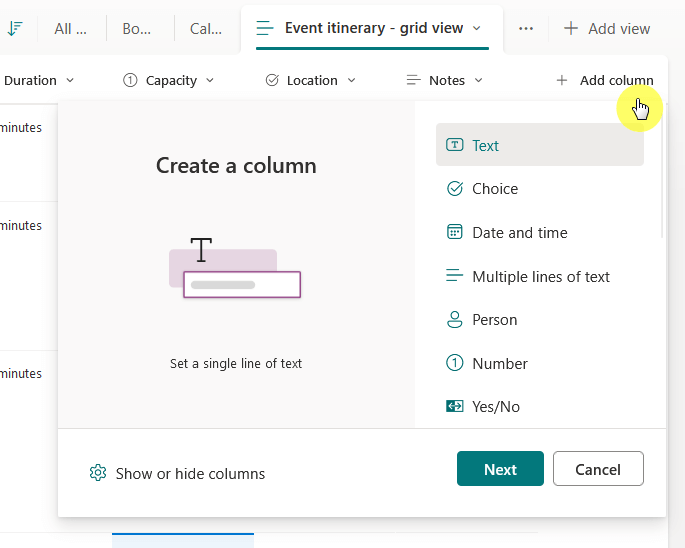
SharePoint offers many column types to make sure data is captured consistently, including:
- Text: For simple text or numbers
- Choice: For a dropdown menu of predefined options
- Date and Time: For calendar dates that can be sorted and filtered
- Person: To link directly to a user’s profile in your organization
Choosing the right column type is important for data quality and for good sorting and filtering.
It’s good to create site columns because they are reusable column definitions for many lists and libraries.
This is better than creating a list/library column, which can only be used where it was created.
Content Type: The Blueprint for Your Content
A content type is a reusable blueprint for a specific category of business content, like an “Invoice” or a “Contract.”

It allows you to:
- Define a reusable set of properties for a business item
- Bundle together a document template and a set of required metadata columns
- Add other settings, like custom workflows or information policies
Using content types makes sure that similar items are handled in the same way across your site.
When a user creates a new “Invoice,” SharePoint automatically gives them the correct template.
It also asks them to fill in the specific metadata fields you have set up for all invoices.
View: Your Custom Lens on the Data
Once your content is tagged with metadata, a view is how you use it.
A view is a saved setting that controls how items in a list or library are shown.
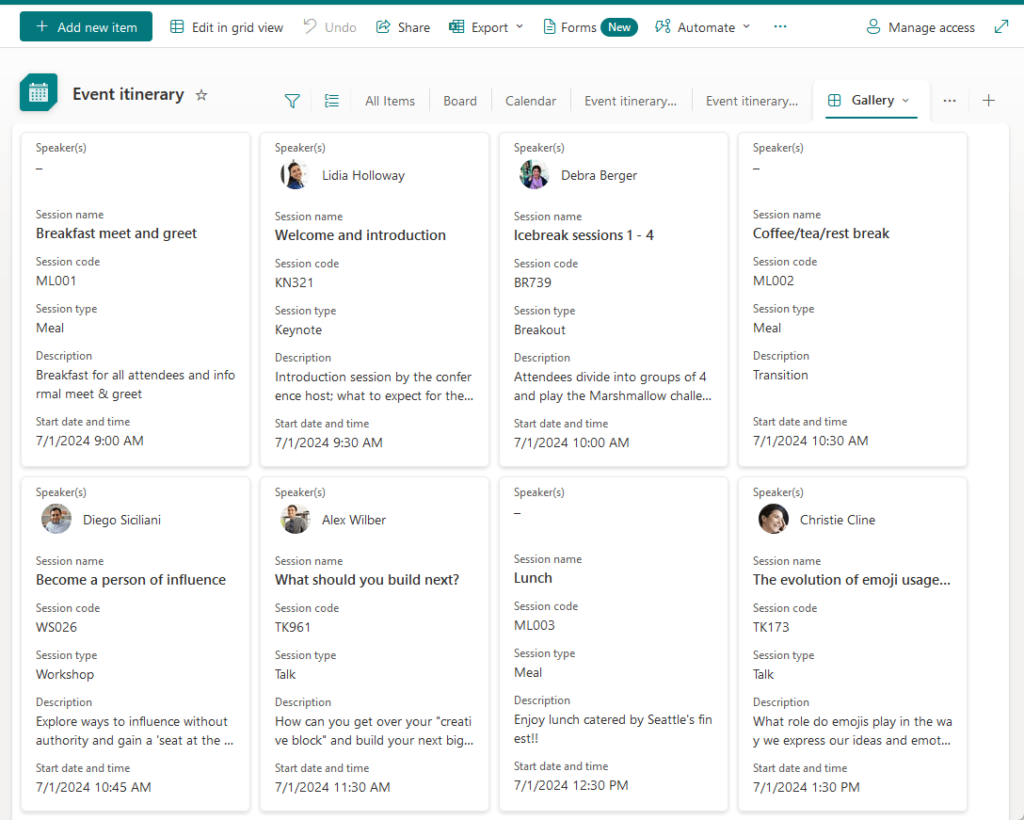
Views are the reward for using metadata, as they let you create “virtual folders.”
With views, you can:
- Show or Hide Columns: Display only the most relevant metadata
- Sort: Arrange items by a column’s value (e.g., by Due Date)
- Filter: Show only items that meet certain criteria (e.g., Status is “Approved”)
- Group: Group items under headings based on a metadata column (e.g., group tasks by “Assigned To”)
A single library can have many public views available for everyone on the team.
This gives all users access to the same organized information.
Also, individual users can create their own personal views, which only they can see.
This flexibility lets people organize information in a way that works best for them without changing it for others.
Managed Metadata and the Term Store: Centralized Language
For large organizations, making sure metadata is used consistently is a challenge.
Managed metadata and the term store solve this.
The term store is a central place where administrators can define and manage official sets of terms (a taxonomy).
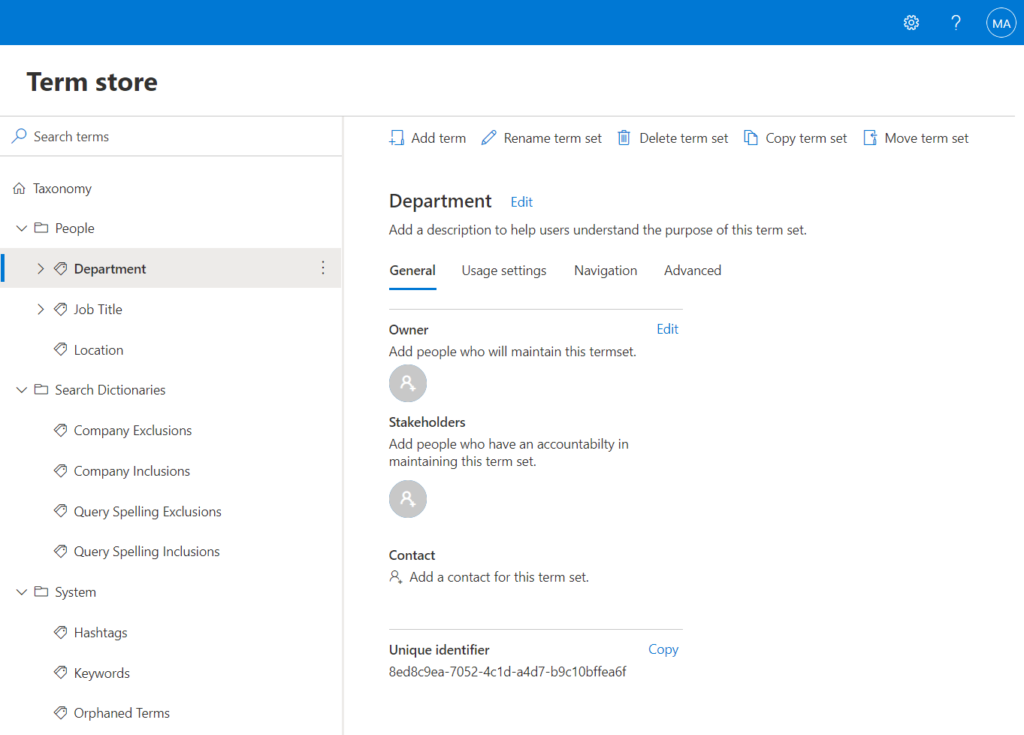
For example, an admin can create a “Department” term set.
Site owners can then create a “Managed Metadata” column and link it to this central term set.
This makes sure everyone uses the exact same term for “Human Resources” instead of variations like “HR.”
The way users see and use SharePoint’s structure is through its interface.
The modern SharePoint experience is designed to be simple, flexible, and engaging.
This section breaks down the main parts of that experience: pages, web parts, and navigation.
Page: The Canvas for Your Content
A SharePoint page is the main canvas where you display content on a site.
Think of a page as:
- A single, scrollable surface for your content
- A place to arrange text, images, and videos
- The primary way users interact with your site
- A responsive canvas that works on any device
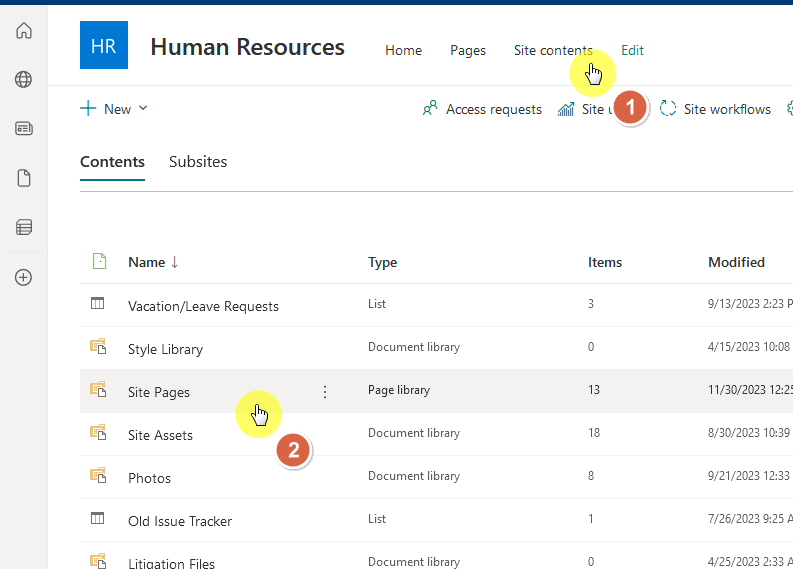
Pages are stored in the “site pages” document library, making them easy to manage.
Modern pages adjust to any device, so they look good on any screen.
This provides an accessible experience for everyone, whether they’re on a desktop computer or a mobile phone.
Web Part: The Functional “Lego Blocks” of a Page
A page is built by adding and setting up web parts.
Web parts are pre-built components or “apps” that you place on a page to show content and add functions.
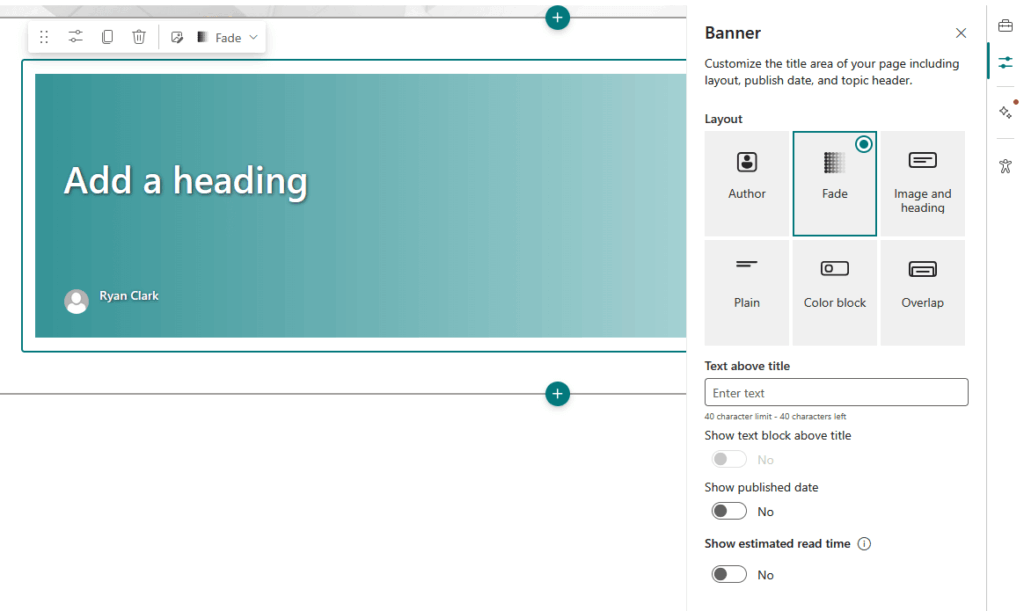
They are like “Lego blocks” for SharePoint.
You can mix and match them to build a custom page without writing any code.
Some of the most common web parts include:
- Text: For adding and formatting paragraphs and headings
- Image / Image Gallery: For showing one or more pictures
- File viewer: For putting a PDF, Word, or PowerPoint file directly on the page
- Quick links: For creating nice-looking buttons that link to other resources
- News: For automatically showing a feed of the latest news articles
- Highlighted content: A useful web part that can show content from across your SharePoint environment based on things like content type or metadata tags
These components are central to modern page customization.
They let site owners build interesting and interactive experiences without needing technical skills.
By combining different web parts, you can create pages for specific audiences and needs.
Good navigation is important.
Modern SharePoint has a clear, three-level navigation system:
- Global navigation: The top-level navigation for the whole organization
- Hub navigation: Shared navigation for a group of related sites
- Local navigation: The unique navigation for a single site
This system helps users find their way around major business portals or within a single project site.
Each layer has a specific purpose and gives the user a consistent experience.
This predictability makes the whole intranet feel more connected and easier to use.
Here’s a table that summarizes the location and scope of each navigation element:
| Navigation Type | Location | Scope |
| Global Navigation | SharePoint App Bar (far left) | Entire Organization |
| Hub Navigation | Top of every site in the hub | A “family” of associated sites |
| Local Navigation | Left or top of a single site | Individual Site |
Search: Finding What You Need
The modern search experience is powered by Microsoft Search and is designed to be useful and personal.
The search box is easy to see in the header bar of every page. A key feature is that it’s contextual.
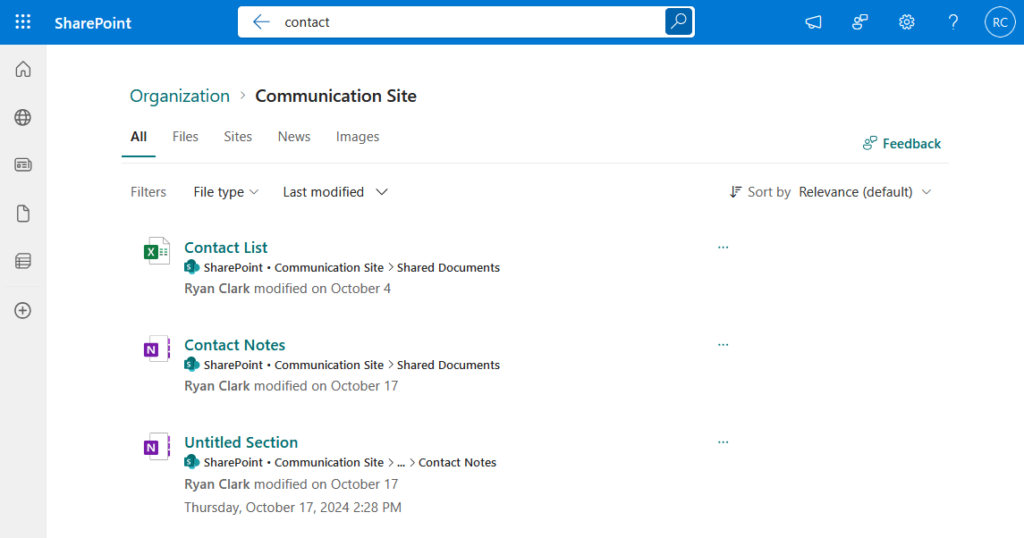
Searching from a hub site looks through all its connected sites.
Searching from an individual site only looks through that site’s content.
Search results are personalized using Microsoft Graph, showing relevant results based on user activity and role.
Working Together: Collaboration and Communication Hubs
SharePoint’s main purpose is to bring people together.
It offers two different types of sites, each made for a different kind of interaction:
- Close-knit teamwork
- Wide-scale communication
Understanding the difference between a team site and a communication site is an important decision when creating a new space.
The Two Site Personalities: Team vs. Communication
When you create a new site, you must choose between a team site and a communication site.
This choice affects the site’s purpose and technology.
- Team site (The “Workshop”): A private, collaborative space for a group to work together on projects.
- Communication site (The “Stage”): A public-facing site to share information with a large audience.
Choosing the right site type is an important first step because it decides the available features and the default permissions.
A team site is built for close collaboration and is automatically connected to a Microsoft 365 Group.
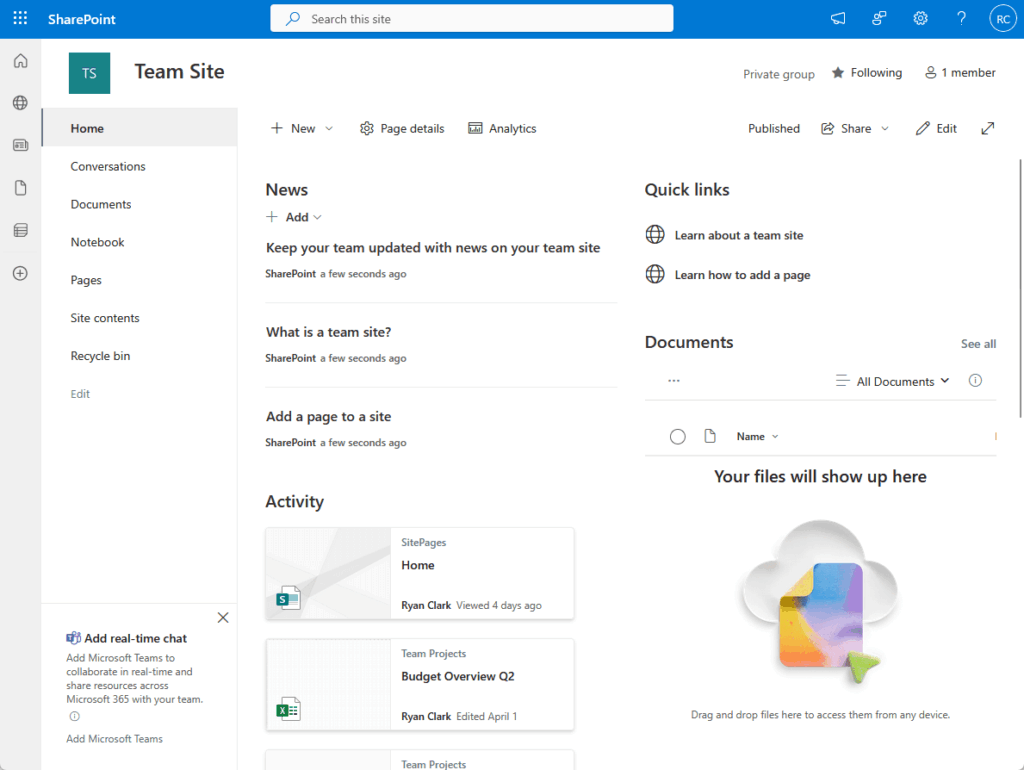
That gives the team a shared set of resources.
A communication site, on the other hand, is designed for publishing polished content for many people to see.
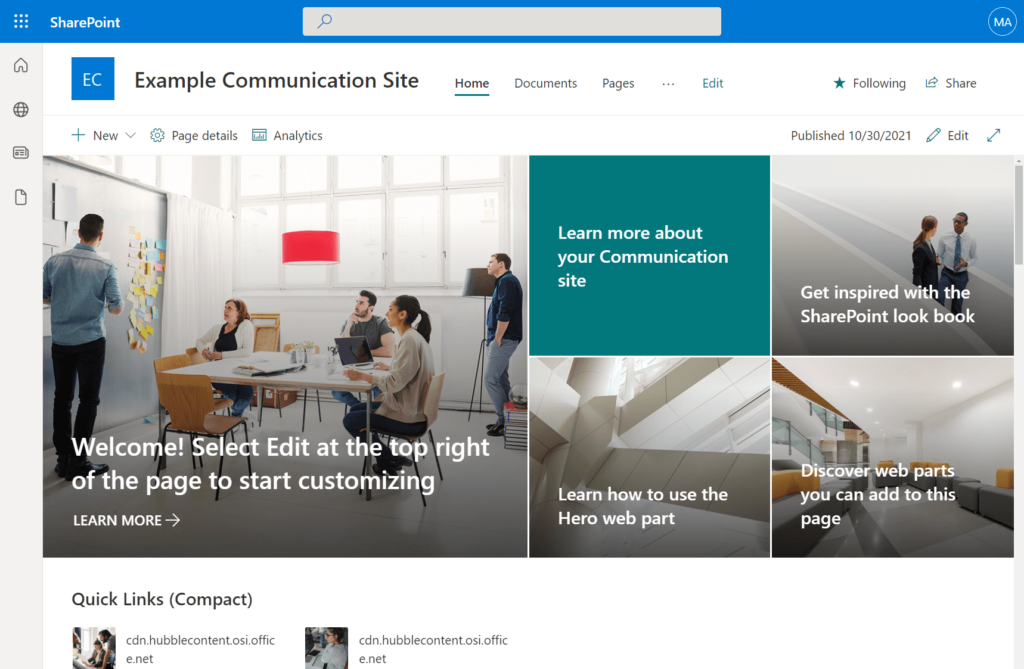
The following table provides a direct comparison of their key characteristics:
| Characteristic | Team Site (The Workshop) | Communication Site (The Stage) |
| Primary Purpose | Collaboration within a group. | Broadcasting information broadly. |
| Audience | Small, defined group (project team). | Large group or the entire organization. |
| Permissions | Members have Edit permissions. | Visitors have Read permissions. |
| M365 Group | Yes, automatically connected. | No, it is a standalone site. |
| Navigation | Vertical navigation on the left. | Horizontal navigation on the top. |
Core Collaboration Features
SharePoint provides a set of features made to help teams work together smoothly.
- Co-authoring: Edit Office documents with multiple people at the same time
- Sharing: Create a secure, permission-controlled link to a file or folder
- Comments and @Mentions: Discuss content and notify colleagues directly on an item
These tools are designed to create a clear and simple workflow.
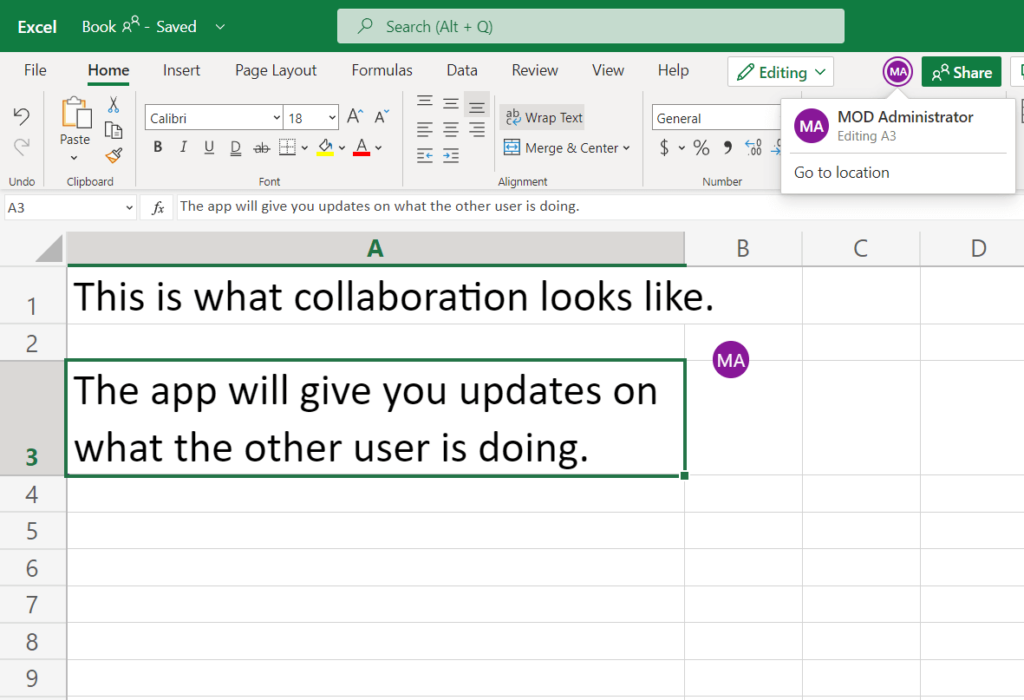
They move conversations out of separate email inboxes and into the context of the work itself.
This method makes the review process easier and helps everyone work with the most current information.
This table breaks down when to use each core collaboration feature:
| Feature | Best For | Key Benefit |
| Co-authoring | Live, simultaneous document editing sessions. | Avoids version control issues. |
| Sharing | Giving access to specific people or groups. | Secure, detailed control over who can view or edit. |
| Comments & @Mentions | Asking questions or giving feedback on an item. | Keeps conversations in context and notifies the right users. |
News and Announcements: Spreading the Word
For wider communication, SharePoint has tools to create and share interesting updates.
The modern news feature lets authors create good-looking articles using flexible page-building tools.
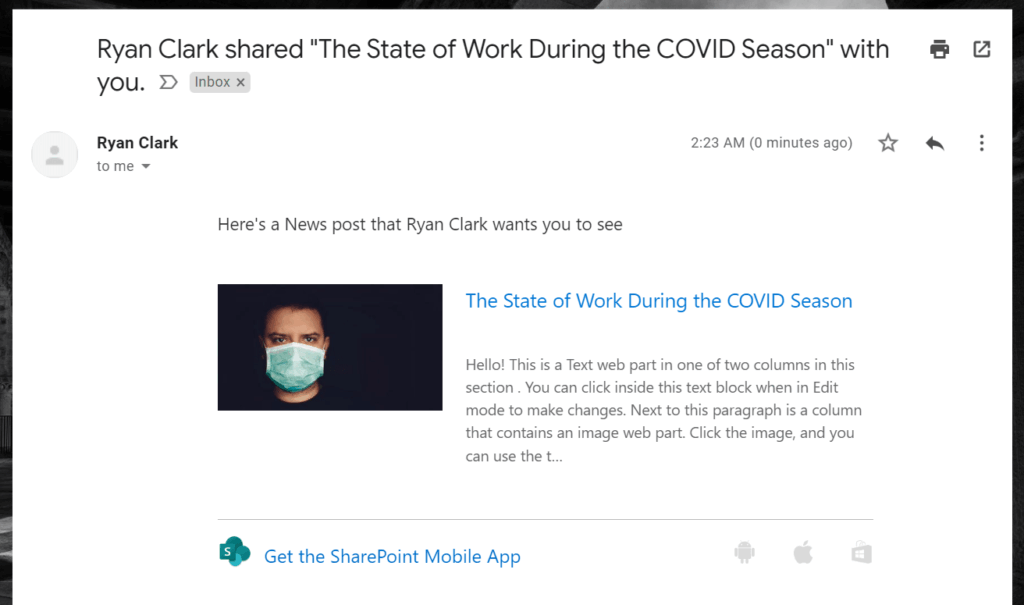
News posts are a special type of page that are automatically collected and shown in key places, like the SharePoint start page.
This feature is the recommended and better tool for creating rich communications.
And it mostly replaces the simple, text-based announcements list from classic SharePoint.
The Security Model: Controlling Access
A key part of any business platform is controlling who can see and do what.
SharePoint’s security model is both thorough and effective.
It’s built on a principle of inheritance that makes it easier to manage.
Understanding inheritance, groups, and permission levels is important for any site manager.
Permission Inheritance: The Golden Rule
Permission Inheritance is the main principle of SharePoint security.
By default, permissions flow down from parent objects to their children in a clear order:
- A site passes its permissions down to its libraries and lists.
- A library or list passes its permissions down to its folders.
- A folder passes its permissions down to the files and items inside it.
This model is designed to be efficient, as you can secure thousands of items by setting permissions in one place.
The best practice is to manage permissions at the site level; break inheritance only when necessary.
This method simplifies administration and makes the security setup easier to understand.
Instead of giving permissions to individuals, SharePoint uses Groups to hold people.
You add users to a group, and then give a permission level to the whole group.
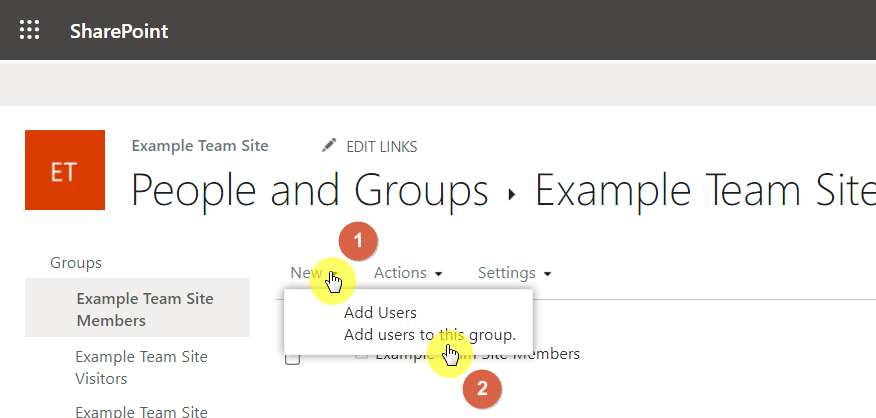
This is much more efficient.
Every SharePoint site is created with three default security groups:
- Owners: For site administrators with full control
- Members: For main contributors who can add, edit, and delete content
- Visitors: For users who only need to view or read content
Using these default groups is a good practice that makes site administration easier.
When a new person joins a team, you just add them to the members group to give them the right access right away.
This method makes sure permissions are consistent for everyone in the same role.
Permission Levels: The “What They Can Do”
While a group defines who has access, a permission level defines what they can do.
A permission level is a named set of specific rights (e.g., “View Items,” “Edit Items,” “Delete Items”).
The default groups are matched with default permission levels that fit their roles:
- The Owners group is given the Full Control permission level.
- The Members group is given the Edit permission level.
- The Visitors group is given the Read permission level.
This clear connection between roles and rights makes site security predictable and easy to manage.
The “Edit” level lets users add content, while “Read” is for viewing only.
“Full Control” should only be for a few administrators who are in charge of the site’s setup.
Breaking Inheritance: The Exception to the Rule
While inheritance is the default, SharePoint is flexible.
You can break it for any specific item — a library, a folder, or even a single file — and give it unique permissions.
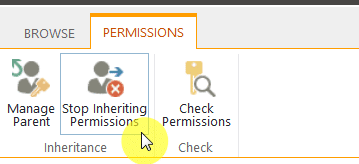
When you break inheritance, the item gets a copy of its parent’s permissions, which you can then change.
From then on, changes to the parent’s permissions will no longer affect that item.
This should be an exception, not the rule, because creating many unique permissions can make a site’s security very complex and hard to manage.
Breaking inheritance should be an exception, not the rule, as many unique permissions make site security complex.
Sharing vs. Granting Permissions: A Critical Distinction
In modern SharePoint, there are two ways to give someone access, and the difference is important.
- Granting permissions: Formally adding a user to a site group for broad, predictable access.
- Sharing: Creating a unique link for a single file or folder, which breaks inheritance.
Understanding the difference between these two methods is important for keeping a site secure and manageable.
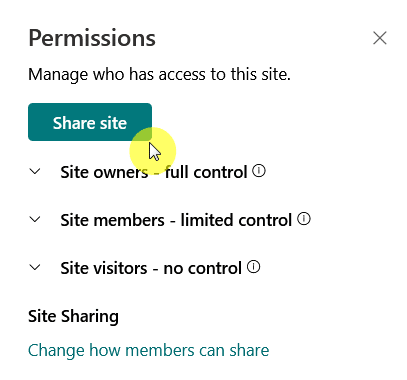
Granting permissions is the better, planned approach for long-term team members.
Sharing for quick access creates complex permissions that are hard to track.
Sharing, while handy for quick, one-time access, can create complex permissions that are hard to track.
This table helps explain when to use each method:
| Method | Best For | Key Implication |
| Granting Permissions | Core team members who need ongoing site access. | Permissions are inherited and easy to manage. |
| Sharing | External collaborators or one-time access to a specific item. | Creates unique permissions and breaks inheritance. |
SharePoint doesn’t work alone.
Its biggest strength is its role as the main content platform for the whole Microsoft 365 suite.
To fully use SharePoint, understand its connection with tools like OneDrive, Teams, and the Power Platform.
A common point of confusion for new users is when to use SharePoint and when to use OneDrive.
The difference is simple but important:
- OneDrive for Business: Your personal, private cloud storage for individual work files (the “Me” space).
- SharePoint: The shared, collaborative workspace for official team and project documents (the “We” space).
Choosing the right place for your files is key to good collaboration and content management.
Using OneDrive for team documents can cause problems and data loss when an employee leaves.
SharePoint makes sure that group knowledge is kept and can be accessed by the whole team.
This table provides a simple guide for when to use each tool.
| Scenario | Use OneDrive for Business | Use SharePoint |
| Drafting a personal report | Yes | No |
| Storing official team project files | No | Yes |
| Sharing a final document with the department | No | Yes |
| Keeping personal work notes | Yes | No |
Integration with Microsoft Teams: A Close Relationship
Microsoft Teams is the main place for communication, but SharePoint provides its file storage backbone.
The two services are closely connected.
When a new Microsoft Team is created, a dedicated SharePoint Team Site is automatically set up in the background.
The “Files” tab in every Teams channel is a direct view of a folder in that SharePoint site’s document library.
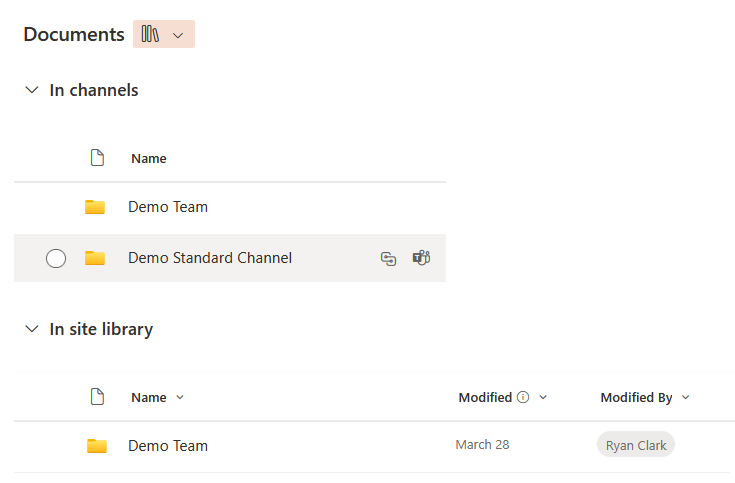
Users get Teams’ chat and SharePoint’s file management.
This means users get the Teams’ chat while also getting SharePoint’s file management features on the backend.
Integration with the Power Platform: Automating and Customizing
The Power Platform extends SharePoint with low-code solutions, making it a business application platform.
Here’s how:
- Power Automate: Automate repetitive business processes and workflows
- Power Apps: Build custom forms and mobile/web applications
- Power BI: Create charts and reports from data in SharePoint lists
- Power Virtual Agents: Build chatbots that can use SharePoint data
- Power Pages: Create external-facing websites using SharePoint data
These integrations let you build custom solutions on top of your existing SharePoint content.
This changes SharePoint from a place to just store content into an active, intelligent part of your business operations.
You can:
- Automate approvals
- Create custom apps for workers in the field
- Build detailed data dashboards
All within the Microsoft suite.
Your Path Forward
This glossary has covered the core terms you need to get started with SharePoint.
Always remember that SharePoint is the central content service for the entire Microsoft 365 suite.
With these principles in mind, you are ready to use SharePoint to build effective solutions for your team and organization.
Do you have any questions regarding the terms you have read here? Let me know below.
For any business-related queries or concerns, contact me through the contact form. I always reply. 🙂