

Table of Contents:
- Power Apps Templates: From Clicks to Conversation?
- AI Prompts for Daily Business Forms
- How to “Write” a Great Template
- Prompt 1: IT Equipment Checkout Form
- Prompt 2: Employee Leave Request Form
- Prompt 3: Simple Expense Report Form
- Prompt 4: Project Task Tracker App
- Prompt 5: Customer Feedback Survey Form
- Prompt 6: New Employee Onboarding Checklist
- Prompt 7: Marketing Content Scheduler
- Prompt 8: Simple Sales Lead CRM
- Your Role in an AI-Powered Future
Last Updated on July 31, 2025
Need to build business apps to automate repetitive tasks?
In this guide, we will explore how static templates have evolved into dynamic AI prompts for building apps.
Let’s get started.
Power Apps Templates: From Clicks to Conversation?
For years, building a Power App meant starting with a pre-built template from a gallery.
That provides a solid but often rigid foundation for common scenarios.
This classic, template-driven approach successfully lowered the barrier to entry by offering:
- A pre-built user interface
- Established data connections
- Baseline application logic
- A fixed, structured framework
But the very definition of a “template” is undergoing a fundamental change, driven by the integration of conversational AI.
The new starting point is a simple text box powered by Copilot, which asks you to describe a problem.
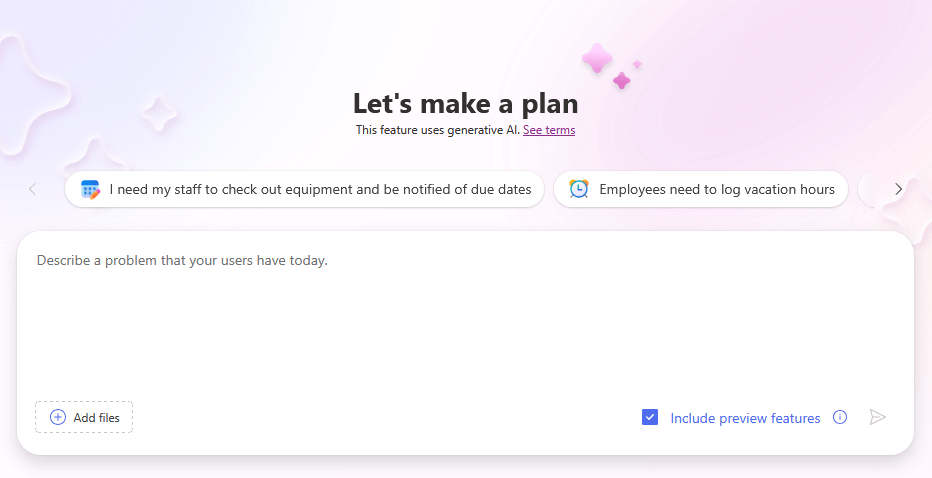
This changes how apps are built, letting experts create tools by describing them.
The template is no longer a static file; it’s a well-crafted sentence.
Sign up for exclusive updates, tips, and strategies
AI Prompts for Daily Business Forms
The best way to understand this new approach is to see it in action.
Below are ready-to-use prompts that serve as modern templates for common business needs.
How to “Write” a Great Template
The most essential skill for rapid development is learning how to craft an effective prompt.
Clearly communicate your needs to Copilot so you can generate a robust, data-driven app in minutes.
Mastering this skill comes down to a few key principles:
- Specific and clear instructions
- Relevant business context
- Iterative conversational refinement
Instead of vague requests, specify the fields and data types you need, such as a ‘Choice’ column for a status field.
Adding context, like explaining who the app is for, helps the AI build a more suitable app.
Remember that the first generated app is just a starting point, you need to refine it with more prompts.
Prompt 1: IT Equipment Checkout Form
This addresses the management of the loan and return of company-owned hardware to employees.
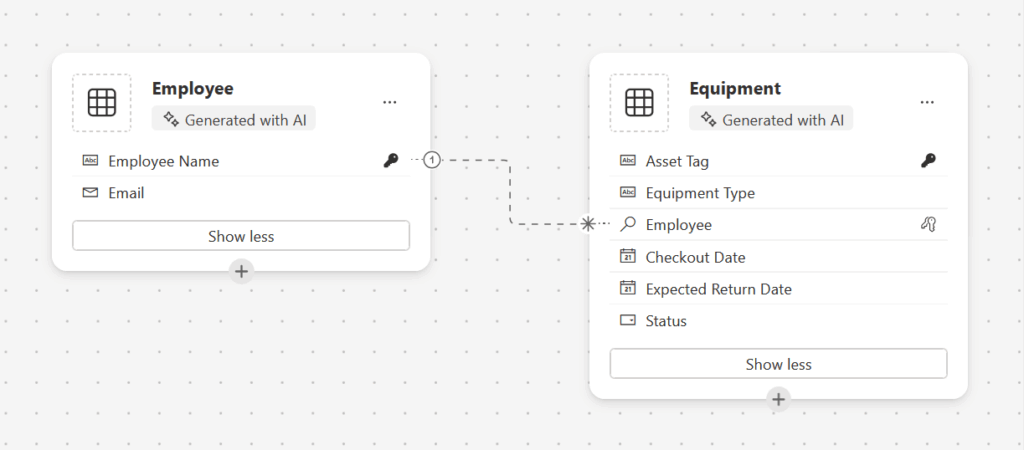
This prompt helps by:
- Replacing chaotic spreadsheets
- Reducing equipment loss
- Providing real-time visibility
Prompt:
"Create an app for employees to check out IT equipment like laptops and monitors. I need to track the asset tag, the type of equipment, who has it, the checkout date, and the expected return date. Include a status field with options: 'Available', 'In Use', 'In Repair'."
This prompt clearly defines the necessary data fields.
For example, the phrase “who has it” implies a ‘Person’ column.
Specifying “options” for the status field instructs Copilot to create a ‘Choice’ column, important for filtering and reporting.
Prompt 2: Employee Leave Request Form
This is for employees requesting time off and managers subsequently approving or denying those requests.
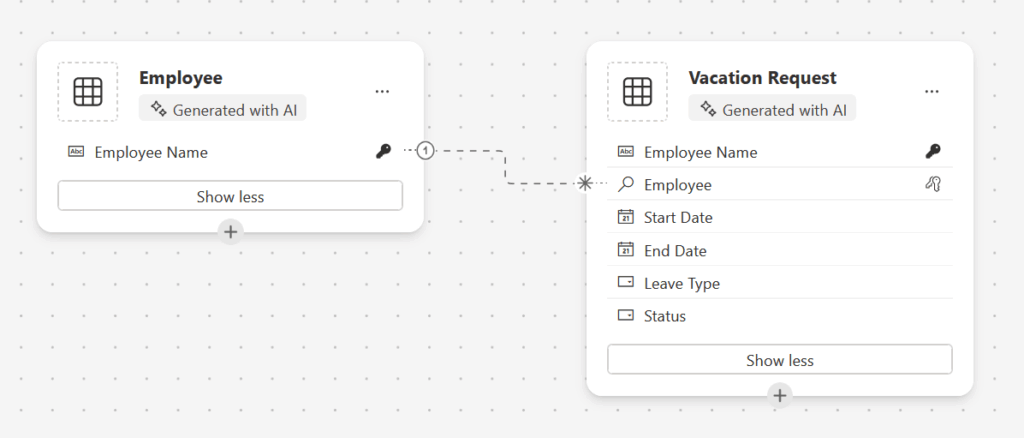
This prompt helps by:
- Streamlining the workflow
- Simplifying request submission
- Preventing scheduling conflicts
Prompt:
"I need an app for employees to submit vacation requests to their managers. The app should collect the employee's name, the start date of the leave, the end date, and the type of leave with choices 'Vacation', 'Sick', 'Personal'. It needs a status column for 'Pending', 'Approved', 'Rejected'."
The prompt creates specific date fields for the leave period.
It establishes the foundation for an approval workflow by requesting ‘Choice’ columns for both Leave Type and Status.
That’s a key for managing the approval process.
Prompt 3: Simple Expense Report Form
This allows employees to submit expenses incurred for business purposes, typically during travel or for client meetings.
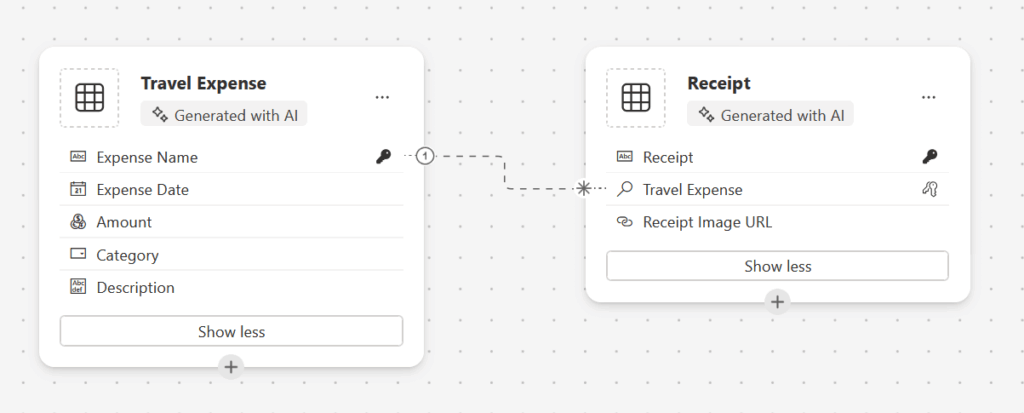
This prompt helps by:
- Accelerating reimbursement
- Standardizing submissions
- Enabling digital receipt capture
Prompt:
"Build a mobile app for submitting travel expenses. I need to capture the date of the expense, the amount as a currency, the category with options 'Lodging', 'Meals', 'Transport', 'Other', and a description. The app must also allow users to upload a picture of the receipt."
Requesting the amount “as a currency” ensures the correct data type is used for financial calculations.
The key instruction is “upload a picture of the receipt”.
That tells Copilot to include an ‘Image’ or ‘File’ column in the data table and a corresponding camera control in the app.
Prompt 4: Project Task Tracker App
This creates a central hub for a team to manage, assign, and monitor the status of all project tasks.
This prompt helps by:
- Creating a single source of truth
- Enhancing team collaboration
- Clarifying responsibilities
Prompt:
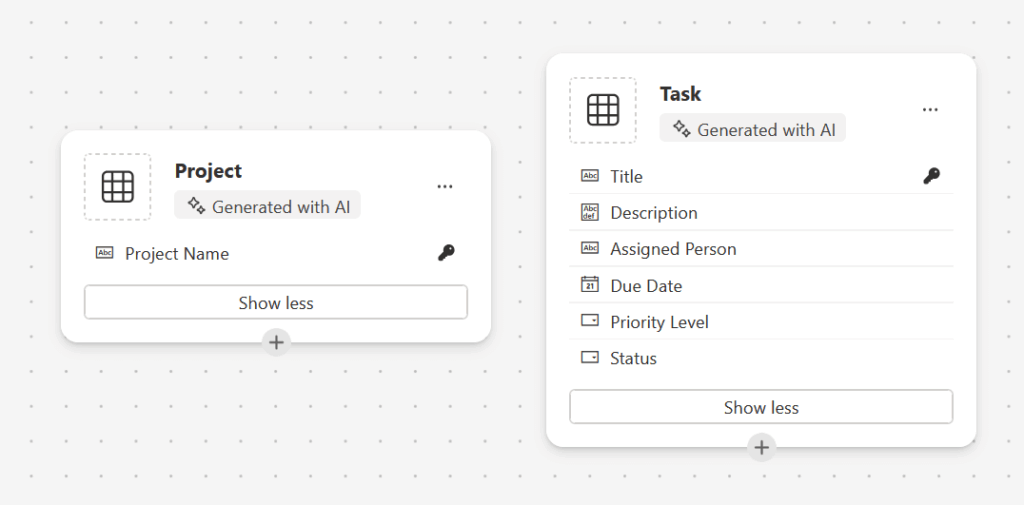
"My team needs a solution to track project tasks. I want an app to manage a list of tasks with a title, a detailed description, the person it's assigned to, a due date, and a priority level with choices 'High', 'Medium', 'Low'. Also, include a status field: 'Not Started', 'In Progress', 'Completed'."
This prompt builds a classic task management schema.
Specifying ‘Choice’ columns for Priority and Status is vital for enabling users to filter their views.
That will become the basis for creating interactive dashboards.
Prompt 5: Customer Feedback Survey Form
This tool captures customer feedback immediately following a service interaction, product purchase, or event.
This prompt helps by:
- Digitizing customer insights
- Aggregating quantitative data
- Identifying service trends
Prompt:
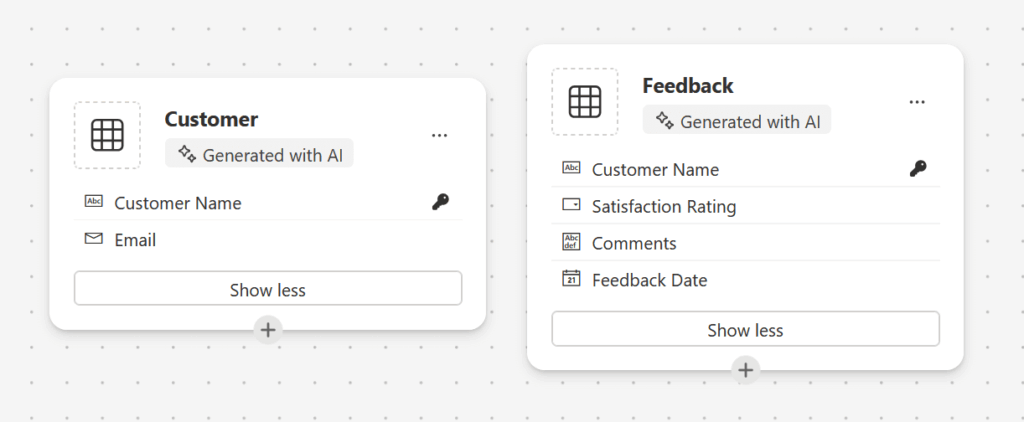
"Create an app to collect customer feedback after a service call. I need to record the customer's name, their email, a satisfaction rating from 1 to 5, and a multi-line text box for their detailed comments. Also, track the date the feedback was submitted."
This prompt is straightforward and effective.
Specifying “rating from 1 to 5” will generate a ‘Number’ column for easy analysis.
At the same time, “multi-line text box” ensures a larger text area suitable for detailed comments.
Prompt 6: New Employee Onboarding Checklist
This is for HR and hiring managers to track the completion of essential tasks for a new employee’s first few weeks.
This prompt helps by:
- Ensuring a consistent experience
- Preventing missed steps
- Providing a clear overview
Prompt:
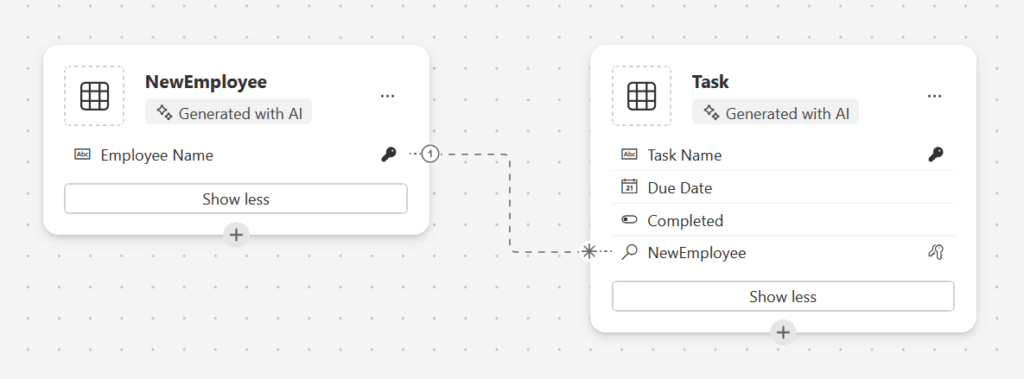
"I need an app for HR to manage new employee onboarding checklists. It should be a list of tasks like 'Sign NDA' and 'Set up payroll'. For each task, I need to track the task name, the new employee it pertains to, the due date, and a 'Completed' checkbox (Yes/No)."
The key phrase here is “‘Completed’ checkbox (Yes/No),”, which instructs Copilot to create a ‘Boolean’ (true/false) data type.
This tracks a yes/no status and can be used to visually show progress with a progress bar or filtered views.
Prompt 7: Marketing Content Scheduler
This is a marketing team’s calendar for planning, tracking, and managing content creation and publication.
This prompt helps by:
- Bringing order to the pipeline
- Helping meet deadlines
- Creating a centralized archive
Prompt:
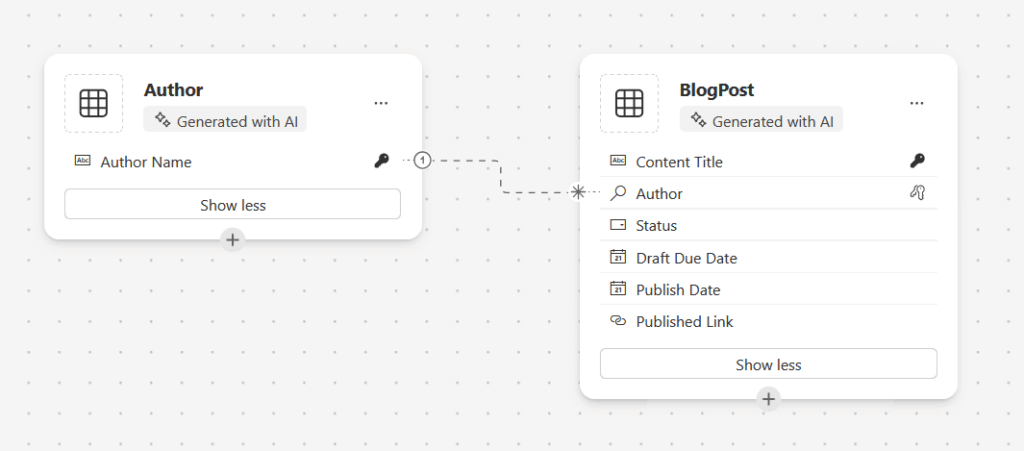
"I need an app for my marketing team to schedule blog posts. It should track the 'Content Title', the 'Author', the 'Status' with options 'Planned', 'Draft In Progress', 'Ready for Review', 'Published', the 'Draft Due Date', and the 'Publish Date'. Include a hyperlink field for the final published link."
This prompt builds a content workflow using the ‘Status’ choice column, allowing the team to track progress visually.
The instruction to “Include a hyperlink field” tells Copilot to use the ‘URL’ data type.
That will make the final published link clickable directly from within the app.
Prompt 8: Simple Sales Lead CRM
This is a lightweight CRM tool for salespeople to quickly capture and track leads from events like trade shows.
This prompt helps by:
- Enabling immediate lead capture
- Preventing lost business cards
- Managing the follow-up pipeline
Prompt:
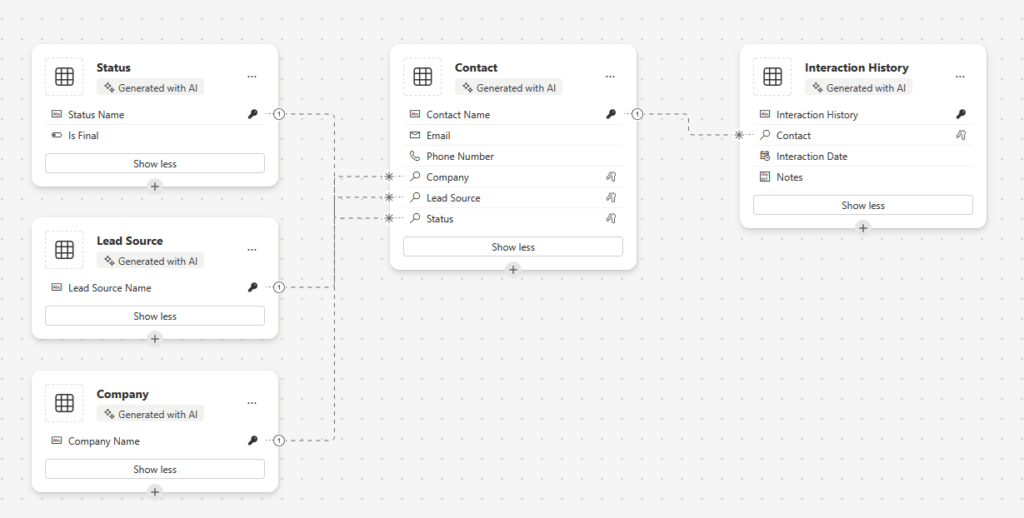
"Create a basic app to track sales leads from a trade show. I need to store the contact's name, company, email, phone number, the lead source, and a status like 'New', 'Contacted', 'Qualified', 'Closed'. Also, add a notes field for interaction history."
This prompt creates a foundational CRM structure with a Status choice column that is key for pipeline management.
Adding a “notes field for interaction history” is critical for logging calls and meetings for follow-up.
Your Role in an AI-Powered Future
AI prompts changed low-code development, making it faster and easier.
This lets you, the expert, to build the solutions you need directly by simply describing them.
To do well, try out prompts, ensure good governance, and learn to define problems clearly.
Do you have any questions about leveraging AI in Power Apps? Let me know in the comments.
For any business-related queries or concerns, contact me through the contact form. I always reply. 🙂




























