
Last Updated on July 25, 2025
Want to make your team more productive in your Microsoft Teams workspace?
In this guide, I will show you my top apps that I’m positive can improve your workflows in Teams.
Let’s get started.
Part 1: The Project Management Heavyweights
These apps are comprehensive systems for managing work.
They offer deep features for teams that need a central platform to track complex projects from start to finish.
1. ClickUp
This app is designed to replace many tools.
It handles your tasks, documents, and company goals in one place.
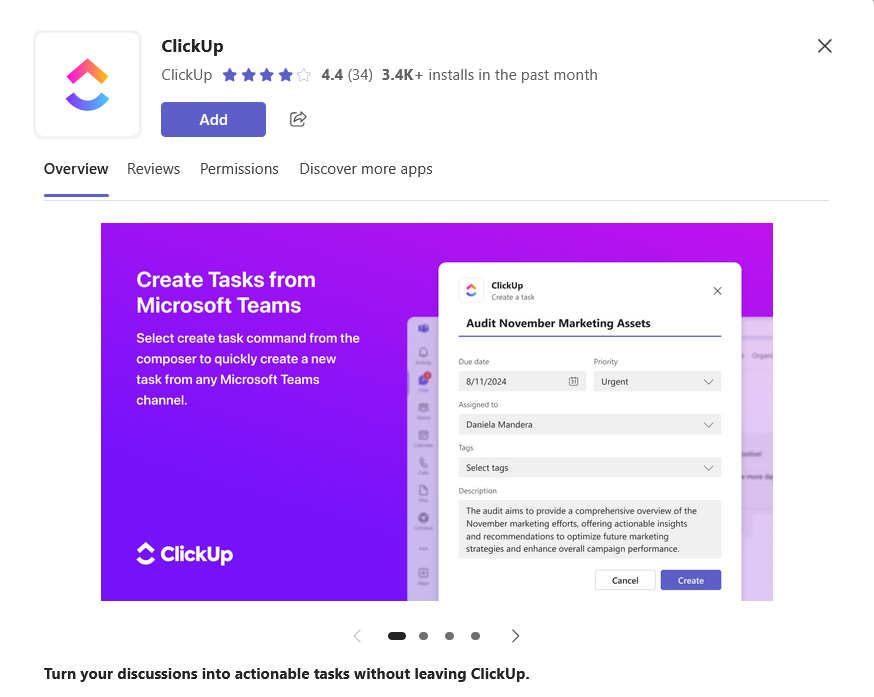
Key features:
- View projects your way with lists, Kanban boards, or calendars
- Track progress on important company objectives with goal tracking
- Facilitate file sharing and project collaboration through documents and whiteboards without leaving the app
You can quickly create a new ClickUp task directly from any Teams message.
When you paste a link to a task in a chat, it automatically shows a detailed preview, so everyone has context.
Who it’s for: Agile teams and companies that want a single, highly customizable tool to manage everything.
It’s a powerful and flexible platform, but the huge number of features can be overwhelming for new users.
Source: https://clickup.com
2. Asana
Asana is a project management tool that excels at connecting your team’s daily work to its larger company goals.
It helps coordinate complex projects across different departments.
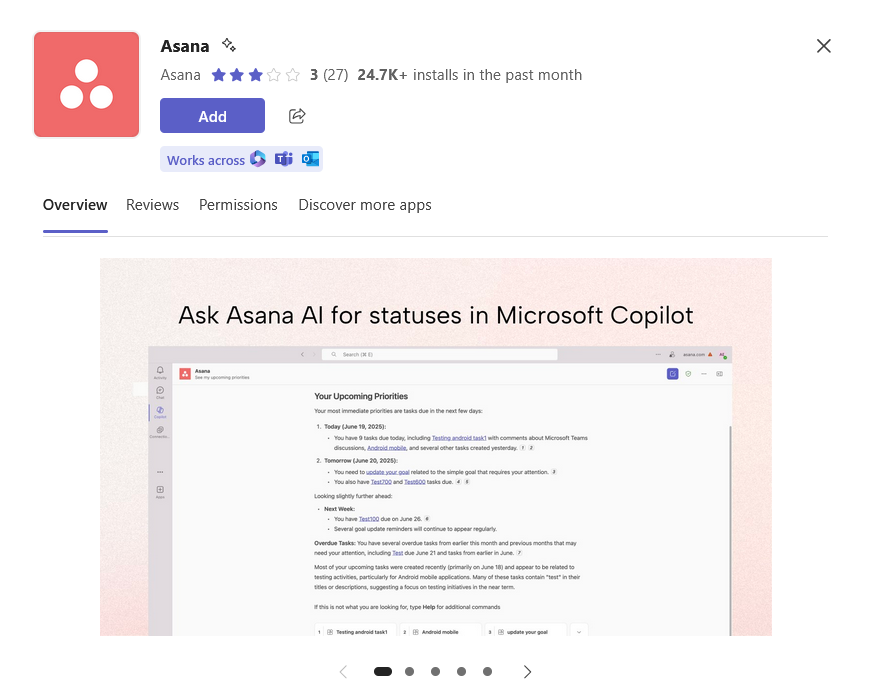
Key features:
- Use the Timeline view to map out project schedules and see how tasks depend on each other
- Automate common steps like handoffs and approvals with the Workflow Builder
- Track the health of multiple projects at once with Portfolios
You can get notifications about Asana projects, and turn Teams conversations into actionable tasks.
This also allows you to share project updates directly in your channels to keep everyone informed.
Who it’s for:
- Marketing teams
- Operations teams
- Product teams
- Project teams
It helps teams stay focused on goals, but a paid plan is needed for key features.
Source: https://asana.com
3. Trello
Trello is a simple and visual project management tool.
It uses drag-and-drop Kanban boards to track work.
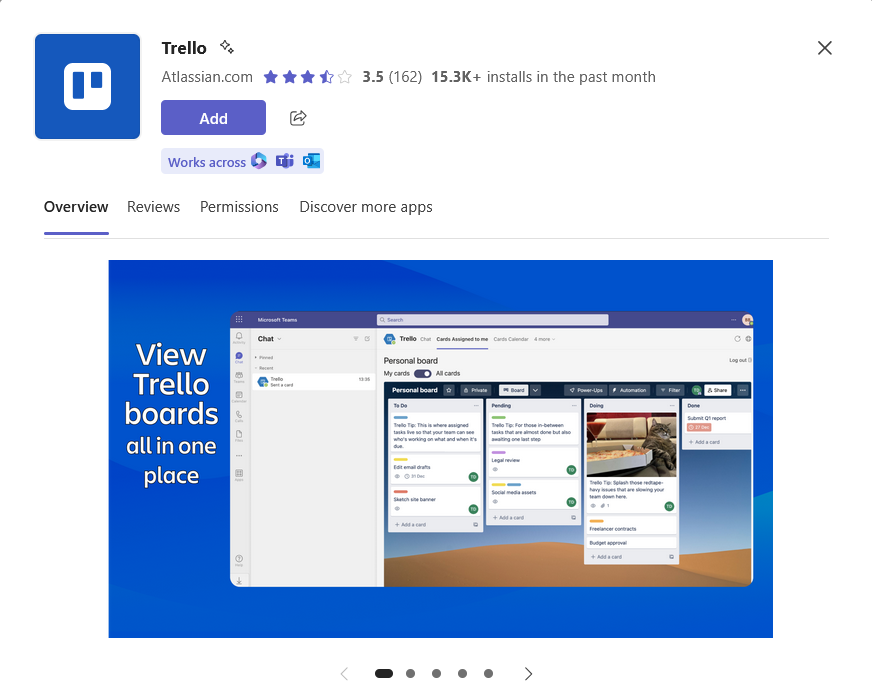
Key features:
- Organize any project with its easy-to-use boards, lists, and cards
- Add features like calendars, voting, or custom fields with “Power-Ups”
- Create rules to automate repetitive actions with its built-in “Butler” automation
- Add a full Trello board as a tab in any Microsoft Teams channels
You can add a full Trello board as a tab in any Teams channel.
This lets your team manage the project and discuss tasks without ever needing to switch apps.
Who it’s for:
- Any team that wants a visual and intuitive way to track work
- Teams managing a content calendar
- Teams planning an event
It’s incredibly easy to learn and use.
But its simplicity can be a limitation for very large projects with complex needs.
Source: https://trello.com
Sign up for exclusive updates, tips, and strategies
Part 2: The Microsoft 365 Natives
This group of apps comes directly from Microsoft and is built for the M365 ecosystem.
They offer the tightest integration with Teams and other Microsoft products, often at no extra cost.
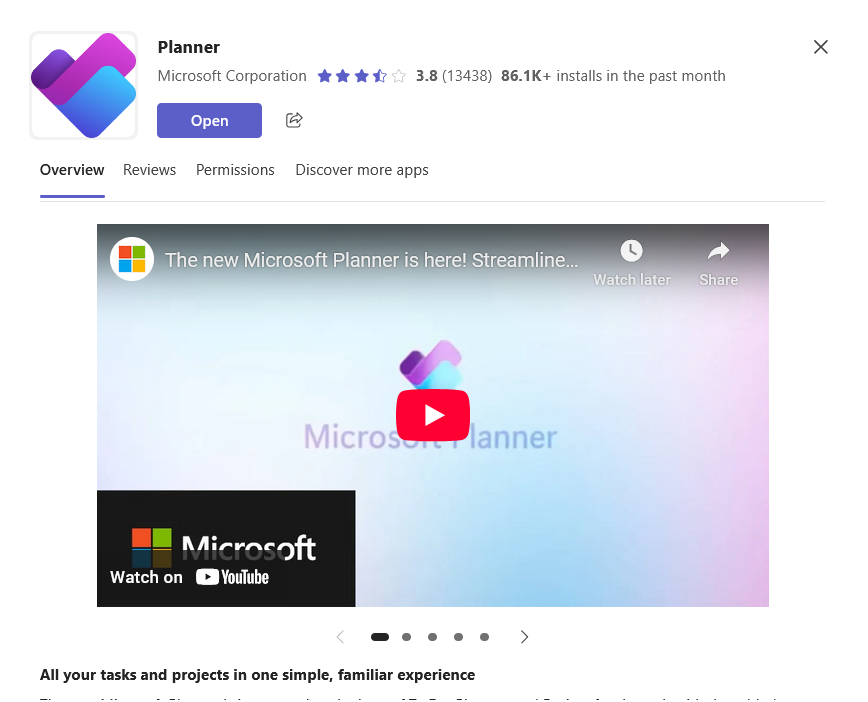
4. Microsoft Planner
Microsoft Planner is a task management app from Microsoft.
It comes at no extra cost for most Microsoft 365 users.
Key features:
- Organize tasks on simple Kanban boards using columns called “Buckets”
- Add checklists, colored labels, and due dates to each task card
- Connects with Microsoft To Do, giving you a single list of all tasks assigned to you
The “Tasks by Planner” app is a central part of Teams.
You can add a project plan as a tab to any channel, making it easy for the whole team to see and update their work.
Who it’s for:
- Any team already using Microsoft 365
- Teams needing a free, simple, or fully integrated project management tool
It’s the perfect cost-effective solution for M365 users.
But it doesn’t have the advanced features of dedicated third-party tools.
Source: https://www.microsoft.com/en-us/microsoft-365/planner/microsoft-planner
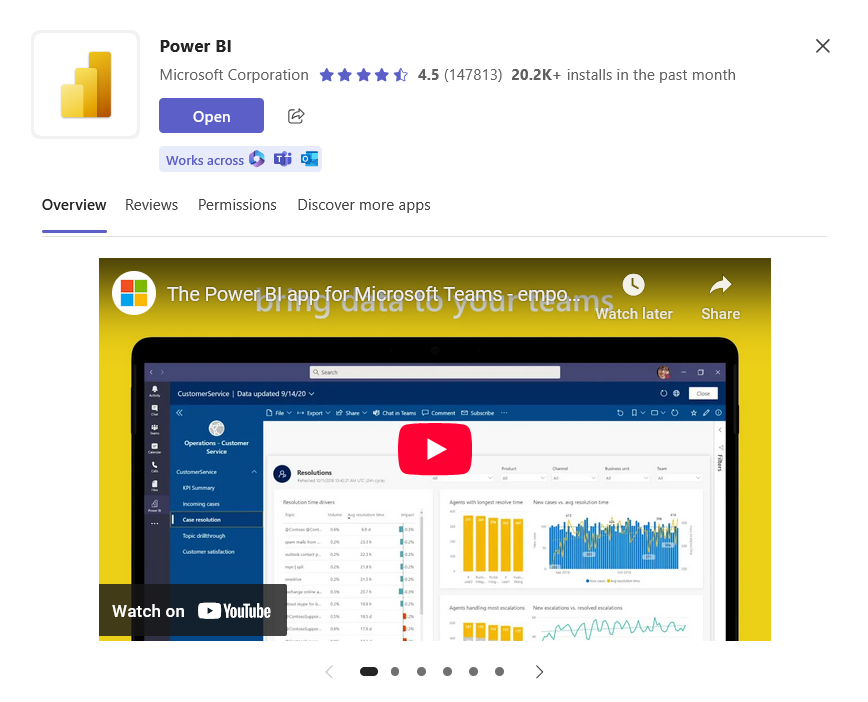
5. Microsoft Power BI
Power BI is a business analytics tool.
It helps you create and share interactive data dashboards and reports.
Key features:
- Connects to hundreds of data sources, from Excel files to enterprise databases
- Transforms raw numbers into clear, easy-to-understand charts and graphs
- Includes AI features that help you find patterns in your data automatically
You can embed live, interactive dashboards as a tab in any channel.
This lets your team see and discuss the latest data right where your conversations happen.
Who it’s for:
- Sales teams
- Finance teams
- Operations teams
It’s a top-tier business intelligence tool with great Teams integration.
But its licensing options can be confusing to figure out.
Source: https://powerbi.microsoft.com
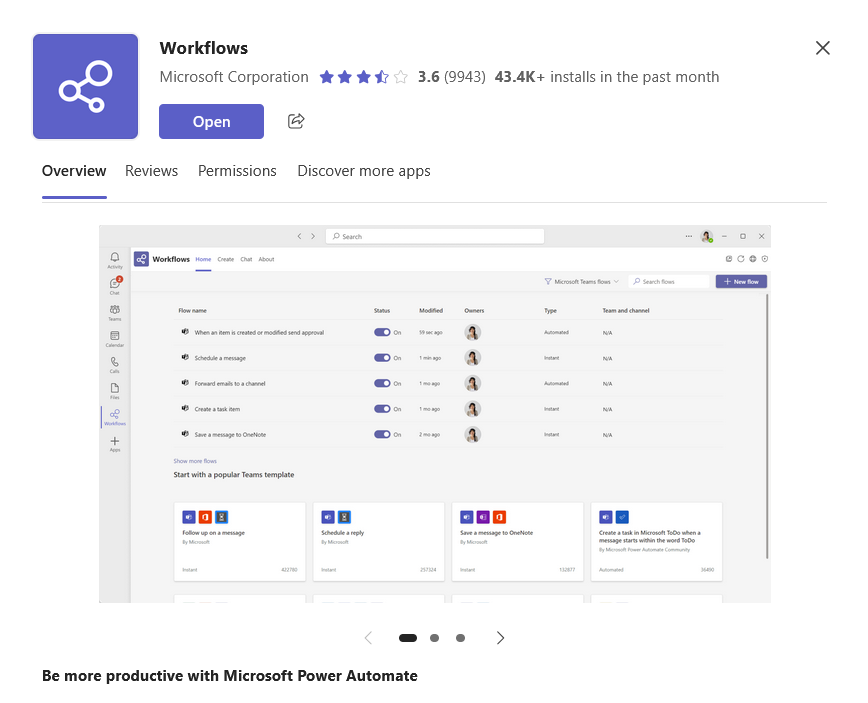
6. Microsoft Power Automate (Workflows)
Power Automate is an automation tool.
It connects your apps and services to handle repetitive tasks for you.
This tool could free up your team’s time and increases team productivity.
Key features:
- Build “flows” that are triggered by an event in one app to perform actions in another
- Connects to hundreds of Microsoft and third-party applications
- Use interactive “Adaptive Cards” in Teams for things like approvals or quick forms
You can build and manage your automation flows directly inside Teams.
You can also start a flow from a Teams message, turning a conversation into an automated action.
Who it’s for:
- Anyone (including IT admins and team leaders) who wants to automate manual work without writing code
- Regular business users who want to automate manual work without writing code
It’s the most powerful automation tool for the Microsoft world.
But creating very complex flows can have a steep learning curve.
Source: https://powerautomate.microsoft.com
Part 3: The Specialists
These tools are designed to solve specific, high-value problems that many teams face.
From running better meetings to unlocking creativity, they add targeted capabilities to your workflow.
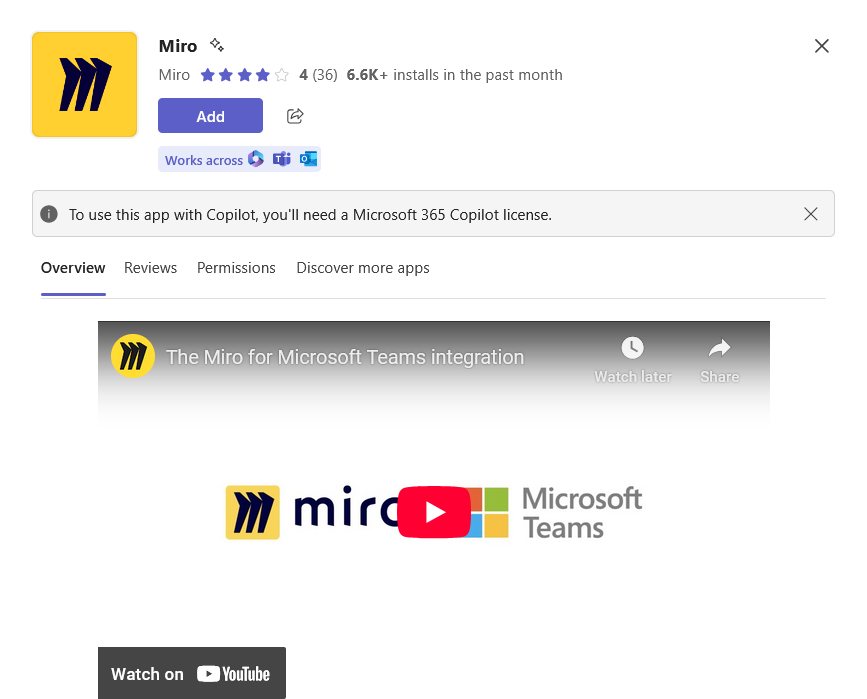
7. Miro
Miro is a digital whiteboard.
It acts as an infinite canvas for brainstorming, diagramming, and team collaboration workshops.
Key features:
- A huge library of templates for common tasks like SWOT analysis or user journey mapping
- Work together in real-time with live cursors, voting tools, and timers
- Great for creating mind maps, flowcharts, and freeform sketches
Embed any Miro board directly into a Teams meeting or a channel tab.
You can work on the board live during a call, which is more engaging than screen sharing.
Who it’s for:
- Remote teams
- Hybrid teams
- Teams in creative, marketing, or product design roles that do a lot of visual thinking
It’s an essential and intuitive tool for visual collaboration.
Though again, it’s another paid subscription for your team to manage.
Source: https://miro.com
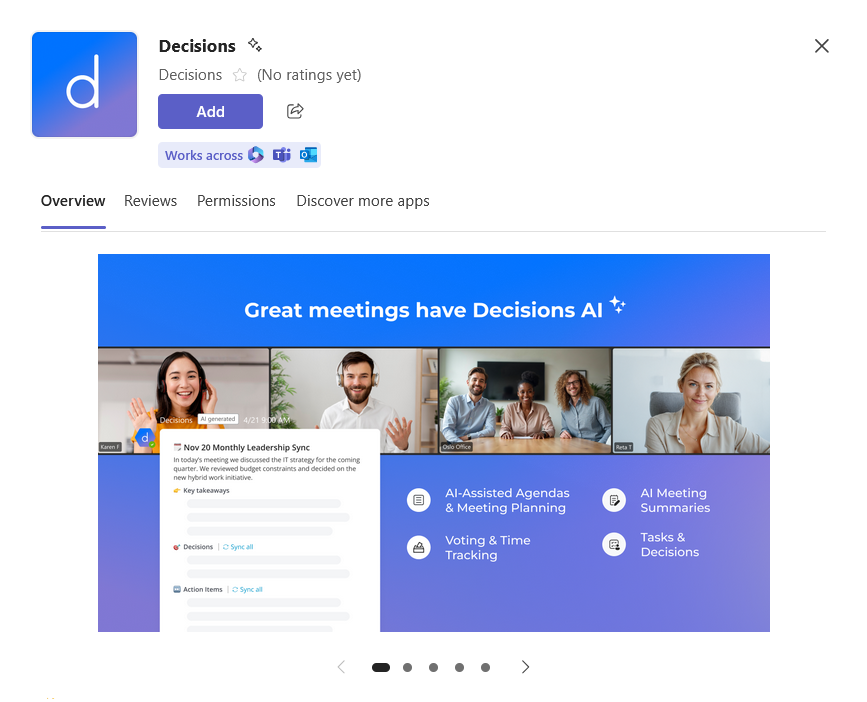
8. Decisions
Decisions is a meeting management tool.
It adds structure and accountability to your meetings, from preparation to follow-up.
Key features:
- Build a meeting agenda collaboratively before the meeting starts
- Generate professional meeting minutes in Word or OneNote with a single click
- Automatically sends tasks and decisions from the meeting to Microsoft Planner
It runs entirely inside Teams and Outlook.
You can build the agenda in the calendar invite, then use the Decisions panel in the Teams call to stay on track.
Who it’s for:
- Organizations with a formal meeting culture
- Leadership teams that struggle with unproductive meetings
- Project boards that struggle with unproductive meetings
It’s the best tool for fixing bad meetings.
But it may feel like too much structure for teams with a more informal style.
Source: https://www.meetingdecisions.com
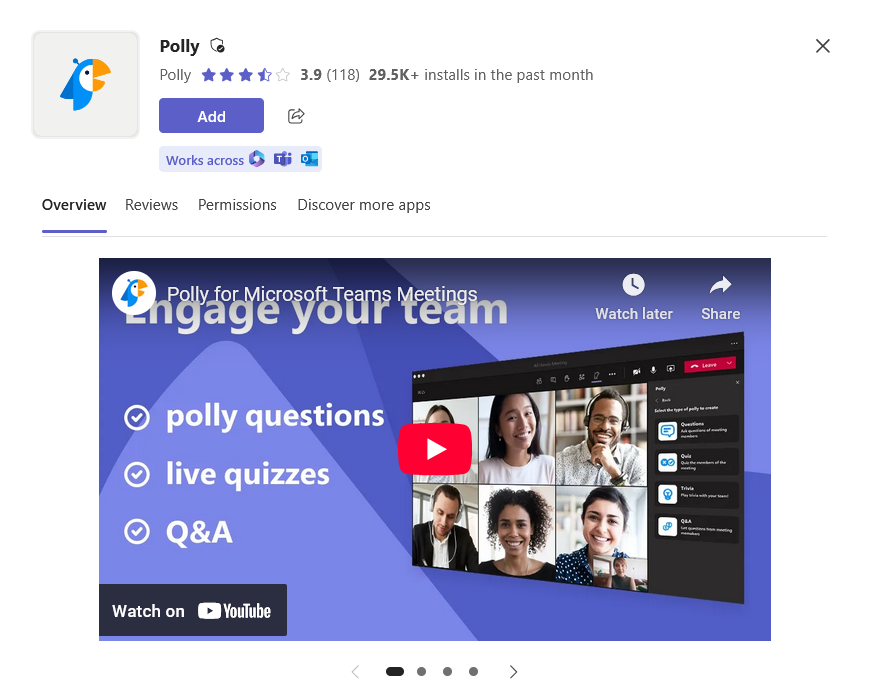
9. Polly
Polly is a simple app.
It lets you create and send polls, surveys, and quizzes directly inside Microsoft Teams.
Key features:
- Create anything from a quick, single-question poll to a multi-question survey
- Use its library of templates for common needs like employee feedback or meeting ratings
- Get results in real-time to gather instant feedback from your team
You can create and launch a poll directly in any channel, chat, or meeting.
Users can respond with one click, increasing participation.
Who it’s for:
- Anyone who wants to boost team engagement and get quick, honest feedback
- Teams looking for feedback on any topic
It’s extremely effective and easy to use for increasing engagement.
But the free plan is quite limited by its monthly response cap.
Source: https://www.polly.ai
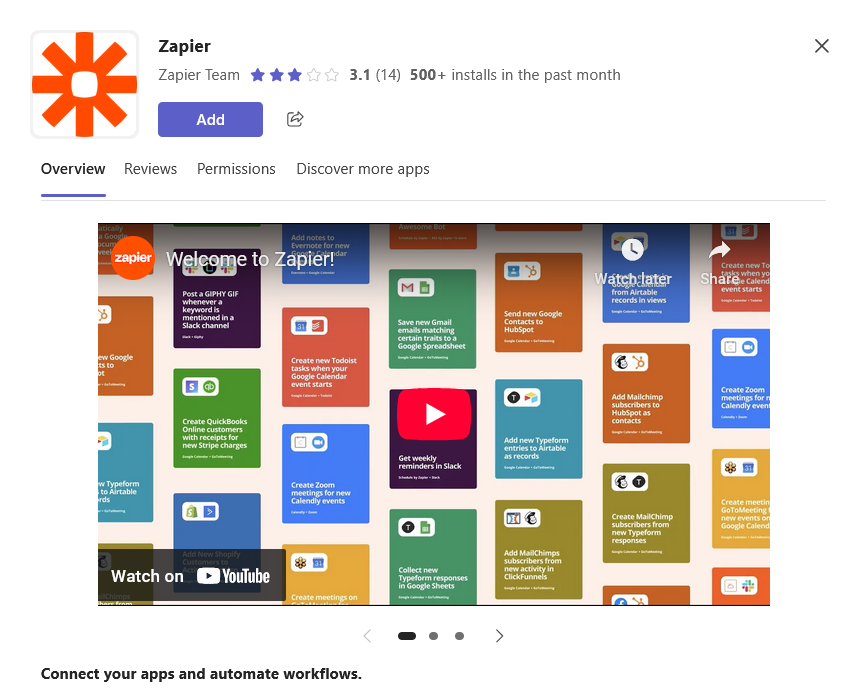
10. Zapier
Zapier acts as “digital glue.”
It connects Microsoft Teams to thousands of other web apps that don’t have a built-in integration.
Key features:
- Connects to over 7,000 different applications
- Uses a simple “trigger-action” logic (e.g., “When a new lead is added in Salesforce, post a message in Teams”)
- Build complex, multi-step automated workflows with conditional logic
You can use Teams as a trigger, meaning a new message starts a workflow.
Alternatively, Teams can be an action where an event in another app posts a message to a Teams channel.
Who it’s for:
- Teams that depend on a wide variety of different software tools
- Teams that need all their software tools to communicate with each other
It’s the most versatile automation tool on the market for connecting everything.
But the costs can grow quickly as your usage increases.
Source: https://zapier.com
It’s All About Integration and AI
The goal isn’t just to collect apps.
But to build an integrated system inside the Teams environment that actually works for you.
A few well-connected tools will always be more effective than a dozen that don’t talk to each other.
Looking ahead, AI is set to change how we work with these tools.
Microsoft Copilot will act as an “orchestrator,” letting you manage tasks across all your apps with simple commands.
Future valuable apps will integrate smoothly into the new, smarter way of working in the right Microsoft Teams.
Do you have any questions about the productivity apps I suggested above? Let me know!
For any business-related queries or concerns, contact me through the contact form. I always reply. 🙂




























