

Last Updated on August 3, 2025
Have you ever wondered why some content in SharePoint is easy to find?
While other files seem to disappear into a digital black hole?
In this guide, let’s talk about the two most powerful tools for building a world-class search experience
Let’s get started.
Table of Contents:
The Core Difference Between Metadata and Properties
Achieving a truly intelligent and searchable digital workplace hinges on understanding two fundamental concepts.
Managed metadata vs. managed properties: a simple two-step process to clarify a confusing distinction.
- Managed Metadata: The system for applying consistent, meaningful tags to your content (the input)
- Managed Properties: The tools the search engine uses to find, filter, and display content based on its tags (the retrieval)
One cannot function effectively without the other; they’re two sides of the same coin for content discovery.
Managed metadata offers a structured vocabulary for consistent content classification, forming a high-quality information base.
Managed Properties enable a powerful, flexible, and intuitive search experience by translating well-structured information.
Together, they work together to transform SharePoint from a simple storage into a dynamic knowledge base.
Sign up for exclusive updates, tips, and strategies
To build a powerful search experience, you first need a solid foundation of well-organized content.
In SharePoint, this foundation is built using the Managed Metadata service.
This offers a formal, centralized framework for classifying digital assets for consistency and ease of governance.
The Term Store (Central Vocabulary)
The term store, the core of managed metadata, serves as an organization’s central dictionary.
This is where you can create and manage all the official terminology that users will apply to content.
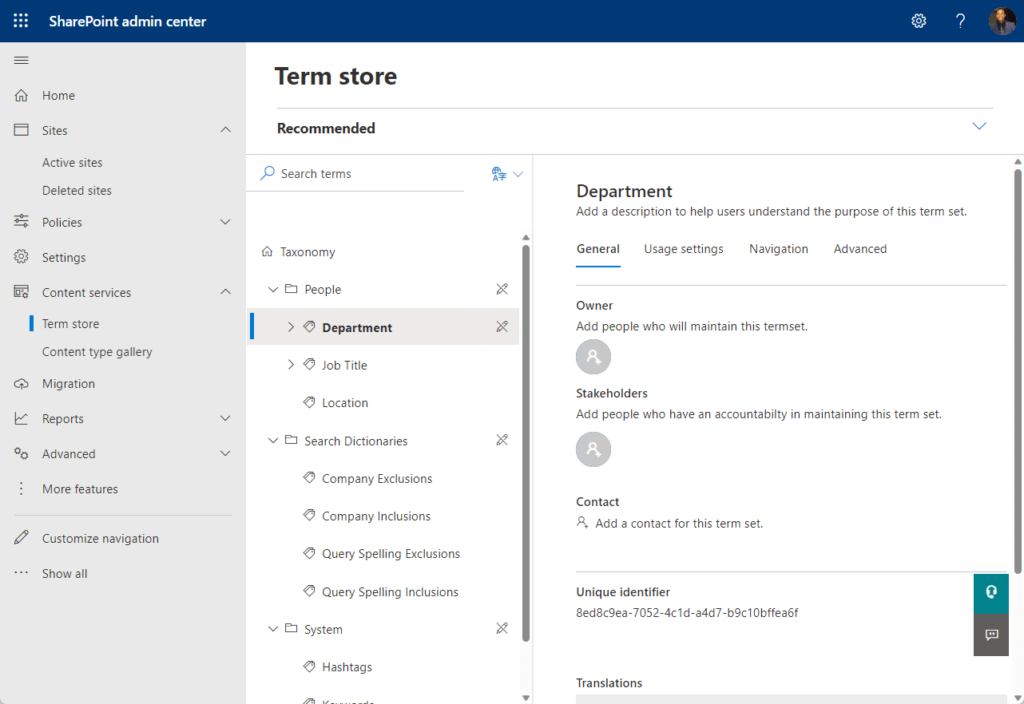
The term store is organized into a clear hierarchy:
- Groups: Top-level containers for security and delegation
- Term Sets: Collections of related terms, like “Departments”
- Terms: The individual tags within a set, like “Finance” or “Legal”
This centralized approach ensures consistent tagging across SharePoint, eliminating ambiguity.
Define vocabulary once to create a multi-level taxonomy for any library column.
This structure is important for creating a scalable and maintainable information architecture.
Updates in the term store are automatically reflected everywhere the terms are used, for less admin effort.
Managed Metadata Column vs. Standard Choice Column
When adding a metadata field to a list or library, you face a critical decision:
- To use a Managed Metadata column
- To use a simple Choice column
While a Choice column is easy to set up for a single list, it’s a tactical dead-end for enterprise content management.
The managed metadata column is a strategic, scalable solution designed for the modern SharePoint Online experience.
Answering “What is the difference between choice and managed metadata?” is important for any site administrator.
The table below highlights the key differences:
| Feature | Choice Column | Managed Metadata Column |
| Management Scope | Local to a single list or library | Centralized in the tenant-wide term store |
| Reusability | Cannot be easily reused across sites | Designed for reuse across all sites and libraries |
| Updates | Requires manual updates on every instance | A single update in the term store propagates everywhere |
| Structure | A simple, flat list of options | Supports multi-level hierarchies and synonyms |
| User Experience | Basic dropdown menu | Rich term picker with type-ahead suggestions |
Managed Metadata site columns provide a consistent foundation for document libraries.
How Managed Properties Power the Search Experience
Adding metadata to your content is only half the battle.
To make information discoverable, you need SharePoint’s search engine, which is governed by the Search Schema.
This is where Managed Properties come into play.
They link metadata to search, allowing users to execute precise search queries and get relevant search results.
The Role of Crawled Properties
SharePoint’s search engine regularly crawls content, discovering document and list item information.
For every piece of metadata it finds, it automatically creates a Crawled Property.
Here’s what you need to know about them:
- Raw data: They are the unprocessed data extracted from your content.
- System-generated: They have cryptic names created automatically by SharePoint.
- Not directly usable: They must be mapped to a managed property to be useful.
Think of crawled properties as the raw ingredients for your search recipe.
They must be refined into a Managed Property to unlock their potential for custom searches or filters.
The crawl process is the first, non-negotiable step in making any file or its metadata fields searchable.
Without a successful crawl, your metadata remains invisible to the search engine.
Search Schema and Managed Properties
Managed properties are clean, admin-defined Search Schema properties that make content discoverable.
A managed property, mapped to one or more crawled properties, converts raw data into a usable search tool.
Key attributes of managed properties include:
- Queryable: Allows the property to be used in targeted search queries
- Retrievable: Allows the property’s value to be displayed in search results
- Refinable: Allows the property to be used as a filter (a refiner)
- Sortable: Allows search results to be sorted by this property
Modern SharePoint information architecture relies on managed properties as a core element.
Microsoft offers a variety of built-in and default managed properties for common attributes, including:
- Author
- Title
- File Type
These properties are ready to use immediately without additional configuration.
For your custom metadata, SharePoint Online will often auto-create managed properties for you.
Properly configured properties significantly enhance search, helping users find precise information.
Mapping Crawled Properties to Managed Properties
The true power of managed metadata vs managed properties is realized in the mapping process.
Search Schema maps crawled properties (raw data) to managed properties (searchable attributes).
Here is a practical example of the end-to-end flow:
- In the term store, you create a term like “Human Resources”.
- A user tags a file with the “Human Resources” term.
- A search crawl discovers the tag and creates a crawled property.
- An admin maps the crawled property to a refinable managed property.
- The managed property can now be used as a search filter.
This enables advanced functionality, such as filtering search results based on the metadata you’ve defined.
Now, on a search results page, you can configure a Refinement Web Part to use the new managed property as a filter.
This allows for custom searches where users can click “Human Resources” and instantly see all relevant documents.
Take note:
The old Refinement Web Part isn’t available on modern pages (see here for all modern web parts).
You surface the filter through:
- Microsoft Search “filters” on a custom search vertical
- The free PnP Modern Search web-parts
You can do any of those instead of the classic web-part.
A well-planned SharePoint environment doesn’t happen by accident.
It requires a deliberate strategy for how you manage your information architecture.
Good term store and search schema practices ensure a scalable, user-friendly, and future-proof system.
Why You Must Regularly Review Your System
A powerful term store can quickly become chaotic without proper governance.
It’s essential to regularly review your taxonomy and search schema to ensure they remain relevant.
Here are key governance tasks to implement:
- Designate metadata owners
- Establish a process for new term requests
- Retire old or unused terms
- Review search analytics for user behavior
Designating owners for different term sets and establishing a clear process for approving new terms is important.
This ongoing effort ensures that your metadata remains a valuable asset rather than a cluttered legacy system.
Proactive management of these properties is key to long-term success in your SharePoint environment.
In modern SharePoint Online, the best practice is to favor managed metadata over deep folder structures.
Instead of burying a file in a hierarchy of folders, classify files in document libraries using metadata.
This “flat” architecture provides several key benefits:
- Eliminates duplicate content
- Allows for multiple “views” of the same content
- Improves findability across all SharePoint sites
- Simplifies navigation for users
This approach makes content more flexible and discoverable across your entire digital workplace.
When users can find what they need by filtering on metadata, the entire search experience is improved.
Do you have questions about designing a metadata-driven architecture for your sites? Let me know.
For any business-related queries or concerns, contact me through the contact form. I always reply. 🙂