

Table of Contents:
If you’re already on M365, someone in IT or finance will eventually ask whether Premium is worth the line item. That’s the right question.
The answer depends on where you are:
- Document volume: are you processing thousands of documents a month?
- Copilot: is it on your roadmap for the next 12 months?
- Compliance: is there regulatory pressure you need to get ahead of?
For most organizations under 200 people, the math probably doesn’t work. You don’t have the volume or compliance pressure to justify the licensing.
For larger enterprises, it’s a different conversation. I’ll walk you through the features that actually deliver and where to start.
SharePoint Premium adds an enterprise layer to your existing setup, which focuses on content experiences, processing, and governance pillars.
Licensing comes in two flavors:
- Pay-as-you-go: billed through Azure on consumption, ideal for AI document processing pilots
- Per-user seat: covers SharePoint Advanced Management and the Business Documents app
Think of standard SharePoint Online as your foundation. Premium is what you turn on when manual document handling, search frustration, and governance gaps start costing you real money.
The features overlap with tools you might already pay for separately. That’s part of the value case.
Sign up for exclusive updates, tips, and strategies
The Features Worth Paying For
Not every Premium feature earns its keep. Here’s the short list of what I’ve seen actually deliver ROI for enterprise clients:
1. AI Document Processing
This is the headline feature, and it’s the one most large organizations should evaluate first.
SharePoint Premium lets you train AI models on your own documents without writing any code.
Upload a handful of sample invoices, contracts, or HR forms. The model learns to classify them, extract key fields, and populate metadata automatically.
You build these models in a content center, then publish them across the tenant. One model can process documents in hundreds of libraries, with no retraining needed per site.
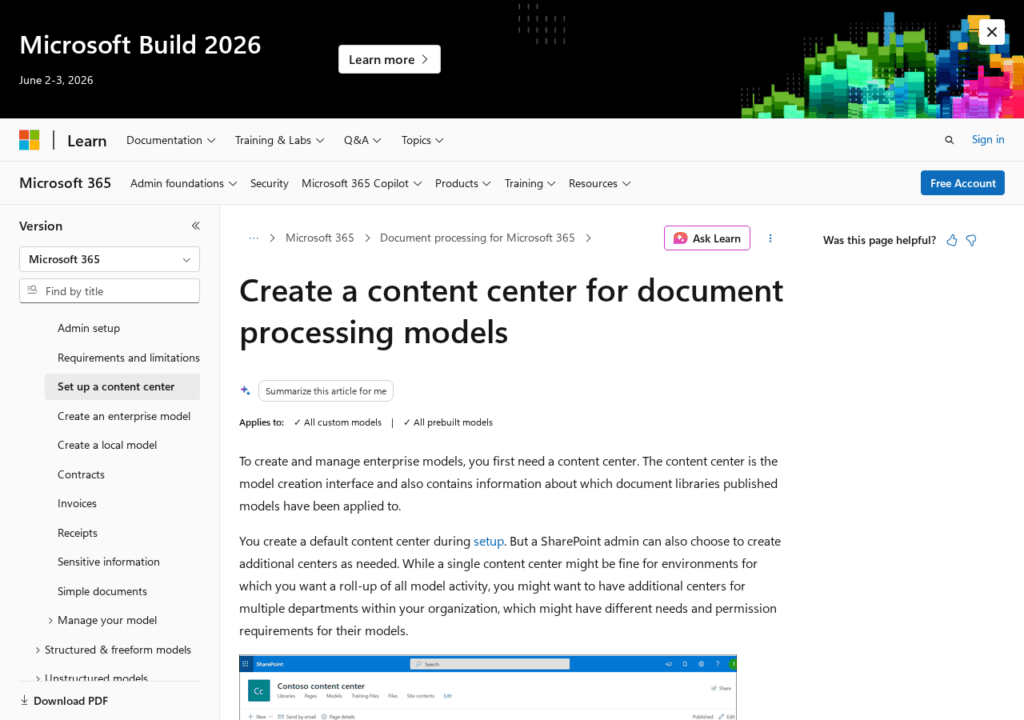
Source: https://learn.microsoft.com/en-us/microsoft-365/contentunderstanding/create-a-content-center
The case studies back this up. London Stock Exchange Group reported a 90% reduction in document processing time after rolling it out.
Northumbria Water Group uses it to process over 20 million documents, saving weeks of manual handling per document type.
The catch: you need volume for the ROI math to work.
If your team processes a few hundred invoices a month, you don’t need this. If you’re running thousands of contracts, claims, or compliance documents, you do.
| Document Type | Typical Use Case | Example Outcome |
|---|---|---|
| Invoices | Accounts payable automation | Auto-extract vendor, amount, PO number |
| Contracts | Legal review and renewal tracking | Surface expiry dates and key clauses |
| Compliance Docs | Regulatory submissions | Auto-classify and route for review |
| HR Onboarding Forms | New hire processing | Pull employee data into SharePoint lists |
| Claims | Insurance and benefits processing | Extract claim ID, amount, status |
Start with pay-as-you-go pricing. Pilot it on one document type. If the model holds up on your messy real-world documents, expand from there.
Microsoft launched native eSignature inside SharePoint, and it also integrates with Adobe Acrobat Sign and DocuSign.
For large orgs already paying Adobe or DocuSign licenses, this is the integration that makes the difference.
| Scenario | Use Native eSignature | Use Adobe/DocuSign Integration |
|---|---|---|
| Internal approvals | Yes | No need |
| Simple vendor contracts | Yes | Optional |
| Complex multi-party agreements | Limited | Yes |
| External signers with existing Adobe/DocuSign accounts | No | Yes |
| Compliance-heavy regulated signing | Evaluate carefully | Yes |
You route signing requests from within SharePoint, and signed documents land back in M365 automatically. No external repository to manage.
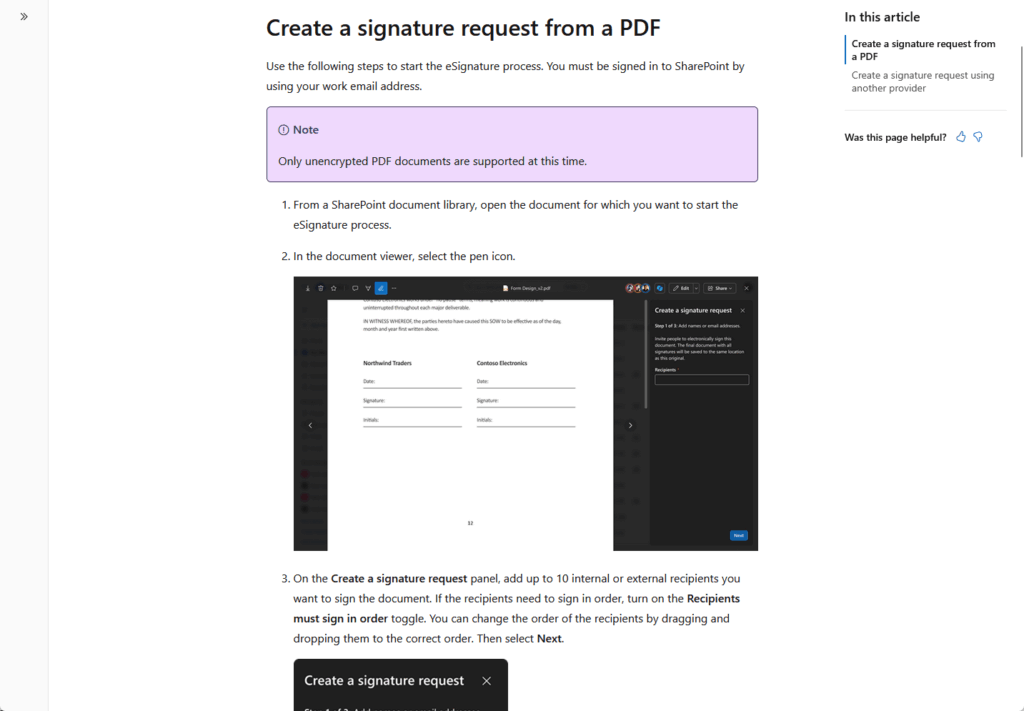
Source: https://learn.microsoft.com/en-us/microsoft-365/documentprocessing/esignature-send-requests
Wet signatures are a bottleneck enterprises have already mostly solved. What they haven’t solved is keeping signed contracts findable, governed, and tied to the right SharePoint site.
Honestly, this is one of the easier Premium features to justify. Contract-heavy teams in legal, HR, and procurement see immediate workflow wins.
If you’re rolling out Microsoft 365 Copilot, SAM stops being optional.
Copilot reasons over anything a signed-in user can access through the Microsoft Graph. That includes overshared sites, stale content, and documents nobody remembered existed.
SAM gives you two things:
- Reports: Data Access Governance reports with AI-driven risk analysis, sharing link audits, and sensitivity reports
- Policies: Restricted Access Control, block download, conditional access through Entra, and Restricted Content Discoverability
| SAM Feature | What It Fixes | Best For |
|---|---|---|
| DAG Reports | Identifies overshared and at-risk sites | Pre-Copilot rollout audits |
| Restricted Access Control | Locks sites to specific users/groups | Sensitive project workspaces |
| Block Download Policy | Prevents file downloads on unmanaged devices | BYOD and contractor access |
| Restricted Content Discoverability | Hides content from search and Copilot | Executive and HR-sensitive sites |
| Conditional Access Integration | Enforces device/location policies | Regulated industries |
The scale of unmanaged content is real. About 90% of SharePoint sites are team-enabled.
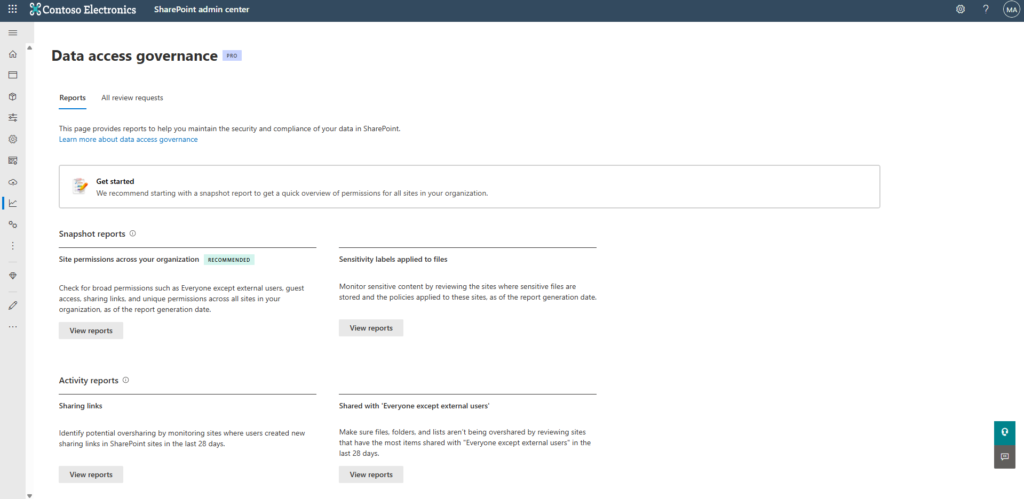
Source: https://learn.microsoft.com/en-us/sharepoint/data-access-governance-reports
Most are inactive, ownerless, or barely governed.
Real talk on the cost. SAM is $3 per user per month, and you license it for every user even if only admins use the features.
A 1,000-person org pays $36,000 a year for what’s effectively admin tooling.
Tony Redmond has argued Microsoft is selling another add-on to fix problems it created by allowing unrestricted site sprawl.
He’s not wrong. But the tooling is genuinely solid now, and if you’re going Copilot-ready, you need it.
What I tell clients: turn on the reporting layer first. Understand your exposure before applying restrictive policies, or you’ll lock down sites people actually need.
4. Content Assembly and Business Documents
This one is underrated.
Content Assembly generates documents from templates using SharePoint list data for anything where the structure is fixed and the variables change.
I’ve configured this for clients in professional services, and the wins are consistent:
- Sales: no more copying client names from CRMs into Word docs
- Legal: no more rewriting the same NDA from scratch
- Compliance: no more assembling quarterly reports by hand
It pulls directly from SharePoint lists, so the data stays governed in one place. Combine this with eSignature and you’ve got an end-to-end contract workflow without leaving M365.
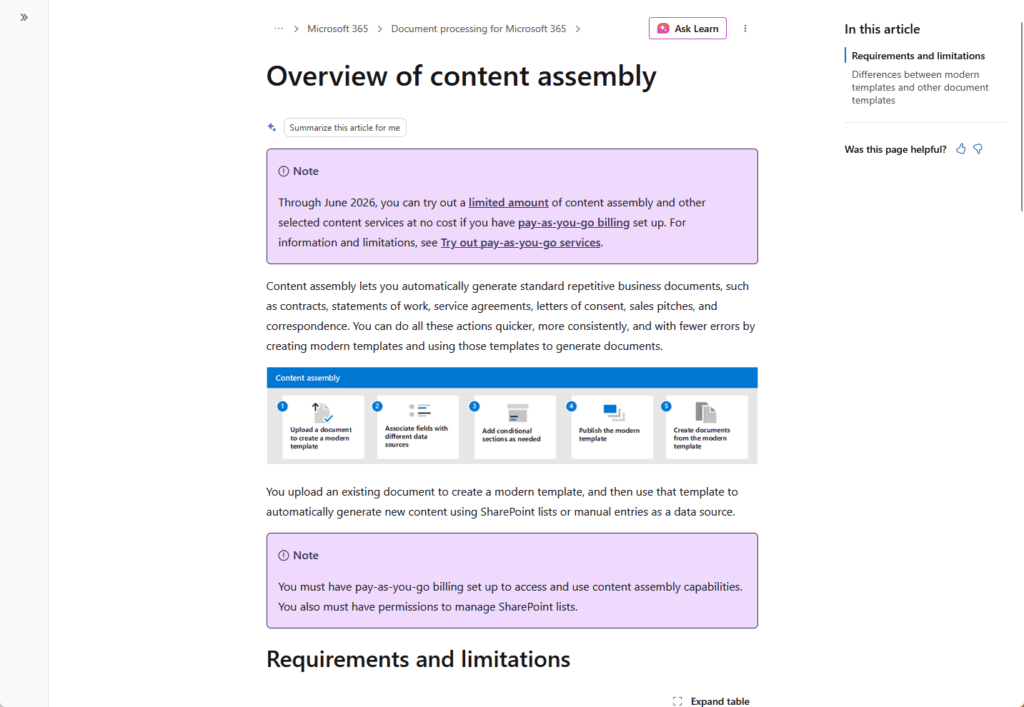
Source: https://learn.microsoft.com/en-us/microsoft-365/contentunderstanding/content-assembly
The way it works: you build a Word template with placeholders mapped to columns in a SharePoint list.
When someone needs a document, the template pulls the relevant data and outputs a formatted file ready to send.
Setup takes some upfront work. Your SharePoint lists need to be clean and structured before the templates can pull from them reliably.
Content Assembly prevents the following common issues:
- No copy-paste errors
- No version mismatches
- No one retyping the same client name into the wrong field
It’s different from mail merge in one important way. The source data lives in SharePoint, so it’s always current and governed.
Once it’s in place, the output is consistent every time. The scenario I keep coming back to is contract generation for professional services teams.
Client name, scope of work, billing terms, signatory details: all pulled from a SharePoint list into a formatted SOW in seconds.
Pair it with eSignature and the deal-to-signed-contract workflow takes minutes.
5. Autofill Columns and Intelligent Metadata
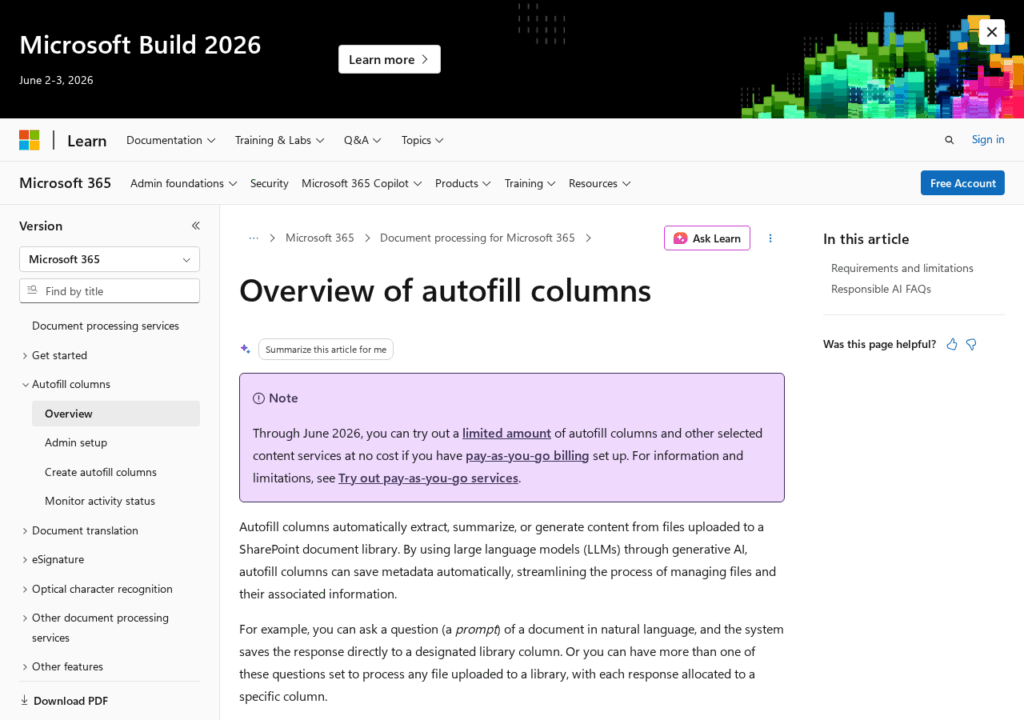
Autofill columns use AI to populate metadata fields automatically. No manual tagging: the model reads the document and fills in the column.
This is the feature that addresses metadata debt. Most enterprises have years of unclassified documents sitting in libraries with no tags, no categories, and no consistent structure.
Source: https://learn.microsoft.com/en-us/microsoft-365/syntex/autofill-overview
Search suffers because of it. So does Copilot.
Use cases I’ve seen pay off:
- Surfacing contract expiry dates across thousands of legacy contracts
- Auto-classifying technical documents by product line or version
- Tagging research documents by topic and author
- Extracting policy numbers, claim IDs, or case references from regulatory files
- Populating standard fields (date, vendor, amount) on incoming invoices
The downstream effect is what matters. Better metadata feeds better search, and users actually find what they need.
And when Copilot is in the mix, it surfaces the right document instead of an outdated draft.
Search is the one SharePoint complaint I hear from almost every enterprise client. Files aren’t missing; they’re just unfindable.
Standard SharePoint search relies on what’s already tagged and indexed. If your documents are untagged, buried in nested folders, or miscategorized, the results are useless.
That’s the reality in most large tenants.
SharePoint Premium improves search through two mechanisms:
- AI models and autofill columns feed the search index with clean, structured metadata
- Documents that were previously invisible start surfacing correctly
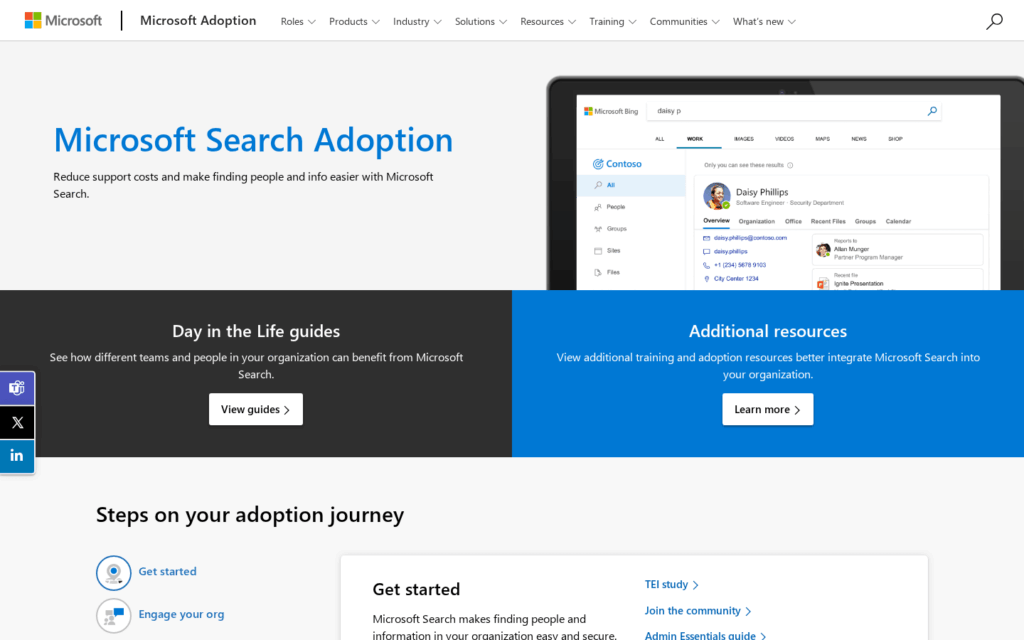
Microsoft Search, the tenant-wide layer that spans SharePoint, Teams, OneDrive, and Exchange, gets significantly better results when underlying content is properly classified.
There’s also a governance layer worth mentioning.
Source: https://adoption.microsoft.com/en-us/microsoft-search/
SAM’s Restricted Content Discoverability feature lets you hide specific sites from both search and Copilot, so sensitive HR or executive content doesn’t surface when it shouldn’t.
In practice, the search improvement is often the first thing end users notice after a Premium rollout. It’s not a separate feature you configure.
It’s the compound effect of better metadata, classification, and governance policies working together. And that’s usually what convinces skeptical users that Premium was worth it.
How to Roll This Out (Without Overcomplicating It)
The teams that struggle with SharePoint Premium almost always try to do too much at once.
They roll out AI document processing, SAM, eSignature, and Content Assembly simultaneously. Six months in, the models are undertrained and adoption is low.
The teams that get it right pick one use case and make it work before expanding.
The sequence that works:
- AI document processing first (invoices and contracts are the right entry point)
- SAM reporting before you announce Copilot
- eSignature and Content Assembly once the workflows are ready
Start with AI document processing. Invoices and contracts are usually the right entry point: consistent formats, defined fields, and clear ROI when processing time drops.
Before you announce Microsoft 365 Copilot internally, get SAM’s Data Access Governance reports running. Understand your oversharing exposure first.
This step prevents the most common Copilot rollout problem: surfacing confidential content to the wrong people, or returning outdated documents as authoritative sources.
Once SAM is in place and document processing is running cleanly, the other features fall into line. eSignature and Content Assembly are lower-lift and slot into existing workflows.
The change management piece matters more than most IT teams expect. AI-generated metadata and automated classification require users to trust the output.
I get asked this a lot, and the answer depends on what you’re already doing.
Premium pays off fast if you’re processing high document volumes, rolling out Copilot soon, or consolidating eSignature and content automation into M365.
The licensing math works when AI models replace manual effort or when SAM prevents a Copilot-related data leak.
It’s a harder sell in two situations:
- Heavy investment in Laserfiche, OpenText, or another ECM platform with sunk costs in existing workflows
- GCC or GCC High environments, where pay-as-you-go isn’t available
| Worth It If… | Maybe Not If… |
|---|---|
| You process thousands of documents monthly | Document volume is low or unstructured |
| You’re deploying M365 Copilot in the next year | Copilot is years away from your roadmap |
| You have compliance or regulatory exposure | Compliance load is minimal |
| You want to consolidate eSignature into M365 | You’re locked into a renewed DocuSign contract |
| Search frustration is a recurring complaint | Standard SharePoint search meets your needs |
| You have change management capacity | You can’t drive AI adoption with end users |
The cost structure matters for the ROI conversation. Pay-as-you-go through Azure bills on consumption, which makes it easy to pilot without committing to a full seat license.
Per-user licensing for SAM runs $3 per user per month. For a 1,000-person org, that’s $36,000 a year.
Forrester found that M365 customers generate a 223% ROI when the platform is properly configured and adopted. Premium accelerates that number when the right features are live.
Ask a different question: not whether Premium fits the budget, but what it costs you not to have it.
Manual document processing, Copilot exposing the wrong content, and eSignature workflows that live outside M365 all have costs. They’re just harder to see on a spreadsheet.
Where to Start
SharePoint Premium delivers when it’s configured right. AI models need training data, SAM needs proper scoping, and eSignature needs a workflow that fits how your teams operate.
Get three things right before you go live:
- One internal champion who owns the rollout
- A pilot document type with a consistent format (invoices and POs work well)
- Stakeholder expectations set before the model touches production documents
Start with one document type and run the model on real documents before expanding.
Aim for 90% accuracy. Below that, trust breaks down fast.
Once the numbers are there, the business conversation changes. You’re showing results from a working implementation, not pitching a feature.
If you’re working through the Premium decision, I help mid-to-large enterprises evaluate M365 investments and configure SharePoint Premium for real ROI. Reach out and let’s talk.




























