

Last Updated on November 6, 2025
Microsoft has set a firm deadline: April 2, 2026.
On this date, the SharePoint 2013 workflow engine will be removed from all Microsoft 365 tenants. This is not a standard product update.
It’s a strategic mandate to shift automation from SharePoint to the modern Power Platform.
For organizations still running these workflows, this deadline represents both a threat and an opportunity as inaction will break business processes.
Table of Contents:
- Here’s the Scope and Timeline
- Why Microsoft Is Making This Change
- Comparing SharePoint 2013 Workflows to Power Automate
- The Migration Strategy: Three Paths Forward
- Critical Risks and What Happens After April 2, 2026
- Strategic Recommendations and Action Plan
- This Is a Strategic Mandate, Not Just a Technical Update
Here’s the Scope and Timeline
Retirement isn’t happening overnight. Microsoft is phasing this out across several critical dates, each with different implications for your organization.
The critical dates you can’t miss:
| Date | Event | Impact |
| April 2, 2024 | New Tenant Cutoff | SP2013 workflows turned off for new Microsoft 365 tenants. |
| December 31, 2025 | Nintex EOL | Support ends for Nintex Workflow for Office 365 (if your org uses it). |
| April 2, 2026 | Final Retirement | SP2013 engine removed from all Microsoft 365 tenants. Workflows stop working. |
| July 14, 2026 | SharePoint Designer EOL | SP Designer 2013 support ends (impacts on-prem users too). |
If your organization uses Nintex, the December 31, 2025 deadline is even more urgent. The underlying Microsoft engine that Nintex depends on will be gone, so migration must happen sooner.
Btw, this announcement applies only to SharePoint Online (Microsoft 365). On-premises organizations follow a different path:
| Environment | Affected Platform | Action Required | Deadline |
| SharePoint Online | SP2013 Workflow Engine | Migrate to Power Automate | April 2, 2026 |
| On-Premises (SP 2016, 2019, SE) | Microsoft Workflow Manager | Upgrade to SharePoint Workflow Manager (SPWFM) | Ongoing support until 2026 |
On-premises customers should upgrade to SharePoint Workflow Manager (SPWFM), the modern workflow engine for on-prem servers. Microsoft will focus all future development here.
Sign up for exclusive updates, tips, and strategies
Why Microsoft Is Making This Change
This isn’t just about ending old technology. It’s about fundamentally reshaping how automation works across the entire Microsoft 365 ecosystem.
Microsoft’s approach to automation has evolved across three distinct eras:
- SharePoint 2010 (Monolithic): Workflows lived inside SharePoint. No separation between platform and automation engine.
- SharePoint 2013 (First Decoupling): The engine moved outside SharePoint to Azure, but workflows were still conceptually tied to SharePoint.
- Power Automate (Cloud-Native): Automation is now a universal, cloud-based platform. SharePoint is just one of over 1,000 connectors.
The 2026 retirement is the final step in this evolution. Microsoft is cleaning the last remnants of the old model to make room for the new one.
For its modernization business case, the SharePoint 2013 engine is outdated. It was built for a different era of business processes and can’t meet modern demands.
Power Automate is tenant-wide and ecosystem-wide. It connects to Salesforce, Slack, Google Workspace, and hundreds of other apps.
The old engine? It only worked within a single SharePoint site collection.
Well, technically, cross-site collection operations are possible but require complex workarounds using HTTP web services, REST APIs, and elevated permissions through App Steps.
Unlike Power Automate which natively supports these operations.
Well, these aren’t apples-to-apples. Power Automate is more powerful and more complex, which means migration isn’t a simple upgrade.
Here are the architecture and scope differences:
| Feature | SharePoint 2013 Workflow | Power Automate |
| Scope | Single SharePoint site collection | Entire M365 ecosystem + external services |
| Connectors | SharePoint, Outlook, basic Office tools | 1,000+ connectors (Salesforce, Slack, Adobe, etc.) |
| Authoring | SharePoint Designer 2013 | Modern web portal + mobile app |
| Integration | Limited to on-platform workflows | Cross-app, cross-tenant capabilities |
| Best For | Simple, sequential document approvals | Complex, multi-app enterprise processes |
The Licensing “Gotcha” (Hidden Costs of Migration)
This is where most organizations get blindsided. SharePoint 2013 workflows were “free”, as the cost was baked into your SharePoint license.
Power Automate operates on a “freemium” model.
Basic, simple flows are included in most Microsoft 365 plans at no extra cost. But here’s the catch: premium connectors and advanced features require separate licensing.
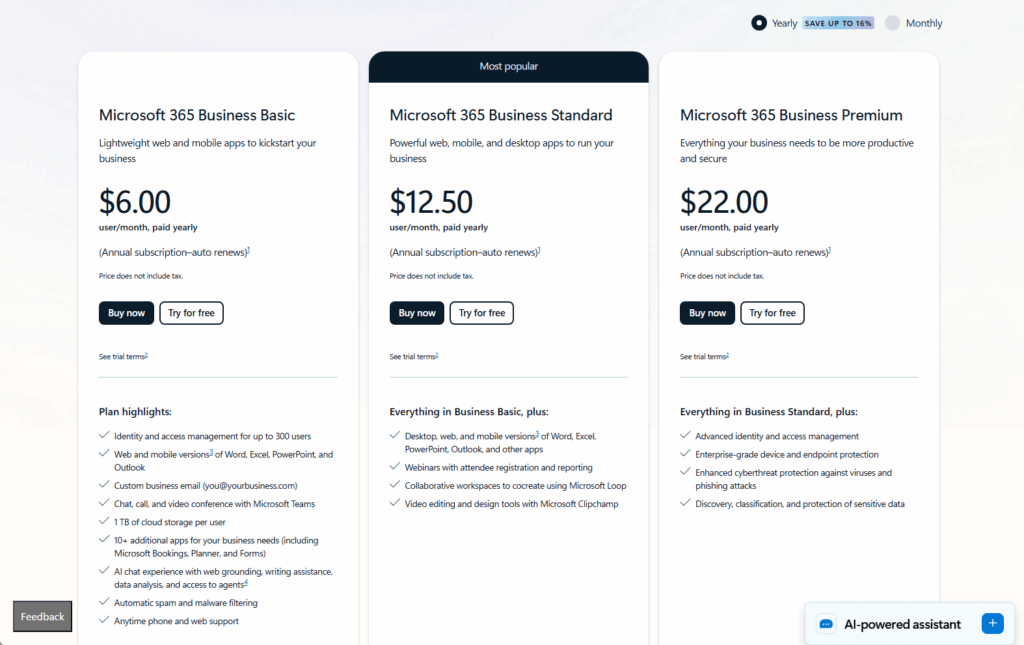
What counts as premium? The HTTP connector. Yes, the connector that lets you call external APIs.
If your SharePoint 2013 workflows made HTTP calls to external systems (which is common) you’ll need to buy Power Automate Premium licenses to replicate that functionality.
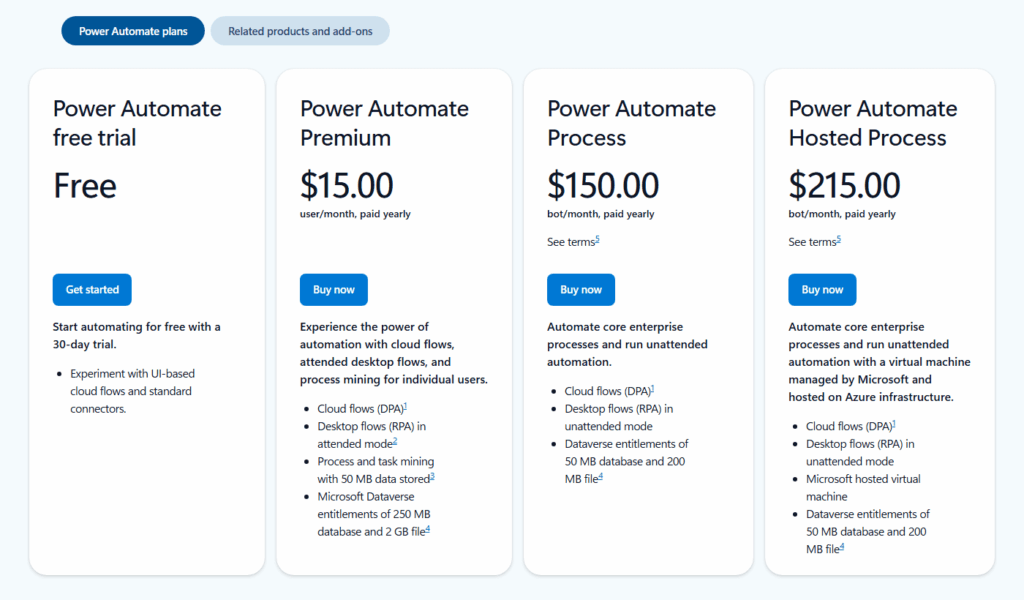
Real-world example: A custom workflow that calls your CRM API via HTTP. In SharePoint 2013, free.
In Power Automate, that’s $15 per user per month. Multiply that across your organization, and you’re looking at a serious budget impact that wasn’t planned for.
Any workflow using the HTTP connector, third-party integrations, or AI Builder features will require premium licensing.
This cost doesn’t show up in a technical assessment, but it shows up in your IT budget.
The Migration Strategy: Three Paths Forward
Not all workflows migrate the same way. Your strategy depends on workflow complexity and business criticality. Start with assessment, then choose your path.
Come back to this migration decision matrix later:
| Workflow Type | Upgradability Score | Recommended Path | Tool |
| Obsolete / Unused | N/A | Retire (delete) | PowerShell |
| Simple OOTB (e.g., Approval) | 80-100% | Migrate (automated) | SPMT |
| Custom / Complex | Under 80% | Rebuild & redesign | Manual in Power Automate |
| Nintex workflows | N/A | Rebuild (vendor path) | Nintex Cloud or ShareGate |
Phase 1: Assessment and Triage (The Foundation)
Step 1: Run the Microsoft 365 Assessment Tool
Microsoft provides a free command-line tool that scans your tenant and finds every SharePoint 2013 workflow. This is the official starting point.
Run this command:
microsoft365-assessment.exe start --mode Workflow
Step 2: Review the Power BI Workflow Report
The tool outputs a Power BI dashboard. Look for one critical metric: the “Power Automate upgradability score.”
- High score (80-100%): Simple, built-in workflows (Approval, Collect Feedback, 3-State). These are candidates for automated migration.
- Low score (under 80%): Complex, custom workflows. These need manual rebuilding.
The report also shows location, usage frequency, and when each workflow last ran. This helps identify unused workflows you can simply delete.
Step 3: Triage Into Three Categories
- Retire: Workflows with no recent usage or tied to obsolete business processes. Delete, don’t migrate.
- Rebuild (Manual): Complex, business-critical workflows. This is the default path for most organizations.
- Migrate (Automated): Simple, out-of-the-box workflows with high upgradability scores. Use automated tools for these.
Critical Risk: Shadow IT workflows. A department manager built a simple approval process in 2015.
Nobody documented it. It’s been silently running for a decade. The Assessment Tool will find it, but you need to find its owner before April 2026.
Microsoft’s SharePoint Migration Tool (SPMT) can migrate some workflows automatically. It works well for simple, out-of-the-box workflows.
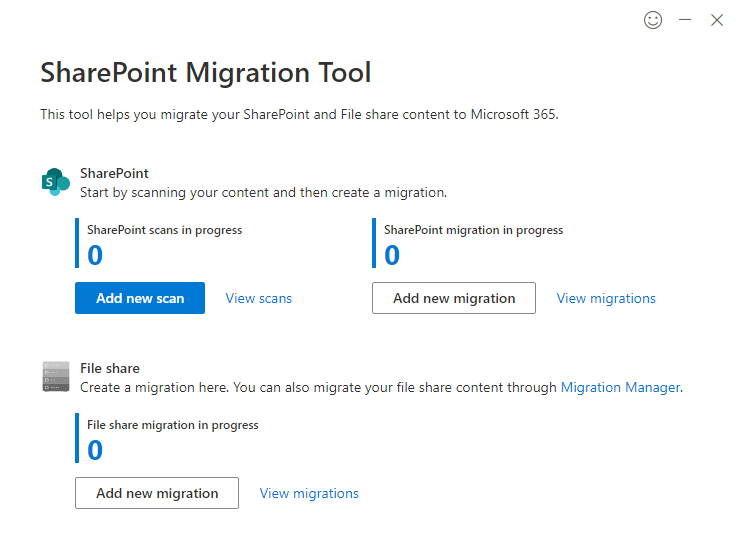
What it supports:
- Built-in workflows (Approval, Collect Feedback, 3-State)
- SharePoint Designer 2010 and 2013 list and library workflows
- Best for: Simple workflows with high upgradability scores
Critical limitations:
- Does not migrate workflow history data
- Doesn’t support all actions (“not all are currently supported”)
- Community reports frequent failures and incompatibility issues
- Cannot handle custom actions or API calls
Bottom line: SPMT is viable only for the simplest workflows. Use it for maybe 10-20% of your workloads.
Option 2: Manual Rebuild and Redesign (The Recommended Path)
Most organizations will need to rebuild workflows manually. The expert consensus is clear: “Complex workflows will have to be rebuilt manually, not migrated.”

But here’s the opportunity: Don’t just move old processes to a new platform. Redesign them.
Use the 2026 deadline as a forcing function. Get business stakeholders to examine workflows built a decade ago and ask: Do we still need this? Can we do it better?
Power Automate’s capabilities are far beyond the old engine. Cross-app integration, AI Builder, advanced conditional logic. This is your chance to optimize, not just migrate.
Option 3: Third-Party Migration Tools
If you’re using Nintex, that decision is urgent. Nintex Workflow for Office 365 support ends December 31, 2025, way before Microsoft’s April deadline.
- Nintex users: Migrate to Nintex Cloud using Nintex’s conversion tools.
- ShareGate or AvePoint users: These tools offer Nintex migration support, but with a caveat: they can migrate history from on-prem to on-prem, not to Microsoft 365.
Critical Risks and What Happens After April 2, 2026
Inaction carries real consequences. The workflows don’t transition gracefully. They stop working.
Operational Disruption
On April 3, 2026, any workflow that wasn’t migrated will cease to function. Not “disabled.” Stopped. Business processes break.
- Document approval chains halt. Contracts can’t be signed off.
- HR onboarding stops. New hires don’t get IT setup or facilities access.
- Notification workflows fail. Alerts don’t get sent.
After retirement, workflow definitions exist only as raw XML. They can’t run, can’t be edited, and can’t be analyzed. If something breaks, you’re searching blind.
The Orphaned Data Problem
Workflow history is stored in SharePoint lists. The Migration Tool doesn’t migrate this data. These lists stay in your tenant forever unless you delete them.
That’s petabytes of data sitting there. eDiscovery can still find it, it still consumes storage, and it’s no longer connected to a running process.
It’s orphaned. Microsoft hasn’t announced a cleanup plan.
You need a data governance strategy now: archive this data for compliance or delete it for data hygiene before the retirement date.
Budget Surprises
Organizations that skip the licensing analysis during migration planning face budget crises. Premium Power Automate licenses for workflows using HTTP connectors or third-party integrations add up fast.
Strategic Recommendations and Action Plan
The 2026 deadline is firm. Work backward from it.
Right Now (Q4 2024 / Q1 2025)
- Run the Microsoft 365 Assessment Tool (–mode Workflow).
- Get a complete inventory of all workflows and their upgradability scores.
- Share the report with business unit leaders to identify workflow owners.
Q1–Q2 2025
- Conduct triage workshops with business stakeholders.
- Decide which workflows to retire, rebuild, or migrate.
- Analyze licensing requirements and build Power Automate premium costs into the budget.
- Create a data governance plan for orphaned workflow history.
Q2–Q3 2025
- Begin manual rebuilds of high-priority workflows.
- Execute automated migrations for simple OOTB workflows.
- Use this as an opportunity to optimize processes, not just replicate them.
- Coordinate with third-party vendors on migration timelines.
Q3–Q4 2025
- Complete all migrations and validate functionality.
- Archive or purge workflow history data.
- Conduct full-tenant testing and get business sign-off.
- Plan post-April 2026 support and troubleshooting.
This Is a Strategic Mandate, Not Just a Technical Update
April 2, 2026, is not negotiable. Microsoft has made this choice strategically. The old model of SharePoint-centric automation is done.
Power Platform–centric automation is the future.
The greatest risks aren’t technical. They’re operational (broken business processes) and financial (unbudgeted licensing costs).
Organizations that plan now will migrate smoothly, control costs, and modernize their automation at the same time.
Those who wait will face disruption. Don’t wait. Start with assessment, move to triage, then execute. The time to act is now.
Do you have questions about SharePoint 2013 workflow retirement or migration strategy? Let me know.
For any business-related queries or concerns, contact me through the contact form. I always reply. 🙂