
Table of Contents:
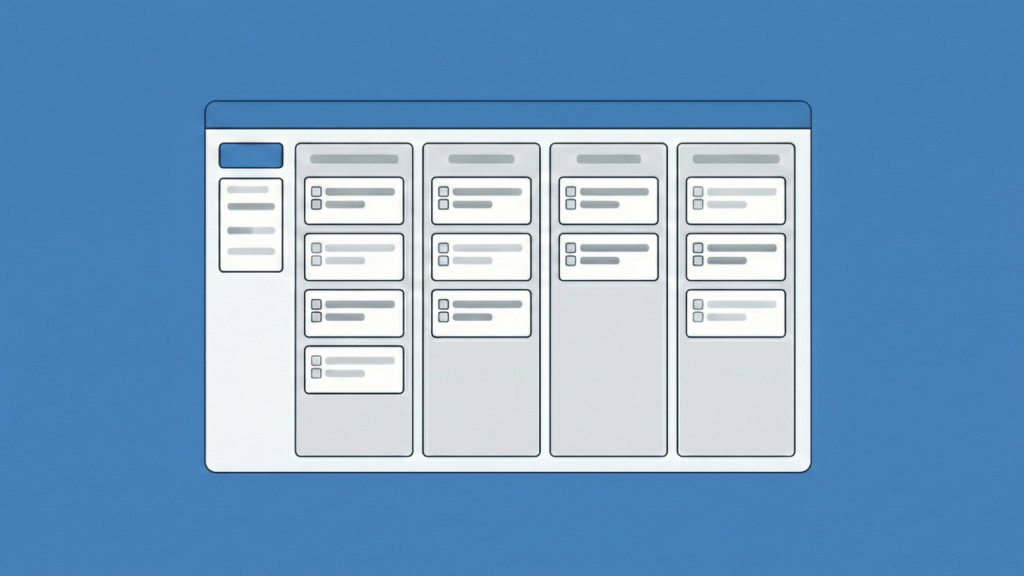
Trello built its reputation on simplicity.
But as projects grow, teams need more:
- Gantt charts for dependencies
- Governance controls for IT and legal
- Reporting beyond “cards in a column”
- Automation without separate subscriptions
In addition, Microsoft recently unified Planner and Project for the web into “New Planner.”
This creates a decision point: stay inside Microsoft 365 for governance and zero-friction integration, or step outside for better UX and customization.
Best Trello Alternatives Inside Microsoft 365
For organizations already invested in Microsoft 365, these tools offer the path of least resistance with built-in governance and seamless integration.
For Simple Task Boards and Team Collaboration (New Planner Basic)
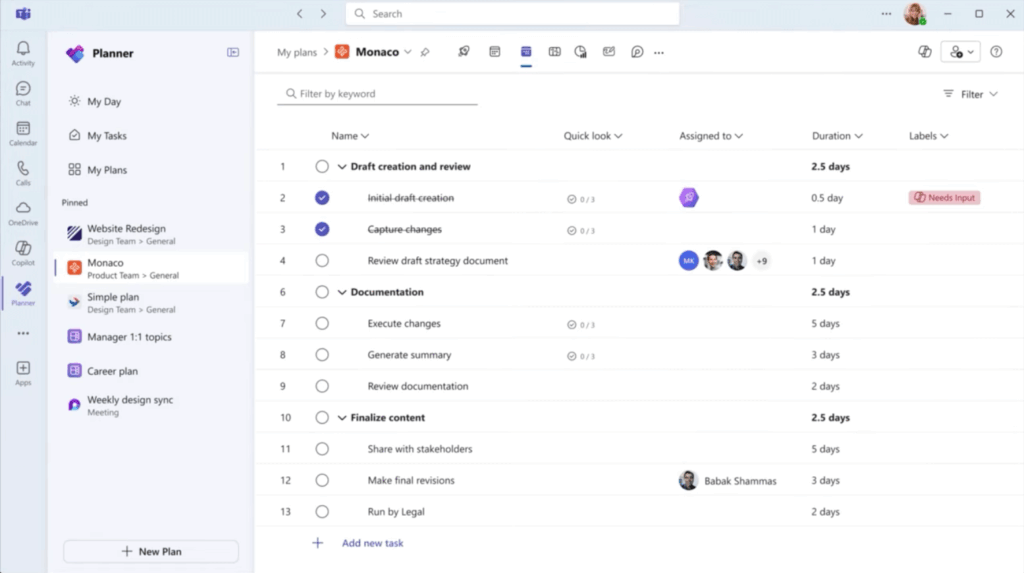
New Planner Basic is the default Microsoft 365 option. It comes with most licenses at no extra cost.
You get Kanban-style boards with buckets (columns), a grid view for bulk editing, and deep embedding in Microsoft Teams. It’s built for marketing campaigns, onboarding checklists, and lightweight project tracking.
Strengths:
- Single Sign-On works automatically
- Data stays in your Microsoft tenant
- Covered by Microsoft Purview for eDiscovery and Legal Hold
- No learning curve for Teams users
Limitations:
- No horizontal swimlanes (you can’t group by Status vertically and Assignee horizontally)
- No Work-In-Progress (WIP) limits
- Less visual flexibility than Trello (limited card customization)
When to choose it:
You live in Teams and SharePoint. You need basic boards with built-in governance. Most of all, you don’t want to manage another tool subscription or train users on new authentication.
The Purview integration matters more than most teams realize. If legal ever needs to search or freeze project data, Planner tasks are already indexed. For comparison, Trello requires manual exports.
For Projects with Dependencies and Timelines (New Planner Premium)
Planner Premium unlocks project management features that Basic lacks. You need a Plan 1 license (the new name for what used to be “Project Plan 1”).
This tier includes several advanced features:
- Timeline view with interactive Gantt charts, finish-to-start dependencies, lead time, and lag time.
- Sprint Planning with dedicated views for Agile teams and backlog filtering.
- Goals View, which links individual tasks to strategic objectives.
- People View, which acts as a resource allocation board that shows who’s overloaded.
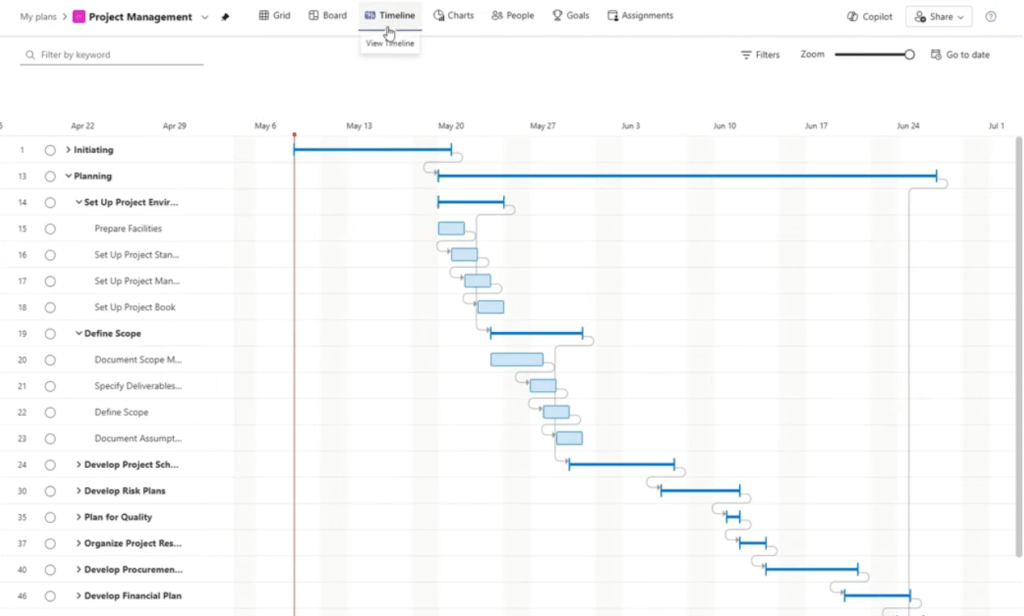
Copilot in Planner can generate project plans from prompts (“Create a Q3 product launch plan”) and flag at-risk tasks by analyzing dependency chains.
Key features:
- Interactive Gantt charts with dependency management
- Sprint Planning for Agile workflows
- Goals View for strategic alignment
- People View for resource allocation
This works well for event planning, product launches, construction projects, and any workflow where task order matters.
Limitations:
- Still no swimlanes
- The interface feels less polished than Smartsheet or Asana for heavy project management
When to choose it:
You need light-to-medium project management with Microsoft compliance. You don’t want a separate tool and you value the ability to start simple (basic) and upgrade licenses as complexity grows.
Premium stores data in Dataverse instead of Exchange. This enables richer relational data and tighter integration with Power Apps if your workflow outgrows boards.
For Structured Data and Custom Views (Microsoft Lists)
Microsoft Lists is SharePoint Lists with a modern interface. It’s often overlooked for workflow visualization, but it excels at data-driven processes.
You can visualize items in board view (Kanban-style), calendar view, or gallery view (great for image-heavy workflows like creative asset tracking).
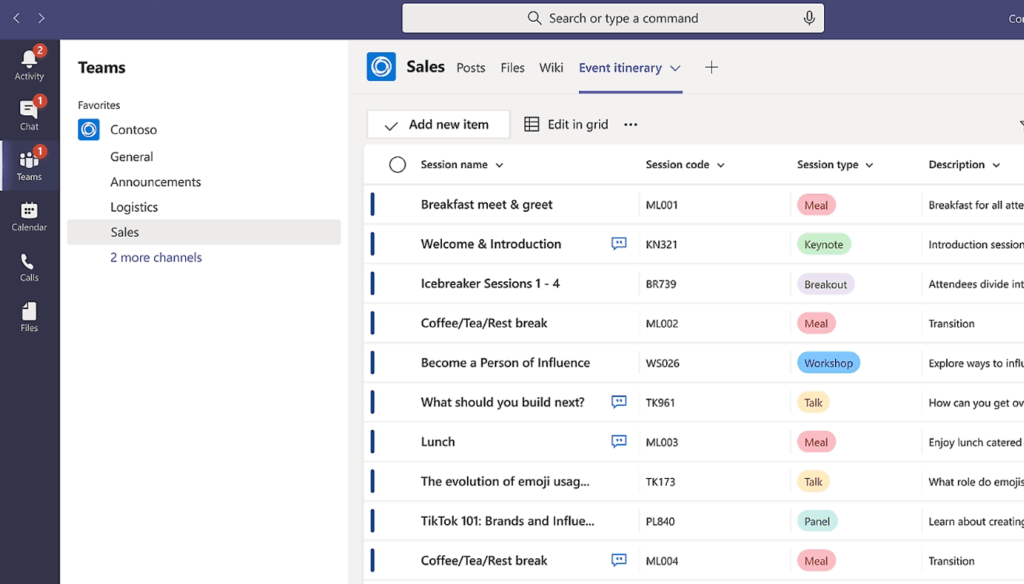
The real power is JSON formatting as you can write simple code to make cards change color when due dates pass or display custom badges based on status.
This works well for inventory tracking, asset management, content calendars, and approval workflows.
Limitations:
- No task dependencies
- No WIP limits
- Board columns must match a choice field exactly (you can’t drag to a column that doesn’t exist as a data value)
When to choose it: Your workflow is data-driven, not timeline-driven, and you need structured tracking more than project scheduling.
The Power Apps connection matters because if your list board becomes too complex, you can convert it to a mobile app without rebuilding from scratch. The data structure stays intact.
For Engineering and Strict Kanban Practitioners (Azure DevOps Boards)
Azure DevOps is the most robust Kanban tool in the Microsoft 365 stack. It’s typically siloed in IT and Engineering, but it’s the only Microsoft option with true Kanban mechanics.
It offers native swimlanes where you can create horizontal rows for priority levels (expedite, standard, blocked) that cut across all status columns.
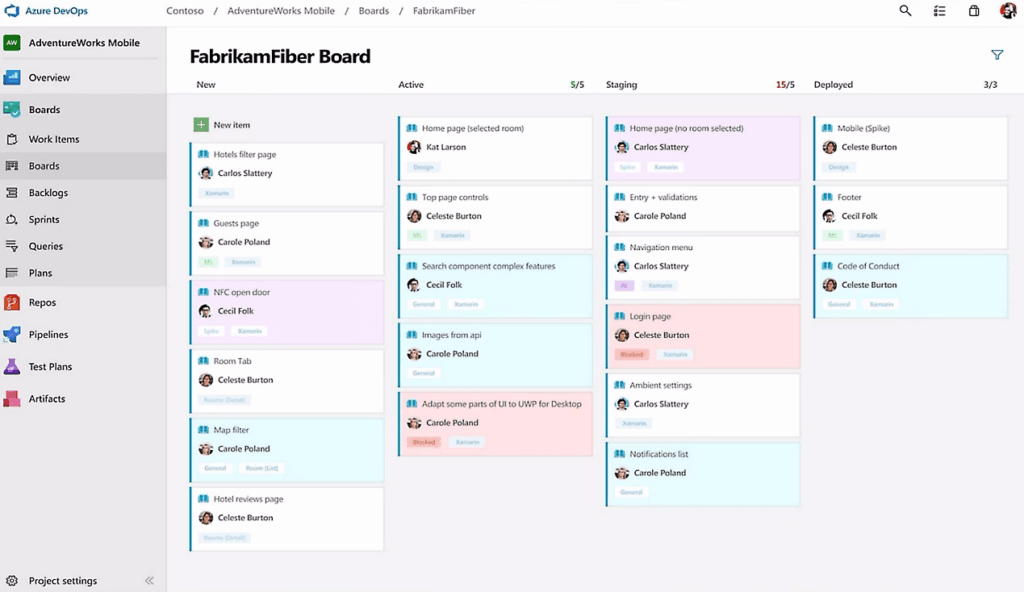
Core Kanban features:
- Native swimlanes for priority visualization
- WIP limits with visual enforcement
- Split columns (Doing/Done)
- Traceability to code and builds
The pricing is generous. Free for the first 5 users. Unlimited free “Stakeholders” can read, comment, and edit work items.
Limitations:
- Dense UI
- Technical terminology (Epics, Features, User Stories)
- Steep learning curve for non-technical teams
When to choose it:
You need swimlanes and WIP limits that Planner fundamentally lacks. You’re running Scrum or Kanban methodologies seriously and you’re willing to train users on Agile nomenclature.
DevOps is often dismissed as “just for developers,” but it’s the gap-filler for teams who need visual flow control that Microsoft’s simpler tools can’t provide.
The Automation Layer: Power Automate
Power Automate connects all these tools and replaces Trello’s Butler automation.
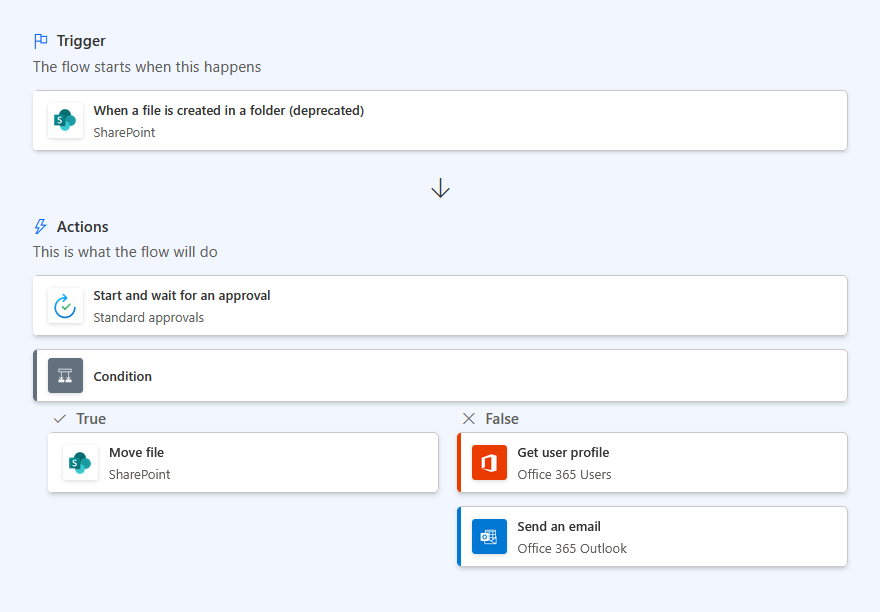
What it enables:
- Cross-tool workflows where a List item approved triggers a Planner task creation and a Teams notification
- The Approvals app for formal sign-offs embedded in workflows
- Integration with 500+ external services
For example, you have a SharePoint List that tracks vendor requests.
When status changes to “Approved,” Power Automate creates a task in Planner for the procurement team and posts the details to a Teams channel.
Common pitfall: Flows can trigger themselves.
A poorly designed migration flow might add a comment, which triggers the flow again, creating an infinite loop. I recommend using strict conditional filters to avoid this.
Sign up for exclusive updates, tips, and strategies
Best Trello Alternatives Outside Microsoft 365
If governance and M365 integration aren’t your primary concerns, these tools offer superior user experience, advanced customization, and specialized features.
For Visual Customization and Dashboards (Monday.com)
Monday.com positions itself as a “Work OS.” Everything is a row in a highly customizable database that can display as a board, timeline, chart, or calendar.
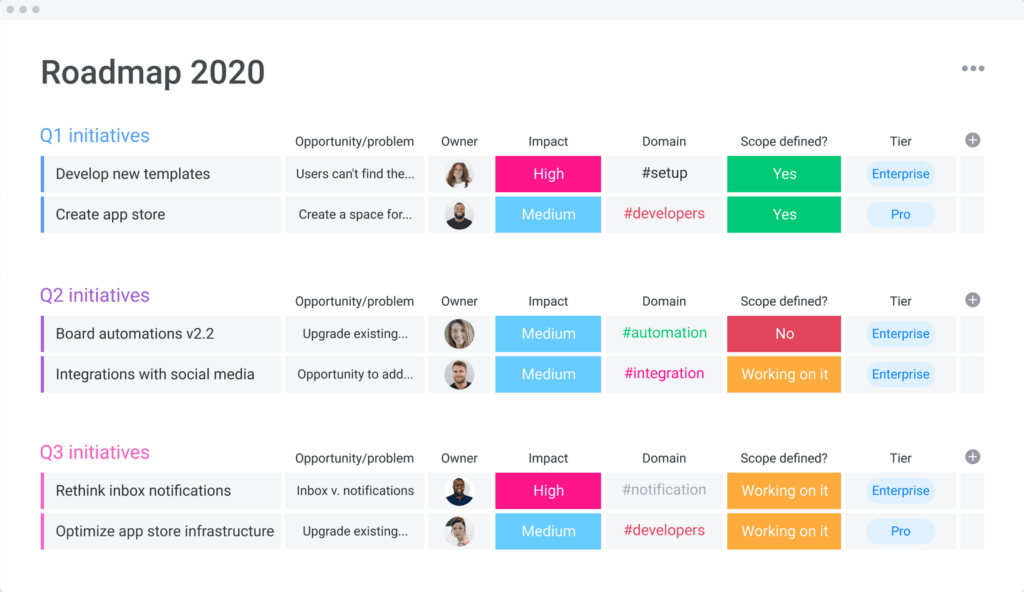
Strengths:
- Highly visual executive dashboards and progress widgets
- Intuitive automation builder with natural language
- Easy customization without developer involvement
Limitations:
- Audit logs and HIPAA compliance require Enterprise tier (often doubles per-user cost)
- Microsoft 365 includes these governance features by default in E3/E5 licenses
This works well for marketing teams, operations, and CRM-light workflows.
In 2025 and 2026, Monday Dev added Git integrations to compete with Jira, though it remains lighter on engineering features.
When to choose it: You prioritize visual dashboards and UX over Microsoft 365 integration. At the time, you’re willing to pay for the Enterprise tier if you need security controls.
For Creative Teams and Strategic Planning (Asana)
Asana uses a “Work Graph” data model that connects tasks, projects, and portfolios into a unified structure.
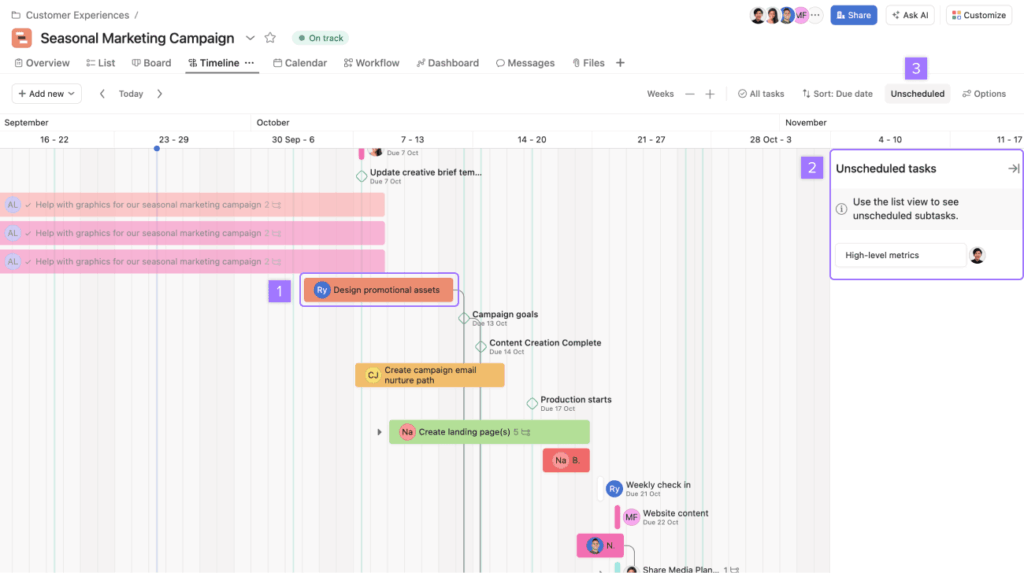
Standout features:
- Timeline view with one of the most user-friendly Gantt chart implementations
- My Tasks that aggregates every assignment across all projects into one personal view
- Portfolios with PMO-level traffic light status (Red/Yellow/Green) for multiple projects
- AI Teammates (launched 2026) that triage requests and assign them to the right people
This reduces the “where did I put that task?” problem and manual triage overhead. This also works well for creative agencies, cross-functional collaboration, and strategic planning.
Limitations:
- SSO (SAML) and data export for eDiscovery require the Enterprise tier
When to choose it: You need intuitive Gantt charts and cross-project visibility and your team values design and ease of use.
For Feature Density on a Budget (ClickUp)
ClickUp markets itself as “One App to Replace Them All.” It offers 15+ view types, including Mind Maps, Whiteboards, and Gantt charts.
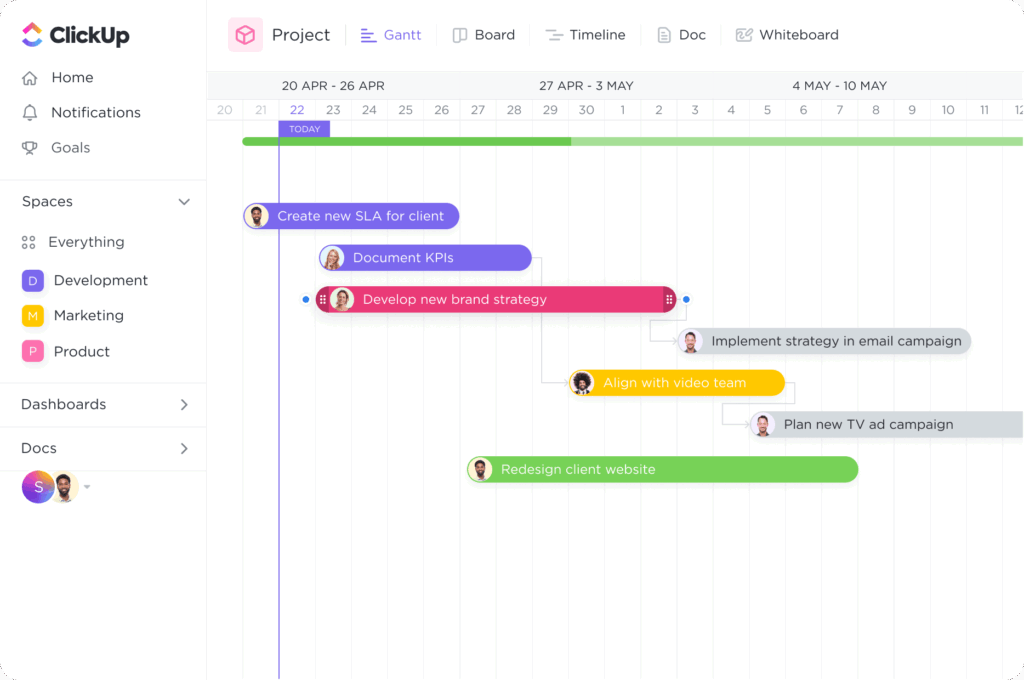
Key advantages:
- Gantt charts and Time Tracking included in lower-tier plans (competitors charge more)
- Version 4.0 (2025) fixed performance issues with new data architecture
- Wide variety of views for different work styles
This works well for startups, SMBs, and teams wanting consolidation.
Limitations:
- Feature overload can overwhelm new users who just want a simple board
When to choose it: You want advanced features without Enterprise pricing and you’re comfortable with a learning curve.
For Software Development (Jira)
Jira is the Agile standard. It offers the most configurable Kanban boards outside of Azure DevOps.
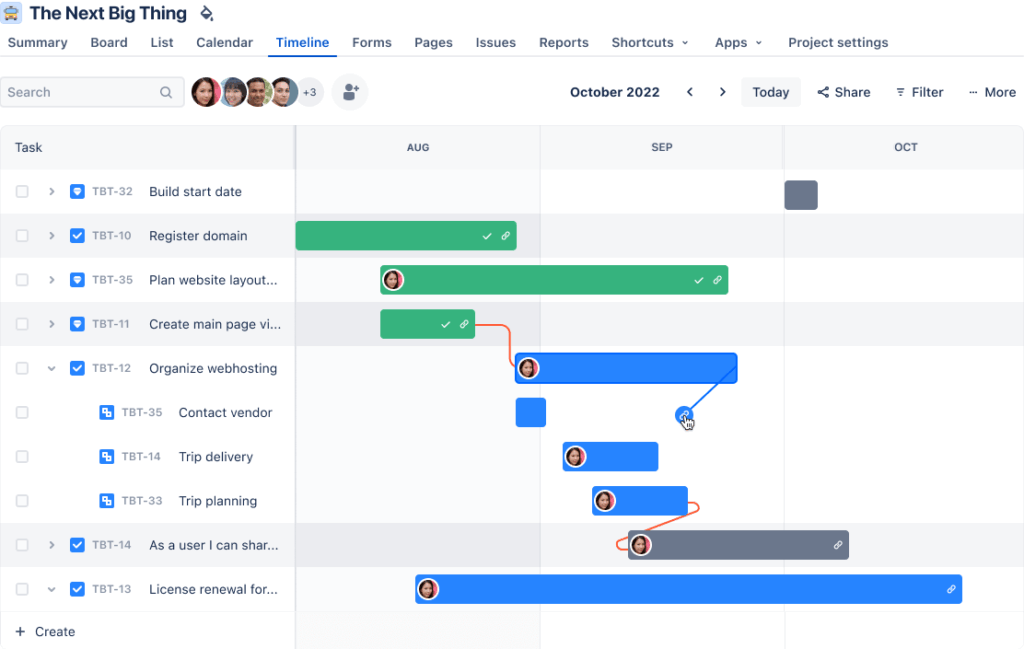
Core capabilities:
- JQL (Jira Query Language) for complex filtering
- Built-in Agile reports (Burndown charts, Velocity, Control Charts)
- Native swimlanes and WIP limits
- Smooth migration path from Trello (both are Atlassian products)
This works well for product management and software teams needing deep customization.
Limitations:
- Complexity and configuration requirements before it’s useful
When to choose it: You run Scrum or Agile. You need reporting that tracks sprint velocity and team capacity.
For Complex Schedules and Excel Power Users (Smartsheet)
Smartsheet is a grid that powers Gantt charts and forms. It’s the industry standard for teams migrating from Microsoft Project Desktop.
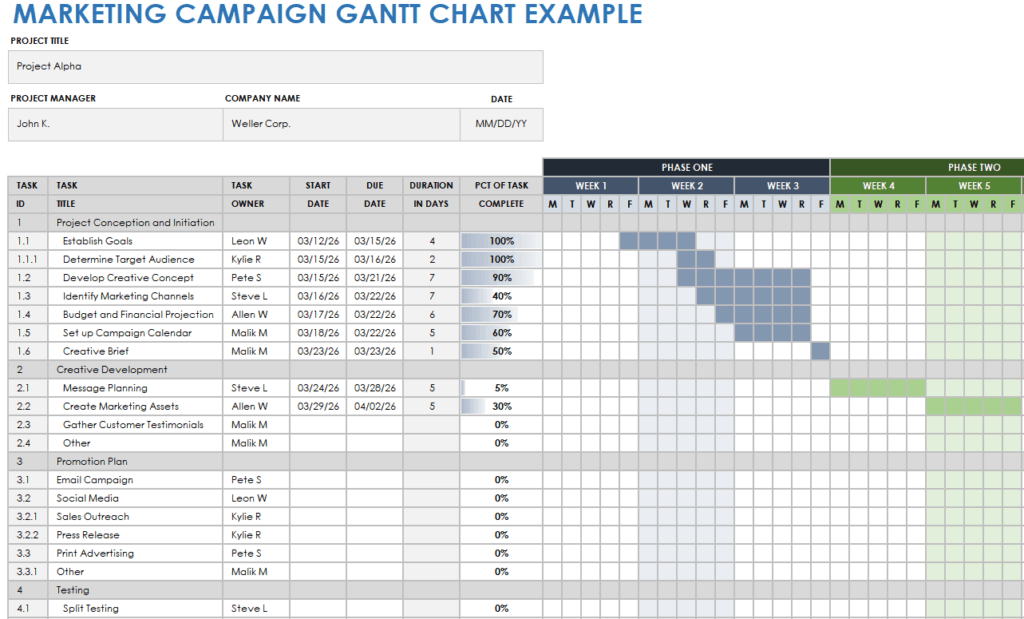
Core strengths:
- Best-in-class Gantt charts with Critical Path highlighting
- All four dependency types (finish-to-start, start-to-start, finish-to-finish, start-to-finish)
- DataMesh that syncs data across sheets to prevent silos
- Granular security controls (restrict sharing to specific domains)
This works well for construction, engineering, and Excel-centric organizations.
When to choose it: You need all four dependency types and baseline comparison (planned vs. actual timelines). Your team thinks in spreadsheets.
For Custom Internal Apps (Airtable)
Airtable is a relational database disguised as a spreadsheet. Tasks are rows that can display as boards, calendars, or Gantt charts.
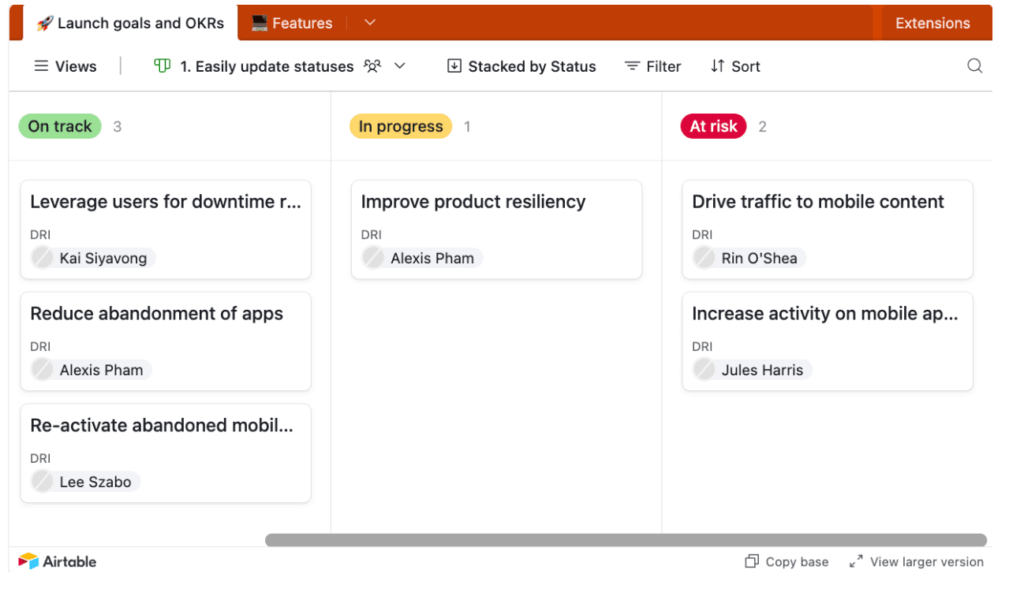
What sets it apart:
- Interface Designer for building drag-and-drop approval apps without developers
- Relational database structure where “Client” is a linked record (prevents typos and duplication)
- Multiple view types from the same data source
A marketing team can create an “Asset Approval App” where reviewers see only the image and an Approve button. The complex database stays hidden.
This works well for marketing ops, product catalogs, and event planning.
Limitations:
- Premium pricing (Team plan at $24/user/month, Business at $54/user/month)
When to choose it: You need custom approval apps without Power Apps developers. Your workflow requires relational data integrity.
How to Choose: Decision Guide
The right tool depends on where you sit on four key dimensions: workflow complexity, ecosystem integration, governance requirements, and user adoption friction.
Evaluation Criteria Snapshot
Use these criteria to narrow your options:
| Criteria | What to Ask | Tool Matches |
| Workflow Complexity | Do we just need boards, or do we need Gantt charts and dependencies? | Low: Planner Basic, Trello<br>Medium: Lists, Asana, Monday.com<br>High: Planner Premium, DevOps, Jira, Smartsheet |
| Ecosystem Integration | Do we live in Teams/SharePoint? | Yes: Stay M365<br>No: Consider external options |
| Governance Needs | Do we face litigation risk or regulatory audit (HIPAA, FINRA)? | Yes: M365 by default (or external Enterprise tier)<br>No: Any tool works |
| Adoption Friction | Can non-technical users create projects in 5 minutes? | Low friction: Planner, Asana<br>High friction: DevOps, Jira |
| Cost | What’s the true cost including security features? | “Free” (included in M365) vs. $20-40/user for external tools (Enterprise tier adds 50-100%) |
Common Scenarios
Scenario 1: “We live in Teams and need compliance”
- Choose: New Planner (Basic or Premium depending on Gantt needs)
- Why: Zero authentication friction. Data covered by Purview for eDiscovery and Legal Hold. No extra licensing cost. Users already know Teams.
Scenario 2: “We need swimlanes and WIP limits”
- Choose: Azure DevOps Boards (M365) or Jira (external)
- Why: Planner and Lists fundamentally lack horizontal swimlanes. DevOps and Jira are built for Kanban methodology.
Scenario 3: “We run projects with dependencies and want visual Gantt charts”
- Choose: Planner Premium (M365), Smartsheet (Excel users), or Asana (creative teams)
- Why: Timeline visualization is essential. Planner Premium if you want M365 integration. Smartsheet if you need all four dependency types. Asana if you prioritize ease of use.
Scenario 4: “We want custom approval apps without developers”
- Choose: Airtable Interface Designer or Monday.com
- Why: Microsoft 365 requires Power Apps for custom interfaces. That means developer involvement. Airtable and Monday.com put app building in business user hands.
The governance angle matters most.
If you’re in a regulated industry or face litigation risk, start with compliance requirements. Then evaluate features. Most teams do this backward and regret it during the first audit.
Pick the Tool That Fits Your Governance Model
Here’s the real choice: integration and governance versus UX and customization.
For M365 teams, New Planner (Premium) eliminates auth friction, maintains compliance, and scales from boards to Gantt charts.
For teams needing swimlanes, step to Azure DevOps. For teams needing custom apps, step outside to Airtable or Monday.com.
Next steps:
- Audit your compliance needs first
- Map your workflow complexity second
- Test your top two options with real projects
- Choose and commit
The worst outcome is tool sprawl. Teams end up with Trello for some projects, Planner for others, and Monday.com for the special cases.
Have questions about which tool is right for your team? Drop a comment below. Need help choosing? Contact me if you need help designing M365 solutions that reduce tool sprawl.




























