
Table of Contents:
Microsoft is killing SharePoint Alerts.
Microsoft’s published timeline shows:
- New alert creation gradually turning off starting July 2025 (new tenants)
- Then January 2026 (all tenants)
- Expiration starts rolling out October 2025
- Alerts stop working completely from July 2026
Everyone’s treating this like a crisis. It’s not.
It’s actually an opportunity to fix 20 years of notification chaos (well, classic alerts were opaque, ungoverned, and responsible for drowning your users in email noise).
Let’s get started.
What About the Retirement Timeline
The good news is that Microsoft isn’t flipping a switch overnight.
The retirement follows a deliberate, phased approach designed to gradually move organizations off a 20-year dependency.
The Four Critical Milestones
Microsoft has published four specific dates that define this transition, with each one removing a layer of functionality.
Here’s what happens and when:
| Date | What Happens | Who’s Affected |
| From July 2025 | New alert creation gradually turned off for newly onboarding tenants | Newly onboarding tenants |
| From October 2025 | Alert expiration gradually activated (alerts expire after 30 days unless extended) | Tenants as the feature rolls out |
| From January 2026 | New alert creation gradually turned off for all tenants | Everyone |
| From July 2026 | Alerts can’t be extended anymore and won’t work | Everyone |
January 2026 is your operational cutoff for creating new alerts across existing tenants. That’s when help desks will start getting tickets about the “Alert Me” button not working.
Users won’t be able to subscribe to new lists or libraries, so prepare your support teams for that spike in questions.
The “Friction by Design” Strategy
October 2025 introduces deliberate friction where Microsoft adds a 30-day expiration to every existing alert.
Once expiration rolls out, alerts have a 30-day validity.
- Users can extend them via Manage my alerts (open the alert, extend the expiration date, save).
- Alert emails also show an expiration date and include retirement messaging.
If you ask me, this is intentional garbage collection.
Most SharePoint environments are full of “zombie alerts” from abandoned projects and former employees, and this renewal requirement forces users to prove they still value the notification.
Scope note: Microsoft’s retirement notice targets SharePoint Online alerts.
If you still run SharePoint Server on-premises, treat alerts there as a separate product lifecycle question and plan your user guidance accordingly.
If you’re running a hybrid environment, expect a fragmented user experience, like a user browsing an on-premises site will still see “Alert Me” while the same user on SharePoint Online won’t.
Plan your governance documentation and training materials to account for this inconsistency.
Sign up for exclusive updates, tips, and strategies
Why This Retirement Is Architecturally Sound
To argue that retiring a beloved feature is a “good thing” requires looking past immediate convenience, as I believe the long-term gains in governance, security, and information architecture matter more.
Classic alerts were a product of a different era, they prioritized individual autonomy over organizational visibility.
The Opacity Problem
The biggest architectural flaw in classic alerts was invisibility.
Alerts were stored as properties buried deep in the content database, and site administrators couldn’t easily see who was subscribed to what.
Imagine a sensitive document library containing confidential contracts and an external consultant could set an alert for every new upload.
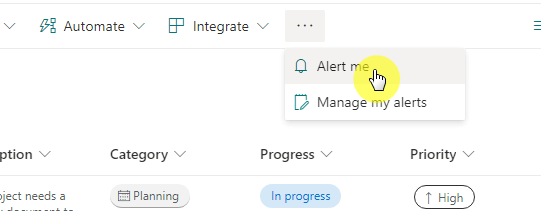
You’d have no easy way to know that data was being routed to an external email address as auditing required navigating to “Site Settings > User Alerts” and checking users one by one.
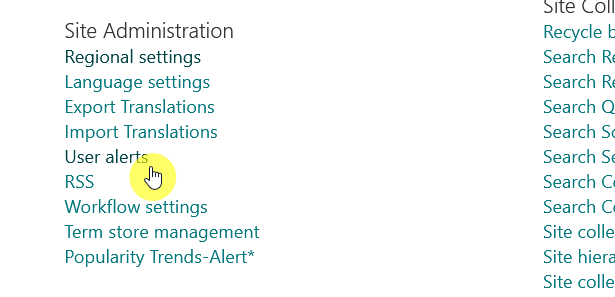
Or you’d need complex PowerShell scripts to iterate through every web and list. This created a massive governance gap.
Modern flows are visible assets. Power Automate transforms notifications from hidden preferences into manageable, auditable workflows.
Here’s what changes:
- Centralized administration: Flows appear in the Power Platform Admin Center. Admins see exactly which flows run, who owns them, and what data they process.
- Run history: Every execution generates a timestamped log. You get forensic evidence for security incidents.
- DLP integration: You can define policies that prevent SharePoint data from being sent to non-business connectors or specific external domains.
Classic alerts were hard to govern at scale.
If a user had read access, they could subscribe, and those notifications could still cause content changes to be distributed via email, often without centralized visibility.
Power Automate integrates directly with DLP policies, closing a compliance gap that’s existed for 20 years.
The Orphaned Alert Burden
Here’s a persistent admin headache: orphaned alerts.
When someone leaves your organization, their Active Directory account gets disabled, but their SharePoint alerts often persist until the next cleanup cycle.
The system keeps trying to send emails to a dead mailbox. You get thousands of non-delivery Reports clogging Exchange transport logs and landing in the Site Owner’s inbox.
The modern fix breaks the dependency on individual lifecycles, like moving critical notifications to Power Automate flows owned by service accounts (like Svc-HR-Notifications).
When the person who created the flow leaves, the notification process doesn’t break.
Alert Fatigue and the Signal-to-Noise Crisis
Classic alerts were binary and rigid.
You could choose “All changes,” “New items,” “Modified items,” or “Deleted items.” There was almost no filtering beyond basic views.
This created alert fatigue.
Here’s a sample scenario here: A legal team member wants to track when a contract reaches final status.
With classic alerts, they’d subscribe to “Item Modified.”
Then they’d get 50 emails as the document moved through drafts (every typo correction, every metadata update, every colleague’s save action).
Power Automate enables conditional precision. You can implement business logic that turns noise into signal.
Here’s the same scenario with modern design:
- Classic approach: Alert on “Item Modified” → Result: 50 emails during the drafting process
- Modern approach: Flow triggers on modification, checks if Status equals ‘Final’ AND ContractValue exceeds $1M → Result: 1 email, only when it matters
This shift from “notify on event” to “notify on condition” fundamentally improves workplace communication.
When a notification arrives, it gets treated with urgency instead of being ignored as spam.
The Replacement Decision Framework
Choosing the right replacement isn’t about feature comparison, but about matching governance posture and use case to the appropriate tool.
Microsoft offers two primary successors, each serving a different architectural purpose.
SharePoint Rules sit directly in the modern list toolbar. They’re wizard-driven and require no technical knowledge.
These are appropriate when:
- Users need personal, ad-hoc tracking (e.g., “notify me when my expense report is approved”)
- The library is low-volume (fewer than 20 changes per day)
- Immediate email notification is acceptable
- No cross-list logic or advanced formatting is required
But they have hard limits:
- Maximum of 15 rules per list (this creates resource contention in collaborative sites)
- No digest capability, so every change triggers immediately
- Fixed email template (no customization, no branding)
- Email-only delivery, so you can’t post to Teams or update other systems
Governance consideration: Rules are tied to the list, not centrally managed. This is fine for departmental ownership where the site owner maintains the rules.
But it’s problematic for enterprise-wide notification standards that require consistency and audit trails.
Power Automate (For Governed, High-Volume, or Cross-System Workflows)
Power Automate offers near-infinite flexibility with over 1,000 connectors, and you can implement conditional logic, rich formatting, and multi-channel delivery.
This is appropriate when:
- A department owns the notification process (e.g., HR onboarding alerts)
- The list is high-volume and requires batching or digest logic
- Notifications need approval workflows or cross-list lookups
- Delivery must happen in Teams, Viva, or external systems
- The process is business-critical and requires documented ownership
Governance requirements:
- Flows must be owned by service accounts, not individual users
- They need to be documented and subject to tenant-level flow management policies
- Designers must understand throttling limits, trigger conditions, and API constraints
Complexity tax: Power Automate requires design discipline. Without it, you risk throttling violations, infinite loops, and unmanageable sprawl.
The “Pull” Alternative: Viva Connections and Activity Feeds
Here’s a more radical option: challenge the assumption that every change requires a push notification.
Modern information architecture favors aggregated signals over individual interruptions. Truth is that users check dashboards when they need context instead of getting bombarded with emails.
This pattern works through:
- Viva Connections Dashboards: Aggregate relevant updates into cards users check when they’re ready
- Site Activity web parts: Display live feeds of recent uploads, edits, and news on SharePoint pages
- Adaptive Cards in Teams: Reserve for critical, actionable notifications that require immediate response
The design philosophy: Reserve interruptions for high-signal events. Make low-signal data available on-demand.
This reduces email clutter and puts users in control of when they consume information.
The Real Challenge: Design Discipline Over Tool Features
Migrating poorly designed alerts 1:1 to Power Automate creates new technical debt. You’re just replacing one legacy system with modern chaos.
The tools are powerful. But power without discipline leads to throttling errors, runaway flows, and support nightmares.
The Daily Digest Problem
The most requested migration is the “daily summary” email.
Classic alerts let users check a box and receive one email summarizing all changes. Neither SharePoint Rules nor default Power Automate templates offer this out-of-the-box.
Here’s the anti-pattern I see constantly:
- Use “When an item is modified” trigger for every single change
- Try to collect those changes in memory using variables
- Attempt to batch them into a daily email
This approach is fundamentally broken as it creates hundreds of flow runs, burns through API calls, and still doesn’t work reliably.
The correct pattern uses scheduled recurrence:
- Set the trigger to “Recurrence” with a 1-day interval
- Use the “Get items” action with an OData filter:
Modified ge '@{addDays(utcNow(), -1)}' - This retrieves only items changed in the last 24 hours, filtering server-side before data returns
- Pass the results through a “Select” action to map clean fields
- Generate an HTML table and send one email
The architectural lesson: Respect API limits. Filter at the source, not in the flow.
Pulling 5,000 items into memory and then filtering in Power Automate is slow, expensive, and likely to fail, so let SharePoint do the filtering with OData queries before the data ever leaves the server.
Throttling and the 600 Calls/Minute Limit
The SharePoint connector enforces a strict limit: 600 API calls per minute per user connection.
This is a shared limit across all flows running under that user’s identity (and unfortunately, it’s easy to exceed.)
Risk scenario:
- A user creates a flow that triggers on “When a file is created”
- The flow performs 5 actions (get properties, update metadata, look up manager, send email, update status)
- Someone drags 200 files into the library at once
Math: 200 instances × 5 actions = 1,000 API calls in seconds.
Result: You exceed the 600/minute limit. SharePoint returns HTTP 429 “Too Many Requests” errors. Flows fail or get throttled.
Mitigation strategies:
- Use service accounts to distribute load across different connection pools
- Control concurrency settings in “Apply to Each” loops (sequential processing prevents instantaneous spikes)
- Design flows to handle 429 errors gracefully with retry logic
This isn’t a Power Automate flaw. It’s the cost of moving from server-side timer jobs to client-side API interactions.
The Infinite Loop Trap
Here’s a classic error that crashes flows and corrupts data.
The scenario:
- Flow triggers on “When an item is modified”
- Flow sends an email
- Flow updates the item to write “Email Sent” in a log column
- The update counts as a modification, re-triggering the flow
- Loop continues until the flow hits daily run limits or gets suspended
The architectural fix: Use trigger conditions to exclude the service account.
In the trigger settings, add this expression:
@not(equals(triggerOutputs()?['body/Editor/Email'],''))This tells the flow: “Don’t trigger if the person who modified the item is the service account running this flow.” The loop breaks at the source.
Broader point: Designing for idempotence and understanding trigger behavior is now the architect’s responsibility. Microsoft isn’t going to prevent you from building infinite loops.
That’s on you.
What to Do Now
The retirement of SharePoint Alerts is a “good thing” only if design standards are enforced.
Here’s the opportunity:
You can move from opaque, unmanaged email to visible, conditional, governed workflows and gain centralized administration, audit trails, and DLP integration.
Here’s the risk:
You can replace one legacy system with modern chaos via unmanaged flow proliferation. You create hundreds of personal flows with no ownership, no documentation, and no throttling controls.
This isn’t about losing a feature. It’s about gaining architectural maturity.
For those who design properly, the post-Alert era is significantly more robust, secure, and intelligent.
What’s your experience with SharePoint Alerts? Are you planning to migrate to Power Automate, SharePoint Rules, or shift to a pull model with Viva? Drop a comment below.
If you need help designing a notification architecture that scales without breaking, reach out to me directly. I work with organizations navigating these transitions every day.




























