

Most organizations that deployed Microsoft Copilot for M365 are sitting on an expensive problem.
More than 60% of Fortune 500 companies have deployed Copilot. But only 35.8% of those employees actively use it week to week.
The gap comes down to prompting.
Copilot adoption typically suffers when teams don’t have clear templates to follow. Weak prompts produce weak results, and most teams have never been given a template to follow.
What follows is a practical prompt library, organized by use case. Copy them, customize them, and share them with your teams.
Table of Contents:
- Why Most Copilot Prompts Underdeliver
- Copilot Prompt Templates for Meetings and Microsoft Teams
- Copilot Prompt Templates for SharePoint Documents
- Copilot Prompt Templates for Email and Outlook
- Copilot Prompt Templates for Data Analysis
- Writing Your Own Prompts From Scratch
- How to Build a Shared Copilot Prompt Library in SharePoint
- Start With One Use Case, Then Scale
Why Most Copilot Prompts Underdeliver
A vague prompt gets a vague answer. That’s not Copilot’s fault.
Most people asking Copilot questions haven’t been trained to write effective prompts, and most organizations haven’t given them examples to follow.
The three most common mistakes are straightforward to spot and even easier to fix.
| Weak Prompt | Strong Prompt |
|---|---|
| “Summarize this meeting” | “Summarize the meeting notes from [MEETING_NAME] on [DATE] in the [DEPARTMENT] SharePoint folder. Include: key decisions made, next steps with owners assigned, timeline milestones discussed. Format as a bullet list.” |
| “Write an email reply” | “Draft a reply to [SENDER_NAME]’s email about [TOPIC]. We’re agreeing to their proposal but need delivery moved to [DATE]. Keep it professional but friendly, 150 words max.” |
| “What does this data show?” | “Analyze the Q1 sales figures in [EXCEL_FILE_NAME]. Compare Q1 to Q4 of last year. Highlight the top 3 trends and flag any numbers that dropped more than 10%.” |
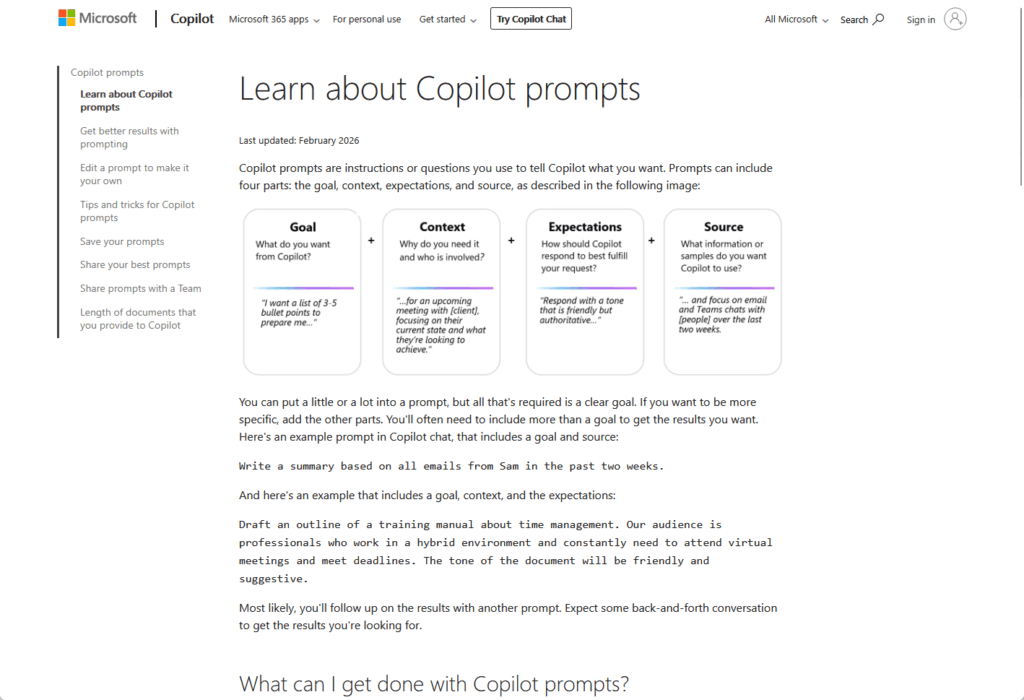
The difference is structure. Microsoft’s official framework is simple: Goal + Context + Expectations + Source.
- Goal: What do you actually want Copilot to do?
- Context: What’s the background? What specific file, folder, or dataset?
- Expectations: How should the output look? What format? How long?
- Source: Where should Copilot pull information from? A specific SharePoint folder? An Excel file? Meeting notes?
When you supply all four, Copilot stops guessing and starts delivering.
Sign up for exclusive updates, tips, and strategies
Copilot Prompt Templates for Meetings and Microsoft Teams
Meeting recaps are the highest-frequency use case for Copilot in most organizations.
Employees live in Microsoft Teams, meetings happen constantly, and the friction between a long meeting and a usable summary is exactly where Copilot saves time.
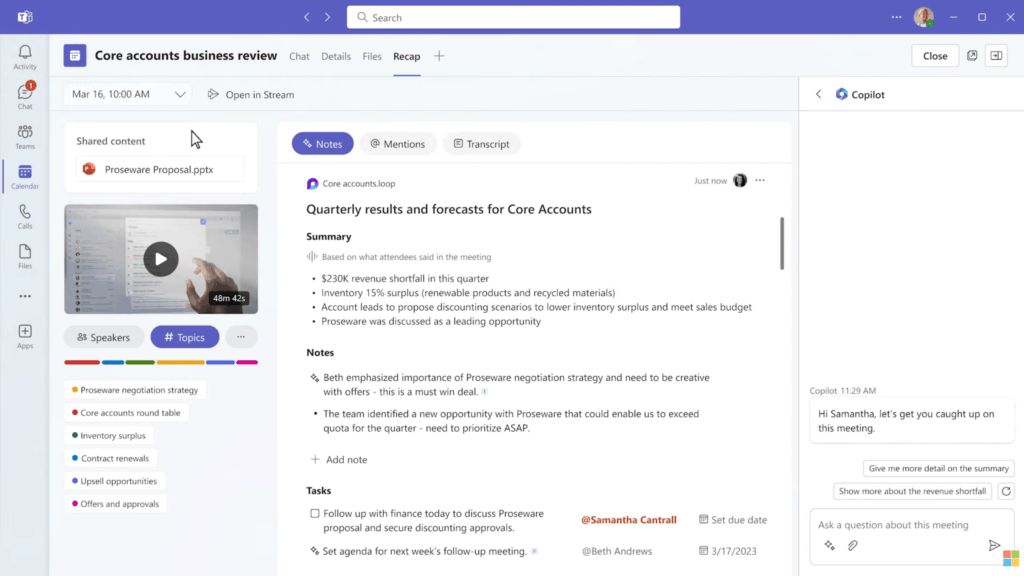
Copy and customize these prompts for your team’s workflow:
- Summarize a meeting: “Summarize the meeting notes from [MEETING_NAME] on [DATE]. Include the main topics discussed, decisions made, and owners assigned. Format as bullet points. Keep it under 200 words.”
- Extract action items: “Pull out all action items from the meeting notes for [MEETING_NAME]. For each one, include: the action, who owns it, and the due date. If no due date was assigned, note it as ‘TBD.’ Format as a numbered list.”
- Draft a follow-up message: “Based on the notes from [MEETING_NAME] on [DATE], draft a follow-up message to the team. Recap the three main decisions, remind them of their assigned actions, and set the date for the next meeting. Keep it under 150 words and friendly in tone.”
- Create a meeting agenda: “Draft an agenda for our [DATE] meeting with [TEAM/ATTENDEES]. We need to discuss: [TOPIC_1], [TOPIC_2], [TOPIC_3]. Allocate time to each topic, assume 60 minutes total. Format as a bullet list with time stamps.”
- Recap for teammates who missed it: “Write a summary of the [MEETING_NAME] from [DATE] that can be sent to team members who couldn’t attend. Cover decisions made, any required follow-up from them, and where they can find full notes if needed. Keep it to 150 words.”
- Document decisions and next steps: “From the [MEETING_NAME] notes, extract all decisions made and next steps. For each, note who made the decision or who owns the next step. Include any conditions or timeline mentioned. Format as a table with columns for Decision/Action, Owner, Timeline.”
These templates work because they ground Copilot in specific files and dates, they clarify what format you want, and they’re narrow enough that the output stays focused.
SharePoint documents are where Copilot really shines.
When you ground a prompt in a specific file, folder, or document set, Copilot’s ability to retrieve and synthesize information jumps dramatically.
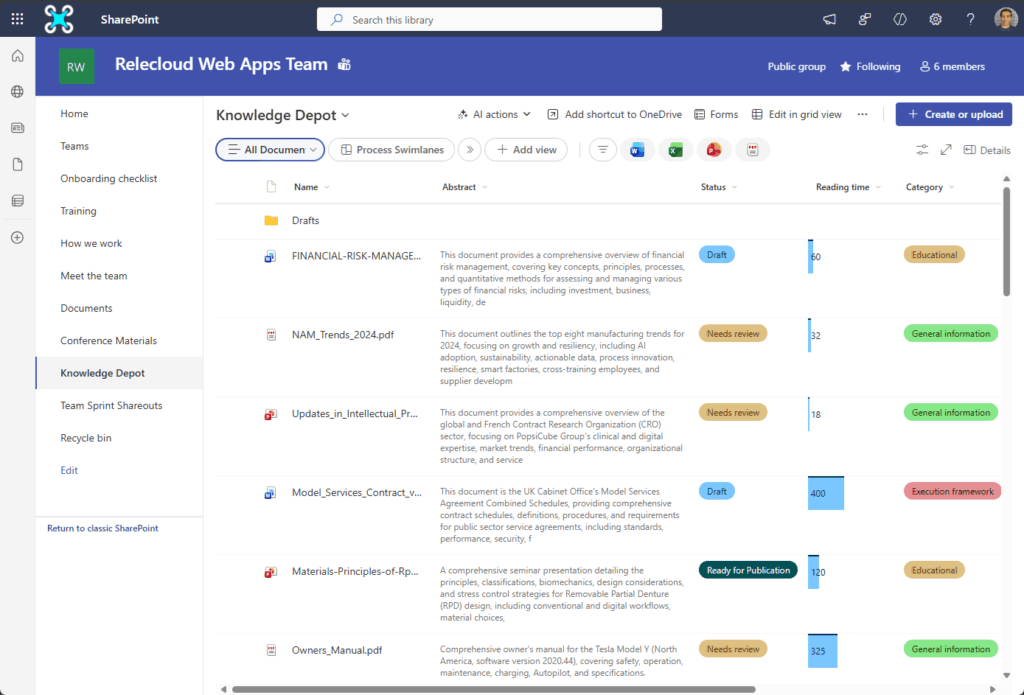
That’s because Copilot can actually see the documents you’re referencing instead of pulling from general training data.
Use these templates whenever you’re working with SharePoint content:
- Summarize a long document: “Summarize the document [DOCUMENT_NAME] in the [FOLDER_PATH] folder. Focus on: [KEY_TOPIC_1], [KEY_TOPIC_2], [KEY_TOPIC_3]. Keep it to 250 words and include the main takeaways at the top.”
- Extract key decisions: “Review [DOCUMENT_NAME] and pull out every decision, approval, or commitment mentioned. List them in chronological order with the date if mentioned. Include who approved or made each decision if stated.”
- Compare two related documents: “Compare [DOCUMENT_1_NAME] and [DOCUMENT_2_NAME], both in the [FOLDER_PATH] folder. What’s different between them? What stayed the same? Highlight any conflicting information or updated guidance. Format as bullet points.”
- Create an executive summary: “Write a one-page executive summary of [DOCUMENT_NAME]. Target audience: [ROLE_TITLE]. Focus on: [BUSINESS_IMPACT], [KEY_RISKS], [RECOMMENDED_ACTIONS]. Assume they have not read the full document.”
- Pull action items from a document: “Scan [DOCUMENT_NAME] for all action items, to-dos, or next steps mentioned. For each one, note: the action, owner (if assigned), due date (if stated). Format as a numbered list. If any action doesn’t have an owner, flag it.”
- Create talking points from a brief: “Based on [BRIEF_OR_PROPOSAL_NAME], create 5-6 talking points we can use when discussing this with [AUDIENCE/STAKEHOLDER]. Keep each point to one sentence. Make them accessible to someone who hasn’t read the full brief.”
The key advantage here is specificity. When you name the exact file, Copilot pulls from that document instead of generating generic content.
When you name the folder, it knows the context and can reference related files if needed.
Copilot Prompt Templates for Email and Outlook
Email is where most knowledge workers lose hours.
Copilot in Outlook can compress that time significantly if you know what to ask.
Here’s your starter set:
- Summarize an email thread: “Summarize the email thread on [SUBJECT_LINE]. Include: the original request, all responses, any decisions made, and what’s still pending. Keep it under 200 words.”
- Draft a reply: “Draft a professional reply to [SENDER_NAME]’s email about [TOPIC]. We’re [YOUR_POSITION/DECISION]. Keep it to 150 words, friendly but professional. [ADD SPECIFIC TONE: warm, direct, formal, etc.].”
- Write a follow-up message: “Write a follow-up email to [RECIPIENT_NAME] about [TOPIC]. They haven’t responded to our previous email from [DATE]. Keep it brief, friendly, and give them a clear next step. 100 words max.”
- Flag action items from email: “Review the email thread on [SUBJECT_LINE]. What action items, decisions, or commitments are mentioned? Who owns each one? Create a quick list so we can track this.”
- Compose a status update: “Based on the email thread about [PROJECT/TOPIC], write a status update to [RECIPIENT_NAME]. They need to know: [STATUS], [RECENT_PROGRESS], [NEXT_MILESTONE_OR_BLOCKERS]. Keep it to 100 words.”
The limitation here is scope. Email threads can get long, and Copilot works best when the thread is recent and focused.
If you’re summarizing a thread from six months ago with 40 messages, try exporting it first.
Paste it into a longer-context Copilot chat and you’ll get cleaner results.
Copilot Prompt Templates for Data Analysis
Excel and SharePoint Lists are where Copilot starts to feel like a genuine analyst sitting next to you.
These prompts work best when you have a specific file or list in mind.
- Analyze trends in a dataset: “Analyze the data in [EXCEL_FILE_NAME] or [SHAREPOINT_LIST_NAME]. Compare [TIME_PERIOD_1] to [TIME_PERIOD_2]. What are the top 3 trends? What grew, what declined? Highlight anything unusual.”
- Spot anomalies: “Review the [DATASET_NAME] in [EXCEL_FILE_NAME]. Flag any numbers that stand out as unusual, incorrect, or unexpected. Compare each to the average for that category. If something is off by more than [PERCENTAGE]%, flag it and explain why it might stand out.”
- Summarize a dataset: “Summarize the [DATASET_NAME] data. Include: record count, date range, main categories, and top performers (by [METRIC]). Assume the audience is not technical and wants the executive summary version.”
- Create report narrative: “Based on the data in [EXCEL_FILE_NAME], write a narrative summary suitable for a [REPORT_TYPE] report. Include: overview, key findings, recommendations. Keep it to 300 words and write for [AUDIENCE].”
- Answer a specific question from data: “Using the [DATASET_NAME] in [FILE_NAME], answer this question: [YOUR_SPECIFIC_QUESTION]. Show your work. Explain what the data shows and note any limitations or data you don’t have.”
These work because you’re pairing Copilot’s analytical capability with specific, bounded datasets.
The more you ground the prompt in a real file or list, the more accurate the analysis becomes.
Writing Your Own Prompts From Scratch
When you encounter a use case that doesn’t fit your templates, it’s time to build a prompt yourself using the same framework.
1. Goal is where you start. Define the actual problem you’re solving, not just a surface task.
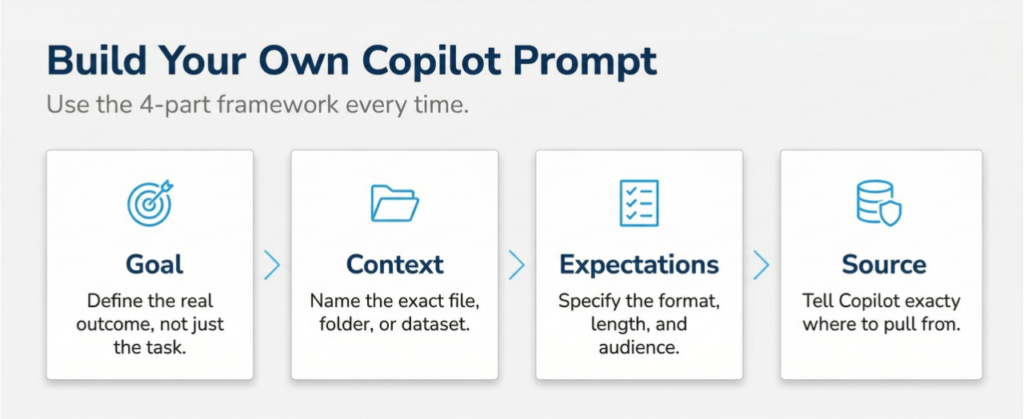
Instead of “analyze this spreadsheet,” get specific: “identify which regional offices are underperforming on contract renewal rates so we can prioritize support.”
The more concrete your goal, the better your output.
2. Context comes next, and this is where most prompts fail.
Copilot needs to know exactly where to look, so point it to a specific place rather than hoping it guesses correctly.
Name the file, folder, or dataset. If it’s a Teams channel, say which one.
If it’s a SharePoint document library, specify it. Copilot can’t read minds.
3. Expectations tells Copilot how to structure its answer:
- A ranked list?
- A summary memo?
- An action plan with next steps?
- A one-pager your executive team can actually read?
Format shapes what Copilot emphasizes, so choose the structure that serves your decision-making.
4. Finally, Source. This is your safety net: tell Copilot exactly where to pull from.
“Use only the Q4 reports in the Finance folder.” Skip this and you get hallucinations dressed up as insights.
Here’s a working example:
Instead of “summarize our customer feedback,” try “Create a one-page summary of the top five complaints from our customer feedback survey results in the Client Voice SharePoint site, ranked by frequency, so our product team can prioritize fixes this quarter.”
That prompt works because it names the source, specifies the format, and explains the why. Specificity is always the variable that matters most.
Having a prompt library is one thing. Having one that your entire team uses is another.
That requires structure, ownership, and a home where people can find and share prompts they’ve built.
Here’s why it matters: when Microsoft embedded contextual prompts into Dynamics 365 Sales, usage jumped 600% in two weeks.
That wasn’t because the tool got better. It was because employees suddenly had templates they could copy and customize instead of starting from scratch.
You have three realistic options for hosting a shared library:
- SharePoint page: Create a page in a team or company site. Build it with a single column of prompt examples, grouped by use case. Simple, visible to the whole organization, easy to update. Best for smaller teams or a pilot group.
- Microsoft Lists: Build a list with columns for Use Case, Prompt Text, Example Result, Owner, and Last Updated. This scales better. Teams can filter by use case, comment on prompts, and request new templates.
- Teams channel: Pin a Wiki or a pinned message with prompts grouped by section. Every time someone builds a prompt they love, they post it to the channel. Lowest friction, but harder to search if the channel gets long.
Whichever you choose, establish a light governance process. That sounds formal, but it’s not.
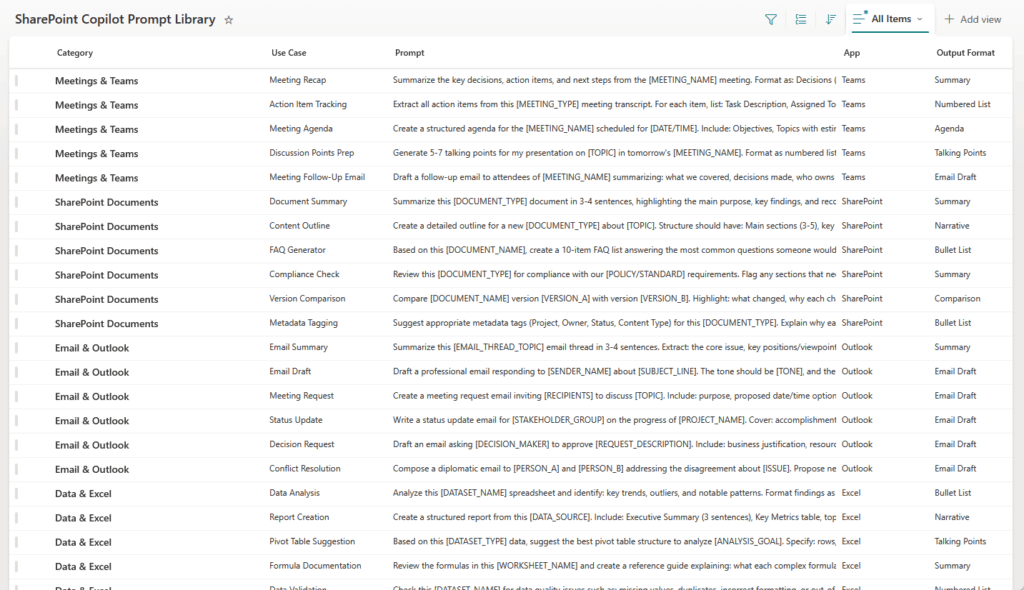
It just means:
- Someone owns the library (even if it’s part-time).
- New prompts get tested before they’re added (make sure they actually work).
- Organize by department or use case so people can find what they need.
- Update timestamps so people know what’s current.
The champion who owns this becomes the keeper of what works and what doesn’t.
Over time, your prompt library becomes an artifact of how your organization learned to use Copilot effectively.
Start With One Use Case, Then Scale
Pick the use case causing the most friction right now. Test those prompts with five or ten people for two weeks, then expand to a second one.
This is how adoption actually happens: through templates that work, not mandates.
What’s holding you back: struggling to write effective prompts, getting your team to actually use Copilot, or deciding which use case to tackle first? Drop a comment below.
Running Copilot across your organization but not seeing the results yet? I help mid-size teams close that adoption gap every week. Reach out and let’s talk.