

Most organizations are overpaying for Microsoft 365 and don’t know it. Fifty-six percent of enterprise licenses sit idle, unassigned, undersized, or oversized.
It breaks down into four categories:
- Inactive accounts
- Unassigned seats
- Over-licensed users
- Bloated add-ons
On July 1, 2026, Microsoft’s price increases kick in: E3 licenses jump 8.3%, E5 rises 5.3%, and some frontline plans climb as much as 33%.
This gives you a narrow window to right-size your M365 footprint and lock in better terms before renewal.
By the way, this isn’t a tool roundup. For tool recommendations, I recommend you check out the best M365 license audit tools article.
Why Most Organizations Are Overpaying for M365
You’re probably overspending because licenses get assigned once and rarely revisited. Employees change roles, projects end, and tooling changes, but their license tier doesn’t.
Meanwhile, add-on products sit unused, seats go unassigned, and service accounts use premium licenses they’ll never touch.
The waste breaks down into four categories:
| Category | What It Is | Typical % of Seats |
|---|---|---|
| Inactive Accounts | Licensed but zero/minimal activity (last sign-in 30+ days ago) | 23% |
| Unassigned Seats | Purchased but never provisioned | 27% |
| Over-Licensed Users | High-tier license (E3, E5) with usage patterns matching a lower tier | 15–20% |
| Bloated Add-Ons | Power BI, Project, Visio, Teams Phone assigned but unused | 11% |
These four categories account for most recoverable waste. The July 2026 price increase compounds the problem: every wasted seat now costs 5–33% more come renewal time.
I keep seeing this play out at renewal: the waste was always there, but nobody went looking.
Organizations that started cutting waste in 2024 are already locking in savings. You’re cutting it close.
Sign up for exclusive updates, tips, and strategies
Step 1: Pull Your License Inventory
Start in the Microsoft 365 Admin Center and go to Users > Active Users to export the full list. You want a CSV with UPN, display name, licenses assigned, and last sign-in date.
This is your baseline.
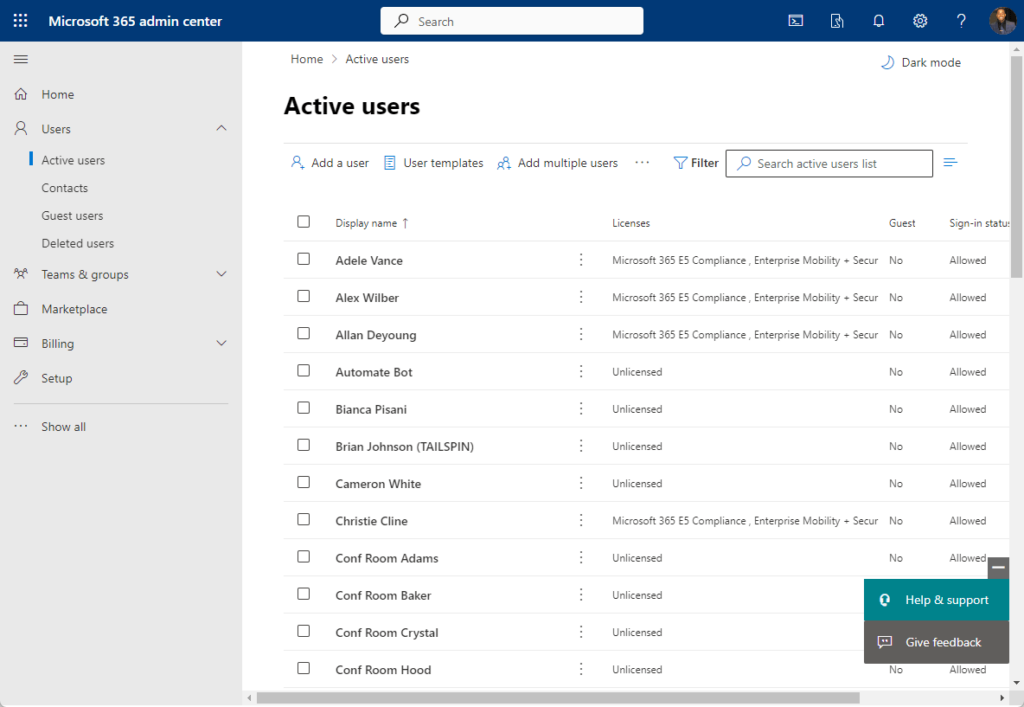
Next, head to Billing > Licenses and note every SKU you’re paying for. Write down which licenses are active, which have available seats, and which are expiring soon.
Then open Entra ID and pull the same data from the license portal: total licenses, assigned, available, and expiring soon.
You now have your inventory.
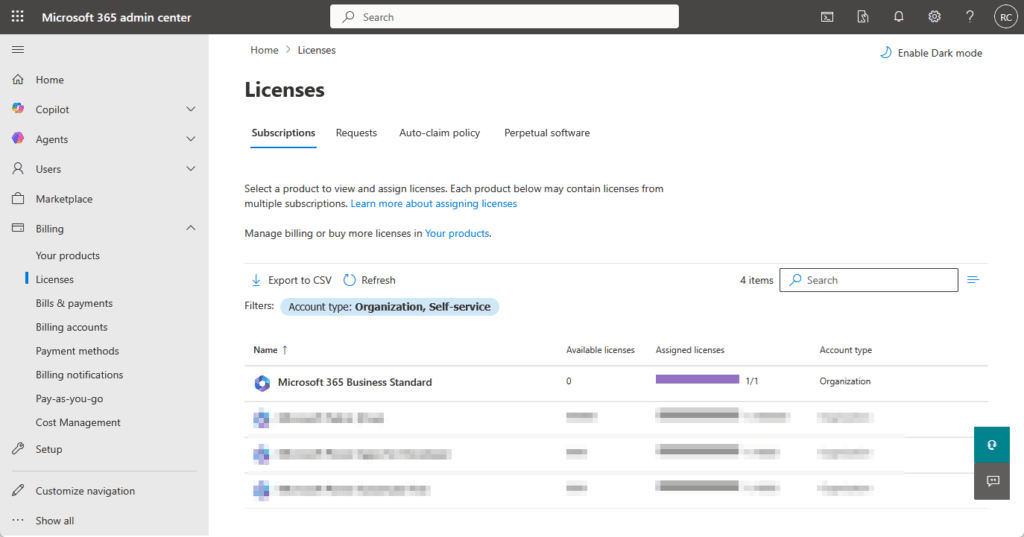
One thing I’ve noticed: the native Admin Center shows license counts and assignment status. But it doesn’t tell you what licenses actually cost or which ones are driving your budget.
You can see that 200 E5 licenses are assigned. But you can’t see that they’re generating $136,800 in annual spend, or that 60 of them could downgrade to E3 and save $15,120.
If you need deeper analytics tools, there are options. For now, focus on the data export.
Step 2: Identify Inactive Accounts
An inactive account is one with an assigned license and zero or near-zero activity over the past 30 to 60 days.
That means any core workload:
- Teams
- SharePoint
- OneDrive
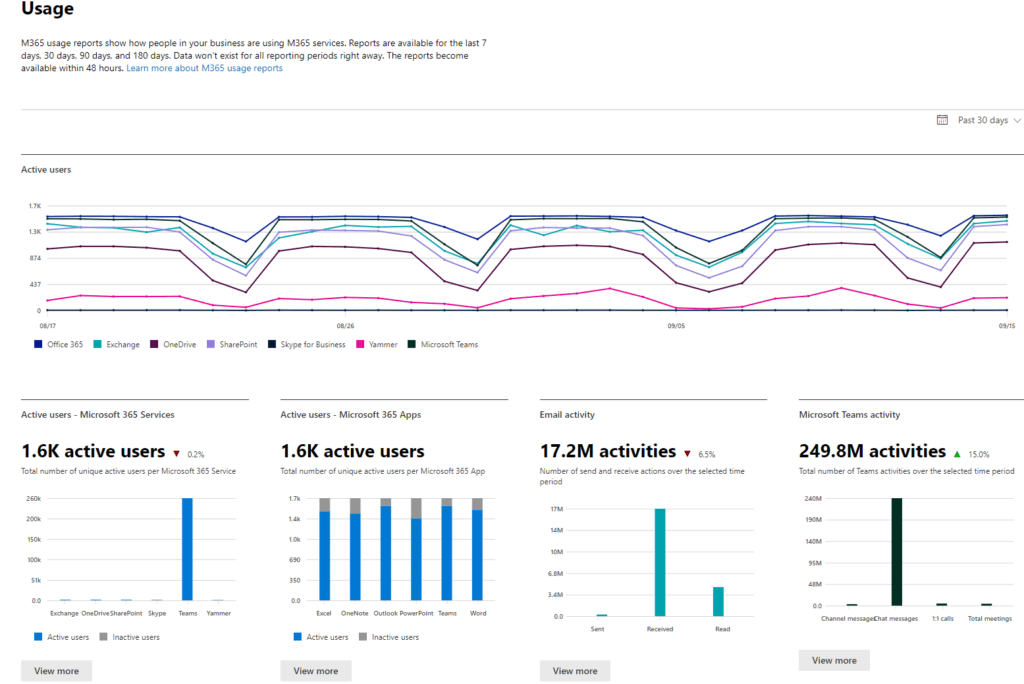
Go to Reports > Usage in the Admin Center and select the User Activity report. This view shows you login counts, email activity, Teams activity, and SharePoint/OneDrive usage.
Cross-reference it with the Active Users list and filter for anyone who hasn’t signed in in 45+ days.
Here’s the critical part: not all inactive accounts are dead weight. Service principals, shared mailboxes, and resource accounts often show zero sign-ins but serve critical functions.
Before you suspend anything, verify the account type and check with the owner.
I’ve seen well-intentioned audits take down service accounts that were silently running business-critical automations.
Once you’ve validated that an account is genuinely inactive (not a service principal, not a shared mailbox), the action is straightforward:
- Suspend the account
- Remove the license
- Decide whether to delete it, archive it, or keep it suspended
A mid-sized organization can reclaim 20–30 licenses this way in the first audit cycle.
Step 3: Find Over-Licensed Users
In my experience, this is where the largest savings always hide. Most organizations assign everyone the same tier because it’s administratively simple.
But a data entry clerk doesn’t need the same license as a power user running macros in Excel or building Power BI dashboards.
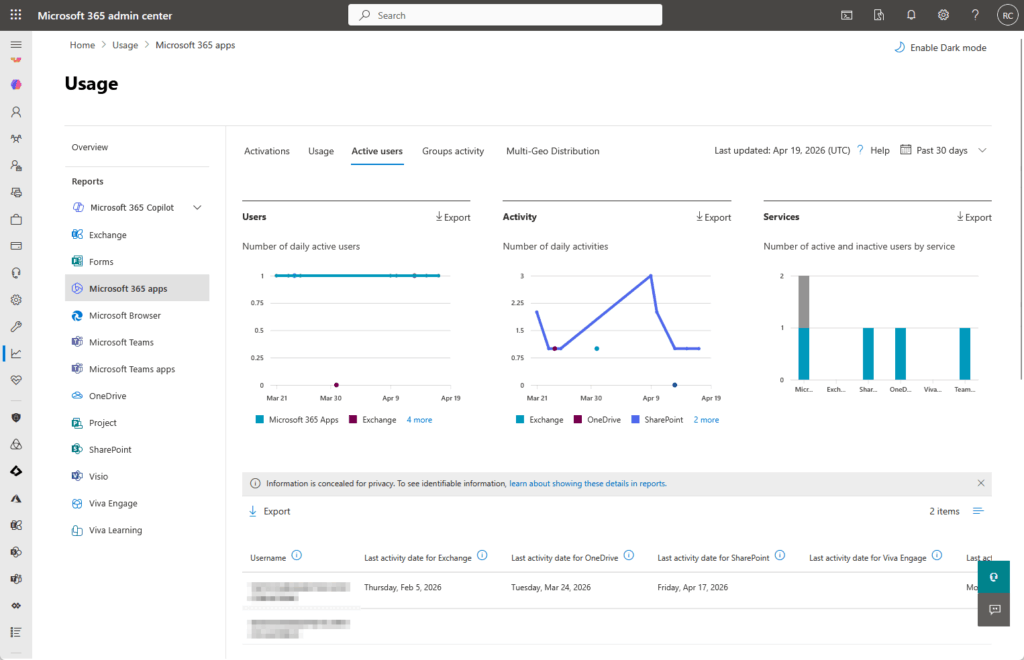
Open Reports > Usage in the Admin Center and drill into the per-user workload data. You’re looking for three patterns:
- Users on E3 or E5 who only touch Exchange and Teams
- E5 users who’ve never opened Project, Advanced Analytics, or eDiscovery
- E3 users who could run entirely on Business Standard
Here’s what to look for when right-sizing:
| User Profile | Likely Adequate License Tier | Upgrade Trigger |
|---|---|---|
| Heavy Power User | E5 | Uses Advanced Analytics, Power BI, eDiscovery, Teams premium features, or runs Office macros |
| Typical Knowledge Worker | E3 | Uses Teams, SharePoint, Exchange, OneDrive, plus basic Power BI or Project |
| Light/Frontline User | Business Standard | Email, Teams, and basic SharePoint/OneDrive; no advanced compliance, analytics, or security features |
Build a downgrade candidate list by pulling users who fit the light/frontline profile but carry an E3 or E5 license.
Run the math: a company with 5,000 users might find 1,000 downgrade candidates from E3 to Business Standard. At roughly $23/user/month in savings, that’s over $275,000 annually.
And that’s before July’s price increase.
One mid-size company running a license audit found 87 inactive E5 licenses, downgraded 120 users to E3 and Business Standard, and saved over $54,000 annually.
Step 4: Audit Your Add-On Licenses
Add-ons are easy to forget.
They’re assigned to individuals or groups, renew quietly, and rarely get revisited. The usual suspects: Power BI Pro, Microsoft Project, Visio, Viva, Teams Phone, and Defender add-ons.
Go to Billing > Licenses and filter by add-on SKU. Note how many of each are assigned.
Then cross-reference with Reports > Usage to see which users actually opened those services.
Power BI Pro is the one I see most often. A user gets assigned it for a one-off report, then the report ends. But the license keeps renewing.
The same with Project: organizations buy seats for project managers, but a significant share sit unused. Across the enterprise, unused add-on capacity adds up to real recoverable spend.
Action: cancel unused add-ons at the next billing cycle. Don’t let them auto-renew.
Step 5: Locate Unassigned Seats
Unassigned seats are money you’ve already spent but never provisioned. They show up in Billing > Licenses under the “Available” column.
Most come from over-buying at contract time (you guessed you’d need 500 E3 licenses, so you bought 550). Others stem from employee churn: someone left, their license was released, but you renewed with the old headcount.
I see this at almost every renewal. Unassigned seats are pure waste.
Action: remove them from your next renewal. If you’re expecting new hires, account for them: don’t reclaim seats you’ll need in the next 30 days.
Step 6: Build Your Right-Sizing Action Plan
You now have four lists: inactive accounts, over-licensed users, unused add-ons, and unassigned seats. Pull these together into a single action plan.
| Category | Action | Timeline | Who Approves |
|---|---|---|---|
| Inactive Accounts | Suspend, reclaim license | < 2 weeks | IT |
| Over-Licensed Users | Downgrade candidates, assign lower tier | 2–4 weeks | IT + department manager |
| Unused Add-Ons | Cancel at next billing cycle | At renewal | IT + procurement |
| Unassigned Seats | Remove from next renewal | At renewal | Procurement + finance |
To estimate your savings, take each license tier’s current annual cost per user. Multiply by the number of downgrades or removals, then subtract the cost of the new tier.
Example: 500 users moving from E3 ($36/month = $432/year) to Business Standard ($12.50/month = $150/year) saves $141,000 per year.
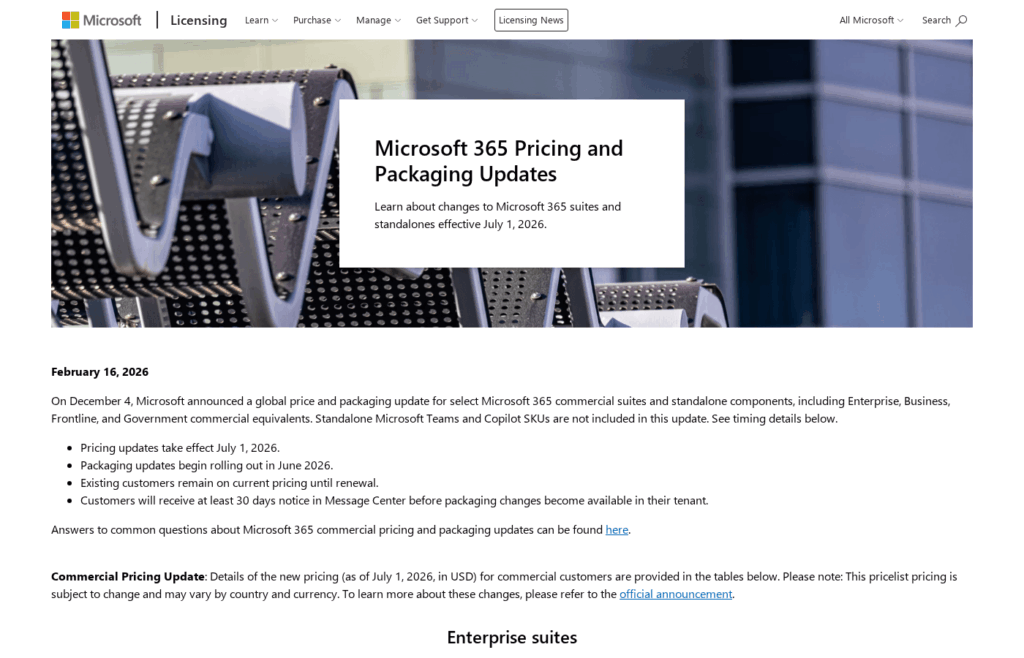
Source: https://www.microsoft.com/en-us/licensing/news/2026-M365-Packaging-Pricing-Updates
But here’s the thing: your renewal date might not be July 1.
If you’re renewing in September, you’re paying July’s higher prices regardless. If you renew in May, you lock in June pricing and buy yourself time.
Check your current agreement and work backward. I’ve seen teams lose six figures in savings simply by missing their renewal window by two weeks.
How to Document Your Audit for Compliance
Running the audit is only half the job. If you can’t show your work, you’re still exposed.
When Microsoft auditors come in, they don’t just look at your current license counts. They want to see that your licensing decisions were intentional and justified. That means documentation.
Here’s what to capture for every change you make during the audit:
- Who approved it: IT sign-off for account suspensions, IT plus department manager for downgrades
- When the decision was made: Date of suspension, downgrade, or cancellation
- What data supported it: The usage report or activity export that flagged the user as inactive or over-licensed
- What action was taken: License removed, tier changed, add-on canceled
Keep this in a shared spreadsheet or a simple SharePoint list. You don’t need a sophisticated system. You need a record that shows every change was reviewed, approved, and backed by data.
I’ve seen organizations do a clean audit, save real money, and still get flagged in a vendor review because they couldn’t produce the decision log.
The documentation also protects you internally. If a department manager comes back two months later asking why their team was downgraded, you have the usage data that justified it.
One more thing: document the accounts you reviewed and chose not to change.
If you looked at 50 E5 users and determined they all justified the tier, write that down. A proactive audit with a documented rationale for every seat is your strongest defense.
The Compliance Risk of Not Auditing
Sixty-two percent of organizations were audited by software vendors in 2024. That’s up from 40% in 2023. Microsoft audits happen.

And when they do, they focus on the low-hanging fruit: ghost accounts, over-provisioned entitlements, and license-feature mismatches.
If even one E5 license exists in your tenant, E5 features become available tenant-wide. That’s a compliance exposure if you can’t prove every E5 seat was used.
A proactive audit isn’t just cost-cutting. It’s your defense against compliance findings. I’ve found that the organizations doing these audits proactively almost never get flagged.
You’re walking Microsoft’s auditors through a documented, justified licensing model instead of scrambling to explain why you have 50 unlicensed Project users.
The cost of a compliance finding is always higher than the cost of doing this audit yourself.
Quick Answers:
I know you may have some questions, so let’s talk about some of them that I think you might want to ask:
How long does this audit take?
Most IT admins can complete a full audit in 2 to 4 weeks. The data pull takes a day or two. The slower part is getting manager sign-off on downgrades.
Do I need a third-party tool?
No. Everything in this guide uses the native Admin Center and Entra ID. Third-party tools speed things up and add cost visibility, but they’re not required to get through this process. Start with what you have.
What if my renewal is in 30 days?
Focus on the quick wins first: unassigned seats and inactive accounts.
Those require no manager approval and can be actioned immediately. Downgrades take longer to coordinate, so flag them for the next cycle if you’re already this close to renewal.
Start Now, Before Your Next Renewal
Most organizations can complete this audit in 2 to 4 weeks with a structured process and the right data.
If your renewal happens before July 1, the window is even tighter. If you’re right-sizing 500+ users or cutting across multiple departments, the logistics get complicated.
That’s where expertise speeds things up. If you need help navigating the audit or want to move faster, let’s talk.
You’re paying for licenses nobody uses, and July’s price increase is about to make that worse. I help organizations right-size their M365 spend before renewal. Let’s talk.




























