The SharePoint Admin Role (Complete Guide for Beginners)

The SharePoint Admin Role (Complete Guide for Beginners)

Table of Contents:Understanding the SharePoint Admin RoleDefinition of a SharePoint AdminDuties and Responsibilities of a SharePoint AdminHow to Give a User a SharePoint Admin Role1. Using the Microsoft 365 Admin Center2. Using PowerShellThe Key Tasks of SharePoint AdminsCreating SitesDeleting SitesConfiguring Sharing SettingsManaging Site AdminsManaging Site Storage LimitsAdvanced SharePoint Admin TasksAutomation of Tasks Using PowerShellUsing SharePoint Developer ToolsExploring SharePoint Analytics What does a SharePoint admin do? In this beginner’s guide, you will learn the duties and responsibilities of a SharePoint administrator, how to assign a user as an admin, what tasks the admin does, and more. Let’s get started. Understanding the […]

The SharePoint Admin Role (Complete Guide for Beginners) Read More »

How to Reset OneDrive on Windows 10 (Complete Tutorial)

How to Reset OneDrive on Windows 10/11 (Complete Tutorial)

Table of Contents:When to Reset Your OneDrive1. Unsuccessful Syncing Issues2. Frequent Crashes or Errors3. Connectivity ErrorsHow to Reset OneDrive in Windows1. Resetting OneDrive through the taskbar or task manager2. Resetting OneDrive Using Command Prompt3. Resetting OneDrive through the Settings Need to reset OneDrive? In this tutorial, you will learn the exact reasons why you need to restart OneDrive and how to reset OneDrive in Windows 10 or 11. Let’s get started. When to Reset Your OneDrive When using OneDrive, it’s crucial to ensure that everything is functioning as expected. However, sometimes you might encounter issues that prompt you to reset

How to Reset OneDrive on Windows 10/11 (Complete Tutorial) Read More »

How to Follow a SharePoint Site (The Beginner’s Guide)

How to Follow a SharePoint Site (The Beginner’s Guide)

Table of Contents:Importance of following a SharePoint siteBenefits of following a siteUse CasesFollowing a SharePoint siteFrom the site PageFrom my sites and start page Curious about the follow feature in SharePoint Online? In this short guide, you will learn the importance of following a SharePoint site, and how to actually follow sites in SharePoint Online. Let’s get started. Importance of following a SharePoint site Staying updated with the latest information is crucial for efficiency and productivity. This is where following a SharePoint site comes into play. By following a SharePoint site, you can keep your finger on the pulse of

How to Follow a SharePoint Site (The Beginner’s Guide) Read More »

SharePoint Site Columns vs List Columns (Beginner’s Guide)

SharePoint Site Columns vs List Columns (Beginner’s Guide)

Table of Contents:Columns in SharePointList ColumnsSite ColumnsHow to create a list columnHow to create site columnsComparing site columns and list columnsBenefitsUse Cases Not sure which type of column to create? In this guide, you will learn the differences between site columns and list columns in SharePoint Online and what their use cases are. Let’s get started. Columns in SharePoint When you’re working with SharePoint, one of the most fundamental aspects you will encounter are SharePoint columns. These are crucial elements that help you organize, categorize, and manage your data effectively. There are two types of columns in terms of reusability:

SharePoint Site Columns vs List Columns (Beginner’s Guide) Read More »

Move Subsite to Another Site Collection (SharePoint Online)

Move Subsite to Another Site Collection (SharePoint Online)

Table of Contents:The Legacy of SubsitesMoving a subsite within the site collectionStep #1: Navigate to the content and structure pageStep #2: Use the move operationStep #3: Choose the target locationAlternative: Use PowerShellMoving a subsite to another site in SharePointStep #1: Navigate to the subsite’s site settingsStep #2: Save the site as a templateStep #3: Create a new subsite Got a subsite you want to transfer? In this short guide, you will learn the legacy of subsites and how to move a subsite to another site in and outside its parent site collection. Let’s get started. The Legacy of Subsites Before

Move Subsite to Another Site Collection (SharePoint Online) Read More »

OneDrive Deleted: How to Restore Someone’s OneDrive Account

OneDrive Deleted: How to Restore Someone’s OneDrive Account

Table of Contents:Understanding OneDrive DeletionDifference between account deletion and file deletionSteps to restore deleted OneDrive accountAccounts deleted within 30 daysAccounts deleted past the 30 days periodHow to restore deleted files in OneDrivePreventing accidental deletion in OneDrive Need files from a deleted OneDrive account? In this guide, you will learn the steps to restoring a deleted OneDrive account, and how it differs from merely deleting files and folders. Let’s get started. Understanding OneDrive Deletion Did your organization delete a user recently? The good news here is that not all is lost, yet. When you remove a user from the Microsoft 365

OneDrive Deleted: How to Restore Someone’s OneDrive Account Read More »

Beginner’s Guide to SharePoint Security Groups (Overview)

Beginner’s Guide to SharePoint Security Groups (Overview)

Table of Contents:Definition and functionality of SharePoint security groupsDifferences between SharePoint security groups and other security measuresTypes of SharePoint security groupsHow to create a SharePoint security groupAdding users to a SharePoint groupCreating new SharePoint groupsAdding a new Microsoft 365 groupCreating new Active Directory security groupsBest practices for managing SharePoint security groupsCommon mistakes to avoid when managing SharePoint security groupsOver-Complicating PermissionsNot Using Groups EffectivelyIgnoring Inactive Users and GroupsMixing Security Group TypesNeglecting Ongoing Management Confused about the different security groups in SharePoint? In this guide, I will share an overview of SharePoint security groups and the small things you need to know

Beginner’s Guide to SharePoint Security Groups (Overview) Read More »

A white document with blue text lines is shown on a blue background, with a large yellow padlock icon overlaid on the lower right corner of the document, symbolizing security or privacy.

How to Force Check in a Document in SharePoint (Guide)

Table of Contents:How does the document check in/check out work in SharePoint?Why will you need to check in a document?How to force a check in of a document in SharePointBefore forcing a check inStep #1: Select the documents to check inStep #2: Check in the documentsOptional: Add a checked out to columnHow to prevent this problem from occurring in the future Got a document stuck in check out? In this short guide, I will explain step-by-step how you can force check in a document so you can use it again freely. Let’s get started. How does the document check in/check

How to Force Check in a Document in SharePoint (Guide) Read More »

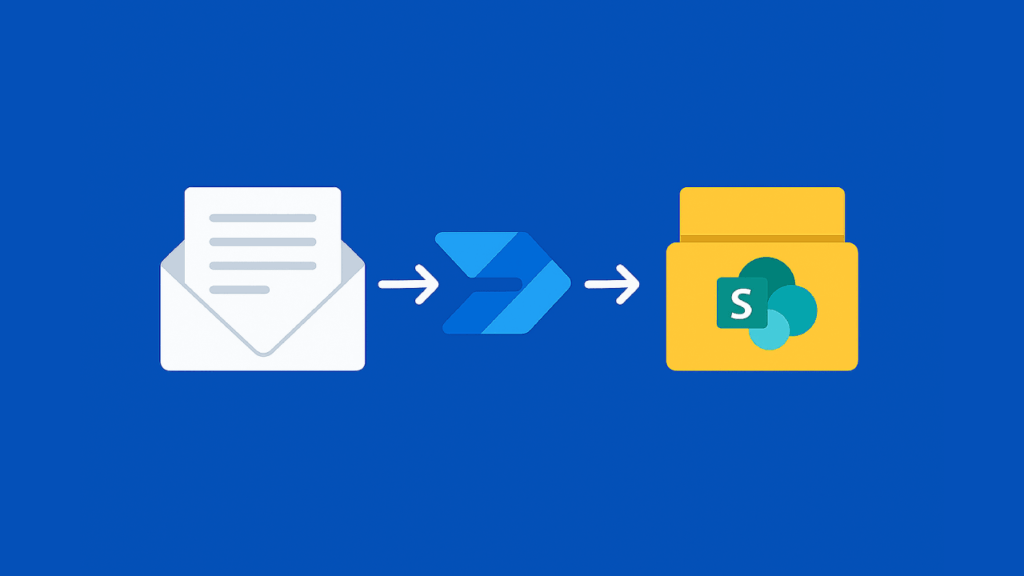
An icon of an envelope, followed by an arrow, then a flowchart symbol, another arrow, and a yellow folder with the SharePoint logo, all on a blue background.

How to Send Files by Email to SharePoint Online (Tutorial)

Table of Contents:What do you need to send files by email to SharePoint?How to set up a SharePoint to receive files by emailStep #1: Go to the Exchange admin centerStep #2: Add a shared mailboxStep #3: Delegate the full access (optional)Step #4: Create a new automated cloud flowStep #5: Configure the Microsoft FlowStep #6: Test the flowAlternatives for Uploading Files to SharePoint Online Can you send files to SharePoint using email? In this tutorial, I will show you a method you can use to send files to a modern SharePoint document library and how to set it up. Let’s get

How to Send Files by Email to SharePoint Online (Tutorial) Read More »

How to Move Files From One SharePoint Site to Another (Easy)

How to Move Files From One SharePoint Site to Another (Easy)

Table of Contents:Do you need special permissions or roles?Step-by-step guide on moving files and foldersStep #1: Navigate to the source folder or document libraryStep #2: Copy the files (instead of move)Step #3: Select the destination document libraryHow to solve common issues that may ariseAlternative: Use Power Automate Do you need to copy files and folders to another SharePoint site in the tenant? With the modern experience in SharePoint Online, it’s never been easier to do that. I will explain that step-by-step here. I’ll get started. Do you need special permissions or roles? Not everyone in the SharePoint environment will be

How to Move Files From One SharePoint Site to Another (Easy) Read More »

Scroll to Top