
Last Updated on April 15, 2026
Your organization is already paying for Microsoft 365, and you likely have a capable project management layer sitting inside your tenant right now.
Teams searching for Asana alternatives often miss this entirely, focusing on pricing per seat and feature checklists, when the answer might already be licensed and governable.
I wrote this guide for IT managers, SharePoint admins, and operations leads to help you evaluate whether Asana is actually the right move, and whether you’re already paying for something that does the job.
Why Teams Start Looking for Asana Alternatives
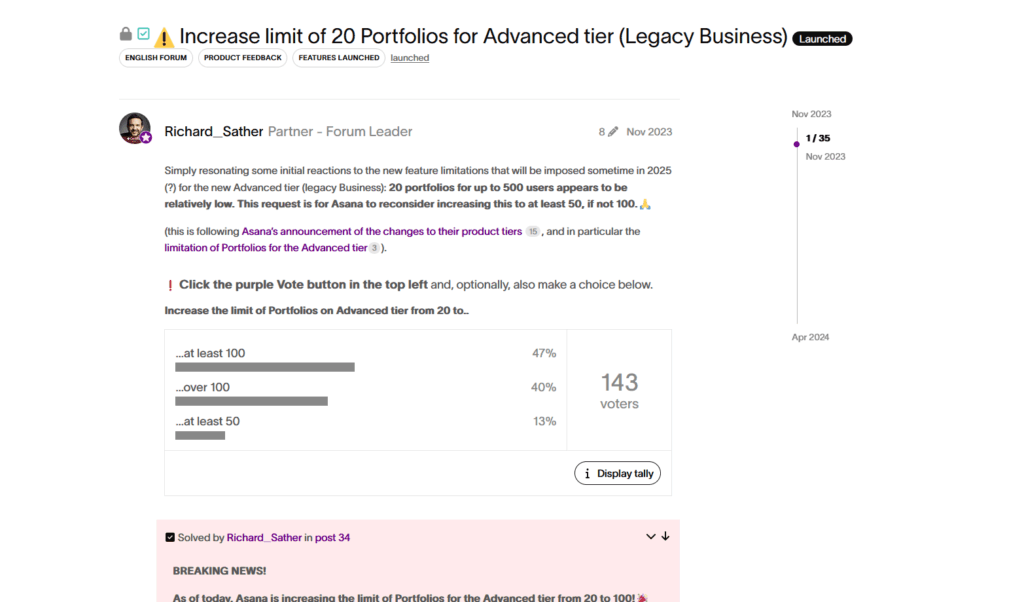
Asana’s pricing has shifted significantly. In late 2023, the Business plan was replaced with Advanced at $24.99 per user per month, and portfolio limits dropped from unlimited to 20.
The cost scales fast. Imagine a 50-person team paying $12,000–$14,400 per year. At 100 people, that’s $21,600–$26,400.
One U.S. government agency found savings of 29 percent, cutting spend from $181,311 to $128,312 just from cleaning up inactive users and misclassified licenses.
That’s before you factor in governance: Entra ID integration, offboarding workflows, and whether you can manage Asana alongside your SharePoint and Teams infrastructure.
Here’s why the conversation usually starts:
- Asana replaced the Business plan with Advanced in late 2023, introducing a 20-portfolio cap where there was previously no limit.
- Hidden user waste costs money fast: inactive users and external user misclassification alone have cost organizations tens of thousands per year.
- M365 integration is possible but doesn’t eliminate governance complexity at scale.
Most organizations already have tools that can handle 70 to 80 percent of what Asana does. The question is whether they’ve looked at them seriously.
Sign up for exclusive updates, tips, and strategies
Microsoft-Native Alternatives (Already in Your Tenant)
If your organization is on M365, you have three tools that cover the majority of Asana’s task and project management use cases. You own all of them.
Let’s be clear about what each one does and when to use it.
| Tool | Best For | Pricing | Key Strength | Limitation |
|---|---|---|---|---|
| Microsoft Planner | Kanban boards, task dependencies, portfolio views | Plan 1 ($10/user/mo), Plan 3 ($30/user/mo), Plan 5 ($55/user/mo) | Teams-native, seamless Entra ID sync, zero setup friction | Portfolio features require paid plans; Project Online retiring |
| Microsoft Lists | Intake forms, custom tracking, inventory management | Zero additional cost | Infinite customization, SharePoint-backed, no licensing per seat | Not a visual PM tool; requires comfort with spreadsheet-style views |
| Microsoft Loop | Collaborative canvases, meeting notes, async decisions | Zero additional cost | Live sync across Teams, Outlook, SharePoint; November 2024 governance update makes it manageable | Not designed for task tracking; best paired with Planner or Lists |
Microsoft Planner: The Closest Asana Replacement
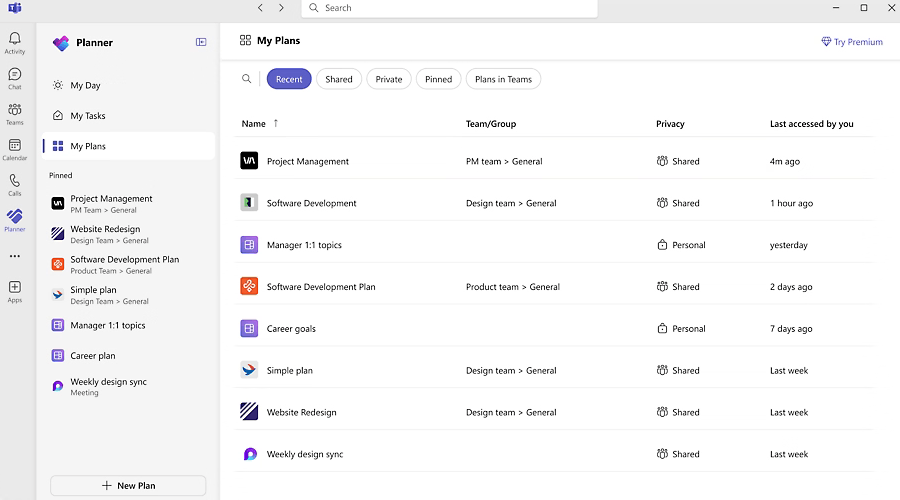
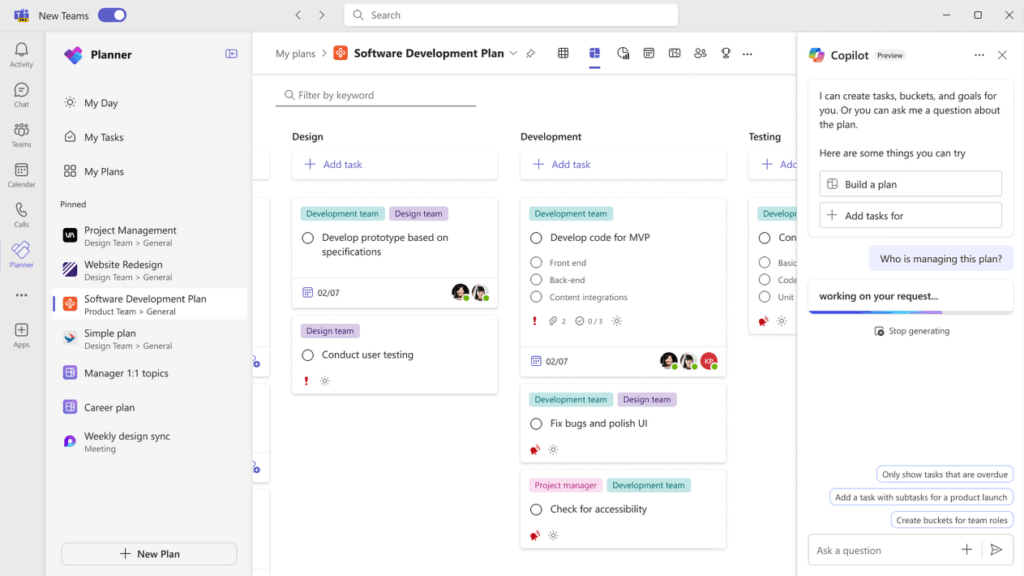
Microsoft Planner is the native Kanban engine inside M365. It handles buckets, cards, task assignment, due dates, priority labels, and subtasks.
Each plan’s own space inside Teams lets your team see what’s moving and who owns what. The interface is lean, and the barrier to adoption is almost zero because people already live in Teams.
Here’s a quick breakdown:
- Pricing: Free (basic) | $10/user/mo (Plan 1) | $30/user/mo (Plan 3) | $55/user/mo (Plan 5)
- M365 integration: Native (Teams, Entra ID, SharePoint)
- Gantt/timeline: Plan 1 and above
- Best for: Teams already in M365 who want zero-friction task boards
Planner has a three-tier premium structure:
- Plan 1 ($10/user/month): timeline views, Gantt charts, task dependencies, sprints, and custom fields
- Plan 3 ($30/user/month): roadmaps, baselines, task history, and Microsoft 365 Copilot integration
- Plan 5 ($55/user/month): advanced portfolio controls and resource management
If you need Gantt charts and timeline views, Plan 1 covers that at $10/user/month. For roadmaps, baselines, and portfolio-level controls, you’re looking at Plan 3 or Plan 5.
The free version covers 80 percent of what most teams actually need.
There’s an important transition to know about: Microsoft Project Online is retiring in September 2026.
Microsoft is consolidating portfolio management into Planner, making it the official migration path if your organization currently uses Project.
The governance advantage is significant. Planner lives inside your M365 tenant, syncs through Entra ID automatically, and requires zero additional per-seat licensing for basic use.
Pick this for native Kanban boards and task management within Teams. Paid tiers add Gantt charts and dependency tracking for complex projects.
Microsoft Lists: The Structured Tracker
Microsoft Lists isn’t a visual project management tool. It’s a flexible data container backed by SharePoint.
You design the columns, set the views, trigger automations, and control everything through permission inheritance from your SharePoint sites.
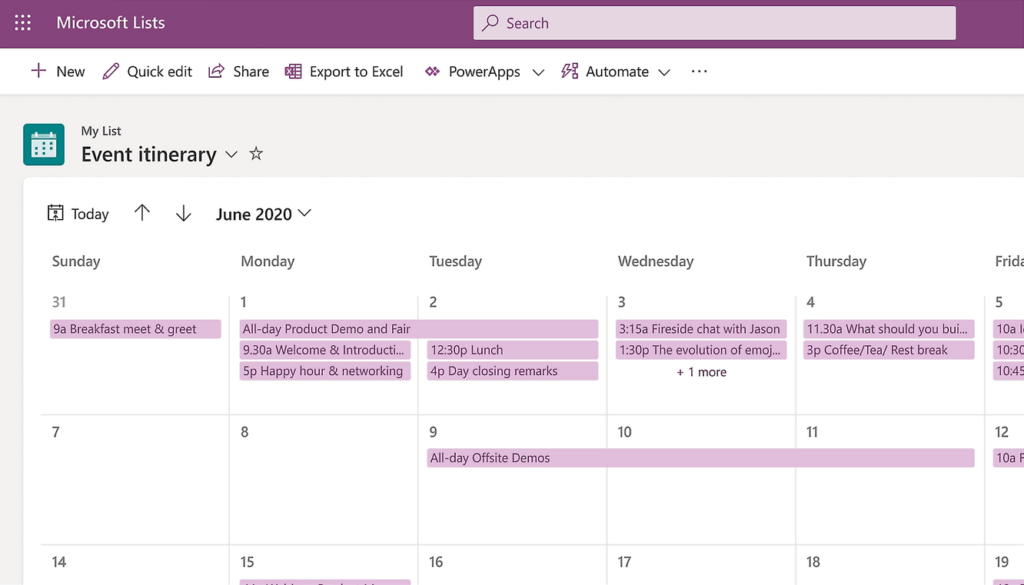
Here’s a quick breakdown:
- Pricing: Included with M365, no additional per-seat cost
- M365 integration: SharePoint-backed, Power Automate, Teams
- Best for: Intake workflows, asset tracking, request management
- Not for: Visual Kanban boards or Gantt timelines
The real power is customization. Build columns for status, priority, owner, due date, budget, or risk level, then set up views for standups, work-in-progress tracking, or ops review.
Use conditional formatting to color-code by priority or status. Power Automate flows can trigger automatically when status changes or due dates approach.
All of this costs nothing extra. Lists runs on your existing SharePoint infrastructure, and you own the data, the schema, and the automation layer.
But there’s also a limitation: Lists isn’t a Kanban board or a portfolio management tool. But for enterprises that value control and customization, it’s often the better choice.
Pick this if your team needs to track structured data (requests, assets, incidents, projects) and you want to customize columns, triggers, and views without adding third-party tools or per-seat licensing.
Microsoft Loop: The Collaborative Canvas
Microsoft Loop is the newest addition. It’s not a task management tool.
Think of it as a collaborative canvas for meeting notes, decisions, and status updates that sync live across Teams, Outlook, and SharePoint.
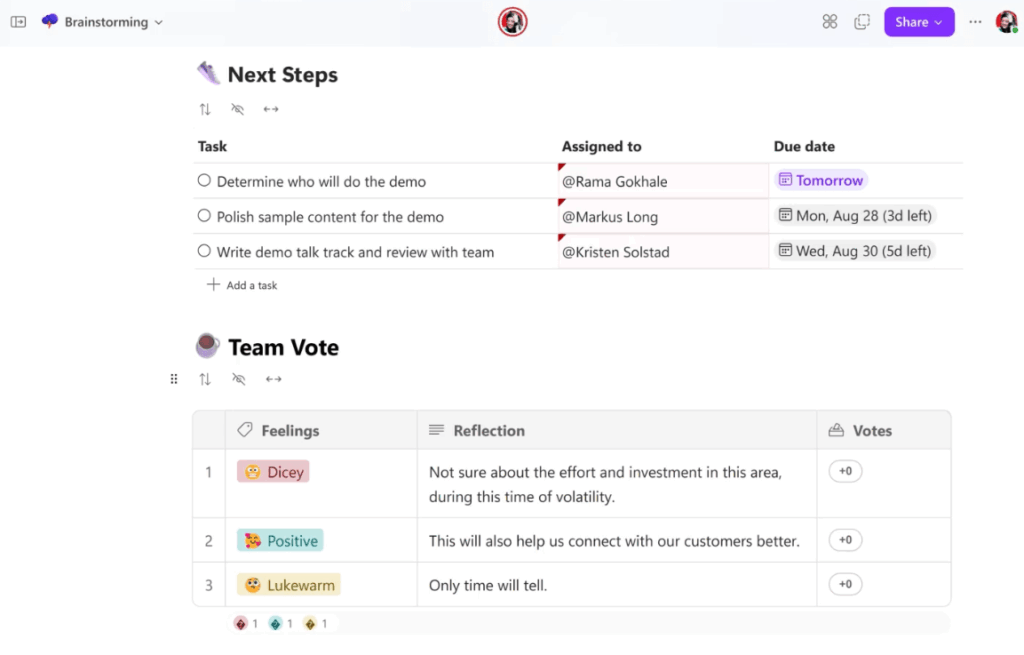
Here’s a quick breakdown:
- Pricing: Included with M365
- M365 integration: Native, syncs live across Teams, Outlook, SharePoint
- Best for: Meeting notes, async decisions, collaborative status updates
- Not for: Standalone task tracking. Pair it with Planner or Lists
In November 2024, Microsoft added governance controls that made Loop manageable at enterprise scale. You can now set org-wide policies for retention, sharing, and component visibility.
Loop pairs well with Planner or Lists. Decisions and context live in Loop, and execution lives in Planner or Lists.
Pick this if your teams need to collaborate on async decision-making, meeting outcomes, and status updates in real time. Think of it as the context layer that makes your Planner tasks more legible.
Third-Party Alternatives with M365 Integration
If Microsoft’s native tools don’t cover your use case, there are solid third-party options that integrate cleanly with M365.
| Tool | Best For | Starting Price | M365 Connector | Gantt/Timeline |
|---|---|---|---|---|
| monday.com | Configurable dashboards, team workflows | $12/user/month | Microsoft-published Power Automate | Yes (Standard+) |
| ClickUp | Feature breadth at low cost, custom automation | $7/user/month | Independent Publisher (Preview) | Yes |
| Wrike | Complex dependencies, resource management, pro services | $10/user/month | Power Automate, Teams | Yes |
| Trello | Simple visual boards, small teams | $5/user/month | Independent Publisher connector | No |
monday.com: The Work OS Approach
monday.com brands itself as a “Work OS” rather than a traditional PM tool. You get configurable dashboards, automations, and team workflows.
Where it matters for M365 shops: Microsoft publishes a Power Automate connector, which means your flows, your approval chains, and your document triggers work cleanly inside your M365 stack.
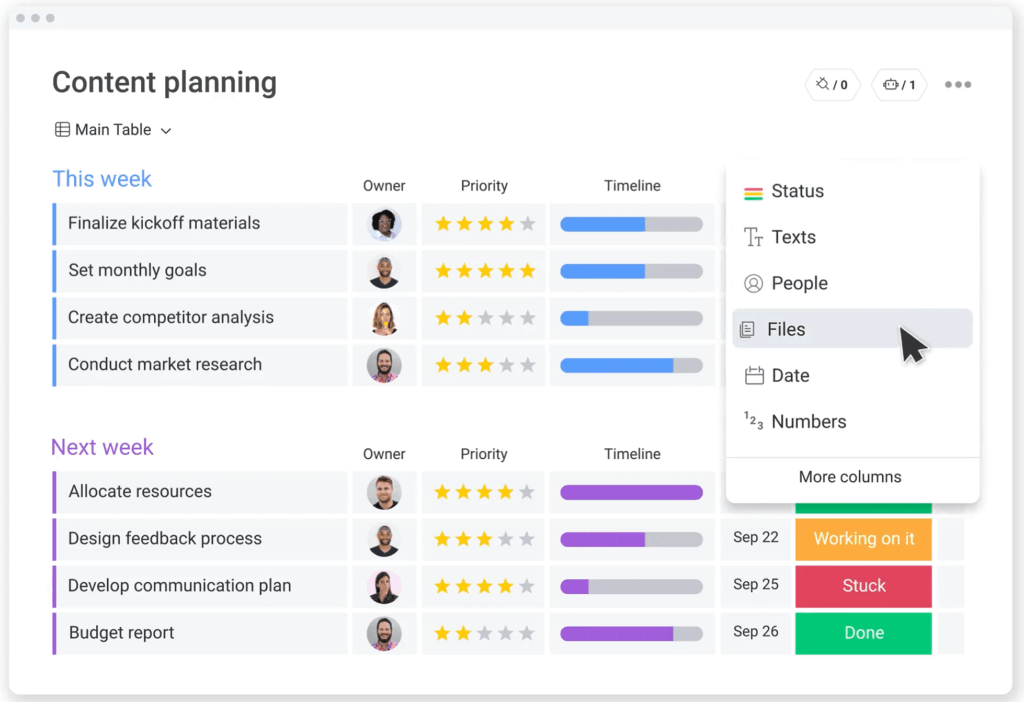
Here’s a quick breakdown:
- Pricing: Standard at $12/user/mo (billed annually) | Enterprise required for SSO/Entra ID
- M365 integration: Microsoft-published Power Automate connector
- Gantt/timeline: Yes (Standard and above)
- Watch out for: SSO and SCIM provisioning are Enterprise-only
The interface is intuitive and the feature breadth is solid.
The real caveat is identity management. SSO and SCIM provisioning through Entra ID are only available on the Enterprise plan.
If you need seamless identity sync, you’ll pay Enterprise pricing. For teams that can live with password-based logins, the Standard plan at $12 per user per month (billed annually) is reasonable.
If your organization standardizes on SSO everywhere, the lack of Entra ID support on lower tiers is a real governance friction point.
Pick this if your team needs configurable workflows and dashboards and you’re willing to absorb either password management overhead or Enterprise pricing for Entra ID sync.
ClickUp: Feature Breadth on a Budget
ClickUp is built around one idea.
Maximum features at the lowest entry price. The Unlimited plan at $7 per user per month includes Gantt charts, dashboards, automation, and custom reporting.
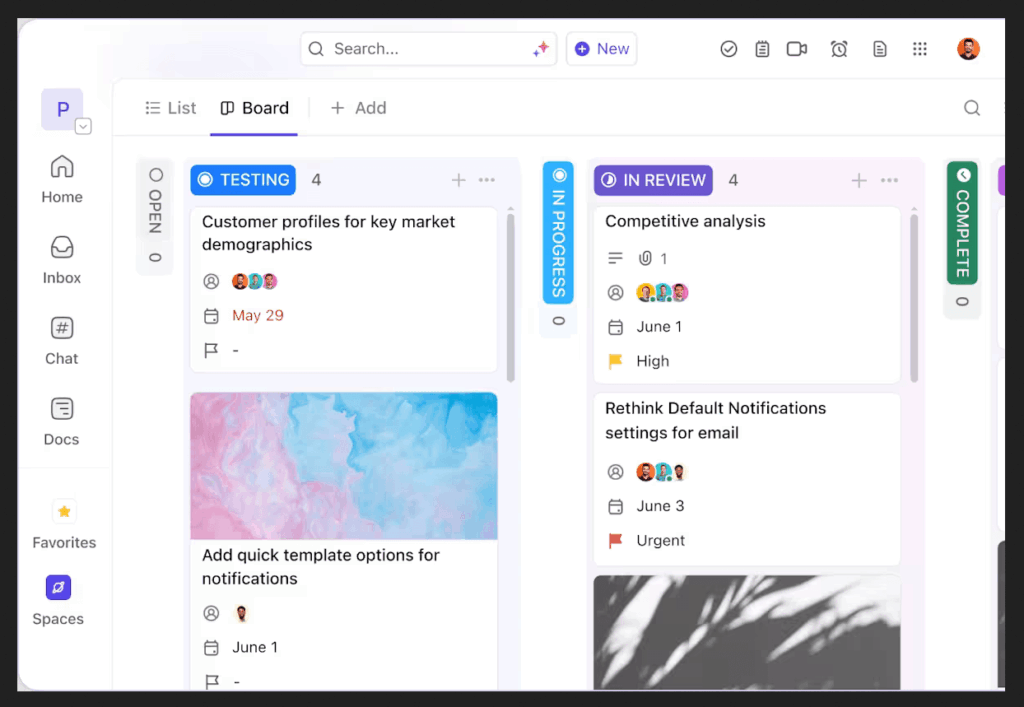
Here’s a quick breakdown:
- Pricing: Free | Unlimited at $7/user/mo
- M365 integration: Independent Publisher connector (Preview status)
- Gantt/timeline: Yes
- Watch out for: Power Automate connector is Preview-tier, less stable than Microsoft-published options
The caveat is Power Automate support. ClickUp’s connector is an Independent Publisher connector in Preview status, which means less stability and no SLA guarantees compared to Microsoft-published connectors.
ClickUp is API-first and developer-friendly. If your team is comfortable building custom integrations, you can get very deep M365 integration.
Out-of-the-box Power Automate reliability is lower than monday.com or native tools.
Pick this if your team wants Gantt charts, dashboards, and automation at low cost and you’re comfortable managing API-level integration or accepting Preview-tier Power Automate stability.
Wrike: Robust PM for Complex Dependencies
Wrike is built for teams with complex project interdependencies.
Resource management, Gantt charts, custom request forms, and proofing tools are all included from the Team plan at $10 per user per month.
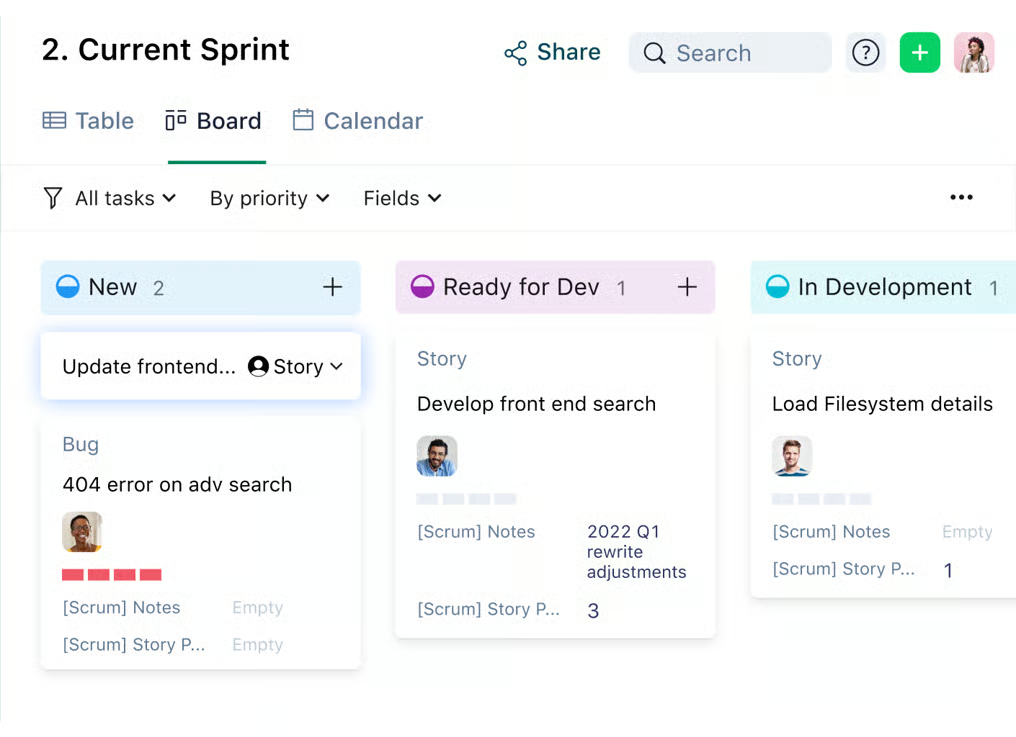
Here’s a quick breakdown:
- Pricing: Team plan at $10/user/mo
- M365 integration: Power Automate + native Teams integration
- Gantt/timeline: Yes
- Best for: Complex projects with hard dependencies, resource constraints, and portfolio-level tracking
Wrike has Power Automate support and native Teams integration, so your M365 stack plays cleanly.
Where Wrike shines is in professional services and agencies where resource planning, capacity tracking, and dependency management matter more than simplicity.
If your organization runs complex, multi-month initiatives, the portfolio and resource layers are worth the cost. It’s heavier than monday.com but more enterprise-ready out of the box.
Pick this if your organization runs complex projects with hard dependencies, resource constraints, and portfolio-level tracking requirements.
Trello: Simple Boards for Small Teams
Trello is the simplest option.
Kanban boards, attachments, and due dates. The free tier gives you a lot, and the Standard plan at $5 per user per month is the cheapest paid option on this list.
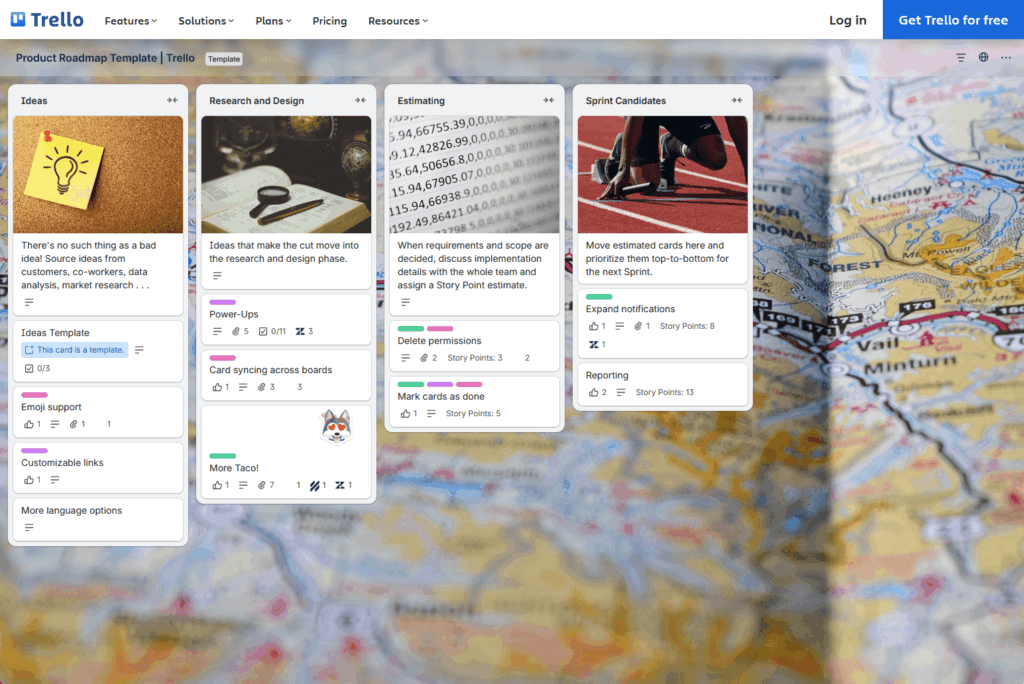
Here’s a quick breakdown:
- Pricing: Free | Standard at $5/user/mo
- M365 integration: Independent Publisher connector (Preview status)
- Gantt/timeline: No
- Best for: Small teams with simple visual workflows and low integration requirements
Trello is best for small teams or simple workflows that don’t need Gantt charts, portfolio views, or complex resource management.
Power Automate integration exists via an Independent Publisher connector, but native tools offer better differentiation for M365 teams.
Pick this if your team is small and workflows are simple. The visual board metaphor works well for teams that are new to project management tools.
When Asana Is Actually the Right Call
Asana isn’t a bad choice. It’s a strong product with unusually deep M365 integration for a non-Microsoft tool.
Asana publishes a Microsoft-created Power Automate connector with support for 30 API calls per 60 seconds. That gives you more native M365 touchpoints than most third-party tools on this list.
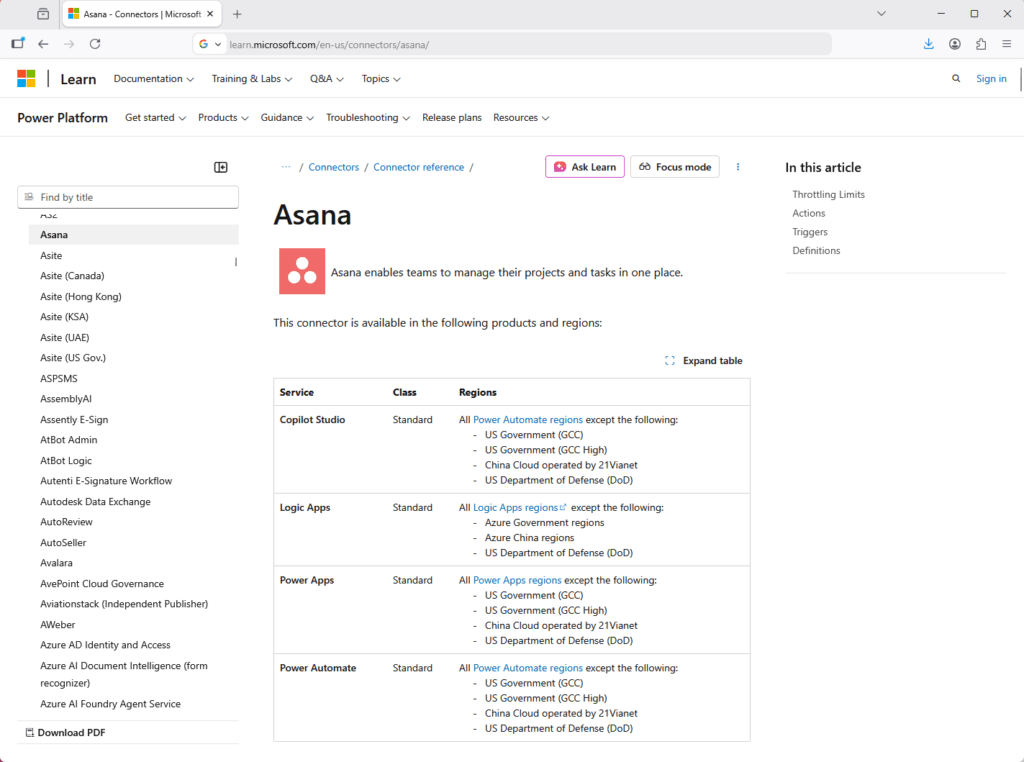
Here’s what’s included out of the box:
- Power Automate connector (Microsoft-published) for task creation, completion, and project operations
- Power BI integration for reporting
- Outlook add-in to convert emails to tasks
- Teams tab for searching and managing Asana tasks without leaving Teams
- Entra ID SSO
If you’re already embedded in Asana, the friction of switching may outweigh the savings, especially with portfolio management at scale.
But if you’re evaluating Asana from scratch and your primary constraint is project tracking and task visibility, you’re probably paying for features you don’t use.
Most teams find Planner and Lists cover 70 to 80 percent of their actual needs.
How to Choose: Decision Framework by Role
Different roles weight these decisions differently. Governance priorities, team velocity needs, and portfolio requirements all push toward different tools.
Use the table below as a starting point. Your existing M365 footprint and actual use cases will shape the final call.
| Role | Top Priority | Best Fit | Avoid |
|---|---|---|---|
| IT Manager / SharePoint Admin | Governance, identity sync, compliance overhead | Planner and Lists (native Entra ID sync, zero additional cost); monday.com or Wrike if third-party is needed | Trello and ClickUp (Independent Publisher connectors, no native SSO on lower tiers) |
| Operations Lead | Team visibility, task tracking, dependency management | Planner for Kanban; Lists for structured intake; Planner Plan 3/5, Wrike, or ClickUp for Gantt and dependencies | Trello if you need timeline views or custom fields |
| PMO Leader | Portfolio visibility, resource management, reporting | Wrike for resource planning; ClickUp if API-comfortable; Asana if already embedded at scale | Native tools only. Planner Plan 5 has portfolio controls, but resource management is limited. |
The IT manager’s path is usually the clearest. Native tools are already licensed, already governed, and already inside your security boundary.
The harder decisions sit with ops leads and PMO leaders who need capabilities that native tools only partially cover. Start with what you own, test it against your real use cases, and only buy more if the gaps are real.
Start With What You Already Own
You’re already paying for Planner and Lists through your M365 subscription. Most organizations overlook this entirely.
Before buying anything new, audit what you have:
- Microsoft Planner: Kanban, task assignment, basic timelines. Included free with M365.
- Microsoft Lists: Structured intake, tracking, request management. No additional licensing.
- Microsoft Loop: Collaborative context for your Planner tasks. Also included free.
Planner and Lists cover 70–80 percent of what most teams actually use Asana for. The remaining gap only surfaces in organizations with portfolio-scale complexity or heavy resource management requirements.
Start by piloting Planner with your most active team for two sprints. The advantages are hard to argue with: it’s already inside Teams, syncs through Entra ID automatically, and costs nothing extra per seat.
If Asana features you’re actively using don’t show up in that pilot, the annual spend is hard to justify.
Are you paying too much for Asana or wondering if M365 is enough? I help admins optimize infrastructure. Reach out and let’s talk.




























