

Table of Contents:
Last Updated on April 28, 2026
Want to build a great SharePoint intranet homepage without starting from scratch?
In this guide, you will discover how to use free, powerful templates from Microsoft to build an effective intranet.
Let’s get started.
The Modern Intranet Homepage is Your Digital Front Door
Today’s intranet homepage is much more than a static bulletin board.
It’s the digital front door to your organization and should be a central hub designed with clear business goals in mind.
An effective homepage serves several key purposes:
- Acts as a launchpad for the workday, connecting employees to everything they need.
- Centralizes company news, essential applications, and team updates in one place.
- Reduces time spent switching apps and searching for information.
- Supports major company goals, like guiding employees through organizational changes.
Bringing everything together makes the homepage an indispensable daily habit, the first place employees go to start their work.
Aligning features with business initiatives, a simple communication tool becomes a strategic asset to drive change and reinforce company culture.
Sign up for exclusive updates, tips, and strategies
SharePoint homepages are built with modular web parts, which allow for functional and visually engaging pages without coding.
Here’s a quick overview of the most valuable web parts:
| Web Part Name | Primary Function | Strategic Use Case on a Homepage |
| Hero | Displays large, visual links to key content. | Highlight 1-5 top-priority items like a major announcement or initiative. |
| News | Aggregates and displays news posts. | Serve as the official channel for company news to keep content fresh. |
| Quick Links | Provides easy access to tools and resources. | Create a “digital launchpad” for frequently used applications. |
| Events | Displays a list of upcoming events. | Showcase town halls, training sessions, or project deadlines. |
| People | Displays profile cards for individuals or groups. | Introduce a leadership team or showcase key project contacts. |
| Viva Engage | Embeds conversations from a Viva Engage community. | Add a social, interactive layer to drive engagement. |
| Power BI | Embeds an interactive Power BI report. | Provide at-a-glance visibility into key business metrics (KPIs). |
Grab Attention with Visuals and News
First impressions matter, so use visual web parts to capture attention and communicate key priorities.
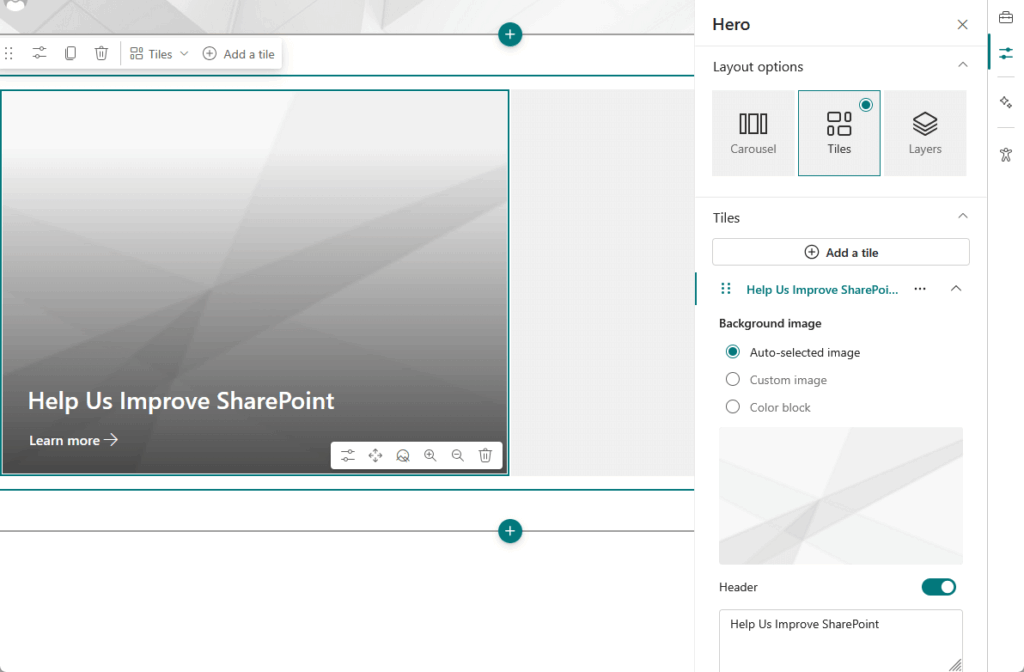
To keep the page looking fresh and informative, you should include:
- Hero web part: Creates a big visual impact for top-priority announcements
- News web part: Keeps your homepage content fresh with company updates
- Image Gallery web part: Showcases photos from events to build company culture
These components create an engaging entry point that draws users into your content.
They also establish the homepage as the primary source for official company news.
Help People Get Work Done
A successful homepage helps people work efficiently by providing direct access to essential tools and information.
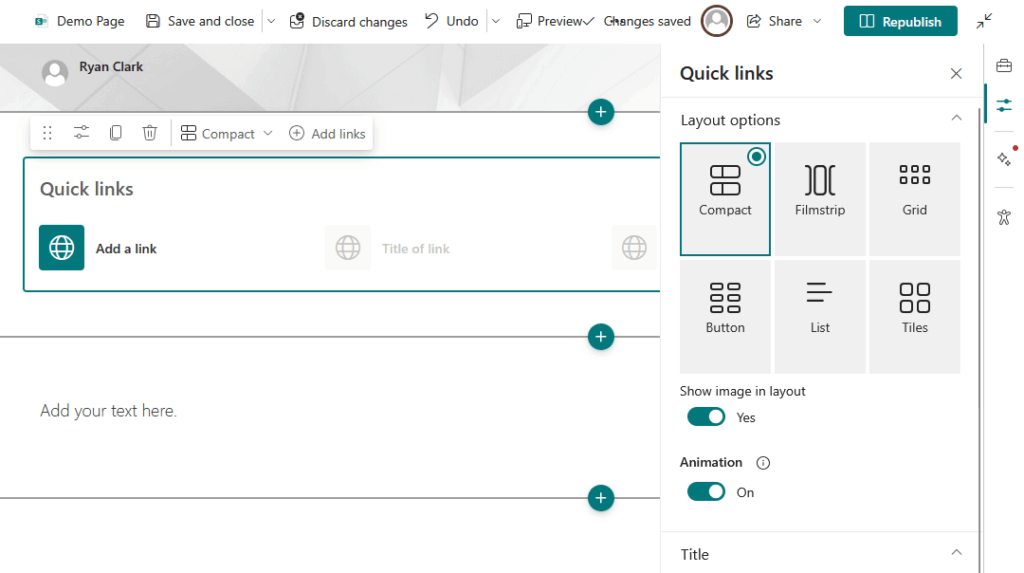
Some of the most helpful web parts for this are:
- Quick Links web part: Provides clear buttons that link to frequently used resources
- Document Library & List web parts: Gives users a direct window into key files and data
- Events web part: Acts as a central calendar for important dates and deadlines
These functional web parts reduce the time employees spend searching for information.
This helps them navigate their workday more effectively right from the homepage.
Finally, a modern intranet should be a platform for interaction, community, and data-driven decisions.
To move beyond one-way communication, you can use web parts that foster connection.
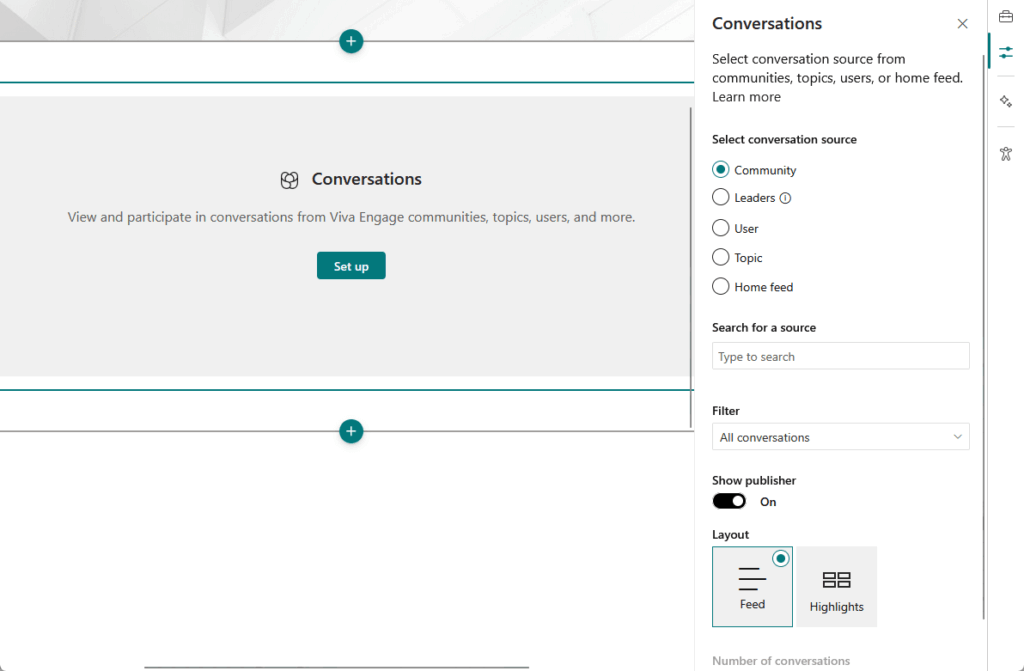
The following web parts are great for building community:
- People web part: Displays clickable contact cards to help colleagues connect
- Viva Engage (Conversations) web part: Embeds social conversations to support two-way dialogue
- Power BI / Quick Chart web parts: Shares real-time data and key business metrics
These components help make your intranet feel like a living digital space where employee voices can be heard.
They also provide teams and leaders with immediate visibility into the data that matters most.
Microsoft provides free, pre-built templates from two main sources.
The SharePoint Look Book has long been the go-to place for design inspiration.
It showcases beautiful, achievable examples of what you can build with SharePoint’s out-of-the-box features.
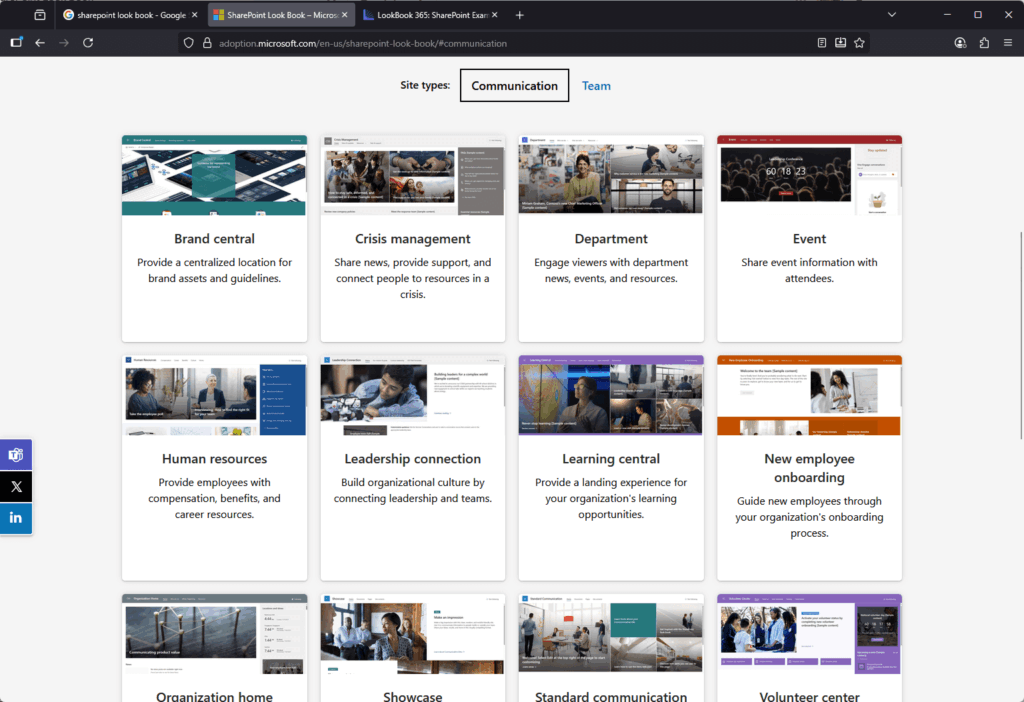
However, it’s important to know a recent change.
The original Look Book website, which allowed tenant administrators to automatically install a template with one click, has been retired.
The new Look Book, now part of the Microsoft Adoption site, serves as a static inspiration gallery.
It’s still a great place to see the “art of the possible,” but you can no longer deploy sites directly from it.
Applying Templates Directly from the Site Template Gallery
Today, the primary way to use Microsoft’s templates is through the in-tenant Site Template Gallery.
This feature is built directly into SharePoint.
As a site owner, you can access it by clicking the Settings gear icon in the top right corner and selecting “Apply a site template.”

This gallery applies a template’s structure, pages, and web parts to an existing site, rather than creating a new one.
This approach is more controlled, empowering site owners to build well-structured sites without needing special permissions.
The gallery shows templates for communication sites (for broad audiences) or team sites (for group collaboration).
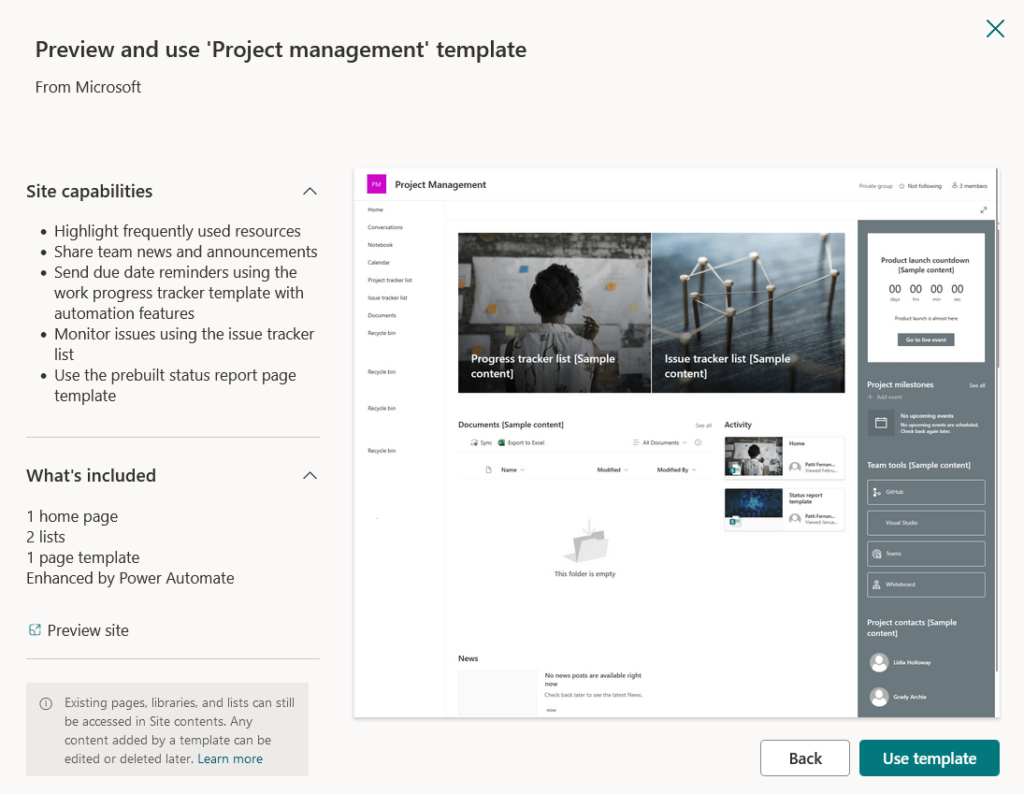
The table below summarizes the key differences between these two resources:
| Feature | SharePoint Look Book (Current) | In-Tenant Site Template Gallery |
| Primary purpose | To provide design inspiration and examples | To apply a pre-built structure to an existing site |
| Access method | Public Microsoft Adoption website | Within a SharePoint site: Settings > “Apply a site template” |
| Permissions | None to browse | Site Owner permissions required |
| Output | Visual examples and descriptions only | Transforms the existing site with the template’s content |
Microsoft’s templates are designed as solutions for common business needs.
They come with pre-populated content and relevant web parts to help you get started quickly.
Here are some of the most popular templates and their best-fit scenarios:
| Template Name | Site Type | Primary Objective | Best For (Business Scenario) |
| Leadership Connection | Communication | To build culture and connect leadership with employees | Corporate communications managing executive messaging |
| Crisis Management | Communication | To centralize communication during a crisis | Standing up a communication hub during an emergency |
| New Employee Onboarding | Communication | To streamline the new hire process with a guided experience | HR departments creating a consistent onboarding experience |
| Project Management | Team | To provide a central collaboration space for a project team | Internal project teams needing a hub for tasks and files |
| IT Help Desk | Team | To manage internal IT support requests and share knowledge | IT departments creating a self-service support portal |
| Brand Central | Communication | To provide a central repository for brand assets | Marketing teams responsible for brand consistency |
Templates for Company-Wide Communication
These templates are built to broadcast information from a central source to a large number of employees.
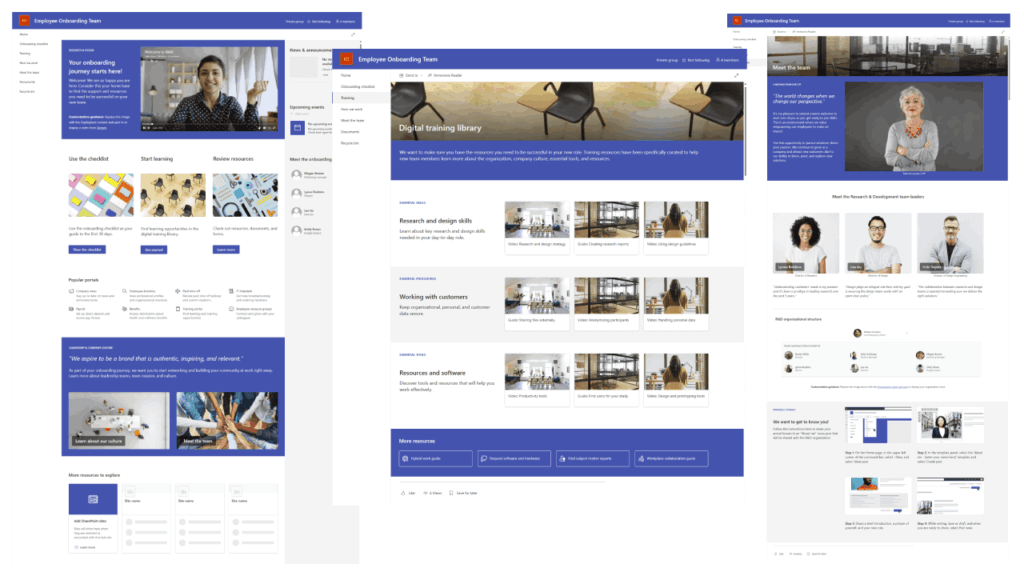
Here are the key templates in this category:
- Leadership Connection: Designed to build culture and connect employees with leadership through news, events, and conversations
- Crisis Management: Provides a central source of truth with pre-built pages for news, resources, and key contacts
- New Employee Onboarding: Creates a structured hub for new hires with checklists, training links, and team information
- Brand Central: A central repository for official brand assets, logos, and style guides to ensure consistency
They prioritize clear, visually appealing messages for broad reach, making them ideal for corporate communications, HR, and leadership teams.
Templates for Teamwork and Projects
Built on the SharePoint Team Site framework, these templates are designed to facilitate collaboration and information sharing within a specific group.
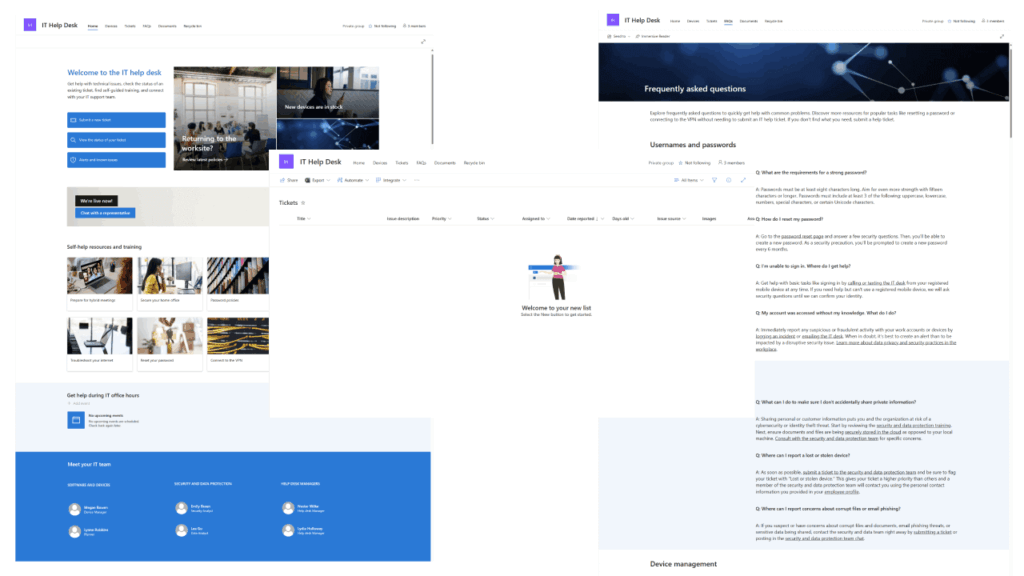
The most useful templates for teams include:
- Project Management: A collaboration space with a project tracker, issues list, and document library.
- IT Help Desk: Streamlines internal support with a place for users to submit tickets and access FAQs.
Often include built-in task tracking and file management, which are essential for project managers, IT, and any collaborative group.
Customizing Templates for Your Department and Industry
SharePoint templates are flexible.
You can adapt them to meet your org’s specific needs to create a digital experience that feels custom-built for your users.
Tailoring for Internal Departments
Different corporate functions can create powerful, purpose-built hubs by customizing standard templates with relevant content and tools.
Here are a few examples of how to tailor templates for internal departments:
- Human Resources: Combine Onboarding and Learning templates for an employee lifecycle hub
- Information Technology (IT): Enhance the IT Help Desk template with a knowledge base and system status dashboards
- Corporate Communications: Use the Leadership Connection template as a corporate news center with News and Viva Engage
Starting with a functional template allows each department to build a mini-portal that directly supports its unique workflows.
This approach lets them leverage a common platform while still creating a highly relevant experience for their specific audience.
Adapting for Specific Industries
Beyond internal functions, you can also customize homepages for industry-specific operational and regulatory needs.
You can adapt the general-purpose templates to fit sector-specific needs in the following ways:
- Healthcare: Adapt the Crisis Management template for critical alerts and links to clinical systems
- Manufacturing: Create a mobile-first design with links to safety protocols and production dashboards
- Non-Profits: Use the Volunteer Center template and highlight events, resources, and success stories
The key is to understand the core workflows and communication patterns of the industry first.
Then, you can select and customize a general template to surface the right tools and information for that sector’s workforce.
Future-Proofing Your Intranet Homepage
The homepage is the digital core of a modern organization, and using free templates is a cost-effective way to build an engaging digital workspace.
A great intranet is one that evolves with your organization, driven by a clear strategy and user feedback.
As the digital workplace moves toward more personalized experiences, a well-planned homepage becomes an even more critical asset.
Do you have questions about SharePoint intranet templates and where to find them? Let me know.
For any business-related queries or concerns, contact me through the contact form. I always reply. 🙂





























it is amazing how bad these sites are. None of your links work