

Last Updated on September 30, 2025
Confused by the default title column in your SharePoint list?
In this guide, you will learn to rename and hide the column, understand its impact, and use it to build better lists.
Let’s get started.
When you create a new SharePoint list, SharePoint automatically adds the title column.
It’s the default column, designed to be the primary identifier for each list item.

More than just a simple text field, its main job is to act as a direct link to open, view, and edit an item’s details.
In a way, changing or hiding this default site column isn’t just a data choice.
It actually changes how users interact with your list, so it’s important to understand how it works.
Display Name vs. Internal Name: A Crucial Distinction
Every column in SharePoint has two names, and understanding the difference is key to avoiding problems later.
Here’s a simple breakdown:
- Display name: The column label you see (fully editable).
- Internal name: The permanent system ID used for code and integrations (never changes).
This is especially important for the title column, because its internal name is always “Title,” no matter what you change its display name to.
Remembering this distinction will help you avoid common errors when working with Power Apps, Power Automate, or other custom solutions.
Sign up for exclusive updates, tips, and strategies
How to Manage the Title Column
You can’t delete the title column, but you can easily adapt it to fit your needs.
Here are the most common ways to manage it:
How to Rename the Title Column
Renaming is the best option for most lists.
It keeps the column’s useful link functionality while giving it a name that makes sense for your data, like “Project Name” or “Task ID.”
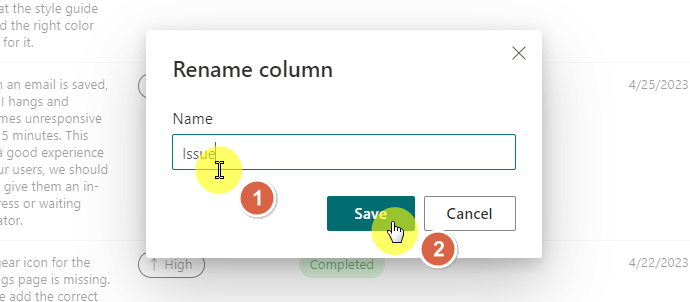
In your SharePoint list, hover over the title column header and click the down arrow.
Select Column settings > Rename.

Enter the new name and click Save.
How to Make the Title Column Optional
Before you can properly hide the title field, you must make it optional.
This requires a quick trip into the list settings.
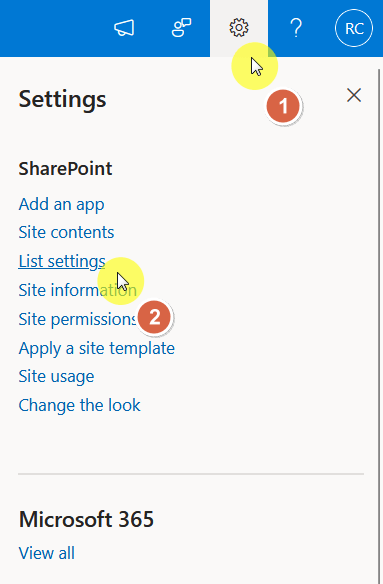
Click the Settings gear icon (⚙️) and select List settings.
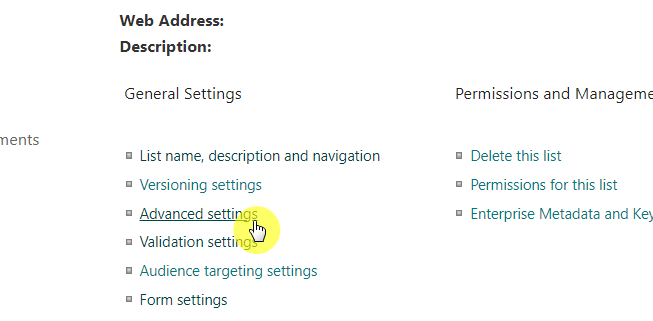
Go to Advanced settings.
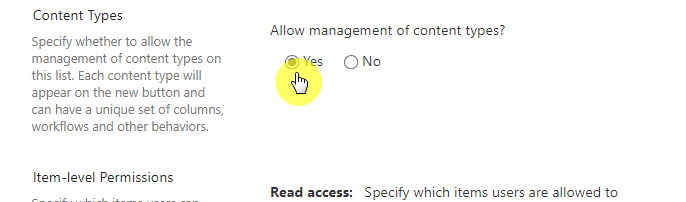
Under Content Types, select Yes for “Allow management of content types” and click OK.
Back in List settings, click on Item in the Content Types section.

Click the Title column and switch the setting from “Required” to Optional.

How to Hide the Title Column from Views and Forms
After making the column optional, you can hide it
In the same screen where you made the column optional, select Hidden under the column settings.

This removes the title field when users add or edit items.
To finish, go back to your list view.
Click any column header, select Column settings > Show/hide columns, and uncheck the box next to your title column.

The Hidden Dangers of Ignoring the Title Column
Simply hiding the title field and leaving it empty can lead to potential issues, as it affects other connected systems.
Impact on Power Automate and Power Apps
Power Automate and Power Apps always use the internal name “Title” to identify the column.
If you rename it to “Project Name,” your app or flow still knows it as “Title” in the background.
This often causes the “Field ‘Title’ is required” error.

When SharePoint’s title column is “Required” but hidden on a Power App form, the app cannot save data.
The title column carries the most weight in SharePoint’s search algorithm.
This column is seen to have more important data, so items with a descriptive title will appear higher in search results.
If you hide the column and leave it blank, your list items become much harder for other users to find through the SharePoint site search.
Advanced Tips for the Title Column
Instead of hiding the title column, you can improve its functionality with some advanced techniques.
Enhance with JSON Formatting
You can apply JSON to the title column for conditional formatting, turning it into a dynamic status indicator from a simple link.
For example, you could display a green checkmark icon next to the title when a task’s status is changed to “Completed.”
This gives users at-a-glance information without needing to open the item.
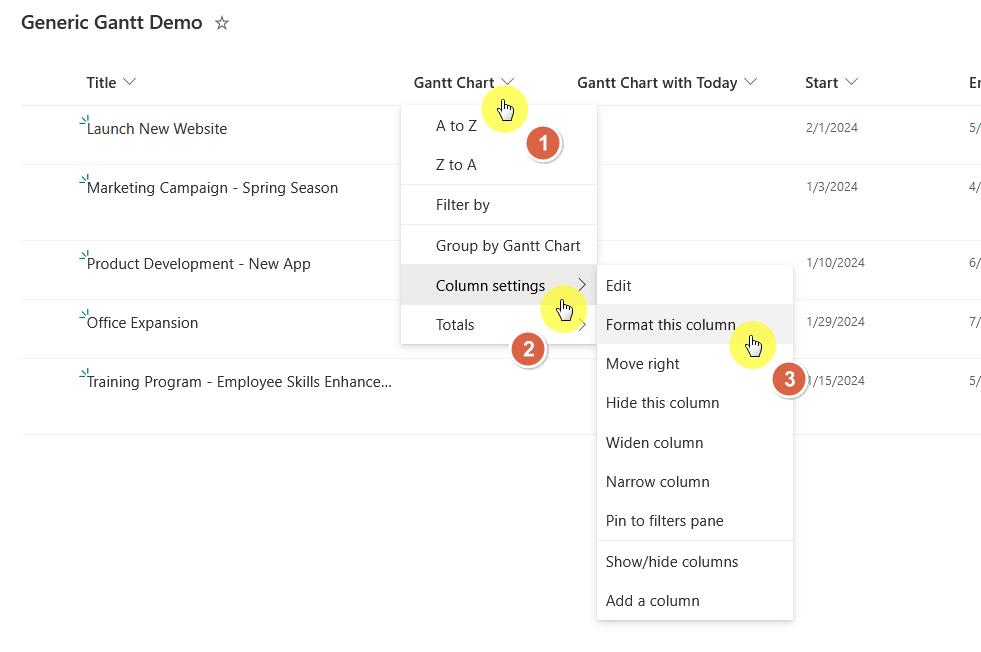
To apply this formatting, click the down arrow on your title column header and go to Column settings > Format this column.
Like this:
Click Advanced mode at the bottom.
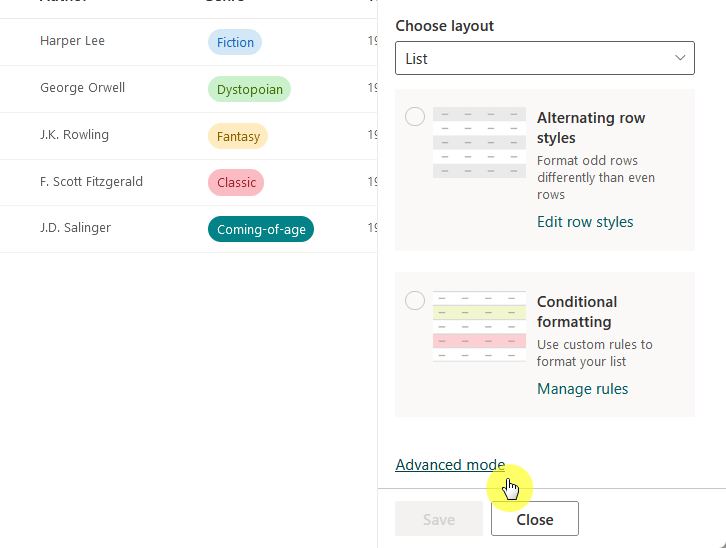
Paste your JSON code into the box.

You’ll need to reference another column (like a “status” column) to make the formatting conditional.
Click Save.
Automate It with Power Automate
For the best of both worlds, hide the title column from the user form but use Power Automate to populate it automatically.
You can create a flow that runs whenever an item is created or modified.
With Power Automate’s Copilot, you can simply describe the flow you need.
Try a prompt like this, replacing the list and column names with your own:
“When an item is created or modified in the SharePoint list ‘Projects’, take the value from the ‘Customer Name’ column and the ‘Order ID’ column. Combine them with a hyphen in between, and update that item’s Title column with the combined text.”
This keeps your forms clean while making sure your items are easy to find.
Troubleshooting Common Title Column Problems
Here are quick solutions to the most common issues.
| Problem | Solution |
| My Power App or flow broke after I renamed the Title column. | Power Platform uses the internal name “Title.” Refresh your data source in Power Apps or verify the field name in your Power Automate flow. |
| I get a validation error on a form, but the Title field isn’t visible. | The column is still set as required. Go to list settings and change it to optional. |
| The Title column is empty, even though I know items have titles. | Check your view settings. You might be showing a different, custom column that also has the display name “Title.” |
Putting It All Together
Instead of trying to hide or delete the title column, the best approach is to repurpose it.
Rename it to serve as the main, unique identifier for your list items.
If you must hide it from forms, use a simple Power Automate flow to populate it in the background.
This preserves its powerful search capabilities and makes sure your SharePoint environment remains organized and easy for everyone to use.
Do you have questions about managing SharePoint Title Column? Let me know below.
For business-related questions, you can send me a direct message using the contact form on this page.





























Hi Mr. SharePoint, I appreciated the post on the Title column. Unfortunately it was not helpful in solving my immediate problem. I should admit, however, that the post essentially answered my questions related to the creation of a complex Title column. Now that I understand that it’s a failry simple column, perhaps you can provide some suggestions. My issue is that I need the Title column to act more as a header record for the SharePoint list. Specifically, I don’t need it to act as a key (I have other columns that are better suited. What I really need is… Read more »
Solved. I added a calculated formatted field that combines the three attributes.
Thanks.
Dan, can you share how you did this?