

April 2, 2026 is a hard stop for SharePoint Add-Ins in Microsoft 365.
Microsoft is shutting down Azure ACS. When it goes dark, add-ins that rely on it fail, immediately.
That includes third-party tools, custom apps, and background integrations. Remove them carelessly and you risk losing data stored in app webs.
There’s no extension and no safety net. If add-ins are still in use, action is required now.
Table of Contents:
What’s Actually Being Retired
Microsoft launched the SharePoint Add-in model back in 2013. It was called the “App Model” originally and served a specific purpose: keeping custom code from crashing entire SharePoint farms.

The system worked through strict isolation:
- SharePoint-hosted Add-ins, which contain only client-side code (HTML, JavaScript, CSS), reside in isolated sub-webs called Add-in Webs, where they can store data in lists and libraries.
- Provider-hosted Add-ins are full web applications running outside SharePoint on platforms like Azure, AWS, or on-premises servers, and they connect to SharePoint using REST APIs and rely on Azure ACS for trust.
The migration complexity varies wildly between these two types. SharePoint-hosted apps need code updates and data extraction. Provider-hosted apps need complete authentication overhauls.
Both types are being shut down. But understanding the difference matters because your migration strategy depends on which type you’re dealing with.
Why Microsoft Is Pulling the Plug
Azure ACS doesn’t support multi-factor authentication or conditional access policies. It uses legacy authentication protocols that attackers exploit for credential stuffing.
Microsoft reports that over 97% of credential-stuffing attacks use legacy authentication, and over 99% of password-spray attacks do as well.
The user experience problems are significant too:
- Add-ins load slowly because iframes require multiple round-trips
- They break on mobile devices with poor responsive behavior
- They look visually disconnected from the parent site
- They can’t inherit SharePoint themes or colors
- They don’t respond to modern SharePoint’s design language
The replacement is the SharePoint Framework (SPFx) and Microsoft Entra ID. SPFx runs directly in the browser without iframes. Entra ID supports modern OAuth 2.0, MFA, and conditional access.
This isn’t optional. Microsoft is shutting down the authentication service completely. When those endpoints go dark, your apps stop working instantly.
Sign up for exclusive updates, tips, and strategies
The Critical Timeline You Need to Know
Microsoft has been tightening the noose on Add-ins since late 2023. Understanding the timeline helps you prioritize what needs attention first.
Here’s what has happened and what’s coming:
| Date | What Happened | Impact |
| November 27, 2023 | Official deprecation announced | No new features or security updates (except critical fixes) |
| March 1, 2024 | No new add-Ins accepted for listing in the public marketplace | Vendors can’t submit new Add-ins to AppSource |
| July 1, 2024 | Add-ins can’t be acquired/installed from the public marketplace (Store) anymore | Can’t install new Add-ins from the marketplace |
| November 1, 2024 | New tenant block | New Microsoft 365 tenants have Add-ins disabled by default |
| April 2, 2026 | THE HARD STOP | Authentication endpoints shut down globally, all apps break |
| July 14, 2026 | SharePoint Server 2016/2019 end of support | On-premises platforms become unsupported |
The April 2, 2026 date is different from typical end-of-life scenarios. Usually, unsupported software keeps running but stops getting updates. But not this time.
Azure ACS is a cloud service that issues authentication tokens. When Microsoft shuts down those endpoints, any app trying to get a token receives an error. The trust broker disappears and the code fundamentally breaks.
There’s one exception worth noting: the marketplace restrictions only affect the public SharePoint Store.
Custom Add-ins uploaded to your tenant’s private App Catalog still work until the final deadline. This gives you breathing room to maintain custom line-of-business apps while building replacements.
But don’t mistake this for a permanent reprieve. April 2, 2026 applies everywhere.
That includes Government Community Cloud (GCC), GCC High, and Department of Defense environments. Government cloud doesn’t mean delayed deadlines.
Step 1: Audit Your Environment
You can’t fix what you can’t see. Most organizations have no idea how many add-ins are running in their environment. Shadow IT means apps get installed without IT approval or documentation.
Microsoft provides a tool specifically for this problem. The Microsoft 365 Assessment Tool scans your entire tenant and reports every add-in instance.
Using the Microsoft 365 Assessment Tool
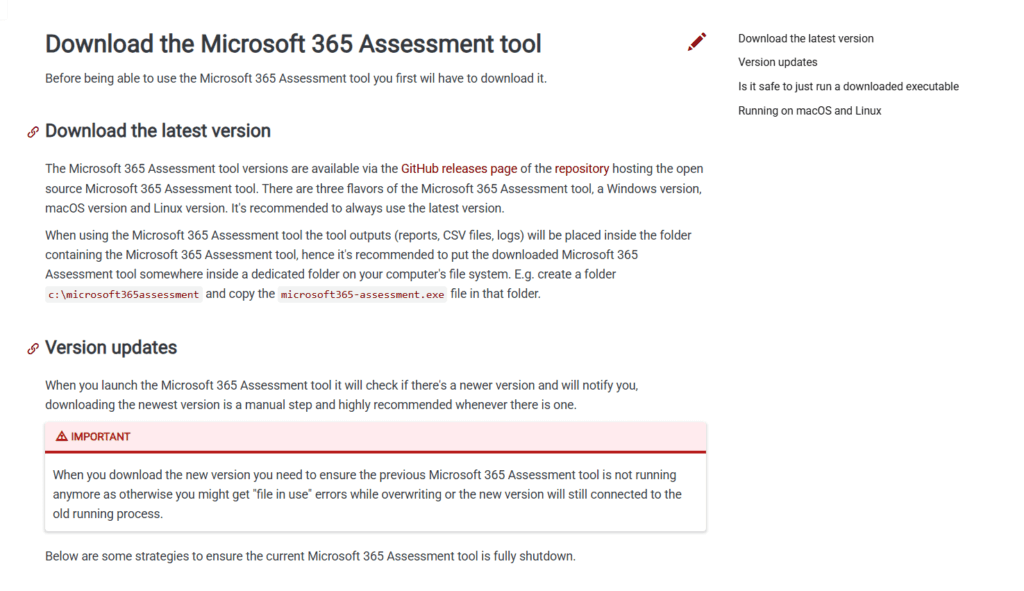
Download the tool from Microsoft’s Download Center or GitHub. It’s a command-line utility called microsoft365-assessment.exe. The SharePointAddIns module is what you need.
The tool requires an Azure AD application registration to run.
It’s designed to run with minimal, read-level permissions for scanning (for example Sites.Read.All), depending on whether you run it app-only or delegated.
This is high-privilege access, so use certificate-based authentication instead of client secrets. You need to run a full tenant scan rather than targeting just a few site collections.
Orphaned Add-ins often hide in archived sites, old project sites, and departmental subsites that nobody thinks to check, so complete visibility is essential.
Here’s the security tip: remove the app registration after your scan completes. Don’t leave high-privilege service principals sitting around indefinitely.
What Do Your Scan Results Tell You?
The Assessment Tool outputs several CSV files. Three files matter most for this retirement.
classicaddins.csv is your master inventory. Every installed Add-in appears here with details about where it came from. The “Source” column is your primary filter for triage.
Look for these source types:
- Marketplace: Add-ins downloaded from the public SharePoint Store. These are urgent because the vendor might not exist anymore or might have discontinued the product.
- CorporateCatalog: Custom Line-of-Business apps that your IT team uploaded. You probably have source code for these.
- RemoteObjectModel: Apps side-loaded by developers, often through Visual Studio during testing. These might be development remnants.
classicacsprincipals.csv lists Provider-hosted apps using Azure ACS.
These are external applications that have been granted permissions to your SharePoint environment. The list often reveals background integrations you forgot about.
Check for workflow automation tools, backup solutions, and third-party widgets. These apps operate invisibly until they break. Each entry here represents something that stops working on April 2, 2026.
scans.csv verifies that the tool actually reached all your site collections. Sites locked due to archival or Conditional Access policies appear as errors. Unlock these sites temporarily and rescan to ensure complete coverage.
Step 2: Categorize and Prioritize
Now that you know what you have, sort everything into action buckets. Not every Add-in deserves migration effort.
Use this three-bucket framework:
| Action | When to Use | Next Steps |
| Retire (Delete) | Unused apps, abandoned projects, no business owner identified | Verify no data loss, then uninstall |
| Replace (Find Alternative) | Third-party marketplace apps with no vendor support, vendor out of business | Research modern SPFx alternatives or SaaS tools |
| Rebuild (Migrate to SPFx) | Critical custom LOB apps, source code available, high business value | Plan SPFx development project |
Priority matters because you won’t migrate everything before the deadline. Focus your resources where the business risk is highest.
- Highest Priority: Provider-hosted apps require complex authentication rewrites and should be started first as they take the most development time.
- Medium Priority: SharePoint-hosted apps with custom data in Add-in Webs need data extraction planning before code migration.
- Lower Priority: Simple UI customizations or styling changes often have no-code alternatives, like List Formatting (JSON), that require zero development.
Contact third-party vendors immediately for marketplace apps. Ask for their SPFx migration roadmap. If they don’t have one or the company no longer exists, that Add-in goes into the “Replace” bucket.
Step 3: Handle Your Specific Migration Scenarios
The migration path depends entirely on which type of Add-in you’re dealing with. SharePoint-hosted and provider-hosted apps need completely different approaches.
These apps store everything in an isolated add-in web. That’s both the problem and the opportunity.
When you uninstall a SharePoint-hosted Add-In, its app web is deleted, and anything stored there (lists, libraries, documents, configuration) is removed.
If it was deleted accidentally, it may be recoverable from the recycle bin, but you should still export/copy the data before uninstalling.
You must export data before uninstalling anything.
Use PnP PowerShell to traverse the add-in web structure and copy data to the parent host web or an archive location. This is a critical step that can’t be skipped.
The code migration path involves updating your JavaScript.
Legacy Add-ins used the JavaScript Object Model (JSOM) which is clunky and doesn’t work well with modern bundlers. Move to PnPjs with async/await patterns and TypeScript.
Here’s what gets replaced with what:
- App Parts become SPFx Web Parts (the direct replacement for visible UI components)
- Custom Actions (like ribbon buttons) become SPFx Command Sets (modern list command bars)
- Script Injection (JSLink) becomes SPFx Application Customizers or List Formatting
But here’s a shortcut: if your add-in just styled a list (coloring rows based on status, for example), you don’t need SPFx at all. List Formatting uses JSON and requires zero code.
It performs better and is easier to maintain.
Migrating Provider-Hosted Add-ins
This is where complexity lives. These are full-stack web applications running outside SharePoint that depend on Azure ACS for authentication.
The authentication overhaul is mandatory. You’re replacing the entire trust model. Azure ACS Context Tokens get replaced by Microsoft Entra ID Access Tokens using OAuth 2.0.
In practical terms, that means ripping out TokenHelper.cs (for .NET apps) and replacing it with MSAL.NET (Microsoft Authentication Library). The code that proves your app’s identity changes completely.
The security upgrade is significant though.
The old ACS model gave apps broad permissions, often at the tenant level. An app that needed to read one list got read access to every site collection. That’s a massive security hole.
Sites.Selected permissions fix this problem. This new permission model lets you grant access to specific sites only.
Here’s the workflow:
- Create a new App Registration in Microsoft Entra ID
- Assign the Sites.Selected API permission
- Use PnP PowerShell to bind the app to specific sites: Grant-PnPAzureADAppSitePermission
- The app can access the HR site but is blocked from Finance
This granular control was impossible with Azure ACS. It makes compliance reviews easier and reduces your attack surface dramatically.
For the actual code changes, you’ll install either the PnP Framework NuGet package (for .NET Framework 4.6.1+) or PnP.Core (for .NET Core/.NET 5+).
Replace authentication context creation with the new AuthenticationManager pattern that uses certificates instead of Context Tokens.
Your application URL doesn’t need to change. But the configuration does. Update web.config or appsettings.json with your new Client ID, Tenant ID, and Certificate Thumbprint.
Related Technologies That Need Attention
Two other technologies often bundled with Add-ins are also being retired.
Remote Event Receivers (RERs) let external code intercept SharePoint events like “ItemAdded.” They relied on Azure ACS to validate that event signals were legitimate.
Remote Event Receivers registered using Azure ACS stop working when Azure ACS is turned off on April 2, 2026. (RERs registered using Entra can follow a different retirement timeline.)
The replacement is SharePoint Webhooks. But there’s a limitation: webhooks are asynchronous only. RERs supported synchronous events (like “ItemAdding”) that could block user actions.
If you used RERs to prevent document deletion when status was “Final,” you can’t do that with webhooks.
Classic Workflows (SharePoint 2013 engine) are also being retired on the same timeline. These workflows used the same legacy authentication structures. The Assessment Tool reports on these separately.
The migration path is Power Automate. But this isn’t a lift-and-shift migration. It’s a complete rewrite.
Power Automate flows run in the context of a connection (user or service principal), which is fundamentally different from the “Workflow App” identity model.
Step 4: Take Action Now
If you’re reading this before April 2, 2026: You have extremely limited time. Organizations that haven’t started their migration are already in crisis mode. Focus on the highest-priority apps only.
If you’re reading this after April 2, 2026: Your add-ins have already stopped working. You’re in emergency remediation mode and need to restore functionality immediately.
Immediate Emergency Actions (Before April 2, 2026)
If the deadline hasn’t passed yet, do these actions this week:
- Run the Microsoft 365 Assessment Tool across your entire tenant immediately
- Execute this PowerShell command: Set-SPOTenant -IsSharePointAddInsDisabled $true
- Identify business owners for each Add-in found in the scan
- Triage ruthlessly: focus only on business-critical apps, retire everything else
That command blocks users and admins from adding new SharePoint Add-Ins to sites or app catalogs, while existing add-ins already added to sites remain available for use.
It prevents your problem from getting bigger while you work on emergency solutions.
Critical Path to April 2 Deadline
With less than three months remaining, you cannot migrate everything. Prioritize based on business impact:
Week 1-2 (Immediate):
- Complete your full tenant audit
- Categorize Add-ins into business-critical vs. nice-to-have
- Retire all non-essential Add-ins immediately
- Contact vendors for business-critical marketplace apps
- Assess which custom apps have available source code
Week 3-8 (February – Early March):
- Extract data from all Add-in Webs before uninstalling anything
- Re-register Provider-hosted apps in Microsoft Entra ID with Sites.Selected permissions
- Begin emergency SPFx development for your top 3-5 critical custom apps only
- Find SaaS replacements for third-party apps with no migration path
- Test all migrated solutions in development environments
Week 9-12 (Late March):
- Complete final testing of migrated solutions
- Uninstall legacy Add-ins from production
- Remove unused Azure ACS service principals from Entra ID
- Run validation checks to confirm everything works without the old Add-ins
- Prepare business continuity plans for any apps that won’t be ready
Post-Deadline Recovery (After April 2, 2026)
If you’re reading this after the retirement date has passed, your add-ins have already failed. Here’s how to restore functionality:
Immediate damage control:
- Identify which business processes broke when Add-ins stopped working
- Communicate outages to affected users and stakeholders
- Review your audit data (if you ran it) to understand what failed
- Implement temporary manual workarounds for critical business processes
Recovery path:
- Follow the same migration steps outlined in Step 3, but in emergency mode
- Consider engaging Microsoft partners who specialize in rapid SPFx migrations
- Budget for expedited development resources
- Accept that some functionality may need permanent alternative solutions
Government agencies face additional challenges due to longer procurement and security approval cycles.
If you’re in GCC, GCC High, or DoD environments and haven’t completed your migration, escalate this as a critical security and operational issue immediately.
The Bottom Line: Why Waiting Is Risky
This isn’t a typical software upgrade where things slow down gradually. Starting April 2, 2026, SharePoint Add-Ins that still depend on the retired model will stop working.
No warning emails, no degraded mode, no workarounds. The security risk is immediate too.
Legacy authentication endpoints are the primary vector for credential stuffing attacks. Every day you run on Azure ACS is another day attackers can bypass your MFA requirements.
There are two risks that organizations often underestimate:
- Permanent data loss: Add-in Webs contain lists, documents, and configurations that disappear when you uninstall the Add-in. If you do not extract this data proactively, it is permanently lost.
- Abandoned third-party solutions: Some marketplace add-ins are already discontinued. If a vendor went out of business years ago, no SPFx replacement is coming, and finding an alternative requires research, procurement, and rollout time.
But here’s the opportunity angle. This forced migration actually improves your environment significantly.
Modern SPFx web parts load faster than iframe-based add-ins. They work perfectly on mobile devices without layout issues. They integrate directly with Microsoft Teams and Viva Connections.
Sites.Selected permissions give you granular security controls that improve your compliance posture.
When auditors ask about least-privilege access, you can demonstrate app permissions scoped to specific sites instead of tenant-wide access.
Organizations that act now will have smooth transitions. Those that wait until 2026 will face rushed decisions, data loss, and business disruptions.
What to Do Now
April 2, 2026 is non-negotiable. Microsoft isn’t extending this deadline. The authentication service is shutting down globally.
The window for passive observation has already closed. Marketplace acquisitions were blocked back in July 2024, and the hard stop is now measured in weeks, not years.
Follow this three-step action plan:
- Audit: Run the Microsoft 365 Assessment Tool this month
- Categorize: Sort add-ins into retire/replace/rebuild buckets as early as possible, based on business criticality and migration effort
- Migrate: Execute your migration plan in phased waves, completing all critical replacements before the April 2026 hard stop
Resources are available right now. The assessment tool is free. PnP PowerShell handles data extraction. Microsoft’s SPFx documentation is comprehensive with samples and tutorials.
Do not delay planning any further. Run your audit as soon as possible. Identify what you have, determine what you need, and begin building a clear migration roadmap.
Organizations that treat this strategically gain stronger security, better performance, and solid mobile support. Those that wait face crisis management and business disruption.
The choice is yours. But the deadline isn’t.
Have questions about your SharePoint Add-ins, migration options, or what needs to be rebuilt versus replaced? Drop a comment below and let’s discuss your specific situation.
For any business-related queries or concerns, contact me through the contact form. I always reply. 🙂