

Last Updated on September 19, 2025
Need to share a local SharePoint term set with other sites?
In this guide, I will explain the best methods to share your site-level term sets across your SharePoint Online environment.
Let’s get started.
Term Set Scopes (Global vs. Site-Level)
Before you can share a term set, you need to know where it lives.
SharePoint’s taxonomy has two main scopes: global, for your whole tenant, and site level, for a specific site collection.
The term store, SharePoint’s central database for managed metadata, uses a clear hierarchy for logical term management.
Here is a breakdown of its structure:
- Term store: The top-level container
- Term group: A collection of related term sets
- Term set: A collection of related terms
- Term: A single word or phrase
Think of it like a digital filing cabinet for your organization’s official vocabulary to make metadata easily navigable.
Key Differences Between Global and Site-Level Term Sets
The main difference between these two types of term sets is their visibility.
A global term set is visible everywhere by default, while a site-level term set is only visible within the site collection where you create it.
Here is a table that breaks down the key distinctions:
| Feature | Site-Level (Local) Term Set | Tenant-Level (Global) Term Set |
| Scope | Visible only in one site collection | Visible across all sites in the tenant |
| Creation | Created by site owners within their site | Created in the SharePoint admin center |
| Use case | Project-specific tags, team vocabularies | Company departments, office locations |
Sign up for exclusive updates, tips, and strategies
Method 1: Direct Sharing with Other Site Collections
This is the classic way to give other sites access to a site-level term set.
It’s a straightforward approach that involves granting permissions directly from the classic term store management tool.
Note: This action requires the classic interface, so you will need to switch back if you’re in the modern view.
From your site collection, go to Site Settings.
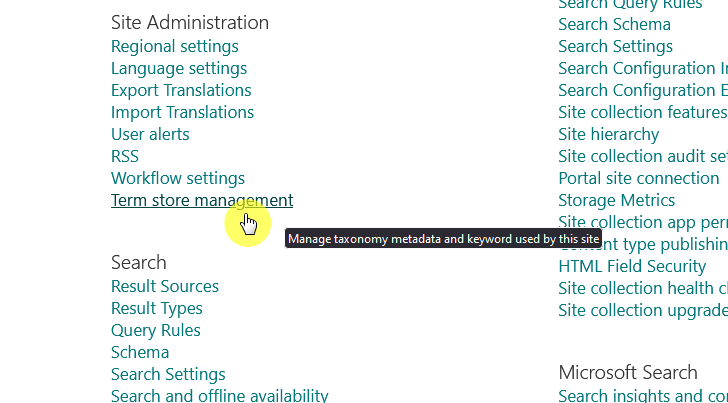
Under Site Administration, click Term store management.
In the tree view on the left, select the site-level term group you wish to share.
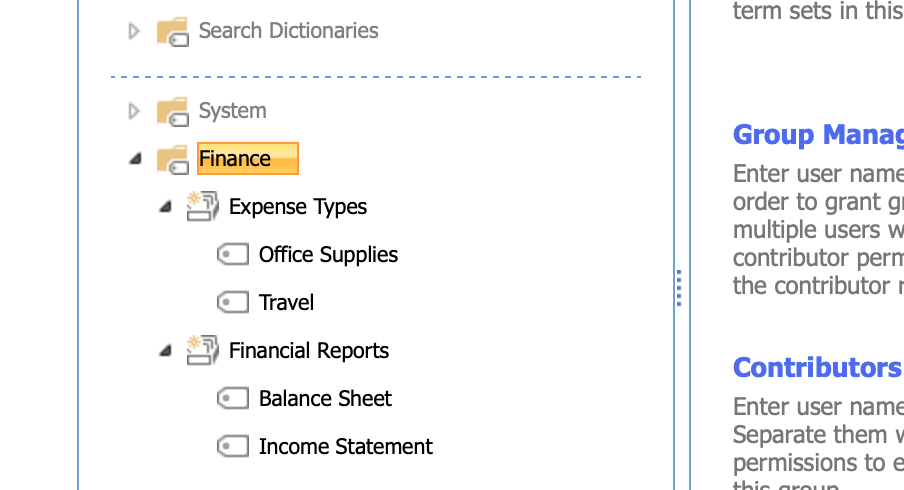
In the main window, find the Site Collection Access section.
Enter the full URLs of the target sites that need access, placing each one on a new line.

Scroll down and click save.
Special note: This method only works for true site-level term groups.
If you don’t see the “Site Collection Access” option, the term group is global, even if you are managing it from your site’s settings.
Once saved, the term sets inside that specific group will be available when you create a managed metadata column in the designated sites.
You should use this method for simple scenarios, like sharing a project’s terms with a few other department sites.
With this, you can quickly share a term group with a few site collections (though it’s not ideal for large-scale needs).
Method 2: Promoting a Site-Level Term Set to Global
Sometimes, a local term set becomes so useful that the whole organization should use it.
This process involves moving the term set from its local group to a global term group.
Go back to the term store management page from the source site, then find the term set you want to promote.
You can click the dropdown arrow beside its name, and select Move Term Set:
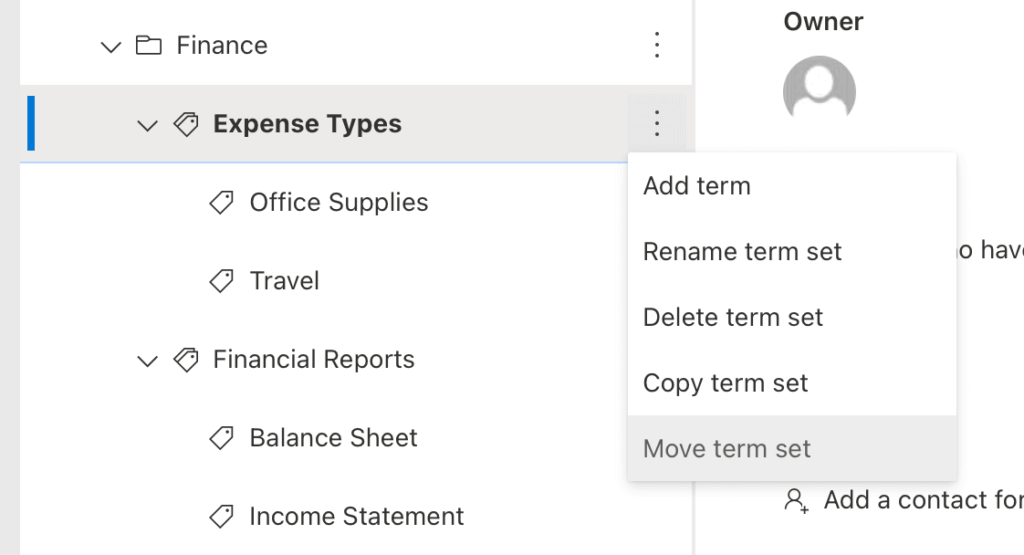
A panel appears showing the full term store hierarchy.
Navigate to the target global term group and select it.
Click OK to confirm, and the term set will now be a global term, managed centrally and visible across all sites.
Promote a term set to an enterprise standard when it proves valuable and gains wider organizational use and support.
Move requires site owner permissions for the source site collection and at least contributor rights on the target global term group.
This often means working with a term store administrator or group manager.
Using the “Hub-and-Spoke” Model
For the best mix of central governance and local flexibility, the “hub-and-spoke” model is the recommended approach.
Instead of sharing a local term set, you create a global term set (hub) and have individual sites (spokes) pull in necessary terms.
What are Pinned and Reused Terms?
This model works by creating linked copies of terms from a central location.
SharePoint gives you two ways to do this, and the difference is important:
- Reuse term: Creates a two-way, editable link
- Pin term: Creates a one-way, read-only link
For the hub-and-spoke model, pinning is the best option because it maintains a single source of truth.
The term can only be changed in the global hub, and that change automatically updates everywhere it’s pinned.
This will make sure local users can’t alter the official metadata.
Building Your Hub-and-Spoke Taxonomy
This approach involves a few key steps to set up correctly.
Here’s a simple breakdown of the process:
- Create the hub: Build a master global term set
- Prepare the spoke: Create a new local term set on a site
- Pin the terms: Link required terms from the hub to the spoke
- Use the new set: Connect a managed metadata column to the new local term set
This allows a central administrator to control the master term list while site owners create relevant, smaller vocabularies.
It’s a scalable way to manage metadata that ensures consistency without sacrificing local relevance.
The result is a clean, tailored experience for users who only see the metadata they need in their lists and library.
Frequently Asked Questions (FAQ)
Here are answers to some common questions about managing and sharing term sets in SharePoint:
Why can’t I edit a term set even though I’m a site owner?
The term store uses a separate permission model. You must be assigned a term store administrator, group manager, or contributor role for the term group to edit its contents.
What happens if the original source term is deleted?
The linked copies in other term sets become disconnected. These terms are moved to a special term set called the orphaned terms term set, and the link is broken.
Why aren’t my changes showing up on other sites immediately?
There can be a delay. A background job syncs changes from the term store to each site collection. It’s normal for this to take some time to reflect across all your sites.
Do you have any questions about managing your SharePoint term sets? Let me know below.
For any business-related queries or concerns, contact me through the contact form. I always reply. 🙂




























