

Table of Contents:
- Why Teams Are Moving Away from Evernote Business
- What to Look for in an Evernote Alternative
- Quick Comparison: Top Evernote Business Alternatives
- The OneNote + SharePoint Combo: A Full Knowledge Management Stack
- Evernote Alternatives: Frequently Asked Questions
- Is OneNote Really as Good as Evernote for Note-Taking?
- Can I Migrate My Existing Evernote Notebooks to OneNote or SharePoint?
- What Happens to My Evernote Tags When You Switch?
- Do I Need SharePoint if I’m Just Replacing Personal Notes, or Is OneNote Enough?
- How Much Does the OneNote + SharePoint Combo Cost if We’re Already on M365?
- Is Notion or Confluence a Better Fit Than Evernote for Teams Not on Microsoft 365?
- Stop Shopping. You Already Have the Best Alternative.
Evernote Business used to be the easy answer. Teams dumped notes there, clipped research, and kept project docs in one place without thinking twice.
That’s changed.
Since the 2023 pricing restructuring, the complaints have piled up:
- Higher costs
- Fewer features
- Persistent bugs
- AI that only works inside Evernote and nowhere else
Teams built their habits around Evernote. Now they’re shopping for the exit, and if you’re on Microsoft 365, the best alternative is already sitting in your tenant.
OneNote and SharePoint together do what Evernote never could:
Governed, searchable, knowledge management at scale. That’s the one I recommend to clients, and I’ll make the case throughout.
Why Teams Are Moving Away from Evernote Business
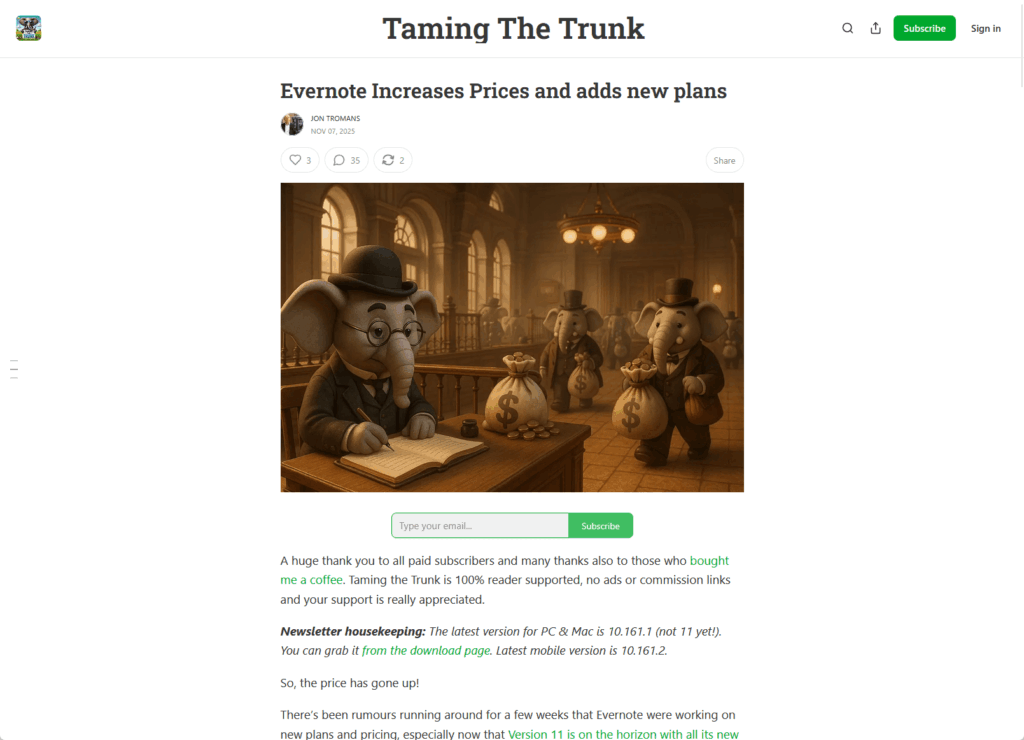
The price is the first thing people mention.
Repeated hikes and plan changes since 2023 have left enterprise customers paying more for a tool that, in their words, got slower and less capable.
Source: https://www.tamingthetrunk.com/p/evernote-increases-prices-and-adds
Then there’s the performance:
- Sync delays
- Recurring bugs
- AI features that stay locked inside Evernote, with no connection to your other business tools and no automated workflows
That combination made Evernote feel stuck while everything else moved forward.
But the deeper problem’s structural. Evernote is a note-taking app at heart, and it was never built to be a knowledge management platform.
That leaves you without the pieces an organization actually needs:
- Real admin controls
- Permissions architecture beyond the basics
- Compliance tooling
- Audit trails
- Retention policies
For a solo user, fine. For an organization governing who sees what, it’s a ceiling you hit fast. And that ceiling costs more than most teams realize:
Knowledge workers spend roughly 30% of their week searching for information across disconnected systems, and large organizations now run an average of 367 separate apps.
When your notes live in one silo and your documents live in another, that’s the bill you pay every single day.
Sign up for exclusive updates, tips, and strategies
What to Look for in an Evernote Alternative
Before you compare tools, get clear on what you actually need. The criteria shift depending on whether you’re replacing personal notes or building enterprise knowledge management.
These are the five I weigh when evaluating any KM platform:
| Criteria | What to ask |
|---|---|
| Permission control | Role-based and group-level access, not just share links? |
| Search capability | Full-text, filtered, and AI-assisted across all content? |
| Admin controls | Provisioning, governance, and audit trails built in? |
| M365 integration | Native, or stitched together with third-party connectors? |
| Compliance/governance | SOC 2, GDPR, and retention policies supported? |
If you just need somewhere for individuals to jot things down, the first three matter less. Document processes a whole company relies on, and all five are non-negotiable.
Quick Comparison: Top Evernote Business Alternatives
Here’s the short version before we dig into each one. Use this to narrow the field, then read the sections that match your shortlist.
| Tool | Best For | M365 Integration | Pricing |
|---|---|---|---|
| Microsoft OneNote | Personal and team note capture | Native | Free with M365 |
| SharePoint | Enterprise knowledge base | Native | Included with M365 Business |
| Notion | Flexible all-in-one workspaces | None (third-party only) | From $10/user/mo (annual) |
| Confluence | Technical and engineering teams | None (third-party only) | From $5.42/user/mo |
| Nuclino | Small teams, lightweight wikis | None (third-party only) | From $6/user/mo (annual) |
| Guru | Sales and customer success enablement | None (third-party only) | Custom |
Pricing and fit vary a lot by team size and use case, so treat this as a starting point. The detail is below.
Microsoft OneNote
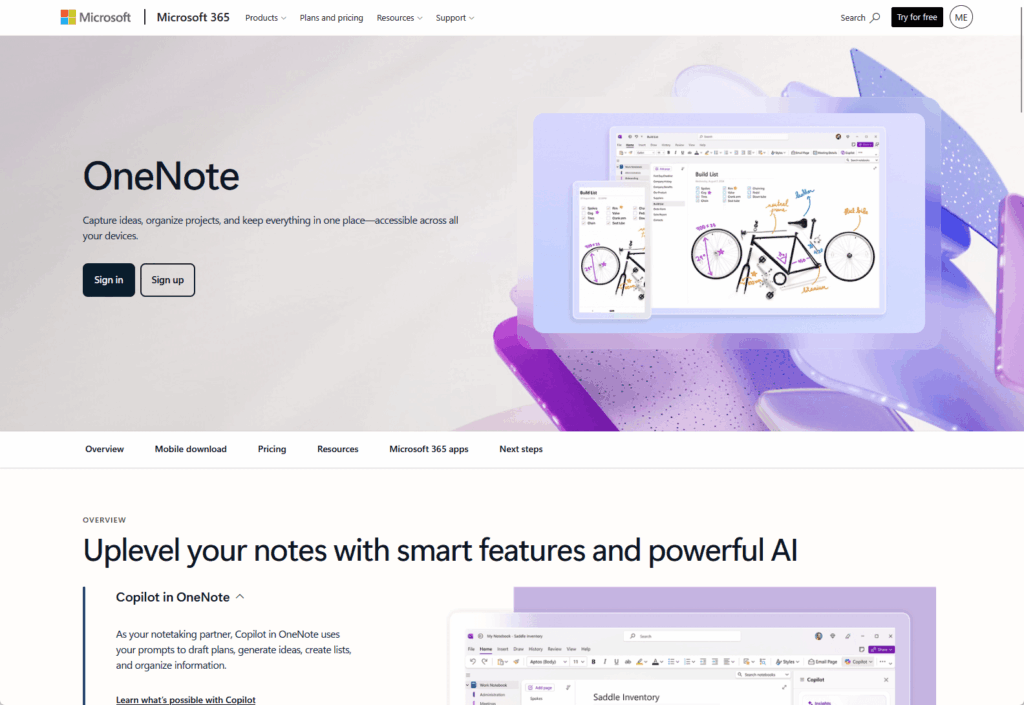
If you want the closest thing to Evernote that you already own, it’s Microsoft OneNote.
It’s a freeform digital notebook that comes free with M365, and it covers the personal and team capture that Evernote filled.
Source: https://www.microsoft.com/en-us/microsoft-365/onenote/digital-note-taking-app
What makes it work is the organizational hierarchy: notebooks hold sections, sections hold pages. Familiar territory if you’re coming from Evernote.
Here’s what stands out:
- Freeform canvas with full handwriting and stylus support
- Native integration with Teams, Outlook, Word, and SharePoint
- Notebooks > sections > pages structure for organizing everything
- Microsoft’s official guidance for moving from Evernote to OneNote
- Real-time co-authoring across your team
The integration is where OneNote pulls ahead.
Here’s what that gets you:
- Embed a notebook directly in a Teams channel
- Pull notes into Outlook
- Store the whole notebook in SharePoint for centralized access, version history, and permission control
That last move is the one I push clients toward.
A OneNote notebook living in SharePoint becomes a managed team asset with version history, centralized access, and permissions built in. It’s not flawless.
Syncing can lag on big notebooks, and the tagging is less robust than what Evernote offered. If tags were your whole workflow, you’ll feel that gap.
Worth watching too: Copilot Notebooks, an emerging M365 capability that pairs OneNote’s structure with AI grounded in your own content. It’s a direction, not something every tenant has yet.
Pick this if you want personal and team note capture that’s free, familiar, and plugs straight into the tools your team already lives in.
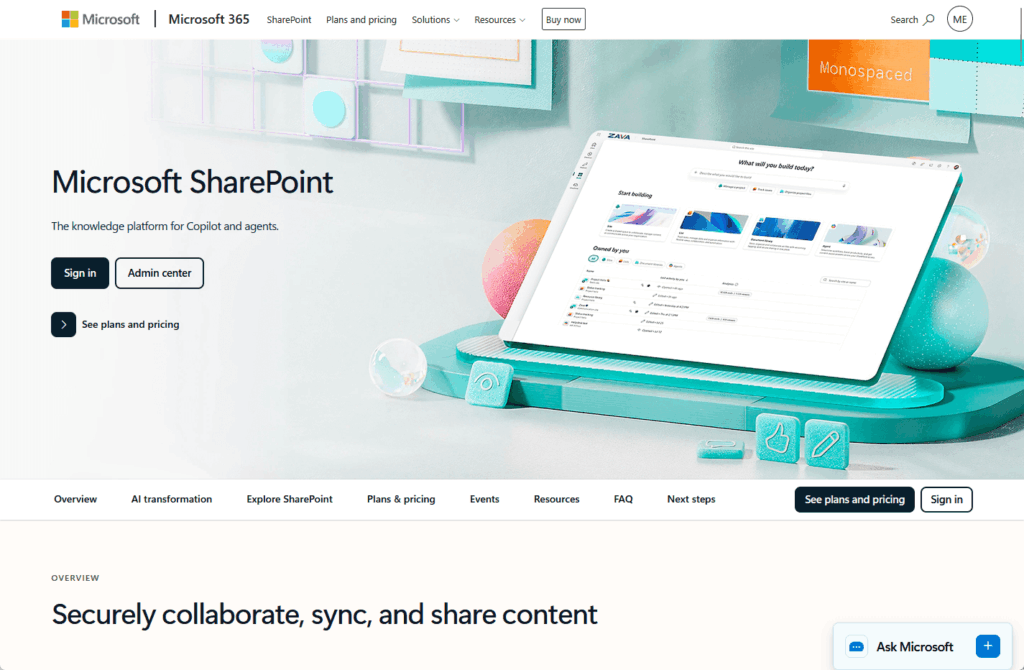
OneNote handles notes. SharePoint handles the thing Evernote never could: a structured, governed, searchable knowledge base for the whole organization.
Source: https://www.microsoft.com/en-us/microsoft-365/sharepoint/collaboration
It’s included with M365 Business plans and already runs under more than 200 million monthly active users.
Real talk: most teams reading this already have it. They just haven’t set it up as a knowledge base.
Here’s what it brings:
- SharePoint Pages for building clean, structured KB articles
- KQL search verticals to scope results (think
filetype:aspx) - Metadata-driven filtering and Audience Targeting for personalization
- Hub sites for parent-child navigation across knowledge domains
- Native governance, audit trails, retention policies, and permissions
Setting it up is more deliberate than spinning up a notebook.
Here’s how I usually approach it:
- Start with a Team site, without an M365 Group, so you get the left-hand navigation
- Build out Pages for each topic
- Layer metadata on top so search can actually filter
- Let Power Automate handle content routing, tagging, and lifecycle management so articles don’t rot
- Use KQL search verticals to make everything genuinely findable instead of a folder maze
Now the honest part. SharePoint’s one of the most widely deployed KM platforms in large enterprises, and it’s also become a byword for failed knowledge management rollouts.

That scares people off, and it shouldn’t. The reason it fails is almost never technical.
In practice, SharePoint KM success is mostly about organizational change, not the technology. Bad rollouts skip the governance and structure, then blame the tool.
Pick this if you need enterprise-grade knowledge management with real permissions and compliance, and you’re willing to set it up properly instead of dumping files in and hoping.
Notion
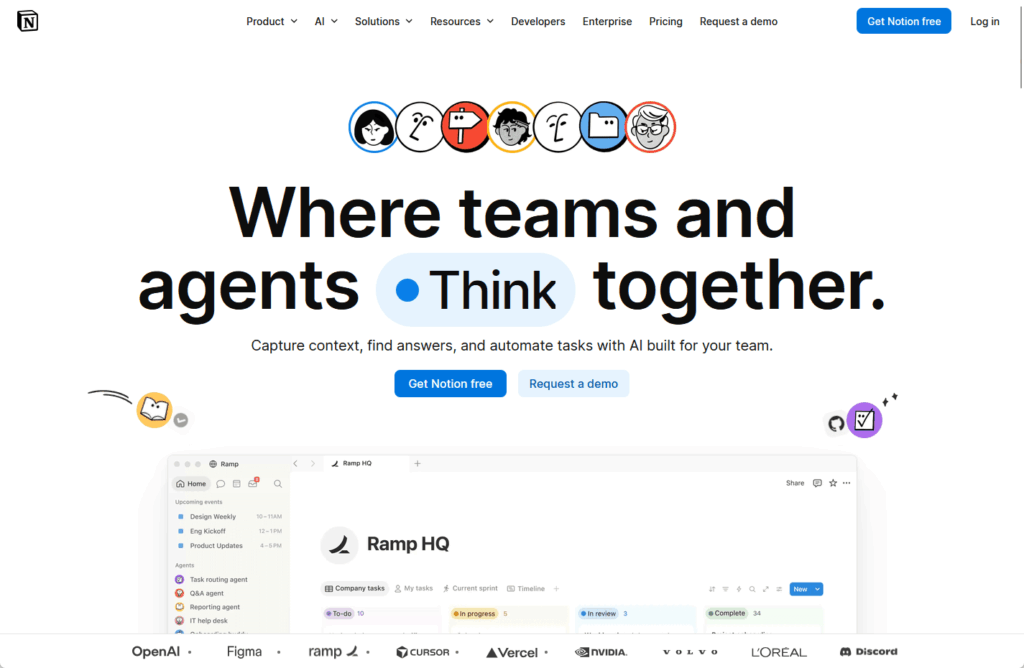
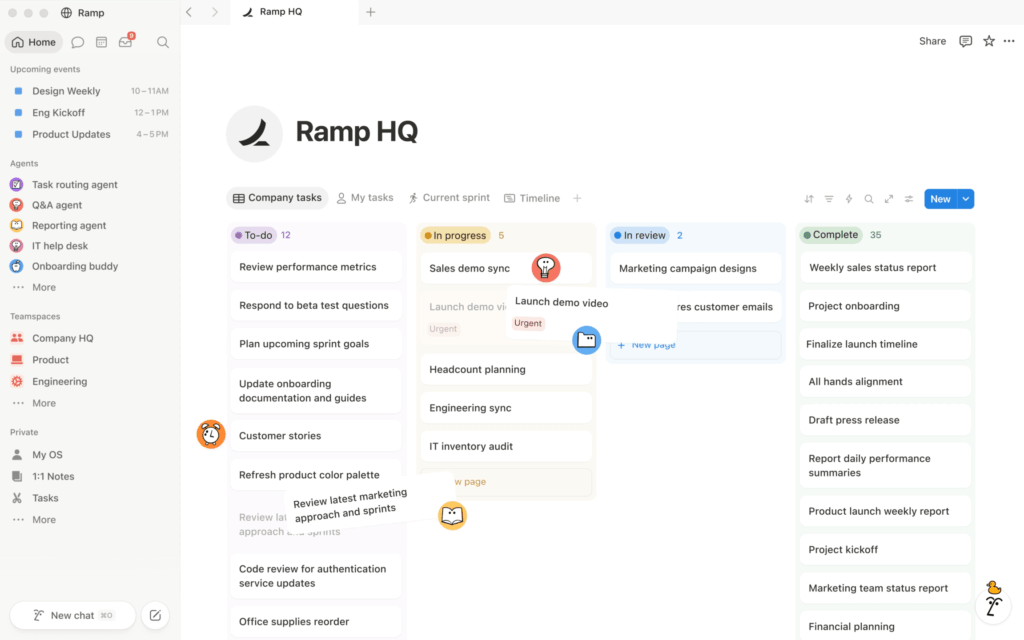
Notion‘s the flexible all-in-one workspace that tech-forward teams reach for. It blends notes, docs, wikis, and databases into one canvas you shape however you want.
Source: https://www.notion.com
That flexibility is the whole pitch, and it’s real. You can model almost any workflow inside it.
What it offers:
- Flexible databases with custom properties and views
- Combined docs, wikis, and project tracking in one place
- Clean, modern editor that people genuinely enjoy
- Templates and a large community library
- Granular page-level sharing
It comes with a learning curve. Notion hands you a blank canvas, and someone must design it before a team can use it well. That setup time is real.
Source: https://www.notion.com/product
It’s also not M365-native. If your stack’s Microsoft, you’re connecting through third-party tools, not native integration. And reliable offline access remains a known weak spot.
Pick this if your team is tech-forward, wants maximum flexibility, and doesn’t mind investing the setup time to make it sing.
Confluence
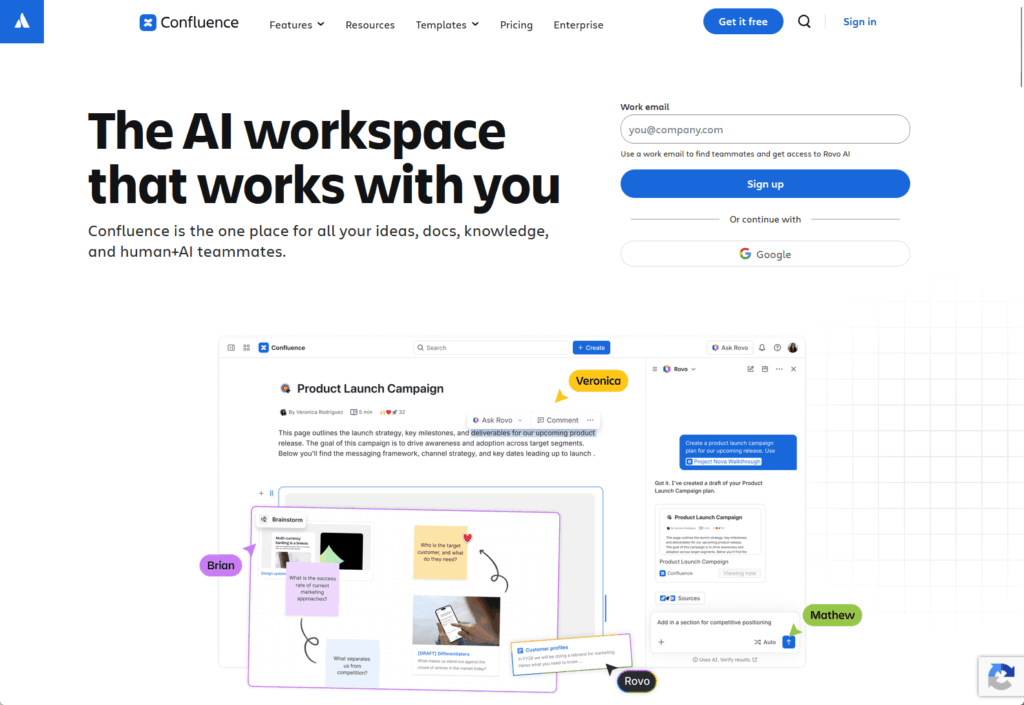
Confluence is Atlassian’s documentation platform, and it’s strongest in technical and engineering environments. If your developers already live in Jira, this is the natural home for their docs.
Source: https://www.atlassian.com/software/confluence
It’s built for structured documentation that scales with a technical team.
The highlights:
- Tight Jira integration for linking docs to issues and projects
- Granular permissions down to the space and page level
- Built-in version control and page history
- Templates for technical specs, runbooks, and meeting notes
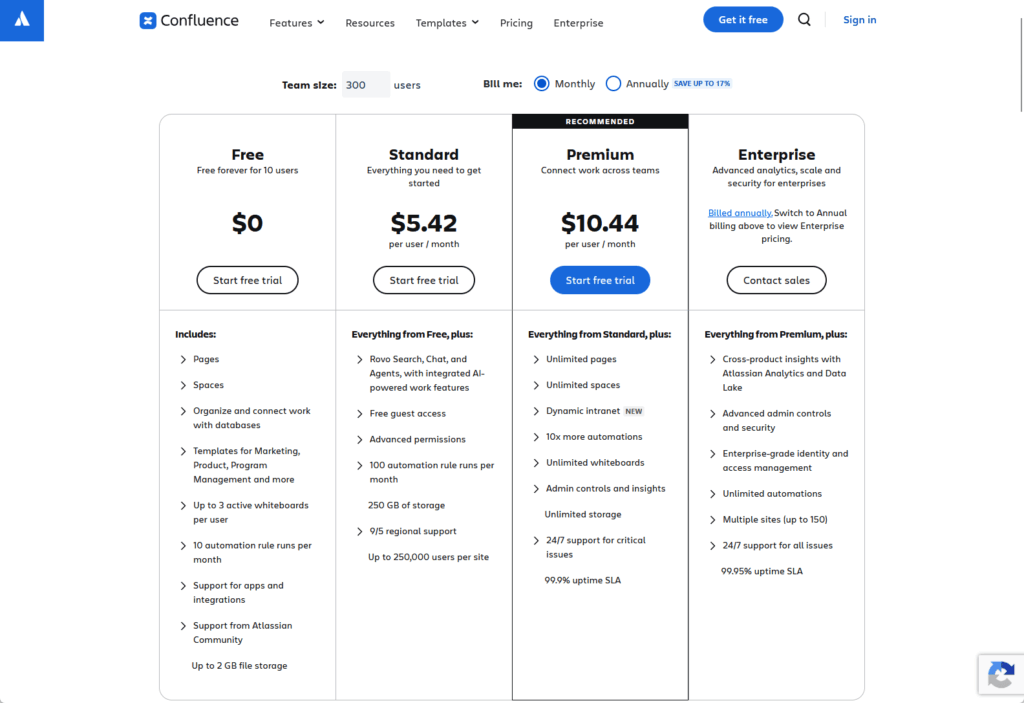
- Pricing from $5.42 per user per month
The Jira connection is the real draw. For engineering teams, having documentation sit right next to the work is hard to beat.
The catch for M365 shops? It’s a separate platform with separate cost and no native Microsoft integration, so you’re paying for another system alongside the one you already own.
Source: https://www.atlassian.com/software/confluence/pricing
Pick this if you’re an engineering-heavy team already invested in the Atlassian ecosystem and Jira is central to how you work.
Nuclino
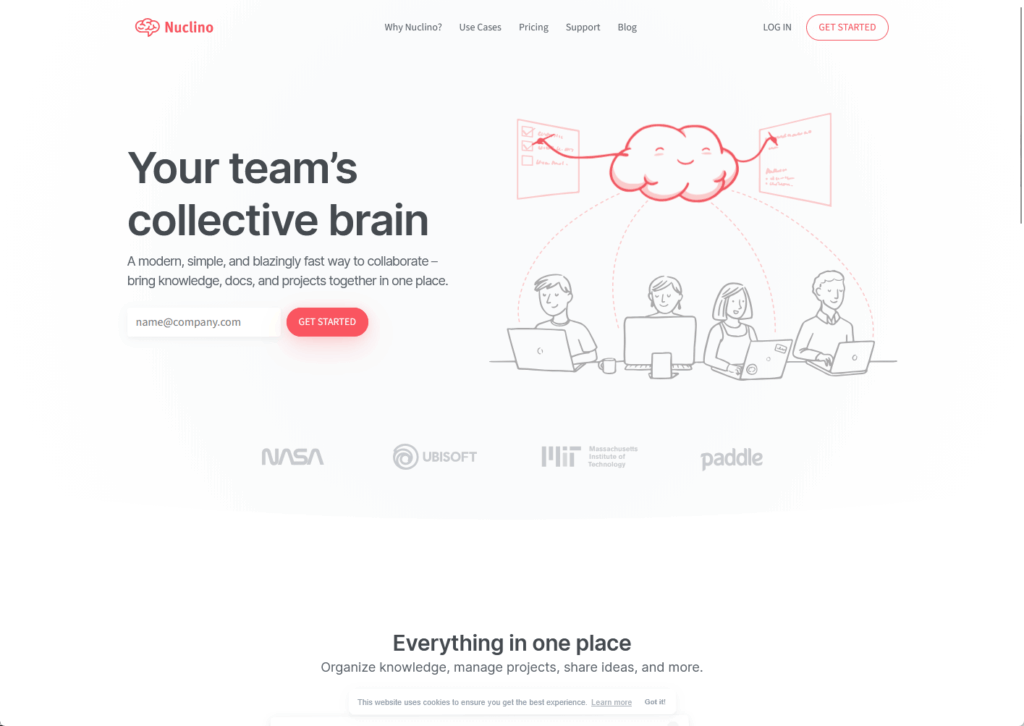
Nuclino‘s the lightweight option. It’s a clean, fast, wiki-style tool for teams that want to document without the overhead of something bigger.
Source: https://www.nuclino.com
Think of it as the anti-Notion: less to configure, less to learn, quicker to start.
What you get:
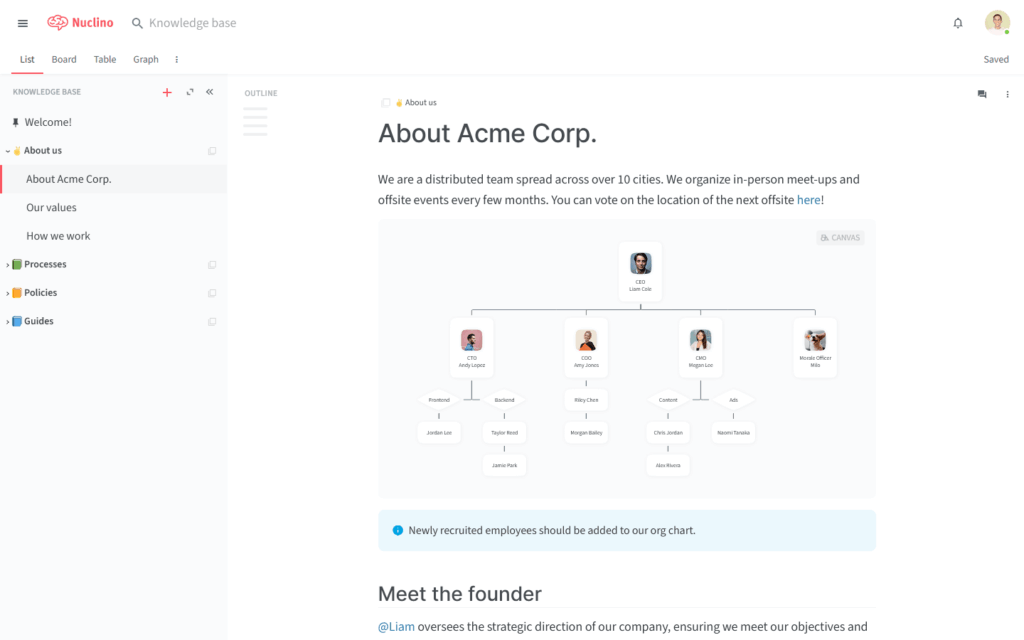
- Clean, distraction-free wiki-style editor
- Fast real-time collaboration
- Minimal admin complexity
- Visual graph and board views for connecting content
- Pricing from $6 per user per month (billed annually)
The appeal is the simplicity. Smaller teams can be up and documenting in an afternoon, with none of the setup tax that heavier tools charge.
Source: https://www.nuclino.com/use-cases/knowledge
That same simplicity is the limit. No enterprise governance, deep permissions, or compliance, and no native M365 tie-in. It’s a focused tool that does one thing well.
Pick this if you’re a small team that wants a clean, no-fuss wiki and doesn’t need enterprise admin controls.
Guru
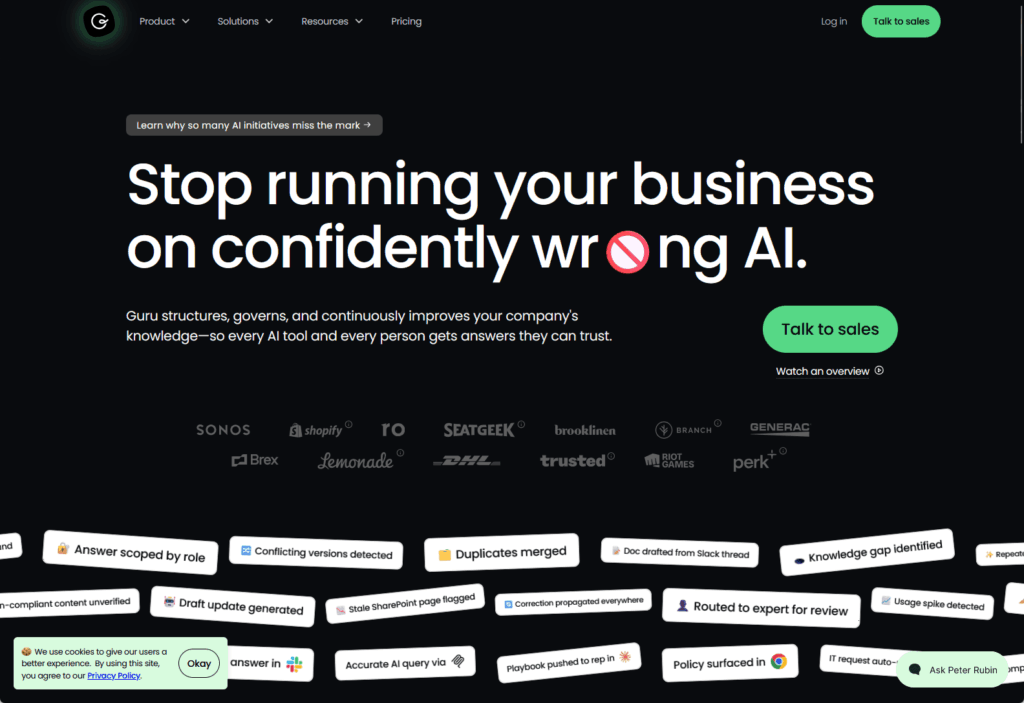
Guru takes a different shape entirely. Instead of pages and notebooks, it’s card-based, and it pushes knowledge to people inside the tools they already use.
It’s aimed squarely at sales enablement and customer success, where reps need the right answer fast without leaving their workflow.
Source: https://www.getguru.com
The standout features:
- Card-based knowledge that surfaces in context
- Proactive AI recommendations inside Slack and the browser
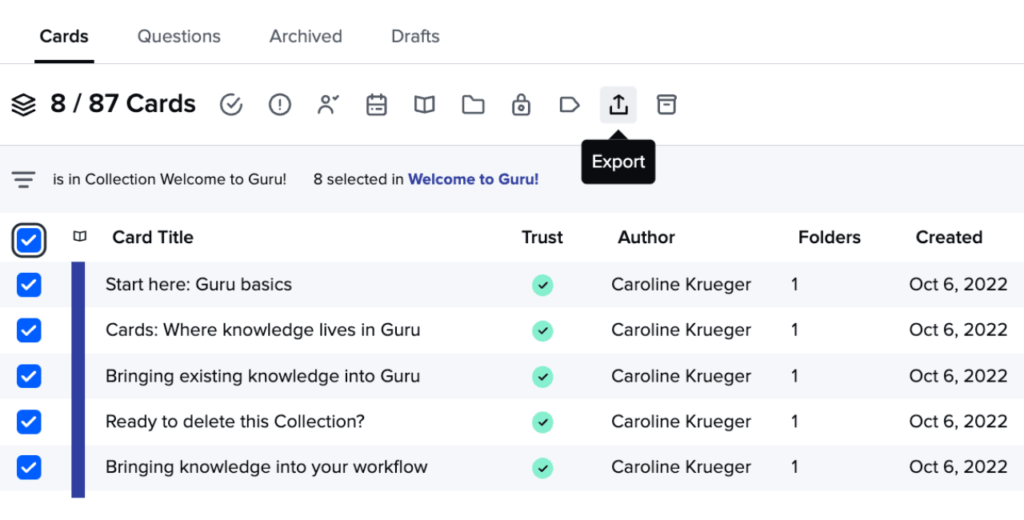
- Trust Scores to flag whether content is current
- Verification workflows with assigned stewards
- Strong browser-extension delivery
The proactive delivery is what sets it apart. Guru surfaces the relevant card while someone’s working, rather than waiting for them to go searching.
Source: https://help.getguru.com/docs/exporting-content-from-guru
Trust Scores are smart in theory, but they only work if you assign stewards to actually verify content. Without that ownership, the scores drift.
And like the others here, there’s no native M365 integration.
Pick this if you run sales or customer success and want verified answers delivered right inside Slack and the browser.
Here’s what I keep telling clients. Picking any single tool off this list solves half the problem.
OneNote plus SharePoint solves the whole thing, and you likely already pay for both.
Think of it as two layers:
- OneNote is the capture layer for personal and team notes
- SharePoint is the structured, governed, searchable knowledge layer underneath
They’re not two separate tools you bolt together. They connect natively.
That connection does two things:
- Store your OneNote notebooks in SharePoint and they instantly gain permissions, version history, and full search coverage.
- Layer in Power Automate to route content, apply tags, and manage the lifecycle so stale articles get flagged instead of quietly rotting in a folder.
That’s the move Evernote could never make. Your notes are now part of a governed knowledge base the whole organization can find and search.
And on top of all of it, M365 Copilot can query across the entire knowledge base, notes and documents alike, grounded in your own content rather than the open web.

This is already the default for most teams. If you’re on Microsoft 365, you’re very likely running Teams, SharePoint, and OneDrive side by side right now.
The pieces are deployed and paid for. I’ve configured this stack dozens of times.
In my experience, the gap’s almost never the technology. It’s that nobody set the structure and governance, so the tools sit there underused.
Evernote Alternatives: Frequently Asked Questions
Is OneNote Really as Good as Evernote for Note-Taking?
For the core stuff (typing notes, clipping web pages, dropping in images, organizing into notebooks) OneNote matches Evernote and then some.
Where it pulls ahead is the free-form canvas.
You can put text and drawings anywhere on the page, not just in a top-to-bottom stack. Handwriting and ink-to-text are genuinely good if you’re on a touch device.
The one honest tradeoff: Evernote’s PDF search and web clipper are more polished out of the box. OneNote closes that gap fast once tuned, and without the per-seat bill.
Yes, though it’s more hands-on than it used to be. Microsoft retired its built-in Evernote importer back in 2022.
The clean approach is a two-step move. Import personal notes into OneNote first, then promote team reference material into SharePoint libraries where governance and search live.
I help clients decide what stays casual in OneNote and what graduates to SharePoint. Dump everything into one formal library and your knowledge base becomes a junk drawer.
What Happens to My Evernote Tags When You Switch?
Here’s the catch. Moving from Evernote doesn’t carry your tags over cleanly, so you can’t lean on them the way you did before.
That sounds worse than it is. OneNote and SharePoint just don’t organize things the way Evernote does.
Instead of tags, you get notebook sections, SharePoint metadata columns, and full-text search that actually indexes the content inside your files.
What I tell clients: don’t try to recreate your old tag system one-for-one. Rebuild around metadata and search, and you’ll find things faster than tags ever let you.
If it’s genuinely just your notes (meeting jottings, personal to-dos, research you don’t need to share) OneNote on its own is plenty. No SharePoint required.
SharePoint earns its keep once other people need to find, use, or be kept out of that content. Shared documentation, permission control, compliance, and org-wide search: that’s SharePoint’s job.
My rule of thumb’s simple: personal and small-team notes live in OneNote. Anything the wider organization relies on belongs in SharePoint.
Nothing extra. Both are baked into the Microsoft 365 plans most businesses already pay for, so there’s no new license to buy and no per-seat Evernote bill.
The real cost isn’t software. It’s the setup: structuring libraries, setting permissions, building metadata, and getting search to actually work.
That’s the configuration work I do for teams, and it’s a one-time investment against a subscription you’d otherwise keep renewing forever.
Is Notion or Confluence a Better Fit Than Evernote for Teams Not on Microsoft 365?
If you’re not in the Microsoft ecosystem, both beat Evernote Business for team documentation, and the right pick comes down to how you work:
- Notion suits teams that want flexible, all-in-one workspaces with databases, wikis, and notes blended together.
- Confluence suits engineering-heavy or process-driven teams, especially anyone already living in Jira and the Atlassian stack.
Real talk: if you end up on Microsoft 365 later for email, Teams, or Office, you’ll be paying for a documentation tool you no longer need.
Worth factoring in before you commit.
Stop Shopping. You Already Have the Best Alternative.
If you’re on Microsoft 365, the search is probably over before it started.
OneNote and SharePoint together cover what Evernote couldn’t, all in one stack you already own:
- Notes and documentation
- Permissions and access control
- Full-text search across everything
- Compliance and governance
The real work is configuring what’s already in your tenant so it actually functions as a knowledge base.
That’s the part teams get wrong, and it’s the part I fix. Get the structure and governance right, and the M365 stack outperforms anything you’d migrate to.
Stuck on Evernote Business and tired of paying more for less, but unsure how to turn your M365 tenant into a real knowledge base?
I help IT teams stand up OneNote and SharePoint as a governed, searchable knowledge management stack. Reach out and let’s talk.




























