

Table of Contents:
Last Updated on September 19, 2025
Have some videos you want to download?
In this guide, I will show you how to download videos from SharePoint Online, along with some alternatives.
Let’s get started.
Fortunately, yes, you can download videos from SharePoint, although it depends on permissions and file access settings.
SharePoint allows users to download files, including videos, if the organization has enabled downloading for their account.
Here are some key points to keep in mind:
- You need appropriate permissions to access and download the file.
- Videos stored in SharePoint can be downloaded in their original format, provided they’re not restricted.
- Some older browsers may not fully support SharePoint’s download options.
For the first point, take note that without appropriate permissions, the download option won’t even appear.
That’s why if you encounter issues, you need to double-check your permissions or consult with your administrator.
Sign up for exclusive updates, tips, and strategies
Downloading videos from SharePoint Online is straightforward if you have the right permissions.
All you have to do is navigate towards the folder or library where the video is stored.
Then right-click on the video or press the ellipsis button, and then select “Download“:
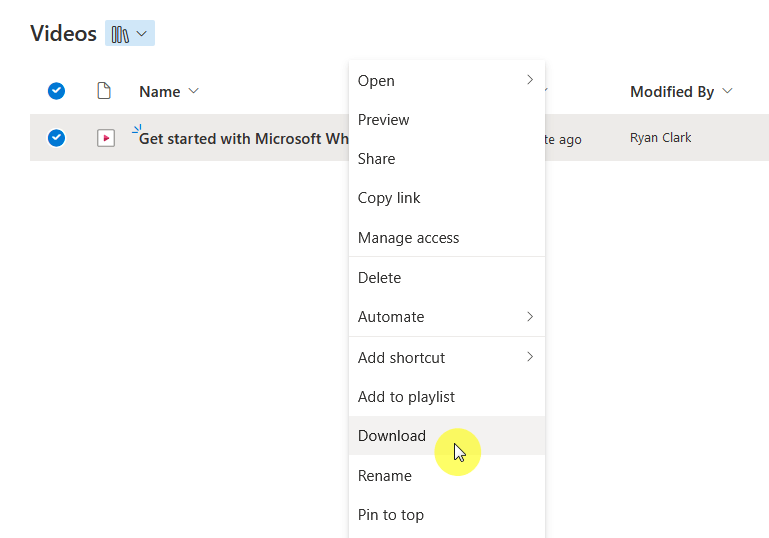
After that, the file will begin saving to your device (or depending on your browser settings, lets you choose the save location).
Now, if you don’t see the “Download” option, it might not be allowed due to organization policies.
In this case, contact your SharePoint administrator if you really need to download the video to your device.
Alternative Methods
Some other methods you can try include:
OneDrive Sync
As you might know, OneDrive Sync is a convenient alternative for downloading videos from SharePoint.
By syncing your SharePoint library with OneDrive, you can access all the files it contains directly on your device.
For that, you will see a “Sync” button at the top of the page in the document library:
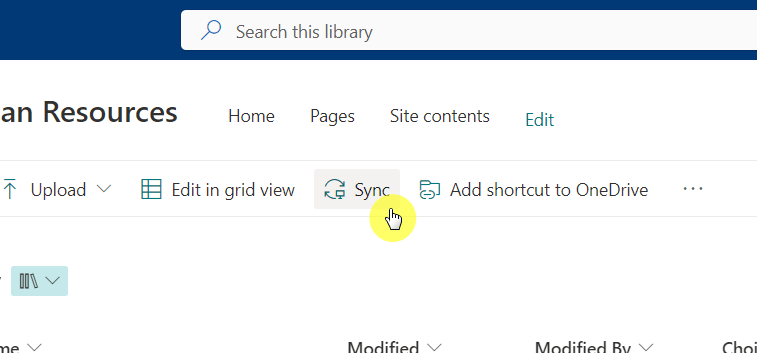
After that, you will need to install the OneDrive client on your device, which will then sync the library or folder to your device.
Once done, the library or folder will then appear in your File Explorer and you can browse through the files.
This method is great for accessing multiple files offline, and any updates made to the library will automatically sync.
The SharePoint mobile app is another handy way to download videos for offline access, especially on the go.
Simply browse through the library to find the video, then find the option to “Share” the video:
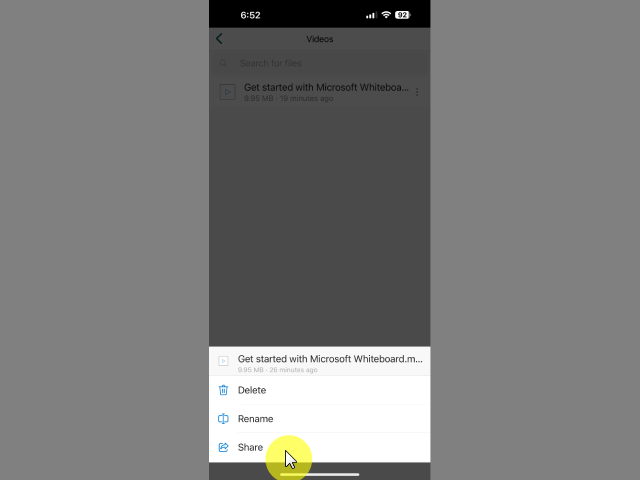
After that, you will see a bunch of options to share the video.
Find the option to save the video to your mobile device (in iPhones, it’s called “Save to Files”):
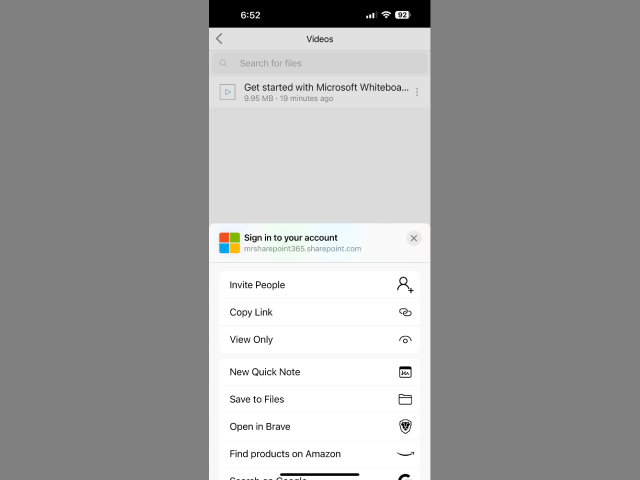
Keep in mind that not all organizations enable downloads through the mobile app.
If downloading isn’t an option, try saving the video link for future access or consult with your administrator.
Special Considerations
When downloading videos from SharePoint, there are a few important considerations to keep in mind.
All these can help you avoid common issues:
- Large videos can take up significant space and may take longer to download.
- You will need proper permissions to access and download files.
- Some companies restrict downloading to protect sensitive data.
- Use an updated browser to avoid errors or missing options.
The longer the video is, the larger it will be, so make sure you have enough storage space in your device.
Lastly, respect any restrictions your organization has in place to keep files secure.
Do you have any questions about downloading videos from SharePoint Online? Let me know below.
For any business-related queries or concerns, contact me through the contact form. I always reply. 🙂




























